
Constant display flickering on a laptop can stem from graphics drivers, refresh rates, display panel power-saving features, or the cable connecting the motherboard to the screen. Each cause requires its own fix, so an accurate diagnosis is essential before you reinstall Windows or take the machine in for repair. This guide brings together troubleshooting steps from Microsoft, Intel, Dell, and Lenovo support documentation to resolve screen flickering, along with an explanation of Panel Self Refresh - a mode where the display panel refreshes images on its own during static content to save power.
Log When Screen Flickering Occurs to Narrow Down the Cause
Before adjusting any settings, note the exact circumstances under which the issue occurs. Microsoft's Surface support documentation describes flickering as a noticeable fluctuation in brightness, which may stem from display settings, hardware, or a refresh rate that is out of sync with the graphics card. These three root causes exhibit different symptoms, so keeping a brief log of the timing, active applications, and power status will significantly cut down the time it takes to diagnose screen flickering.
Questions worth answering include: Did the issue start after a Windows or driver update? Does it happen only when unplugged from the charger? Does it appear solely at low brightness levels, or does it change as you open and close the lid? Screen flickering that begins immediately after an update typically points to a driver. Flickering on battery power suggests power-saving features are intervening. On the other hand, flickering tied to the lid angle is a mechanical symptom related to the display cable or the hinge assembly.
You should also test with an external monitor if one is available. Intel recommends testing each display individually, swapping video cables, and avoiding adapters when isolating the fault. If the external display remains steady while the built-in display panel continues to flicker, suspicion centers on the laptop's display panel or display cable. If both screens exhibit the exact same issue, the culprit is most likely a driver, an application, or the graphics chip. That result determines whether your next troubleshooting step focuses on software or hardware.
Reset, Roll Back, or Clean Install Graphics Drivers According to Microsoft
A quick step Microsoft outlines in its Troubleshoot screen flickering in Windows guide is pressing Windows + Ctrl + Shift + B to restart the graphics driver; if that does not help, restart the laptop. Next, open Task Manager using Ctrl + Alt + Delete, or Ctrl + Shift + Esc if the window does not appear. If Task Manager flickers along with everything else, a display driver is usually the cause. If Task Manager remains steady while the background behind it flickers, an incompatible application is likely causing the screen flickering.
| Action | When to Use | How to Do It |
|---|---|---|
| Reset graphics driver | Sudden flickering with no clear cause | Press Windows + Ctrl + Shift + B; if it persists, restart the laptop |
| Roll Back Driver | The issue started right after Windows Update changed the driver | Device Manager, Display adapters, Properties, Driver tab, select Roll Back Driver |
| Update driver | The current driver is an outdated version | Select Update driver or download the latest version from the laptop manufacturer's support site |
| Uninstall Device | Neither updating nor rolling back has worked | Check "Attempt to remove the driver for this device," then restart so Windows reinstalls it |
| Troubleshoot applications | Task Manager remains steady while the background continues to flicker | Update applications, uninstall suspect apps one by one, and test again |
If Windows Update recently modified the device, Microsoft advises rolling back the driver first; otherwise, update or uninstall it. A grayed-out Roll Back Driver button means Windows no longer has an earlier version to restore. These actions require administrator privileges. For laptops, Intel recommends prioritizing drivers from the laptop manufacturer's support page before clean-installing a generic release, as manufacturers often customize drivers for specific display panels and configurations across their product lines.
When screen flickering is too severe to navigate normally, you can boot into Safe Mode and carry out the steps above. Application-related issues are handled by updating, uninstalling, and reinstalling from the Microsoft Store or the developer's website. If you have not identified the problematic application, Microsoft suggests uninstalling suspect apps one by one, restarting after each removal until the flickering stops completely.
Refresh Rate and Dynamic Refresh Rate on Windows 11
Refresh rate refers to the number of times a screen updates its image every second; for example, a 60 Hz display panel refreshes 60 times per second. According to Microsoft, flickering can occur when the refresh rate falls out of sync with the graphics card. Intel also lists lowering the refresh rate in Intel Graphics Command Center or under Advanced display in Windows settings as a troubleshooting step for screen flickering on laptops powered by Intel graphics.
| Scenario | Refresh Rate | Source |
|---|---|---|
| Example of a 60 Hz display panel, updating the image 60 times per second | 60 Hz | Microsoft Support |
| Dynamic mode when reading emails or typing documents | 60 Hz | Microsoft DirectX Blog |
| Dynamic mode when writing with a pen or scrolling in Office | 120 Hz | Microsoft DirectX Blog |
| Minimum display panel spec required to enable DRR, along with VRR support | 120 Hz | Microsoft Support |
Dynamic Refresh Rate, or DRR, is a Windows 11 feature that automatically adjusts the refresh rate depending on active tasks. According to the Microsoft DirectX blog, Dynamic mode runs at 60 Hz when typing documents or reading email, and steps up to 120 Hz when inking with a pen or scrolling. The feature can only be enabled if the display panel supports VRR, reaches at least 120 Hz, and the graphics driver complies with the WDDM 3.0 standard with DRR support.
Switching between these two refresh rates helps extend battery life. If screen flickering only began after enabling Dynamic mode, a simple test is to navigate to Settings, System, Display, Advanced display, disable Dynamic refresh rate or select a fixed value, and monitor the screen for a few hours. Microsoft's refresh rate guidance also notes that DRR can cap the maximum refresh rate in games not designed for VRR, making disabling the feature a sensible step if frame rates are locked low.
Panel Self Refresh Saves Power but May Cause Flickering
Panel Self Refresh, or PSR, is a power-saving feature that allows the display panel to refresh images independently, according to Intel. This feature is available only over eDP 1.3 connections, the interface standard linking the motherboard to a laptop's built-in screen. At its core, the mechanism reduces the volume of continuous data transmission when on-screen frames remain static, helping the system preserve battery life.
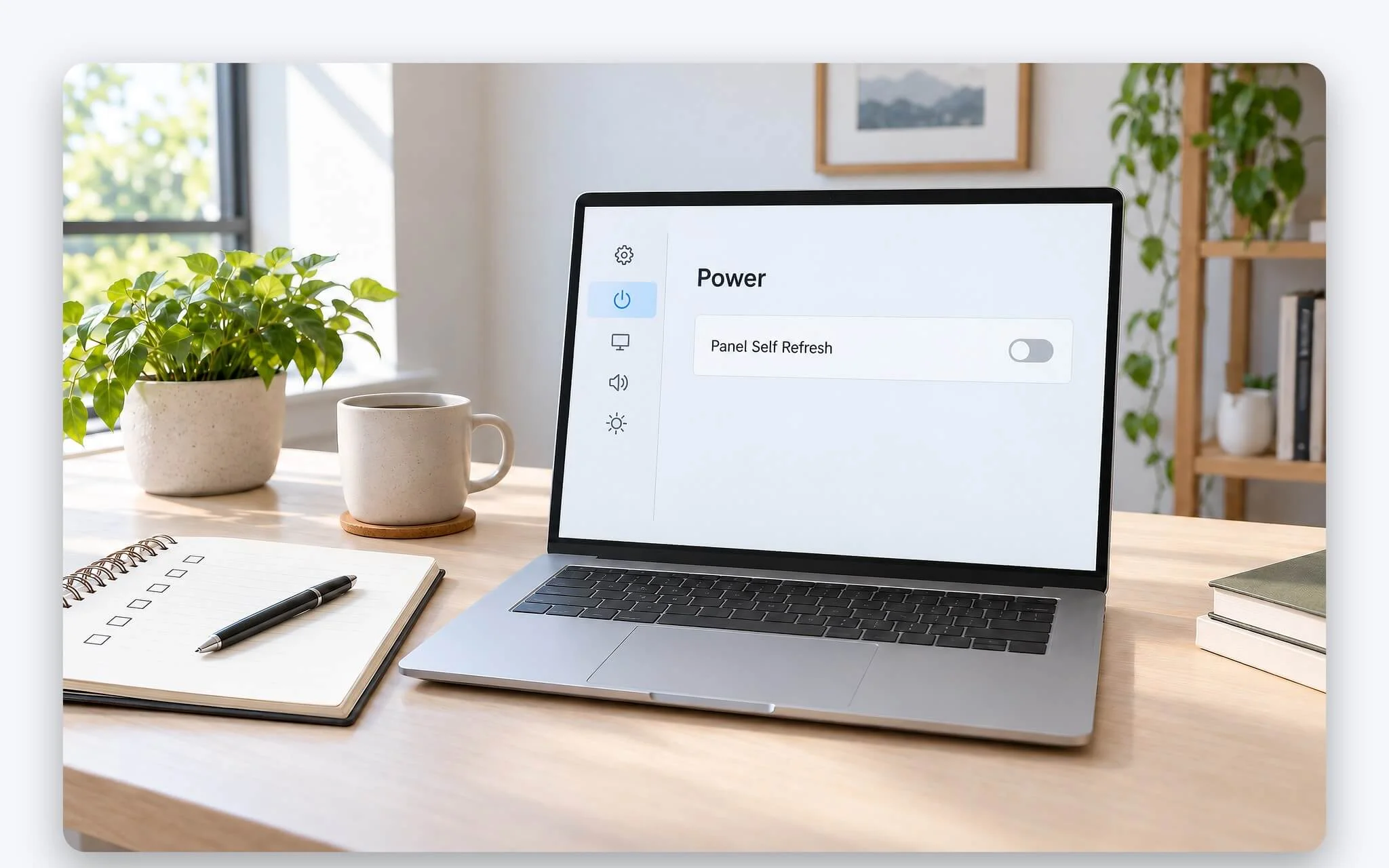
In its troubleshooting documentation for Intel graphics, Intel recommends disabling Panel Self Refresh on laptops as a fix for screen flickering. To do this, open Intel Graphics Command Center, select System in the left column, go to the Power tab, and locate Panel Self Refresh to toggle it on or off. Microsoft's Surface documentation outlines a similar process: under System, Power, turn off Display Power Savings first, and if the issue persists, disable Panel Self Refresh as well.
Lenovo previously published support documentation for several gaming laptop models experiencing flickering after upgrading to Windows 10, outlining a troubleshooting order of updating the BIOS, updating the Intel graphics driver, and then disabling Panel Self Refresh. Before updating firmware, you should read Updating Laptop BIOS: When to Do It and How to Avoid Bricking Your Machine to prepare adequate power and verify the correct BIOS version for your laptop model. Microsoft advises keeping default settings if battery life is your priority, so disabling Panel Self Refresh makes sense only once you have confirmed the feature is causing the issue.
Suspect the Display Cable When Flickering Corresponds to Lid Angle
The display cable is the signal wiring running from the motherboard, through the hinge area, and up into the display panel. If your screen flickers, shows lines, or loses its backlight when you adjust the lid opening angle, then stabilizes at a different angle, these signs point toward a mechanical connection fault. Drivers and Windows settings do not change with the lid angle, so this type of flickering can rarely be resolved by reinstalling software.
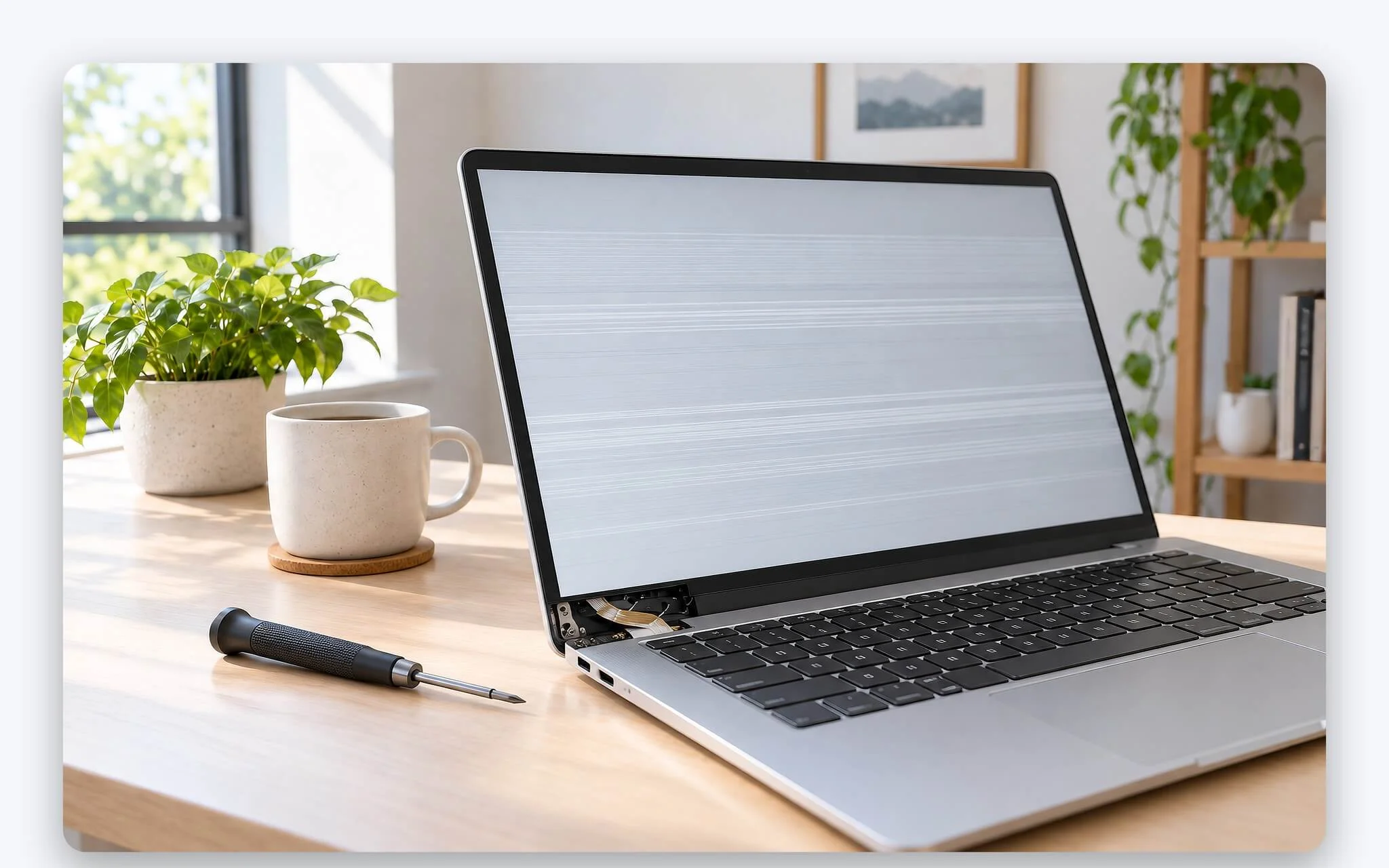
To confirm, check for the issue outside of the Windows environment. Intel recommends seeing whether the glitch occurs in the BIOS; if it does, laptop owners should contact the manufacturer. Dell provides an LCD BIST diagnostic test: power the laptop down completely, hold down the D key, and press the power button, prompting the screen to cycle through five solid colors: black, white, red, green, and blue. If errors appear during this test, the display panel or display cable needs inspection by a technician.
For Surface devices, Microsoft instructs users to shut down the device, wait 10 seconds, hold the volume up button, and press the power button to enter UEFI. If the display looks normal in UEFI, the issue is typically software-related, whereas flickering at this level points toward hardware. Once you have isolated the problem to the display cable or the display panel, record a video of the behavior, note the lid angle that triggers the fault, and take the laptop to an authorized warranty service center, avoiding attempting to disassemble the hinge yourself and risking further damage to the display cable.
Low Brightness, PWM, and Adaptive Brightness Differ From Flickering Issues
Not every flicker indicates a malfunction. According to Microsoft's Surface documentation, Windows can automatically adjust brightness and contrast based on displayed content, so switching from a white background page to a dark video can easily be mistaken for screen flickering. Plugging in the charger temporarily disables this behavior, while on Windows 11, you can turn off "Change brightness based on content" in Settings, System, Display, Brightness.
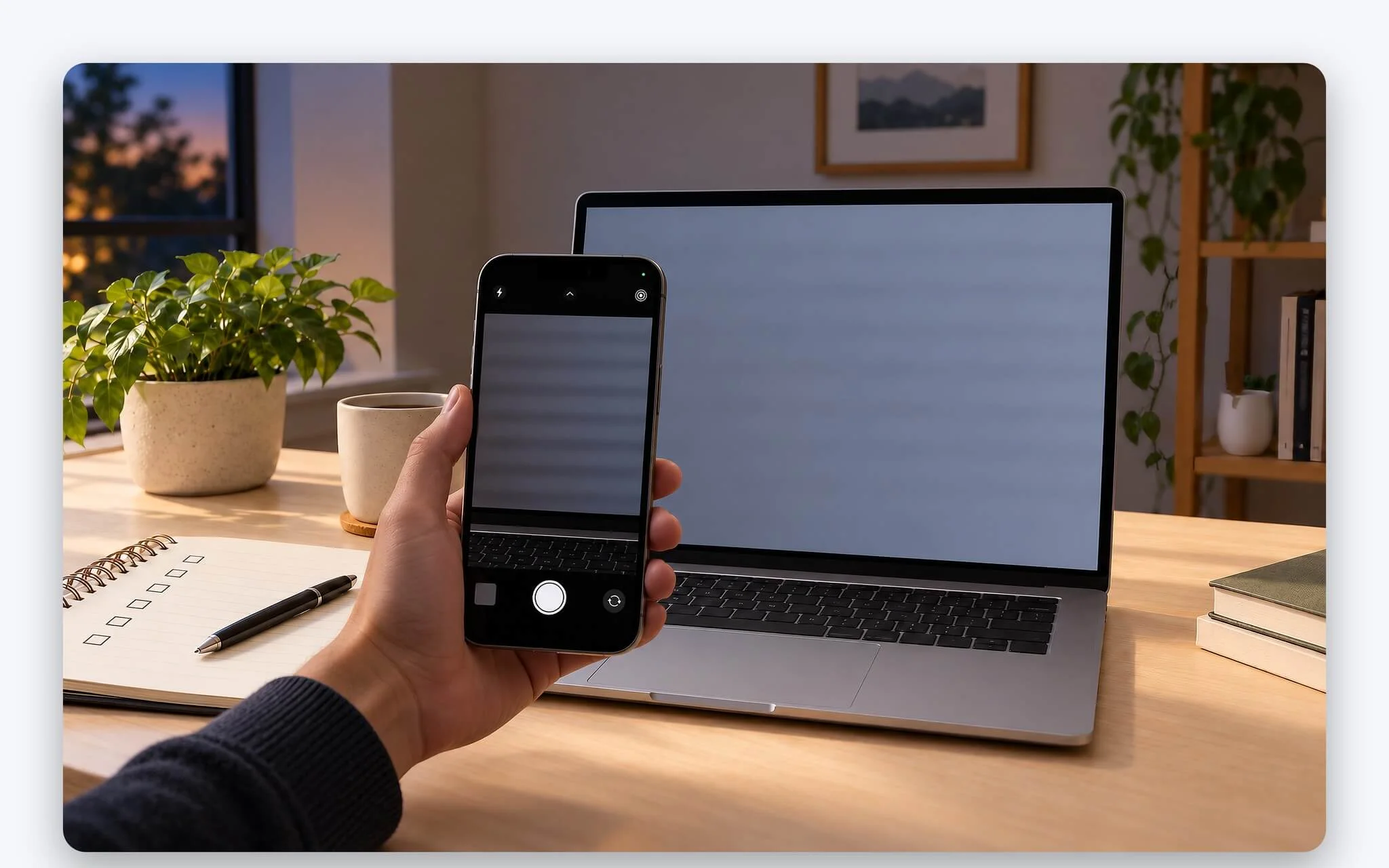
Another type of flicker stems from pulse-width modulation (PWM) brightness control, which rapidly cycles the backlight on and off. Notebookcheck explains that this phenomenon is more noticeable when lowering brightness, and once documented a laptop model flickering at 362 Hz at brightness levels of 10% or below. This is a design characteristic of the display panel rather than a driver or display cable issue, so updating your software will not change the outcome. Sensitive users may experience eye strain during prolonged use at low brightness.
Power modes also influence display behavior. Surface documentation recommends applying the options under Power & battery, Energy recommendations, and then setting Power mode to Better performance or Best performance when troubleshooting screen flickering. If the issue occurs only on battery power and disappears when plugged in, the cause typically stems from power-saving features such as adaptive brightness, Display Power Savings, or PSR, rather than hardware failure.
Frequently Asked Questions (FAQ)
How Should You Handle Screen Flickering After a Windows Update?
Microsoft recommends rolling back the driver first if Windows Update recently modified the device: open Device Manager, Display adapters, Properties, the Driver tab, and select Roll Back Driver. If this button is grayed out, update the driver from the laptop manufacturer's support page or uninstall the device so Windows can automatically reinstall it.
Does Disabling Panel Self Refresh Reduce Battery Life?
It may, as Intel describes it as a power-saving feature, and Microsoft advises keeping the default setting when prioritizing battery life. You should disable it only after testing and confirming that this feature causes flickering, while prioritizing a driver update first.
How Can You Tell if the Issue Lies in the Display Cable or the Panel?
Home testing makes it difficult to isolate these two components. If symptoms change with the lid angle, the problem likely points to the display cable or hinge; if glitches appear consistently in the BIOS or the LCD BIST test, a technician should inspect and test the system before deciding to replace parts.
Is It a Defect if the Screen Only Flickers at Low Brightness?
It is usually not a defect. Many display panels control brightness using PWM, making flicker more noticeable at lower brightness levels. This is a design characteristic; if your eyes are sensitive, you can increase screen brightness and dim ambient lighting rather than reinstalling drivers.