

Virtual Machines (VMs) allow users to run a different operating system within an isolated environment. Due to this inherent isolation, users cannot directly access files on the host machine. Consequently, when using VMware or VirtualBox, transferring files back and forth with the physical computer requires a few extra configuration steps.
Copying files from a VM to a host, or vice versa, is a common pain point for VMware users. While it may seem complicated, moving files from a VM to a host is actually much simpler than expected, and the process does not require many complex steps.
How to Copy Files from a Virtual Machine to a Host Machine
A virtual machine is a software-based environment that simulates the hardware necessary to install an operating system (OS). In other words, it allows you to install a new operating system on top of your existing one, functioning much like an application.
There are several ways to share data between the host and the guest operating system running in a VM, including:
- Drag and Drop (also known as Copy and Paste)
- USB drives
- Shared Folders
Each method is suited to specific types of data and use cases. For example, copy and paste is the best way to share text and small files, such as copying code from a browser on the host to a terminal in the guest OS.
Many users are unsure how to transfer files from VirtualBox to a host, or even if they know how, they may be hesitant due to security concerns or complex configuration requirements. However, there are several methods to copy files on both VMware and VirtualBox-specifically Oracle VirtualBox and VMware Workstation Pro.
1. Drag and Drop and Shared Clipboard
The simplest way to copy files between a host and a VMware virtual machine is to use the shared clipboard and drag-and-drop features. This feature allows you to use a common clipboard, making it easy to copy/paste text, images, and files between the two devices.
This method is best suited for small files. You can also share text strings, URLs, and similar content. However, for large files, you should use other methods.
How to transfer files from VirtualBox to a host using the Shared Clipboard option
To set up the shared clipboard and drag-and-drop features in Oracle VirtualBox, follow these simple steps:
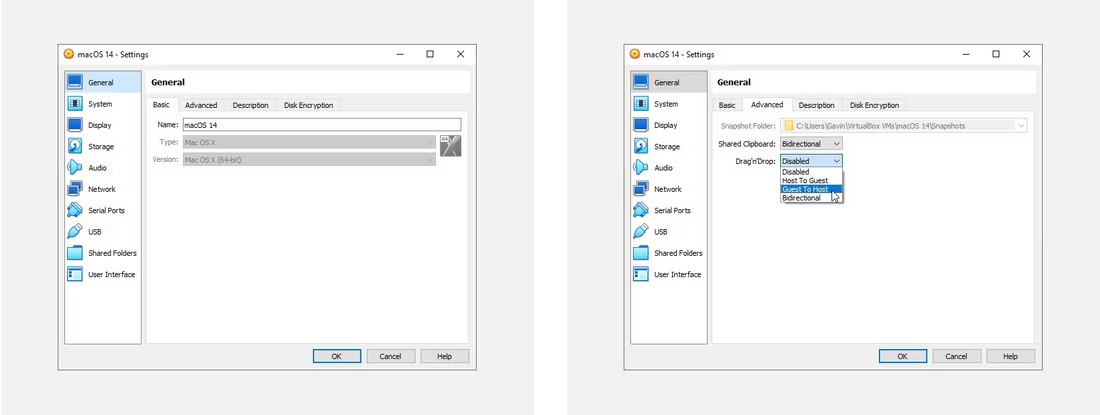
- Right-click the VM you want to configure and select "Settings".
- In the pop-up window, select "General" and navigate to the "Advanced" tab.
- Here, you will see two dropdown menus: "Shared Clipboard" and "Drag'n'Drop".
- You can choose to share from the host to the guest ("Host to Guest"), from the guest to the host ("Guest to Host"), or both ways ("Bidirectional"). Additionally, the "Disabled" option will completely disable file sharing.
To enable two-way file sharing, select "Bidirectional" in both dropdown menus.
How to copy files into VMware Workstation Pro using Drag and Drop
Similar to VirtualBox, VMware also allows you to set up a shared clipboard and enable drag-and-drop between the host and the VMware virtual machine. To do this, you may need to install VMware Tools, which provides additional functionality to the VM.
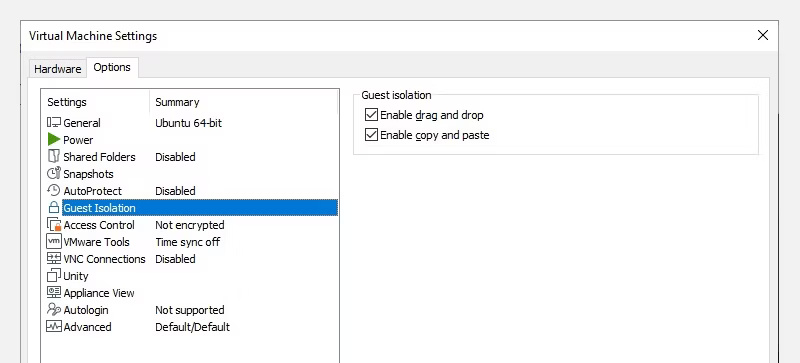
To install VMware Tools and activate shared clipboard and drag-and-drop:
- Install VMware Tools: While VMware Workstation Pro is running, go to the VM > Install VMware Tools menu. Installation instructions will appear if you haven't downloaded VMware Tools yet.
- Activate shared clipboard and drag-and-drop:
- Go to the VM > Settings > Options menu.
- Select the Guest Isolation tab.
- Check the boxes for Enable copy and paste and Enable drag and drop.
- Confirm by clicking OK.
Once these steps are complete, you will be able to easily share the clipboard and drag and drop content between your host and the VMware virtual machine.
2. Copying files to a VM using a USB drive
Using a USB drive (such as a portable hard drive or SSD) to transfer data between two physical computers is a long-standing traditional method. While not always the most modern solution, USB drives are still highly effective for transferring files between a host and a VM.
Due to the compact nature of USB drives, this is an efficient method for transferring large files from a physical device to a virtual machine.
How to transfer files to VirtualBox from a USB drive
To use a USB device in VirtualBox, you must enable USB access. This requires installing the VirtualBox Extension Pack.
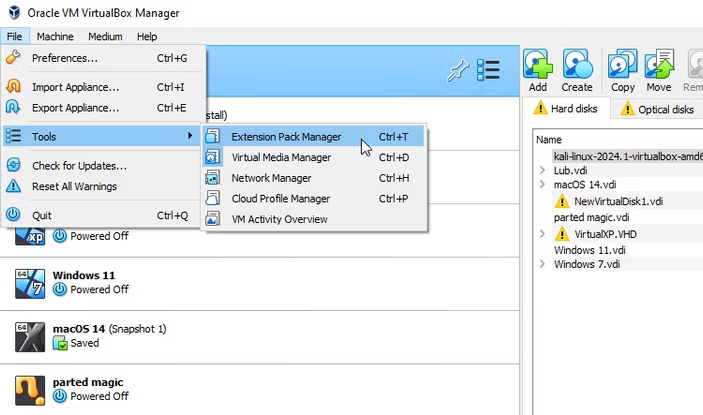
After downloading the Extension Pack:
- Plug in the USB device you wish to use.
- Launch VirtualBox.
- Go to File > Tools > Extension Pack Manager.
- Browse to the downloaded Extension Pack file, click "Open," and confirm the installation when prompted.
- Follow the on-screen instructions to complete the installation.
- Verify that the USB controller is enabled under Settings > USB.
- Right-click the VM you want to use and select Settings > USB.
- Click the plus (+) icon and select your USB device.
- Repeat step 8 to add additional USB devices if necessary.
Once finished, you can use the USB device to copy files into the virtual machine.
How to transfer files to VMware Workstation Pro from a USB drive
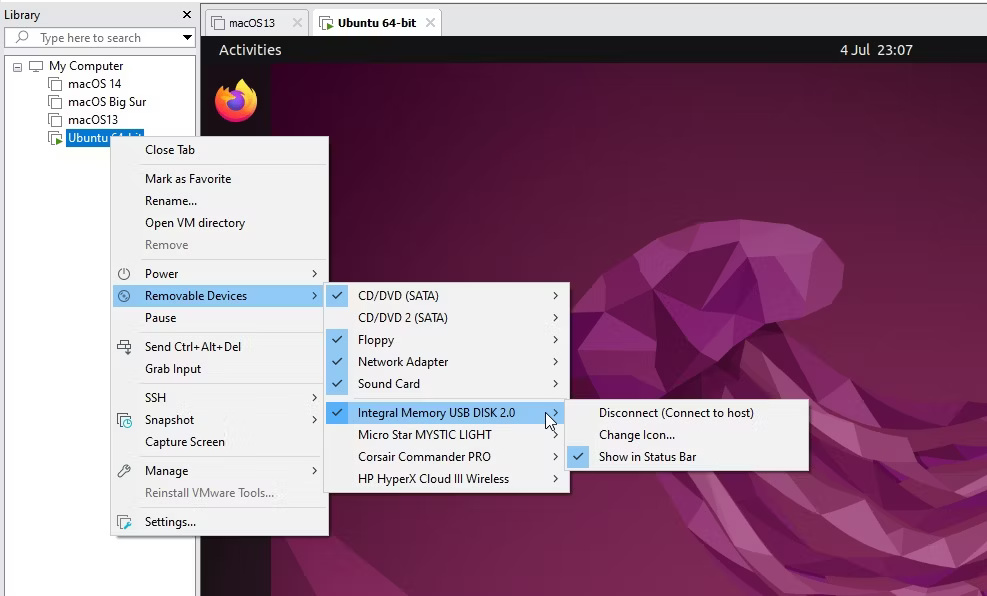
To enable USB and copy files into a VMware virtual machine on VMware Workstation Pro, follow this simple process:
- Locate the active VM: Find the virtual machine in your library on the left side of the screen.
- Connect the USB: Right-click the VM, then select "Removable Devices" > "[Your USB Device Name]" > "Connect (Disconnect from host)".
- Verify connection: The USB drive will now be connected to the virtual machine.
- Disconnect: To disconnect the USB from the VM and reconnect it to the host machine, follow the same process.











