

If your default DNS server provided by your Internet Service Provider (ISP) seems slow, insecure, or unreliable, you aren't stuck with it. Here is a guide on how to change your DNS server settings on a computer running Windows 11.
Changing DNS Server in Windows 11
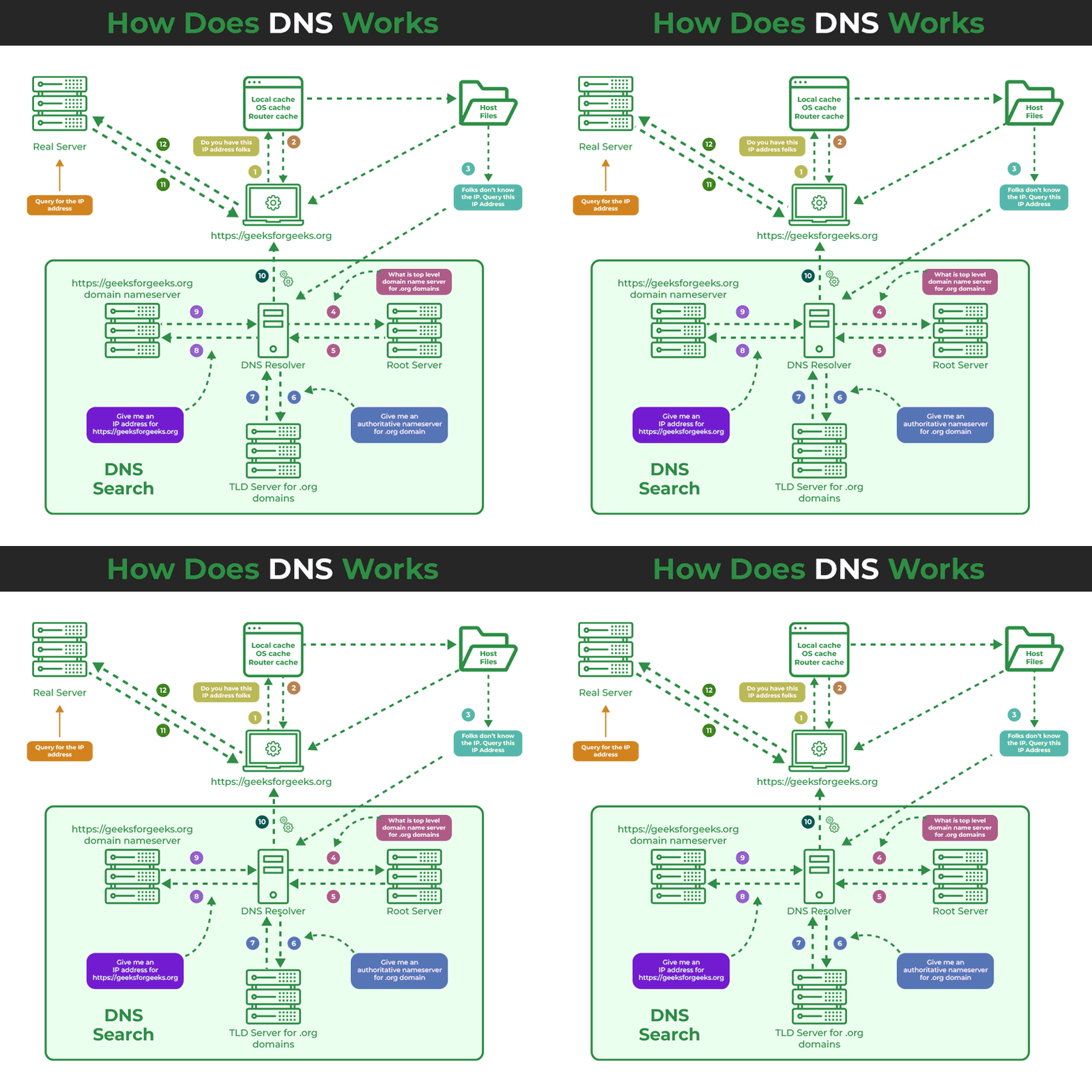
The Domain Name System (DNS) translates human-readable domain names into IP addresses, allowing your browser to display websites on your screen. When your Internet Service Provider (ISP) first sets up your internet connection, they also automatically configure default DNS settings.
However, many ISPs do not prioritize DNS security and privacy, which can lead to potential cybersecurity issues. Fortunately, there are many third-party DNS options-such as Google, Cloudflare, and OpenDNS-that offer faster internet speeds and enhanced protection.
Below are the primary and alternative DNS addresses from Cloudflare, Google, and OpenDNS that you can use for your new DNS server.
1. Cloudflare DNS:
- IP Addresses: 1.1.1.1 and 1.0.0.1
- Pros:
- Free
- Fastest access speeds among the mentioned DNS servers
- High security with features like DNS over HTTPS (DoH) and DNS over TLS (DoT)
- No browsing history tracking
- Supports Family Filter to block adult content
- Cons:
- Fewer advanced features compared to other DNS servers
2. Google Public DNS:
- IP Addresses: 8.8.8.8 and 8.8.4.4
- Pros:
- Free
- Fast access speeds
- High security with features like DNS over HTTPS (DoH) and DNS over TLS (DoT)
- No browsing history tracking
- Cons:
- Fewer features than Cloudflare DNS
3. OpenDNS:
- IP Addresses: 208.67.222.222 and 208.67.220.220
- Pros:
- Free
- Fast access speeds
- High security with features like DNS over HTTPS (DoH) and DNS over TLS (DoT)
- Provides content filtering and phishing protection
- Cons:
- The free tier only includes basic features
4. Quad9:
- IP Addresses: 9.9.9.9 and 149.112.112.112
- Pros:
- Free
- Fast access speeds
- High security with features like DNS over HTTPS (DoH) and DNS over TLS (DoT)
- Focuses on blocking cybersecurity threats
- Cons:
- Fewer features than OpenDNS
5. CleanBrowsing:
- IP Addresses: 185.228.168.9 and 185.228.169.9
- Pros:
- Free
- Fast access speeds
- High security with features like DNS over HTTPS (DoH) and DNS over TLS (DoT)
- Provides content filtering and phishing protection
- Cons:
- The free tier only includes basic features
6. DNSWatch:
- IP Addresses: 84.200.69.80 and 84.200.70.40
- Pros:
- Free
- Fast access speeds
- High security with features like DNS over HTTPS (DoH) and DNS over TLS (DoT)
- Provides content filtering and phishing protection
- Cons:
- The free tier only includes basic features
While there are several ways to change your DNS server in Windows 11, the easiest method is through the Settings app. Here is how to do it:
- Press Win + I to open the Settings app.
- Navigate to Network & Internet > Advanced network settings.
- Click on the available network adapter under Network Adapters. For example, if you are connected via Ethernet, select that option. Similarly, select Wi-Fi if you are using a wireless connection.
- Select the View Additional Properties option.
- Click the Edit button next to DNS server assignment.
- In the Edit DNS Settings window, use the drop-down menu to select Manual and toggle IPv4 or IPv6 to "On."
- Enter the DNS server numbers into the Preferred DNS and Alternate DNS fields.
- Click Save.
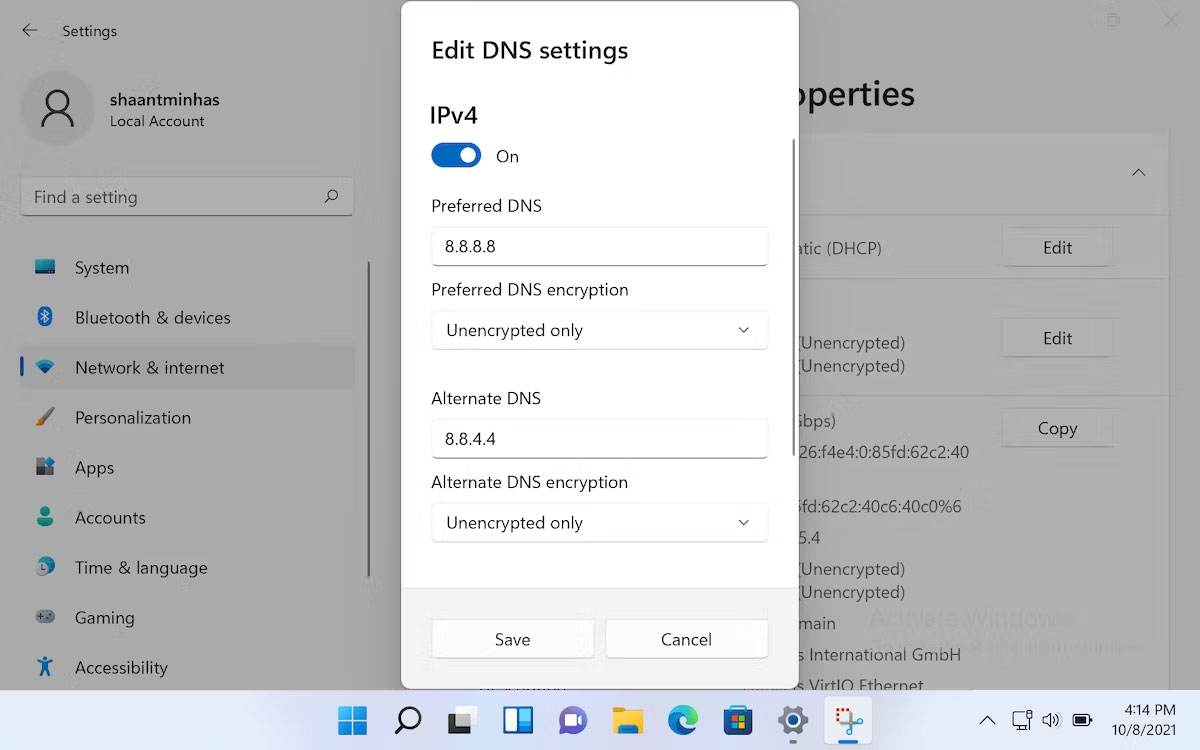
The instructions above used Google's DNS as an example, but you can choose any DNS server you prefer. Once you complete this process, your DNS server settings on Windows 11 will be updated. To verify which DNS server Windows 11 is currently using, you can check the properties of your Wi-Fi or Ethernet connection.
Changing your DNS server can help improve internet speeds and enhance security in most cases. You can also use tools like NameBench and GRC DNS Benchmark to find the fastest and most optimal DNS server for your specific internet connection.











