

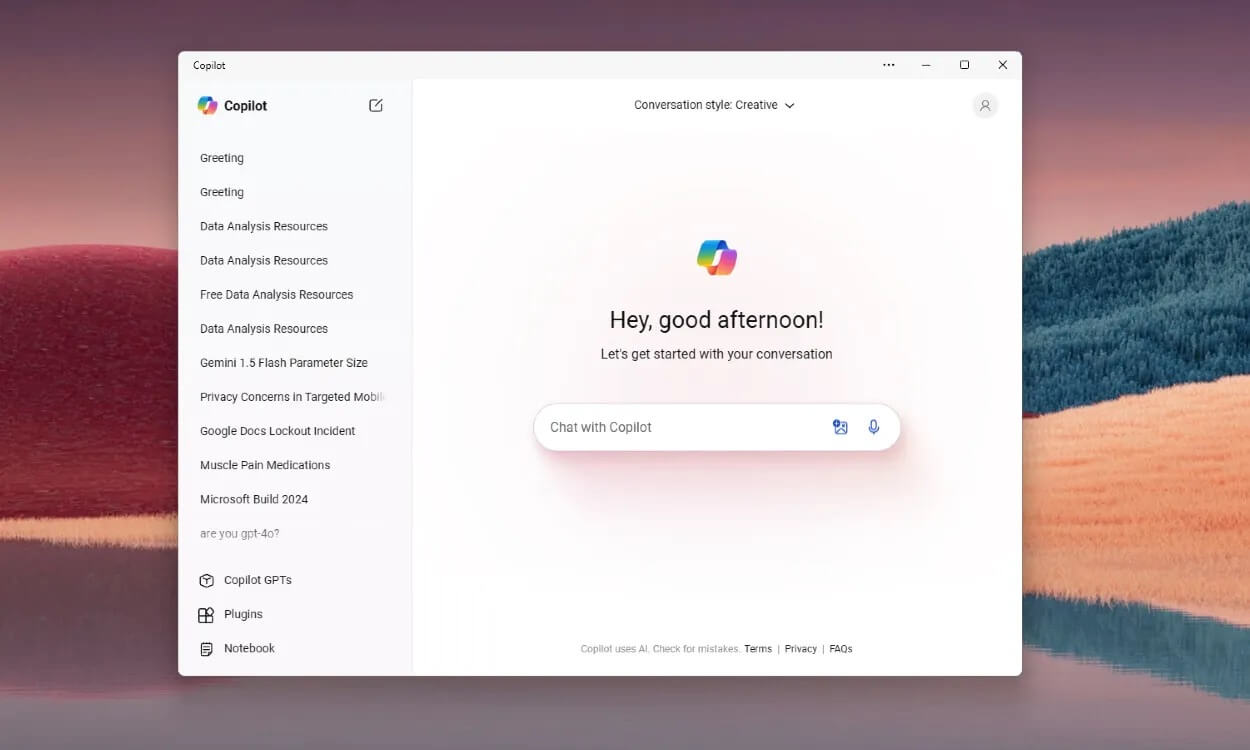
Following the Surface and MS Build 2024 events, Microsoft has just released the first preview of Windows 11 version 24H2. Introduced to Insiders in the Release Preview channel, Build 26100712 brings the new Copilot app for Windows 11 along with many other applications. Users have been granted access to the new Copilot app on Windows 11, which is actually a web application.
The app interface is similar to the new app on macOS. Microsoft announced that the new GPT4o model, natural voice conversation capabilities, and vision capabilities will soon be available on Windows 11. In the coming weeks, users will be able to share their screens, and the Copilot app will be able to assist with tasks such as gaming, coding, and many other activities.
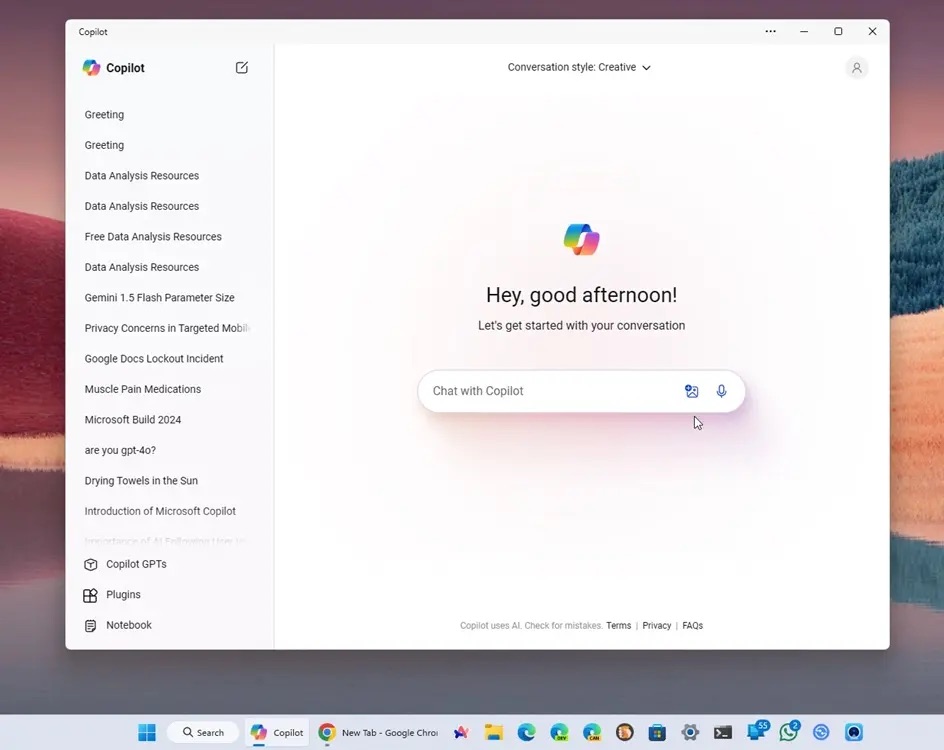
The new Copilot app has been successfully extracted from Windows 11 version 24H2 and can be installed on computers running version 23H2. You can also install the new Copilot app on Windows 10 Build 19041 or higher, according to the minimum operating system version information in the app's manifest file. To ensure a successful installation, make sure you have the Microsoft Edge browser installed on your computer.
To experience the Copilot app on Windows 11 or 10, there is no need to join any Insider program. Below is the guide on how to download and install the Copilot app immediately.
Download and install the Copilot app on Windows 11/10
1. Proceed to download the ZIP file for the Copilot app.
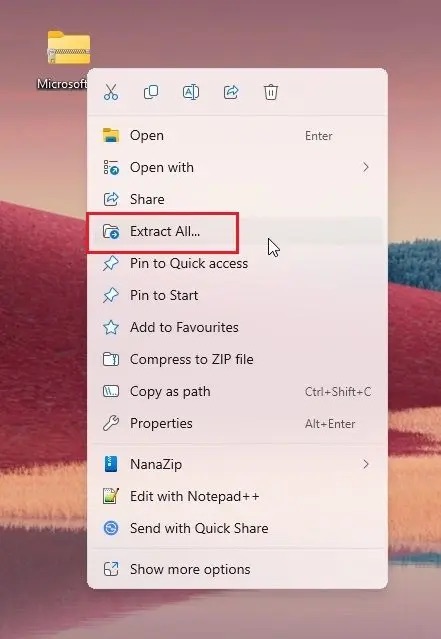
2. Next, right-click on the ZIP file and click Extract all. A folder will be created in the same location.
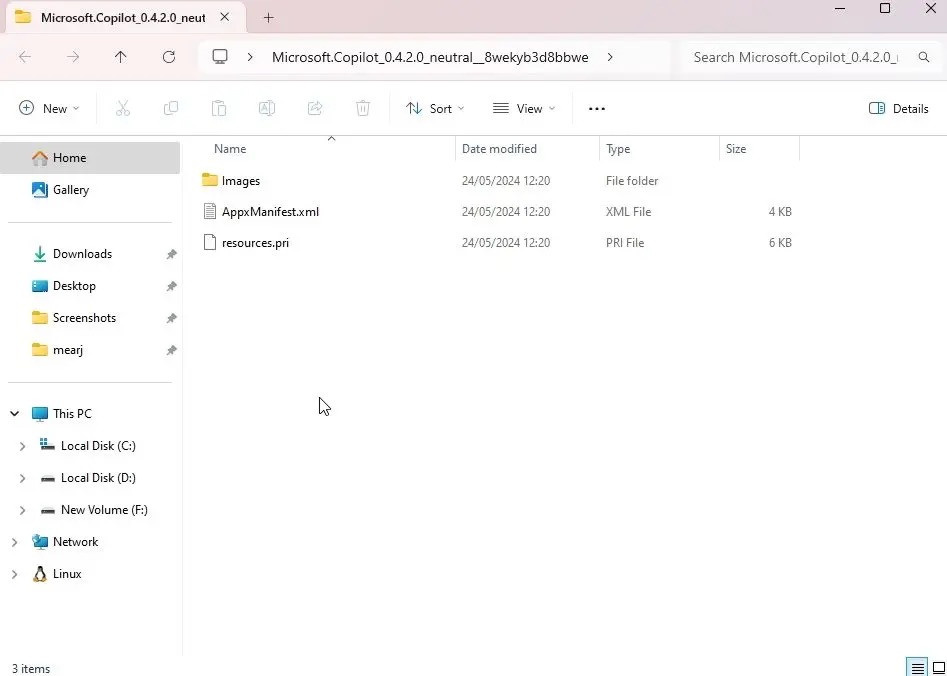
3. Open the extracted folder and delete the two files mentioned below.
- AppxBlockMap.xml
- AppxSignature.p7x
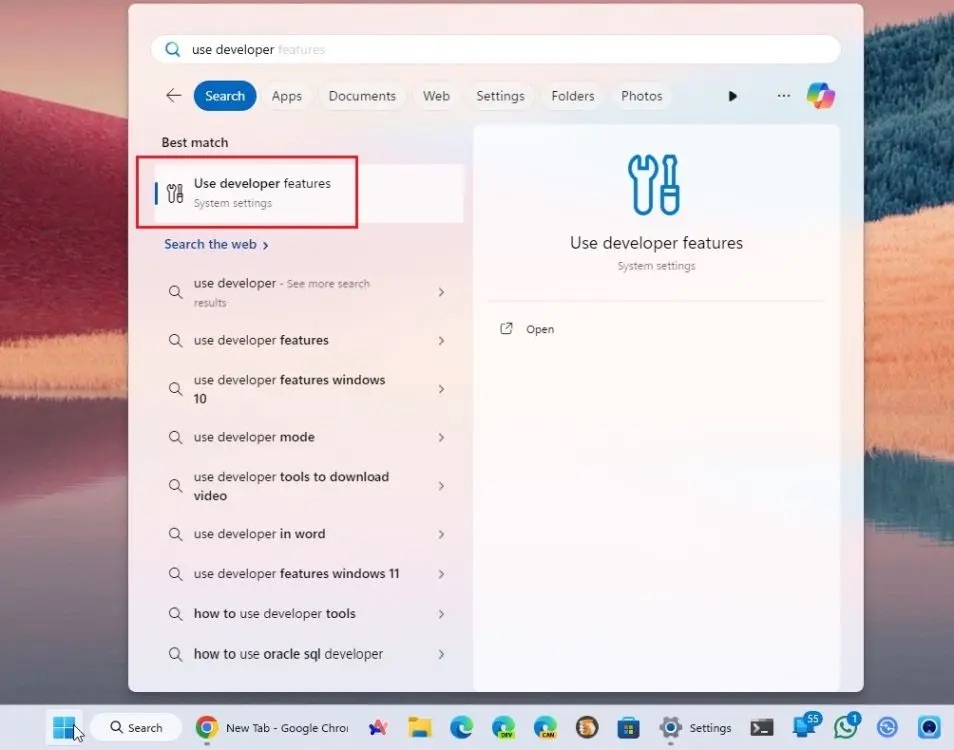
4. Then, press the Start menu and search for “Use developer features“. Now, open it.
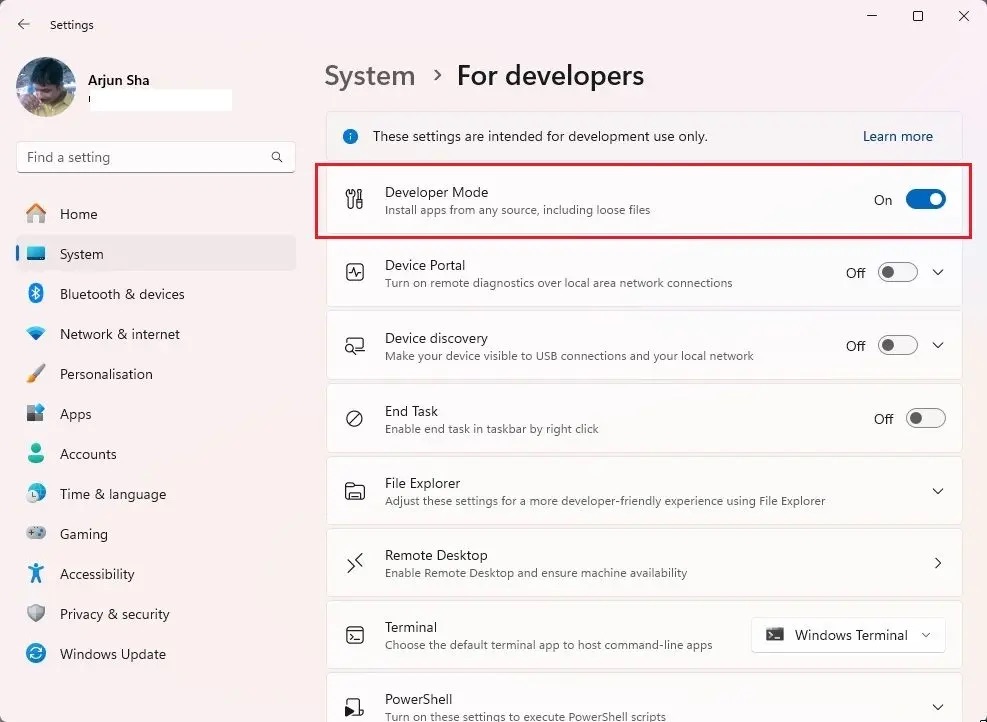
5. Here, toggle the “Developer Mode” switch to On. This will allow sideloading the Copilot app.
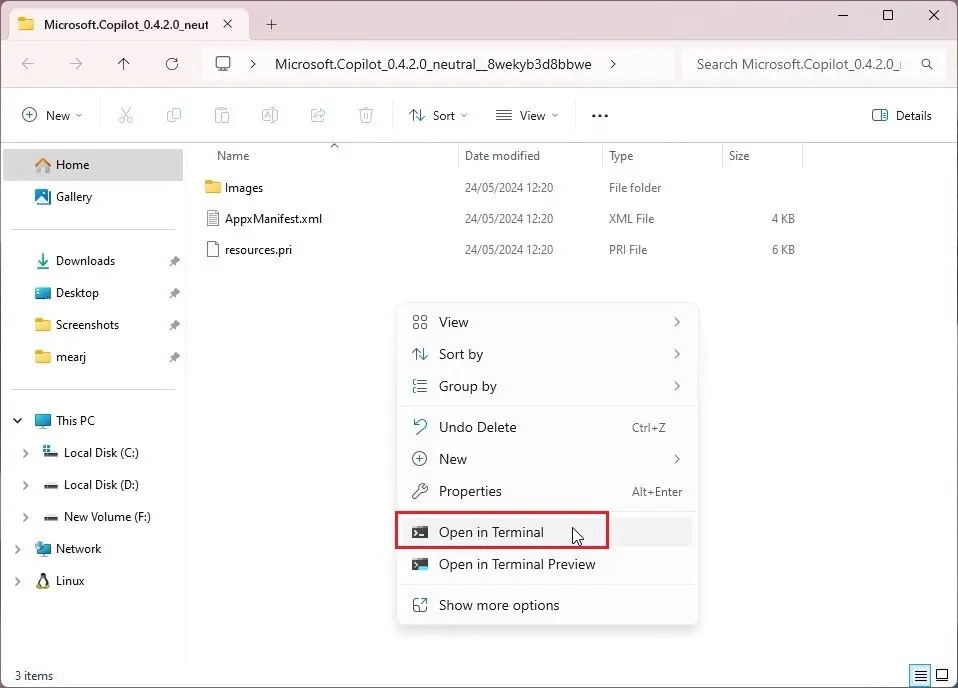
6. Then, reopen the extracted folder and right-click anywhere in the folder to open the context menu.
7. Now, press “Ctrl” and “Shift” together on your keyboard and click “Open in Terminal”. This will open the Terminal with admin privileges in the same folder. Furthermore, click Yes.
8. Finally, run the command below and the Copilot app will be installed on your PC. Do not delete the folder if you want to continue using the app.
powershell.exe Add-AppxPackage -Register AppxManifest.xml

9. Open the Start menu and the new Copilot app will appear. You can also pin it to the taskbar. It has full functionality, and you can start chatting with Copilot without any issues.
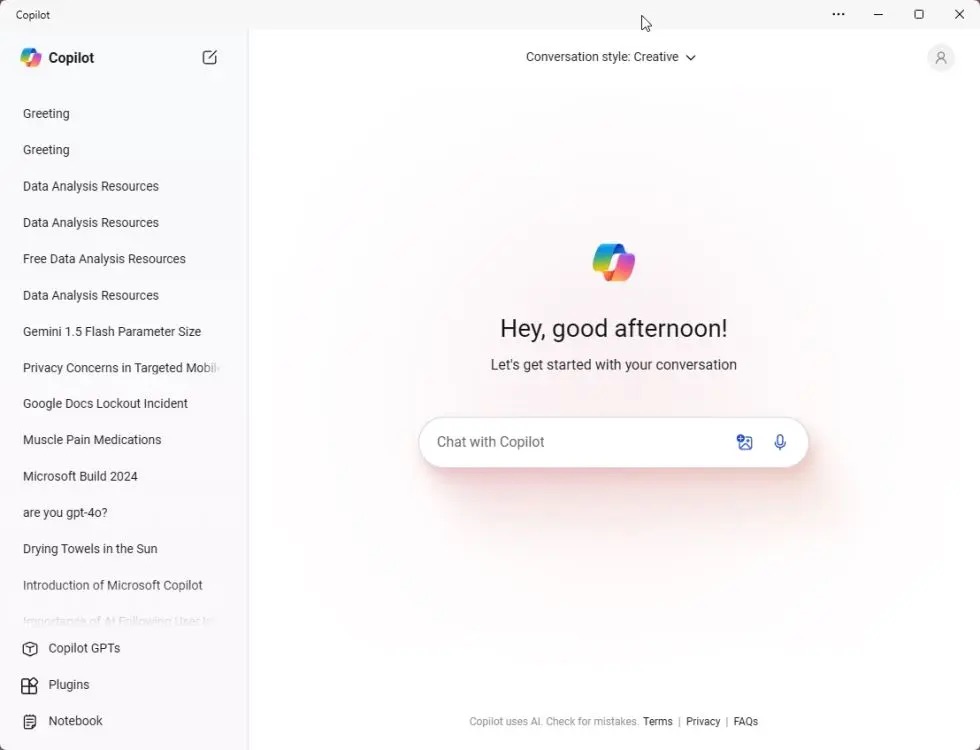
Above is the guide to download and install the Copilot app on your computer running the Windows 11 operating system. One of the notable changes is that Copilot is no longer in preview mode. You will get to experience the GPT-4 model, natural conversation features, and screen sharing capabilities.











