

Have you ever tried extracting an archive file using only WinRAR and encountered a checksum error? This error usually occurs when there is an issue with the archive file.
Fortunately, you can try several different troubleshooting methods to eliminate checksum errors in WinRAR. Let's find out more details in the following article!
1. Enable the Keep Broken Files option
By default, WinRAR will automatically delete corrupt parts in your archive file. Although this feature usually works well, there are cases where it may delete segments necessary for the extraction process, leading to a checksum error.
To resolve this issue, enable the Keep broken files feature in WinRAR; this feature will prevent WinRAR from deleting corrupted or faulty files during extraction.
Follow these steps to enable the feature:
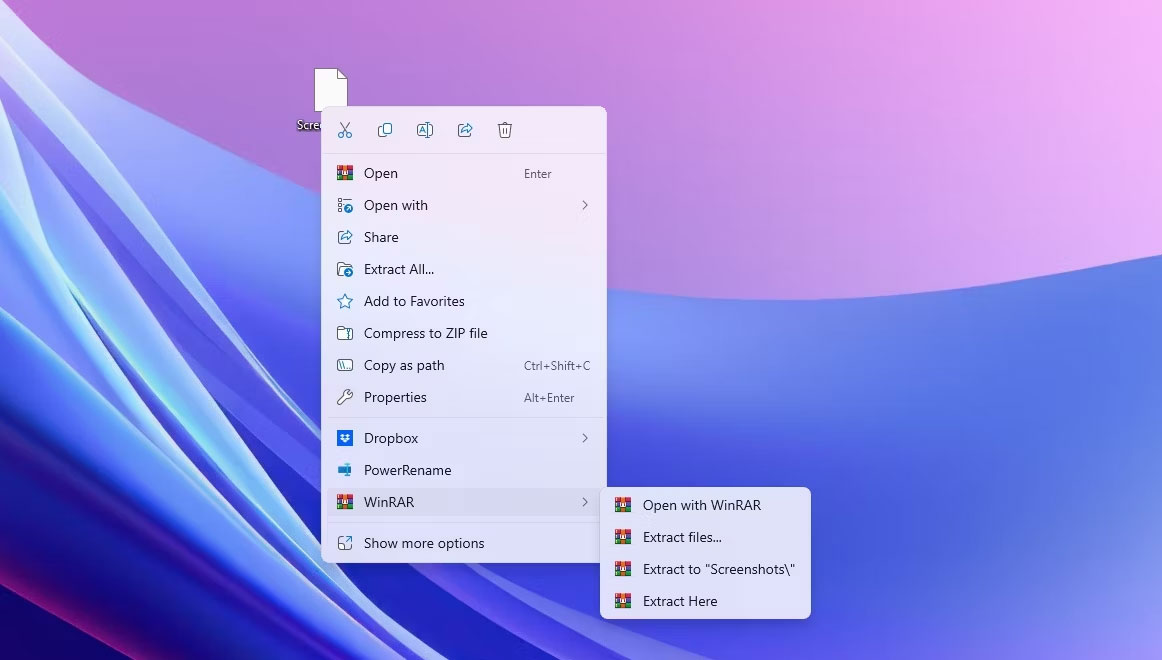
1. Right-click on the archive file, hover over WinRAR and select Extract files from the context menu.
2. Check the Keep my files option and click OK.
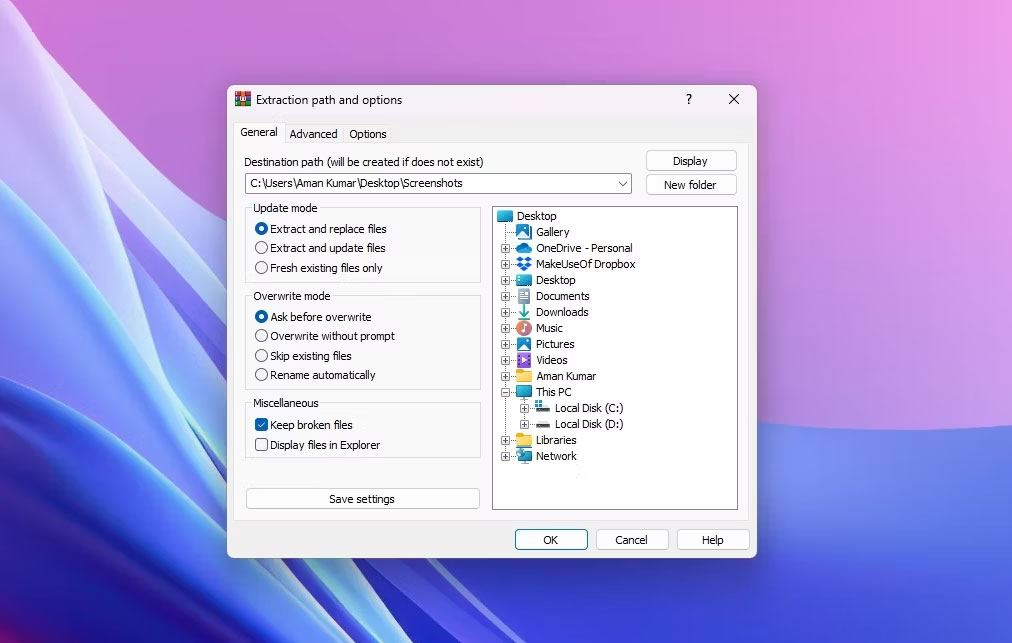
WinRAR will now extract your archive file without deleting the corrupted or faulty parts from the file. After extraction, you can repair the corrupted files in Windows using various repair tools available on the market.
2. Temporarily disable security software
Normally, the security software on your computer may interfere with WinRAR, causing it to display an error message. This often happens when the security software believes the archive file contains a malicious agent.
In this case, the solution is to temporarily turn off your antivirus software and then extract the file. However, only proceed with this step if you trust the archive file. If you are using the built-in antivirus in Windows, please see our guide on how to temporarily disable Windows Security.
On the other hand, if you are using third-party security software, right-click its icon in the system tray area and select Disable from the context menu. Once the file extraction process is successfully completed, turn the security software back on.
However, your antivirus software may delete the extracted files, considering them a threat to your computer. To prevent this from happening, add the extracted files to the Windows Security exclusion list. If you are using third-party antivirus software, please refer to that program's user manual to learn how to add files to its exclusion list.
3. Repair the archive file
As mentioned above, the main reason behind the WinRAR checksum error is a corrupted archive file. One way to solve this problem is to use WinRAR's built-in repair feature to fix corrupted Windows files. The repair feature searches for errors in the archive file and automatically fixes them using its repair mechanism.
Follow these steps to repair your archive file:
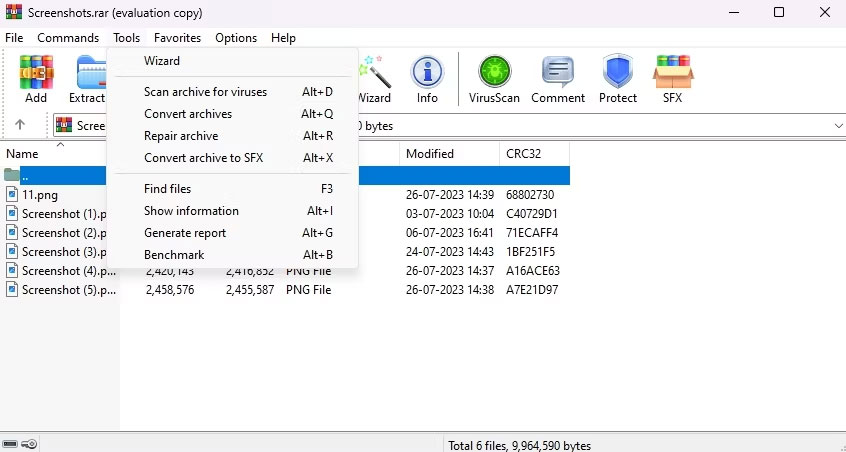
1. Right-click on your archive file, hover over WinRAR and select the Open with WinRAR option.
2. Click on the Tools tab at the top and select the Repair archive option from the context menu.
3. Select the Treat the corrupt archive as RAR option if your archive is a RAR file. Select the Treat the corrupt archive as ZIP option if it is a ZIP file. Then, click OK.
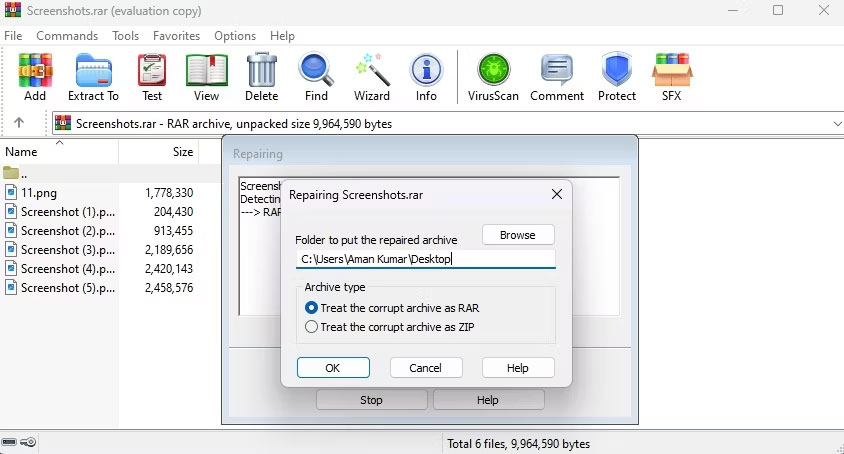
The WinRAR repair window will appear and attempt to repair the archive file. Once the process is complete, restart your computer, try extracting the file, and check if the error reappears. If it does, try the next solution in the list.
4. Run CHKDSK scan
Another major reason for the error message could be bad sectors on your hard drive. To resolve this situation, you can run CHKDSK.
CHKDSK, also known as Check Disk, is a utility that scans your hard drive to find bad sectors, missing file metadata, as well as incorrect file types and sizes. If any problems are detected, it will attempt to fix them automatically.
5. Re-download the archive file
If you continue to encounter errors while extracting the file, there may have been an issue during the file download process. You might have disconnected the Internet while downloading the file or your computer may have experienced a sudden power outage.
In this case, the best course of action is to re-download the archive file. If someone sent you the file via email, ask them to resend it. If you downloaded the file from a website, revisit that website and start a new download.
6. Try another extraction tool
If you still encounter the checksum error even after trying the previous troubleshooting steps, the problem might lie with WinRAR rather than the archive file. In such a case, you have no choice but to use any other extraction tool to extract your archive file.
Source: Quan Tri Mang











