

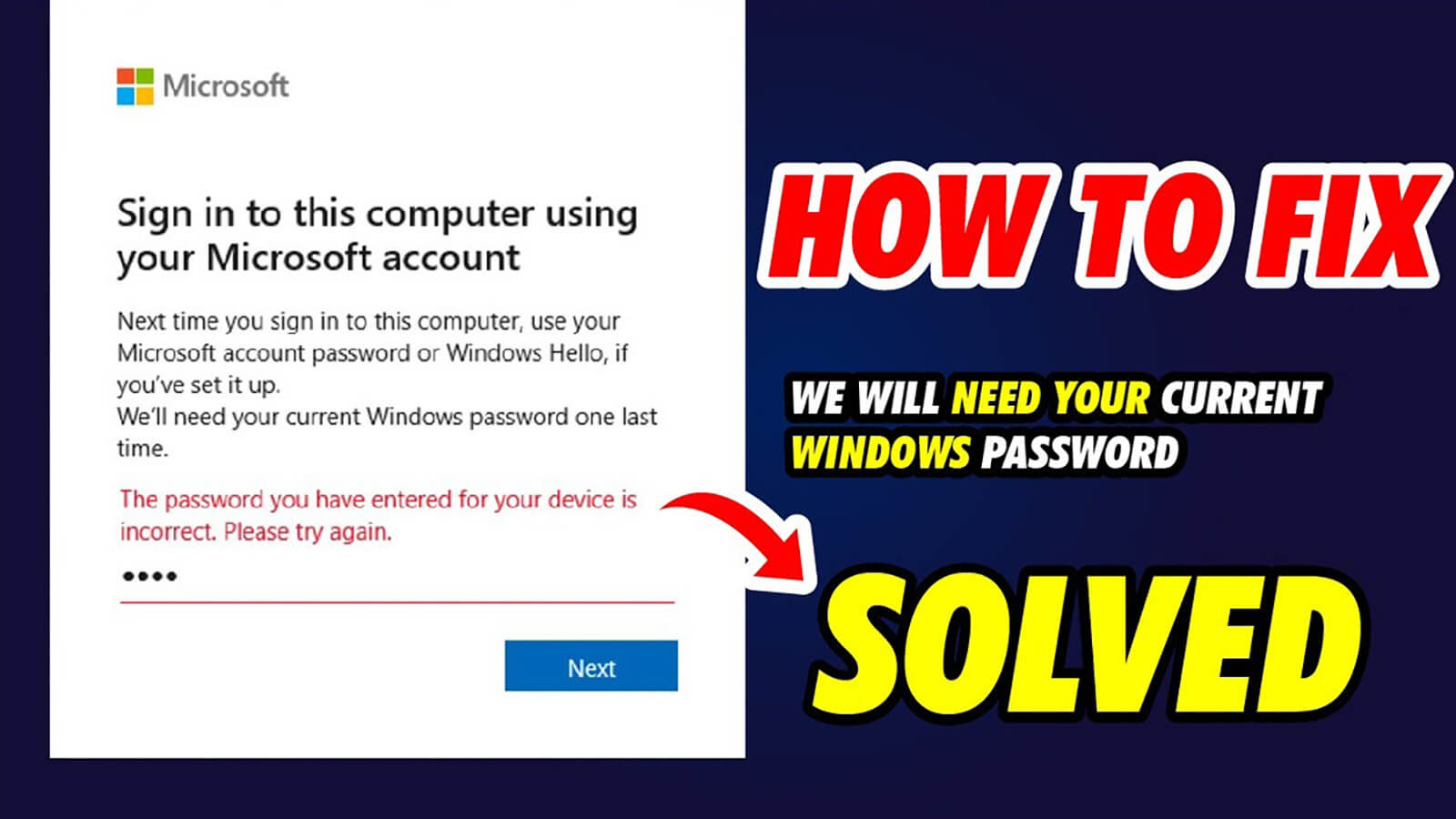
Are you encountering the “We’ll need your current Windows password one last time” error? This annoying pop-up can prevent you from completing your work, especially if you cannot remember the password you set or if the machine does not accept the password you believe is correct.
However, this error can be easily fixed. Here is everything you need to know.
What is the “We’ll Need Your Current Windows Password One Last Time” error?
You may have just purchased a new Windows device or reset an old Windows device. After setting up a new computer, you might be prompted to sign in to your Microsoft account. However, after entering your Microsoft account credentials, you will arrive at a page requesting your “current Windows password.”
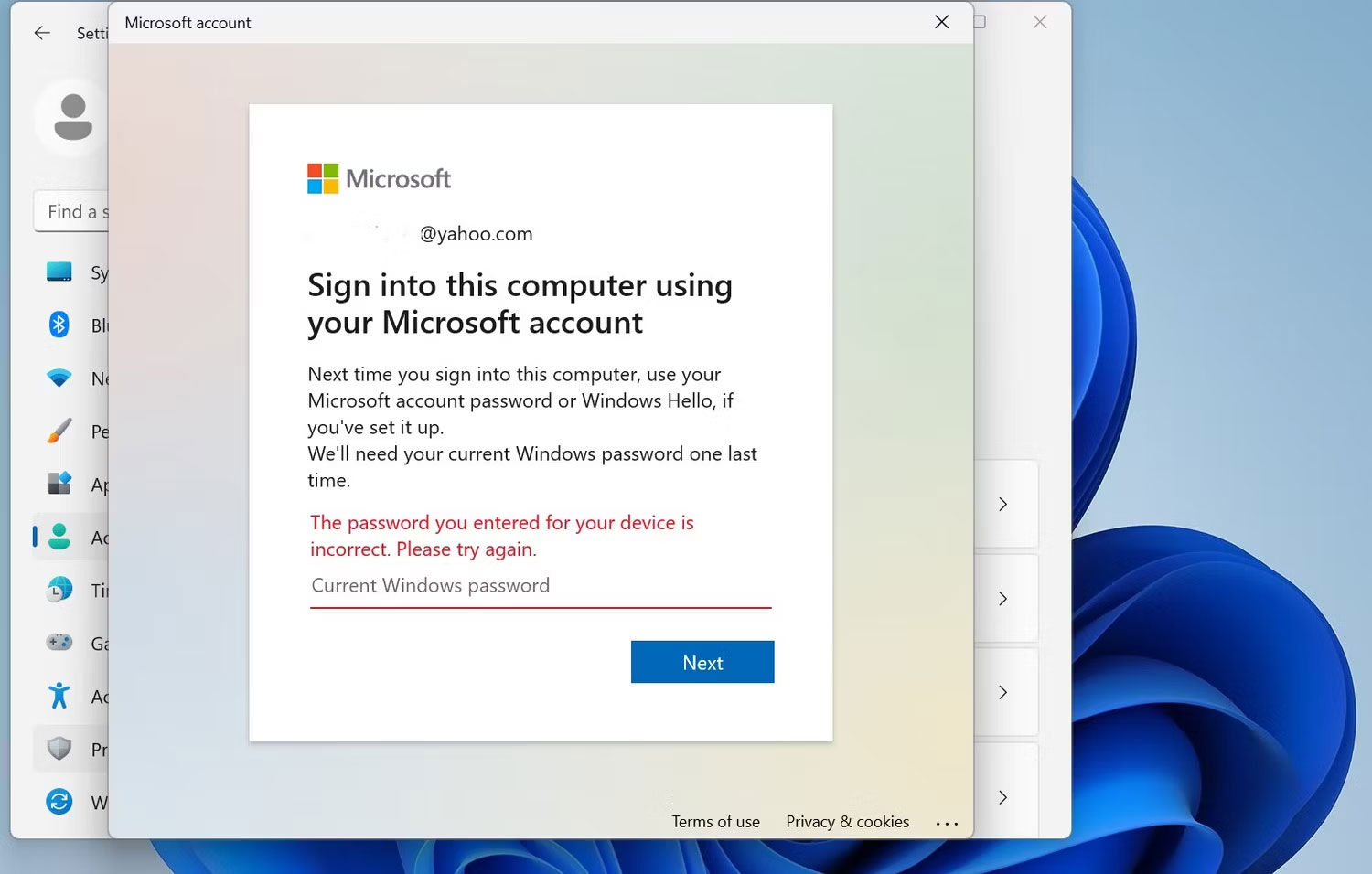
Microsoft requires this password to verify your access to the local admin account. A local admin account is created by default when you set up a Windows 10 or 11 device (after purchase); however, this account is not necessarily created with a password.
Meanwhile, if you are setting up after a system reset, your device will revert to the original local admin account rather than creating a new one. In this case, there may or may not be an existing password.
Either way, this local admin account is the “key” to accessing your device. When you attempt to link your Microsoft account, Windows will request the password for this local admin account to confirm that you are the administrator. Fortunately, there are several quick fixes to resolve this error.
How to fix the “We’ll Need Your Current Windows Password” error on Windows 10/11
1. Try all commonly used passwords

When encountering this error, you should first try all the commonly used passwords you have used with the device. You might have previously changed the password for the default local admin account. However, this only applies if you are encountering this error due to a system reset.
Try your Microsoft account password, any PIN you have used with the device, and your common passwords.
2. Press Enter when the password field is blank
Some people encounter this error and find they can resolve it by pressing the Enter key with the password field left blank. This method works if you have never set a password for the local admin account and works for some users.
3. Reset Windows password
If you can remember it, you can set your Windows password to something you will remember later. Therefore, the final and most effective fix is to set or reset your local admin account password and use it as your current Windows password.
Creating or resetting a password is the same whether you are using a Windows 10 or 11 device.
1. Press the Windows key and select Settings.
2. In the Settings page, select the Accounts option. You should check if your Windows account has admin privileges before proceeding.
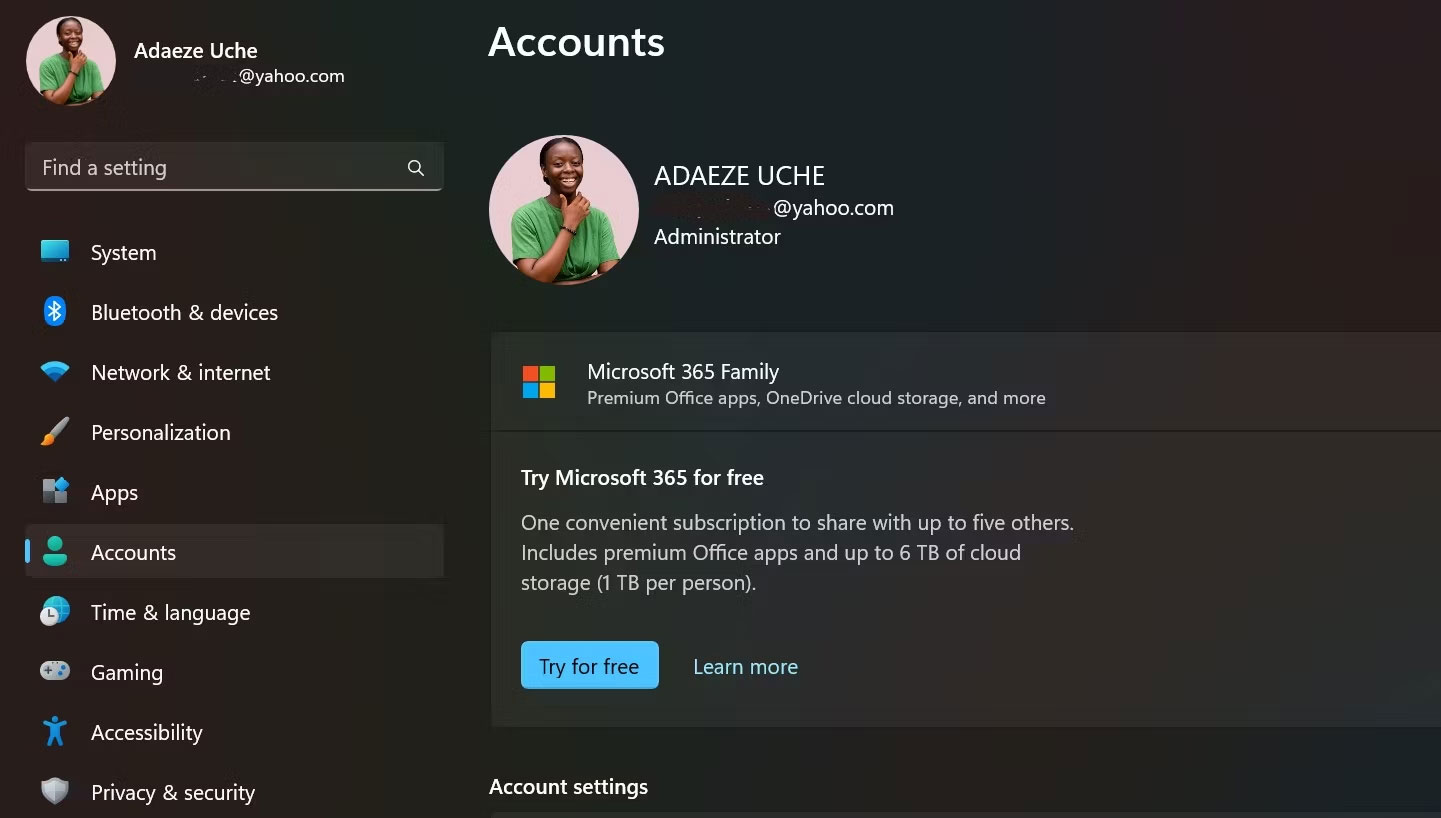
3. Then, select Sign-In Options > Passwords. You will see Add if you are creating a password for the first time. If not, you will see Change, meaning you will need to reset your local admin account password.
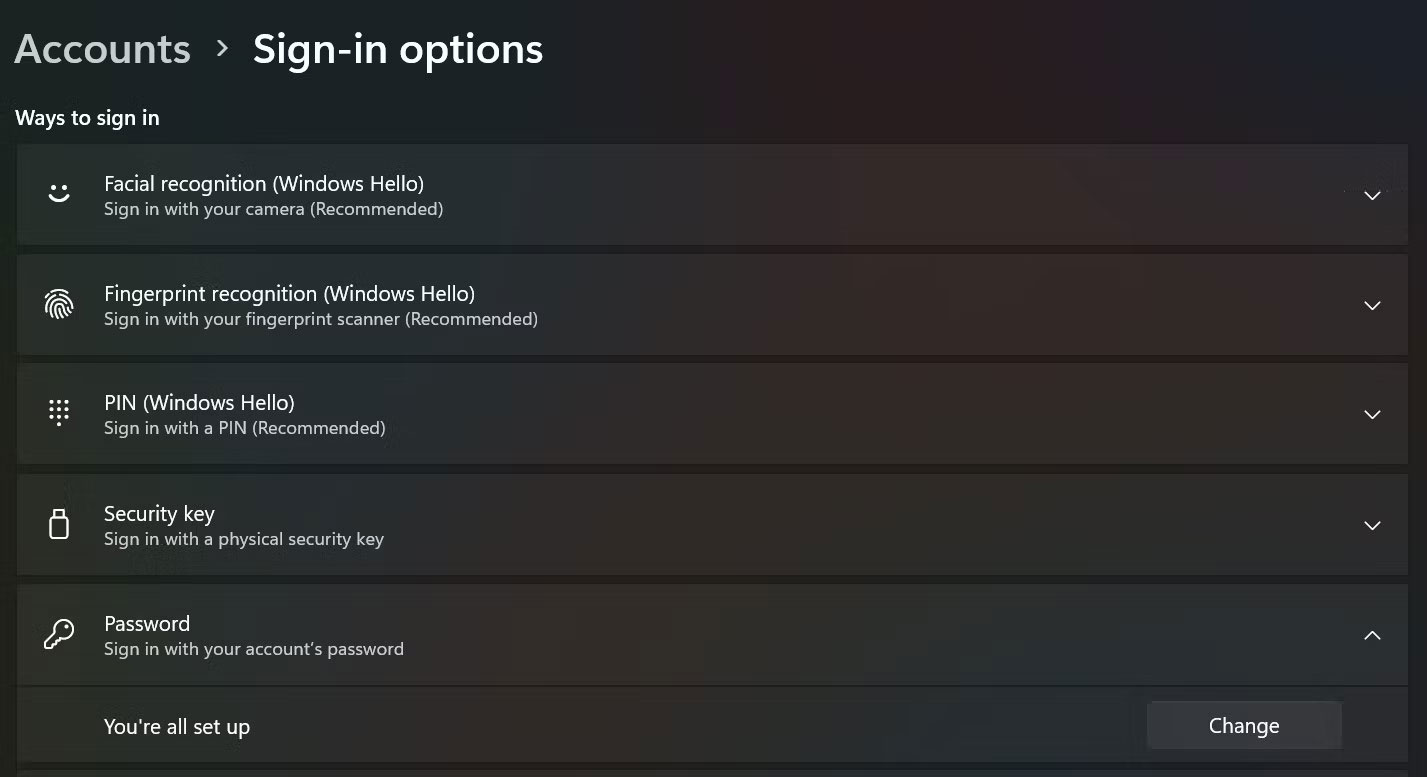
4. If you click Add, you will be taken to a page where you can set a password.
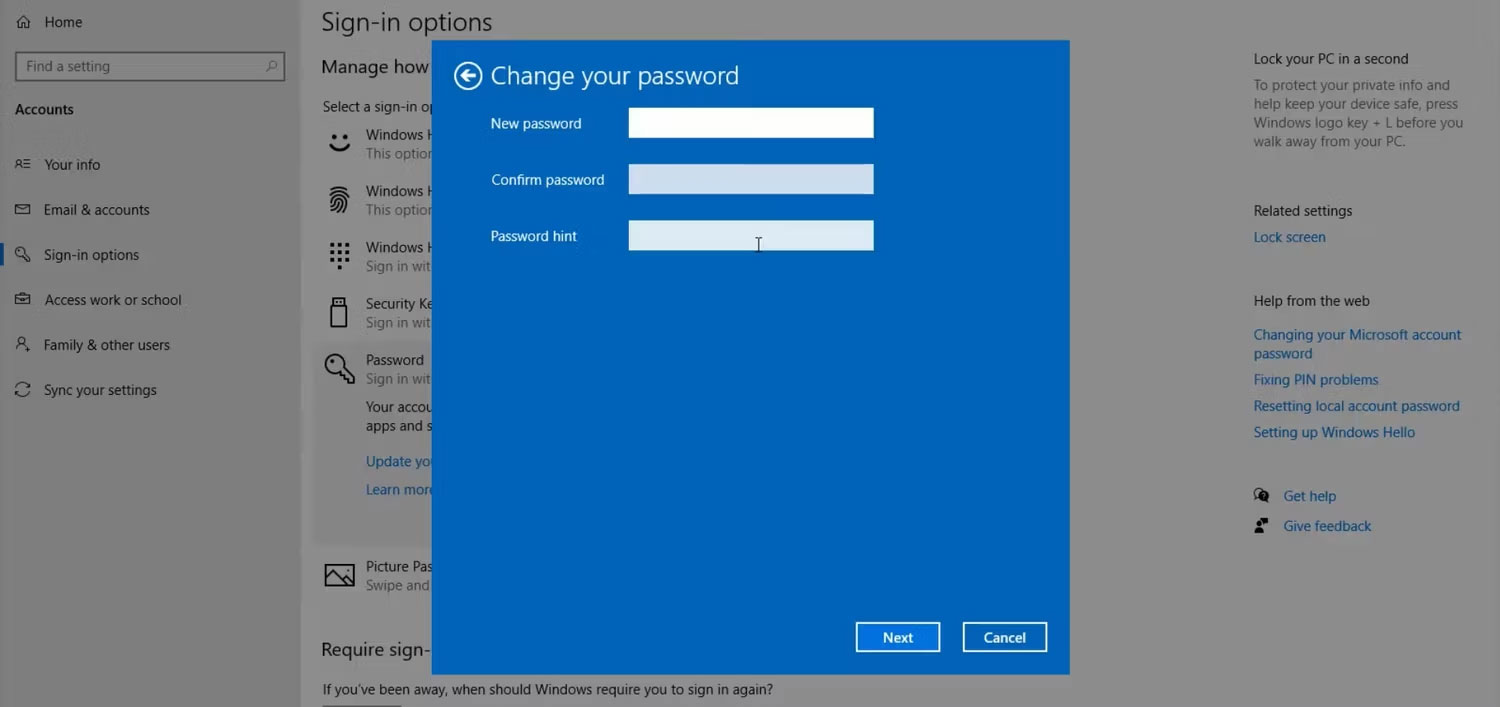
After creating or resetting your Windows password, you can proceed to sign in to your Microsoft account. When prompted to enter the “current Windows password,” quickly enter your newly created password.











