

If you are looking for a simple and quick way to take notes while working on a PC, the good news is that you don't need to download any software to do this. Windows 11 provides several useful note-taking tools to quickly jot everything down.
If your memory isn't the best, you can use these tools to remind yourself of important things while working. Here are 5 easy ways to take notes on Windows 11 without downloading any software.
1. Use Notepad
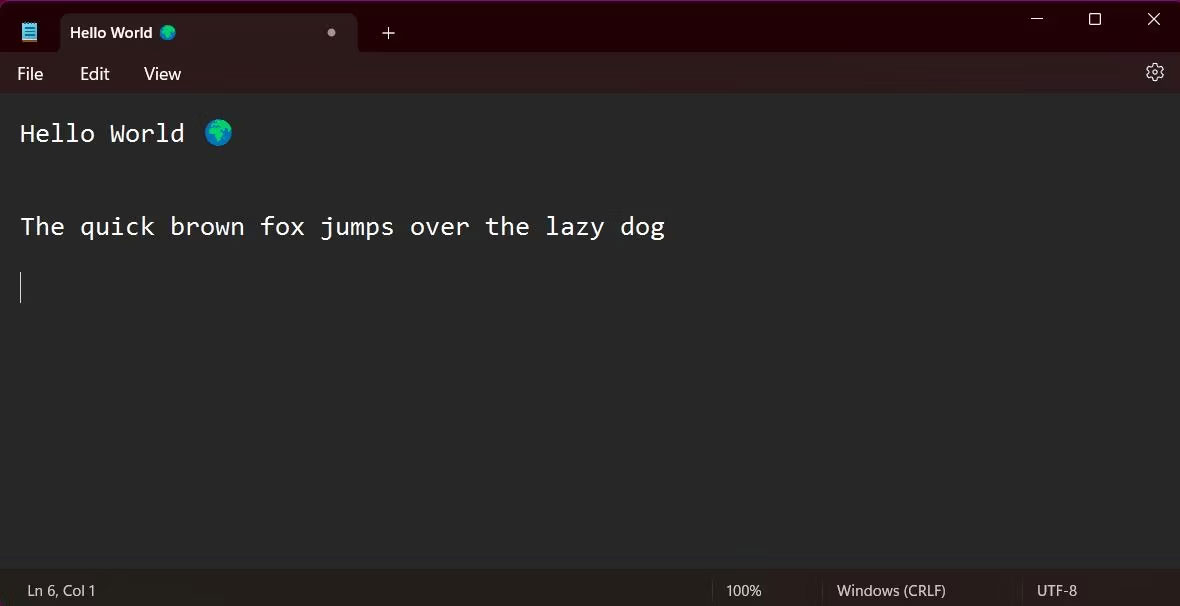
Notepad has long been a favorite application for offline note-taking on a PC. Its simplicity is loved by many, although since the release of Windows 11, Notepad has added several additional features to support your writing experience. Notepad now offers dark mode support, along with options to change font style and size.
Opening Notepad in Windows 11 is very simple. The application is pre-installed on all Windows devices. Press the Windows key to open the Start menu, then search for “Notepad”.
If you use the application frequently, you can create a desktop shortcut for faster access. Navigate to the Start menu, press All Apps, and find Notepad in the alphabetical list. Then, drag the application to an empty space on your desktop to create a shortcut. You can also access Notepad faster by pinning the application to the Windows 11 Taskbar.
2. Note-taking on WordPad
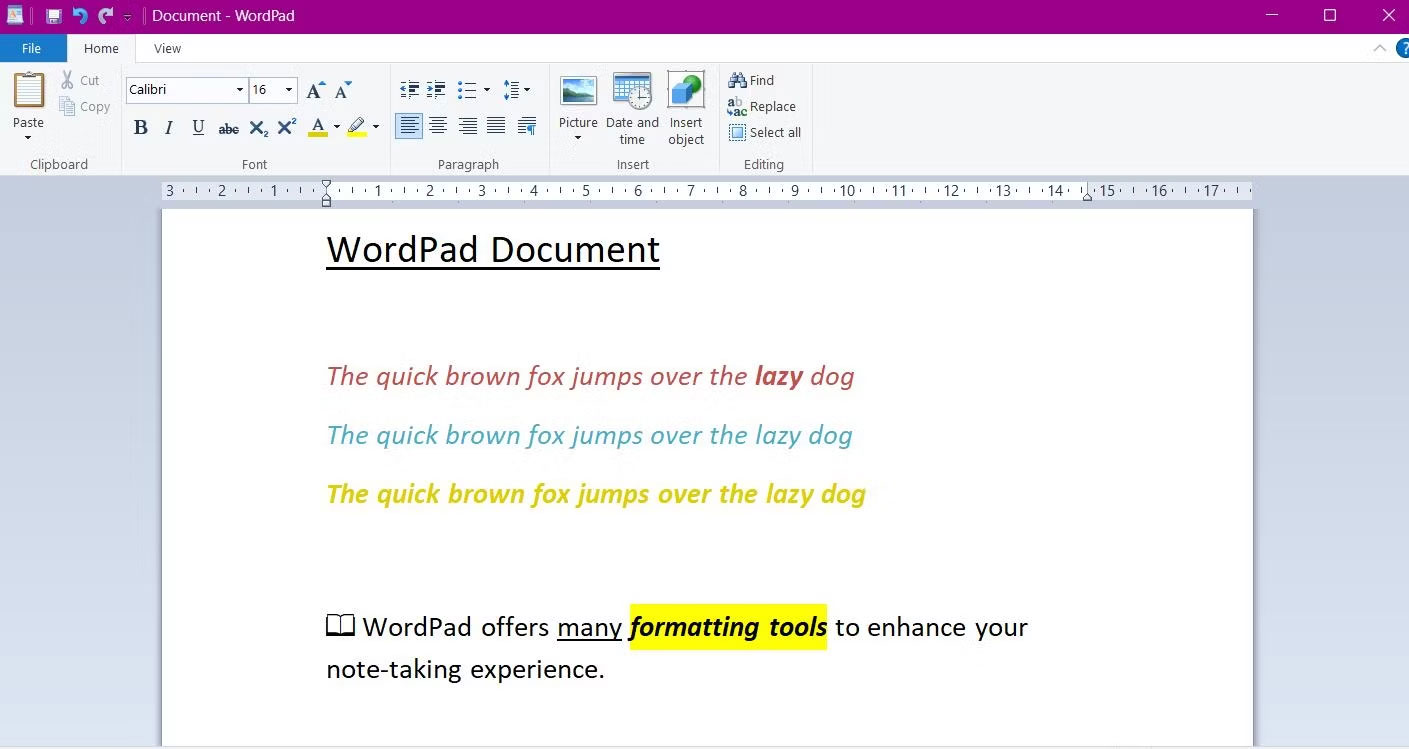
WordPad is another pre-installed application that provides a great method for note-taking without downloading software. The simple design of the application is similar to Notepad but offers more advanced features-especially a rich text editor-to upgrade your note-taking capabilities.
With the rich text editor, you can change font styles and colors, add bulleted lists, and highlight text. WordPad also offers a feature to send documents directly as an email. Press File and select Send as email.
To access the application, go to the Start menu and search for “WordPad”. Files can be saved as plain text files (as used in Notepad) or as Rich Text Format (.rtf) documents if you want to import your notes into other software.
3. Try Windows Sticky Notes
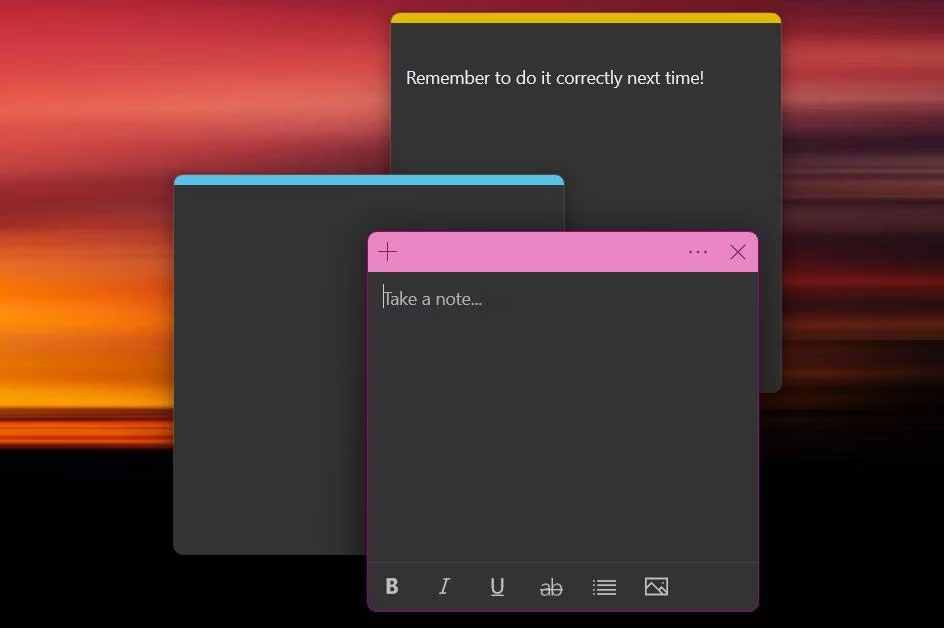
While there are many great note-taking applications for Windows, one of the best applications is provided directly by the operating system. Windows Sticky Notes is a note-taking app for quickly jotting down thoughts and ideas.
The application provides a neat and colorful way to take notes. You can click on the three dots on the top banner of a note to change its color and access your list of notes. Windows Sticky Notes is one of the most flexible ways to take notes. You can open multiple notes at once-press Ctrl + N to add a new note. You can also easily resize notes and drag them anywhere on your screen by clicking and dragging.
4. Online note-taking with Memo Notepad
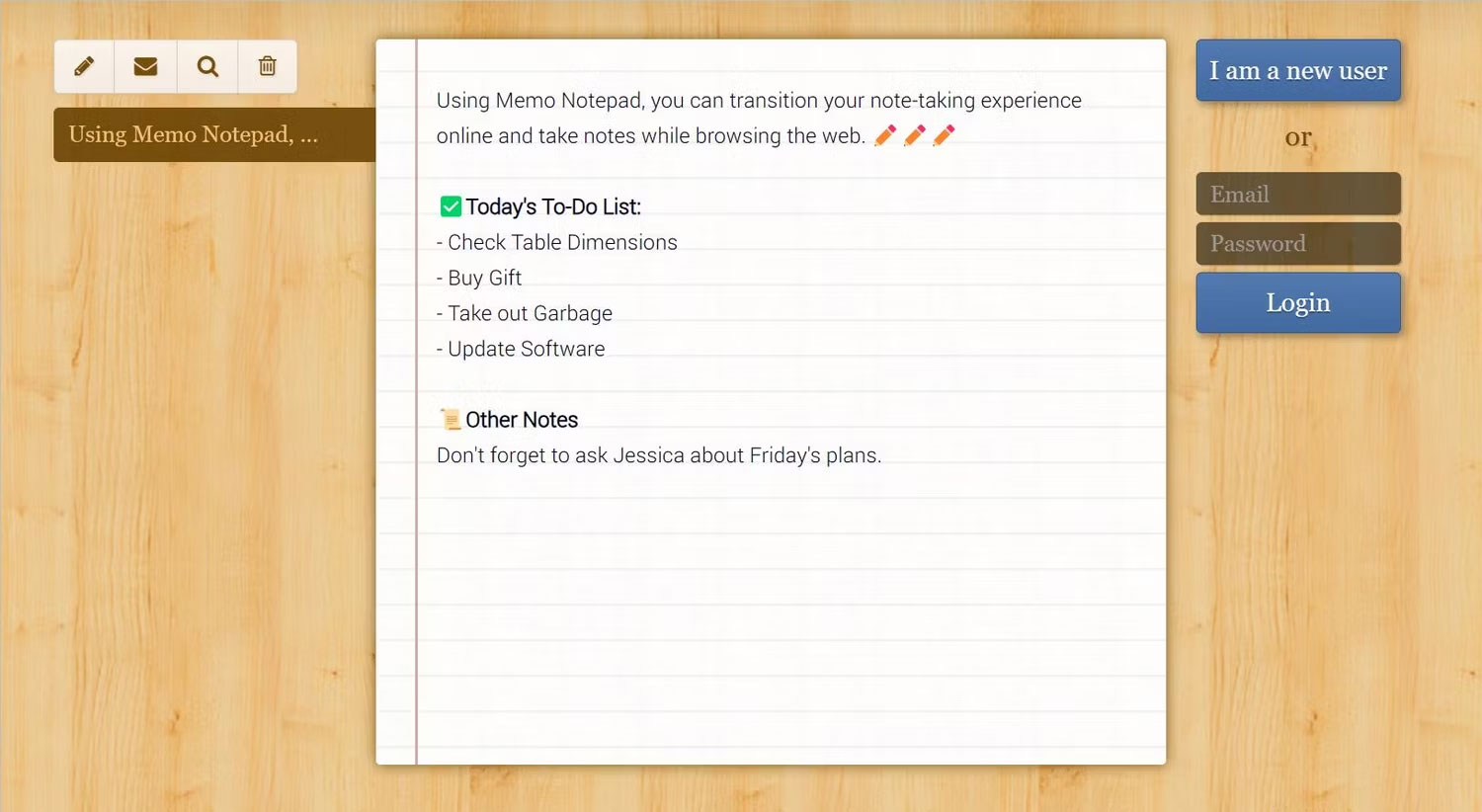
Another way you can take notes without downloading software is by using online note-taking websites. Memo Notepad is a simple, easy-to-understand note-taking application with minimal but powerful features to support your writing.
The text interface has essential formatting tools, including bold, underline, and italics. In the "Style" tab, you can change the font style and increase the overall text size. The app's cloud-based technology provides synchronization capabilities across multiple devices, so you can write notes anytime, anywhere.
5. Use Windows Clipboard to save text snippets
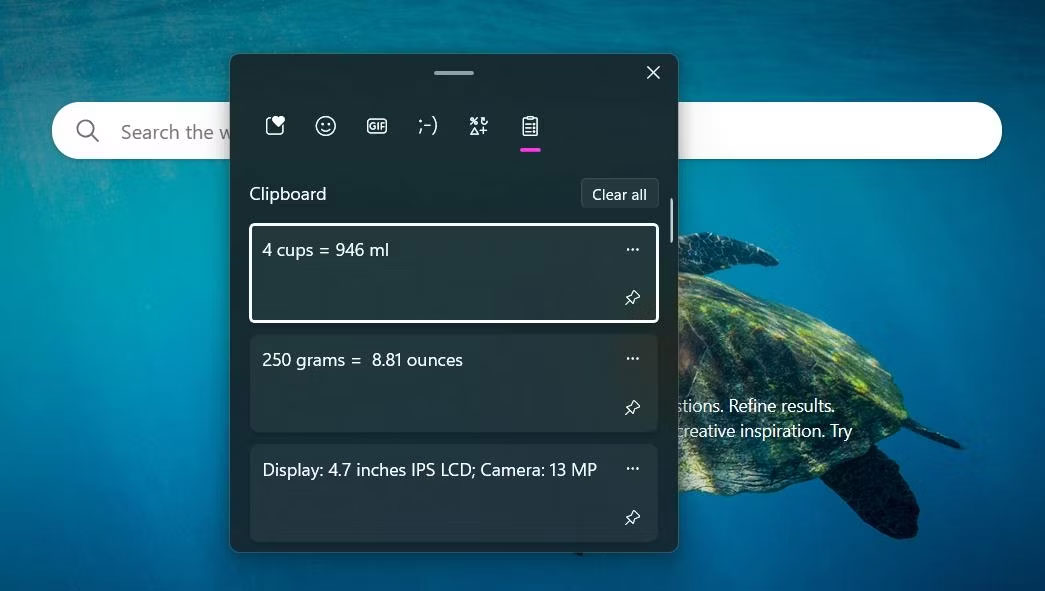
Whether you are multitasking or conducting online research, you will often encounter snippets of information that need to be remembered. The good news is, by using the Windows Clipboard feature, you no longer have to rely on writing everything on your palm.
Windows Clipboard is a tool to store short snippets of text, even after you restart your computer. There are no prerequisites required to start using this feature-Windows will automatically save information to the clipboard. Select any text you want to save, right-click, and press Copy.
You can access the clipboard at any time using the Ctrl + V shortcut. For the most important pieces of information, you can pin notes by clicking the small pin icon. Now, you no longer have to remember snippets of information while browsing online.
Good luck to you all.
Reference: Quan Tri Mang











