A RAR file sent by a client, a folder of contracts that needs a password, and the familiar question arises: 7-Zip or WinRAR? The short answer: for most daily compression and extraction needs, the free version of 7-Zip is sufficient, whereas WinRAR is worth paying for if you need to create RAR files for partners or require recovery data attached to compressed files. This article compares the two software programs in their latest versions in mid-2026, along with one major change many overlook: Windows 11 can now extract RAR files natively without installing anything extra.
Comparing 7-Zip and WinRAR regarding licensing and usage costs
The first difference lies in the cost. 7-Zip is open-source software; the current version 26.02, released on June 25, 2026, is free for individuals, schools, and businesses alike, with no registration or activation required. WinRAR version 7.23, released on June 30, 2026, is commercial software that offers a maximum 40-day trial according to its license terms, after which a license must be purchased.
| Criteria | 7-Zip 26.02 | WinRAR 7.23 |
|---|---|---|
| Cost | Free, open-source | 40-day trial, license around 29 USD |
| Can create | 7z, ZIP, XZ, TAR, GZIP, BZIP2, WIM | RAR, ZIP |
| Create RAR files | No, only extraction | Yes, proprietary |
| Encryption | AES-256 for both 7z and ZIP, can hide filenames | AES-256 for RAR and ZIP |
| Recovery data | None | Recovery record and recovery volume |
The license price for WinRAR for one machine is approximately 29 USD excluding tax, with a one-time purchase for lifetime use. In Vietnam, there is an official dealer system listed by RARLAB; the converted price usually ranges from 700,000 to 900,000 VND depending on the seller. Detailed trial terms can be found in the official WinRAR license.
A common misconception: the license reminder window that appears after 40 days does not turn the trial into a free lifetime license. For individuals, the company chooses a gentle reminder instead of locking the software. However, in a business environment, using an expired trial version on multiple machines is a real licensing compliance issue when audited.
Windows 11's native RAR extraction changes the reason for installing third-party software
This is a change that most Vietnamese comparison articles between 7-Zip and WinRAR have not yet updated. Since version 23H2, Windows 11 File Explorer can natively extract RAR, 7z, TAR, and GZ files thanks to the integrated libarchive open-source library. In version 24H2, the operating system can even create 7z and TAR files directly from the right-click menu, though it still cannot create RAR files.
As a result, the reason for installing third-party compression software has changed completely. Previously, you were forced to install it just to open a RAR file sent by someone. Now, Windows handles that need, and third-party software is only worth installing for three things: significantly faster processing speeds for large files, password protection with various compression level options, and specialized features like file splitting or recovery data.
Recent improvements to the file manager have also followed this direction, handling more tasks that previously required external tools. Hung Phat highlighted this upgrade in the article File Explorer on Windows 11 integrated with AI Actions: A valuable improvement or a new hassle?. In other words, the question now is not whether you need to install it, but which one to install for the right task.
Compression formats and encryption determine whether 7-Zip or WinRAR wins
Regarding formats, each side holds its own territory. 7-Zip can create 7z, ZIP, XZ, TAR, GZIP, BZIP2, and WIM, and can extract about thirty other formats, including RAR. WinRAR can create RAR and ZIP, and can extract RAR, ZIP, 7z, CAB, ISO, XZ, and the Zstandard format. The most important boundary: only WinRAR can create RAR files, while 7-Zip can only open them, not package them.
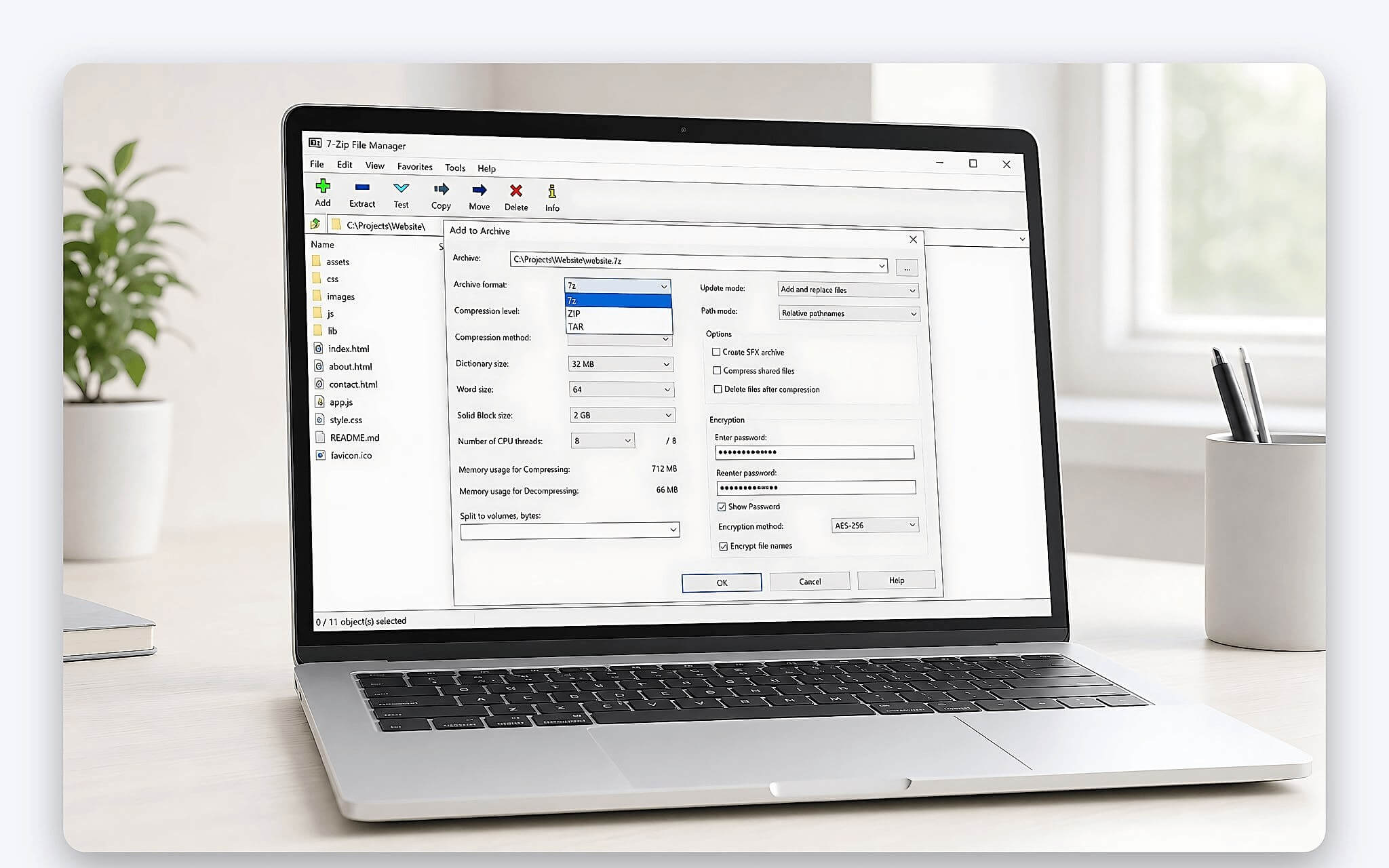
Regarding encryption, both use the AES-256 standard, which is strong enough for professional documents. 7-Zip has a unique advantage with the 7z format: it can encrypt the header, meaning someone without the password cannot even see the list of filenames inside. This is a valuable detail when sending contracts or payroll, as sometimes the filenames themselves reveal the content.
Regarding compression ratios, the 7z format at high compression levels often results in smaller files for office documents, but at the cost of longer compression times, whereas RAR5 is typically faster. The difference depends on the type of data, so there is no fixed number, and for already compressed files like images or videos, neither tool can reduce the size much further. For quick ZIP packaging needs, you can refer to the article 4 easy ways to create ZIP files on Windows.
Compressed file recovery is WinRAR's unique advantage
This is the feature that makes many people willing to pay, and it needs to be explained accurately because the article title can be misleading. A recovery record is not a magic wand that saves every corrupted file; rather, it is redundant data that you proactively attach when creating a RAR file. When a file is partially corrupted due to a low-quality USB transfer or an interrupted download, the Repair command uses that redundant data to patch the damaged part.
This means this feature can only save files where the sender explicitly enabled the option during compression, usually at 3 - 5% of the capacity, while the RAR5 format allows for much higher levels for important data. Additionally, there are recovery volumes for split file sets: even if one part is completely lost, it can still be reconstructed from the remaining parts. 7-Zip has no equivalent mechanism; if a 7z file is corrupted at a certain point, that part is lost.
As for receiving a RAR file that reports an error without having recovery data available, the solution is different: re-check the download source, re-copy from the original device, or follow the article 6 ways to fix checksum errors in WinRAR. Do not blindly trust online services that advertise the ability to fix any corrupted compressed file.
Security updates are mandatory whether you choose 7-Zip or WinRAR
Decompression software is a gateway for receiving files from strangers, so their vulnerabilities are actively exploited. In 2025, the WinRAR CVE-2025-8088 vulnerability was used in real-world attacks by the RomCom and Paper Werewolf groups via email attachments, which was patched in version 7.13. The current version 7.23 also patches a buffer overflow vulnerability, designated as CVE-2026-14191, within the recovery volume feature itself.
7-Zip is not exempt: version 26.02 patches the CVE-2026-14266 vulnerability in the XZ decompression engine, a type of error that could allow malicious actors to execute code on your machine when you open a malicious file. Therefore, the general rule for both software programs is: if you are using an old version, update it immediately, especially if you frequently open compressed files received via email, messaging apps, or from other people's USB drives.
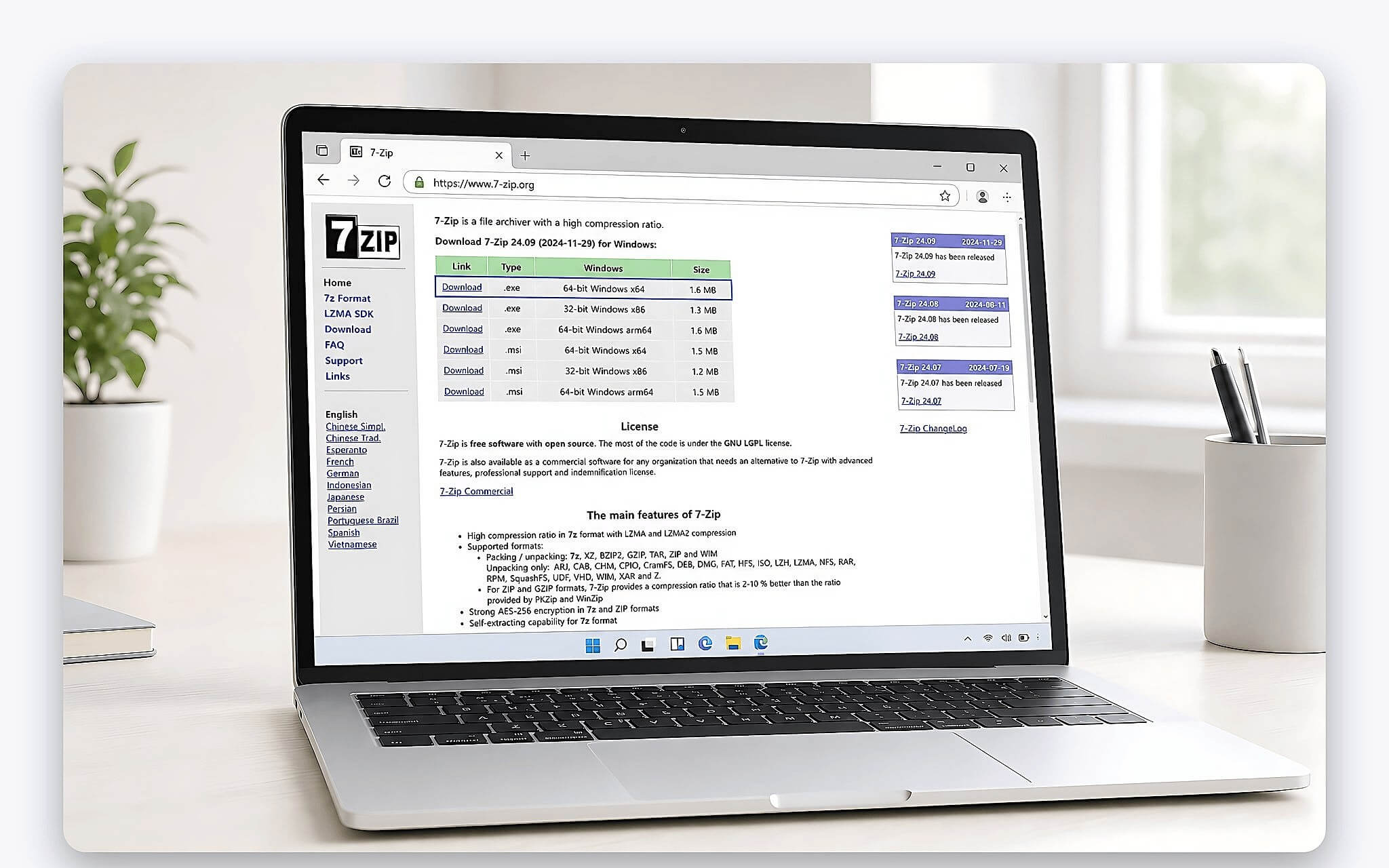
The download source is just as important as the version. Only download 7-Zip from the official 7-zip.org homepage, choose the correct 64-bit or ARM64 version for your machine, and absolutely avoid sites that repackage installers with advertisements. Since the software is free, any site offering cracks or keygens for it is a scam, and using a WinRAR crack is both a copyright violation and a common pathway for malware.
Is the Zstandard variant suitable for regular users?
The 7-Zip ZS version is also circulating online, a community project that adds new algorithms like Zstandard, Brotli, and LZ4 to the original 7-Zip base. This project is still regularly updated, with the latest version released in early July 2026, keeping pace with version 26.02. The advantage of Zstandard is significantly faster compression and decompression speeds, though the compression ratio is slightly lower than LZMA2.
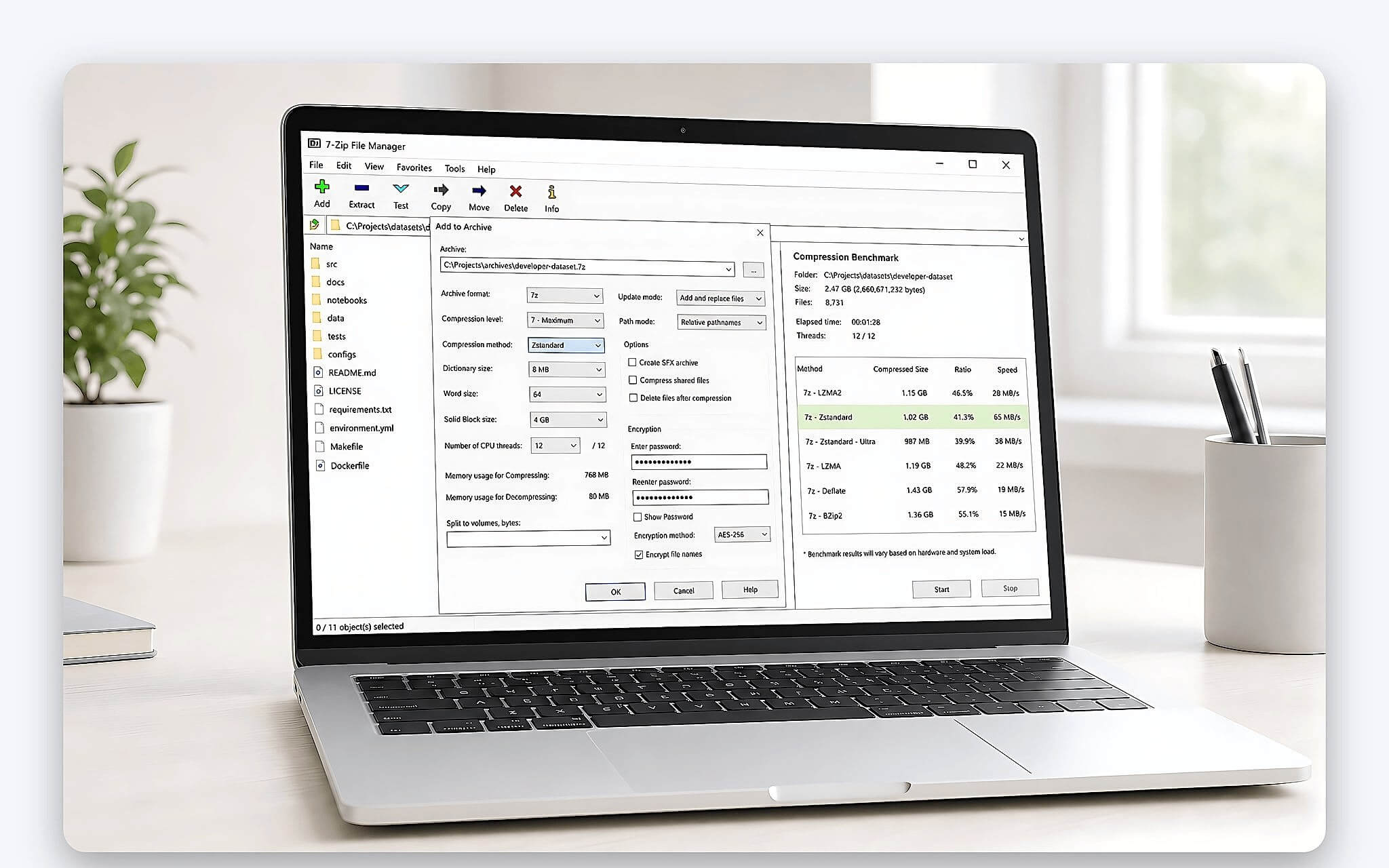
For office users, the advice remains to stick to the official version from the original developers. The variant is suitable for technical professionals who need speed in repetitive backup processes and are willing to accept different update schedules and documentation than the standard version. Trading a stable installer for a newer algorithm name is not a beneficial transaction for most people.
Those who need automation can use command-line tools with both the official and variant versions. Windows has both GUI and command-line interfaces, while the official versions for Linux and macOS are command-line only. This capability serves scheduled packaging scenarios, whereas those who only extract documents daily do not need to touch it.
Interface and experience when comparing 7-Zip and WinRAR
WinRAR is more user-friendly for beginners thanks to its step-by-step wizard, clear menus, and easy-to-understand file creation process. The software can also create self-extracting files, which is convenient when sending to recipients who do not have any compression tools installed. 7-Zip takes the opposite approach: a minimalist, technical-oriented interface with fewer instructions, but in return, right-click menu operations are very fast once you are used to them.
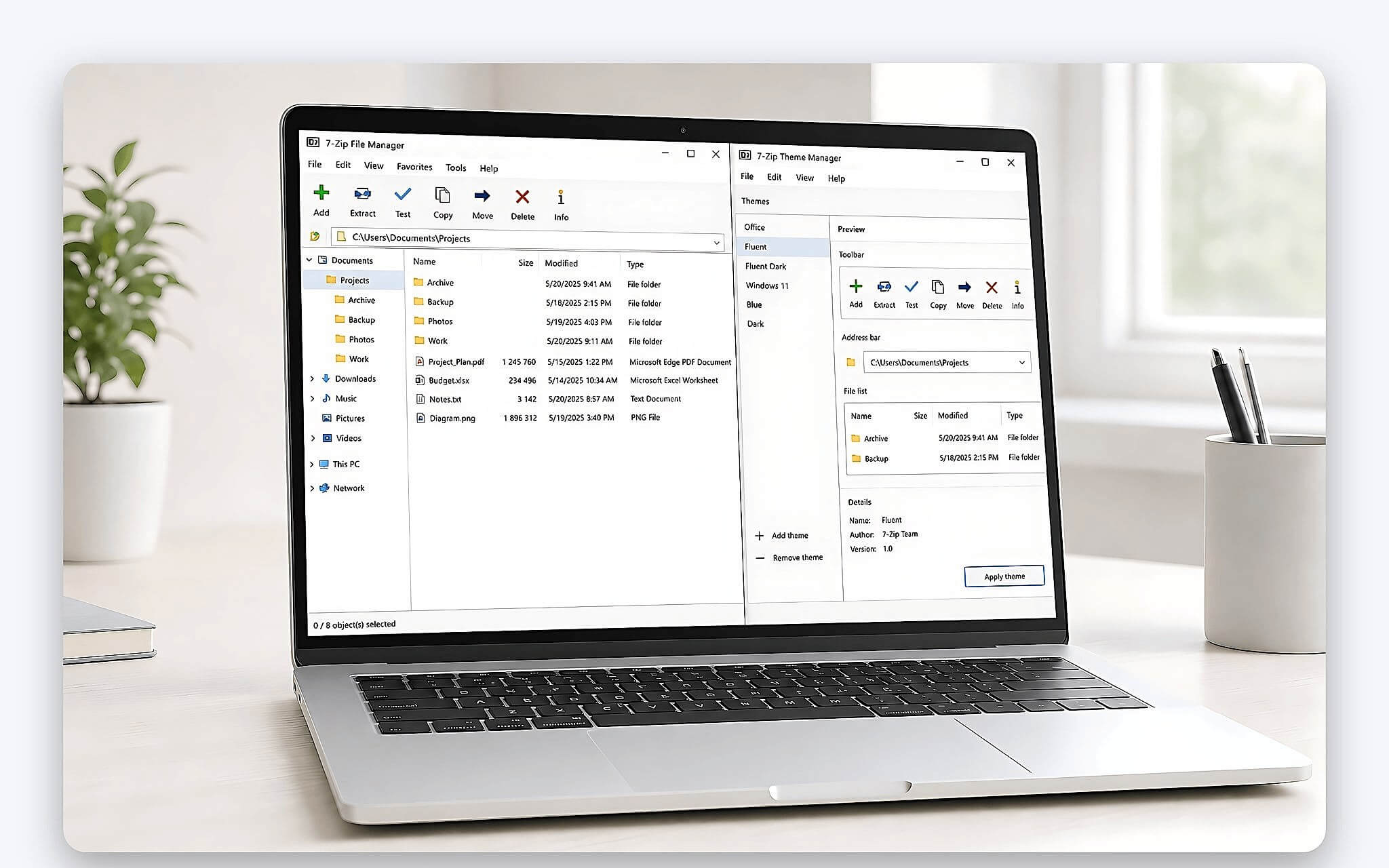
There are external utilities for 7-Zip, such as Theme Manager, to change the icons and make it look less outdated. These are not mandatory components and do not affect compression, encryption, or extraction functions. If you want to install them, check the release source and uninstallation capability, and avoid downloading theme packs from unknown sharing links.
A prettier icon set does not create smaller compressed files. The real consideration lies in habit: beginners and those who dislike tinkering will find WinRAR more manageable in the first week, while those accustomed to file operations will find the interface difference almost negligible after a few days of use.
Hung Phat recommends choosing 7-Zip or WinRAR based on your needs
Choose 7-Zip when you need free RAR extraction, want to create password-protected 7z and ZIP files, and need to use it legally for your company without spending a dime. This is a reasonable option for newly set up laptops, students, small offices, and anyone whose needs are limited to opening files sent by others and packaging their own documents.
Choose WinRAR when your work requires you to create RAR files as requested by partners, split large files into multiple parts to send through capacity-limited channels, or store important data that requires self-repair capabilities when files are corrupted. A one-time purchase of around 29 USD for those needs is a justified cost, and you should buy through official dealers instead of using an expired trial version for a long time in a business environment.
The most practical way to test: install 7-Zip first and use it for one or two weeks. If during that time you never need to create a RAR or use recovery data, the free version is sufficient and the question is settled. However, if you encounter exactly those two tasks, then buying WinRAR is a reasoned decision rather than a purchase based on habit.
Frequently Asked Questions (FAQ)
What is the difference between a RAR file and a ZIP file?
ZIP is an open format; all operating systems and compression software can both create and extract it, making it the safest choice when sending to strangers. RAR is a proprietary format from RARLAB: many programs can extract it, but only WinRAR can create it. In return, RAR often compresses more tightly than traditional ZIP and has unique features like recovery data and the ability to split files into multiple parts.
Is WinRAR licensed? Why can I still use it after 40 days?
WinRAR is licensed software, priced at around 29 USD per machine, with a one-time purchase for lifetime use and official dealers in Vietnam. After the 40-day trial, the software does not lock itself but only displays a purchase reminder window; this is a business choice by the company, not a free license. While individuals continuing to use it rarely face issues, businesses deploying it on many machines should purchase it to avoid compliance risks during software audits.
What should I do if a RAR file cannot be extracted?
Check using a process of elimination: update your software to the latest version because newer RAR files require sufficiently updated extraction versions; re-download the file from the source because interrupted downloads are the most common cause; try opening another compressed file to determine if the error lies with the program or the data. If the file is password-protected, request the exact password, character for character. If the file is truly corrupted and has no attached recovery data, the most reliable way is to request an intact copy.
Is there an official version of 7-Zip for macOS?
Yes, but only in command-line form; the homepage provides console versions for both macOS and Linux, without a graphical user interface like on Windows. This option is suitable for those familiar with the Terminal who need to automate packaging tasks. Mac users wanting a visual interface should look for other compression applications on this platform and clearly check the license before installing.