
Customizing Power Plan on your Windows computer allows you to check your computer's energy and performance settings. Over time, you may create custom power plans to meet your specific requirements, but what if you want to reset them?
Whether you want to resolve power-related issues or simply want to start fresh, resetting power plans on your PC running Windows 10 or 11 is quite simple. There are several ways you can do this. Let's find out more in the following article!
Reset Power Plan to default using Control Panel
Applet Power Options in the Control Panel helps you easily customize various power management settings on your Windows computer. You may have used it to create and modify power plans on your PC. Additionally, it also provides you with the option to restore those plans to their default settings.
To reset power plans to default settings using the Control Panel, follow these steps:
- Press the magnifying glass icon on the taskbar or use the Win + S shortcut to open the search menu.
- Type control panel into the text box and press Enter.
- Click the drop-down menu in the top right corner to change the view mode to Large icons or Small icons.
- Select the Power Options applet.
- Go to the Change plan settings link next to the plan you want to reset.
- Select the Change advanced power settings option.
- Click the Restore plan defaults button.
- Select Yes when the confirmation prompt appears.
- Press OK to close the Power Options dialog box.
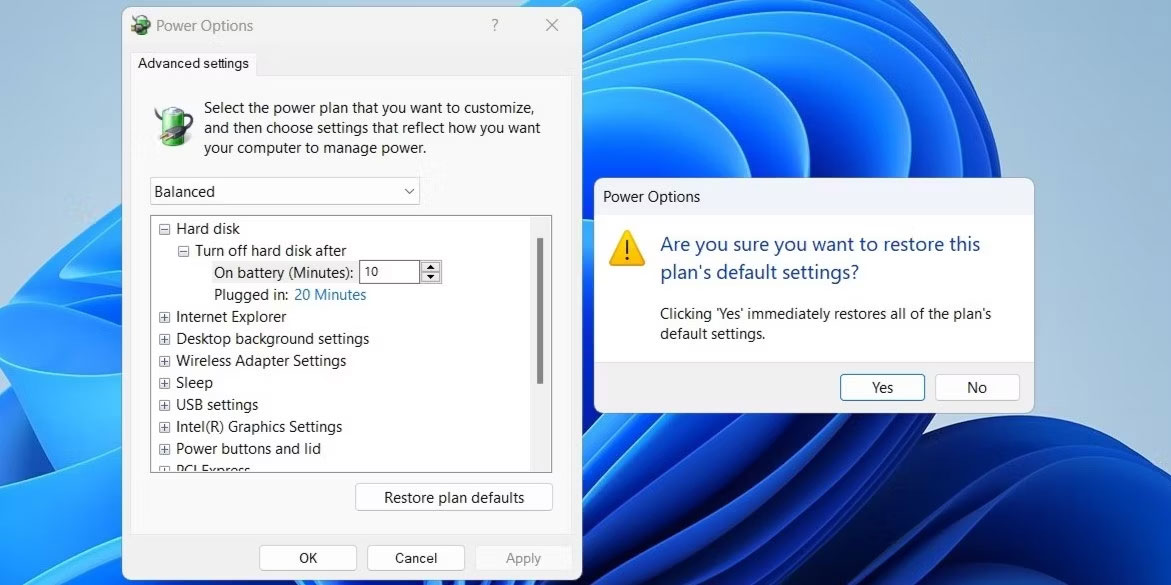
You can also repeat the above steps to reset other Power Plans. Before doing so, you should note down any changes that you want to reapply after resetting.
Reset power plan to default using Command Prompt or Windows PowerShell
While the Control Panel makes Resetting Power Plans to default settings simple, doing so for each individual power plan can be time-consuming. So, what if you want to reset all power plans to their default settings at once?
To do this, you can use command-line tools like Command Prompt or PowerShell on your computer. Don't worry; the process is not as difficult as it looks and only requires you to run a single command.
To reset all Power Plans to default using Command Prompt or PowerShell, follow these steps:
- Press Win + S to open the search menu.
- Type Command Prompt or PowerShell into the search box and select Run as administrator from the right side.
- Select Yes when the User Account Control (UAC) prompt appears.
- Type the following command into the console and press Enter.
powercfg -restoredefaultschemes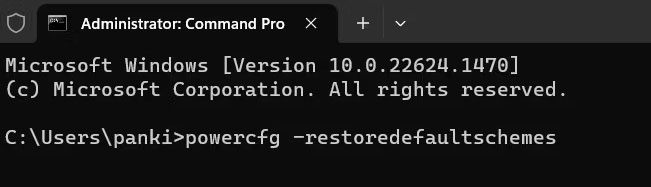
And that's it! Once you run the command above, Windows will reset all Power Plans to their default settings.
Source: Quản trị mạng