

Using Windows Hello PIN makes logging into your user account easy. However, you may encounter an issue where Windows 11 tells you your PIN is incorrect even though you entered it correctly.
This error primarily occurs when your Ngc folder is corrupted, but in some cases, the issue can be more serious and require advanced troubleshooting. If your PIN is not working on your computer, here are some steps to fix the problem.
1. Ensure you are not entering the wrong Windows 11 PIN
Simply put, you might be entering the wrong PIN, which is the most common reason why your PIN does not work. To rule this out, try resetting your PIN once.
Your computer must have an active Internet connection to reset the PIN. Therefore, turn on your computer and ensure that the Internet is connected. To reset your PIN, go to the profile login screen and click I forgot my PIN.
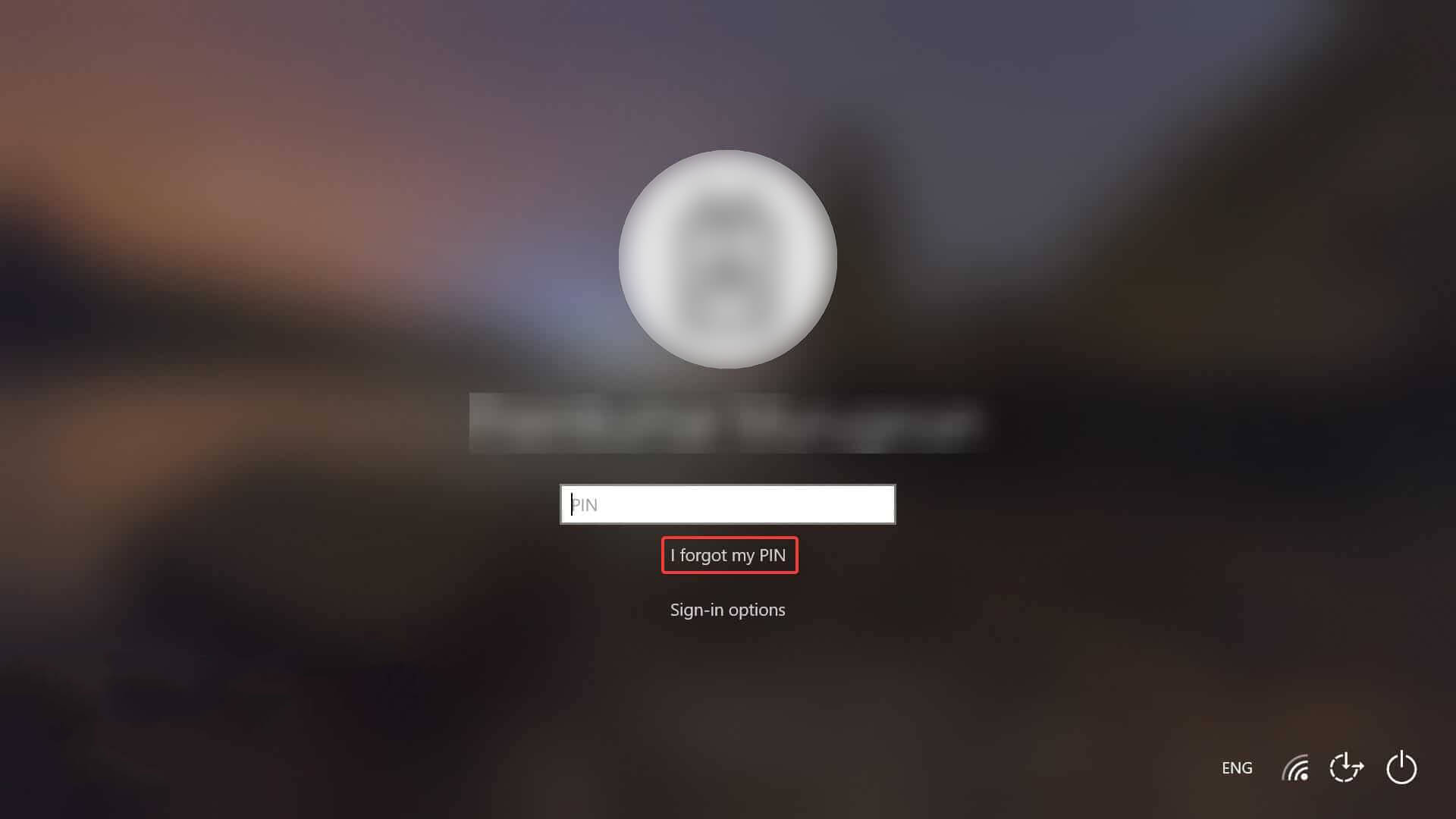
You can reset your PIN by verifying your identity using your Microsoft account password or by choosing an alternative sign-in option by clicking Send code, which will send a code to your email address.
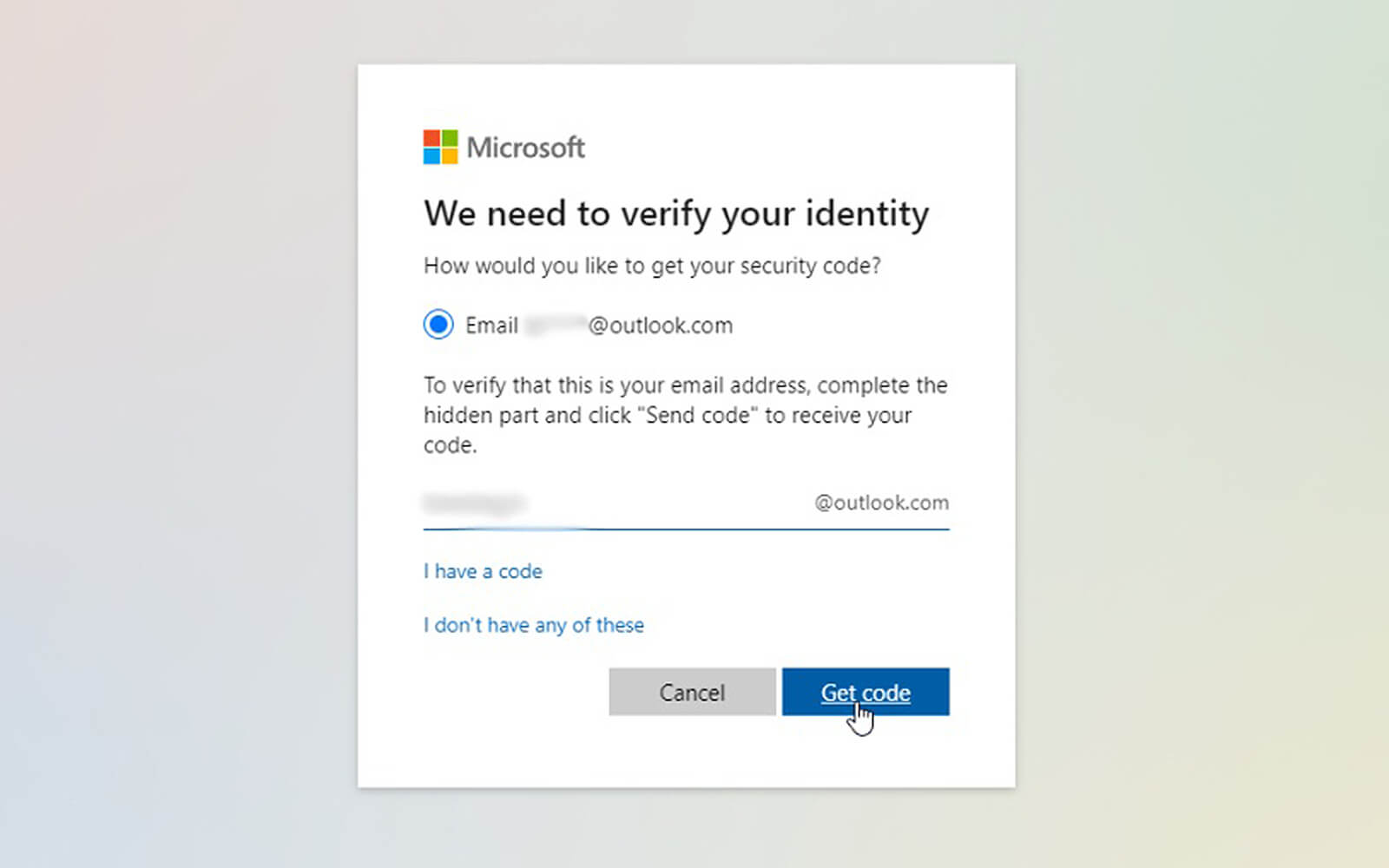
If you choose the second option, enter the code you received via email and click Continue. Windows will guide you to enter a new PIN here, so enter that code, confirm it once, and click OK.
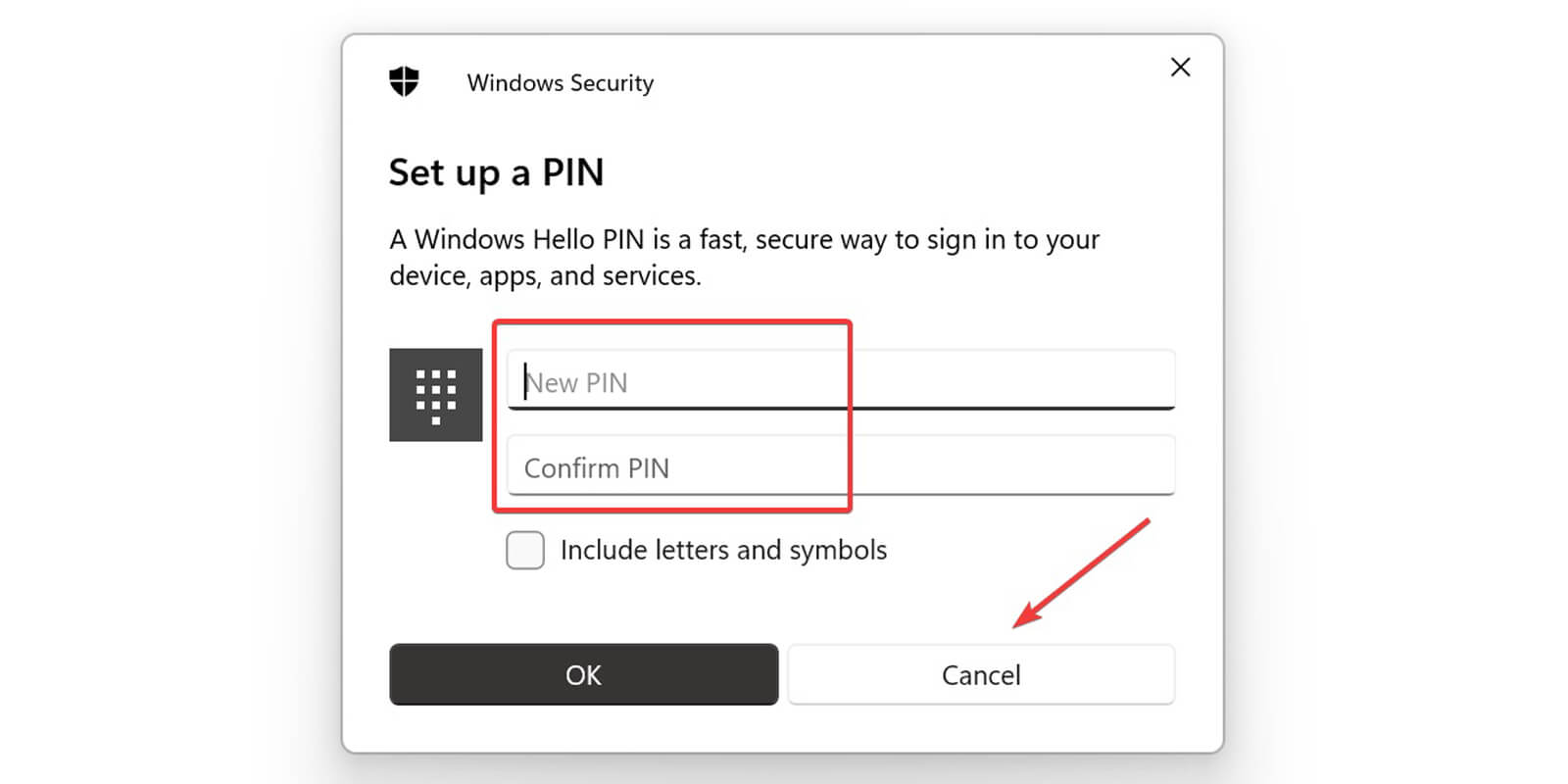
Restart your computer again, add the new PIN on the login screen, and try logging in again to ensure that it was indeed an incorrect PIN preventing you from entering the computer. If it was, you should be able to log in now-just don't forget your new PIN.
If the PIN still doesn't work after resetting and you are certain that the PIN you are entering is correct, then the cause lies within your operating system.
To learn more, reset your PIN again so you can temporarily log into your computer or log in using another sign-in option, such as using your Microsoft account password.
Once you have logged into your account, the first step you must take is to delete the Ngc folder.
2. Log in using alternative methods
If resetting the PIN from the login screen does not solve the problem, you can use your account password instead. To do that, follow the steps below:
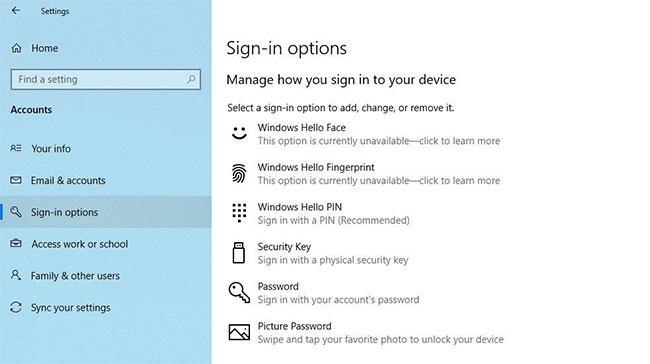
1. Click Sign-in options to see other sign-in options.
2. Click the key icon, usually located on the left.
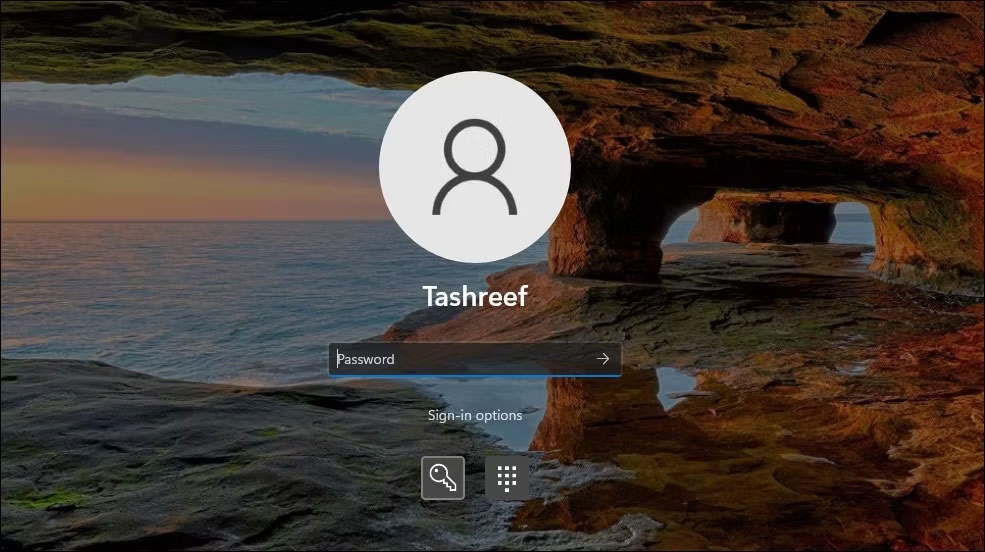
3. Enter the password associated with your account here.
After logging in, you can begin applying the remaining fixes.
Note: If you do not remember your account password, you can reset it just like you would reset your PIN. Unlike resetting a PIN, resetting a password almost always goes smoothly and allows you to log in.
3. Delete the Ngc folder in Windows 11 / 10
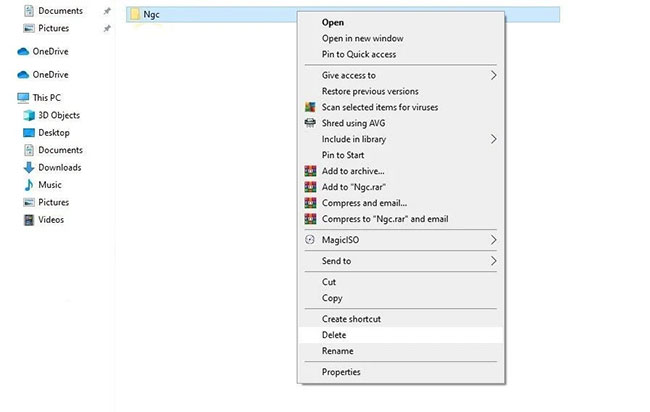
Windows stores all settings related to your PIN in this folder, so if the operating system does not accept your PIN even though it is correct, you should delete this folder. This process will delete all PIN-related data from the operating system. Afterward, you can set up a new PIN, which should work without any issues.
You can delete the Ngc folder by following these steps:
1. Log in to an admin account.
2. Navigate to C: > Windows > ServiceProfiles > LocalService > AppData > Local > Microsoft.
3. Find the Ngc folder, right-click on it, and press Delete.
Navigate to Settings > Accounts > Sign-in to set up a new PIN after deleting the old one. Then, click on Windows Hello PIN, add a new PIN, and hopefully, the PIN will start working again on your operating system.
If this fix also does not resolve the issue, the cause lies elsewhere and requires further investigation.
4. Eliminate specific user account issues
When troubleshooting a PIN issue, the first essential step is to rule out account-specific problems. To start, check if the issue persists on another Microsoft account. The best way to confirm this is to switch to a local account. To do that, follow these steps:
Step 1: Open the Windows Settings app.
Step 2: Go to Accounts.
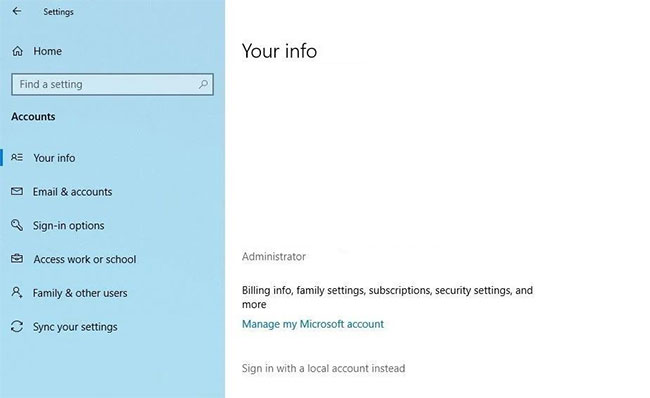
Step 3: Navigate to Your info in the left sidebar.
Step 4: Click on Sign in with a local account instead.
Step 5: Click Next.
Step 6: Enter your PIN.
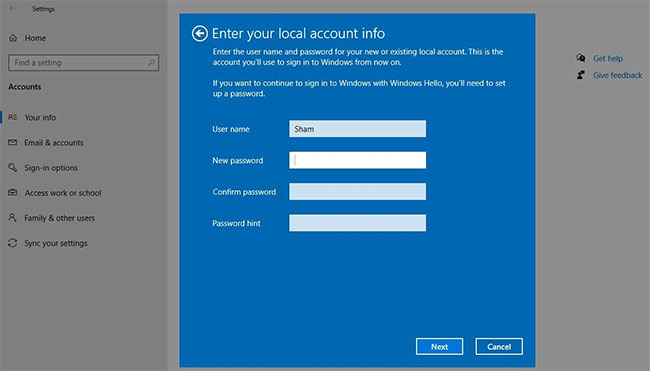
Step 7: Set up the local account by adding your username and password.
Step 8: Once finished, press Next.
Step 9: Click Sign out and finish.
By following the steps above, you will return to the login screen. Re-enter your PIN to confirm it works. If it does, then the cause is your Microsoft account. Creating another user account and checking if the PIN works there will help confirm this.
Therefore, if the issue stems from your Microsoft user account, you should copy your files to a new account and start using the new account from now on.
If the PIN does not work on any account, move to the next fix.
5. Edit PIN sign-in settings in Group Policy Editor
If the convenient PIN sign-in setting is disabled in the Group Policy Editor, the PIN will not work. Therefore, it is essential to ensure that it is not causing issues during sign-in.
However, some versions of Windows 11 may not have this feature. If you fall into that case, skip this step.
Follow the steps below to adjust the settings in the Group Policy Editor:
Step 1: Search for the Run app in the Windows search bar.
Step 2: Type "gpedit.msc" and click OK.
Step 3: Navigate to Administrative Templates > System > Logon.
Step 4: In the right pane, find and double-click Turn on convenience PIN sign-in setting.
Step 5: Check the Enabled box, then press Apply > OK.
If the setting is already enabled, proceed with the remaining fixes.
6. Update or downgrade the operating system
According to Microsoft support staff, one of the potential reasons why a PIN might not work on Windows 11 is due to recent updates. If you have performed a recent update, you may need to roll back the update.
Conversely, if you haven't updated your computer in a long time, the problem might stem from an outdated Windows operating system. After your operating system is updated, try logging in again with your old PIN.
If the issue persists, scan for malware to rule out the possibility of malware interference causing the problem.
7. Disable antivirus and run a malware scan
Interference can occur from antivirus software, leading to your PIN being rejected. Therefore, temporarily disable your antivirus to ensure it is not the cause of the problem. Then, run a Microsoft Defender offline scan to find any hidden malware.
8. Run SFC scan
Once you have removed malware from your computer, ensure that it has not corrupted any Windows 11 files, making them the cause of the problem.
The easiest way to do this is to run an SFC scan. The scanning process automatically searches for corrupted files and replaces them with a cached copy.
If the issue persists after you have tried all the fixes listed above, consider restoring your computer to a previous point in time when the PIN was working normally. If that also does not solve the problem, the best option is to perform a factory reset on your Windows 11 computer.











