

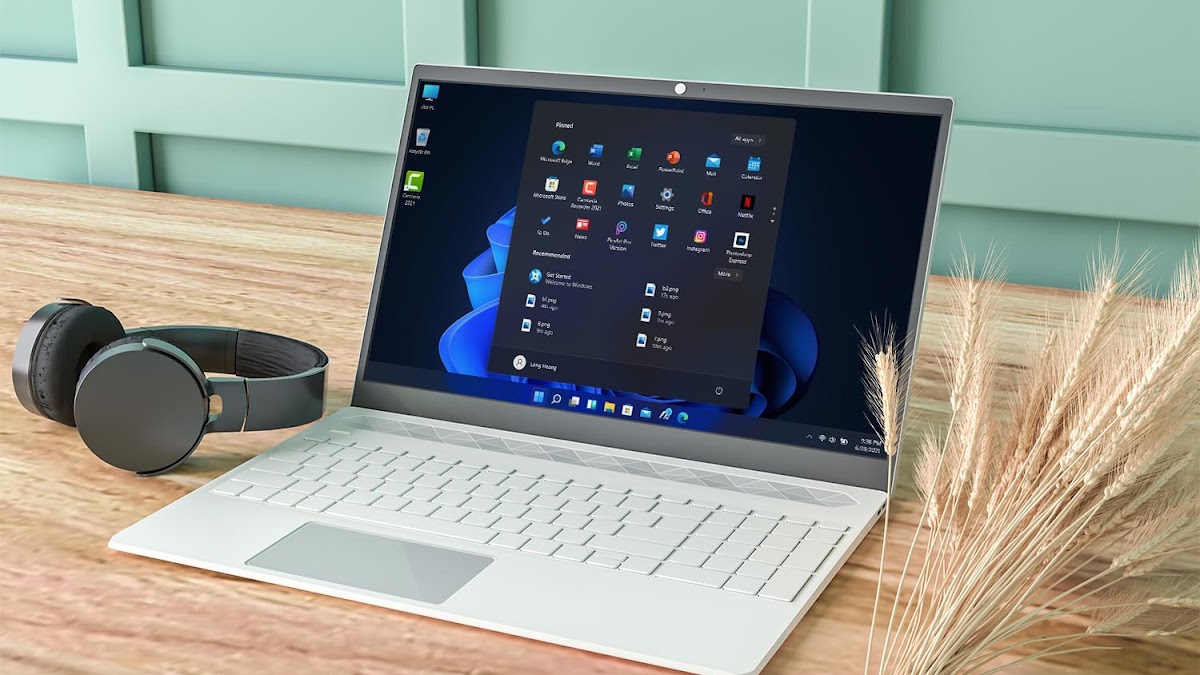
Windows 11 has a completely different interface compared to Windows 10, especially when it comes to the Start menu. The Windows 11 Start menu features a "Recommended" section that displays recently downloaded files and installed applications.
Although this section was added to make relevant content more accessible, some users dislike it because it takes up significant space in the Start menu and makes sensitive information easier to find. If you are one of those users, here is how to remove the Recommended section from the Start menu on Windows 11.
How to remove the "Recommended" section of the Start menu using Group Policy Editor
Before proceeding, please note that you can only remove the Recommended section of the Start menu in the Windows 11 Education (SE) version. If your computer is running Windows 11 Pro or Home, you can only configure it to hide files and apps from the Recommended section. The section itself will still appear in the Start menu.
Additionally, here is how to remove the Recommended section from the Start menu in the Windows 11 Education version:
1. Press Win + R to open the Run dialog box.
2. Type gpedit.msc into the search bar and press Enter. This will open the Group Policy Editor.
3. In the Group Policy Editor, navigate to the following location:
User Configuration > Administrative Templates > Start Menu and Taskbar4. Double-click the policy Remove Recommended section from Start Menu on the right.
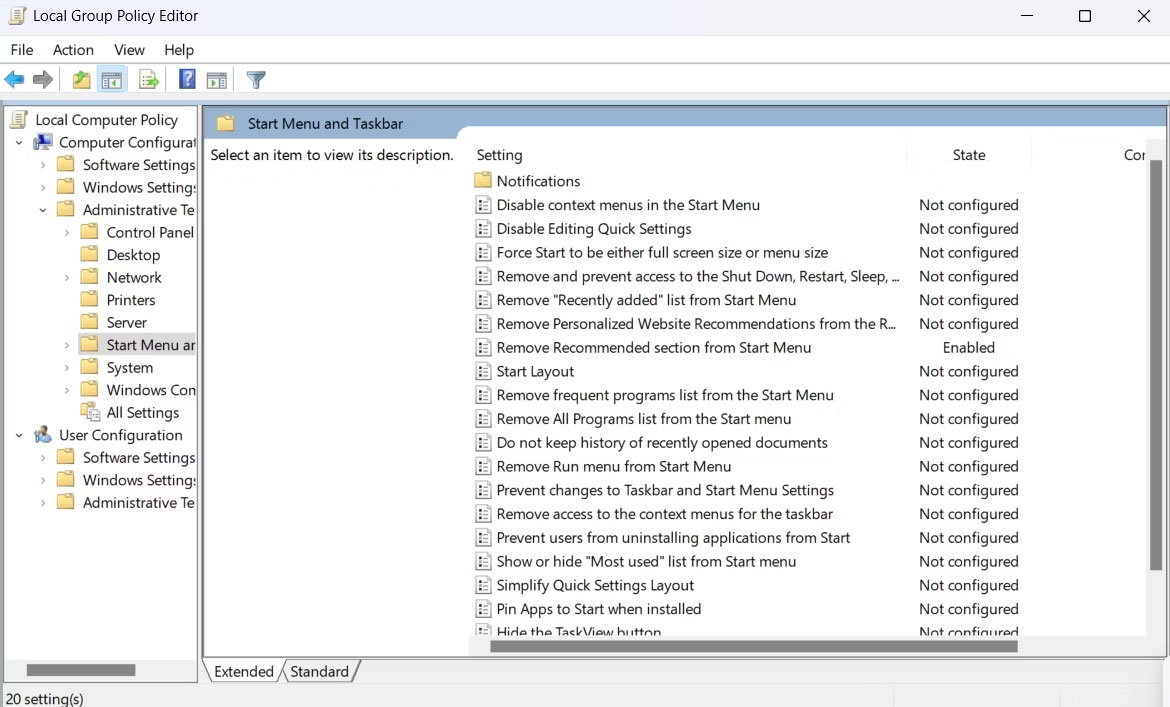
5. Select Enabled from the policy editing window that appears.
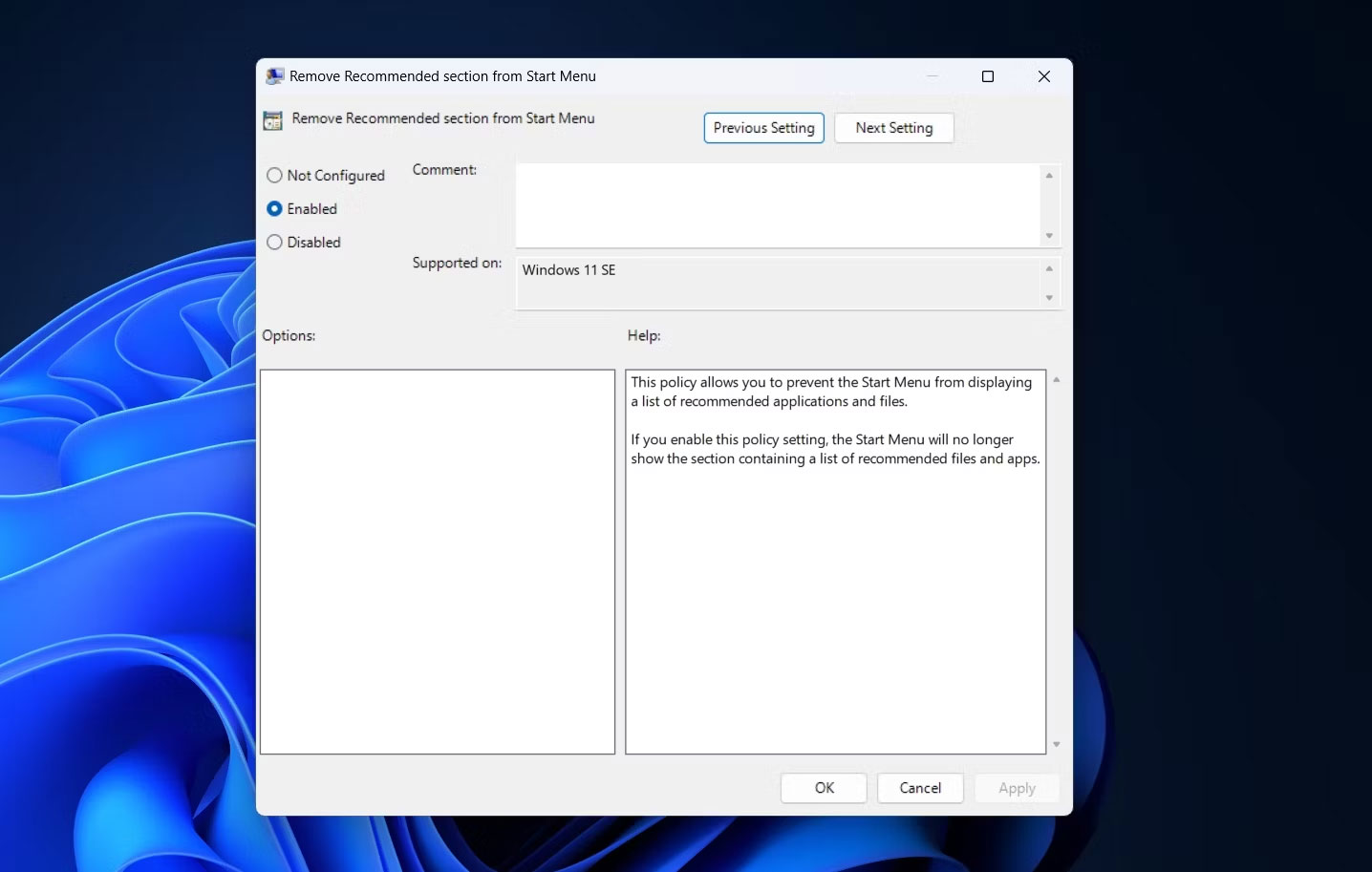
6. Click Apply > OK.
Then, restart your computer. After restarting, you will see that the Recommended section has disappeared from the Start menu.
How to remove the "Recommended" section of the Start menu using Registry Editor
Another quick way to remove the Recommended section is by editing the registry. Here is what you need to do.
1. Open the Run tool, type regedit into the search bar, and press Enter.
2. In the Registry Editor, navigate to the following location:
Computer\HKEY_LOCAL_MACHINE\SOFTWARE\PoliciesMicrosoft\Windows3. Right-click on the Windows key, hover over New, and select Key.
4. Name the key Explorer.
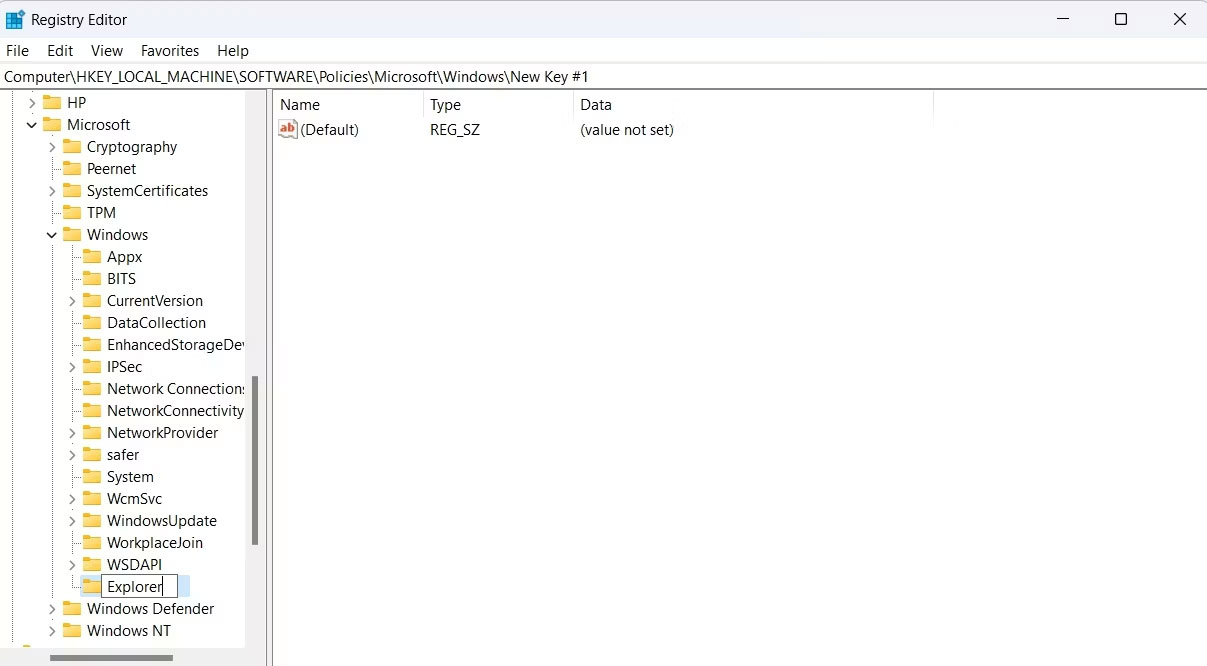
5. Right-click on the Explorer key, hover over New, and select DWORD (32-bit) Value.
6. Name the value HideRecommendedSection.
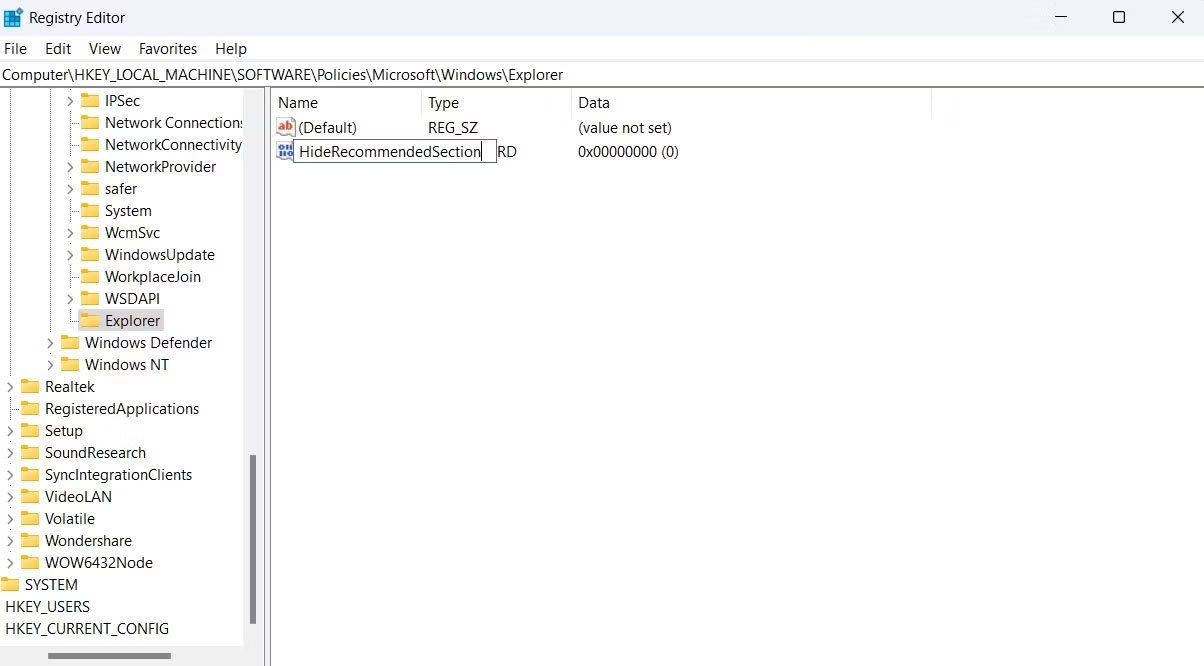
7. Double-click the HideRecommendedSection value on the right.
8. Enter 1 into the Value Data field and click OK. This action will remove the Recommended section. To revert the changes, enter 0 into the Value Data field and click OK.
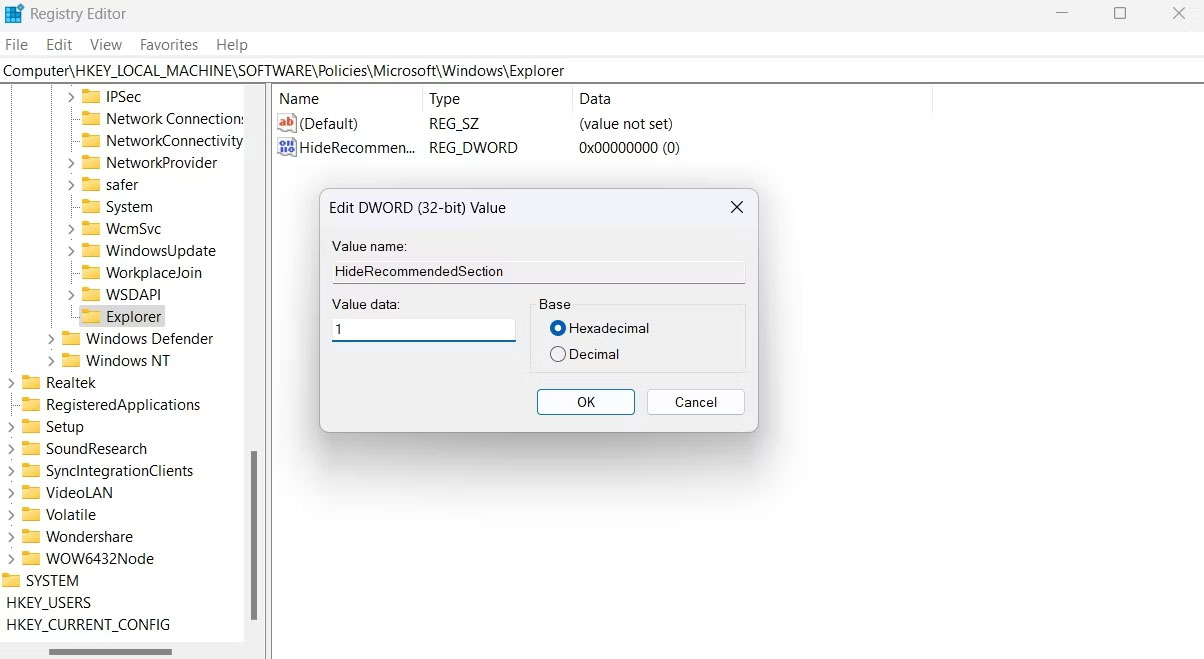
Then, restart your computer to see the changes.
Remove content from the Recommended section of the Start menu using the Settings app
You can use the Windows Settings app to manage the content displayed in the Recommended section of the Start menu. This can be useful if you only want to show installed apps, recently accessed files, or neither.
To remove content from the Recommended section, open the Settings app, select Personalization from the left sidebar, and click on Start on the right. In the Start window, you will see 3 toggle buttons: Show recently added apps, Show most used apps, and Show recommended files in Start, recent files in File Explorer, and items in Jump Lists.
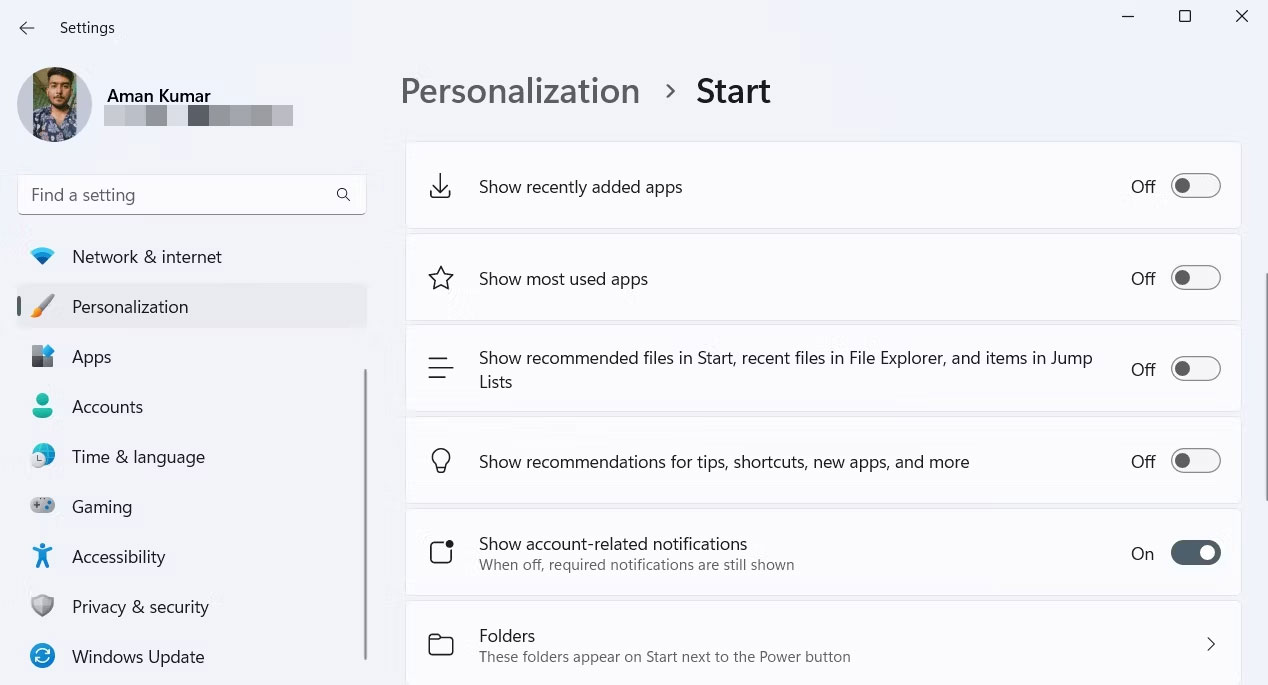
You can turn off Show recently added apps if you do not want the Recommended section to display apps you have recently installed on your computer. The Show most used apps toggle manages the apps you frequently access on your computer. You can turn this switch off if you do not want those apps to appear in the Recommended section.
You can turn off Show recommended files in Start, recent files in File Explorer, and items in Jump Lists if you do not want the Recommended section to display files and folders you have recently accessed.











