

Are you experiencing audio issues on your Windows 11 PC? If so, it might be time to update your Realtek High Definition Audio Driver.
Whether you want to improve the performance of your audio device or fix existing audio problems, you should download the latest Realtek driver for your computer. Read the following article for detailed instructions on how to do this!
Download Realtek High Definition Audio driver from the Realtek website
The best way to download the Realtek High Definition Audio driver on your computer is to visit the official Realtek website. Here are the steps to do so.
- Open the Realtek High Definition Audio Codec download page on your computer.
- Click on the download icon in front of the latest executable file.
- Select the I accept to the above checkbox and click Download this file.
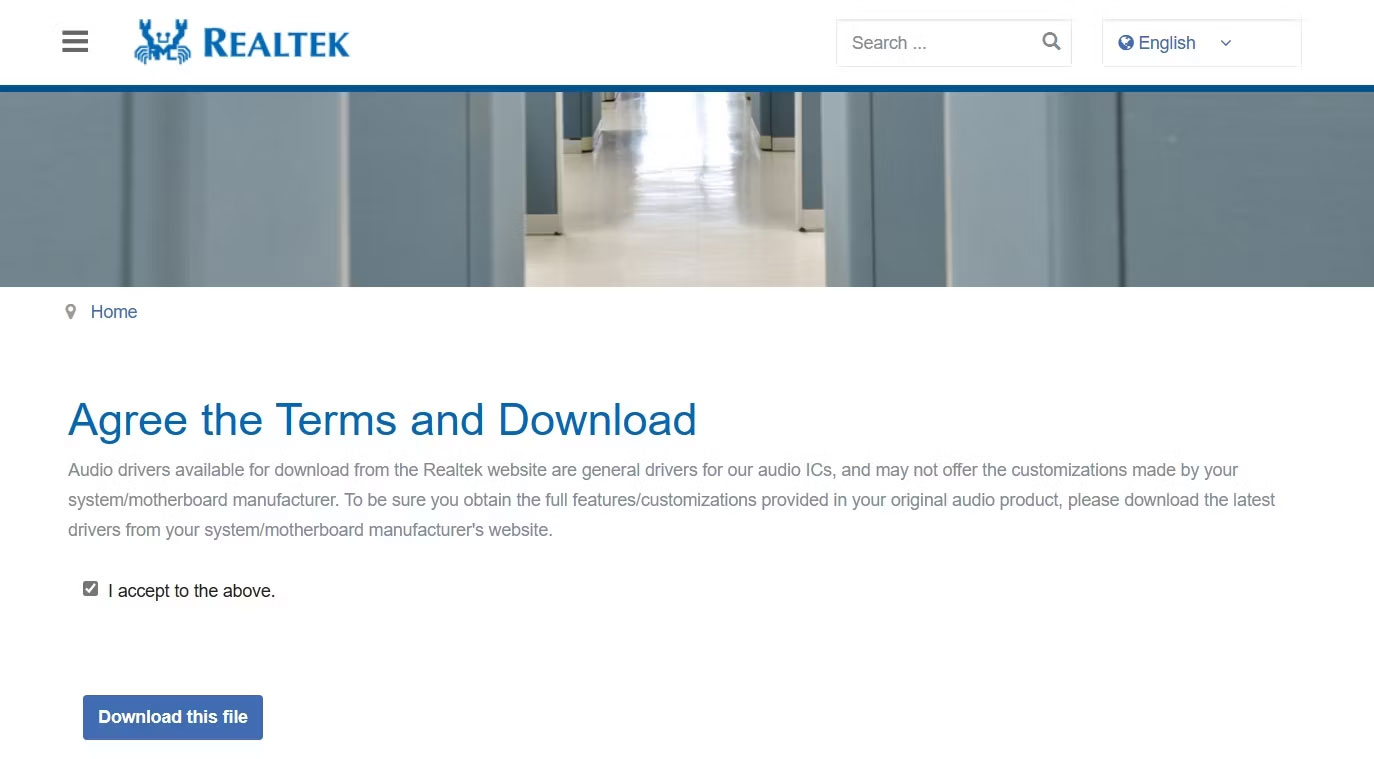
Once the download process is complete, run the executable file to install the Realtek High Definition Audio driver on your Windows PC.
Download Realtek High Definition Audio driver from the manufacturer's website
You can also visit your PC manufacturer's website to download the Realtek High Definition Audio driver. The steps to do this will vary depending on the manufacturer, but the general principle is to visit the manufacturer's driver download page, then search for and download the Realtek audio driver from there.
Here is how to download the Realtek High Definition Audio driver from the HP website.
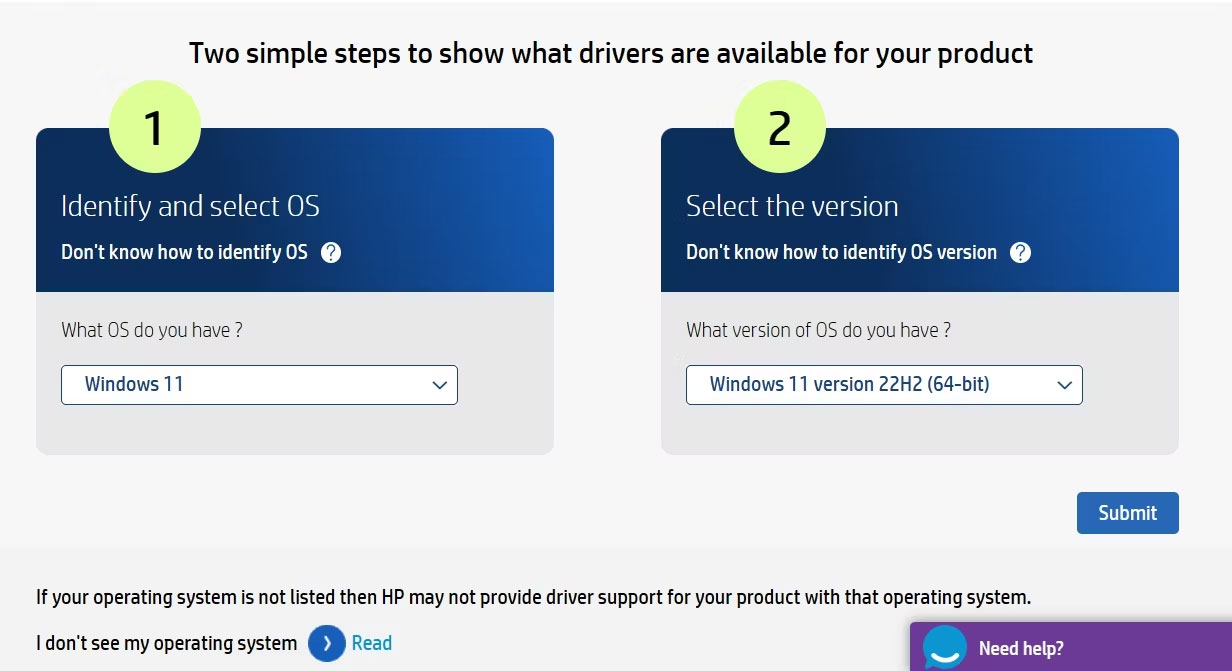
1. Open the HP Software and Driver download page on your device.
2. Select your operating system and version from the corresponding drop-down menus. Then, click Submit.
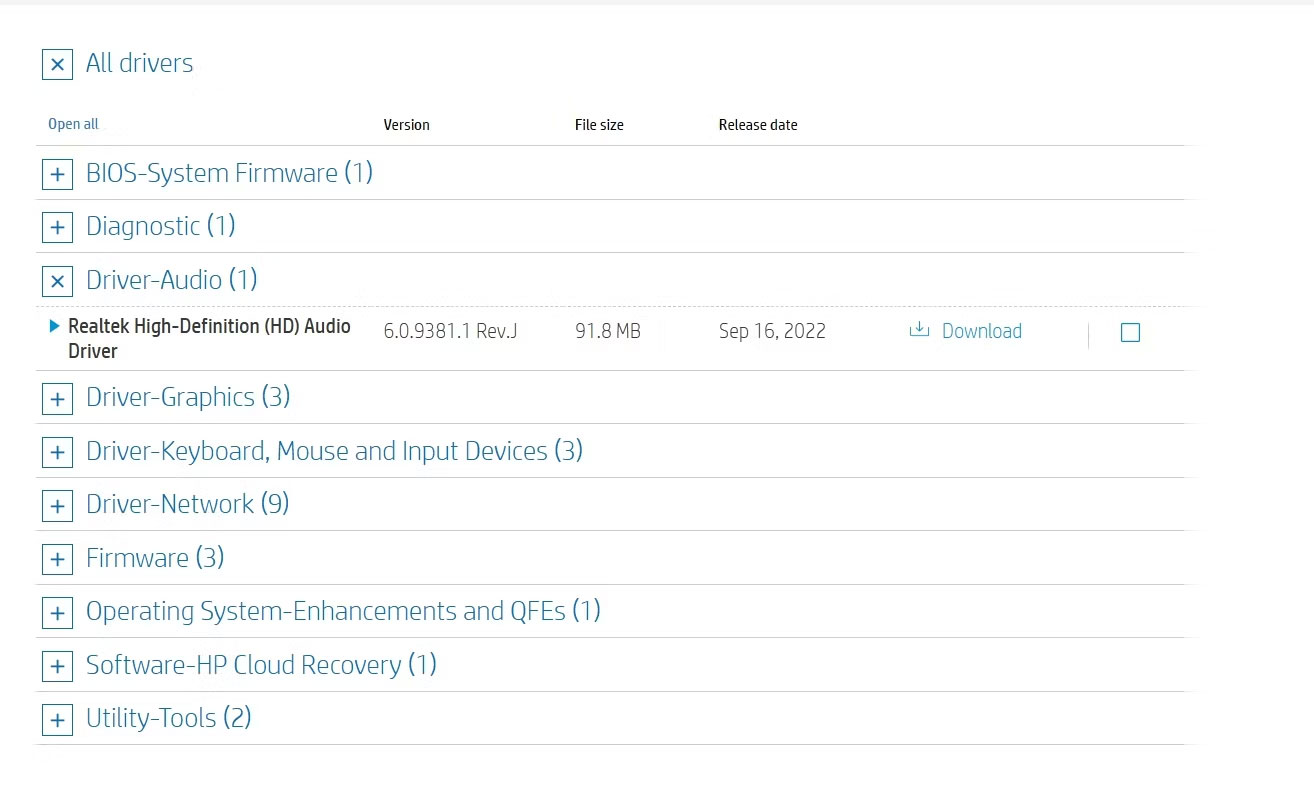
3. Click All drivers > Driver-Audio.
4. Click Download next to Realtek High-Definition (HD) Audio Driver.
Similarly, you can use the links below to access your PC manufacturer's driver download page and download the Realtek High Definition Audio driver.
- Download Realtek Audio Drivers for Intel
- Download Realtek Audio Drivers for Asus
- Download Realtek Audio Drivers for Dell
- Download Realtek Audio Drivers for Lenovo
Once the download process is complete, double-click the executable file and follow the on-screen instructions to complete the installation process.
How to update Realtek audio driver on Windows 11
Realtek frequently releases new driver updates to fix known issues and improve overall audio performance on your PC. Therefore, it is important to install the latest Realtek audio driver on your computer.
To do this, press Win + I to open the Settings app, select Windows Update from the left sidebar, and click Check for updates on the right.
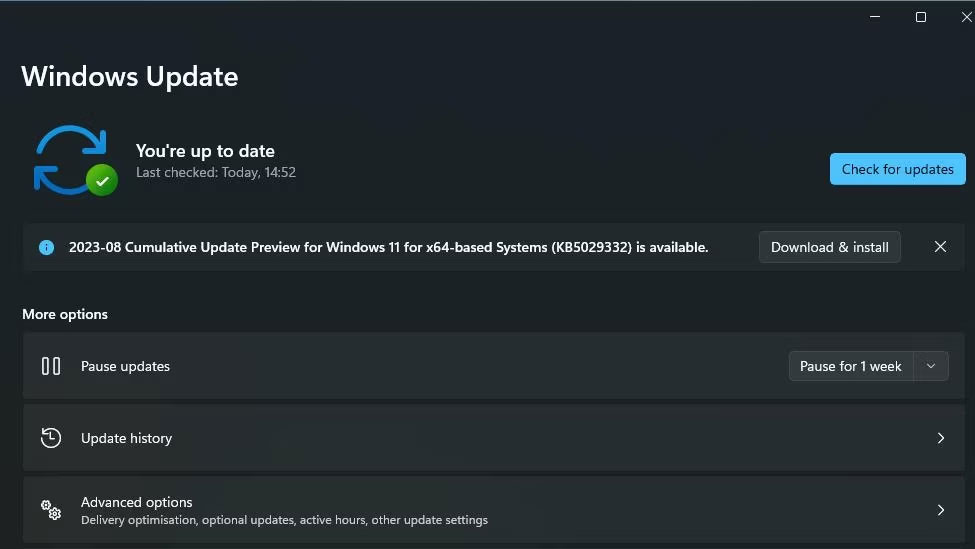
Your computer will search online for any available driver or Windows updates, including updates for the Realtek audio driver. If any updates are available, Windows will automatically download and install them.
The Realtek High Definition Audio driver ensures that your audio devices work properly on your Windows PC. These drivers are often pre-installed, but you can also install them manually from the Realtek website or your PC manufacturer's driver download page.











