


Initially, Windows 11 lacked native Optical Character Recognition (OCR) capabilities. The closest thing to OCR was achieved using Microsoft PowerToys, which provides a text extraction feature from images. Fortunately, Microsoft has changed all that with a new feature in Snipping Tool.
After the update, Snipping Tool features a new “Text Actions” capability that can help you copy text from screenshots. Let's explore this new feature in detail in the following article!
What is the Text Actions feature in Snipping Tool?
At the time of writing, the current version of Snipping Tool allows you to capture and annotate screenshots. You can even record your screen using Snipping Tool.
However, the latest builds from the Microsoft Insider Dev and Canary channels include an updated version of Snipping Tool, which includes the "Text Actions" feature. This brings OCR support to screenshots, meaning you can scan captured images to find text.
You can copy a selected portion of the identified text or copy all text from the screenshot before saving. Furthermore, you can also redact text and then copy the remaining text from the image.
How to enable and use the Text Actions feature in Snipping Tool
The Text Actions feature in Snipping Tool is available to Windows Insiders on the Canary and Dev channels. Therefore, if you are using one of these channels, please update your Windows Insider PC to the latest available build.
You can also use UUP Dump to download Windows Insider builds without registering for the Windows Insider program. After installing the latest build, you must check for available updates for Snipping Tool via the Microsoft Store. The Text Actions feature is included in version 11.2308.33.0 and above. Therefore, you must install the latest update for Snipping Tool to upgrade to this version.
Follow these steps to use the Text Actions feature in Snipping Tool:
1. Press the Win key, type Snipping Tool, and press Enter. Alternatively, press Win + Shift + S to launch the tool.
2. Now, select any screenshot mode and capture a screenshot.
3. Switch to the Snipping Tool window where the screenshot is displayed. Click on the Text Actions icon.
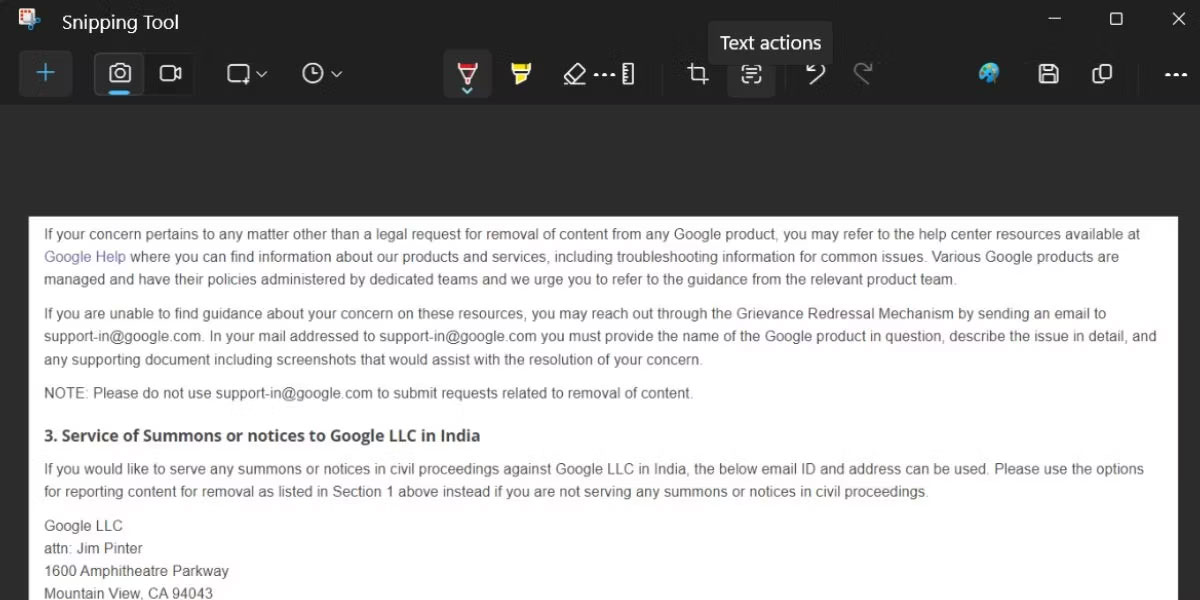
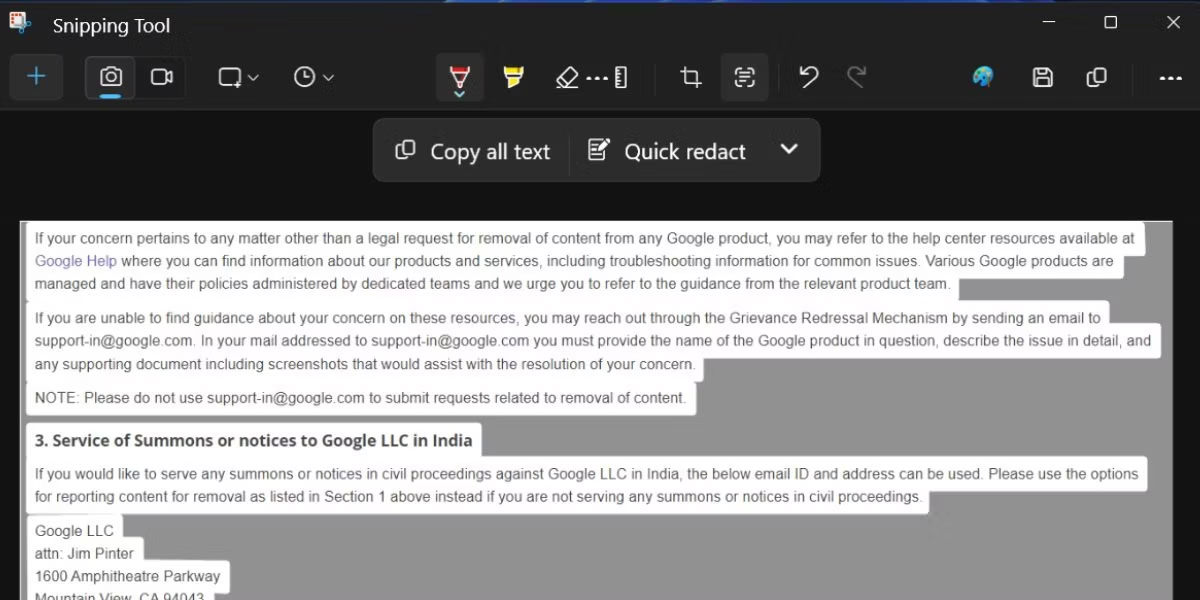
4. This feature will identify all text in the captured screenshot and highlight it. Click and drag to select a specific word or sentence from the screenshot.
5. Click Copy all text to copy everything from the image and save it to your clipboard.
6. Press the Win key, type Notepad, and press Enter.
7. Paste all the copied text into Notepad and save it for later use.
How to redact text in Snipping Tool
In addition to the text recognition and copying feature, you can also redact text in Snipping Tool. Redacting text means excluding certain types of text that contain sensitive information. Currently, you only have two redaction options in the tool: Email addresses and phone numbers.
After capturing a screenshot and clicking the Text Actions button, you will see the Quick Redact option next to the Copy All text option. Click the Quick Redact option, and it will deselect and hide all phone numbers and email addresses. Now, you can copy the remaining text using the Copy All text button.
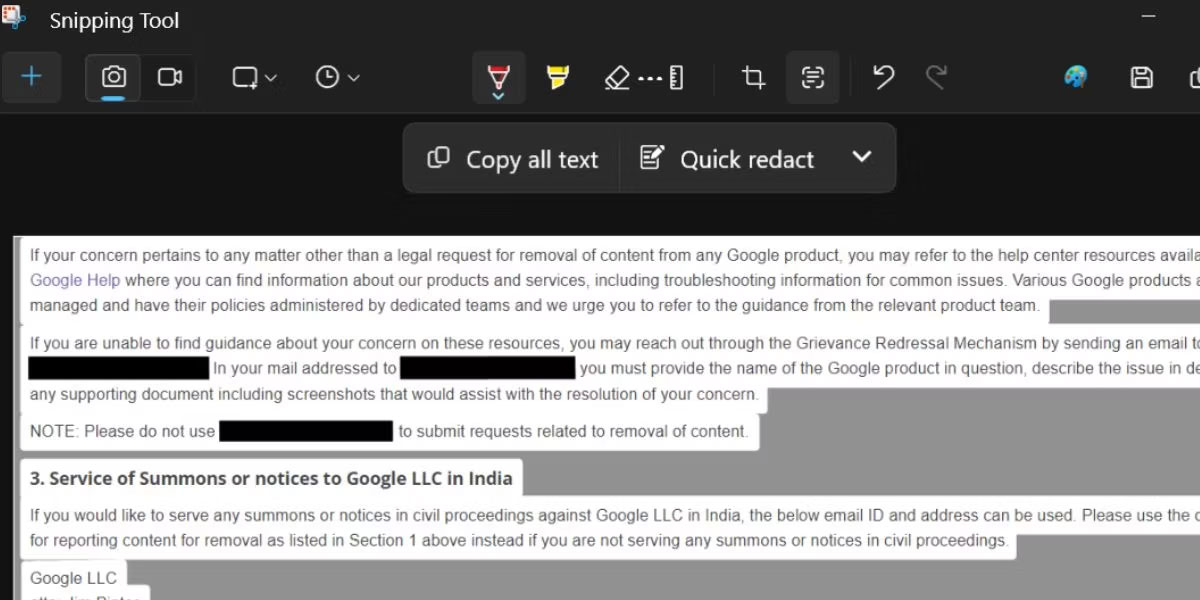
If you only want to apply one type of redaction option, click the arrow icon next to the Quick Redact option. Now, deselect any option and then click the Quick Redact option again. Finally, if you want to remove the redaction effect from the screenshot, click the arrow icon and then click the Remove all redactions button.
Text Actions in Snipping Tool will eliminate the need to use Google Lens in a web browser. It also works without the Internet and can even redact sensitive information. This feature is expected to appear with the Windows 23H2 update for all Windows users.











