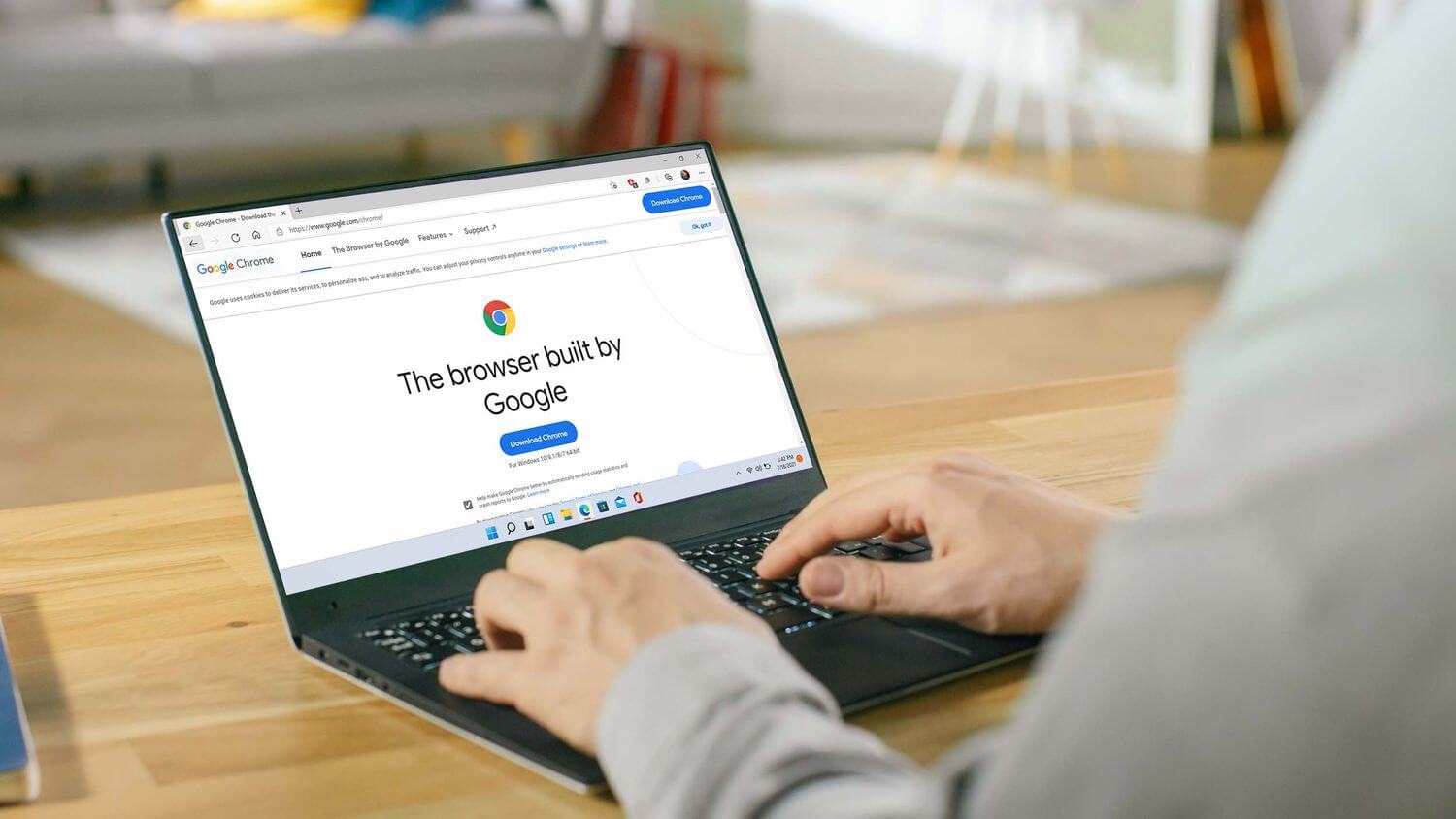
By default, when you maximize your Chrome or Edge browser window, the Taskbar should be visible. However, in some cases, when you maximize the browser, it covers the Taskbar. A hidden Taskbar hinders your ability to interact with applications, notifications, and other system tray items.
This issue affects both Chrome and Edge browsers and frequently occurs on systems with dual-monitor setups and various hardware configurations. Here is how you can prevent your browser from hiding the Taskbar in Maximize mode on Windows 11.
1. Common troubleshooting steps to try
Below are some common troubleshooting steps you can try to resolve the issue of the Taskbar hiding in Maximize mode in Google Chrome and Microsoft Edge.
- Perform a restart: If you haven't already, try a quick restart. Restarting can help resolve issues caused by temporary glitches.
- Exit full-screen mode: The Windows Taskbar does not appear in full-screen mode. Therefore, ensure that you haven't accidentally switched to full-screen mode, which hides the Taskbar. Press F11 or Fn + F11 to enter and exit full-screen mode in Google Chrome and Edge.
If the issue persists, here are some additional troubleshooting steps you can try.
2. Lock and unlock the screen using Win + L
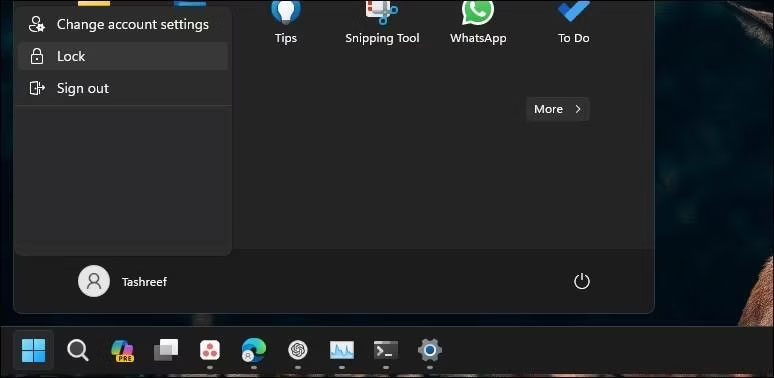
Usually, this issue can be fixed by performing a quick screen lock and unlock. Press Win + L on your keyboard to lock the screen. Additionally, if the shortcut does not work, click Start and select your profile picture. Choose the Lock option to lock your screen. After being locked, log back into your account to see if the issue is resolved.
If the issue persists, it may not just be a temporary glitch, and you may need to consider other causes that could cause the Taskbar to disappear.
3. Restart the Windows Explorer process
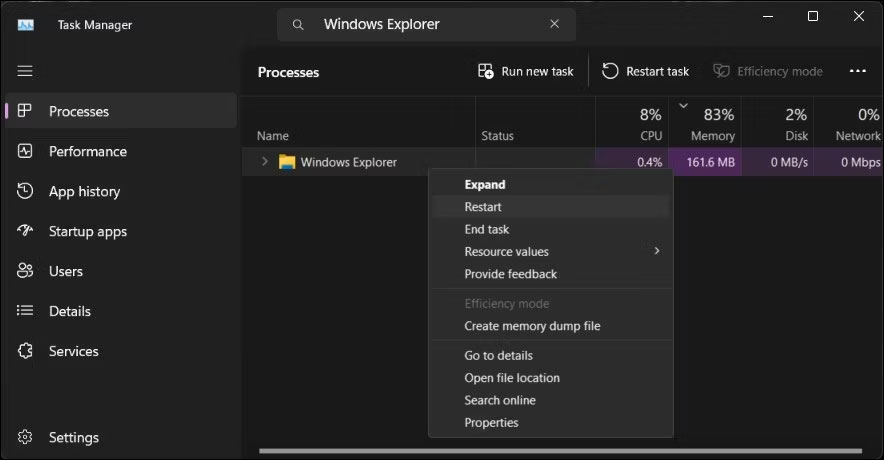
Restarting the Windows Explorer process can help you fix graphical user interface issues, including the Taskbar. When you end the process, it will restart the file management component and reset the Taskbar.
You may see a blank screen for a moment while the Windows Explorer process restarts. After restarting, the Taskbar should remain visible even when Chrome or Edge browsers are maximized.
4. Check and disable "Auto-Hide Taskbar" behavior
You can configure and set the Taskbar to automatically hide in both desktop and tablet modes. When enabled, the Taskbar will hide when you stop interacting with it or launch an application, such as a browser. Therefore, check your Taskbar settings and turn off the auto-hide behavior if it is enabled.
To turn off the Taskbar auto-hide behavior:
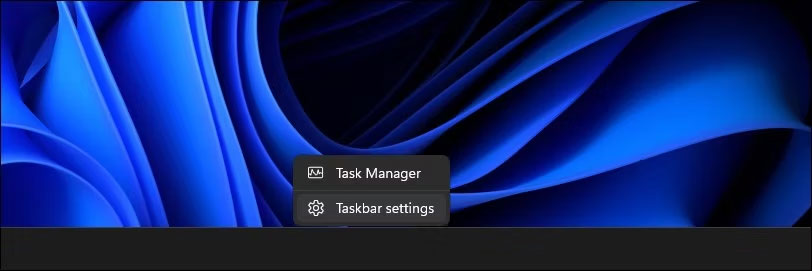
1. Right-click on the Taskbar and select Taskbar settings.
2. Click to expand the Taskbar behaviors section.
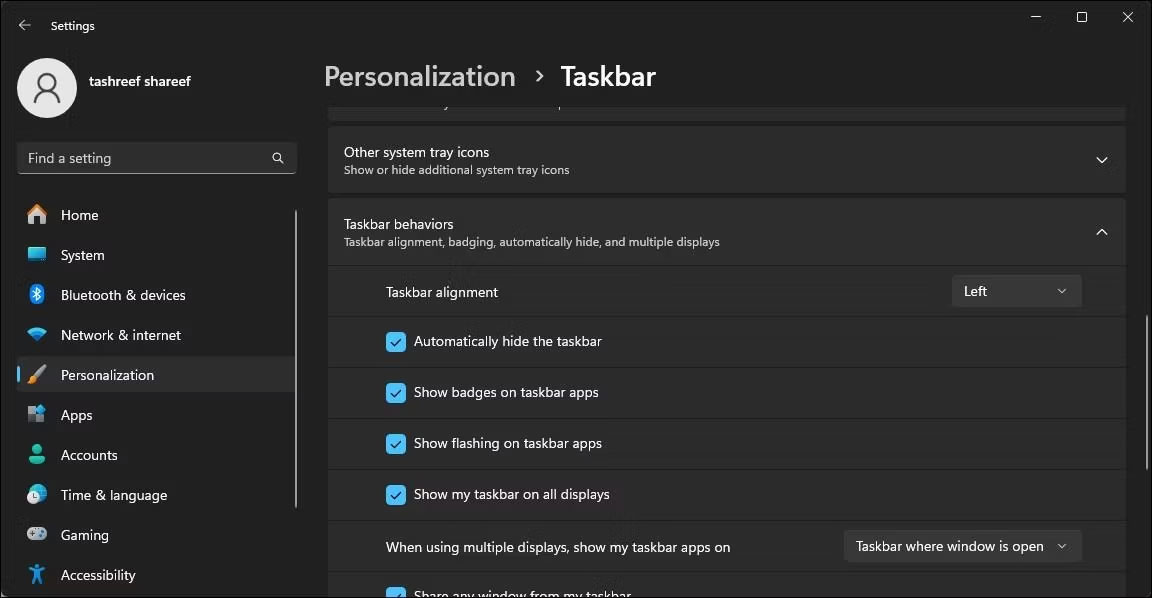
3. Select the Automatically hide the taskbar option to enable it. If it is already selected, uncheck it.
4. Go back to your browser and ensure the window is maximized.
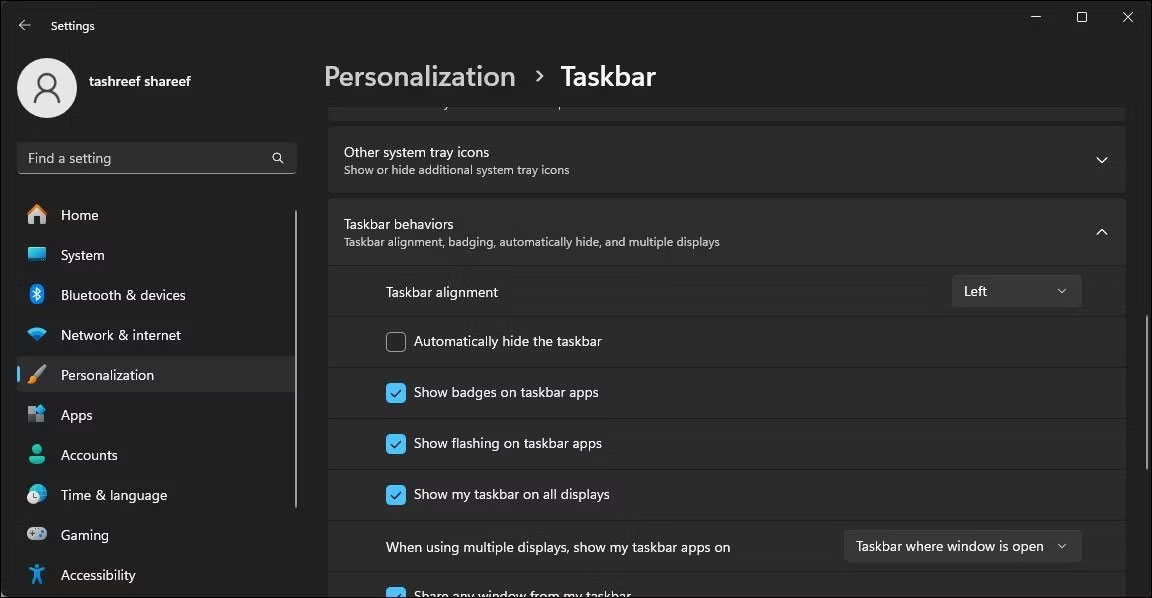
5. Next, in the Settings app, uncheck the Automatically hide the taskbar option to turn it off.
This action will snap the browser window, displaying the Taskbar at the bottom and keeping it there without further issues.
5. Check display settings
If you are running a multi-monitor setup, ensure that the Display DPI Scaling for your primary and secondary monitors match. By default, Windows may set different DPI scales for different monitors depending on the monitor size and resolution.
You can change the display DPI scale from the Settings app. In the Scale & Layout section, you may notice one monitor set to 125% and another set to 100%. To fix the issue, you need to configure both monitors to use the appropriate DPI Scaling (100%).
6. Re-register Windows apps for all user accounts
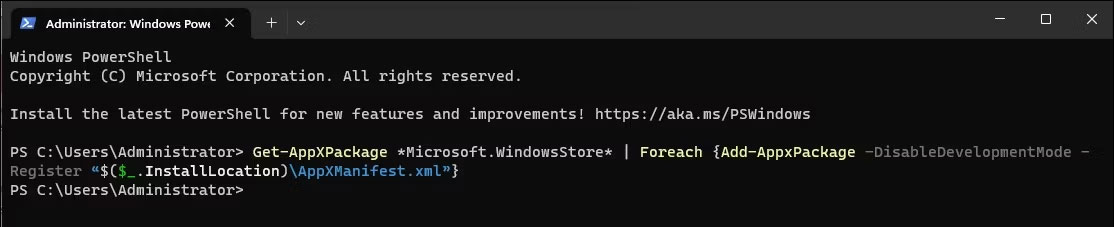
A malfunctioning Taskbar may disappear when an application is maximized. Re-registering built-in Windows apps using Microsoft PowerShell can help you fix Taskbar issues.
To re-register Windows apps for all user accounts:
- Press Win + X to open the Quick Link menu.
- Select Terminal (Admin) to launch Windows Terminal.
- Next, copy and paste the following command and press Enter:
Get-AppXPackage -AllUsers | Foreach {Add-AppxPackage -DisableDevelopmentMode -Register "$($_.InstallLocation)AppXManifest.xml"} - After execution, the command above will begin re-registering all Appx packages associated with Microsoft Store apps for all users on your computer. Ignore any errors and allow the process to complete.
Once completed, you can use the browser in Maximize mode with the Taskbar visible.
7. Check and install any pending Windows updates
The latest Windows updates bring bug fixes and performance improvements. Since Chrome and Edge browsers update automatically, check your computer to see if there are any pending Windows updates and install them to see if that resolves the issue.
To check and install Windows updates:
- Press Win + I to open Settings.
- Open the Windows Update tab.
- By default, Windows periodically checks for new updates and displays them in the Windows Update tab. If no updates are listed, click Check for update. Windows will now begin scanning for pending updates.
- If an update is found, click Install Now to download and install the update.
After installing the update, restart your computer to apply the changes and check for any improvements.
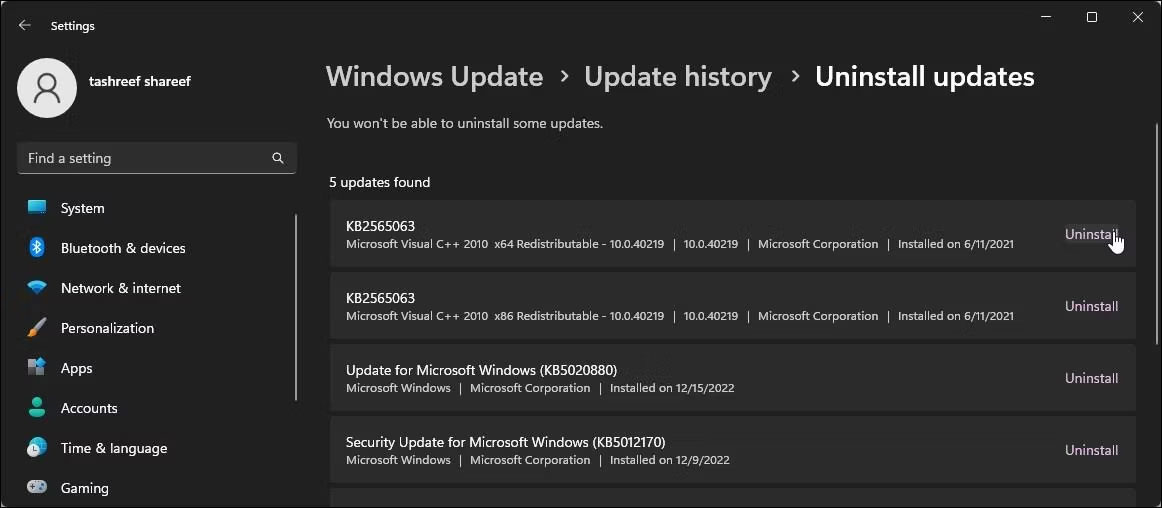
This means that if there are no new updates, check if a recently installed update caused the issue. Sometimes, bugs in new updates can cause issues on certain computers and need to be uninstalled to resolve the problem.
You can manually uninstall Windows 11 updates from the Settings app. After uninstalling, restart your computer and check for improvements. If you determine that a recent update caused the issue, consider pausing automatic Windows 11 updates. You can pause updates for up to 5 weeks and wait for the latest fix.
Additionally, use the System Restore feature to undo recent changes made by updates or applications on your computer to see if that helps resolve the issue.