

Introduced in Windows 10, Memory Compression is a feature that helps your RAM have more space to prevent it from filling up too quickly. Windows enables Memory Compression by default, and you can disable this feature if you wish.
But what exactly is Memory Compression, and should you disable it from the start? Let's take a closer look at this feature in the following article!
What is Memory Compression on Windows? Why is it so important?
Memory Compression on Windows is a feature that automatically reduces data size before writing it to RAM. This process allows your computer to store more files in physical memory than usual, reducing the need for a page file on Windows. Paging can significantly slow down a computer in high RAM usage scenarios, making Memory Compression a vital feature to have.
While compression offers many benefits, here are the key advantages you need to know:
- Your computer will rely less on secondary memory, which is slower than RAM, leading to better memory performance, multitasking, and stability, especially on systems with limited physical memory.
- Since your computer will store more data in physical memory, many of your applications will run faster and smoother.
- Disk usage will decrease, meaning your computer's memory demands will not put pressure on your storage drive.
- With less disk usage, your computer's power consumption will decrease.
- It can help you avoid upgrading RAM too soon, as an average user can do well with 8GB of RAM.
You can check how much memory your computer is compressing in Task Manager. To do this, right-click Start and select Task Manager. In Task Manager, navigate to the Performance tab and click on Memory on the left.
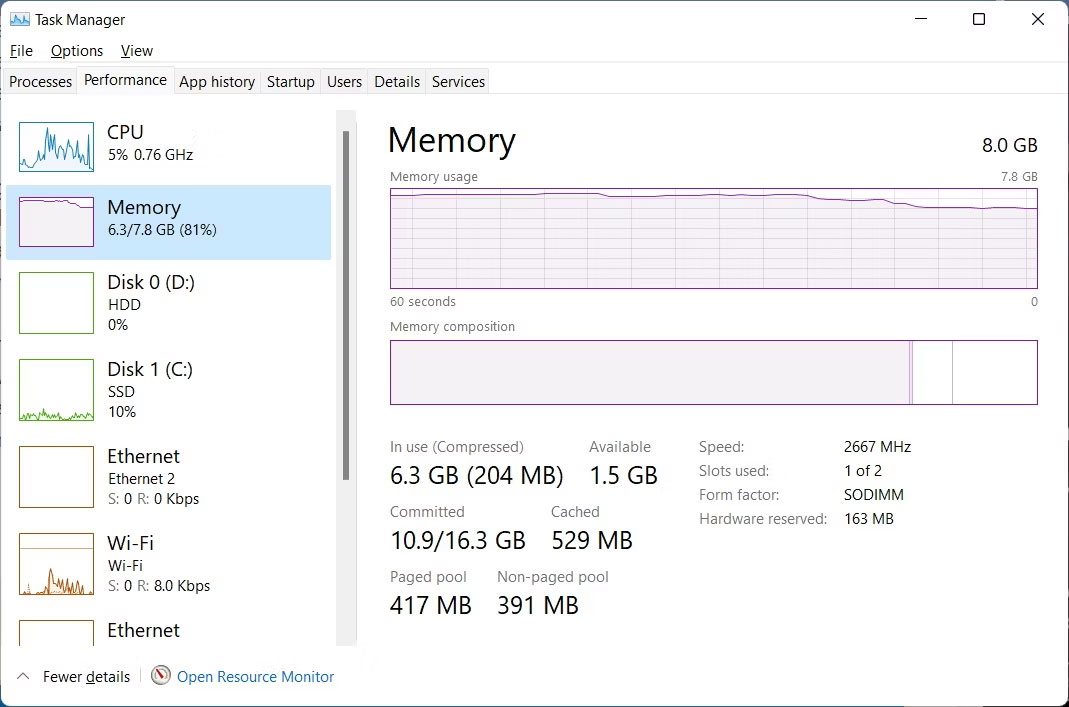
You will see how much memory Windows has compressed in the In Use (Compressed) section; the number in parentheses indicates the compression level.
How to enable Memory Compression

To enable Memory Compression on your PC, press the Win key and type powershell into the search bar. When the PowerShell app appears in the results, click Run as Administrator.
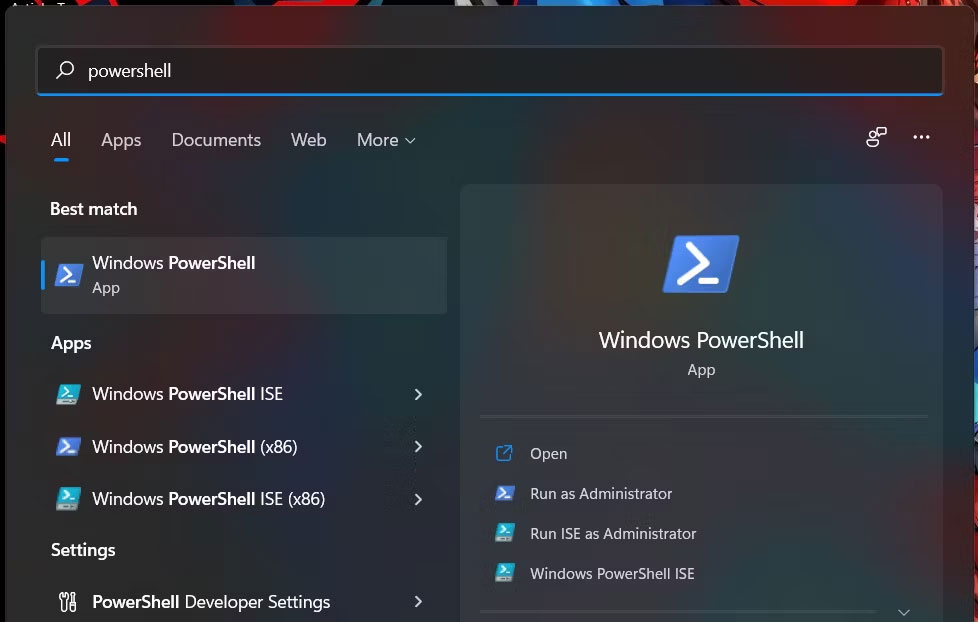
When PowerShell launches, type the command below:
Enable-MMAgent -mcWhen you press Enter, PowerShell will execute the command and enable Memory Compression.
How to disable Memory Compression

Although memory compression is very important, there may be cases where you want to disable this feature. For example, you might have a lot of RAM on your computer, meaning you have no need for memory compression, or this feature might conflict with an application or driver you need. You might even want to disable it simply due to personal preference.
Tip: If your computer is compressing a lot of data or relying too heavily on paging and you feel it significantly affects performance, adding more RAM is the best solution.
Whatever your reason for wanting to disable Memory Compression, you can disable this feature by opening PowerShell as an administrator and typing the command below:
Disable-MMAgent -mcWhen you press Enter and the command executes, Memory Compression will be disabled.
How to check if Memory Compression is enabled or disabled
Since you do not receive a confirmation message stating whether you have enabled Memory Compression, you can quickly check it in PowerShell. To do this, open PowerShell as an administrator, type the command below, and then press the Enter key:
Get-MMAgentIf the Memory Compression feature is disabled, it will show True next to MemoryCompression in the command results.
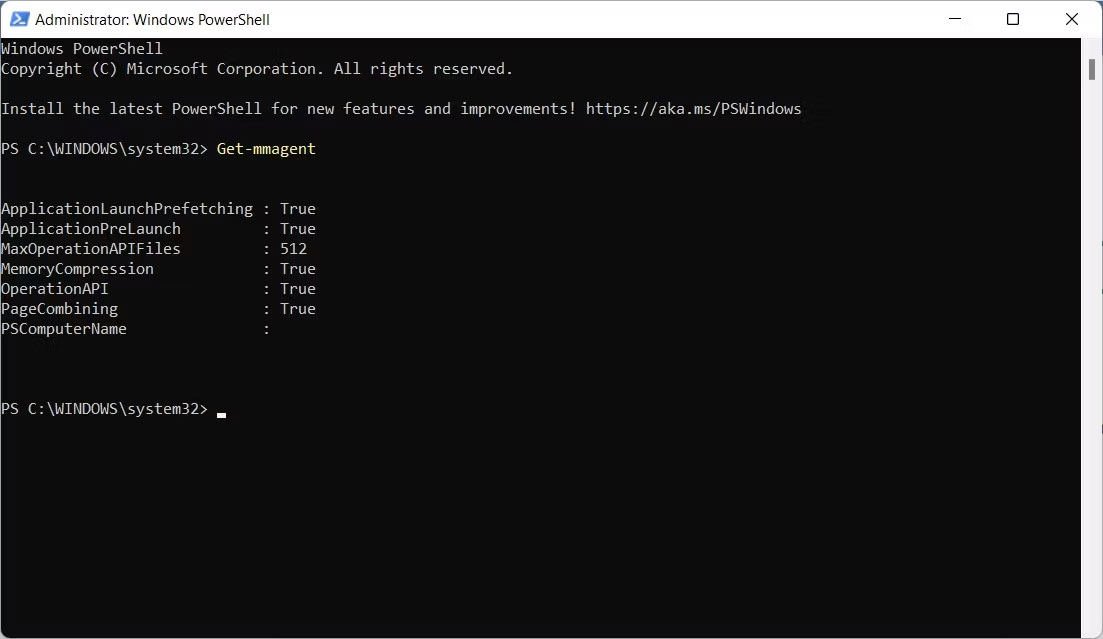
If it reports False, it means the Memory Compression feature is disabled.











