
Laptops powered by Ryzen processors with integrated Radeon graphics typically receive drivers through Windows Update or OEM pre-installed packages, where the driver serves as the software that lets Windows control the graphics core. When newer releases are needed, many users manually install AMD Software Adrenalin, a driver-and-application suite published by AMD, currently at version 26.11.2 updated on November 18, 2026. This guide walks through checking your GPU, choosing between Recommended and Optional editions, installing, clean uninstalling, and resolving error codes.
What AMD Software Adrenalin Is and Which Ryzen Laptops Can Install It
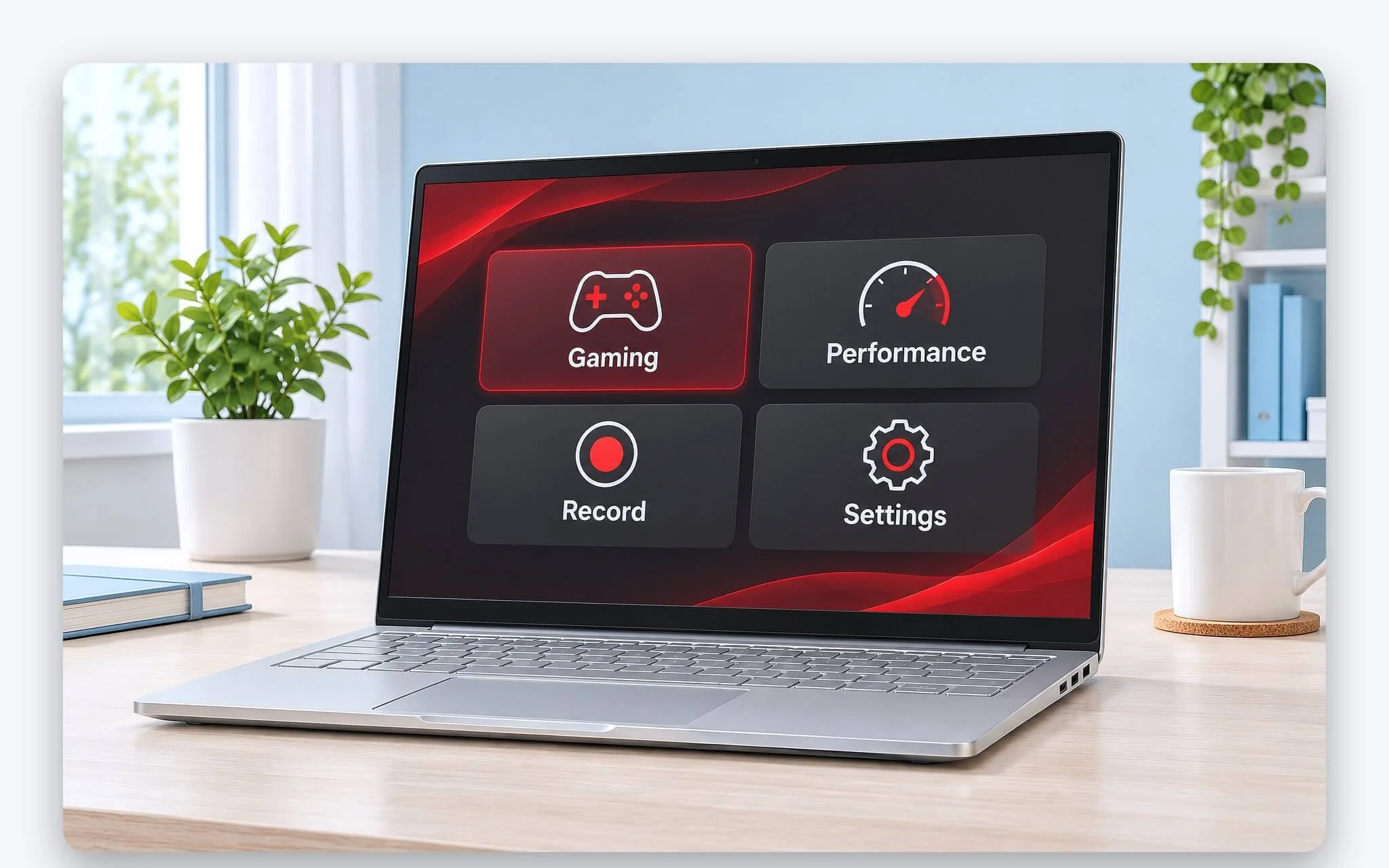
At its core, AMD Software Adrenalin combines graphics drivers with a control application designed for Radeon graphics cards and Ryzen processors featuring integrated Radeon graphics. AMD's product page describes the interface as a central dashboard to view gaming metrics, update drivers, capture in-game highlights, and enable features like HYPR-RX, Radeon Chill, Radeon Super Resolution, and AMD FSR. While officially branded as AMD Software: Adrenalin Edition, this article uses the commonly searched shorter name.
Regarding compatibility, the 26.11.2 release notes list under the Mobile column the AMD Ryzen AI Series Processors with Radeon Graphics, AMD Ryzen Processors with Radeon Graphics, AMD Ryzen PRO Processors, and AMD Athlon Processors with Radeon Graphics. Supported laptop discrete GPUs include the Radeon RX 7900M, 7800M, 7600M, the RX 6000M and RX 5000M series, alongside the Radeon PRO W6600M and W5500M. Operating system requirements call for Windows 11 version 21H2 or newer, or 64-bit Windows 10 version 21H2 or newer, and the AMD Auto-Detect tool checks these prerequisites during setup.
Laptops differ in the specific notes AMD provides for notebook and all-in-one systems. AMD recommends using drivers supplied by your laptop manufacturer, as OEM packages are tailored and validated for model-specific features. If an installer downloaded from AMD.com encounters issues, the company advises reinstalling the laptop manufacturer's driver for full support and compatibility.
The release notes also clarify that version 26.11.2 serves as a reference driver for laptops, offering only limited support for OEM-specific features. AMD's driver-finding guide adds that certain OEM products carry proprietary features whose customized drivers are available exclusively through the laptop manufacturer. Consequently, before installing AMD Software Adrenalin, you should note your current driver version and download the graphics driver package from your laptop manufacturer's support site as a fallback.
Steps to Check Your Laptop's Radeon GPU Before Downloading Drivers
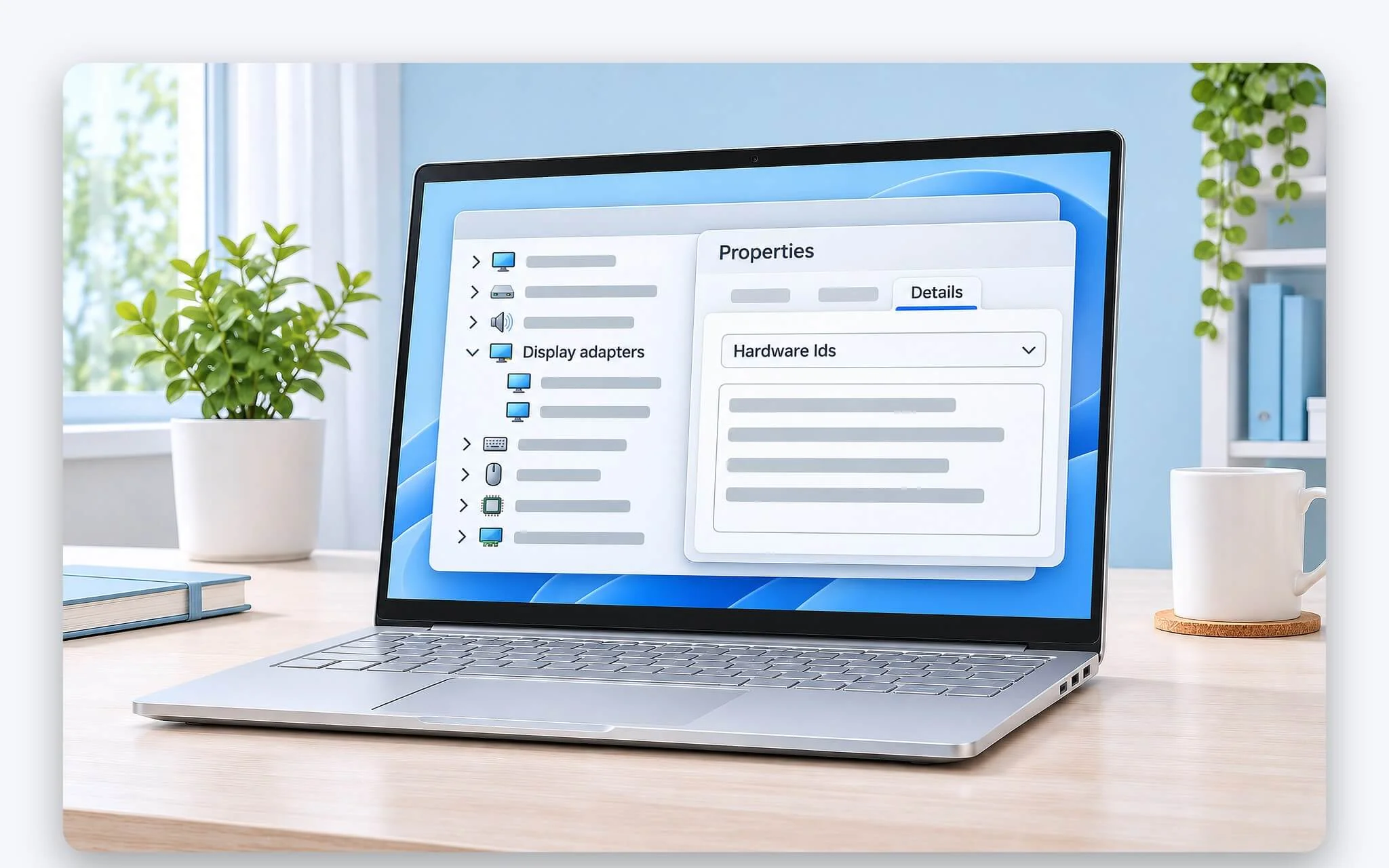
According to AMD's graphics card identification guide, Windows Device Manager offers the quickest way to check. In step 1, open Device Manager and expand the Display adapters section. You should expect to see the name of your active graphics core model; if it displays only Microsoft Basic Display Adapter, the laptop is running on the Windows fallback driver without an active AMD driver.
For step 2, right-click the graphics device and select Properties. In step 3, switch to the Details tab and choose Hardware Ids from the Property drop-down menu. The resulting string follows a format like PCI\VEN_1002&DEV_67FF&SUBSYS_0B041002&REV_CF in AMD's example, where the DEV segment identifies the Device ID and the last four characters of the SUBSYS segment indicate the manufacturer code.
In step 4, match those four characters against AMD's code table. The code 17AA corresponds to Lenovo, 103C to HP, 1028 to Dell, 1043 to ASUSTeK, 1025 to Acer, and 1462 to MSI. Seeing your laptop manufacturer's code indicates the graphics core was configured by the OEM, meaning the manufacturer's customized driver remains an important fallback option to keep in mind.
If AMD Software Adrenalin is already running properly, you can verify your details directly within the app. For step 1, click Start, type AMD Software, and select AMD Software: Adrenalin Edition. In step 2, type System into the app's search bar and select System Settings. In step 3, navigate to Hardware & Drivers, then open Hardware Details to view your hardware info, or open Software & Driver Details to check your AMD Software, driver, API, and operating system versions.
A faster approach is letting the AMD Auto-Detect and Install tool scan your system automatically. According to AMD, the utility uses AMD Software Installer to examine your Radeon graphics, Ryzen chipset, and Windows build, then downloads the corresponding supported driver. Even so, recording your SUBSYS code remains useful, providing the exact reference needed to locate the right driver on your laptop manufacturer's site if the installer reports unsupported hardware.
Distinguishing Between Recommended and Optional Releases to Choose a Stable Driver
AMD divides the Adrenalin package into two branches. According to the AMD Auto-Detect tool guide, the Recommended release is recommended for all systems with supported hardware, as it delivers verified features, high performance, and high stability. The Optional release provides early optimizations and bug fixes for new or recently updated titles, making it suitable for gamers who need day-one support for newly released games.
A quick way to tell them apart is by checking the release notes title on AMD's website. Versions 26.9.1, 26.9.2, 26.10.2, and 26.11.1 are all titled Optional Driver Release Notes, whereas the titles for 26.10.1 and 26.11.2 simply state Driver Release Notes. The table below summarizes the number of fixed issues and known issues published by AMD across four recent releases.
| Version | Date Updated on AMD Website | Label in Release Notes Title | Fixed Issues (Items) | Known Issues (Items) |
|---|---|---|---|---|
| 26.10.1 | October 20, 2026 | Driver Release Notes | 1 | 12 |
| 26.10.2 | October 30, 2026 | Optional Driver Release Notes | 10 | 9 |
| 26.11.1 | November 12, 2026 | Optional Driver Release Notes | 2 | 9 |
| 26.11.2 | November 18, 2026 | Driver Release Notes | 10 | 8 |
In version 26.11.2, the known issues section in the AMD Software Adrenalin 26.11.2 release notes includes two entries directly affecting Ryzen laptops. Gears of War: Reloaded may experience a black screen on startup on the Ryzen AI 9 400 Series, for which AMD suggests changing the in-game display mode to Windowed and then back to Fullscreen. Call of Duty: Modern Warfare Remastered may freeze when pressing Alt+Tab on the Ryzen AI Max PRO 400 Series.
To have the application automatically notify you of new updates in the branch you prefer, follow AMD's instructions. Step 1: Open AMD Software, go to System Settings, and select Manage Updates to launch AMD Install Manager. Step 2: Click the More options three-dot button, then select Preferences. Step 3: Choose Recommended (default) or Recommended + Optional. As expected, AMD Install Manager will then only prompt you with packages from your selected branch as they are released.
Many Ryzen laptops are also equipped with discrete NVIDIA GeForce RTX graphics. Because Adrenalin's compatibility list includes only AMD hardware, the discrete NVIDIA card in the same system is still updated through NVIDIA's own drivers. The two NVIDIA driver branches are compared in the guide Studio Driver and Game Ready Driver: Which Should You Install for an NVIDIA GPU Laptop. In such configurations, Adrenalin manages only the integrated Radeon graphics built into the Ryzen processor.
Installing AMD Software Adrenalin Step by Step with the AMD Auto-Detect Tool
Before running the installer, AMD recommends closing all open applications and temporarily disabling antivirus software, firewalls, remote management software, and streaming services to prevent conflicts. The system drive requires about 3 GB of free space for the full installation package. The AMD Auto-Detect tool is designed for Windows 11 version 21H2 and later as well as 64-bit Windows 10 version 1809 and later; however, the 26.11.2 release notes list 64-bit Windows 10 version 21H2 and later, so older Windows 10 systems need to be updated first.
In step 1, visit the AMD Drivers and Support page, download the AMD Auto-Detect and Install tool, open the download folder, and double-click the file. In step 2, click Install to extract the setup files; AMD recommends keeping the default destination folder. The expected result is that the AMD Software Installer launches automatically, checks hardware compatibility, and retrieves the current driver version for any detected devices. The installation options available in the installer are summarized in the table below.
| Installer Option | Function According to AMD | Best Use Case |
|---|---|---|
| Default | Full suite of gaming, recording, streaming, and performance tuning features | Laptops with discrete Radeon graphics or users who need screen recording |
| Minimal | Basic controls only, without performance tuning or content recording | Office laptops requiring a streamlined interface |
| Driver Only | No AMD Software user interface | Users who only require the display driver |
| Factory Reset (Optional) | Removes all prior versions, pauses Windows Update, reboots, and proceeds with setup; rollback to the previous driver is unavailable | Systems with previous driver errors whose users accept forfeiting a rollback path |
| Keep user settings | Saves settings and profiles to reapply after installation; available when using Factory Reset | Users who want to preserve their existing configuration |
| Custom Install | Allows manual selection of components such as AMD Software and the AI Bundle (available starting in 26.1.1) | Users who need the AI Bundle |
In step 3, the AMD Auto-Detect installer displays a list of Recommended and Optional packages for your current GPU; select the package you want to install, click Skip to keep your current driver, or click Cancel to exit. In step 4, review the license agreement, AI usage policy, and AI Bundle agreement. If you agree, click Accept & Express Install for the default setup, or click Additional Options to customize your installation.
In step 5, after clicking Accept & Express Install or Accept & Install, the installation process begins; according to AMD, brief screen flickering is normal, and setup takes only a few minutes. In step 6, click Close to exit the AMD Auto-Detect installer. If you want the application to launch automatically once installation finishes, check the Launch AMD Software: Adrenalin Edition box, and toggle automatic updates on or off.
The expected result after installing AMD Software Adrenalin 26.11.2 is that the Software & Driver Details section correctly reflects the newly installed version; according to the release notes, this package includes driver versions 26.20.29.02 and 25.10.45.29, along with NPU driver 32.00.20102.4480. While the AI Bundle has been available since version 26.1.1, AMD notes installation failures with this component in regions with restricted access to HuggingFace and GitHub, meaning laptops not running local AI workflows can safely skip it.
Cleanly Uninstalling Old Drivers with AMD Cleanup Utility and Rolling Back to a Previous Version
When you need to downgrade AMD Software Adrenalin or resolve driver conflicts, the standard method is uninstalling through Windows following AMD's guidelines. In step 1, click Start, type Installed Apps, and select Installed apps. In step 2, find AMD Software in the list and click Uninstall; if multiple versions are listed, select all of them. In step 3, wait for the uninstallation process to finish - during which the display may turn off intermittently - then click Restart to complete the process.
If a standard uninstall fails to resolve driver conflicts, AMD recommends using the AMD Cleanup Utility. This tool removes previously installed AMD graphics and audio drivers as well as software, runs standalone on Windows 7 and later, and does not uninstall or modify chipset drivers on AMD-powered systems. The 26.11.2 release notes also recommend using AMD Cleanup Utility when rolling back to an older Adrenalin release.
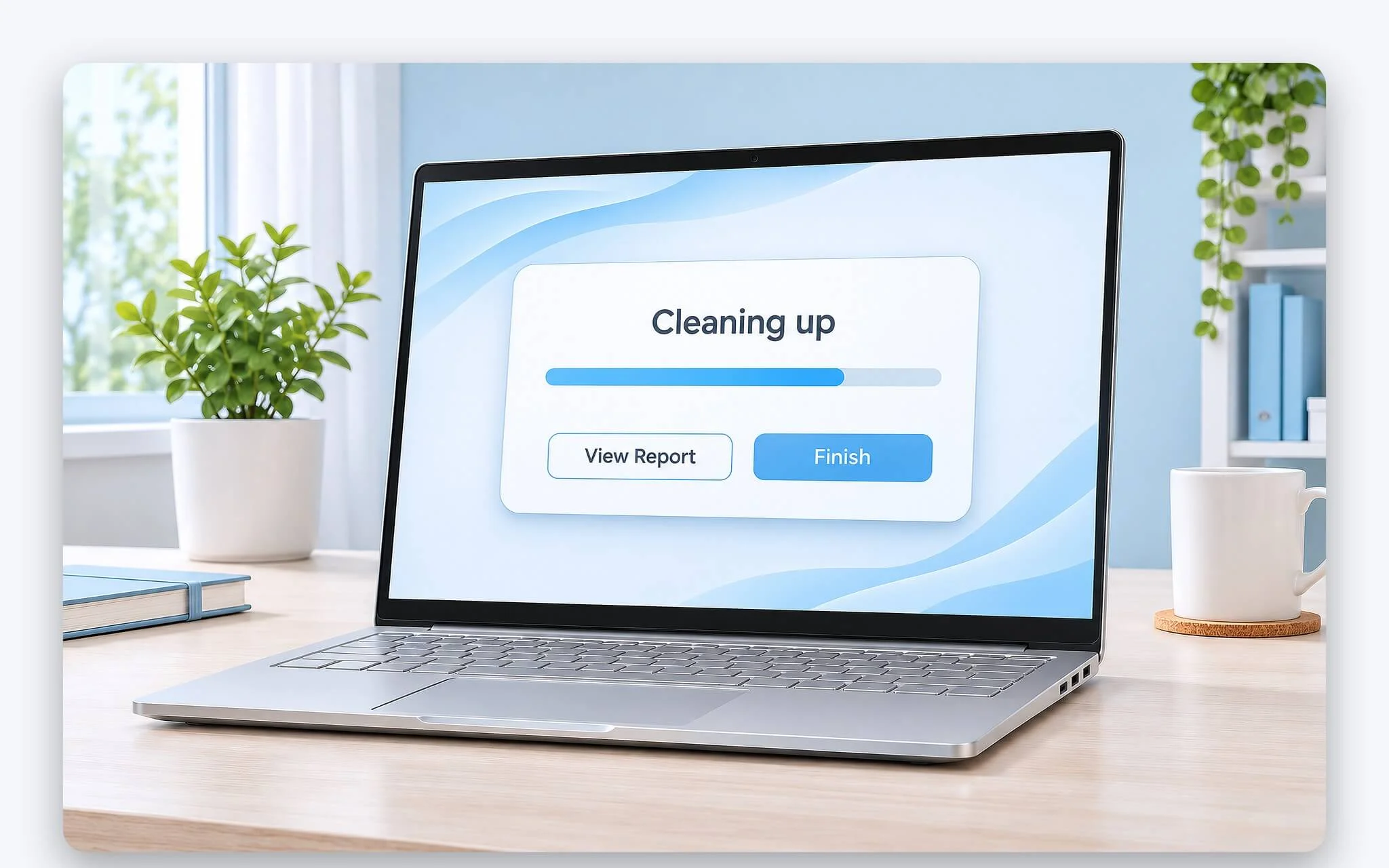
In step 1, download amdcleanuputility.exe from the AMD website and double-click the file to run it. In step 2, when a prompt asks to reboot into Safe Mode, click Yes to run AMD Cleanup Utility in safe mode as AMD recommends, or click No to continue in normal mode. In step 3, read the cleanup process overview and click OK. The expected result is a progress notification during cleanup; momentary screen flickering or brief blackouts are normal.
In step 4, once AMD Cleanup Utility signals completion, click View Report to review the list of removed components, then click Finish. In step 5, click Yes to restart immediately or No to reboot later, as changes take effect only after a system restart. If the tool unexpectedly closes mid-process, Windows Update is usually running in the background; close Windows Update or wait for updates to finish before running the tool again. If the utility appears unresponsive, AMD notes that the cleanup process can take 15 to 20 minutes.
Prior to cleanup, AMD Cleanup Utility automatically creates a restore point named AMD Cleanup Utility Restore Point, which can return the system to its previous state via System Restore if issues arise. Once the system is clean of drivers, install an older release via the Previous Drivers section at the bottom of the product's driver page in the Product Selector, or download drivers directly from the laptop manufacturer's support site as AMD recommends for mobile systems.
Troubleshooting Error Codes When Installing AMD Software Adrenalin on Windows 11
When the AMD Software Installer encounters an issue, it displays an error code alongside a description. AMD's installation guide for AMD Software Adrenalin lists 24 error codes. If you have followed the instructions and the issue persists, AMD recommends submitting a support request with the log file C:\Program Files\AMD\CIM\Log\Install.log attached, entering the exact error code in the subject line.
Most error codes stem from Windows status issues, network connectivity problems, or unsupported hardware. Errors 195 and 196 appear when the AMD Auto-Detect installer cannot access web resources or download the driver package. The table below gathers the codes most relevant to Ryzen laptops running Windows 11, along with their causes and fixes according to AMD support documentation.
| Error Code | Cause According to AMD | How to Fix |
|---|---|---|
| 182 | Hardware belongs to an unsupported group: embedded Radeon, legacy Radeon, or OEM-customized Radeon | Get drivers from the laptop manufacturer or use the final release for legacy lines |
| 195 | Cannot access AMD web resources due to antivirus software, firewall rules, or server maintenance | Use an updated AMD Auto-Detect installer or the full package, allow it through the firewall, and try again later |
| 202 | Windows Update is currently running | Open Windows Update Settings, wait for it to finish, restart, and then install |
| 205 | Installation finished, but Windows Update may have replaced the driver | Turn off Device Installation Settings and reinstall |
| 206 | Pending system changes require completion | Restart the system and run the installer again |
| 176 | Insufficient disk space | Free up about 3 GB |
| 1603 | Generic error: driver conflicts, antivirus blocking, missing Windows updates, or corrupted Visual C++ redistributables | Run Windows Update, DISM, SFC, or the AMD Cleanup Utility |
Error 205 requires specific action because Windows Update may have overwritten the driver you just installed. Step 1: Type sysdm.cpl into the taskbar search box and press Enter to open System Properties. Step 2: Select the Hardware tab, then click Device Installation Settings. Step 3: Select No and click Save Changes. Step 4: Restart your machine, then run AMD Auto-Detect to reinstall AMD Software Adrenalin. As expected, Windows will no longer automatically replace your newly installed graphics driver.
For Error 1603, AMD instructs users to press Windows + X to open the Power User menu, select Command Prompt (Admin), run the command DISM /Online /Cleanup-Image /RestoreHealth, and wait through the pause at 20%. Next, run SFC /SCANNOW to scan for and replace corrupted system files. If conflicts persist due to shared resources, AMD recommends running the AMD Cleanup Utility before reinstalling.
If the installation completes but clicking the application icon fails to open it, you can try solutions such as running it with administrator privileges or ending the RadeonSoftware process. These troubleshooting steps are detailed in the guide on fixing AMD Radeon Software not working on Windows. If only your settings are misconfigured, type Factory Reset into the search box in AMD Software, choose the result under System Settings, click Perform Reset, and then click Proceed to restore all settings to default without reinstalling the driver.
Frequently Asked Questions About AMD Software Adrenalin
Can AMD Software Adrenalin replace the driver pre-installed by the laptop manufacturer?
Yes, but AMD explicitly notes that packages downloaded from AMD.com serve as reference drivers for laptops, offering only limited support for manufacturer-specific features. If you run into issues, reinstall the driver provided on your laptop manufacturer's support page.
Should I choose the Default, Minimal, or Driver Only installation type for an office laptop?
Default provides the full suite of features for gaming, recording, streaming, and performance tuning. Minimal retains basic controls while omitting performance tuning and content recording tools. Driver Only leaves out the AMD Software interface entirely, making it ideal when you only need a display driver for everyday office productivity.
How does Factory Reset in the installer differ from the AMD Cleanup Utility?
Factory Reset is an option within the installer that removes all previous AMD Software versions, pauses Windows Update, and resumes installation after a system restart, but it does not allow rolling back to a previous driver. The AMD Cleanup Utility is a standalone tool that removes AMD graphics and audio drivers and creates a system restore point before cleaning.
Does the AMD Cleanup Utility remove chipset drivers on a Ryzen laptop?
No. According to AMD, the utility does not remove or modify chipset drivers on systems powered by AMD processors; it cleans only AMD graphics and audio drivers and software. After running the utility, you must restart your system for the changes to take effect.
How often should I update AMD Software Adrenalin?
AMD states that updating graphics drivers is typically only necessary when you need support for new products, operating systems, games, or applications. The other two reasons are to gain access to new features and performance enhancements, or to resolve known issues and conflicts. Reading the release notes before updating helps you see what issues a build addresses. Running AMD Auto-Detect again will also tell you whether a new package is available for your machine.