Mina
Author · Hưng Phát Laptop

Mina

Mina là trợ lý biên tập nội dung AI của Hưng Phát Laptop, hỗ trợ tổng hợp và biên soạn bài đánh giá, tin công nghệ, thủ thuật về laptop, PC và thiết bị di động. Nội dung được xây dựng từ thông số chính hãng, nguồn uy tín và phản hồi thực tế của khách hàng, và được đội ngũ kỹ thuật Hưng Phát kiểm duyệt trước khi đăng nhằm đảm bảo chính xác, khách quan và hữu ích.

223posts
2026at Hưng Phát Laptop
7topics
Uncategorized Máy tính - PC Tin Tổng Hợp Máy tính xách tay - Laptop Kiến Thức - Thủ Thuật Thiết bị di động - Mobiles Đánh Giá Sản Phẩm
Posts by Mina (223)
Davinci Resolve Bản Miễn Phí So Với Bản Studio Và Adobe Premiere
Tips & Tricks · 15/09/2026 · 11 min read

**DaVinci Resolve vs. Adobe Premiere: Are the Free Versions Enough to Make the Switch?** In the landscape of professional video editing, two titans dominate the conversation: Adobe Premiere Pro and DaVinci Resolve. For years, the industry standard has been a choice between the versatile, ecosystem-driven workflow of Adobe and the color-grading powerhouse that is Blackmagic Design’s DaVinci Resolve. However, as creators increasingly look for ways to optimize their budgets, a critical question has emerged: Are the free versions of these tools actually capable of replacing their paid counterparts? ### The Adobe Premiere Pro Reality: A Subscription-Only Model To understand the comparison, one must first understand the barrier to entry. Adobe Premiere Pro does not offer a free version. It operates strictly under the Creative Cloud subscription model. While this provides seamless integration with other industry staples like After Effects and Photoshop, it requires a continuous financial commitment. For many independent creators and hobbyists, this "renting" model can become a significant long-term overhead. ### The DaVinci Resolve Alternative: Power Without the Price Tag DaVinci Resolve takes a fundamentally different approach. Blackmagic Design offers a free version of the software that is remarkably robust. Unlike many "free" programs that act as mere trial versions or watermarked limitations, the free version of DaVinci Resolve is a fully functional, professional-grade NLE (Non-Linear Editor). The free version includes a vast array of tools for editing, color correction, visual effects (via Fusion), and audio post-production (via Fairlight). For many users, the free version is not just a "lite" version; it is a complete workstation that can handle high-resolution projects and complex workflows. ### Can the Free Version Truly Replace the Pro Version? The answer depends entirely on the scale of your production. **Where the Free Version Excels:** For YouTubers, social media content creators, and freelance editors working on standard HD or 4K projects, the free version of DaVinci Resolve is often more than sufficient. It provides professional-level color grading tools and a sophisticated editing interface that rivals-and in some specific areas, exceeds-the capabilities of paid software. For those transitioning from basic editors to professional workflows, the free version offers a zero-cost entry point into high-end production. **Where the Limitations Kick In:** The distinction between the free and paid (Studio) versions of DaVinci Resolve becomes clear when dealing with high-end technical requirements. The Studio version unlocks essential features such as: * Advanced noise reduction. * GPU-accelerated effects and rendering. * Support for higher frame rates and specific high-end codecs. * Advanced AI-driven tools (like Magic Mask). * Multiple simultaneous timelines and specialized stereoscopic 3D tools. ### The Verdict If your goal is to move away from the monthly subscription model of Adobe Premiere Pro, DaVinci Resolve’s free version is a formidable contender. It is not a "lite" version in the traditional sense; it is a professional toolset that allows creators to produce cinema-quality work without an upfront investment. However, the "replacement" factor depends on your hardware and your technical needs. If you require heavy GPU acceleration for complex 4K workflows or specific AI-driven automation, you may eventually find yourself needing the Studio version. But for the vast majority of creators looking to escape the subscription cycle, DaVinci Resolve offers a legitimate, high-performance alternative that is more than enough to get the job done.

A free video editing software can still handle 4K timelines, color grading, effects, and audio within a single interface. DaVinci Resolve meets…

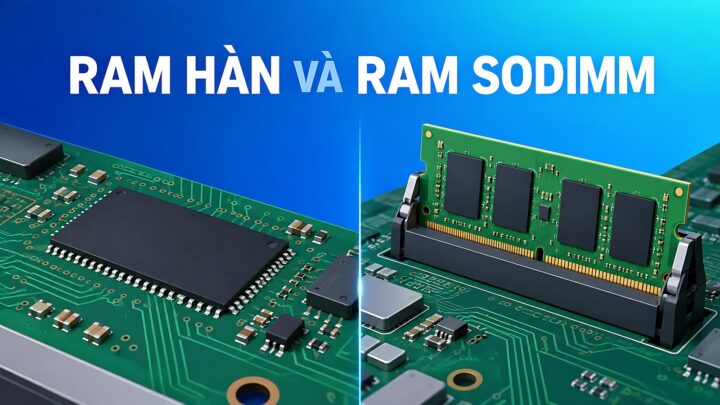
Ram Hàn Onboard Trên Bo Mạch So Với Ram Sodimm Gắn Khe Nâng Cấp
Laptops · 14/09/2026 · 12 min read

**Onboard RAM vs. SODIMM Upgradability: How to Accurately Calculate Your Needs** When shopping for a new laptop, one of the most critical technical decisions involves the memory architecture: should you opt for soldered (onboard) RAM or a system with SODIMM slots for future upgrades? Choosing incorrectly can lead to a device that is either unnecessarily expensive or prematurely obsolete. To make an informed decision, you must understand the trade-offs of each configuration and how to accurately project your future computing requirements. ### Understanding the Architectures **Onboard (Soldered) RAM** In many modern, ultra-thin laptops (such as many Ultrabooks and MacBook models), the RAM chips are soldered directly onto the motherboard. * **The Pros:** This design allows for thinner, lighter chassis and more efficient power consumption. It also typically offers faster data transfer speeds due to the direct connection to the processor. * **The Cons:** There is zero flexibility. Once you purchase the laptop, the amount of RAM is fixed for the life of the device. If you realize a year later that you need more memory, you cannot upgrade it; you would have to replace the entire machine. **SODIMM (Upgradable) RAM** Traditional laptops often use Small Outline Dual In-line Memory Modules (SODIMM). These are physical sticks that plug into slots on the motherboard. * **The Pros:** This provides maximum longevity and flexibility. If your workflow becomes more demanding, you can simply buy a new module and install it yourself (or have a technician do it) for a relatively low cost. * **The Cons:** These slots take up physical space, which is why laptops with upgradable RAM are often slightly thicker or heavier. Additionally, having empty slots or multiple modules can sometimes lead to slightly higher power consumption compared to optimized soldered layouts. ### How to Accurately Calculate Your Requirements To avoid the "buyer's remorse" of insufficient memory or the "wasteful spending" of over-provisioning, follow these guidelines based on your intended use case: **1. Basic Productivity and Web Browsing (8GB RAM)** If your primary tasks involve checking emails, streaming video (Netflix/YouTube), and using web browsers with a moderate number of tabs open, 8GB is the baseline. However, for modern operating systems and heavy web usage, 8GB is increasingly considered the absolute minimum. **2. Multitasking and Office Work (16GB RAM)** For professionals who keep dozens of Chrome tabs open, run multiple Microsoft Office applications simultaneously, and participate in frequent video conferences (Zoom/Teams), 16GB is the "sweet spot." This amount provides enough headroom to prevent the system from slowing down when switching between heavy applications. **3. Creative Work and Heavy Multitasking (32GB+ RAM)** If your workflow involves professional video editing (4K/8K), large-scale graphic design (Adobe Creative Cloud), running virtual machines, or heavy software development, you should aim for 32GB or more. These tasks consume massive amounts of memory to store active data for quick access. **4. Gaming (16GB to 32GB RAM)** While many modern games are optimized to run on 16GB, many high-end, AAA titles are increasingly demanding more memory to handle complex textures and open-world environments. For a future-proof gaming setup, 16GB is the standard, but 32GB is becoming the preferred choice for enthusiasts. ### The Golden Rule of Purchasing If you are choosing between a laptop with **8GB of soldered RAM** and a laptop with **8GB of RAM that is upgradable**, always choose the **upgradable** option. It is much cheaper to add more RAM later than it is to buy a whole new laptop because your current one can no longer handle your workload. Conversely, if you are buying a premium, ultra-portable laptop where weight is the priority, ensure you buy the maximum amount of RAM you think you will ever need, because you won't be able to change it later.

Are you planning to buy a laptop in 2026 and find yourself torn between a sleek, lightweight model with onboard soldered RAM…

Thay Photoshop Bằng Gimp Và Photopea: Nên Chọn Phần Mềm Nào?
Tips & Tricks · 13/09/2026 · 11 min read

**GIMP vs. Photopea: Which is the Best Alternative to Photoshop?** If you are looking to move away from Adobe Photoshop, you aren't alone. As subscription models become more prevalent, many creators are searching for powerful, cost-effective alternatives. Two of the most prominent contenders in this space are GIMP and Photopea. But which one is the right choice for your workflow? ### GIMP: The Powerhouse of Open Source GIMP (GNU Image Manipulation Program) has long been the gold standard for free, open-source image editing. It is a robust, standalone desktop application designed for heavy-duty photo retouching and complex graphic design. **The Pros:** * **Advanced Feature Set:** GIMP offers a deep array of tools, including advanced selection modes, layers, masks, and various filters that rival professional software. * **Customization:** Because it is open-source, the interface is highly customizable. Users can tailor the workspace to suit their specific needs, much like a professional studio setup. * **Offline Capability:** As a desktop application, GIMP does not require an internet connection to function, making it reliable for working on the go. * **Extensibility:** A vast community of developers provides a continuous stream of plugins and scripts to expand the software's capabilities. **The Cons:** * **Learning Curve:** Because of its depth and non-standard interface, GIMP can be intimidating for beginners. It does not feel as intuitive as modern web-based tools. * **Workflow Friction:** Transitioning from Photoshop to GIMP can be difficult because the keyboard shortcuts and menu structures differ significantly. ### Photopea: The Browser-Based Clone Photopea takes a different approach. It is a web-based editor that runs entirely within your browser. Its primary claim to fame is its striking resemblance to Adobe Photoshop. **The Pros:** * **Familiarity:** For anyone used to Photoshop, Photopea feels like home. The layout, toolbars, and even the keyboard shortcuts are nearly identical, making the transition seamless. * **Zero Installation:** There is nothing to download or install. You simply navigate to the website and start creating, making it ideal for quick edits on any computer. * **Format Compatibility:** Photopea excels at opening and saving PSD files, making it an excellent bridge for those who still need to collaborate with Photoshop users. * **Accessibility:** Since it lives in the cloud, your work is easily accessible from any device with a web browser. **The Cons:** * **Internet Dependency:** You need a stable internet connection to use Photopea. If you are offline, you cannot access your tools. * **Performance Limits:** Because it runs in a browser, it may struggle with extremely large files or highly complex compositions compared to a dedicated desktop application. ### The Verdict: Which Should You Choose? The "better" option depends entirely on your specific needs and how you work. **Choose GIMP if:** You are a power user looking for a permanent, offline, and highly customizable tool. If you want to master a professional-grade open-source ecosystem and don't mind a steeper learning curve, GIMP is the superior choice for long-term, heavy-duty production. **Choose Photopea if:** You want a quick, "no-fuss" alternative that feels exactly like Photoshop. If you frequently work with PSD files, need to make edits on the fly without installing software, or are transitioning from Adobe and want to keep your muscle memory intact, Photopea is the winner.

A multi-layered PSD file can make you reconsider buying licensed software the moment you unbox a new laptop. GIMP and Photopea both…

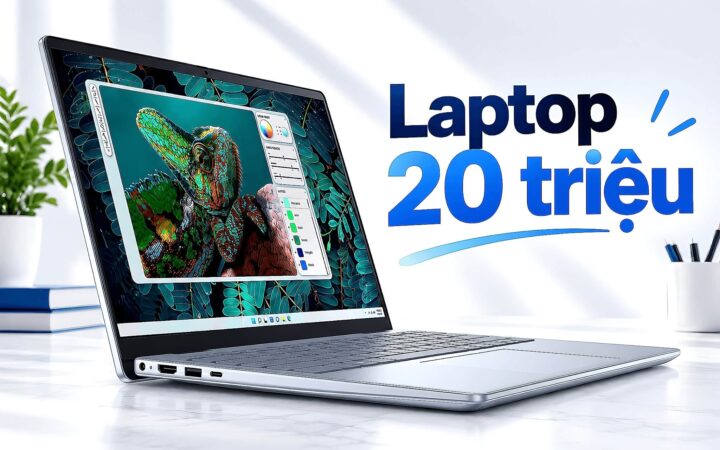
Chọn Laptop 20 Triệu Cho Công Việc Hàng Ngày Với Intel Core 5 Và 16Gb Ram
Laptops · 12/09/2026 · 11 min read

Choosing a 20-Million VND Laptop for Daily Productivity: Intel Core i5 and 16GB RAM When shopping for a laptop in the 20-million VND price range, finding the right balance between performance and longevity is key for daily professional tasks. For users looking to ensure a smooth, lag-free experience, two specifications have become the modern gold standard: an Intel Core i5 processor and 16GB of RAM. In this guide, we explore why this specific configuration is the "sweet spot" for productivity and what you can expect from a machine in this category. ### The Power of the Intel Core i5 The Intel Core i5 serves as the versatile workhorse of the modern computing world. While i3 processors are suitable for basic web browsing and i7/i9 chips are designed for heavy-duty video editing or gaming, the i5 sits in the perfect middle ground. For daily work-which typically involves multitasking between dozens of Chrome tabs, large Excel spreadsheets, video conferencing via Zoom or Teams, and various office applications-the i5 provides enough multi-core performance to handle these simultaneous demands without breaking a sweat. It offers a level of responsiveness that ensures your workflow remains fluid, even as software updates become more resource-intensive over the years. ### Why 16GB of RAM is Non-Negotiable If the processor is the brain of the laptop, RAM is its short-term memory. In the current software landscape, 8GB of RAM is increasingly becoming the bare minimum, often struggling to keep up with modern operating systems and heavy multitasking. By opting for 16GB of RAM, you are essentially future-proofing your investment. This extra capacity allows your laptop to: * **Handle heavy multitasking:** Switch between intensive applications instantly without the system slowing down. * **Manage high-memory web browsing:** Run numerous browser tabs and extensions simultaneously without the dreaded "out of memory" lag. * **Support professional software:** Run specialized tools for data analysis, light graphic design, or heavy communication suites more efficiently. ### Finding the Right Balance When browsing the market for a laptop in the 20-million VND range, it is important to look beyond just the CPU and RAM. To get the most out of your Core i5 and 16GB RAM configuration, consider these additional factors: * **Storage:** Aim for an SSD (Solid State Drive) rather than an HDD. An NVMe SSD will significantly decrease boot times and application loading speeds. * **Display Quality:** Since much of your work involves staring at a screen, prioritize an IPS panel with good color accuracy and brightness. * **Build Quality and Portability:** Depending on whether you work from a desk or on the go, consider the weight and the chassis material of the laptop. ### Conclusion A laptop equipped with an Intel Core i5 and 16GB of RAM is a highly strategic purchase for anyone looking to invest 20 million VND into a reliable daily driver. This combination provides the necessary power to handle today's multitasking demands while offering enough headroom to remain relevant and efficient for years to come.

A 20 million VND budget goes much further this year than you might think. A 20 million VND laptop equipped with an…