


A laptop getting hot while charging is a common issue when using the machine plugged into its power adapter while working, particularly when running demanding software or gaming. In most cases, this behavior is completely normal: the processor is permitted to run at higher power levels when connected to external power, while both the charging circuitry and the power adapter generate heat as well. This article explains where that heat comes from, the temperature thresholds published by laptop manufacturers, the warning signs indicating a malfunctioning battery or adapter, and how to safely bring temperatures down.
Four Heat Sources That Add Up When Charging Under Load
Most of the heat originates from the CPU and GPU. Microsoft Learn documentation on Windows power mode sliders notes that laptop manufacturers configure distinct default profiles for plugged-in and on-battery states, with the Best Performance setting prioritizing performance over power efficiency. In its Yoga 7 2-in-1 user guide, Lenovo specifically recommends the High Performance mode whenever the laptop is connected to an electrical outlet. When the processor sustains higher clock speeds and power draw, heat increases accordingly - the primary reason your laptop runs hot while charging, even during everyday tasks.
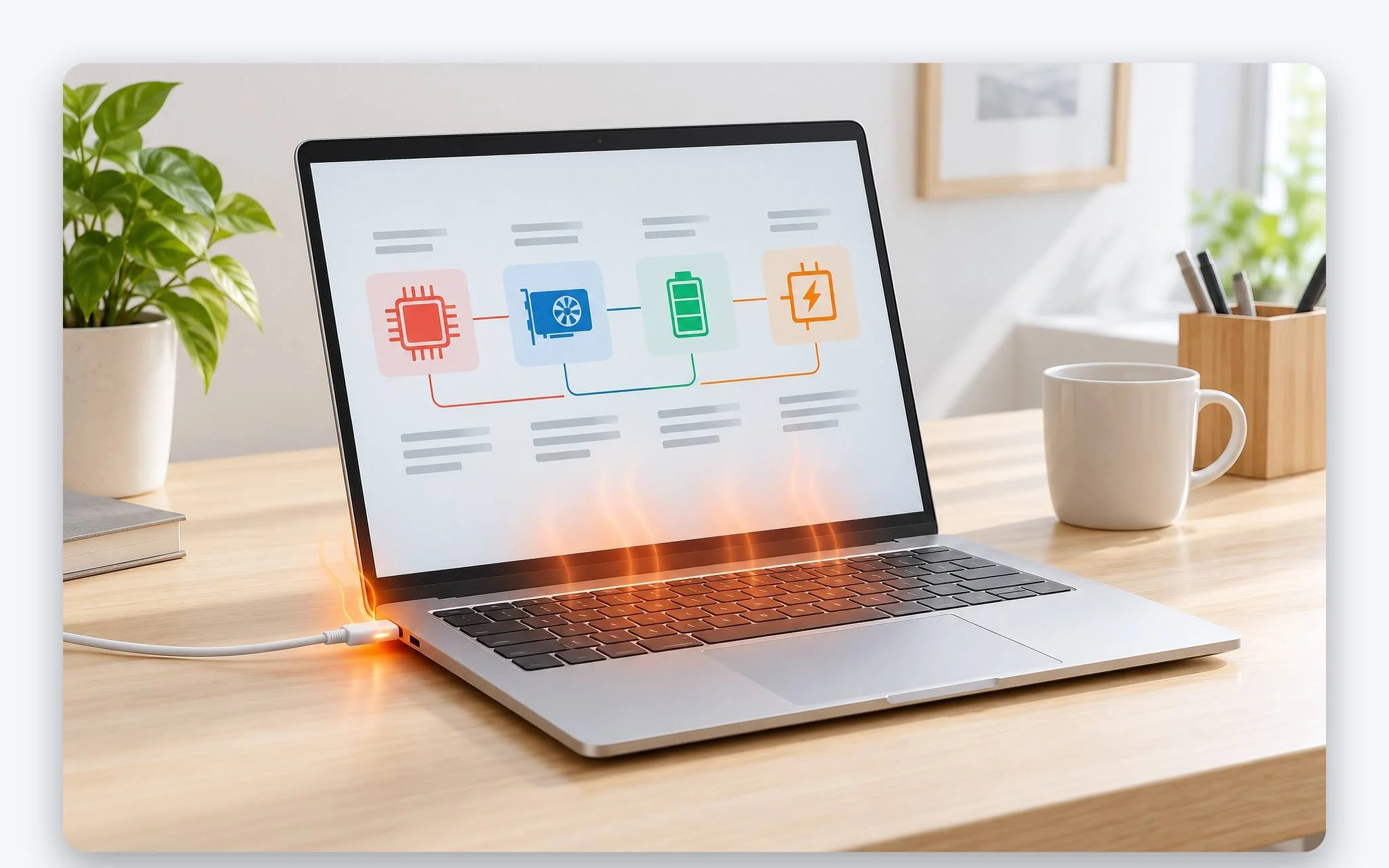
The second heat source is the charging circuitry on the motherboard. This circuit takes power from the adapter, steps down the voltage, and regulates current into the battery while simultaneously powering the entire system. Because every power conversion involves electrical losses dissipated as heat, this process directly contributes to rising laptop temperatures. The power adapter itself also heats up during extended charging sessions; HP's laptop user manuals advise against letting the adapter touch bare skin or rest on soft surfaces such as pillows, rugs, or clothing while in use.
The third source is the battery, and the fourth is fast charging. According to Battery University, lithium-ion charging efficiency sits at around 99%, meaning the cells stay relatively cool while charging, with some battery packs warming by only about 5°C as they near full capacity. Fast charging, however, prioritizes high current: Dell ExpressCharge and Lenovo Rapid Charge on the ThinkPad X9-14 both deliver roughly an 80% charge in one hour with the laptop powered off, while HP states that many of its models can reach 50% in 30 minutes. Pairing high charging current with heavy system loads concentrates heat buildup over a short period.
Manufacturer-Recommended Temperature Thresholds for Use and Charging
To determine whether a laptop's charging temperatures have exceeded safe limits, start with ambient room temperature. Apple requires Mac laptops to be operated in ambient temperatures between 10 and 35°C, according to its Apple operating temperature guidelines. Apple's battery overview page defines the ideal ambient comfort zone as 16 to 22°C and warns that exposure to temperatures above 35°C can permanently damage battery capacity. Apple also cautions that charging in hot environments causes additional harm, making an un-air-conditioned room at midday an important factor to watch.
| Published Source | Item | From (°C) | To (°C) |
|---|---|---|---|
| Apple, Mac laptops | Ambient operating temperature | 10 | 35 |
| Apple, battery page | Ideal ambient temperature range | 16 | 22 |
| Lenovo, ThinkPad X9-14 | Recommended battery charging temperature | 10 | 35 |
| Battery University | Lithium-ion charging limits | 0 | 45 |
| Battery University | Lithium-ion fast charging | 5 | 45 |
| Battery University | Lithium-ion discharging limits | -20 | 60 |
Lenovo specifies in the ThinkPad X9-14 user guide that the recommended battery charging temperature ranges from 10 to 35°C. Lenovo's ThinkPad thermal performance overview notes an optimal operating environment of 10 to 35°C at 35 to 80% relative humidity, while advising that room temperatures stay at or below 25°C. Consequently, working in a 32 to 34°C room during hot weather still falls within official tolerances, but your available cooling headroom is considerably narrower than in an air-conditioned space, especially when charging under heavy workloads.
For the battery cells themselves, Battery University sets lithium-ion charging limits at 0 to 45°C, discharging limits at -20 to 60°C, and recommends that fast charging take place only between 5 and 45°C. Many charging systems halt power delivery once temperatures exceed 50°C. Keep in mind that these figures apply directly to battery cells rather than the CPU or keyboard deck, so CPU sensor readings cannot be compared against this table to conclude that a battery is overheating.
What Heat Level Is Considered Normal When Charging a Laptop
Apple confirms that Mac laptops can warm up during normal use. Lenovo also notes that in Ultra Performance mode, fans run continuously and surface temperatures rise, while CPUs and GPUs throttling their power upon hitting thermal limits is simply the system operating as designed. Therefore, if your laptop heats up while charging as you edit video, compile code, or game, a noticeably warm bottom chassis and fast-spinning fans are still well within the manufacturer's expectations.
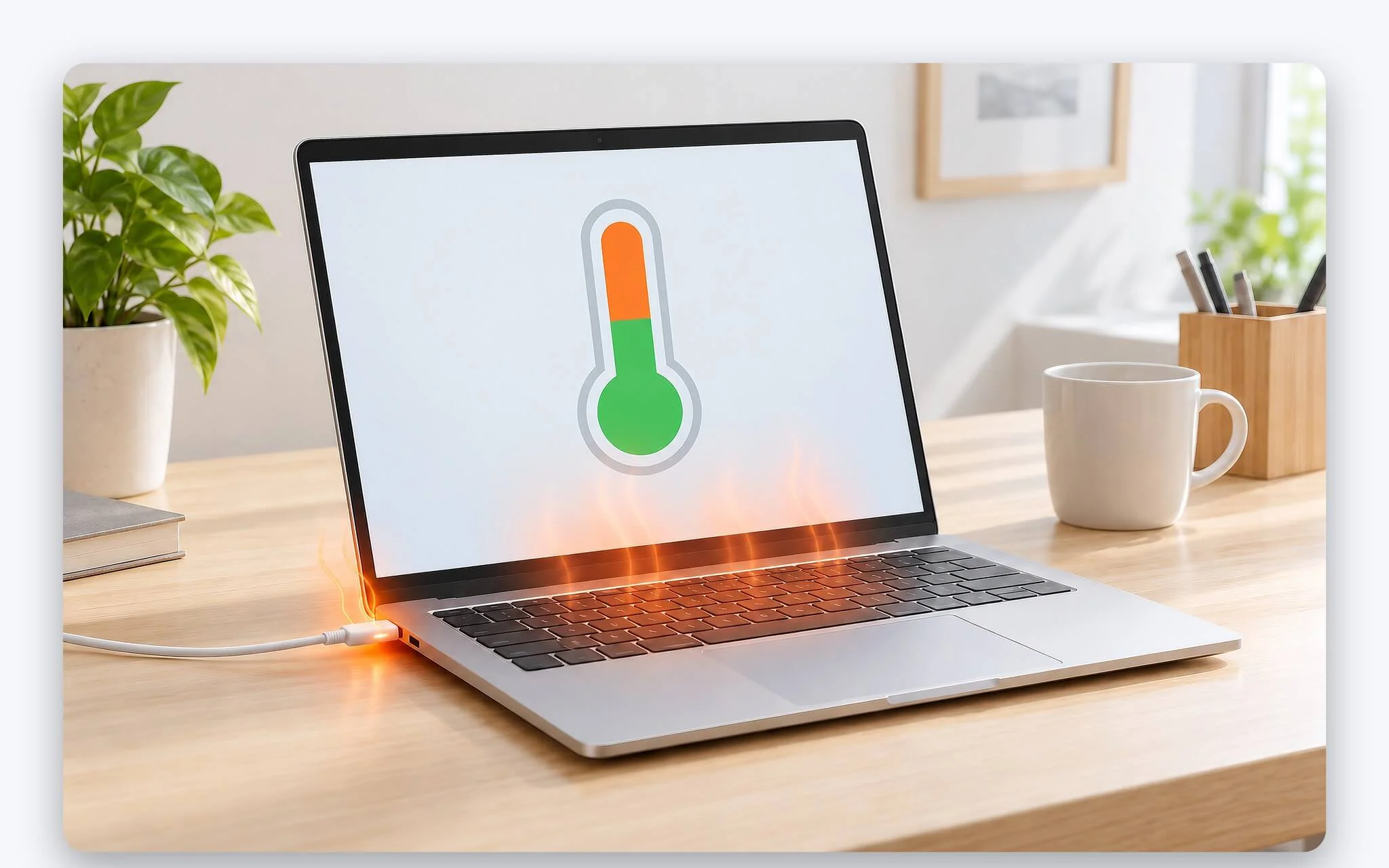
To assess whether a laptop is running too hot while charging based on surface temperatures, Lenovo cites the IEC 62368-1 and UL 62368-1 standards, which typically set temperature limits for touchable parts between 45 and 95°C depending on the location. Lenovo advises contacting support if surface temperatures exceed those thresholds. As for the battery, Battery University notes that some Li-ion packs rise by about 5°C when nearing full charge, and users should stop using the battery or charger if temperatures climb by more than 10°C at moderate charging rates.
The real concern is when a laptop runs hot while plugged in even though it is practically idle. Apple recommends opening Activity Monitor to check for heavy background processes if the machine feels warm without any computing tasks running; on Windows, Task Manager lets you see which processes are hogging the CPU. If no heavy tasks are active yet the battery area remains blistering hot and the fans spin continuously even with the screen off, it is time to check for the warning signs in the next section.
Five Signs That Your Battery or Adapter Is Having Issues
The first sign is a swollen battery. Dell lists symptoms including a bulging battery bay, gaps opening along the laptop chassis, a touchpad or keyboard that misbehaves or lifts up, a laptop that wobbles on a flat surface, and a lid that fails to close completely. If you spot any of these signs, whether the laptop gets hot while plugged in or not, stop charging immediately, stop using the laptop, and do not press or puncture the battery. Apple warns that damaging a battery can cause it to overheat and lead to injury.
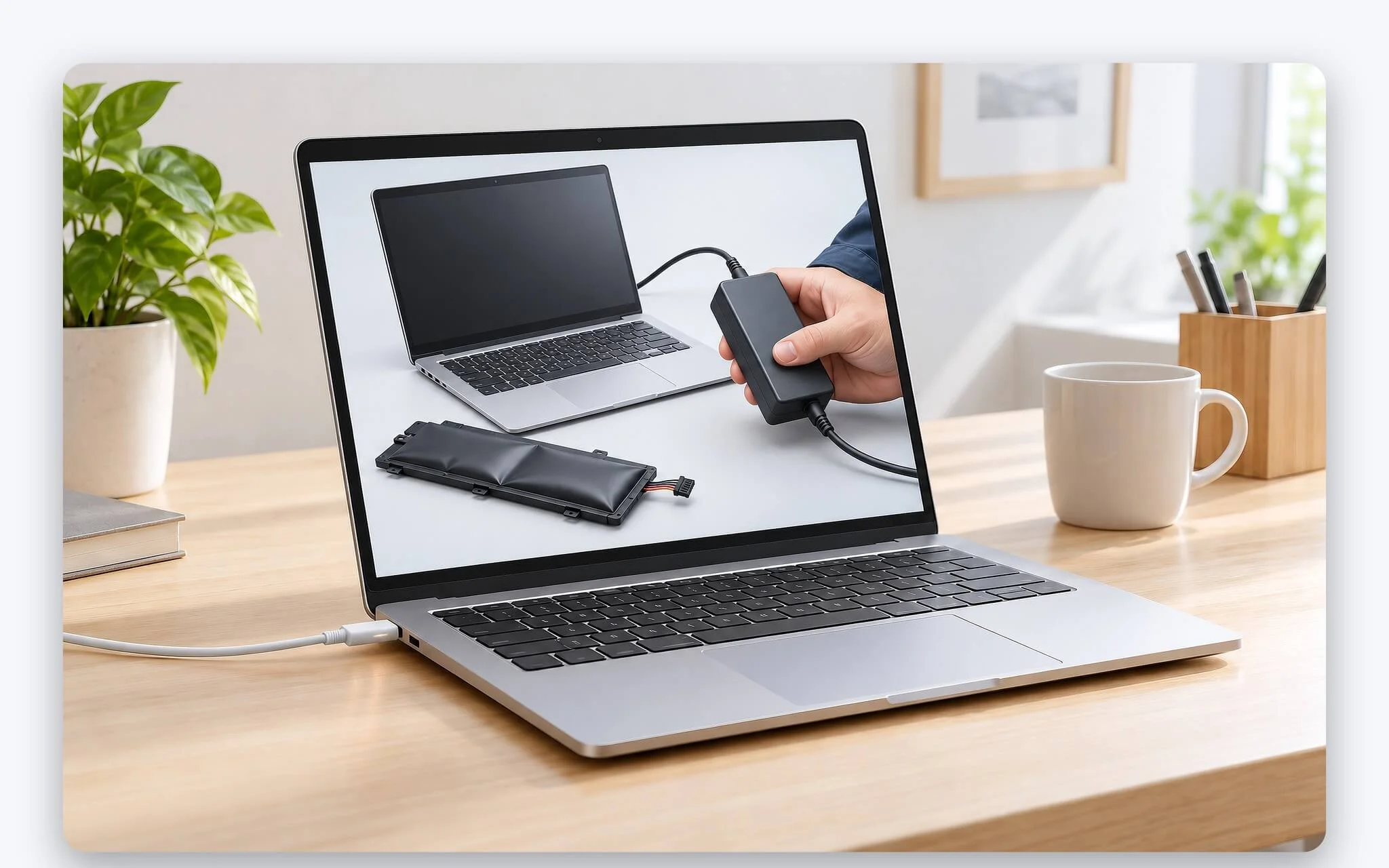
The second and third signs involve the power adapter: an adapter casing that becomes unusually hot when plugged in accompanied by a burning smell, or frayed cables and damaged plug pins. Apple's safety guidelines call for unplugging the adapter if its prongs or casing are damaged, if liquid gets on it, and avoiding frayed charging cables, as they can cause fires or electric shocks. A burning smell indicates a component is overheating beyond its design limits, so you should unplug the adapter from the wall outlet immediately rather than waiting to shut down the machine.
The fourth sign is intermittent charging, where the battery icon constantly flips between charging and not charging. HP explains that a battery significantly hotter or colder than room temperature will take longer to charge, meaning this behavior is sometimes just a protective mechanism; however, if the issue persists once the laptop has cooled down, you should inspect the adapter, cable, and charging port. The fifth sign is the laptop shutting down on its own while plugged in. Lenovo states that processors throttle when exceeding thermal thresholds and shut down automatically to prevent permanent damage, so a laptop overheating while charging accompanied by repeated unexpected shutdowns points to a defect that requires inspection.
Lower Performance Modes and Limit Charge Levels When Plugged In
A quick way to curb laptop heat while charging is to dial back the power mode. Microsoft Learn notes that the Windows power slider uses Balanced as its default and offers a Best Performance mode that trades energy efficiency for speed, applying both when plugged in and on battery. When charging while handling word processing, online meetings, or web browsing, choosing Balanced or power saver still delivers solid performance without needlessly driving CPU power higher. Lenovo also recommends switching to Eco mode during light workloads to reduce fan noise.
| Storage Temperature (°C) | Remaining Capacity When Kept at 40% (%) | Remaining Capacity When Kept at 100% (%) |
|---|---|---|
| 0 | 98 (after 1 year) | 94 (after 1 year) |
| 25 | 96 (after 1 year) | 80 (after 1 year) |
| 40 | 85 (after 1 year) | 65 (after 1 year) |
| 60 | 75 (after 1 year) | 60 (after 3 months) |
The second measure is to cap the charge limit if you keep your laptop plugged in for most of the day. Battery University's estimates show that a Li-ion battery stored for one year at 40°C at 100% charge retains only about 65% of its capacity, compared to about 85% when held at 40%. Lenovo supports Conservation mode to keep the battery between 75 and 80% on the Yoga 7 2-in-1, and several other manufacturers provide similar features in their battery management software. While the exact steps to enable this vary by brand, simply remember that keeping the battery neither completely full nor excessively hot is the ideal combination for extending battery longevity.
A third way to reduce heat while charging is to turn off fast charging when you are in no rush. Battery University recommends fast charging Li-ion batteries only between 5 and 45°C, since high charging currents while the laptop is already under heavy load add extra heat to the battery pack. When charging while running graphics-heavy software or games, sticking with standard charging keeps battery temperatures more stable. You should also remove any snap-on cases or sleeves while charging, as Apple notes that certain styles of cases can generate excess heat.
Ensuring Proper Airflow, Using the Right Adapter, and When to Have Your Laptop Checked
Apple advises placing the laptop on a stable surface with adequate air circulation, and keeping neither the laptop nor the adapter under blankets, pillows, or your body while plugged in. HP also requires using the laptop only on a hard, flat surface and not letting soft objects block airflow. Charging while using your laptop on a bed, mattress, or sofa is therefore a habit worth dropping, as blocked bottom intake vents cause the laptop to get hot while plugged in even under light workloads.
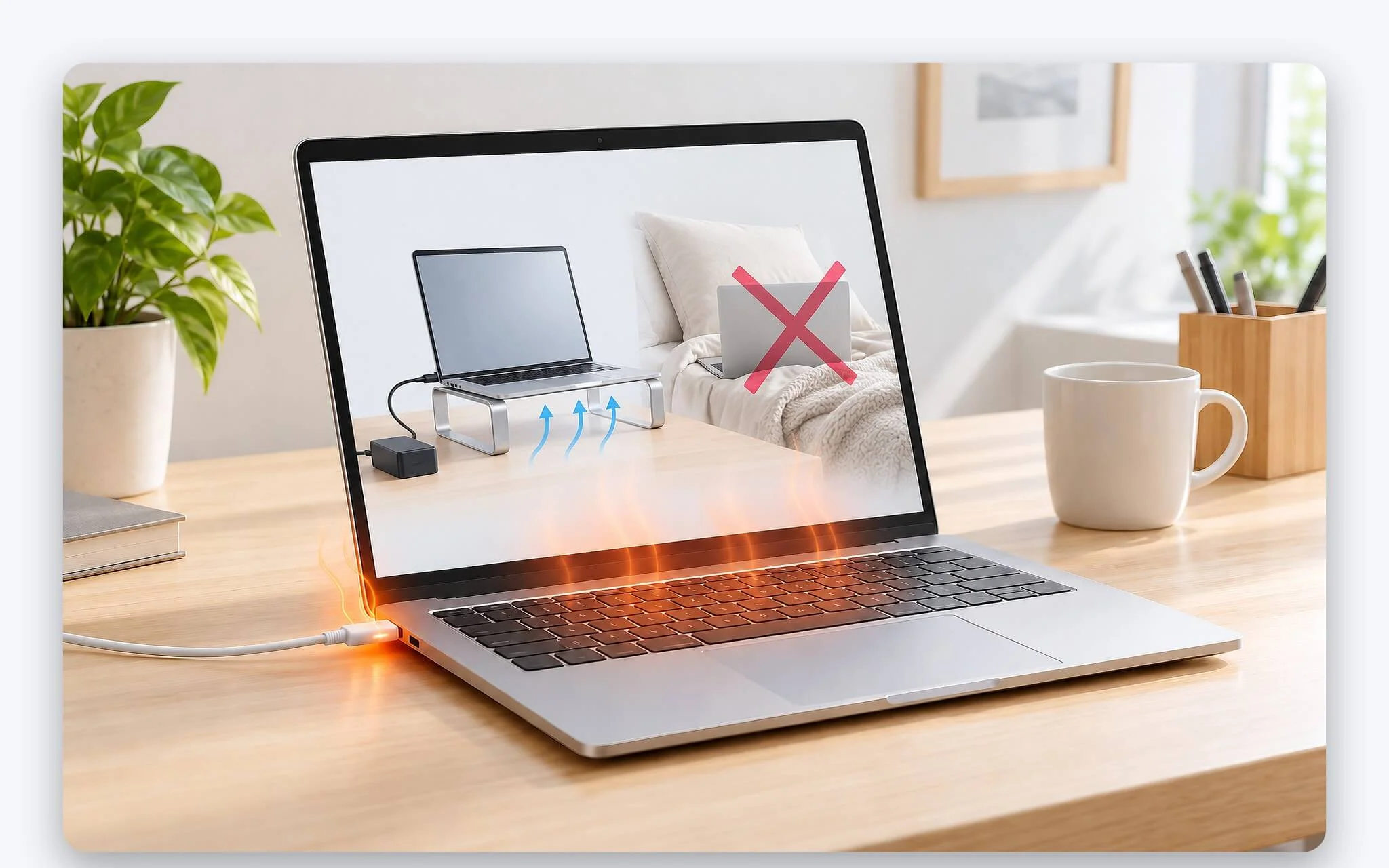
A stand that props up the rear of the laptop allows better bottom ventilation, helping keep the laptop from getting hot while charging during long work sessions. If you plan to buy a cooling pad with fans, the article Do Laptop Cooling Pads Actually Lower Temperatures: When They Work and When They Are Useless explains why intake vent placement determines whether a pad helps lower temperatures. As for adapters, Dell requires using only the adapter that comes with the laptop or a Dell adapter with the same wattage, while Apple warns that charging with an adapter that does not meet safety standards may cause injury.
You should take your laptop in for an inspection if you notice any of the five signs mentioned above, if the laptop heats up while charging at idle with no heavy processes in Task Manager, or if the laptop repeatedly shuts down on its own while plugged in. If an adapter failure has already stopped the laptop from receiving power, the article Laptop Won't Turn On: How to Check the Adapter and Drain Residual Power Before Taking It in for Repair shows how to isolate the problem before handing the machine over to a technician. Apple recommends that only trained technicians replace or repair built-in batteries.
Frequently Asked Questions (FAQ)
Does using a laptop while charging degrade the battery faster?
Battery University states that leaving a laptop plugged in is safe because the charging circuitry stops charging once the Li-ion battery is full; on the ThinkPad X9-14, a full battery must discharge to 94% or lower before it charges again. The factor that accelerates battery capacity loss is holding a full charge at high temperatures, so when using the laptop plugged in over long periods, you should enable a charging limit and keep the laptop well-ventilated.
Is it a concern if a laptop gets hot while gaming on the charger?
When gaming while plugged in, the CPU and GPU run at high power, so a laptop heating up and fans running loudly is normal behavior. Lenovo recommends keeping the room temperature below 25°C so the cooling system can work more easily. If the laptop shuts down unexpectedly, charging cuts out intermittently, or you notice a burning smell, you should stop playing and have the machine checked.
How hot does an adapter have to get before it is abnormal?
Manufacturers do not publish a single universal temperature figure for adapter casings. Apple and HP confirm that adapters warm up during operation and advise against keeping them under blankets, pillows, or on soft surfaces. A hot adapter while plugged in is only a concern if accompanied by a burning smell, damage to the casing or prongs, a frayed cable, or intermittent charging, at which point you should unplug it immediately.
Should you unplug the charger once the battery is full to keep the laptop cooler?
For a laptop that gets hot while charging, unplugging the charger helps the charging circuit and adapter generate less heat, but Battery University notes that leaving a Li-ion battery plugged in regularly is still safe. A tidier approach is to enable a charging limit in the manufacturer's software, switch to a lower power mode during light tasks, and prop the laptop on a hard, well-ventilated surface.