

Hearing a faint, high-pitched mosquito-like buzz from inside your laptop while gaming or rendering often sparks fears that the motherboard is failing. This type of laptop whining is typically known as coil whine - the physical vibration of inductors on the CPU and GPU power delivery circuits. This article explains what causes it, how to distinguish it from fan noise, the settings that can reduce the whine, and the signs indicating a defect covered under warranty.
Laptop Whining Under Gaming Loads Stems from Inductor Vibrations
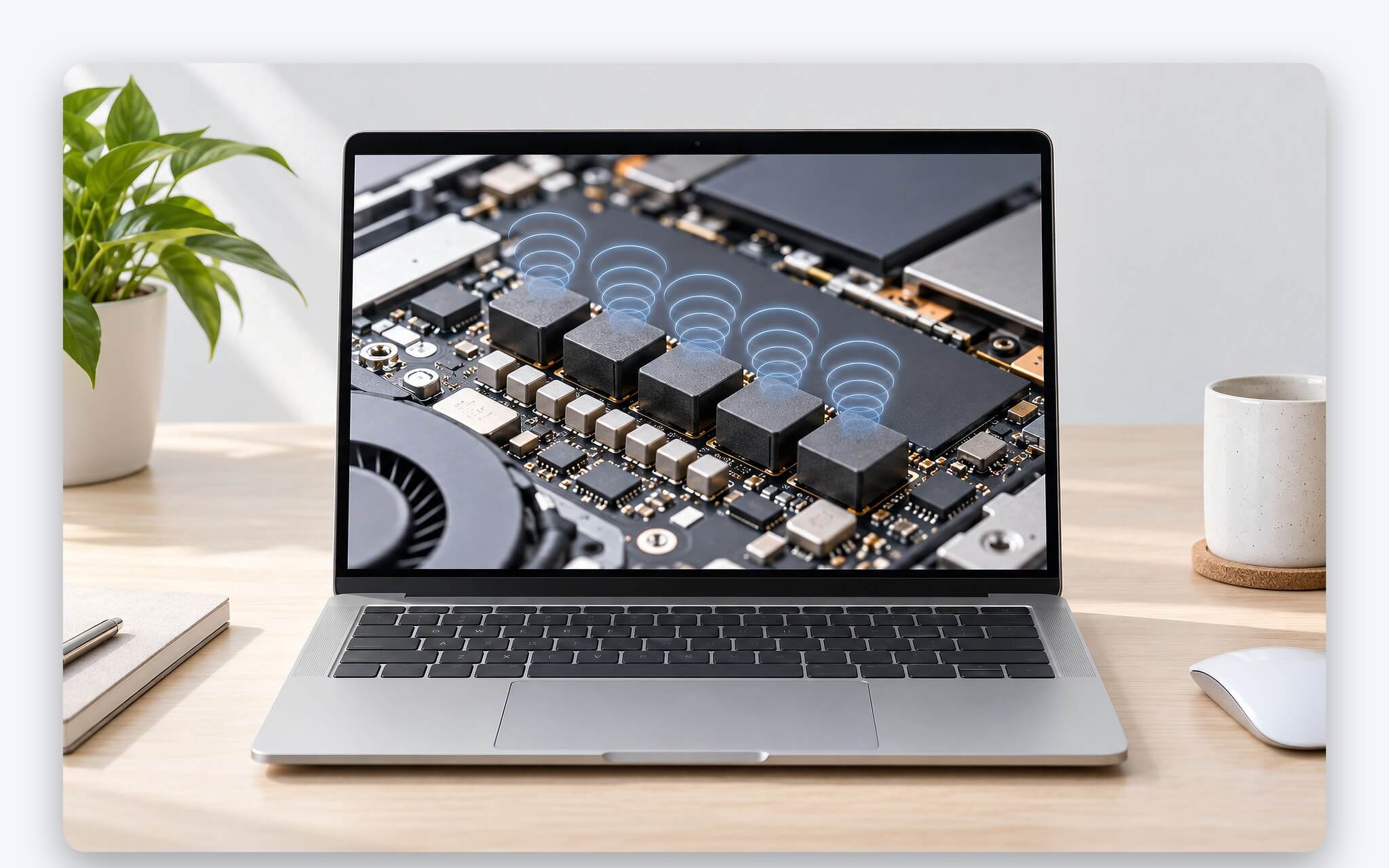
The power delivery circuits for the CPU and GPU, commonly referred to as the VRM, use inductors (chokes) and capacitors to convert voltage from the power adapter or battery into the lower, stable voltage levels required by the processors. As electric current flows through them, these coils vibrate at frequencies linked to the current load. MSI support describes this as acoustic noise caused by electromagnetic induction, noting that the sound typically emanates from the CPU and GPU areas where power consumption is highest. When those vibrations fall within the range of human hearing, coil whine becomes audible.
According to acoustic reference materials from Simon Fraser University, the human ear can detect frequencies from roughly 20 to 20,000 Hz, with high-frequency perception steadily declining with age. That explains why, on the exact same whining laptop, younger users hear it clearly while older users barely notice it at all. ASUS also notes that the sound is far more noticeable in quiet rooms or to individuals sensitive to high-pitched audio. The perceived annoyance of coil whine therefore depends as much on personal hearing and ambient noise levels as it does on the hardware itself.
Dell offers a more specific breakdown regarding its Dell Pro Max 16 Plus workstation line. As graphics loads climb, higher voltages flowing through the components cause them to expand and contract, triggering physical vibrations in multi-layer ceramic capacitors (MLCC) and chokes that manifest as whining or buzzing noises. As such, coil whine is not the sound of a wearing mechanical component, but rather the physical vibration of electrical parts. Functionally, these components continue delivering power normally, merely generating collateral noise as the electrical current fluctuates.
Distinguishing Electrical Whine from Fans, Hard Drives, and Speakers
Before tweaking any software settings, you should pinpoint exactly where the sound is coming from. Coil whine has a thin, high-pitched timbre resembling a faint buzz or hiss, and its pitch typically shifts with workload variations. Fan noise is a rushing whoosh of air that builds in volume alongside rising temperatures. Mechanical hard drives (HDDs) produce clicking or rattling sounds, whereas SSDs have no moving parts and will not produce noise of this kind. Crackling speakers usually point to corrupted drivers or signal interference. The following table summarizes how to isolate each sound source when troubleshooting a whining laptop.
| Sound Source | Distinctive Acoustic Profile | Common Scenarios | Quick Test |
|---|---|---|---|
| Inductors and capacitors on CPU/GPU power circuits | Thin, high-pitched whine that shifts pitch almost instantaneously with load changes | High FPS, gaming, video editing, file conversion | Cap your frame rate and listen again |
| Cooling fans | Rushing air whoosh that grows louder as temperatures climb | Sustained heavy workloads, high CPU or GPU utilization | Listen near the exhaust vents and run the manufacturer's fan diagnostic test |
| Mechanical HDD | Clicking or buzzing that may indicate mechanical wear | During data read/write operations | Run disk diagnostic tools and back up your data promptly |
| Speakers | Crackling or popping mixed into audio output | Faulty audio drivers or signal interference | Mute audio, then update drivers and BIOS |
| Power adapter | Buzzing or whining coming directly from the charger brick | While plugged into power | Disconnect the adapter from the laptop and test a different wall outlet |
A quick way to test is by altering the load and observing changes in both volume and pitch. If you jump from a demanding game back to the menu screen and the tone changes almost instantaneously while the fans continue spinning at a steady rate, it is very likely coil whine. In contrast, noise that ramps up or down gradually in response to temperature changes usually originates from the cooling fans. You can place your ear near the area directly above the GPU or close to the cooling vents to isolate the location, as MSI indicates that whining predominantly stems from the CPU and GPU zones. If your laptop whines from multiple spots, record the audio with your phone for closer comparison.
When it comes to the power adapter, Dell recommends disconnecting it from the laptop to test each unit independently. If the charger still buzzes or whines when unplugged from the laptop, the noise originates inside the adapter, which means you should contact support. If the noise disappears once the charger is unplugged and the laptop runs on battery power, test the machine again under heavy load to see if the whine returns. Isolating the issue this way helps you correctly identify the noise source before seeking warranty service, preventing coil whine from being confused with a faulty fan or failing speakers.
Situations Where Coil Whine Becomes More Noticeable Than Usual
According to Intel, whining typically appears when the graphics card handles tasks at high frame rates, and the phenomenon can also occur on other products depending on components and design. MSI lists tasks prone to triggering whining as gaming, video editing, and file conversion - moments when the CPU or GPU is under heavy load. On a whining laptop, the sound usually becomes most prominent when frame rates spike or workloads continuously fluctuate.
Game menu screens, loading screens, and static scenes are common culprits. When a game does not cap frame rates, the GPU renders simple scenes at skyrocketing speeds, causing the electrical current through the power circuitry to shift pace constantly and making coil whine easily audible even under modest workloads. Professional graphics software behaves similarly: Dell notes whining when rotating or rendering drawings in SolidWorks while connected to the power adapter. In other words, the sound is linked to how the load current fluctuates, not just the sheer intensity of the task.
The surrounding environment significantly influences how audible it is. At night or inside an enclosed room, inductor whining stands out much more easily than during the day against background traffic, fans, or air conditioning. ASUS emphasizes that high-frequency noise is easier to perceive in quiet settings and by individuals sensitive to higher pitches. As a result, a laptop might seem virtually silent in a coffee shop yet whine noticeably in a bedroom, even under identical specs and workloads.
Limiting FPS to the Refresh Rate to Reduce Electrical Whining
Intel's primary recommendation is to cap the frame rate at or below the display's refresh rate and enable V-Sync. The logic is straightforward: a 144 Hz display can only show up to 144 frames per second, so any frames the GPU renders beyond that waste power and trigger laptop whining without actually reaching the screen. The table below outlines suggested limits for refresh rates commonly found on laptops today.
| Display Refresh Rate (Hz) | Recommended Max Frame Rate (FPS) | Suggested Settings on NVIDIA GPUs |
|---|---|---|
| 60 | 60 | Set Vertical sync to On or set Max Frame Rate to 60 |
| 120 | 120 | Max Frame Rate 120; can be lowered further if whining persists |
| 144 | 144 | Max Frame Rate 144, combined with V-Sync |
| 165 | 165 | Max Frame Rate 165, combined with V-Sync |
| 240 | 240 | Max Frame Rate 240; lower gradually if whining remains noticeable |
On laptops equipped with NVIDIA GPUs, the Max Frame Rate setting in Manage 3D Settings allows capping framerates between 20 and 1,000 FPS, and NVIDIA notes that capping frame rates can extend battery life or reduce system latency in certain scenarios. The Background Application Max Frame Rate setting, ranging from 20 to 200 FPS, applies to background applications. All options and value ranges are detailed on NVIDIA's Manage 3D Settings reference page.
On newer laptops, the 3D configuration panel is housed within the NVIDIA App, which replaces GeForce Experience; background on this transition is covered in Nvidia Replaces GeForce Experience with Nvidia App, Version 1.0 Launched. When running on battery, NVIDIA's BatteryBoost feature engages automatically upon launching a game, targeting 30 FPS or higher and throttling GPU power to what is needed for smooth play. A lower frame rate means fewer excess frames, making this an easy way to check whether coil whine calms down.
How MSI, ASUS, Intel, and Dell View Coil Whine
MSI categorizes coil whine as a normal physical phenomenon and confirms it has nothing to do with hardware failure. The company also notes that this is a common trait across electronic components, appearing on desktop graphics cards, power supplies, and laptops from other brands alike, while acknowledging that it cannot be completely eliminated despite design efforts to reduce resonance. This stance shows that mild laptop whining, in the absence of other symptoms, is viewed as an operational characteristic rather than a defect.
On its support portal, ASUS explains that high-frequency noise develops when fluctuating system loads cause changes in electrical current, triggering resonance in internal components - this is not a hardware fault and does not affect the machine. Intel shares a similar view regarding Arc graphics cards, noting that audible whining will not damage the card or interfere with its functionality. ASUS's full explanation is available in the frequently asked questions about high-frequency noise on ASUS laptops.
Dell addresses the issue on a model-by-model basis. For the Dell Pro Max 16 Plus, the company explains that the whining is tied to its 48 V three-level buck power delivery design, and advises opening the NVIDIA App, selecting SolidWorks, and setting Max Frame Rate between 20 and 60 FPS to lessen or silence inductor whining. Across all manufacturers, the consensus is clear: standalone laptop whining is considered an inherent hardware trait, and capping FPS is the first troubleshooting step to take.
Signs That Whining Is a Defect Requiring Warranty Service
Whining noise is only a concern when accompanied by other symptoms. Lenovo safety guidelines instruct users to stop using the device and unplug it immediately if it produces cracking, hissing, or popping sounds, a strong odor, signs of overheating, smoke, or sparks. A cracked power cord or adapter, or a cracked, dented, or leaking battery, also falls into the category requiring immediate action. When a laptop whines alongside any of these signs, it is no longer typical coil whine.
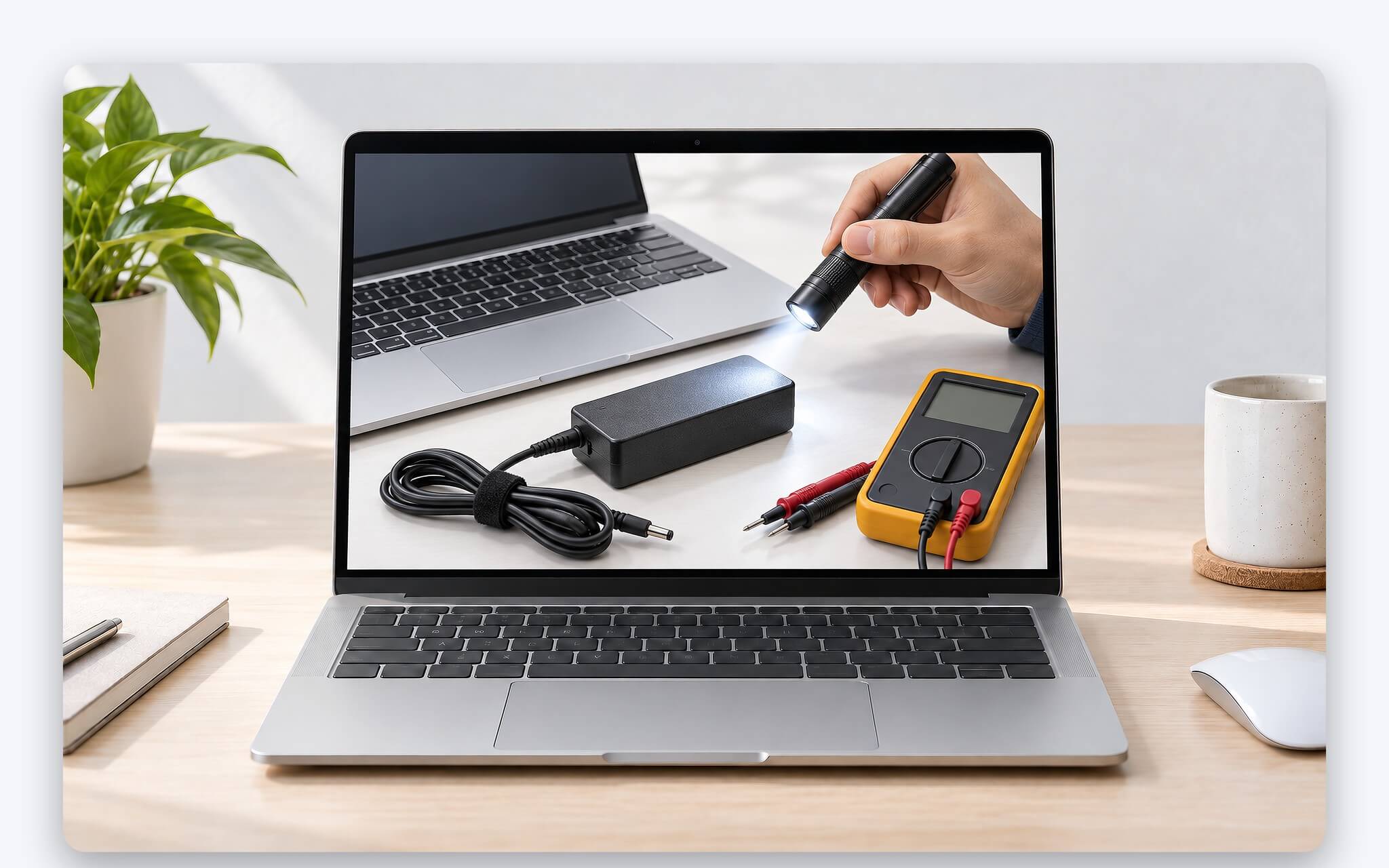
A second group of symptoms involves system operation. Laptops freezing, rebooting, or shutting down right as the whining gets louder, or acting erratically despite following instructions properly, are all cases Lenovo lists as requiring attention. At that point, remove all GPU overclocking settings, as Intel advises dialing back overclocks when encountering whining noise, and retest at default specs. If the issue persists, record a video with audio and bring the laptop to a service center for technicians to verify.
For power adapters, Dell advises plugging directly into a wall outlet, bypassing surge-protected power strips or UPS battery backups, updating to the latest BIOS, and then unplugging and reseating the power cord and adapter. If the adapter continues to make noise after these steps, contact support. In cases where an adapter whines while the laptop fails to charge or turn on, the troubleshooting process is detailed in the guide on Laptop Won't Turn On: How to Test the Adapter and Drain Residual Power Before Taking It In for Repair.
Frequently Asked Questions About Whining Laptops
Does coil whine shorten a laptop's lifespan?
MSI states that this behavior is unrelated to hardware failure, ASUS confirms it does not impact the device, and Intel notes that the whining noise does not damage the card or affect functionality. These support pages provide no figures on lifespan, so what can be stated with certainty is that whining noise alone is not a sign of failure. If the laptop whines along with a burning smell, smoke, or popping sounds, you should unplug it and have it checked.
Should I exchange a newly purchased laptop that whines right away?
Manufacturers consider slight whining an inherent characteristic of the components and acknowledge it cannot be entirely eliminated, so an exchange depends on the retailer's policy. Before pursuing an exchange, try capping the framerate to match your refresh rate, enabling V-Sync, and plugging the power adapter into a different wall outlet. If the inductor whine remains abnormally loud or occurs alongside freezes or crashes, record a video as evidence when contacting warranty support.
Does enabling V-Sync reduce coil whine?
Intel lists V-Sync among the measures to reduce whining noise, along with capping framerates at or below the refresh rate. When V-Sync is set to On, frame delivery is synchronized with the display, preventing the GPU from rendering excess frames. If inductor whine remains noticeable, pair it with Max Frame Rate under Manage 3D Settings and gradually step the limit down.