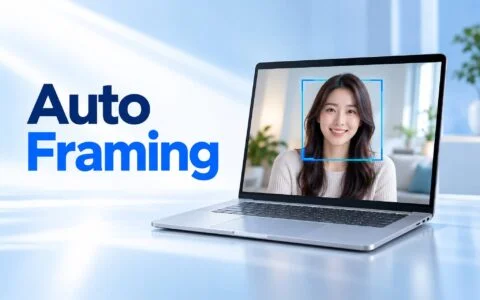
Have you ever joined a video meeting only to realize your laundry rack is in plain view, or found yourself looking down at the screen so much that others think you are distracted? Windows 11 includes built-in Windows Studio Effects specifically designed to address both issues: blurring your background, adjusting your eye contact, automatically framing your shot, and filtering your voice. Put simply, these are AI effects tied directly to your laptop's camera that run on the NPU (a dedicated AI processor) rather than burdening the CPU, ensuring every video call app receives the exact same processed feed.
What Windows Studio Effects Is and Where It Operates on a Laptop
According to Microsoft Learn, Windows Studio Effects uses AI on Windows devices with a compatible NPU to apply special effects to the built-in camera and microphone. Microsoft states the goal is to deliver high-quality, battery-friendly effects while reducing the load on the CPU and GPU. The suite includes five visual feature groups - Background effects, Eye contact, Automatic framing, Portrait light, and Creative filters - along with an audio effect called Voice focus.
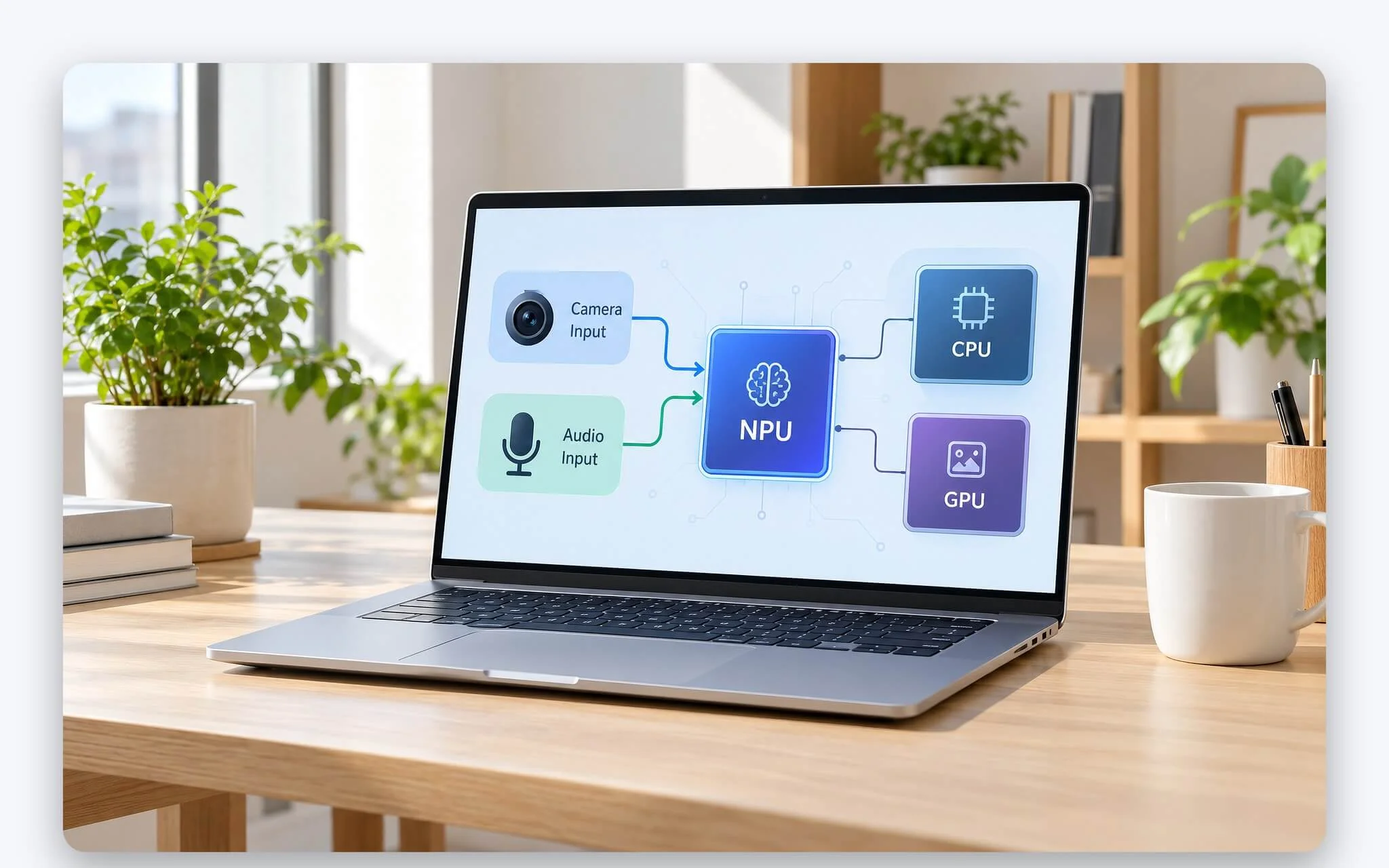
Architecturally, the key difference from in-app effects lies in where the processing occurs. When enabled by the laptop manufacturer, the Studio Effects pipeline is attached to the tail end of the camera processing chain, transforming the physical sensor into a synthetic camera that blends native hardware feeds with AI effects. Microsoft Learn explicitly notes that once enabled in Settings, these effects apply by default to every app that uses the camera - even apps that have no awareness of the feature - so you only need to configure them once for Teams, Zoom, and Google Meet alike.
Voice focus represents the audio component of the suite, designed to isolate speech and reduce ambient background noise during calls. How this effect works in tandem with Windows 11 Voice Clarity and individual meeting app noise reduction options is covered separately in Noise-Canceling Laptop Microphones: How to Enable Noise Filtering for Online Meetings and Video Calls, so the sections below focus on the visual effects the suite applies to your webcam video feed.
Standard Blur vs. Portrait Blur: How They Differ
The Background effects category offers two types of background blur, allowing you to select either one. Standard blur, as Microsoft Learn describes, is a basic Gaussian blur effect that applies a uniform blur over the background to keep the viewer focused on your face. Portrait blur creates a bokeh-style blur, which Microsoft Support characterizes as a stronger blur closer to portrait mode on a standalone camera, while Microsoft Learn notes the effect can be subtle or depth-based depending on the scene.
| Criteria | Standard blur | Portrait blur |
|---|---|---|
| Processing style per Microsoft Learn | Basic Gaussian blur, uniformly blurring the background | Bokeh-style blur, can be depth-based |
| Blur intensity per Microsoft Support | Moderate, keeps the speaker centered | Stronger, similar to camera portrait mode |
| Lower-capacity NPUs | Yes | May be absent, per Microsoft Learn notes |
| Recommended use case | Tidy office spaces where a natural look is preferred | Cluttered backgrounds requiring distinct subject separation |
The two Microsoft documentation pages state slightly different hardware prerequisites. The Windows 11 specifications page groups both Standard and Portrait blur into the tier that requires an NPU of at least 10 TOPS. Microsoft Learn, however, points out that lower-capacity NPUs may support Standard blur while lacking Portrait blur. On laptops released before the Copilot+ standard, the most reliable approach is to open camera settings and verify directly whether both options appear.
It is also important to understand the scope: the Background effects group in Microsoft's published list offers only two blur intensities, with no option to replace your background with an image. If you need a virtual office backdrop or a company logo behind you, use the virtual background feature built into your meeting app. When doing so, turn off background effects at the Windows level so the two processing layers do not overlap on the same frame.
Standard Eye Contact and Teleprompter: Two Tiers of Gaze Correction
During meetings, people typically look at the faces on their display rather than the webcam lens on the top bezel, making it seem to the other party like they are looking down. The Eye contact effect uses AI to adjust your gaze, simulating direct eye contact with the camera. According to Microsoft Learn, Standard mode provides a mild correction tailored specifically to instances where your eyes shift from the camera down toward the screen.
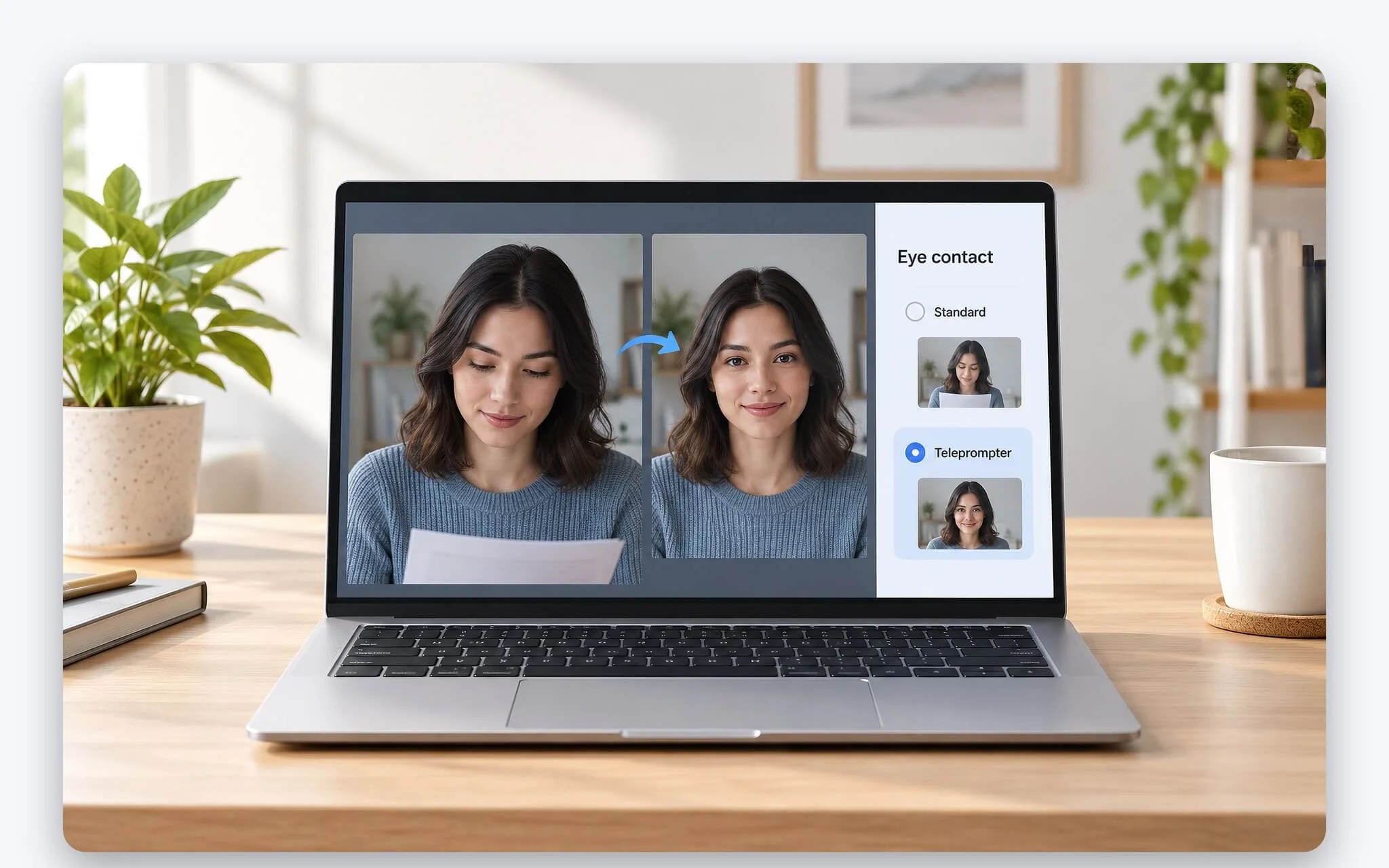
Teleprompter mode provides a stronger level of eye contact correction, intended for scenarios where your eyes move across the entire screen, such as when reading presentation notes while speaking. Microsoft Support states that Teleprompter utilizes advanced AI to yield more natural-looking results and is available exclusively on Snapdragon-powered Copilot+ PCs. Laptops running Intel or AMD processors, even those meeting Copilot+ specifications, are currently limited to Standard eye contact.
Microsoft notes that Teleprompter was designed with consideration for individuals with unique eye characteristics. Eye contact only adjusts your gaze direction within the video frame without altering facial expressions or gestures, so intentionally looking straight into the lens remains the most dependable technique for key moments. To maintain tracking accuracy, if you typically place your laptop off to one side, reposition the camera directly in front of you before turning the effect on.
Automatic Framing, Portrait Light, and Creative Filters
Automatic framing detects people in the frame, then crops and zooms to keep you centered, even when you lean over or shift your chair. This effect comes in handy when your laptop sits off to one side of the desk or when you talk while writing on a whiteboard behind you. Because it inherently crops and zooms in, frame detail depends on the webcam's native resolution: the more pixels the camera has, the less blurry the zoomed-in image will be.

Portrait light brightens your face in dimly lit rooms and reduces harsh screen reflections, according to Microsoft Learn. Creative filters include three styles: Illustrated, Animated, and Watercolor. Microsoft notes that the filters were trained on a dataset of 3,000 hand-drawn portraits spanning multiple ages, genders, and ethnicities to minimize inconsistencies when applied to different faces.
Both Portrait light and Creative filters belong to the advanced Studio Effects tier, available only on Copilot+ PCs powered by Snapdragon X. If your laptop runs a Core Ultra 200V or Ryzen AI 300 processor, the camera settings page will not show these two options even if the NPU exceeds the 40 TOPS threshold. To compensate for Portrait light, you can place a soft light source in front of you, while fun filters are already built into the video effects section of many meeting apps.
Hardware Requirements for Laptops to Display All Studio Effects
The Windows 11 specifications page divides the effects into two tiers based on NPU performance. The basic tier includes Automatic framing, standard and portrait background blur, Standard eye contact, and Voice focus, running on processors with an NPU rated at 10 TOPS or higher. The advanced tier includes Teleprompter, Portrait light, and Creative filters, available only on Copilot+ PCs using the Snapdragon X series. Microsoft Support conveys the same distinction using thresholds of under 40 TOPS and 40 TOPS or higher.
| Threshold or Chip | NPU (TOPS) | Published Source | Available Effects |
|---|---|---|---|
| Basic tier threshold | 10 | Microsoft, Windows 11 specifications | Automatic framing, background blur, Standard eye contact, Voice focus |
| Copilot+ PC threshold | 40 | Microsoft, Windows 11 specifications | Basic tier, plus advanced tier if using Snapdragon X |
| Snapdragon X Elite | 45 | Qualcomm, product brief | Full basic and advanced tiers |
| AMD Ryzen AI 9 HX 370 | 50 | AMD, product specifications page | Basic tier, no advanced tier |
The TOPS rating alone is not enough to confirm whether a laptop supports these features. Microsoft Learn also specifies Windows 11 version 22H2 or later-specifically build 22623.885 and above-and the manufacturer must opt in by installing the effect suite's drivers on the laptop. The Windows 11 specifications page also notes that the feature requires a compatible camera and that available effects vary by device. Consequently, two laptops with the same chip may still differ in their list of supported effects.
For the Copilot+ PC standard, Microsoft adds a minimum requirement of 16 GB of DDR5 or LPDDR5 RAM and a 256 GB SSD or UFS storage drive, with an approved chip list that includes the AMD Ryzen AI 300 and 400 series, Intel Core Ultra 200V and 300V series, and Snapdragon X series. This combination of 40 TOPS, 16 GB of RAM, and 256 GB of storage also matches the requirements for the descriptive file search feature discussed in Semantic Search on Windows 11: Find Photos and Documents Using Natural Descriptions, meaning a Copilot+ laptop supports both sets of AI features.
How to Turn on Studio Effects and Coordinate With Teams, Zoom, and Google Meet
According to instructions on Microsoft Support, the quickest way is to click the network, sound, or battery icon next to the clock to open Quick Settings, then select the Studio Effects tile to turn them on or off; the Reset effects option restores all settings to their defaults. If you do not see this tile, you may need to add it to Quick Settings. To fine-tune the settings, go to Start, Settings, Bluetooth & devices, Cameras, select the front-facing camera, and activate each effect individually.
| Access Method | Steps | Best Used For |
|---|---|---|
| Quick Settings | Click network, sound, or battery icon; select camera effects tile | Toggling effects quickly before a meeting |
| Settings | Start, Settings, Bluetooth & devices, Cameras, front-facing camera | Selecting individual effects, background blur styles, and eye contact intensity |
| Camera App | Effects icon in the top right corner | Previewing the frame before joining a meeting |
| Shortcut | Type ms-settings:camera into the Run box | Opening the camera settings page directly |
The indicator appears directly on the Cameras page: seeing a Windows Studio Effects section below the preview frame means the laptop supports it, whereas if only Basic settings appear, Microsoft states it is likely unsupported. Once enabled, Teams, Zoom, and Google Meet all receive the processed video feed. Microsoft Learn cites Teams as an example of an app that overrides system defaults for background effects, meaning the background blur setting within Teams determines the final output.
On battery life and performance, Microsoft's two documentation portals offer two different perspectives. Microsoft Learn frames the effects as battery-friendly by offloading computation to the NPU. Conversely, Microsoft Support cautions that on some devices, Background effects, Eye contact, and Automatic framing may have a significant impact on performance and battery life. Because Microsoft has not released specific power consumption figures, when attending long meetings on battery power, prioritizing only essential effects helps preserve battery life.
Frequently Asked Questions About AI Camera Effects on Windows 11
Can laptops without an NPU run Studio Effects?
No. Microsoft Support notes that if camera settings do not display these effects, the laptop may lack an NPU. The basic tier requires an NPU of at least 10 TOPS, Windows 11 22H2 or later, and OEM-preinstalled effect drivers.
Do external USB webcams support these effects?
They can. Microsoft Support states the effect suite now supports compatible third-party cameras, while Microsoft Learn still lists support as limited to front-facing cameras. When you open the Cameras page, any webcam showing its own effects section beneath the preview window supports them.
Why do Intel Copilot+ laptops lack Teleprompter?
Microsoft restricts Teleprompter, Portrait light, and Creative filters to Copilot+ PCs powered by the Snapdragon X series. Laptops equipped with Core Ultra 200V or Ryzen AI 300 processors feature the standard tier, which includes Standard eye contact, background blur, and Automatic framing.
If background blur is enabled in Windows, does it also need to be turned on in Zoom?
No. The effect is applied at the camera level, meaning Zoom receives the pre-processed feed. Enabling an additional background effect in the app can cause double-layer artifacting, and Microsoft Learn recommends managing it in only one place.
Does Studio Effects reduce battery life?
It depends on the device. Microsoft Support notes that on some laptops, Background effects, Eye contact, and Automatic framing can noticeably affect performance and battery life, so turning off unneeded effects is advisable when running on battery power.