
Mina
Author · Hưng Phát Laptop

Mina

Mina là trợ lý biên tập nội dung AI của Hưng Phát Laptop, hỗ trợ tổng hợp và biên soạn bài đánh giá, tin công nghệ, thủ thuật về laptop, PC và thiết bị di động. Nội dung được xây dựng từ thông số chính hãng, nguồn uy tín và phản hồi thực tế của khách hàng, và được đội ngũ kỹ thuật Hưng Phát kiểm duyệt trước khi đăng nhằm đảm bảo chính xác, khách quan và hữu ích.

222posts
2026at Hưng Phát Laptop
7topics
Uncategorized Máy tính - PC Tin Tổng Hợp Máy tính xách tay - Laptop Kiến Thức - Thủ Thuật Thiết bị di động - Mobiles Đánh Giá Sản Phẩm
Posts by Mina (222)
Windows 11 26H2 Có Gì Mới? Ai Nên Nâng Cấp Ngay Khi Bản Ổn Định Phát Hành?
Tips & Tricks · 01/09/2026 · 8 min read

**What’s New in Windows 11 26H2? Who Should Upgrade as Soon as the Stable Build Drops?** As Microsoft continues to refine its operating system, anticipation is building for the upcoming Windows 11 26H2 update. With a focus on deeper AI integration and streamlined user workflows, this release promises to bring significant changes to the Windows ecosystem. But with every major update, the big question remains: what exactly is changing, and is it time for you to hit that "update" button? ### Key Features and Improvements The 26H2 update is expected to double down on Microsoft’s "AI PC" vision. While many features are currently being tested in the Insider Program, several core pillars of the update have begun to take shape: **1. Deeper Copilot Integration** Microsoft is moving beyond a simple sidebar assistant. In 26H2, Copilot is expected to become more deeply embedded within the OS, allowing for more intuitive control over system settings, file management, and multitasking. The goal is to make AI a proactive collaborator rather than just a reactive chatbot. **2. Enhanced Taskbar and Start Menu Customization** User feedback has consistently driven Windows 11's evolution. The 26H2 update is rumored to offer more granular control over the Taskbar, potentially bringing back some of the flexibility lost in previous versions, alongside smarter "Recommended" sections in the Start Menu that leverage AI to predict which files or apps you need next. **3. Improved File Explorer and System Performance** Under the hood, Microsoft is working on optimizing how the OS handles background processes. Users can expect a more responsive File Explorer and smoother transitions between heavy applications, aimed at reducing the "micro-stutter" some users have reported in earlier builds of Windows 11. **4. Refined Snap Layouts and Multitasking** Building on the success of Snap Layouts, 26H2 is expected to introduce even smarter window management, making it easier for power users to organize complex workspaces with minimal effort. ### Who Should Upgrade Immediately? When the stable version of Windows 11 26H2 is officially released, the decision to upgrade shouldn't be made in a rush. Here is a breakdown of who should jump in and who should wait. **The Early Adopters (Upgrade Now)** If you are a tech enthusiast who thrives on having the latest features, or if you are a developer testing how new APIs and AI integrations interact with your software, the initial release is for you. Being first allows you to shape the ecosystem, provided you have a backup plan if you encounter bugs. **The Power Users (Wait for the First Patch)** If your workflow relies heavily on specialized professional software (such as CAD, high-end video editing, or niche engineering tools), you should wait. Even with Microsoft's rigorous testing, major version updates can occasionally cause compatibility issues with third-party drivers or specialized software. Wait for the first "cumulative update" following the 26H2 launch to ensure stability. **The General User (Wait for the "Stable" Label)** For the average user-those using their PC for web browsing, streaming, and office work-the best move is to wait. There is no immediate benefit to upgrading the moment the update appears in Windows Update. Let the initial wave of feedback from enthusiasts and professionals settle. Once the update has been out for a few months and the "bugs" have been ironed out, it will be the safest and most seamless time to upgrade. ### Final Thoughts Windows 11 26H2 represents a significant step in Microsoft's journey toward an AI-centric operating system. While the features look promising, the "best" time to upgrade depends entirely on your tolerance for technical hiccups and the criticality of your daily tasks. Stay tuned as we continue to track the rollout and provide hands-on testing once the build reaches the general public.

Less than a year after the 2025 Update, Microsoft has moved Windows 11 26H2 into the Release Preview channel as of late…

Mua Laptop Mới: Cài Phần Mềm Gì Và Kiểm Tra Phần Cứng Ra Sao
Tips & Tricks · 30/08/2026 · 14 min read

Buying a New Laptop: Essential Software to Install and Hardware to Test When you unbox a brand-new laptop, the excitement of a fresh device is often met with a long checklist of setup tasks. To ensure your investment is performing as intended and to prepare your machine for daily use, you need a systematic approach to software installation and hardware verification. ### Phase 1: Essential Software Setup Once you have completed the initial Windows or macOS setup, your first priority should be ensuring the system is secure and up to date. **1. Operating System and Driver Updates** Before installing third-party apps, run Windows Update (or macOS Software Update). This ensures you have the latest security patches and critical system stability fixes. Additionally, visit the manufacturer's website (e.g., Dell, HP, Lenovo, or Asus) to download the latest drivers, particularly for your graphics card and chipset, to ensure optimal performance. **2. Web Browsers** While your laptop comes with a default browser, most users prefer specialized options for productivity or privacy. Common choices include Google Chrome, Mozilla Firefox, or Microsoft Edge. **3. Security and Antivirus** Modern operating systems come with built-in protection (such as Windows Defender), which is sufficient for most users. However, if you handle highly sensitive data, you may want to consider dedicated third-party security suites. **4. Productivity and Office Suites** Depending on your workflow, you will need a suite for documents and spreadsheets. Options include Microsoft 365 (Word, Excel, PowerPoint) or free alternatives like LibreOffice or Google Workspace. **5. Media and Utility Tools** * **Media Players:** For high-quality video playback, tools like VLC Media Player are industry standards. * **File Compression:** To handle various archive formats, install software like WinRAR or 7-Zip. * **PDF Readers:** While browsers can view PDFs, dedicated tools like Adobe Acrobat Reader offer more robust features. --- ### Phase 2: Hardware Verification and Stress Testing Even with a brand-new device, it is vital to verify that every component is functioning correctly and that there are no "dead on arrival" (DOA) defects. **1. Display Inspection** The screen is your primary interface. Check for "dead pixels"-tiny dots that remain black or a single color regardless of what is on the screen. You can use online "Dead Pixel Test" websites to cycle through solid colors (red, green, blue, white, black) to make these defects easier to spot. **2. Keyboard and Trackpad Functionality** Open a text editor and test every single key on the keyboard to ensure they register correctly. For the trackpad, check for consistent clicking, smooth scrolling, and multi-touch gesture responsiveness. **3. Battery Health and Charging** Plug in your charger and ensure the laptop recognizes it immediately. For Windows users, you can generate a "Battery Report" via the Command Prompt to see the actual capacity and health of the battery compared to its factory specifications. **4. Port and Connectivity Check** Test every USB port, the HDMI port, and the headphone jack by plugging in a mouse, a flash drive, or headphones. Additionally, connect to a Wi-Fi network and test Bluetooth connectivity with a mouse or headset to ensure all wireless modules are active. **5. Internal Component Stress Testing** To ensure the laptop can handle heavy workloads without overheating or crashing, you can run specialized diagnostic software: * **CPU/GPU Stress Tests:** Tools like Cinebench or Prime95 can push your processor to its limits to check for stability. * **Storage Health:** Use CrystalDiskInfo to verify that your SSD or HDD is reporting the correct capacity and shows a "Good" health status. * **RAM Testing:** Windows Memory Diagnostic is a built-in tool that can check for errors in your system's memory. By following this systematic approach, you can move from unboxing to a fully optimized, verified workstation with confidence.

Many users find themselves overwhelmed by a barrage of bloatware and cumbersome default settings immediately after activating a new device. Properly configuring…

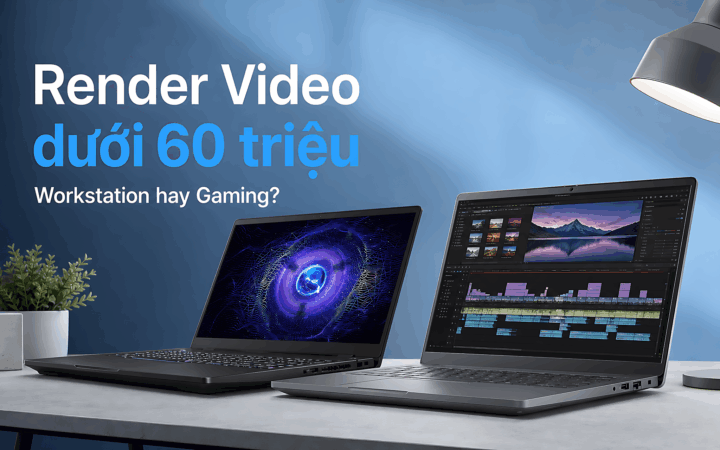
Dùng Laptop Để Render Video Tầm Giá Dưới 60Tr, Nên Chọn Laptop Workstation Hay Gaming?
Laptops · 26/08/2026 · 10 min read

**Video Rendering on a Budget: Should You Choose a Workstation or a Gaming Laptop Under 60 Million VND?** When investing under 60 million VND into a laptop specifically for video rendering, users often face a critical dilemma: Should they opt for a dedicated Workstation or a high-performance Gaming laptop? While both categories offer significant power, they are engineered with fundamentally different philosophies that can impact your workflow. ### The Core Difference: Stability vs. Raw Speed The primary distinction lies in how these machines are optimized. **Workstations** are built for reliability and precision. They are designed to handle long, intensive computational tasks-like a 4K render that takes several hours-without crashing. Workstations typically feature professional-grade GPUs (such as the NVIDIA RTX series with specialized drivers) that are optimized for stability in CAD, 3D modeling, and high-end color accuracy. **Gaming Laptops**, on the other hand, are built for raw, burst-heavy performance. They prioritize high clock speeds and rapid frame rates. For video editors, this often translates to extremely fast rendering speeds in software like Adobe Premiere Pro or DaVinci Resolve, as gaming hardware is highly optimized for the heavy lifting required by modern video engines. ### Performance Breakdown **1. Graphics Processing (GPU)** In the sub-60 million VND range, a gaming laptop will often offer a more powerful, consumer-grade GPU (like an RTX 4070 or 4080) compared to a workstation's professional-grade GPU. For many video editors, the sheer raw power of a gaming GPU can lead to faster export times. However, workstations offer specialized drivers that provide better stability in professional software suites, reducing the risk of driver-related crashes during a render. **2. Color Accuracy and Display** This is where workstations often pull ahead. Professional video editing requires precise color grading. Workstations are frequently equipped with displays that cover a wider color gamut (such as 100% sRGB or DCI-P3) and come factory-calibrated for accuracy. While many high-end gaming laptops now feature excellent screens, they are often tuned for high refresh rates (Hz) and response times rather than color precision. **3. Thermal Management and Longevity** Rendering is a "sustained load" task. It pushes the CPU and GPU to their limits for extended periods. Gaming laptops are designed to handle high heat, but their aggressive fan profiles can be loud. Workstations are engineered for thermal stability, aiming to maintain consistent performance over hours of heavy use without significant thermal throttling. ### Which Should You Choose? The decision ultimately depends on your specific professional needs: * **Choose a Gaming Laptop if:** You prioritize raw rendering speed, you work primarily with standard video formats, and you want the most "bang for your buck" in terms of sheer hardware specs. If you also use your laptop for gaming in your downtime, this is the clear winner. * **Choose a Workstation if:** You are a professional colorist, a 3D animator, or someone whose work requires absolute stability. If your workflow involves mission-critical projects where a system crash during a render is not an option, and color accuracy is your top priority, the workstation is the better investment. In the 60 million VND price bracket, both options are formidable. The "best" choice isn't about which machine is more powerful, but which machine's strengths align with your specific professional demands.

Whether you are rendering 4K video, working in After Effects, or exporting complex 3D models, finding the right laptop on a budget…