Running multiple game accounts, farming resources, or keeping several Android apps open side by side forces a laptop to handle multiple virtual operating systems at once. An emulator sets up a virtual Android phone directly inside Windows, with each instance functioning as a separate virtual machine. To keep running multiple emulators stable, you need to calculate the RAM, CPU cores, and storage space required for each instance and add them up, rather than looking only at the minimum requirements for a single window.
How Much RAM and CPU Cores Each Emulator Instance Uses
Each instance requires dedicated RAM and CPU cores that you allocate in the settings. BlueStacks support suggests 2 CPU cores and 2 GB of RAM for lightweight apps, 4 cores and 4 GB for graphically demanding games, and allows assigning up to 12 GB of RAM to a single instance if your laptop has enough memory. This serves as a baseline to tally up when running multiple emulators on the same laptop, since every additional instance requires its own allocation.
LDPlayer sets an additional limit: the CPU cores and RAM assigned to the emulator should not exceed half of the computer's physical resources. BlueStacks similarly advises against assigning all CPU cores to the software. These two rules show that Windows must always reserve a share of resources to keep operating, so when a laptop runs multiple emulator instances, a sensible total allocation sits at around half of the physical RAM, leaving the remainder for the operating system, browser, and management tools.
With multiple emulator instances, storage is the third component that often gets overlooked. LDPlayer 9 requires at least 36 GB of free space and recommends 100 GB. Newer BlueStacks 5 builds allocate 128 GB of internal storage to each newly created instance, while instances created from older versions keep 64 GB. This is the capacity recognized by the virtual Android system, whereas the actual footprint on the SSD grows as games and data are installed into each instance. Three instances running the same demanding game result in three separate installations, meaning anyone running multiple emulators must multiply SSD capacity by the number of instances.
Laptop Specs for Running Multiple Emulators by Instance Count
Starting from 2 GB per instance for lightweight apps and 4 GB for demanding games, you can multiply out to determine the total RAM an emulator-running laptop needs to provide. The minimum laptop RAM column applies the rule of reserving half of the memory for Windows, which means doubling the allocation for lightweight workloads. The table below outlines calculations based on figures published by BlueStacks and LDPlayer, helping you choose the right RAM configuration before running multiple emulators instead of discovering a shortage after buying.
| Number of instances | Allocated RAM, light tasks at 2 GB per instance (GB) | Allocated RAM, heavy tasks at 4 GB per instance (GB) | Minimum laptop RAM for light tasks (GB) | Recommended laptop RAM tier (GB) |
|---|---|---|---|---|
| 2 | 4 | 8 | 8 | 16 |
| 4 | 8 | 16 | 16 | 16 to 32 |
| 8 | 16 | 32 | 32 | 32 to 64 |
| 10 | 20 | 40 | 40 | 64 |
| 12 | 24 | 48 | 48 | 64 |
In the 2 to 4 instance range, a 16 GB laptop accommodates lightweight applications, while demanding games require stepping up to 32 GB. An open RAM slot is therefore just as vital as the initial capacity, a point explored thoroughly in the article How Much RAM Is Enough for a Laptop: 16 GB Is Fine if the Machine Has an Upgrade Slot. A setup with 5 to 8 instances demands 32 GB as a baseline, and from 10 instances onward, 64 GB becomes the tier required by the math, as 10 instances at the 4 GB heavy profile already total 40 GB.
When running multiple emulators, CPU cores add up in the same manner. At 2 cores per instance, 4 instances already use 8 virtual cores, and 8 instances consume 16 cores. According to Intel, the Core i7-13650HX features 14 cores and 20 threads, while the Core Ultra 9 275HX offers 24 cores and 24 threads, meaning 16 virtual cores already exceeds half the hardware capacity on both chips. When multiple emulator instances run simultaneously, idle background instances should have their assigned core counts lowered, with the remaining load reined in through FPS limits and power-saving settings detailed below.
Lowering FPS and Resolution, and Enabling Eco Mode for Each Instance
FPS (frames per second) is a straightforward parameter to adjust to substantially lighten the workload when running multiple emulators. LDPlayer defaults to 60 FPS and provides explicit guidance: to open as many instances as possible, lower the rate to between 10 and 20 FPS; if you only open 3 to 4 instances, you can raise it to 30 to 50 FPS. The company explains that running numerous emulator instances depends on hardware, including the CPU, system memory, and graphics memory, so laptops running emulators on lower-tier hardware have even more reason to drop the frame rate.
| Setting | LDPlayer | BlueStacks |
|---|---|---|
| FPS when running multiple instances | 10 to 20 FPS when opening the maximum count, 30 to 50 FPS when opening 3 to 4 instances | Eco Mode can drop down to 1 FPS for individual instances |
| Power-saving mode | Turn off audio to reduce CPU usage | Eco Mode reduces up to 87% CPU and 97% GPU usage (internal testing) |
| Memory mode | Memory Optimization reduces RAM and graphics memory | Low Memory, default for new instances |
| Individual instance allocation | CPU, RAM, resolution | CPU, RAM, FPS, DPI |
| Virtual disk | Stable for SSDs, New with smaller disk to reduce capacity | 128 GB internal storage for new instances |
| Instance management | LDMultiplayer, Arrange windows, Synchronizer | Multi-Instance Manager, Sync operations |
On BlueStacks, Eco Mode can be activated across all active instances using a single slider inside the Multi-Instance Manager, or toggled on individually per instance. The introduction page for BlueStacks Eco Mode reports that this feature cuts CPU usage by up to 87% and GPU usage by up to 97%, while allowing the frame rate to drop to just 1 FPS on background instances. The company notes that these figures come from internal testing, so you should treat them as a reference baseline.
In terms of memory, BlueStacks advises selecting Low Memory mode when opening multiple emulator instances and leaving High Performance for times when you run only one instance; newly created instances activate Low Memory by default. Resolution and pixel density (DPI, adjustable from 10 to 999) can be modified in each instance's settings tab and only changed while that instance is shut down. Background instances should be set to a low resolution, reserving higher display resolutions for the instance you are actively controlling.
Cooling and Power Delivery When Running Emulators on a Laptop for Long Hours
Running multiple emulators overnight is completely different from a quick gaming session: the CPU has to sustain a constant high load and the fans spin for hours. LDPlayer recommends switching Windows to the High performance power plan in Power Options, while selecting the discrete NVIDIA GPU as the preferred graphics processor if games run slowly on integrated graphics. For laptops running emulators for long stretches, keep the charger plugged in throughout the session so the system does not have to compromise between performance and battery life.
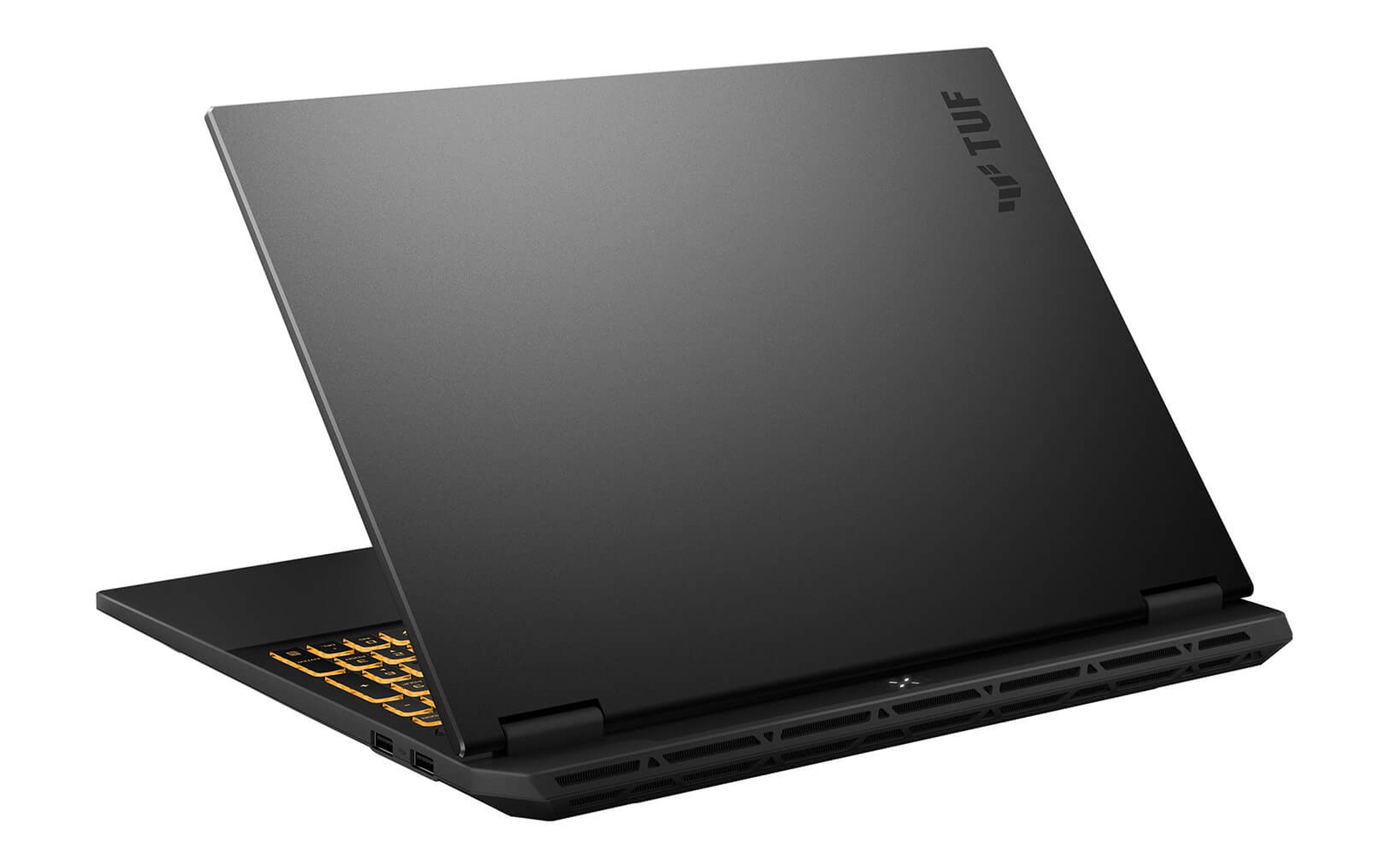
Ventilation is the deciding factor for temperatures when running multiple emulator instances overnight. Gaming laptops like the Asus TUF Gaming F16 feature exhaust vents along the rear edge, so you should leave ample clearance behind the hinge and avoid placing the machine on a mattress, pillow, or blanket. Elevating the base by a few centimeters helps the fans draw intake air more easily and maintains steady performance, while a cooling pad with built-in fans is a small investment for any laptop running multiple emulators from dusk to dawn.
Laptops running heavy workloads for months also require attention to the thermal interface material between the chips and the heatsink, as dried-out thermal paste gradually leads to rising temperatures over time. If you are considering repasting a machine that runs continuously, our article on what PTM7950 is and why phase-change thermal pads outlast traditional paste on laptops explains how phase-change materials maintain thermal conductivity longer than conventional thermal paste.
16GB to 32GB Laptops for Running 2 to 8 Instances
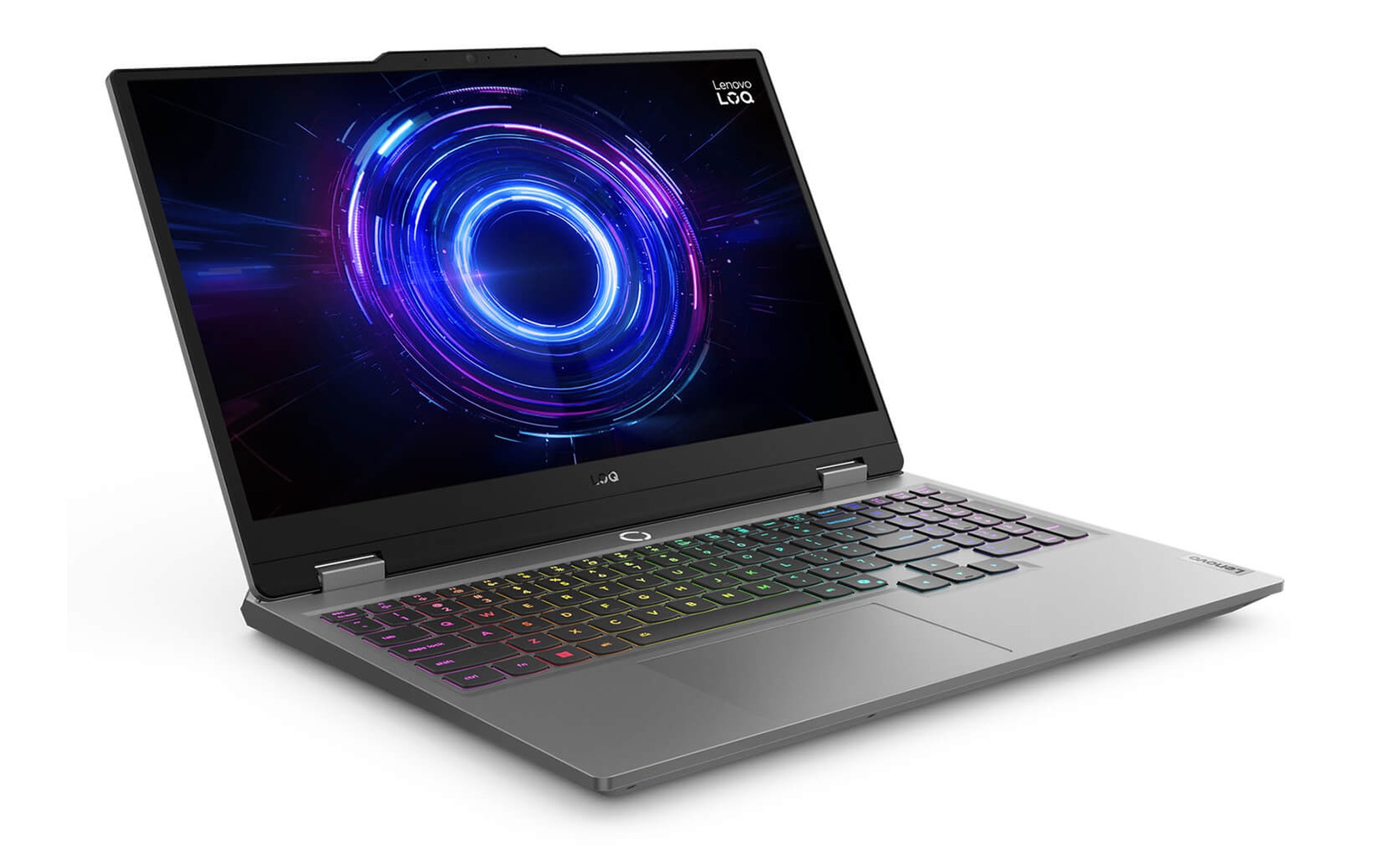
For running multiple emulators at a 2- to 4-instance scale with lightweight apps, the Lenovo LOQ 15IRX10 (2025) serves as a budget-friendly starting point: Core i7-13650HX, 16 GB of RAM, a 512 GB SSD, an 8 GB RTX 5050, and a 144Hz FHD display, priced at 37.99 million VND. According to Intel, the chip packs 14 cores and 20 threads, and Lenovo's PSREF confirms two DDR5 SO-DIMM slots that can be upgraded up to 32 GB when you need to open more instances. The laptop is a genuine product backed by a 24-month warranty.
Users running 5 to 8 emulator instances will need more cores, and the Asus TUF Gaming F16 (FX608LM) (2025) delivers with a 24-core, 24-thread Core Ultra 9 275HX, 32 GB of RAM, a 1 TB SSD, an 8 GB RTX 5060, and a 165Hz 2.5K display, priced at 42 million VND. Asus spec sheets list two DDR5 SO-DIMM slots supporting up to 64 GB, giving this emulator-running laptop a clear upgrade path when you step up to 10 instances. It includes a 12-month warranty.
If you need a more powerful GPU to run 3D games at high frame rates across several instances, the Alienware 16X Aurora (2025) configuration with a Core Ultra 9 275HX, 32 GB of RAM, a 1 TB SSD, an 8 GB RTX 5070, and a 240Hz QHD+ display is available for 59.5 million VND. Dell service manuals show two DDR5 SO-DIMM slots supporting up to 64 GB. Sharing the same processor as the TUF F16 but stepping up one tier in graphics, it suits users who want to run multiple emulator instances while playing demanding Windows games on the side.
64GB RAM Laptops for Running 10 or More Instances
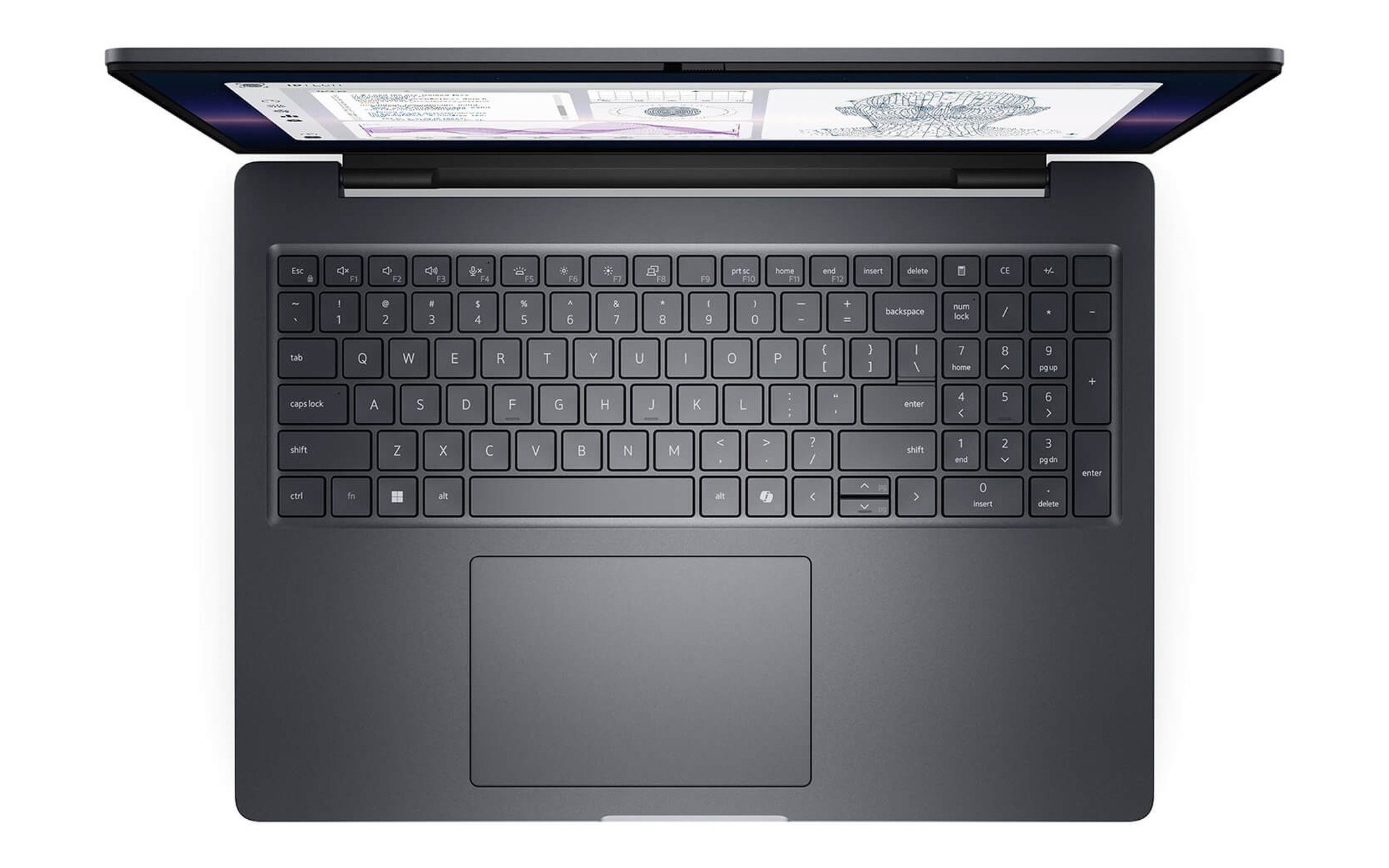
Once you hit 10 instances, the math in the earlier table calls for 40 GB or more, making 64 GB the necessary choice. The DELL Pro Max 16 Plus MB16250 - Mobile Workstation (2025) equipped with a Core Ultra 7 265HX, 64 GB of RAM, a 1 TB SSD, an 8 GB RTX PRO 1000, and an FHD+ display is priced at 62 million VND. Intel rates the 265HX at 20 cores and 20 threads, providing enough cores to allocate across multiple emulator instances when paired with low FPS caps and Eco Mode. The workstation includes a 12-month warranty honored at Dell service centers.
| Laptop | CPU (Cores/Threads) | Included RAM (GB) | Manufacturer Max RAM (GB) | Price (Million VND) | Recommended Instance Count |
|---|---|---|---|---|---|
| Lenovo LOQ 15IRX10 (2025) | Core i7-13650HX (14/20) | 16 | 32 | 37.99 | 2 to 4 |
| Asus TUF Gaming F16 (FX608LM) (2025) | Core Ultra 9 275HX (24/24) | 32 | 64 | 42 | 5 to 8 |
| Alienware 16X Aurora (2025) | Core Ultra 9 275HX (24/24) | 32 | 64 | 59.5 | 5 to 8 |
| DELL Pro Max 16 Plus MB16250 (2025) | Core Ultra 7 265HX (20/20) | 64 | 64 (dual CSoDIMM slots), 128 (CAMM module) | 62 | 10 or more |
On the upgrade front, Dell documentation notes that the Pro Max 16 Plus comes in two memory configurations: models shipped with dual CSoDIMM slots max out at 64 GB, while units built with a single CAMM module support up to 128 GB. If the 64 GB model uses the dual-slot design, it is already at its hardware ceiling; therefore, if your workflow calls for 16 instances or more, verify the exact module type before purchasing. For laptops running emulators on this scale, a 1 TB SSD will also fill up quickly if each instance hosts a large game install.
In summary, when running multiple emulators, the critical calculation is the combined RAM allocated across instances plus the memory reserved for Windows. For running 2 to 4 instances, a 16 GB laptop with upgradeable slots is adequate; 5 to 8 instances demand 32 GB paired with a 20-core processor or higher; and 10 or more instances call for 64 GB. Before launching your first instance, hardware virtualization (VT-x or AMD-V) must be enabled in the BIOS, as LDPlayer treats it as a baseline requirement and BlueStacks only allows allocating more than one CPU core once virtualization is active.
Frequently Asked Questions
How many instances can a 16 GB laptop run? Following the guideline of reserving half the system RAM for Windows, 16 GB leaves about 8 GB for emulators, which translates to 4 instances at 2 GB each or 2 resource-heavy game instances at 4 GB each. To run more instances, you can lower the frame rate, enable Low Memory mode, or upgrade the RAM if the laptop has an open slot.
Is LDPlayer or BlueStacks better at multi-instance management? Both include dedicated managers. LDMultiplayer lets you create, clone, and arrange instances, with LDPlayer stating there is no hard cap on instance count as long as the hardware can handle it. BlueStacks features Multi-Instance Manager, Eco Mode, and real-time input synchronization across emulator instances via the Ctrl+Shift+9 shortcut.
Do you need a discrete graphics card? For lightweight applications at low frame rates, integrated graphics will suffice. When multiple emulator instances run 3D games simultaneously, video memory becomes a bottleneck as outlined by LDPlayer; with LDPlayer 9 recommending a GeForce GTX 1660 Ti or higher, a laptop equipped with an RTX 5050 or RTX 5060 will provide much more breathing room.
How much SSD storage is enough? LDPlayer recommends 100 GB of free space for the software itself, and each instance with an installed game acts as a separate installation. When running multiple emulators with heavy games, a 1 TB SSD offers a comfortable baseline; laptops with a second M.2 slot, such as the LOQ 15IRX10 or TUF F16, let you add extra storage without replacing the original boot drive.