

Ever watch an English video without subtitles, or join an online meeting where the audio fades in and out? Live Captions is a built-in Windows 11 feature introduced in version 22H2 that automatically turns spoken audio from your laptop into text on your screen. The entire recognition process runs locally on your device, without sending any audio to the cloud. On Copilot+ PCs - laptops equipped with an NPU (a dedicated AI processor) delivering over 40 TOPS - the feature can also translate subtitles into English from more than 40 languages.
What Live Captions Is and How On-Device Captioning Works
Live Captions is a Microsoft accessibility tool originally designed for people who are deaf or hard of hearing, but it now serves anyone who needs to read spoken dialogue. The feature listens to audio playing on your laptop - from web browsers and media players to meeting apps - and displays automated transcriptions in a dedicated window. You can continue working in other applications while live subtitles run alongside them. Microsoft confirms that captions continue to appear even when the laptop is disconnected from the internet.
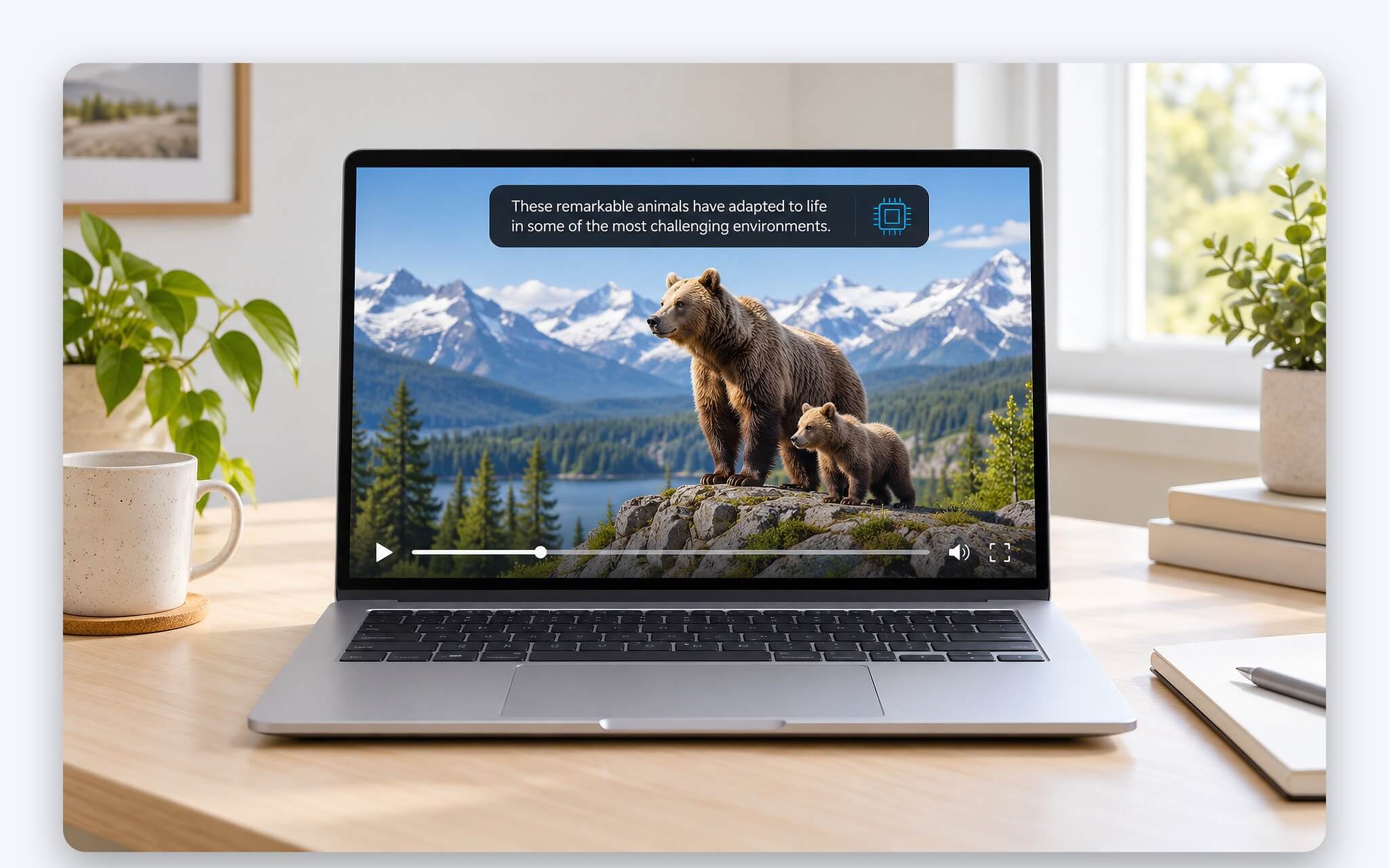
Under the hood, the feature uses a compact Azure AI Speech model embedded directly on the device for real-time speech recognition. According to Microsoft's support page, Use live captions to better understand audio, all audio processing and caption generation take place on the device. Audio, voice data, and subtitles never leave your laptop, and are not shared with the cloud or Microsoft. The company notes that this local model is evaluated against the same fairness datasets as its cloud-based Speech to Text service.
One detail many overlook is that generated captions are not saved anywhere, neither on your SSD nor in the cloud. In practice, Live Captions simply lets you read dialogue as it plays; it does not replace meeting recording or transcription tools. If you need an archived transcript, you must use your meeting app's dedicated transcription feature. Microsoft also leaves the microphone muted by default and provides an optional profanity filter to avoid transcribing sounds you did not actively choose.
Five Ways to Turn On Live Captions and Download Language Packs
Microsoft lists five ways to enable Live Captions on Windows 11. The quickest shortcut is pressing Windows + Ctrl + L. You can also open Quick Settings by clicking the battery, network, or volume icon on the taskbar and toggling the corresponding tile, or by turning on the switch under Accessibility inside Quick Settings. The remaining two routes are going to Start, All apps, Accessibility, or navigating to Settings, Accessibility, Captions and toggling the switch on.
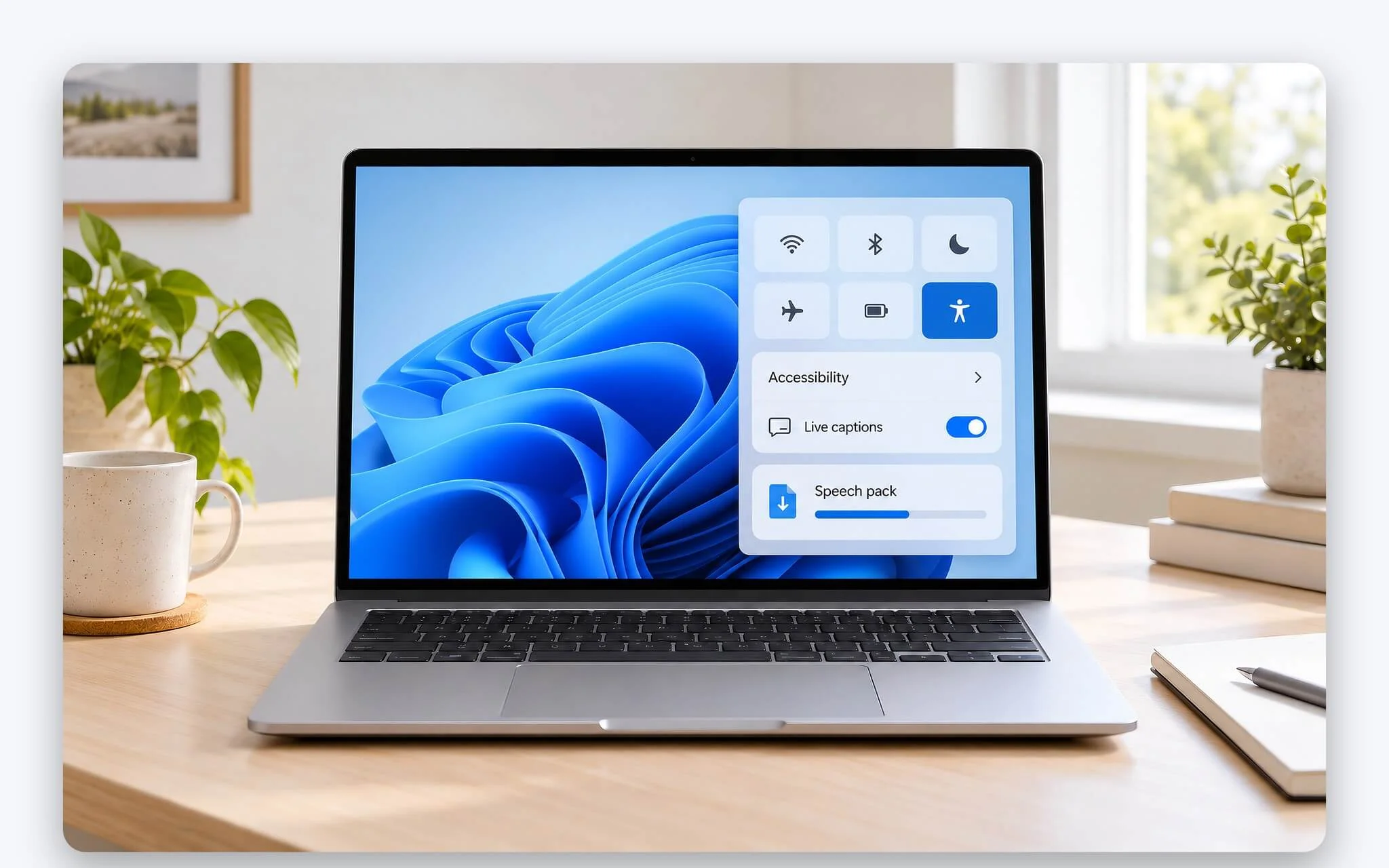
The first time you turn it on, Windows asks for your consent to process voice data on your device, then prompts you to download a language file for the local speech recognizer. Thanks to this pack, live subtitles keep working even when your laptop is offline. If your language is not yet on the list, Microsoft suggests selecting another language during setup - such as English (United States) if you primarily watch English-language content.
To add languages for live captions on newer Windows 11 builds, click the Settings button inside the caption window, select Change language, choose a language, and click Continue, followed by Download. On Windows 11 23H2 and earlier, the process takes a few more steps: go to Caption language, choose Add a language, install a pack with Speech recognition support, and check Enhanced speech recognition. When you no longer need it, you can remove the language file under Settings, Apps, Installed apps by searching for "Speech Pack" to reclaim storage space.
Supported Languages and Limitations for Vietnamese Listeners
This is a section worth reading carefully before setting your expectations. The speech recognition list for Live Captions on Microsoft's support page currently includes 21 regional entries: English accounts for 7 entries (United States, United Kingdom, Australia, Canada, India, Ireland, New Zealand), Chinese has 3, alongside Danish, French, German, Italian, Japanese, Korean, Portuguese, and Spanish. Vietnamese is not on this list, meaning the feature cannot yet generate Vietnamese subtitles from spoken Vietnamese.
| Microsoft Support Page List | Number of Language Entries | Vietnamese Supported | Requirements |
|---|---|---|---|
| Speech recognition for captioning | 21 | No | Windows 11 22H2 or later |
| Subtitle translation into English | 45 (Microsoft lists as over 40) | Yes, as a source language | Copilot+ PC, Windows 11 24H2 or later |
| Subtitle translation into Simplified Chinese | 27 | No | Copilot+ PC, Windows 11 24H2 or later |
Vietnamese appears only on the source language list for subtitle translation into English, which is exclusive to Copilot+ PCs. On qualifying laptops, spoken Vietnamese in videos or calls can be displayed as English subtitles. The reverse direction - from English into Vietnamese - is not supported, as Microsoft currently offers only two target languages: English (United States) and Simplified Chinese.
For Vietnamese users, the practical value of Live Captions centers on English-language content: lectures, webinars, technical walkthroughs, or meetings with international partners. Reading text alongside spoken audio helps you follow difficult terminology, regional accents, or noisy recordings. In a loud room or when you need to keep your speakers muted, the caption window lets you track the content without turning up the volume. Microsoft notes that the feature only transcribes spoken dialogue, not applause or music, and song lyrics are not consistently recognized either.
Subtitle Translation on Copilot+ PCs Requires an NPU of 40 TOPS or Higher
Real-time subtitle translation is available only on Copilot+ PCs running Windows 11 version 24H2 or later. When the output language is set to English (US) or Simplified Chinese, Live Captions automatically displays translations for both live streams and pre-recorded videos across any app or platform. The translation appears right inside the familiar caption box, so you do not need to open a separate translation app. According to Microsoft, more than 40 languages can be translated into English, and 27 into Simplified Chinese.
| Category | Basic Live Captions | With Translation (Copilot+ PC) |
|---|---|---|
| Windows Version | Windows 11 22H2 or later | Windows 11 24H2 or later |
| NPU | Microsoft specifies no standalone requirement | Over 40 TOPS |
| RAM | Per Windows 11 minimum requirements (4GB) | 16GB DDR5 or LPDDR5 |
| Internal Storage | Per Windows 11 minimum requirements (64GB) | 256GB SSD or UFS |
| Processor Line | No specific processor line required | AMD Ryzen AI 300/400, Intel Core Ultra 200V/300V, Snapdragon X |
| Display Text Language | Matches spoken language (21 options) | English (US) or Simplified Chinese |
Copilot+ PCs are a class of Windows 11 laptops that meet specific hardware thresholds set by Microsoft. The Windows 11 specifications page lists three configuration requirements: an NPU capable of more than 40 trillion operations per second (40 TOPS), 16GB of DDR5 or LPDDR5 RAM, and 256GB of SSD or UFS storage. A laptop with a 40 TOPS NPU but less than 16GB of RAM is still not classified as a Copilot+ PC, so it will lack the subtitle translation feature.
Processor lines meeting the NPU requirement include AMD Ryzen AI 300 and 400, Intel Core Ultra 200V and 300V, and Qualcomm Snapdragon X. Microsoft rolled out translations to Snapdragon X first before expanding to AMD- and Intel-powered Copilot+ PCs on March 31, 2025, according to the Windows Experience blog. If you are weighing how many TOPS your laptop needs for local AI workloads, the article Laptop NPUs in 2026: 13, 40, or 50 TOPS - How Much Do You Really Need? breaks down each performance tier.
Customizing Position, Font Style, and Profanity Filters
The Live Captions window features a Settings button where the Position option lets you choose one of three placements: Above screen (docked at the top), Below screen (docked at the bottom), or Overlaid on screen (floating freely). When docked at the top or bottom, Windows reserves a dedicated strip of the screen for captions so other application windows are not obscured. The floating style lets you drag the caption box to wherever it is most convenient, keeping your active workspace clear.
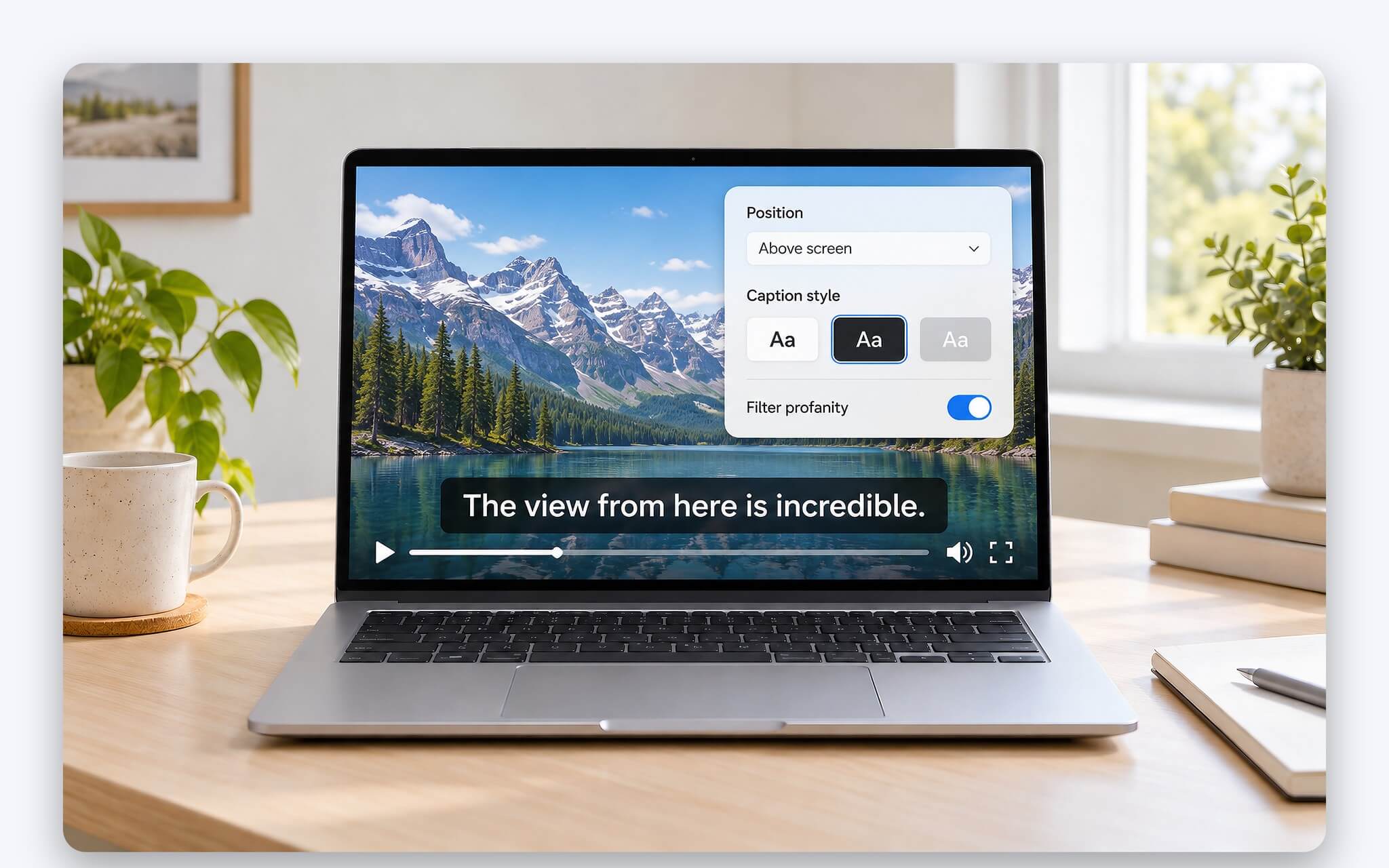
Microsoft recommends docking at the top when sharing video in virtual meetings, while docking at the bottom works well for watching movies or lectures. To view more lines of text, you can expand the live caption box using your mouse, touch, or the keyboard. On laptops with smaller screens, it is best to keep the number of lines just high enough to follow comfortably so the caption box does not encroach on your main application's working area.
To change the color and typography of live captions, go to Settings, Preferences, and select Caption style; Windows will then open the Captions section under Accessibility. The Default style automatically adapts its colors to the system's light or dark mode, while the Edit button lets you create a custom style optimized for readability. Also under Preferences, the Filter profanity option masks profanity, which is useful when projecting captions in front of a classroom or conference room.
Enabling the Microphone for Meetings and Accuracy Limits
By default, Live Captions only transcribes audio playing from your laptop. To have live captions capture your own voice as well, go to Settings, Preferences, and turn on Include microphone audio. This option remains off by default each time you launch the feature, ensuring only audio you deliberately choose gets transcribed. You can verify your active microphone under Settings, System, Sound in the Input section, and grant permissions under Privacy & security, Microphone, Let desktop apps access your microphone.
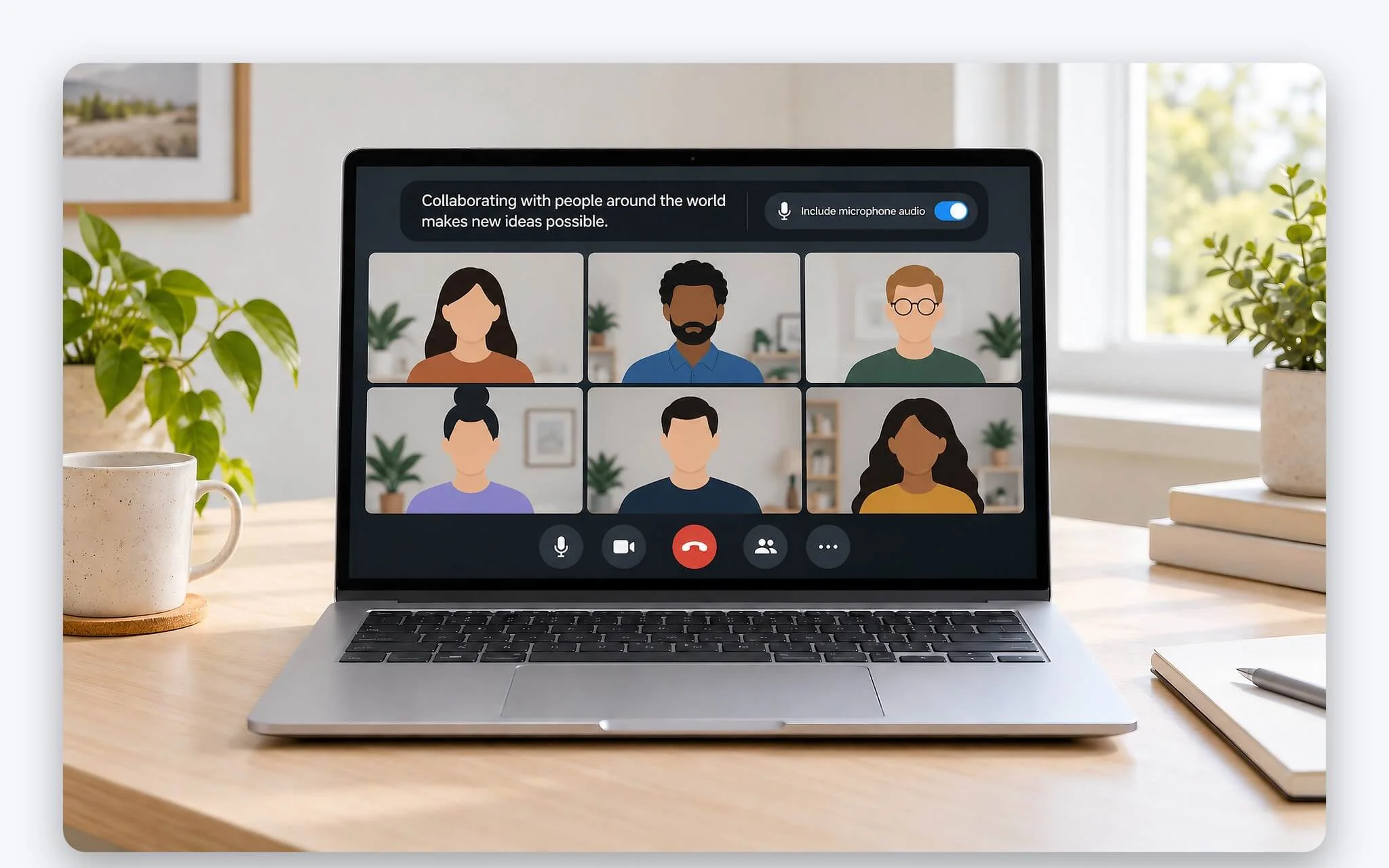
When system audio and the microphone produce sound simultaneously, Live Captions prioritizes system audio. In a meeting, if you and someone on the other end speak at the same time, the live caption box will display only what the other person is saying. If you are wearing headphones and no captions appear, check your default audio playback device under Settings, System, Sound, as the feature only listens to the default output device.
Accuracy depends on audio capture quality. Microsoft recommends reducing background noise and speaking directly into the microphone; if your laptop includes noise cancellation, the article Noise-Canceling Laptop Microphones: Turn On Noise Filtering for Online Meetings and Video Calls explains how to enable it before a meeting. Resource-heavy tasks such as video sharing consume substantial system resources and may cause captions to lag or drop words, so turn off background effects and close unused apps. Microsoft describes the accuracy as reasonable and acceptable, meaning specialized jargon or proper names may still be transcribed incorrectly.
Frequently Asked Questions (FAQ)
Does this feature generate Vietnamese subtitles?
Not yet. Live Captions' speech recognition list currently includes 21 entries, and Vietnamese is not among them. On Copilot+ PCs, spoken Vietnamese can be translated into English captions, but translating from English into Vietnamese is not yet supported.
Can a laptop without an NPU display automatic subtitles on Windows?
Yes. Live captions have been available on Windows 11 since version 22H2 without requiring a Copilot+ PC. An NPU with over 40 TOPS is only a requirement for translation into English or Simplified Chinese.
Is meeting audio sent to Microsoft servers?
No. Microsoft confirms that audio, voice data, and captions are processed on-device, never leave the laptop, and are not saved. Live Captions also works when disconnected from the internet.
How do you delete downloaded language packs to free up storage space?
Go to Settings, Apps, Installed apps, search for Speech Pack, and select Uninstall from the More menu for the language pack you want to remove. When you want to use that language again, download the pack following the steps to add a language outlined earlier.
How do you submit feedback to Microsoft about transcription errors?
While the caption window is running, press Windows + F to open Feedback Hub, then select Accessibility, Live captions to describe transcription errors or suggest languages you would like added.