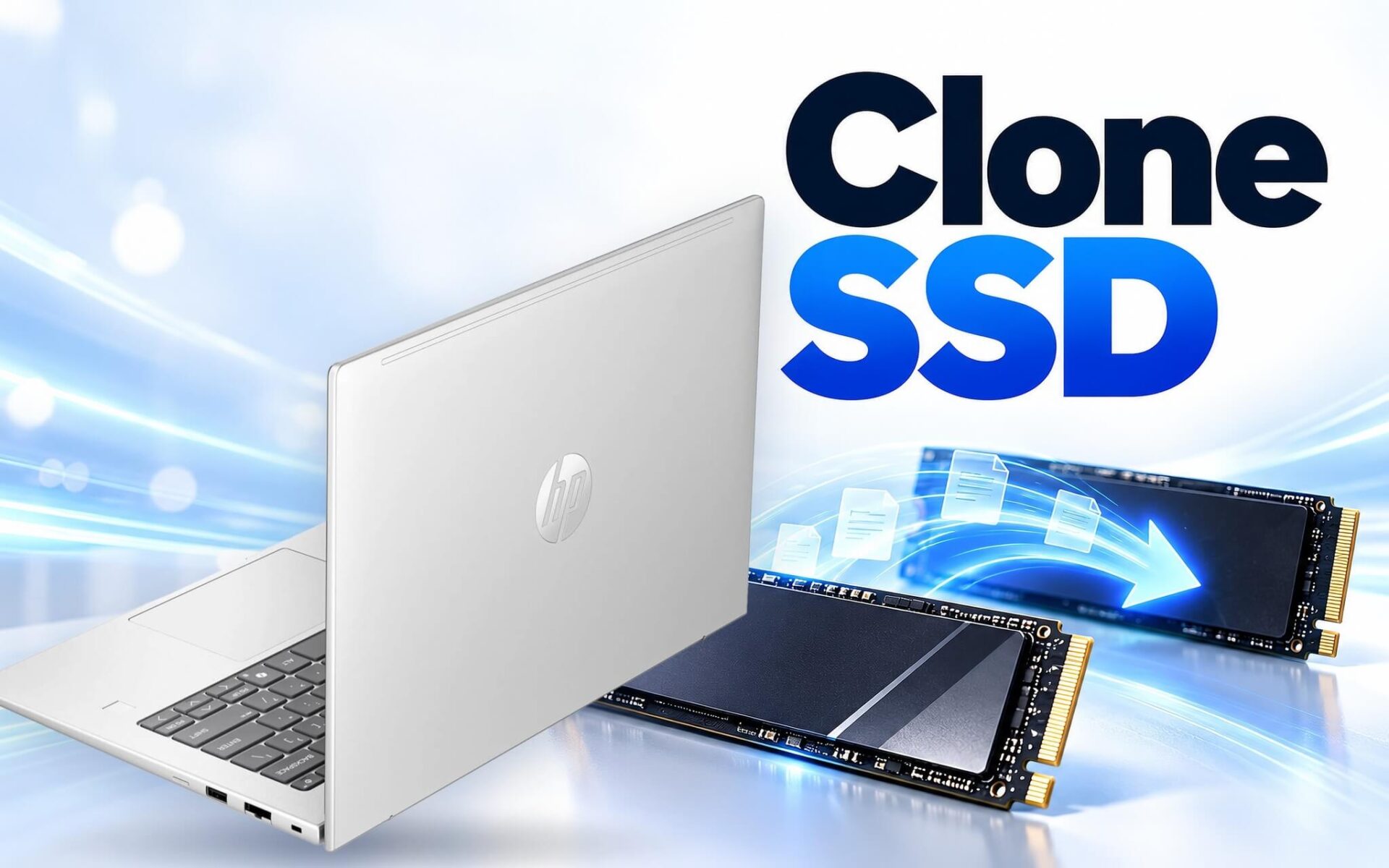
Cloning an SSD creates an exact replica of a drive running Windows on a new SSD - copying the boot partition, recovery partition, applications, and personal files - so your laptop boots up exactly as before without a clean reinstall. In short, it allows you to migrate Windows to a new drive in a single operation. When done correctly, the process preserves all your software, configurations, and familiar settings. Make a mistake - such as neglecting your BitLocker recovery key, selecting the wrong target drive, or switching storage modes in the BIOS - and your laptop may run into a blue screen error or suffer data loss.
When to Clone an SSD Instead of Clean Installing Windows
Cloning an SSD is the ideal path when Windows on your existing drive is running reliably and you simply need higher storage capacity or faster read/write speeds. Every application, user account, font, printer configuration, and file carries over to the new drive, letting you get straight back to work without the hassle of reinstalling specialized software. It is also a tidy migration route for office laptops already configured with internal company tools, digital certificates, or accounting platforms.
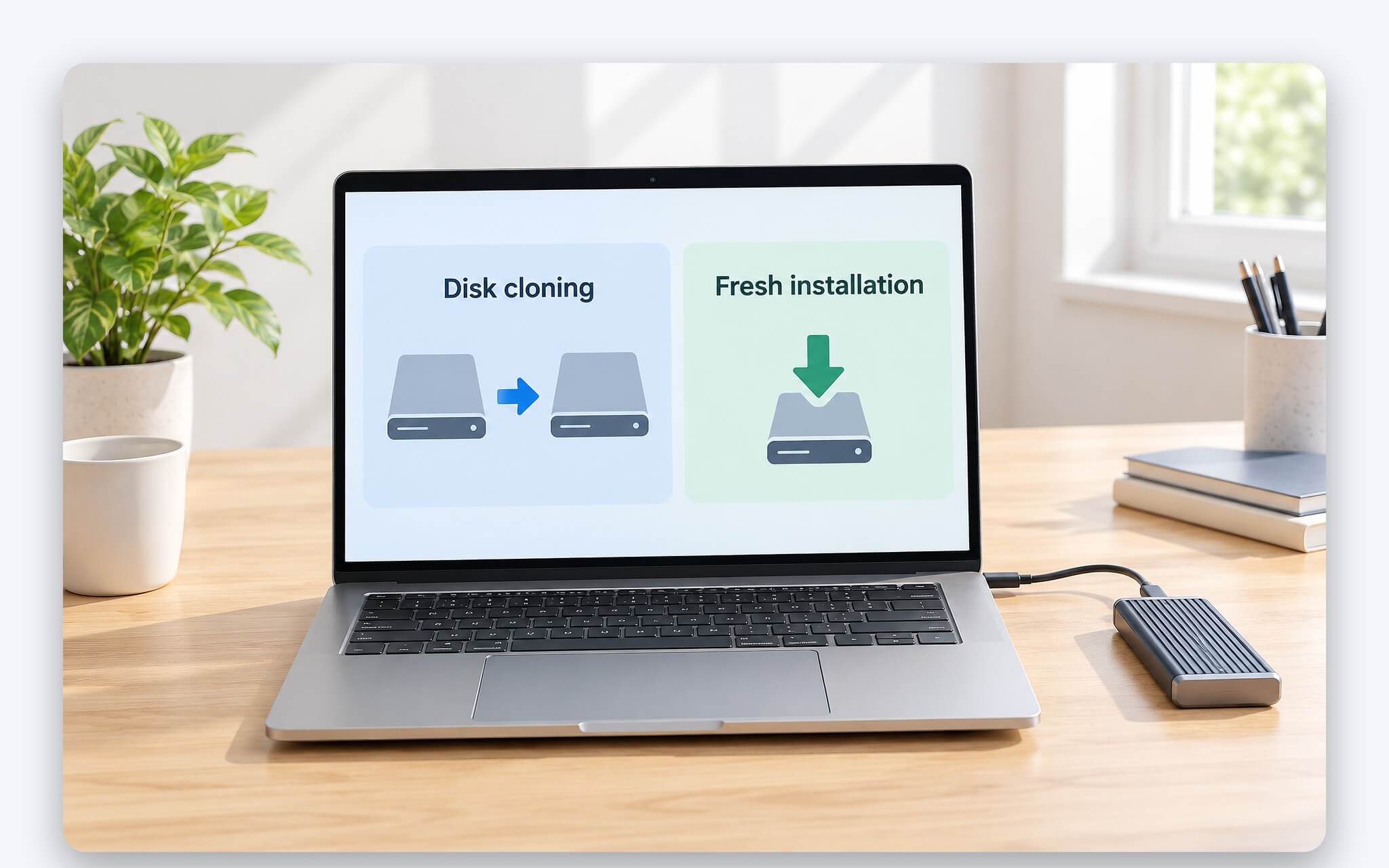
Conversely, a clean install makes more sense if Windows has grown unusually sluggish, frequently throws boot errors, carries malware, or is bogged down by years of accumulated junk software. In those scenarios, cloning merely copies every existing problem directly onto the new SSD. An aging drive already reporting read/write errors can also cause the cloning process to fail midway, making it vital to back up critical files to another storage medium before planning a drive replacement.
A simple rule of thumb can guide your decision: if you only want to upgrade your drive while keeping your current workspace intact, clone the SSD; if you want a clean slate, perform a clean install and copy your personal data over afterward. Modern laptops running Windows 11 boot via UEFI and rely on a GPT partition table for the system drive. Performing a proper drive clone preserves this partition layout, so you will not need to reconfigure boot parameters in the BIOS.
Backing Up, Suspending BitLocker, and Checking the M.2 Slot Before You Begin
The first step before migrating Windows is to back up essential files to an external drive or cloud storage, as cloning software completely overwrites the target drive and an accidental misselection can wipe out your data. Next, verify your BitLocker encryption status in Settings or Control Panel. The BitLocker recovery key is a 48-digit string that Windows requests whenever it cannot automatically unlock the drive, such as on a first boot following a hardware change.
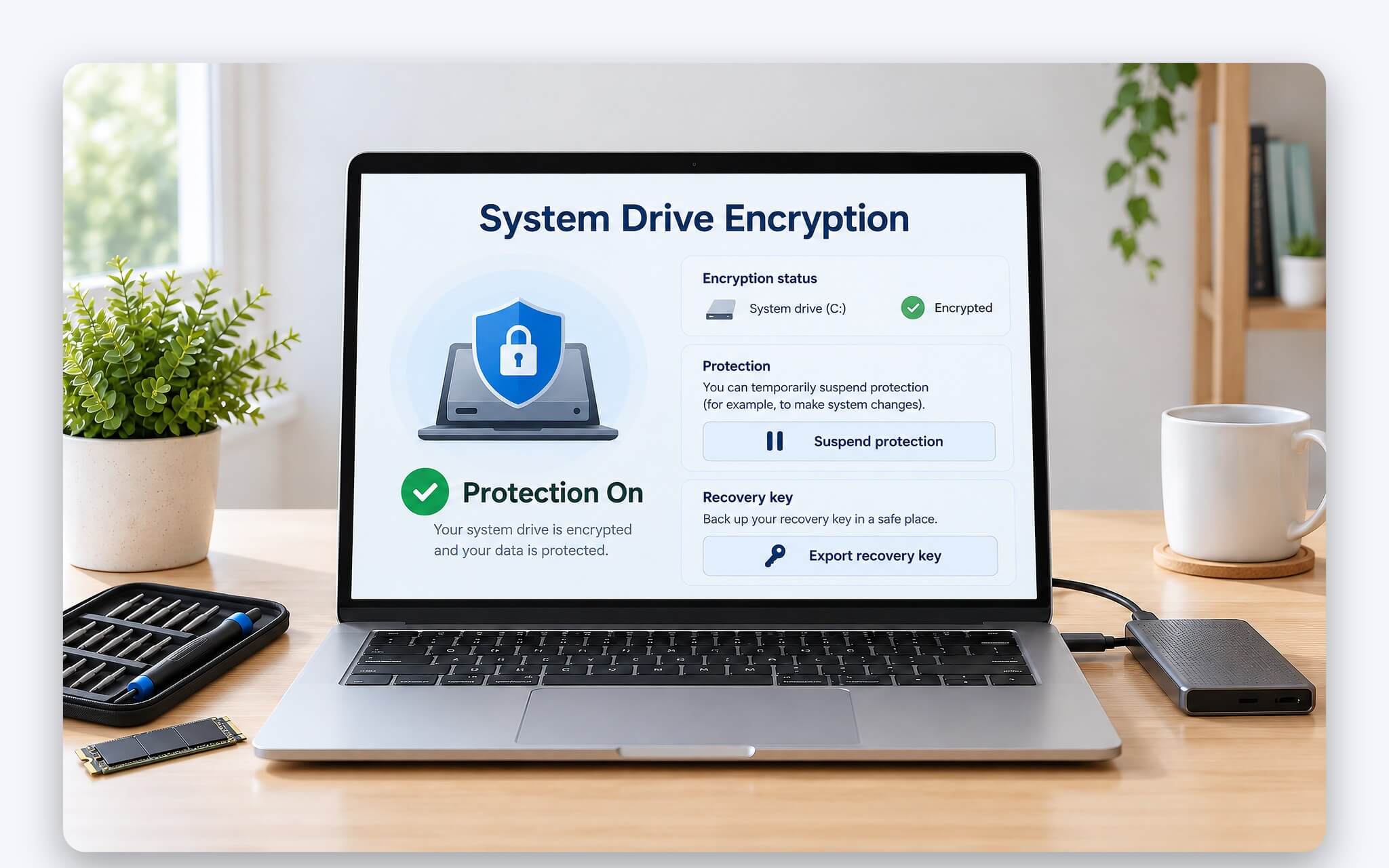
According to Microsoft's support documentation, recovery keys can reside in your Microsoft account (retrievable at aka.ms/myrecoverykey), on a physical printout, on a USB flash drive, or within a corporate account. Having keys automatically uploaded to Microsoft servers also raises privacy considerations, as discussed in Is BitLocker on Windows Truly Secure?. Before cloning an SSD, a reliable safeguard is to run the Suspend-BitLocker PowerShell cmdlet on the C: drive. The RebootCount parameter takes values from 0 to 15, defaulting to 1, while a value of 0 keeps protection suspended until you manually execute Resume-BitLocker.
Hardware details require equal diligence. M.2 form factors are designated by a four-digit code: 22 represents the width in millimeters, while the remaining digits specify the length - 2230 is 30 mm long, 2242 is 42 mm, and 2280 is 80 mm. Many thin and light laptops feature only a single M.2 slot; migrating Windows on such machines requires placing the new SSD in an external USB enclosure, cloning the drive over USB, and only then swapping out the original drive. The enclosure must match your new drive's interface standard, whether NVMe or SATA.
The EFI, MSR, and Recovery Partitions That Must Carry Over to the New Drive
A UEFI-booting laptop's system drive relies on a GPT partition table. According to Microsoft's documentation on UEFI/GPT-based hard drive partitions, the default layout comprises four sequential partitions: the EFI system partition, MSR, the Windows partition, and the Recovery partition. When moving Windows to a new SSD, all four partitions must be migrated together. Without the EFI partition, the laptop cannot locate the bootloader, even if all your files remain on the C: drive.
| Partition | Role | Microsoft Requirement (MB) |
|---|---|---|
| EFI on 512-byte sector drives | Contains the bootloader, FAT32 format | 200 (minimum) |
| EFI on native 4K sector drives | Contains the bootloader, FAT32 format | 300 (minimum) |
| MSR | Reserved partition, contains no data | 16 |
| Recovery | Additional free space required beyond the winre.wim file for Windows to update the recovery environment | 250 |
The Windows partition requires a minimum of 20 GB on 64-bit versions and must maintain 16 GB of free space after initial setup. Microsoft also mandates positioning the Recovery partition immediately following the Windows partition, allowing the operating system to recreate this space whenever future updates require a larger recovery image. This placement is a pivotal factor when expanding the C: drive after cloning to a larger SSD, a step detailed later in this guide.
If your older drive still uses an MBR partition table from an earlier Legacy installation, opting for a clean install is generally more practical than cloning. The structural breakdown in What Are MBR and GPT? Which Standard Should You Choose for Drives Today? outlines the 2 TB ceiling inherent to MBR and why GPT is the proper choice for modern drives. To check your current setup, open Disk Management, right-click the drive, select Properties, and review the Partition style entry under the Volumes tab.
How Macrium Reflect, Clonezilla, and SSD Manufacturer Tools Differ
SSD cloning tools fall into two main categories: versatile software that works with drives from any manufacturer, and proprietary utilities released by SSD makers specifically for their own hardware. Macrium Reflect was once widely known for its Free edition, but the official site now highlights the Reflect X lineup with a 30-day trial, so you should review the licensing terms carefully before installing it. Clonezilla is open-source software licensed under GPL version 2, boots from a USB drive, and supports both MBR and GPT partition tables.
| Tool | Supported Target Drives | License | Key Considerations |
|---|---|---|---|
| Macrium Reflect X Home | All SSD brands | 30-day trial | Windows application; review licensing terms carefully |
| Clonezilla | All SSD brands | Open source, GPL v2 | Boots from USB; target partition must be equal to or larger than source partition |
| Samsung Data Migration | Samsung SSDs | Integrated into Magician software | Manufacturer guide states it cannot clone encrypted drives |
| Acronis True Image for Crucial | Crucial BX and MX series SSDs | Crucial-specific edition; other features require a full Acronis license | A Crucial SSD must be connected during installation and launch; runs only on Windows |
Samsung describes Data Migration as a utility designed to transfer the operating system, applications, and user data to a new Samsung SSD, and it is now integrated into Magician software. The Data Migration user guide explicitly notes that the software cannot clone encrypted drives, so laptops with encryption turned on must handle this step according to the manufacturer's instructions beforehand. For Crucial, the support documentation specifies that a BX or MX series SSD must be connected to the system both when installing and running Acronis True Image for Crucial.
Cloning from a 1 TB SSD to a 512 GB drive remains entirely feasible as long as the used space is less than the target drive's total capacity and leaves a safe margin of free space. Because Clonezilla requires the target partition to be equal to or larger than the source partition, you will need to shrink the C drive first using Shrink Volume in Disk Management. Microsoft points out that paging files and shadow copy storage areas cannot be relocated, meaning the C drive can only be shrunk down to the point where those files reside.
What to Do After Cloning a Drive to Keep Windows Running Stably
Once the SSD clone finishes, shut down your laptop, remove the old drive, and install the new SSD into the M.2 slot, or keep both if your laptop offers two slots. If you choose to keep the old drive installed, enter the BIOS or boot menu and set the Windows Boot Manager on the new SSD as the primary boot device. On the very first startup, it is a good idea to disconnect any unnecessary external drives and USB storage so the laptop does not mistakenly load the old bootloader.
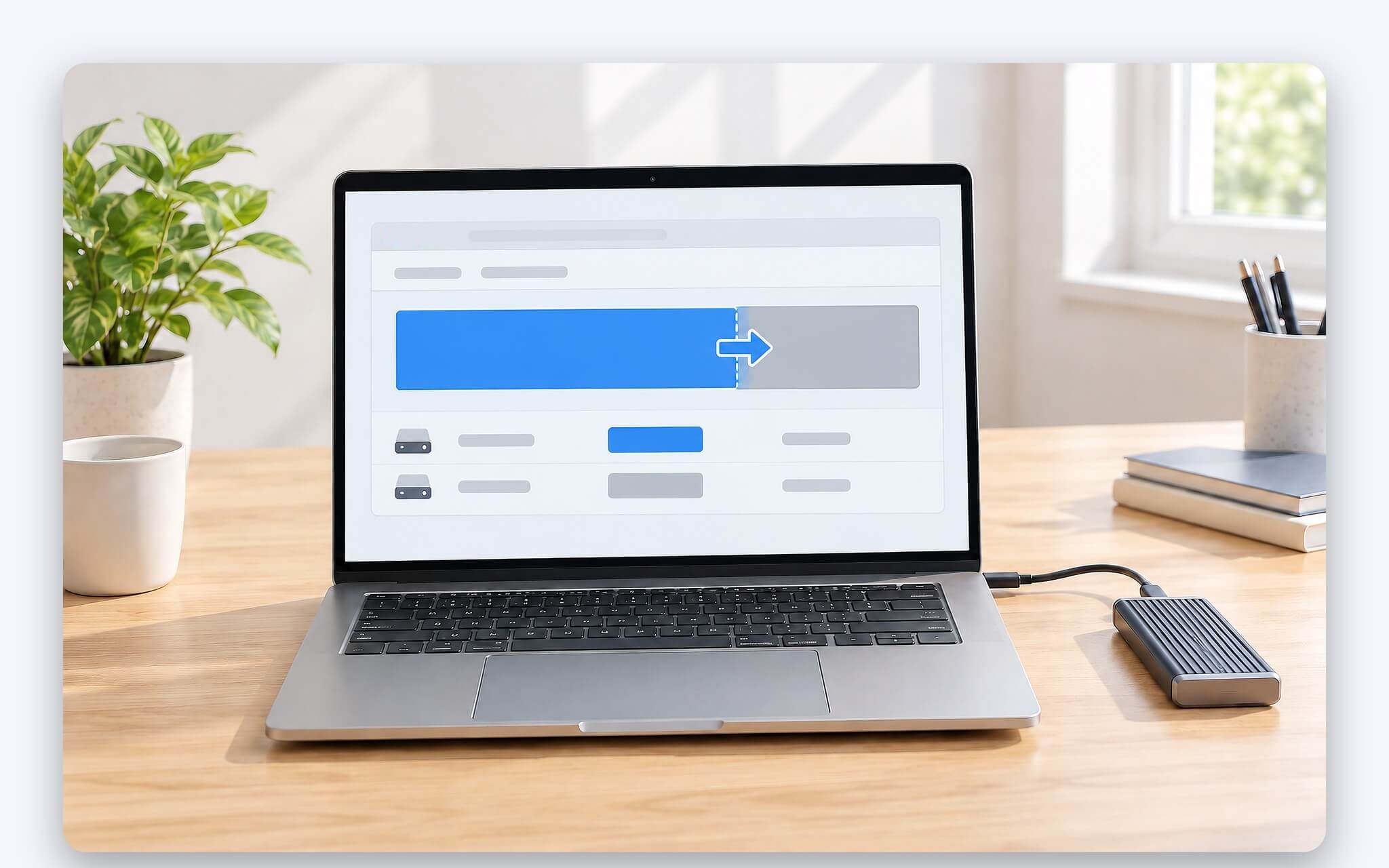
When transferring Windows to an SSD that is larger than the original drive, the leftover capacity typically shows up as Unallocated space. Under Microsoft's rules, Extend Volume in Disk Management only works when the unallocated space sits immediately adjacent to the partition you want to expand, on the same drive, and formatted with NTFS or ReFS. Because the Recovery partition sits directly behind the C drive, post-clone unallocated space often ends up tucked behind Recovery, leaving the Extend Volume button grayed out. A cleaner workaround is to resize the C partition directly inside your drive cloning software before running the process, provided the tool offers that option.
Once Windows boots reliably after the SSD clone, you can re-enable BitLocker using the Resume-BitLocker command, or allow the system to restore protection automatically after the number of reboots specified in RebootCount. The final step is verifying TRIM status by running fsutil behavior query DisableDeleteNotify in an administrative Command Prompt: a returned value of 0 means TRIM is enabled, while 1 indicates it is disabled. On NTFS drives, Microsoft enables TRIM by default unless an administrator has deliberately turned it off.
INACCESSIBLE_BOOT_DEVICE Errors and VMD Mode Preventing Laptops From Booting
The INACCESSIBLE_BOOT_DEVICE blue screen is a frequent error after migrating Windows to a new drive. According to Dell support documentation, this issue crops up when the storage controller mode in the BIOS differs from the setting present when Windows was originally installed, such as toggling between AHCI and RAID. Dell's documented fix is to return the storage controller to its original mode; switching to the new mode permanently requires reinstalling Windows.
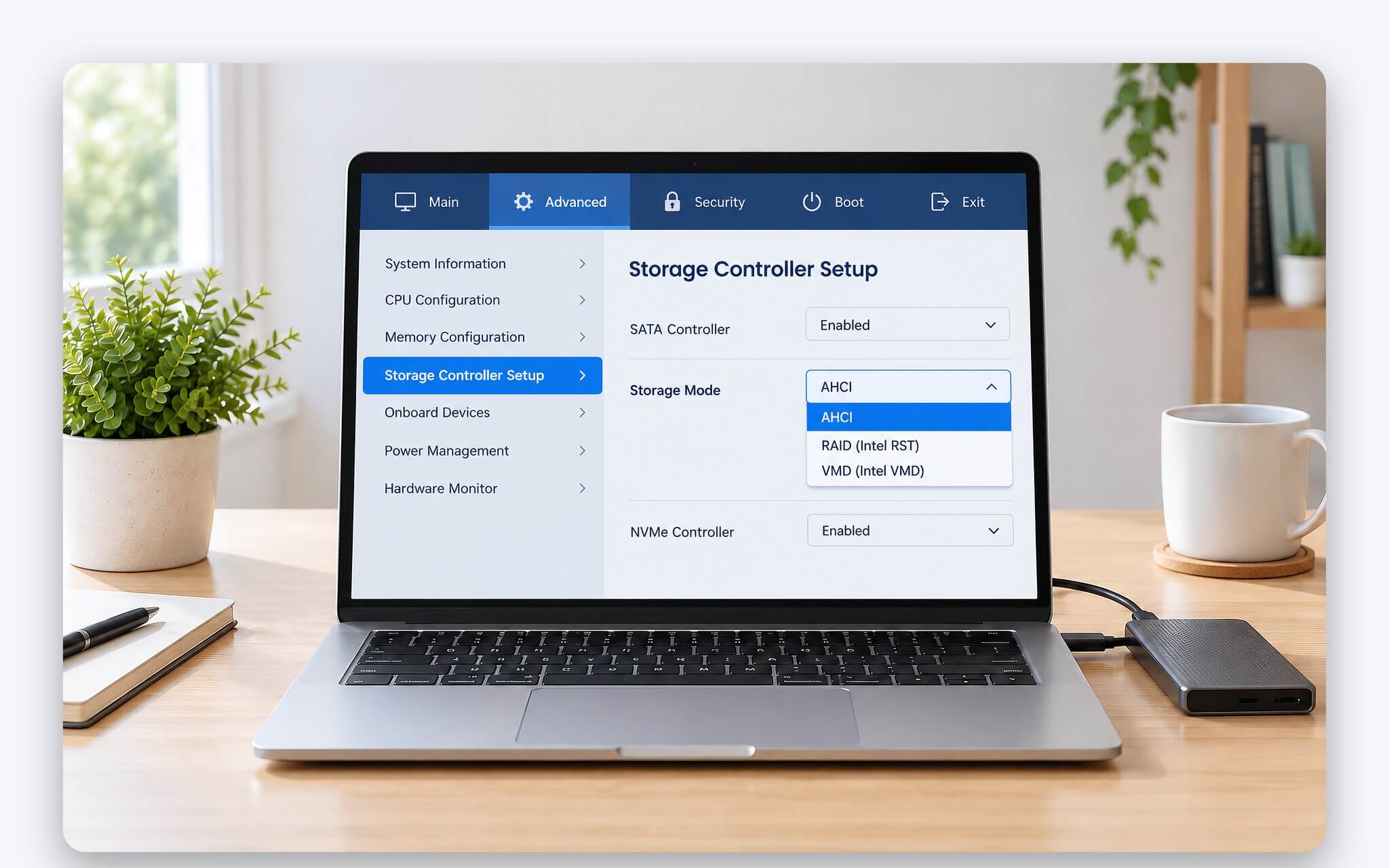
Certain BIOS versions on newer Intel laptops allow enabling Intel VMD technology for NVMe drives in the BIOS setup. Intel notes that only Intel RST driver version 18.0 or newer supports VMD, and when VMD is active, the drive may not appear in the Windows installer without loading that driver first. If you previously turned off VMD simply to let a USB-booted SSD cloning tool detect the drive, make sure to switch it back to its original state before booting Windows from the new drive.
A few other issues can also keep a laptop from booting after drive cloning: copying only the C partition while skipping the EFI partition, failing to seat the new SSD firmly into its slot, or using a different partition style on the target drive than on the source drive. If you run into an error, do not wipe the old drive just yet. Reinstalling the original drive will get the laptop running as before, giving you time to review every preparatory step and clone the SSD again from the beginning.
Frequently Asked Questions (FAQ)
Can you clone a drive on a laptop with only one M.2 slot?
Yes. You place the new SSD into a USB enclosure that matches the drive's NVMe or SATA standard, connect it to your laptop, and run the SSD cloning software. Once the process is complete, remove the old drive from the M.2 slot and install the new SSD. With Clonezilla, the source partition cannot be in an active running state, so you boot the laptop from a Clonezilla USB drive instead of opening it inside Windows.
Can you clone an SSD from a larger drive to a smaller one?
Yes, as long as the used space on the old drive is smaller than the total capacity of the new drive. Clonezilla requires the target partition to be equal to or larger than the source partition, so you should shrink the C drive using Shrink Volume beforehand. According to Samsung's user manual, Data Migration features a mode that allows you to exclude certain files when the source drive is larger than the target drive.
Should you wipe the old drive immediately after migrating Windows to the new SSD?
You should keep the old drive intact for a while as a backup until you confirm that Windows, your applications, and your data run normally on the new SSD. Before reformatting the old drive to use as secondary storage, make sure BitLocker has been re-enabled on the new drive and your recovery key remains accessible through your Microsoft account or a personal backup copy.
Can Samsung Data Migration transfer Windows to an SSD from another brand?
Samsung describes Data Migration as a tool for transferring data to a new Samsung SSD, while noting that Magician features may vary when used with third-party drives or Samsung OEM drives. If your new SSD is from a different brand, you should use Clonezilla, Macrium Reflect, or a utility provided directly by that SSD manufacturer.