You have just purchased a new laptop, and after logging into your Microsoft account, Windows may automatically activate drive encryption without you noticing. If the laptop is lost, this encryption layer makes it difficult for others to remove the SSD to read your personal data, bank accounts, or work documents. However, before enabling BitLocker, you need to clearly understand the Recovery Key, your Windows version, and the risks if the device encounters an error. If done correctly, it is very secure; if rushed, you might end up locking yourself out of your own data.
What is BitLocker and why is it often recommended for new laptops
BitLocker is a built-in drive encryption feature in Windows, primarily fully available in Windows Pro, Enterprise, and Education. When BitLocker is enabled, data on the SSD is converted into an unreadable format without the decryption key. In the event that a laptop is lost, others cannot simply remove the SSD, plug it into another machine, and open folders like Desktop, Downloads, or company documents as if it were a regular storage drive. For customers buying new laptops for studying, office work, accounting, sales management, or frequent travel, Hung Phat often recommends checking this feature from day one.
| Software | Free or Paid | Replaces which software | Practical Note |
|---|---|---|---|
| BitLocker / Device Encryption | Included with Windows version | Third-party drive encryption software | Must keep the Recovery Key; Windows Home usually features Device Encryption |
| VeraCrypt | Free, open-source | Paid drive or container encryption tools | Powerful customization, but the interface is harder for beginners |
| Bitwarden | Free and Paid versions available | Storing passwords in Excel or Notepad | Free version is sufficient for personal use; paid version adds advanced options |
| LibreOffice | Free, open-source | Licensed Microsoft Office for basic needs | Can open many file types, but complex Word or Excel files may have formatting issues |
| Microsoft 365 | Paid | Pirated Office or keys from unknown sources | Ideal when you need Word, Excel, OneDrive, and multi-device synchronization |
On Windows 11 Home, you may encounter Device Encryption, which is a simplified version of device encryption. Microsoft states that starting from Windows 11 24H2, the hardware requirements for Automatic Device Encryption have been reduced, no longer relying heavily on Modern Standby or certain hardware security conditions as before. You can check the Microsoft Device Encryption documentation to compare with your current machine. A key point to remember is that this feature usually only completes protection after you log in with a Microsoft account, a work account, or a school account.
Unlike your Windows login password, drive encryption protects data at the storage level. A Windows password only prevents others from accessing your account under normal boot conditions. If the drive is not encrypted, someone with the right tools can still attempt to read files through an environment outside of Windows. Therefore, for new laptops with an SSD containing personal data, BitLocker is a practical layer of protection, especially when the laptop is often kept in backpacks, car trunks, shared offices, or dormitories.
Benefits and risks of enabling BitLocker on a new laptop
The most obvious benefit of enabling BitLocker is protecting data when a laptop is lost. If the laptop has a TPM, BitLocker can use this chip to verify the boot environment, preventing situations where someone interferes with the boot process to steal data. With the common TPM-only configuration, you do not need to enter an extra code every time you turn on the machine; you still log into Windows as usual. The daily experience remains almost unchanged for office tasks, online learning, web browsing, file management, and online meetings.
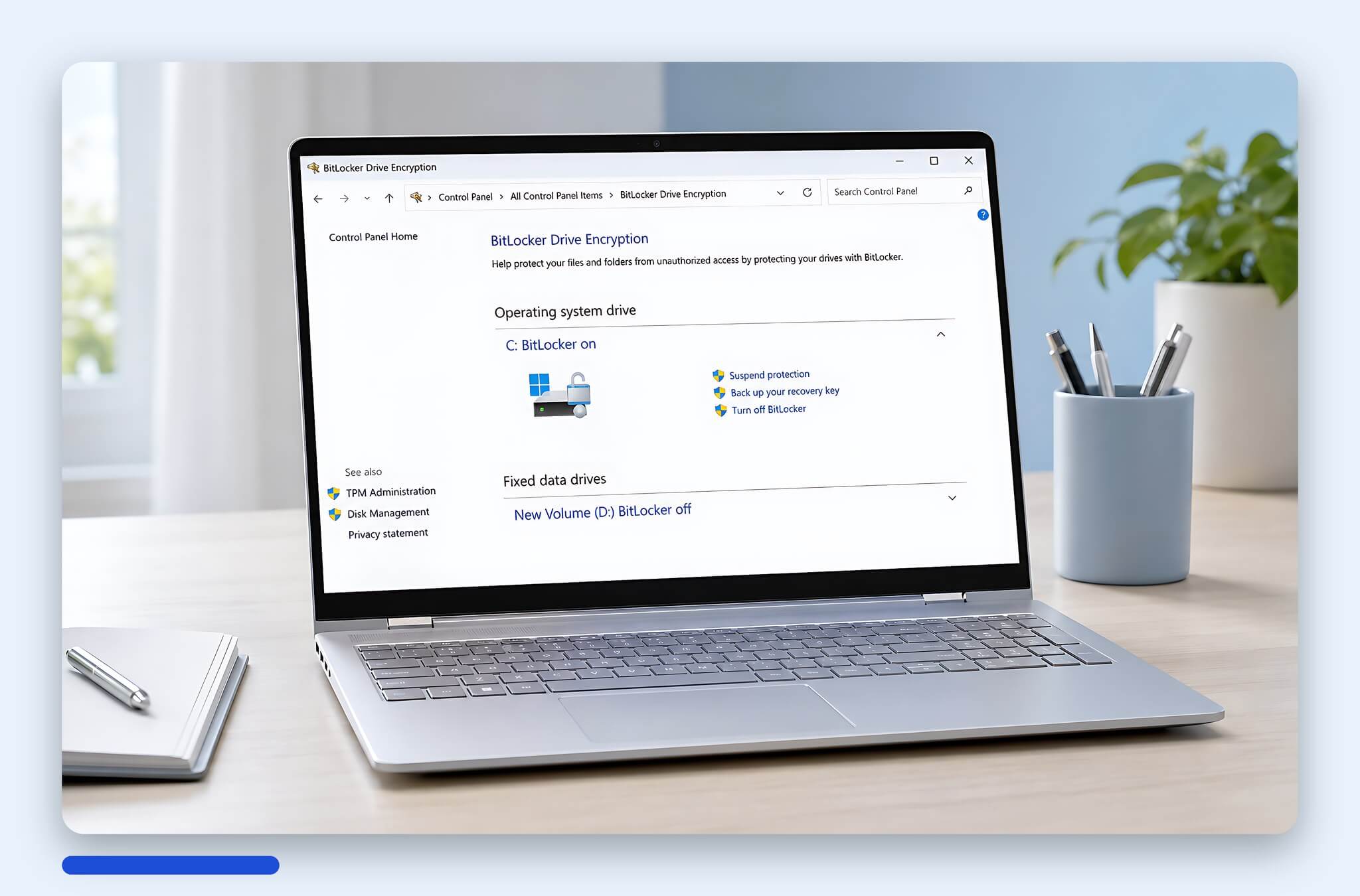
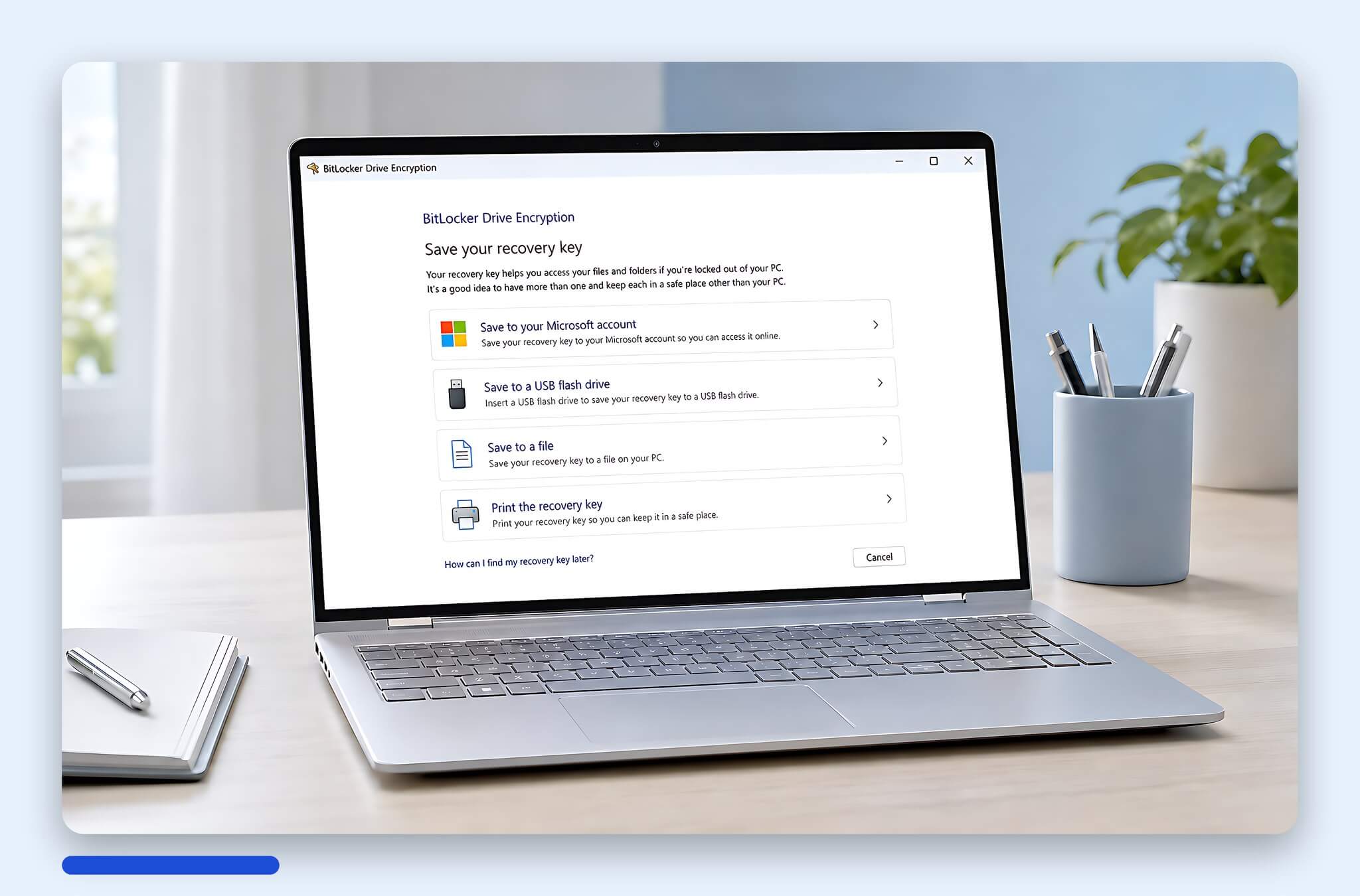
The most important thing to note is the Recovery Key. This is a 48-digit recovery key used when Windows suspects the boot environment has changed or when you need to access the drive from another device. Microsoft clearly states that if you cannot find the Recovery Key, the only remaining option may be to reset the device, which will erase your files. To put it simply for decision-making: encryption makes it difficult for strangers to read your data, but you must also keep the key carefully.
Performance is also a common question when customers check laptops at Hung Phat. Microsoft's documentation often describes the impact as minimal in many situations. However, Tom’s Hardware once measured cases where BitLocker software slowed down an SSD by up to 45% in specific benchmarks, primarily in heavy storage tests. For office, web, study, accounting, and sales users, the performance drop is usually much harder to notice compared to those constantly copying large files, running virtual machines, or processing heavy data.
When should you enable BitLocker on your new laptop
You should activate encryption if you frequently take your laptop to school, work, client meetings, or if it stores private information. Priority groups include office staff, accountants, shop owners, content creators, students with research materials, employees using company accounts, and people storing personal documents/photos. Laptops logged into email, banking, e-wallets, contracts, or customer data should also be highly protected. In these situations, the damage from a data breach is typically much higher than the slight inconvenience of managing a Recovery Key.
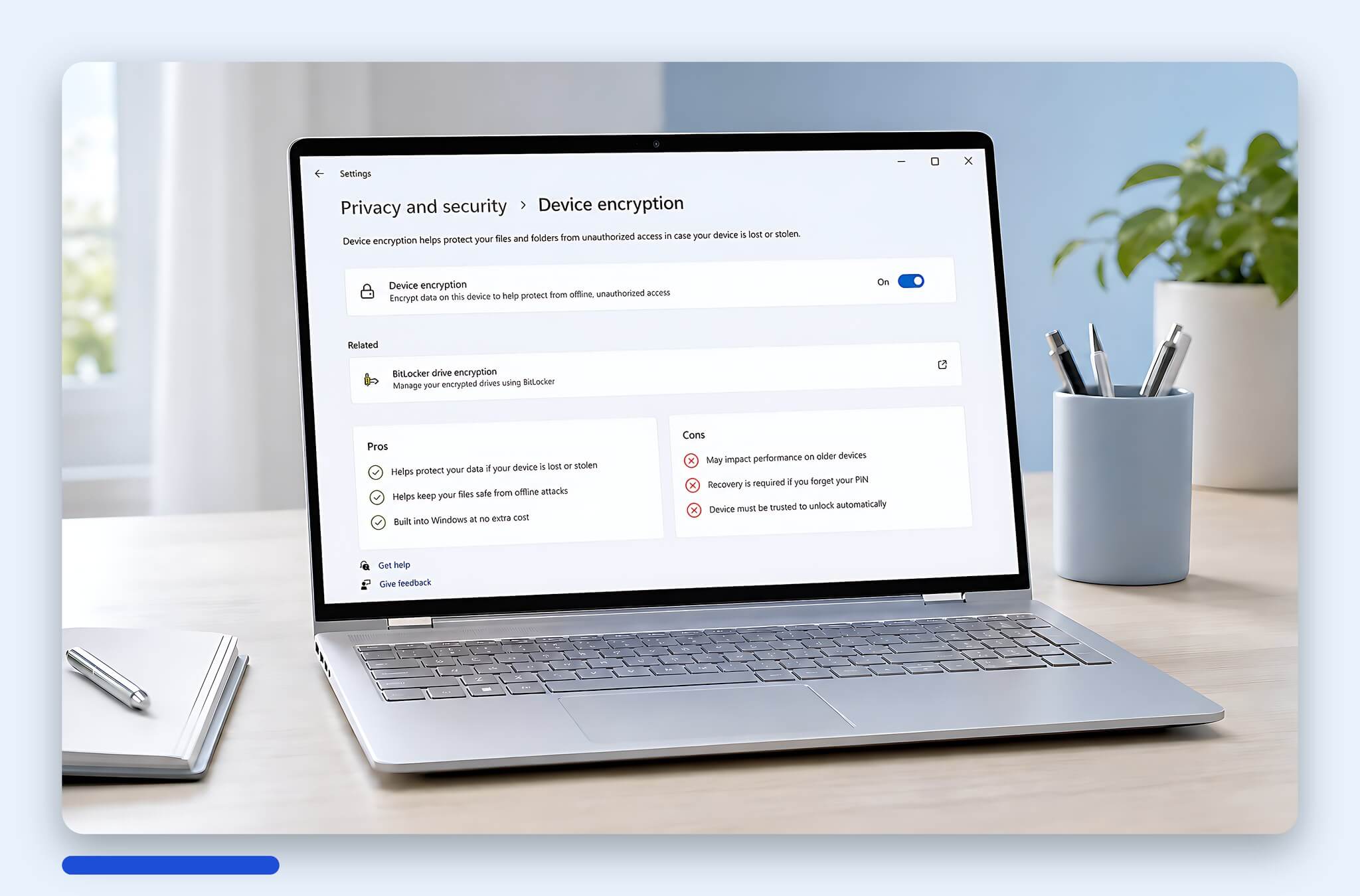
You should not enable it immediately if you do not know which Microsoft account is logged in, if the laptop is about to have Windows reinstalled, if the BIOS needs an update, or if the laptop just had an SSD replaced and is not yet stable. People who frequently forget passwords, use multiple mixed accounts, or do not have a place to store the Recovery Key should also prepare in advance. For laptops used for gaming, light entertainment, and containing almost no important data, you can consider it after completing necessary software installations. Hung Phat usually advises customers to check the encryption status first before deciding to activate it.
Before enabling BitLocker, you should visit Microsoft's Recovery Key page to check if your key has been backed up. It is recommended to save an extra copy in a safe place, such as a printout, a reputable password manager, or a work account managed by your company. Do not store it solely on the drive being encrypted, because if the machine asks for the key, you won't be able to open that file. Proactively checking the encryption status from day one will help both users of old and new machines avoid the risk of self-locking their data.
Licensed software related to security and data
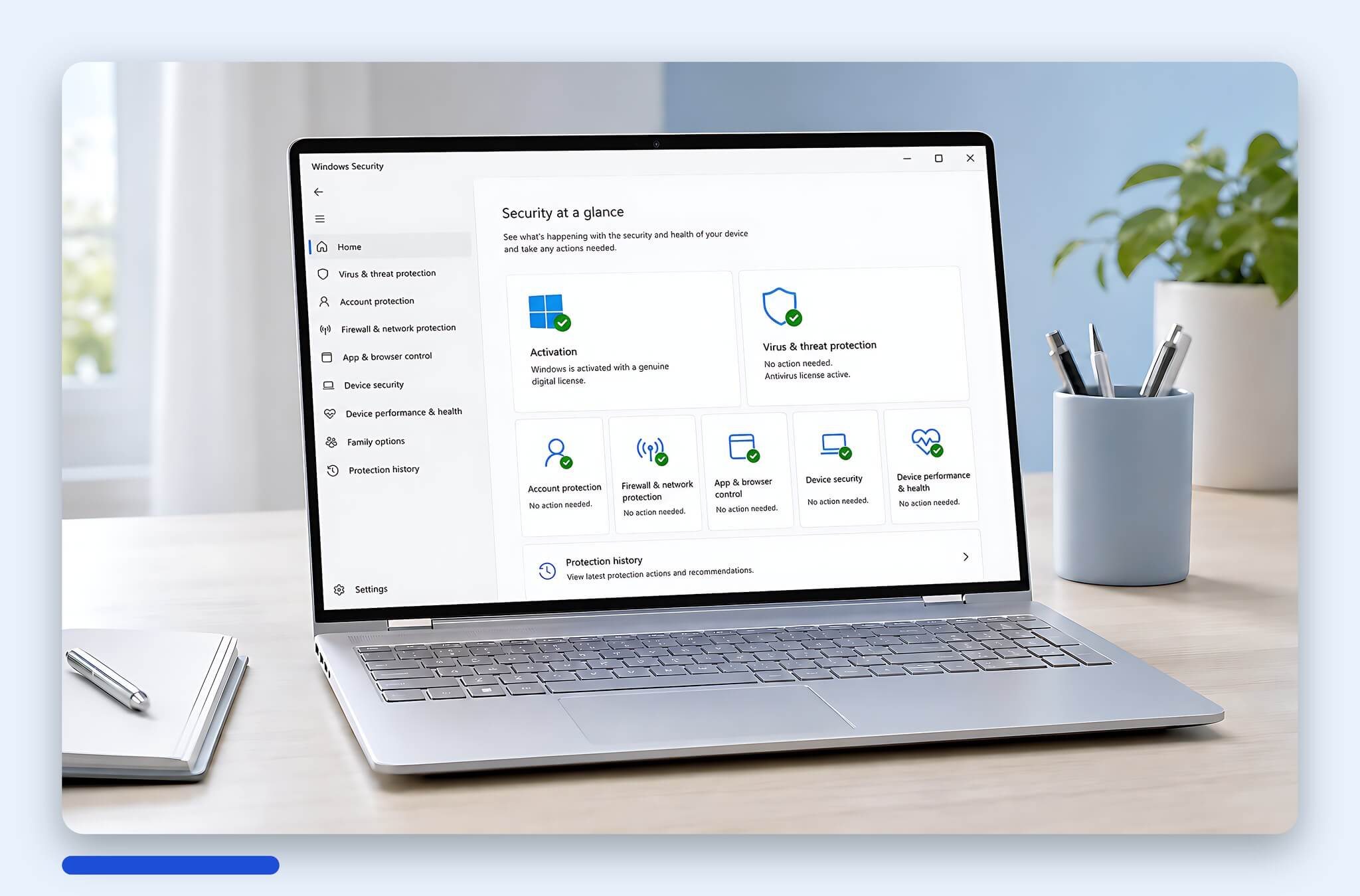
BitLocker is not a replacement for anti-malware software, password managers, or data backup tools. It protects the drive when the device is lost or the SSD is removed, but it cannot save files if you accidentally delete them, if you are hit by ransomware, or if you store passwords in unprotected Word files. For a new laptop, a reasonable software suite should include drive encryption, a password manager, backup tools, and properly licensed office applications.
For basic office work, LibreOffice is a stable free option if you primarily compose text, create simple spreadsheets, and export PDFs. The limitation is that Excel files with many macros, complex charts, or company templates may have layout issues. Microsoft 365 is more suitable if you collaborate with teams, need OneDrive, Outlook, Teams, and want perfect Office formatting. You should avoid using cracks or unusually cheap activation keys, as the risk of malware and account locking is not worth the trade-off.
For account security, Bitwarden helps reduce the habit of using one password for multiple sites. The free version is sufficient for many individuals, while the paid version is suitable for those needing advanced features or managing families and small groups; if you want to evaluate password strength before saving, the article on how to check password strength is also worth reading. VeraCrypt is suitable for those who need to create private encrypted containers, such as a folder of sensitive documents stored outside the system drive. However, if you only need to protect the entire Windows drive on a new laptop, Microsoft's built-in tools remain the more streamlined option.
Safe setup before activating drive encryption
The first step is to check your Windows version. Go to Settings, select System, then select About to see whether your machine is running Windows Home or Pro. Windows Pro typically features the BitLocker Drive Encryption interface in the Control Panel, while Windows Home, if eligible, will have Device Encryption in Settings. If the laptop is a company or school device, you should ask the IT department before making changes, as the Recovery Key may be stored in the organization's account.
The second step is to back up important data to another location before enabling BitLocker. Backups can be on OneDrive, an external hard drive, a home NAS, or a paid cloud service. A simple rule to remember is that important data should be stored in at least two places, one of which should not be on the same laptop. In cases of motherboard failure, SSD failure, Windows errors, or when needing warranty service, encryption will make the data recovery process much more difficult if you do not have the recovery key.
The third step is to record hardware and BIOS changes. After updating firmware, changing boot modes, replacing a motherboard, replacing an SSD, or making security adjustments, Windows may request the Recovery Key upon the next startup. This is not an error, but a protective mechanism when the boot environment differs from before. You can read more in the article Is BitLocker on Windows truly safe to understand why the system sometimes blocks access even on the correct machine.
Software licensing advice and inspection support in HCMC
If you have just bought a new laptop and see a lock icon on your C: drive, do not rush to turn it off. Check your Recovery Key first, confirm the Microsoft account being used, and then decide whether to keep or disable encryption. For laptops used for work, study, personal finance, and customer documents, Hung Phat recommends keeping this feature enabled if the key is stored correctly. For laptops used only for entertainment without sensitive data, you may prioritize simplicity but should still perform periodic backups.
Regarding costs, BitLocker is not a separate package to buy if your Windows already supports it. Additional costs usually stem from Windows Pro licenses, Microsoft 365, backup software, or paid password managers. If you only use light Word and Excel, free options like LibreOffice can meet your immediate needs. If you work with company Office files daily, a paid Microsoft 365 subscription will reduce formatting errors and offer more convenience when syncing documents.
In HCMC, you can bring your laptop to Hung Phat to have the encryption status, Microsoft account, Recovery Key, and Windows license checked. Hung Phat does not recommend installing cracked software, keygens, or Office suites from unknown sources, as new laptops are very susceptible to malware during initial setup. If you purchase a laptop with software consultation, Hung Phat will provide clear initial configuration support without forcing you to buy extra licenses if they are not yet needed.
Frequently Asked Questions about enabling BitLocker for new laptops
Do personal student laptops need drive encryption?
Yes, if the device is frequently taken to school, cafes, libraries, or dormitories. A student laptop often contains emails, course materials, photos of documents, bank accounts, and browser passwords. If you have saved your Recovery Key to your Microsoft account and kept a backup copy, enabling BitLocker is a sensible choice for personal data.
When should I buy Windows Pro or Microsoft 365 licenses?
You should consider Windows Pro when you need full BitLocker Drive Encryption, need to join a company domain, or use advanced administrative features. Microsoft 365 is suitable if you use Word, Excel, and PowerPoint daily, need OneDrive, and frequently exchange Office files with colleagues.
Does enabling BitLocker slow down a new laptop?
For most office, web, study, and accounting tasks, the impact is usually imperceptible, especially when the machine uses TPM and a well-supported SSD. Cases where differences are more noticeable involve continuous copying of very large files, running virtual machines, or heavy data processing, as noted in some storage benchmarks. If your work focuses on documents and browsing, this is not a major concern.
If I lose my Recovery Key, can my data still be recovered?
The possibility of data recovery is very low if the drive is encrypted and you no longer have the Recovery Key. Microsoft also cannot provide the recovery key if it is not stored in your Microsoft account, company account, or your own backup. If the key cannot be found, resetting the device may allow you to reuse the machine, but it will erase all data on the drive.