
A detailed guide on how to enable the multiple File Explorer tabs feature in Windows 11 22H2 for your reference.
In recent months, Microsoft has developed and perfected the multiple tabs feature in File Explorer for Windows 11. While this feature has not yet been officially released in the recent 22H2 update, many people have surprisingly been able to enable it in Windows 11 22H2 using a few very simple tricks.
The feature supporting multiple tabs in File Explorer is one of the most anticipated features on Windows, especially on the latest Windows versions. Microsoft's first attempt to activate this feature occurred in 2018 with the introduction of an interface called 'Sets', but this project was eventually abandoned.
In early 2022, Microsoft introduced the multiple tabs feature in File Explorer as part of the Windows Insider program, and users could officially try it out in Build 22622 or newer. Tab support is not enabled by default in Windows 11 22H2 Build 22621 as Microsoft is taking time to ensure everything works exactly as expected.
Therefore, File Explorer tabs have been hidden within the Windows 11 22H2 update, and only users who have installed Windows 11 22H2 Build 22622 are actually provided access to this feature. Please check which Build your Windows 11 22H2 version is currently running; if it is Build 22622, you can enable the multiple tabs feature in File Explorer using the method below.
Guide to enabling the multiple File Explorer tabs feature in Windows 11 Build 22621 (22H2)
- Download the free ViveTool from Github via this link: Download ViveTool
- Double-click on ViveTool.zip, extract it, and install it.
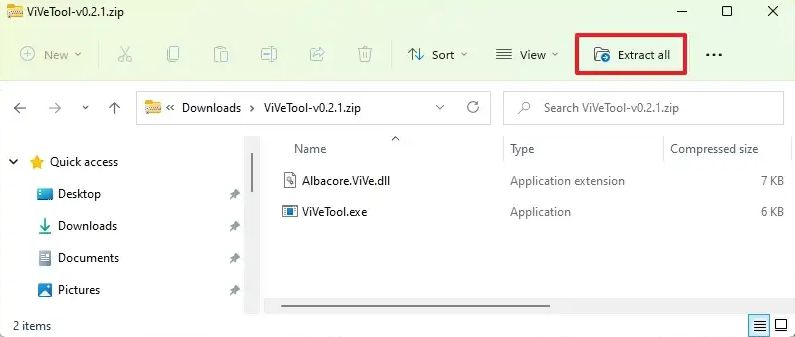
- After successful installation, copy the path to the folder where ViveTool is installed.
- Select Windows Search > search for Command Prompt > select “Run as administrator”.
- In the Command Prompt window, paste the path to the folder where ViveTool is installed and press Enter.
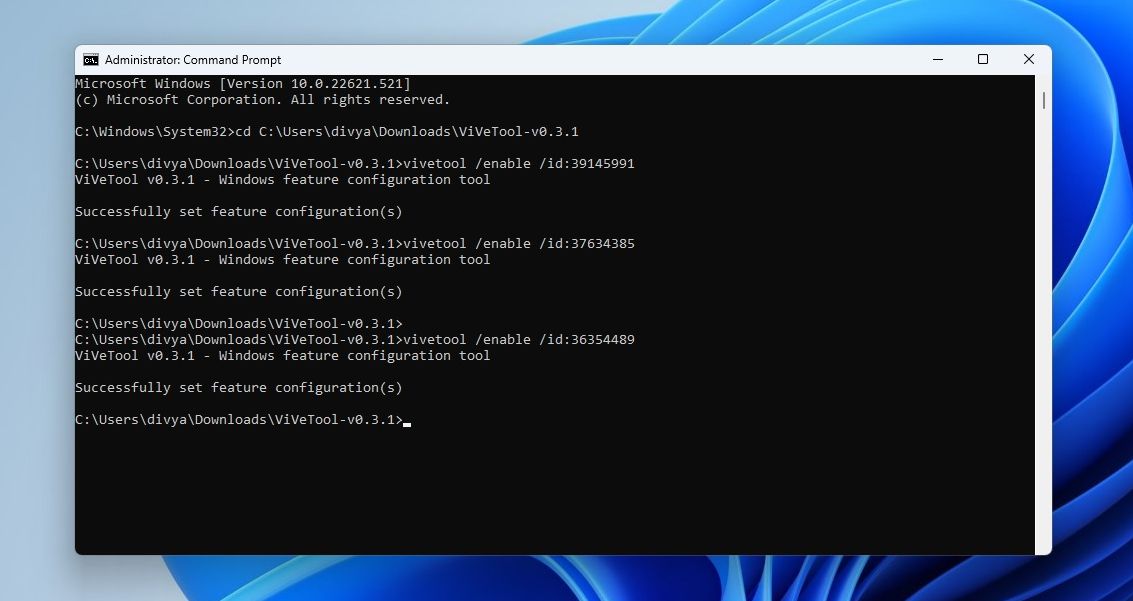
- Continue in Command Prompt, type the following commands in order:
-
vivetool / enable / id: 37634385
-
vivetool / enable / id: 39145991
-
vivetool / enable / id: 36354489
-
- Once completed, please restart your device.
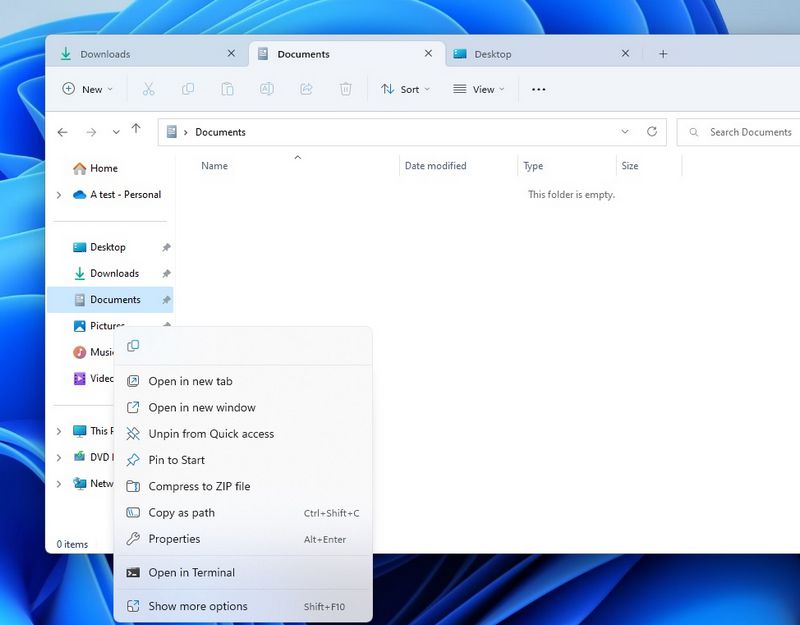
You will notice that the multiple tabs feature is now working in File Explorer. You can create a new tab by clicking the + icon or from the context menu. You can also drag and drop tabs to change their position.
Hung Phat Laptop wishes you success in enabling the multiple File Explorer tabs feature in Windows 11 22H2!
Source: Techrum