

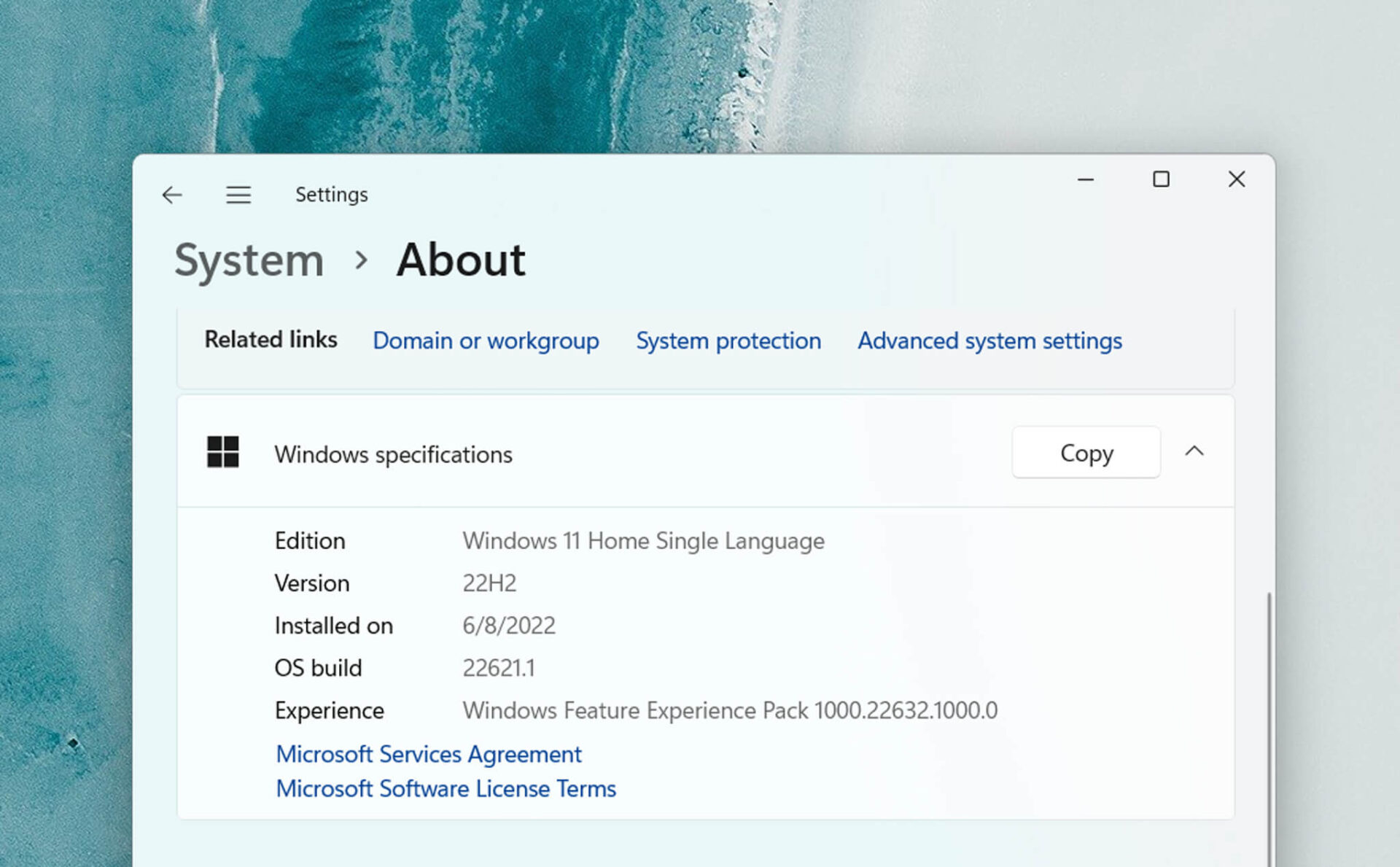
I am participating in the Insider Release Preview channel, and upon checking for updates, I already see the Windows 11 22H2 update has appeared. This is the major update for the second half of this year, featuring the following highlights and changes:
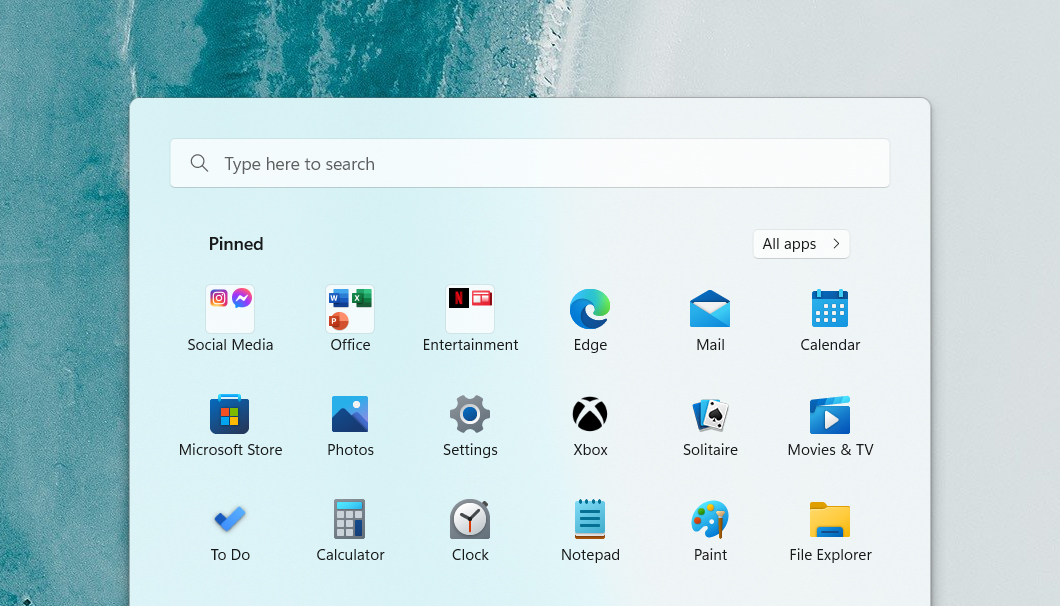
Create folders in the Start menu
Similar to a smartphone, to create a folder, you simply need to drag and drop one app icon onto another. Additionally, you can name and rename folders on Windows 11.
Drag and drop files on the Taskbar
The highly anticipated feature is back, though it works slightly differently than on Windows 10. For example, if Photoshop is open and minimized to the Taskbar, you can now click and hold an image file, drag it over the Photoshop icon to bring the app to the foreground, and then drop it into the app interface. On Windows 10, you simply dropped the image onto the icon.
New Task Manager
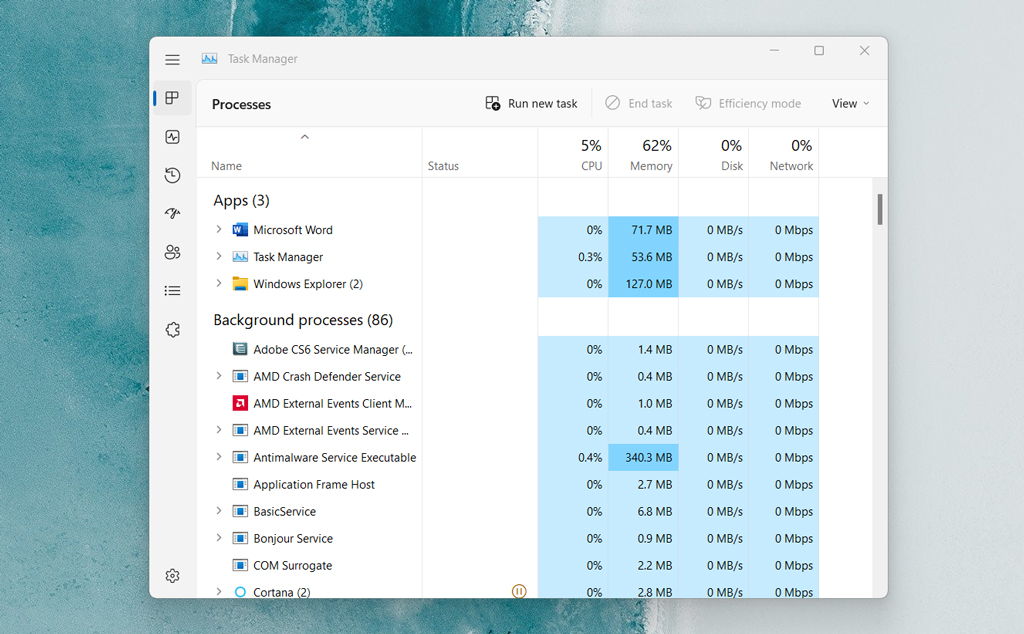
Task Manager also features a more modern interface. The functional tabs have been moved to the right side with new icons, and the Process information section now uses accent colors from the system.
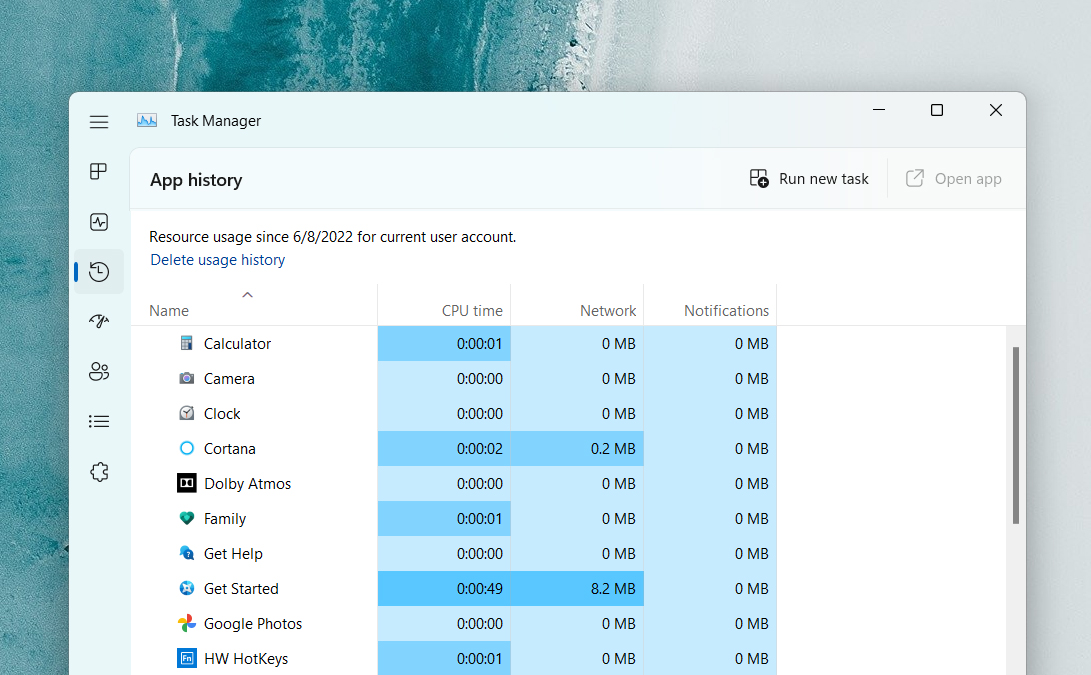
Additionally, there is a new App history tab that lists resource usage from apps in the order they were opened on Windows 11. The new Task Manager also supports Dark mode.
Improved File Explorer
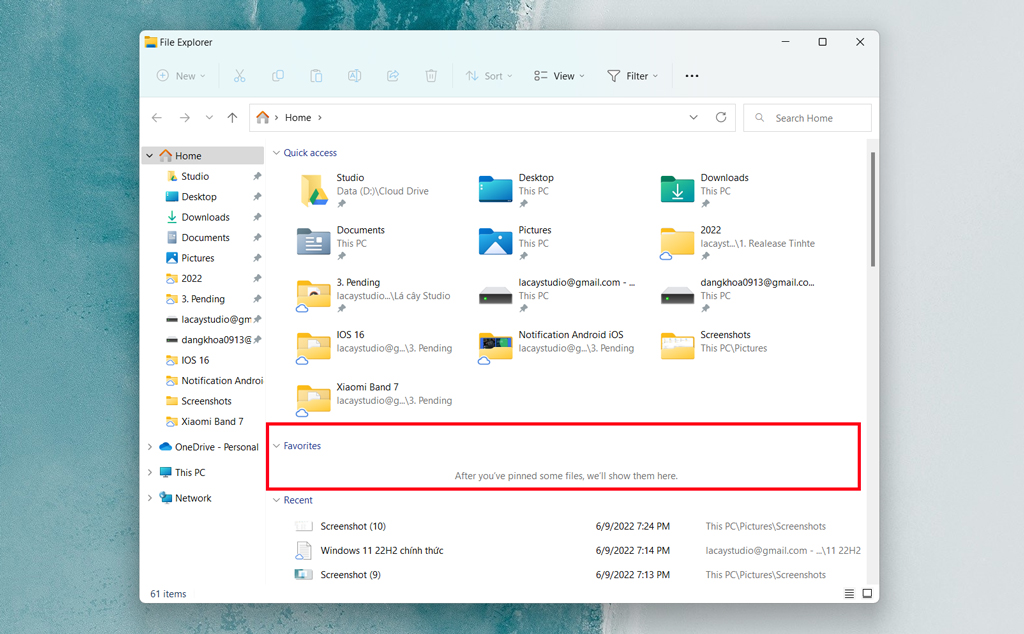
File Explorer on Windows 11 includes a new Favorites section located between Quick access and Recent, allowing you to pin files here for quick access by right-clicking a file and selecting Add to Favorites.
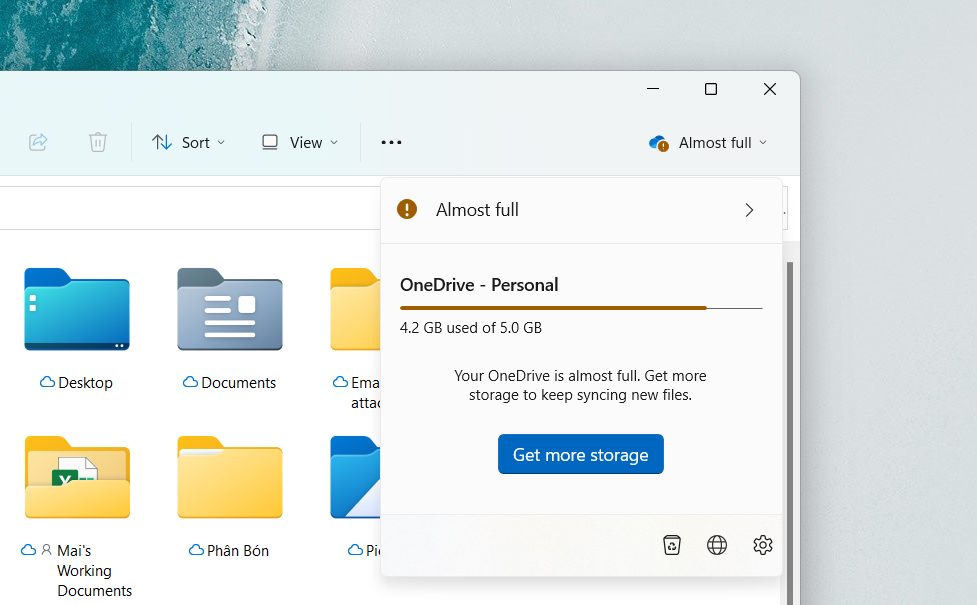
Furthermore, File Explorer is better integrated with OneDrive. In the OneDrive - Personal section, there is a new icon in the top left corner that allows you to quickly view used storage capacity and the sync status of files.
I couldn't find an option to open folders in tabs; if anyone knows, please let me know.
The folder thumbnail feature has also returned, helping you preview content inside without having to open the folder.

New Snap Layouts
A new way to snap windows. Currently, on Windows 11, to snap a window, you can either hover over the Snap button and select a layout, or click and drag the window to the corners or edges of the screen. In 22H2, there is a third way: dragging a window to the top edge of the screen will trigger a new Snap bar with various layouts to choose from.
New Battery Icon
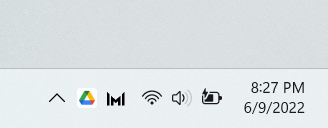
The battery icon will now feature a lightning bolt shape instead of the previous plug icon.
Reference: Tinhte.vn











