

Virtual Memory (Virtual Memory) plays a crucial role in enhancing performance and multitasking capabilities on modern computing devices. Not only does it help users run heavy applications smoothly, but this technique also optimizes system resources, especially when a computer has limited RAM. Understanding how virtual memory works and knowing how to manage it effectively will help you maximize your device's power while minimizing processing speed issues or lag when using resource-intensive software.
What is Virtual Memory?
You are likely wondering exactly what Virtual Memory is.
To understand this, you must first understand what your RAM and hard drive are. In short, the hard drive stores files, images, games, music, etc., while RAM stores information and data for specific programs.
Virtual memory is also known as a paging file or swap, and it provides temporary RAM expansion for your system. This is achieved by using a portion of your hard drive to extend the RAM.
However, virtual memory is not infinite, and ultimately, you will still need to buy more RAM 🙂
Microsoft recommends using a virtual memory size that is 3 times the amount of RAM in your computer, or 4GB, whichever is higher; this will help your computer operate stably.
By default, virtual memory management is automatically calculated and performed by Windows 11, but this guide will show you how to change virtual memory in case your computer is not meeting your needs.
Step 1: Open Windows 11 Settings by pressing the Win + I keyboard shortcut.
Step 2: In the System window, scroll down and select About.
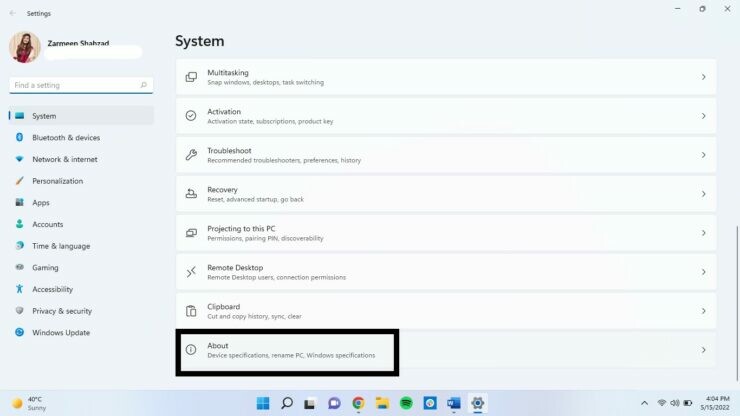
Step 3: Click Advanced system settings.
Step 4: A new window will appear; select Settings as shown in the image.
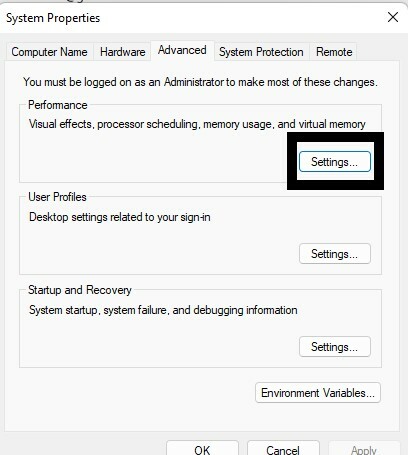
Step 5: Click the Advanced tab.
Step 6: Click Change.
Step 7: Uncheck the Automatically manage paging file size for all drives option.
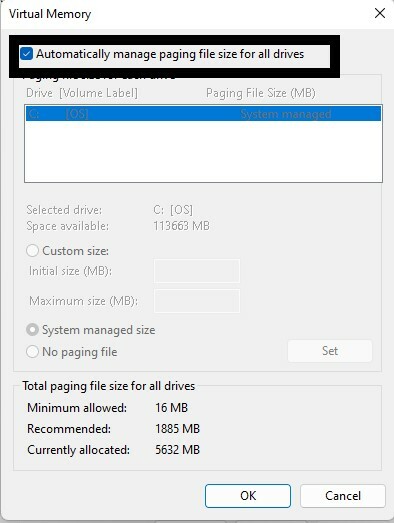
Step 8: Click Custom size and enter values for the Initial size and Maximum size boxes.
Step 9: Once finished, click Set and OK.
Increasing virtual memory is not a long-term solution; it is best that you still upgrade your computer's RAM capacity. However, through this article, I want to help you temporarily resolve some issues your computer is facing so that you can continue your work.











