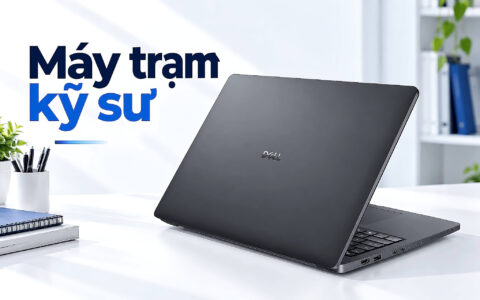
Laptops feature many connection ports that serve various purposes and devices. Do you know them well, along with their surrounding symbols? This article will help you identify them more easily.
These ports are usually located along the sides or the back of the laptop, though sometimes they are found on an external docking station depending on the specific model. Connection ports expand the machine's functionality and its primary task-connecting-input devices, external drives, networks, and more. Understanding these ports will help you make more informed decisions when searching for a laptop that suits your usage needs.
Audio Jack
The 3.5 mm audio jack, also known as a headphone jack, is the most common audio port on modern laptops. Along with audio input and output, this port also allows connection to wired headphones and speakers. Some older laptop lines featured two separate jacks for the microphone and audio, but most current models use a single combo jack for both functions.
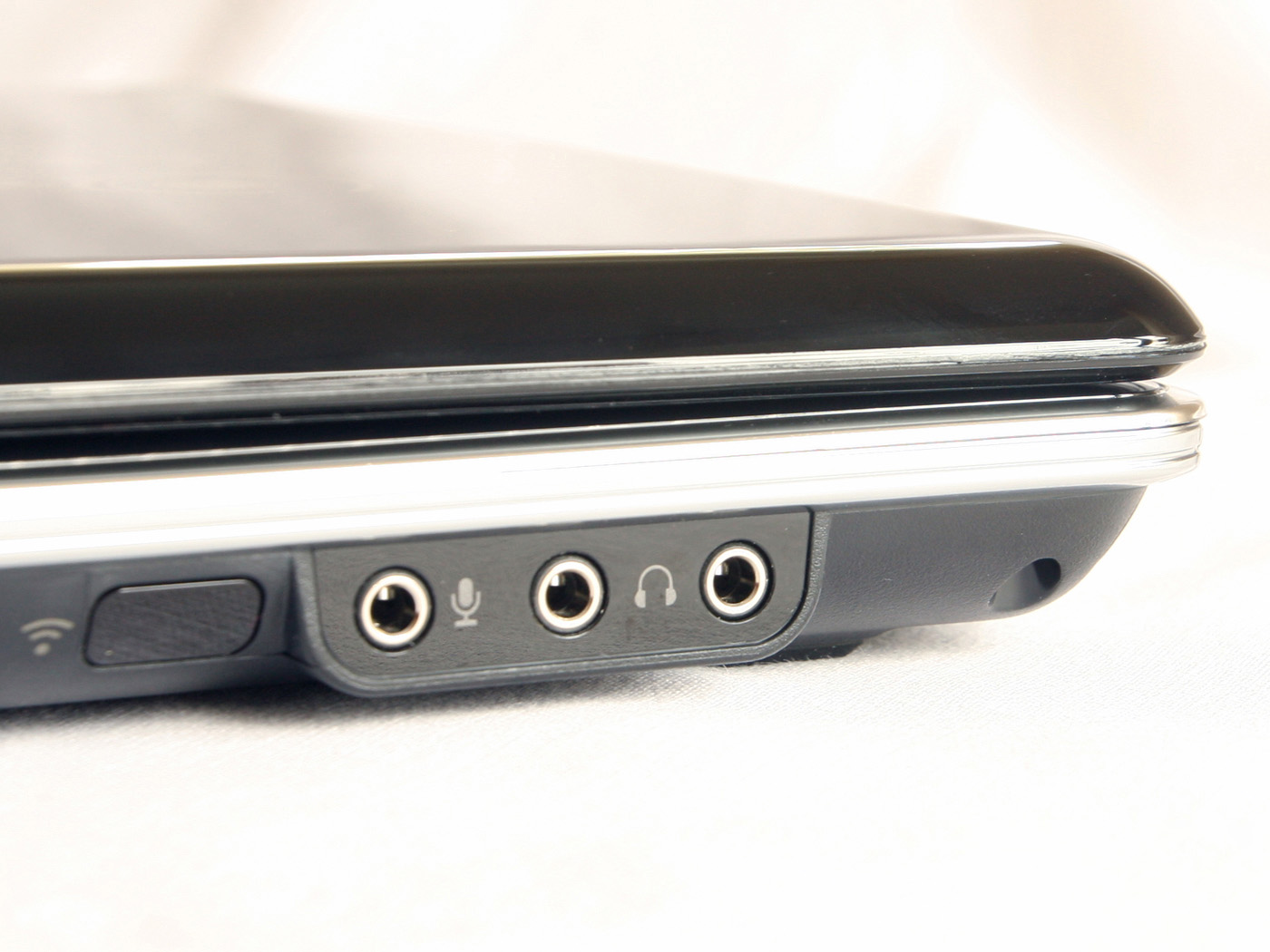
Some laptop manufacturers have omitted the audio jack in recent models. If you encounter such a machine, you will need a USB wireless dongle to connect to wireless headphones and speakers. Alternatively, you can connect via Bluetooth if your audio device supports it; conversely, many wired headphones operate via a USB connector instead of a 3.5 mm jack.
If you only have 3.5 mm headphones but your laptop lacks a 3.5 mm jack, a USB or USB Type-C to 3.5 mm adapter is what you will need.
DisplayPort/mini DisplayPort
DisplayPort is a digital display connection used to output video and audio from a laptop to an external monitor. DisplayPort connections are available on some TVs, PCs, and computer monitors.
Originally designed to replace VGA and DVI connections between computers and monitors, DisplayPort has gradually become the most advanced display connection on laptops to date.
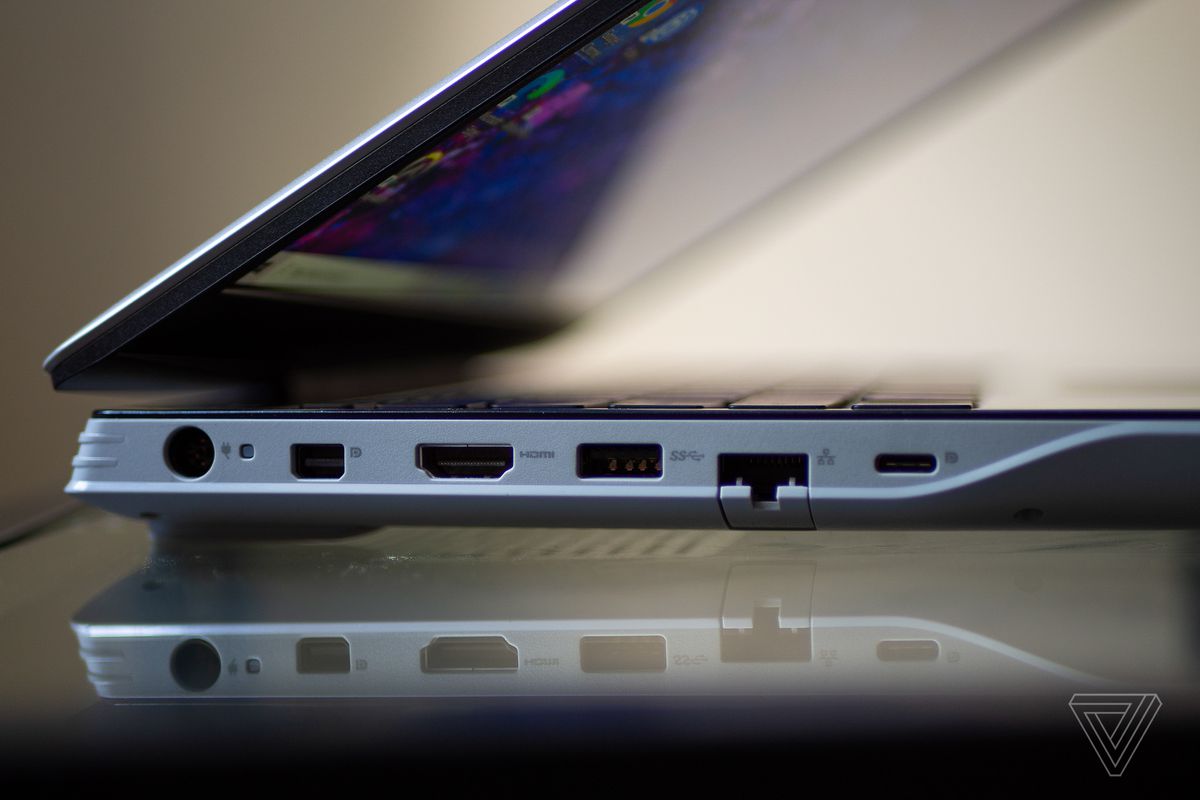
The latest version, DisplayPort 2.0, was released in 2019, featuring bandwidth increased up to 77.37 Gbps. Unlike other connections, DisplayPort allows multiple monitors to run on a single connection.
Additionally, DisplayPort supports both AMD FreeSync and NVIDIA G-SYNC technologies, enabling "tear-free gaming" (provided your monitor also supports these technologies). With each improvement, DisplayPort offers enhancements in data speed as well as higher resolution and refresh rates.
DisplayPort 1.2: Supports resolutions up to 4K at 60 Hz.
DisplayPort 1.3: Supports resolutions up to 4K at 120 Hz or 8K at 30 Hz.
DisplayPort 1.4: Supports resolutions up to 8K at 60 Hz and supports HDR.
DisplayPort 2.0: Supports 16K resolution (with HDR) at 60 Hz and 10K resolution (without HDR) at 80 Hz. Most laptops today use mini DisplayPort or use USB Type-C ports to transmit DisplayPort signals. Unlike standard DisplayPort ports, mini DisplayPort ports require an MST (multi-stream Transport) hub to output to multiple monitors.
DVI - Digital Visual Interface
DVI (Digital Visual Interface) is used to connect video sources, such as a laptop, to a monitor. It was developed in the late 90s with the aim of replacing analog VGA technology with lossless digital video.
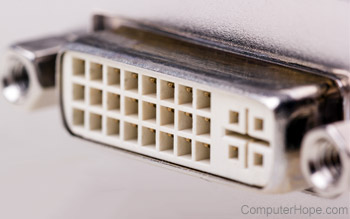
Although not a common port on modern laptops, it can still be found on many monitors with Full HD resolution or lower. A single DVI connection can output UXGA resolution of 1920 × 1200 at 60 Hz; a dual-link DVI connection is required to output higher resolutions.
DVI is often the best choice for outputting video from a laptop to computer monitors that lack HDMI or DisplayPort connections. However, it is important to note that a DVI connection only supports video signals and cannot output audio. If your laptop does not have a DVI port but you want to connect to an external monitor via DVI, you will need an HDMI-to-DVI or DisplayPort-to-DVI cable.
Ethernet
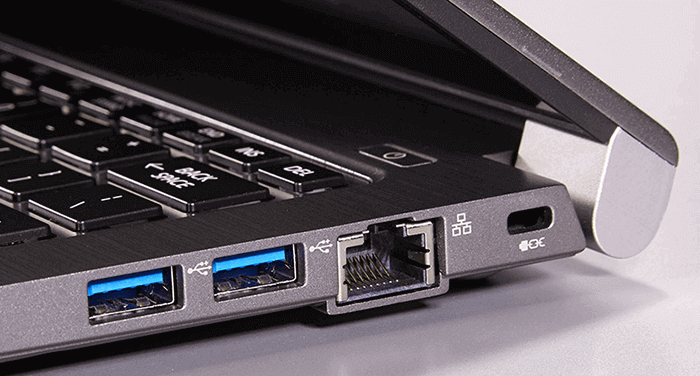
The Ethernet port allows your laptop to connect directly to a wired network. Ethernet ports are less common on laptops today due to the increasing popularity of Wi-Fi and the trend toward thinner, more compact machines. However, using a LAN cable with an Ethernet port remains the optimal way to achieve high-speed internet connectivity and minimize latency. In areas with weak network signals, Ethernet allows you to resolve this through a direct cable connection.
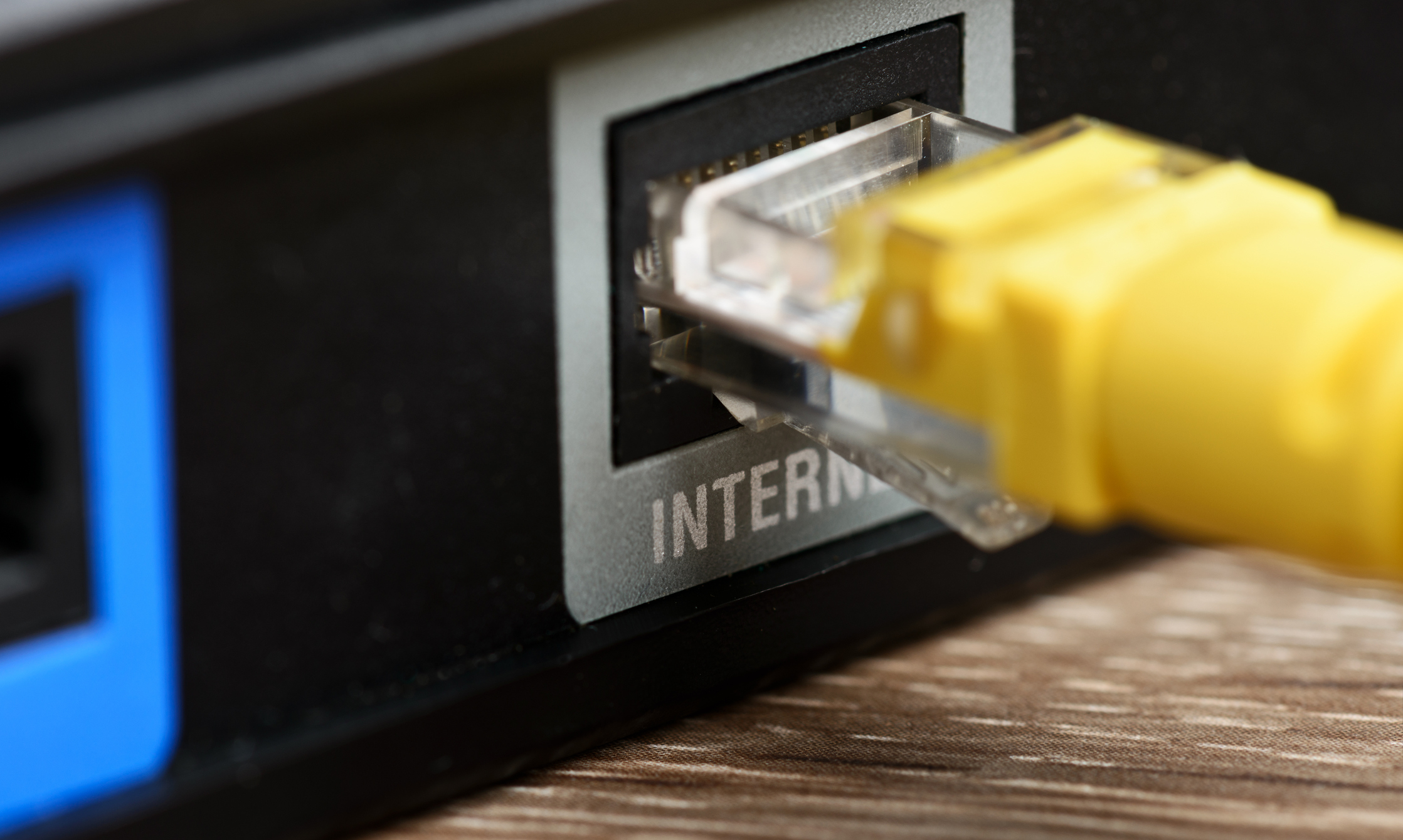
Today, Ethernet is also referred to as Gigabit Ethernet, meaning the connection speed is rated at 1 Gbps or higher. Ethernet connections are categorized by Category (Cat), and the latest Cat 8 standard allows for maximum speeds of up to 40 Gbps while maintaining backward compatibility with older Categories.
Many newer and thinner laptop models no longer feature an Ethernet port, but they can still be found on business-class laptops. If your laptop does not have a built-in Ethernet port, you can purchase a USB-to-Ethernet adapter or a docking station.
HDMI
HDMI (High Definition Multimedia Interface) is the most common way to connect a laptop to a computer monitor or home entertainment device. Many TVs and projectors also have HDMI ports; an HDMI connection can transmit both high-definition video and digital audio from your laptop to an external screen.
Over the years, several HDMI versions have been released, and although there are differences in capability, the physical ports themselves remain the same across versions. The latest version is HDMI 2.1, released in 2017, which offers data transfer speeds of 48 Gbps and supports 4K resolution at a 120 Hz refresh rate or 8K at 60 Hz.
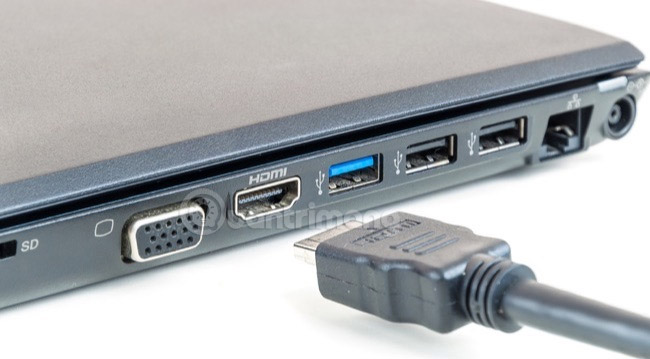
HDMI 2.1 also provides backward compatibility, meaning it can be used with HDMI ports on older devices that do not have the new 2.1 features.
Because HDMI is widely used, many adapters are available to connect HDMI to other ports, such as DVI and USB Type-C. HDMI cannot output to multiple monitors from a single port, and some laptops are currently sold with mini HDMI ports, meaning you will need an adapter if you want to use it with standard HDMI.
Kensington Lock Slot
Also known as a K-lock or K-slot, a Kensington Lock Slot is a small, usually rectangular hole found on laptops used to attach a physical security lock to your device. Kensington locks have been implemented on laptops since 2000. Depending on the model, this lock hole may be located on the side or the back of your laptop.
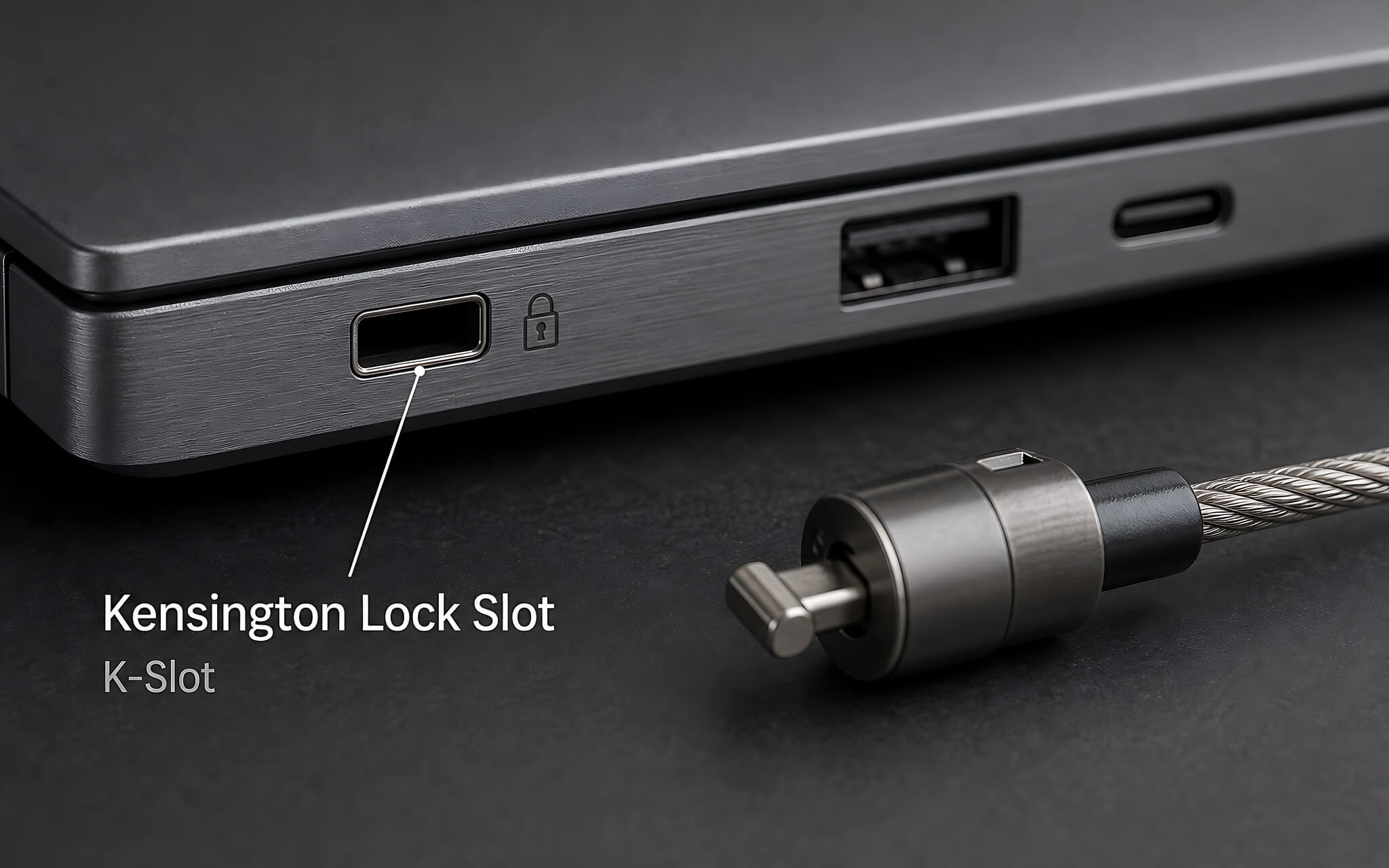
While many laptops feature a built-in Kensington lock hole, they rarely come with the actual cable lock mechanism. By using a compatible cable lock inserted into the slot, the other end of the cable can be secured to a fixed object, thereby securing the laptop against theft. The lock hole is often marked with a small padlock icon next to it.
SD Card Reader
The SD card reader is primarily used to read memory cards from digital cameras. SD cards are hot-pluggable and hot-swappable, meaning you can insert and remove them without restarting your laptop. Data transfer speeds vary greatly and depend on the type of SD card the reader supports.
Theoretically, a UHS-III SD card can transfer data at speeds up to 624 MBps, but if your SD reader only supports the older UHS-I version, you will only be able to transfer your data at a maximum UHS-I speed of 104 MBps.
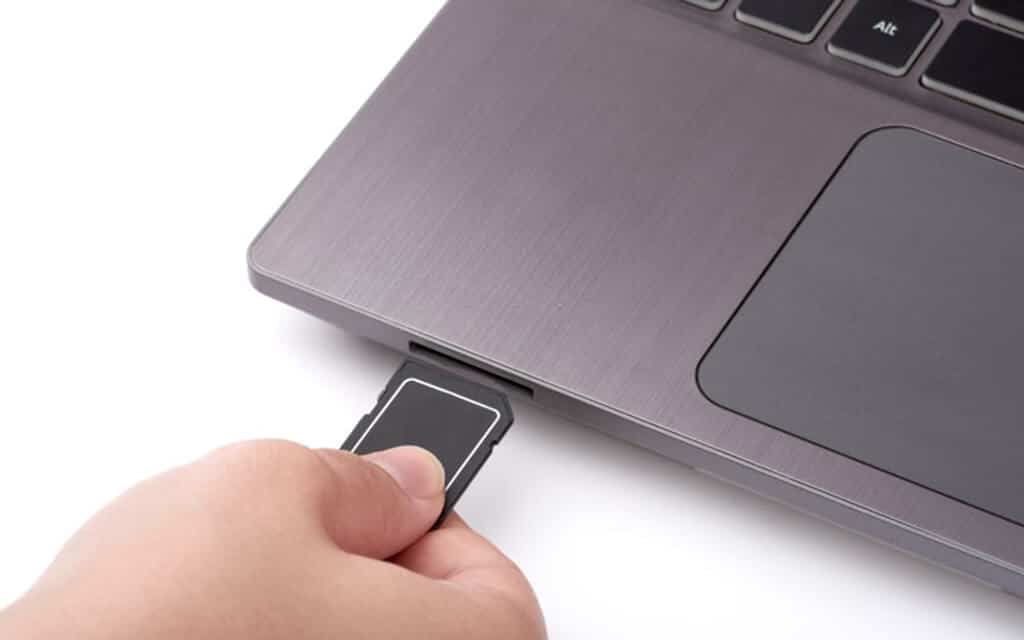
SD card readers are not available on all laptop lines because as laptops have become thinner, SD card readers have been gradually removed. However, you can still find SD Card Readers on laptops specialized for photo and video editing. If your laptop lacks an SD card reader, you can also purchase a USB adapter.
microSD Card Reader
microSD cards and their readers were introduced by SanDisk in 2005 to accommodate smaller memory cards for mobile phones. Similar to the SD card reader, the microSD card reader is used to read small memory cards, most commonly used for external storage on smartphones. microSD cards can also be hot-plugged and hot-swapped just like larger SD cards.
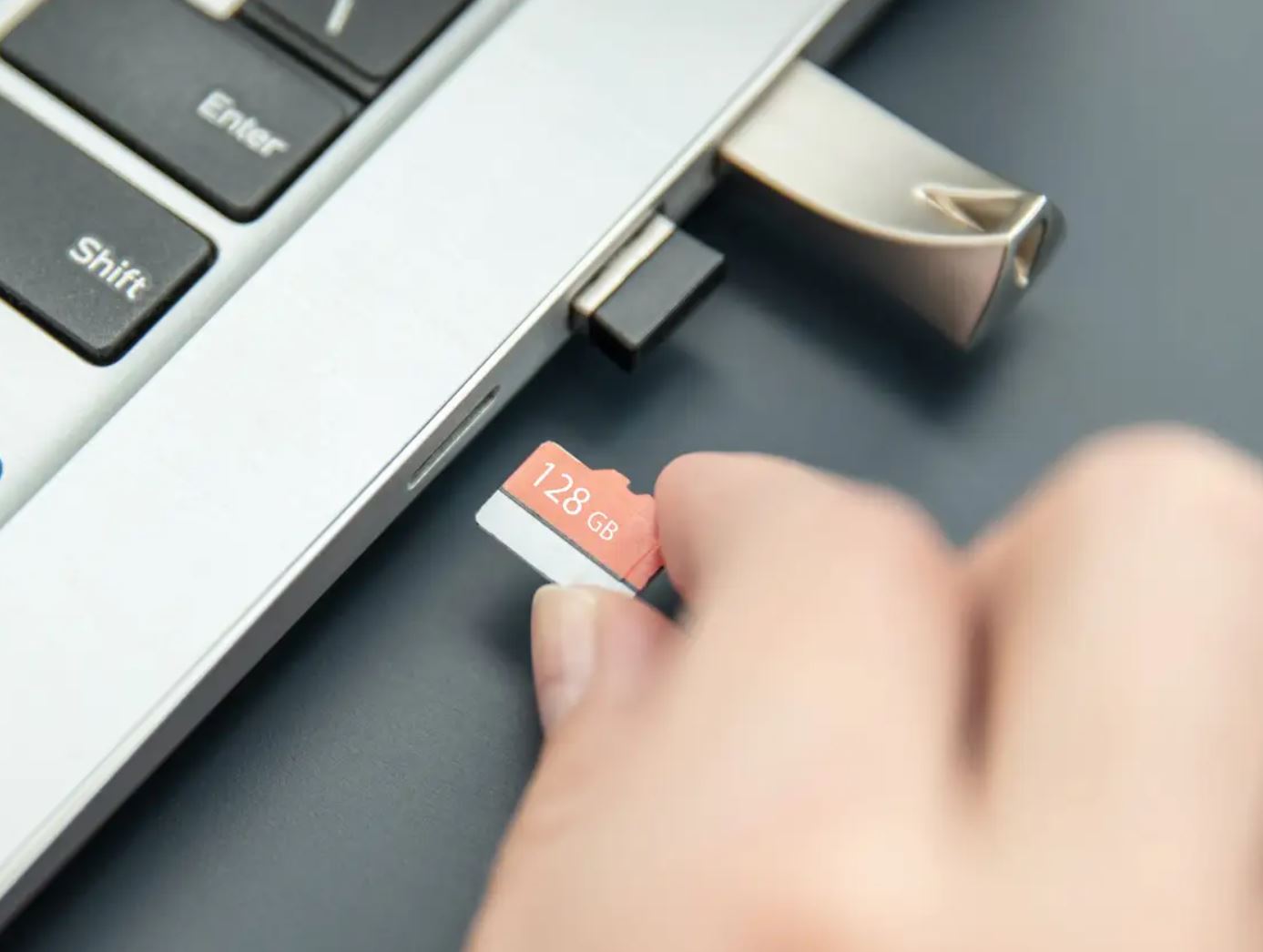
Laptops with limited integrated memory, such as some Chromebook models, sometimes use microSD cards for extra storage capacity. Every year, the storage capacity of SD and microSD cards increases, with the largest currently being 1.5 TB.
microSD cards are backward compatible with standard SD cards, and with the help of a simple adapter, they can be used on a laptop. If your laptop does not have a microSD or SD card reader, you can use a USB card reader.
USB
USB (Universal Serial Bus) is the most common expansion port on laptops today and has been around since 1996. It is typically rectangular and connects to countless peripherals such as keyboards, mice, printers, and external hard drives. USB ports come in many types, and each type has its own distinct functions and characteristics.
USB Type-A is the original 4-pin connector and is distinguished by its generations. Each subsequent generation features improvements in both power management and data transfer speeds, and all newer generations are backward compatible with older ones.
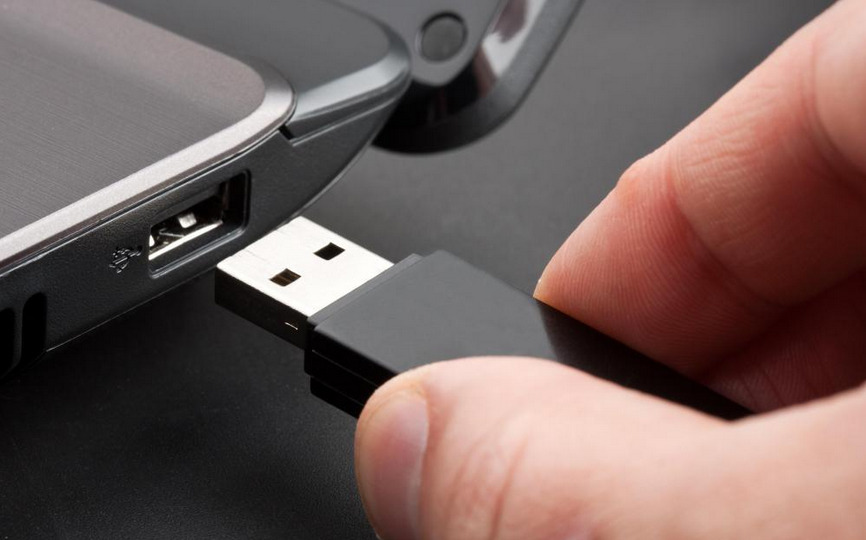
USB 2.0 is often identified by a black or gray port color and provides data transfer speeds up to 480 Mbps.
USB 3.0 (also known as USB 3.1 Gen 1) typically features blue or teal ports and can achieve a theoretical maximum transfer speed of 5 Gbps, which is 10 times faster than USB 2.0.
The latest standard for the USB Type-A port is USB 3.1 Gen 2; it looks like USB 3.1 Gen 1 but provides significantly increased data transfer speeds, up to 10 Gbps.
Unlike Type-A, USB Type-B ports and connectors are square-shaped. They are not commonly found on laptops, but many printers, scanners, docks, and hubs use them as input ports. While various adapters are available, most USB Type-B cables come with a USB Type-B connector on one end and a USB Type-A connector on the other.
USB Type-C
The USB Type-C connection is the new standard connector adopted for most modern laptops and devices, deserving its own place on this list due to its unique functionality. Because it takes up very little space, the USB Type-C port can fit into almost all ultra-thin laptops currently being manufactured. Additionally, the USB Type-C port can be compatible with Thunderbolt or other types of connections, giving it many advantages over other USB types.
Unlike the rectangular Type-A with its 4-pin connection, USB Type-C comes with a 24-pin connector that allows it to support higher current and faster transfer speeds. The ability to handle higher current allows devices to charge in shorter times when connected to Type-C, providing up to 100 W of power.
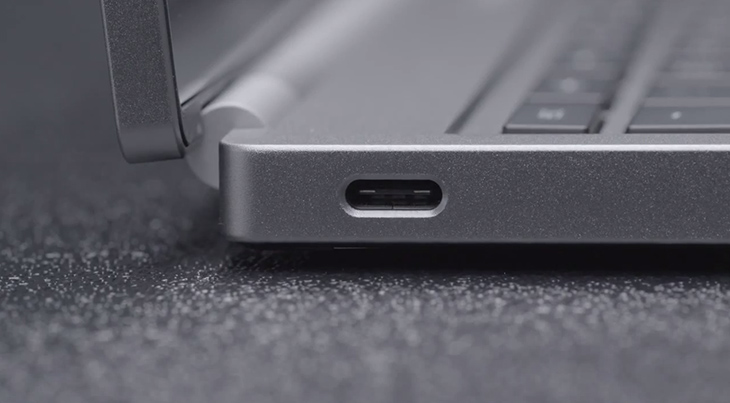
Furthermore, Type-C devices can support USB 3.1 Gen 2 transfer speeds of 5 Gbps, and if it doubles like a Thunderbolt port (identified by the lightning bolt symbol next to the port), the Type-C connection can even reach extremely fast speeds of up to 40 Gbps. Moreover, it can enable DisplayPort signals for video output if equipped with alt-mode functionality.
When using an adapter to connect between USB Type-C and other USB types, if these connections are backward compatible, they will reduce the functionality and transfer speed between the USB types. Consequently, the device will operate at the highest speed equivalent to the lower standard.
Micro-USB
You may not see a micro-USB port on a laptop, but they can still be found in many peripherals and accessories.
Micro-USB is commonly used for smartphones, low-power tablets like Amazon Kindles, some external hard drives, and other electronic devices. They typically support USB 2.0 speeds up to 480 Mbps, but sometimes support USB 3.0, and micro-USB connections can be used interchangeably across both ports. USB Type-A and Type-C to micro-USB adapters will be necessary if you want to connect your supported devices to a laptop that lacks a micro-USB port.
Thunderbolt
The Thunderbolt connection is the fastest connection available on the market, combining PCIe, DisplayPort, serial signals, and DC power all in one port. This allows Thunderbolt connections to be implemented for various purposes, from peripheral connectivity to charging laptops. Thunderbolt ports can often be identified by a small lightning bolt symbol next to the port.
The latest versions, Thunderbolt 3 and Thunderbolt 4, can transfer data at extremely fast speeds of 40 Gbps, which is 4 times faster than USB 3.1 Gen 2. Even older versions like the original Thunderbolt have high transfer speeds of up to 10 Gbps, or Thunderbolt 2 at 20 Gbps.
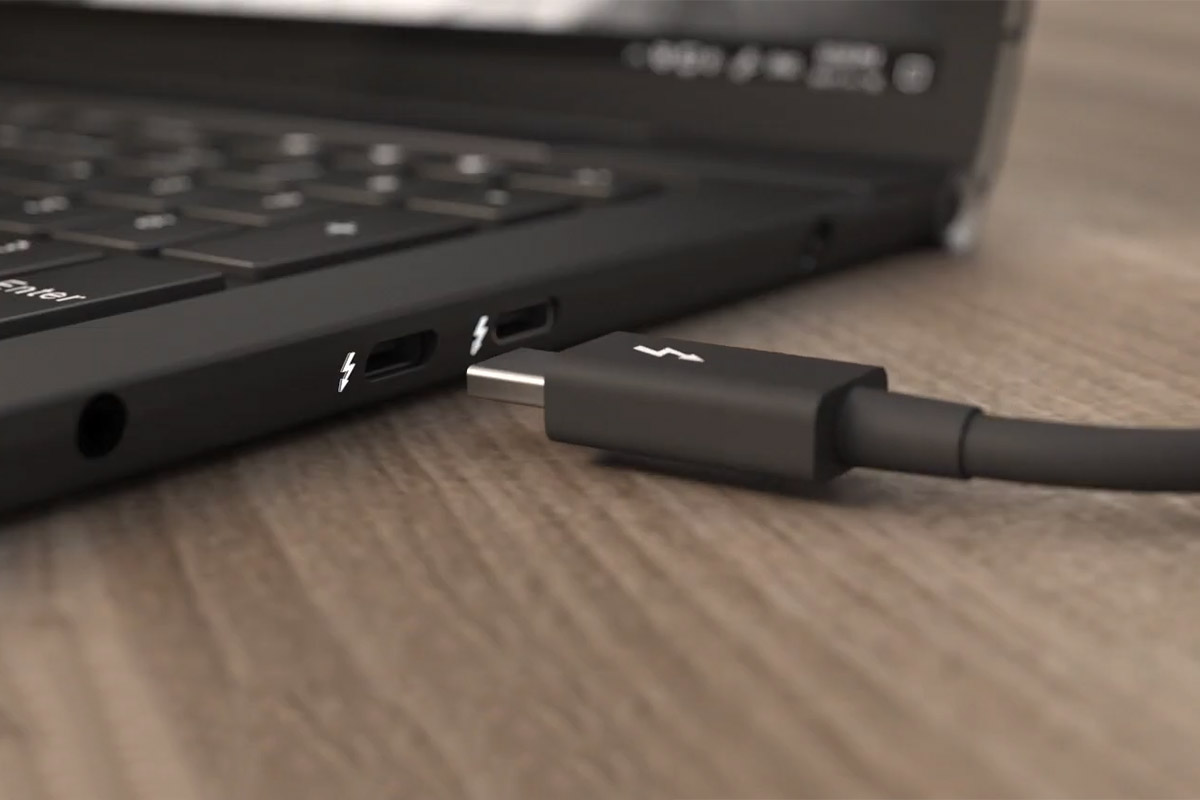
A single Thunderbolt 3 or 4 connection is capable of outputting two 4K monitors simultaneously thanks to the use of dual DisplayPort signals; some newly released graphics cards are even equipped with Thunderbolt ports, allowing connection to laptops for high-end gaming.
From Thunderbolt 3 onwards, USB Type-C connections are used, while Thunderbolt and Thunderbolt 2 ports use mini DisplayPort connections, so you will need an adapter if you want to connect older Thunderbolt devices to Thunderbolt 3 or higher.
VGA
The VGA (Video Graphics Array) connection was introduced in 1987; it was the primary interface between computers and older CRT monitors and even modern projectors. Because it uses analog signals, VGA is prone to signal degradation over long cable distances and only offers low resolution, which is insufficient to meet today's higher requirements.
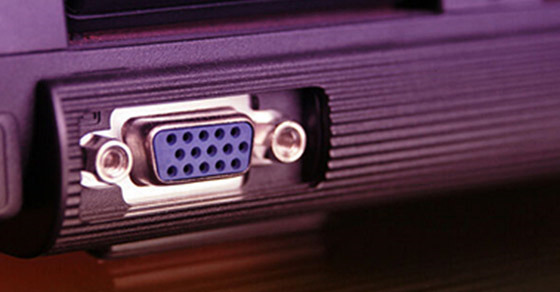
Due to its larger size compared to the 15-pin VGA port and the increase in digital video usage, these ports are being phased out. Today's laptop manufacturers are creating thinner models and using HDMI or DisplayPort connections instead of VGA. Although you cannot convert VGA to any other display standard (HDMI, DVI, DisplayPort), you can convert those standards to VGA (with reduced quality) by using the appropriate cables or adapters.
Reference: Tinhte.vn