The answer is that you should choose GPT for your Drive, as it is the new standard with many more advantages compared to the outdated MBR. However, I will share a bit more deeply so that you can have a general overview of what MBR and GPT are, as well as the differences between them regarding hard drives and operating systems.
MBR and GPT
MBR - Master Boot Record - is the first special boot sector of the partition of storage devices (Drives) used in computers. This is the default partition table format that has been used for a very long time (since 1983 with PCs running the DOS 2.0 operating system). MBR stores information on how logical partitions containing system files are organized. MBR also contains executable code that acts as a loader for the installed operating system by transferring control to the second stage of the loader, or in combination with the VBR (volume boot record) of each partition. MBR code is also known as the boot loader.
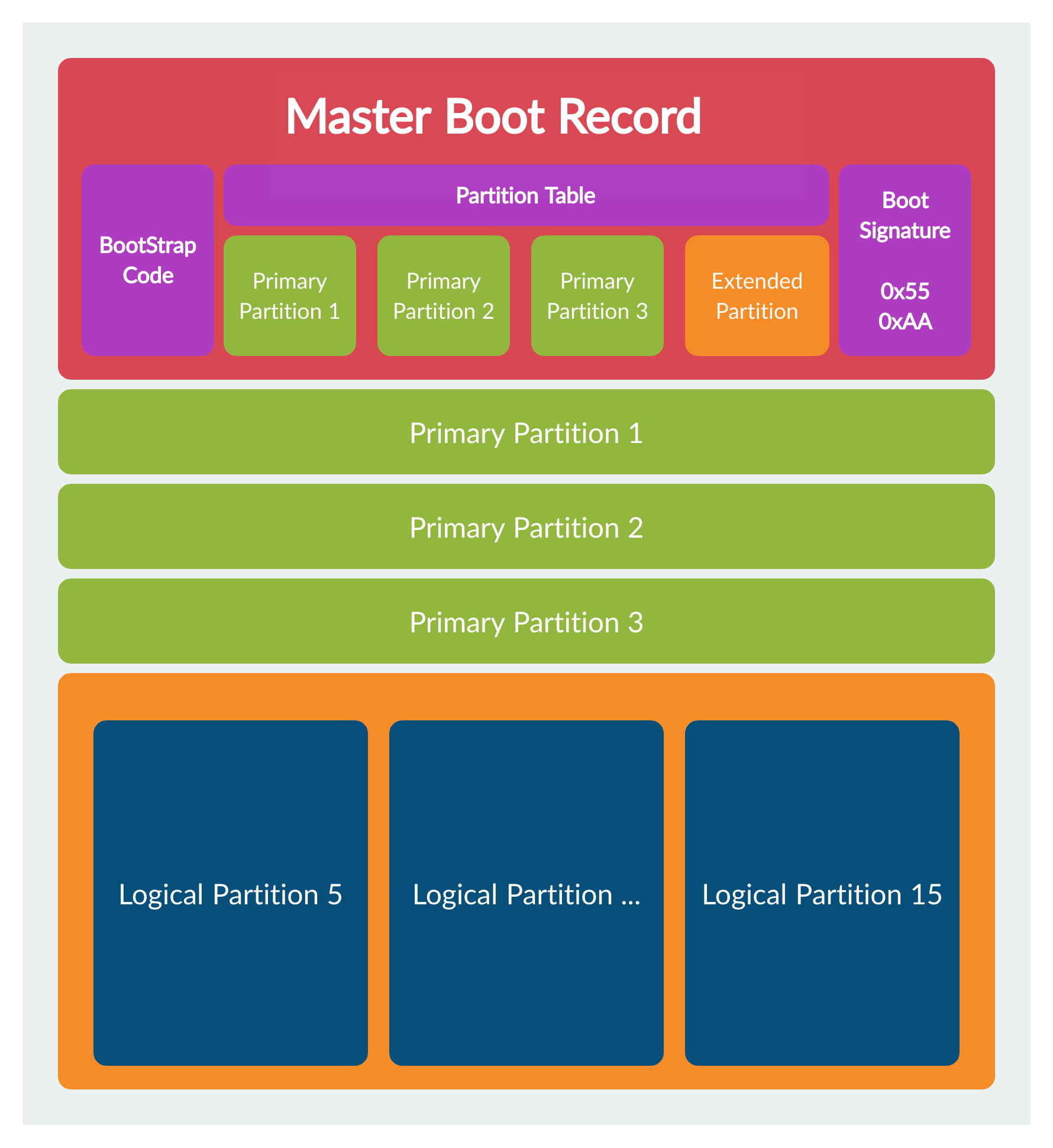
Only partitionable storage devices have the presence of MBR, while devices like floppy disks will not have MBR. The 32-bit limit makes the maximum capacity of the partition table in MBR 2 TB (more accurately 2^32 x 512 bytes per sector), with 4 primary partitions simultaneously. Therefore, if a drive's capacity exceeds the limit and uses MBR, only a maximum of 2 TB of space can be used. Because of this, in the late 1990s, Intel developed a new partition table format - GPT - (which later became part of the UEFI - Unified Extensible Firmware Interface standard) to solve the problem of rapidly increasing hard drive capacities.
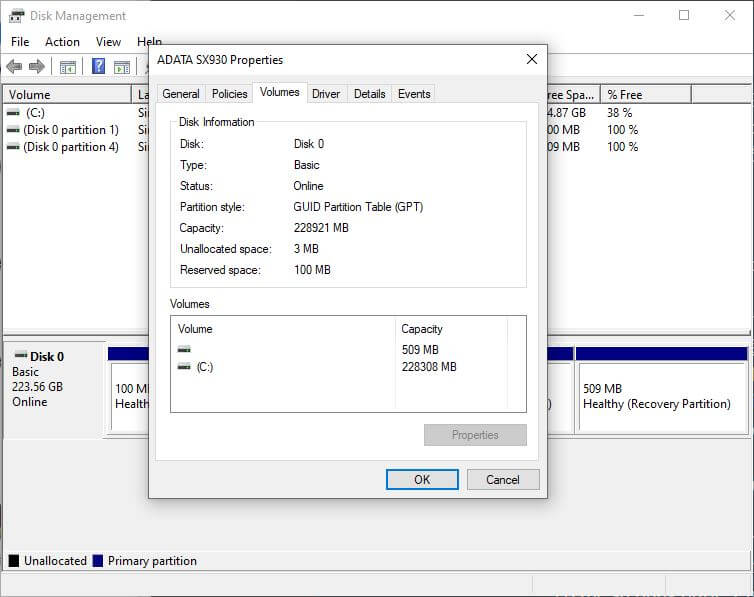
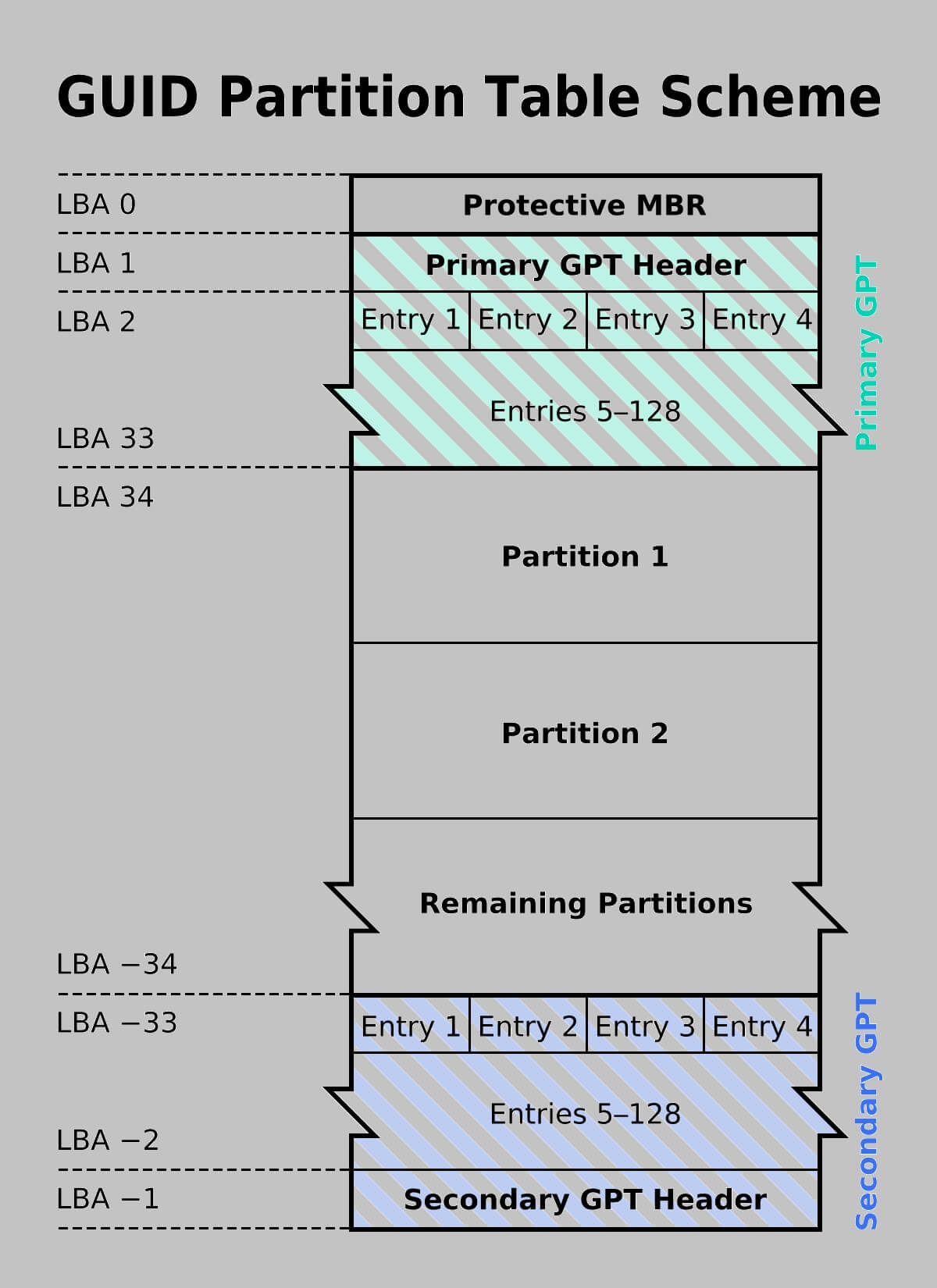
GPT is an acronym containing another acronym, in which G stands for GUID - Globally Unique Identifier - and PT stands for Partition Table. GPT uses 64 bits for the logical block address, so with a drive having 512 bytes per sector, the maximum capacity that GPT can recognize is over 8.5 billion TiB (2^64 x 512) or 9.44 ZB. In 2010, hard drive manufacturers introduced Advanced Format with each sector containing 4096 bytes; therefore, for this type of drive, the maximum capacity that GPT can understand is 2^64 x 4096 - approximately 68.72 billion TiB or 75.56 ZB. To be compatible with old hardware and software, Advanced Format drives are equipped with 512e emulation technology, allowing the system to see physical 4096-byte sectors as familiar 512-byte sectors when accessing the hard drive.
Disk Partitioning
Every storage device today needs at least one partition to function, similar to how owning a piece of land without an assigned purpose for use prevents you from farming or building a house. Even though you have one physical hard drive, you can have multiple logical partitions on it. The 4 primary partition limit of MBR can be "bypassed" by using logical partitions, in which you create 3 primary partitions and 1 extended partition; within this extended partition, you can create additional logical partitions.
However, only primary partitions can be used to boot the operating system (containing system files); logical partitions cannot. Having multiple primary partitions can solve the need to boot multiple operating systems, for example, if you want both Windows 10, Windows 7, and Windows XP on the same hard drive and want the option to boot into an operating system for different purposes.
GPT also has a limit on the number of primary partitions, but on Windows, it is very high, 32 times more than MBR, meaning you can freely create up to 128 primary partitions on the same hard drive without any issues. Other operating systems even allow for more primary partitions, but I think an average user does not need that much.
Capacity and Drive Compatibility
As mentioned above, the capacity limit that MBR recognizes is 2 TB, while GPT goes up to 9.44 ZB (more accurately 9,444,732,965 TB), so GPT is more suitable for modern hard drives, where even SSDs already have capacities exceeding the MBR limit. However, choosing MBR or GPT also depends on the hardware and the operating system. Windows versions from Windows 10 and below all support MBR, while Vista, 7, 8, and 10 also support GPT; specifically, Windows 11 only uses GPT. Therefore, if you install Windows XP, for example, you must use MBR. Additionally, GPT partitions can only boot with a motherboard using UEFI; thus, if your hardware is too old and uses BIOS, your only option is MBR. If the hard drive is used for storage without booting, GPT or MBR does not matter.
Most new computer systems in recent years use UEFI instead of BIOS, so you can rest assured about compatibility when using GPT. If you are still attached to operating systems from Windows XP and earlier (2000, Me, 98, 95...), the boot partition format must be MBR. Conversely, GPT support is for systems from Vista onwards:
- Windows 11, 10, 8/8.1, 7, 64-bit versions of Vista, and 32-bit versions of Windows 10, 8/8.1 require a UEFI system to boot from a GPT partition.
- Windows 7 and 32-bit Vista do not support booting from a GPT partition; MBR is required.
- All the above operating system versions can normally read and write data to GPT partitions.
Recovery Capability
Operating systems sometimes encounter errors during the boot process and require hard drive data recovery, which is also related to MBR and GPT. MBR stores all partitions and boot data in one place, so if data corruption occurs, it is much harder to recover. In contrast, GPT stores copies of boot data on multiple partitions at the beginning and end of the table header; when one partition is corrupted, GPT can use other partitions to perform recovery.
GPT is also equipped with CRC (cyclic redundancy check) error-detecting code, which allows scanning the partition tables during the boot process to see if any issues have occurred. If an error is detected, GPT will attempt to repair it itself. MBR does not have this function, and you can only know an error has occurred when the system fails to boot or when a hard drive partition suddenly disappears one fine day.