A freshly installed Windows system usually recognizes Wi-Fi, audio, and the keyboard, but the BIOS or graphics drivers might not be the specific versions for your model. Therefore, updating laptop drivers via Windows Update's automatic mechanism meets basic needs but is not always the optimal solution in every case. This article follows a three-tier approach: Windows Update, manufacturer applications like MyASUS or HP Support Assistant, and finally, the official websites of Intel, AMD, or NVIDIA. This principle applies generally to Dell or Lenovo machines. Following this order helps minimize screen errors, audio loss, and driver conflicts.
Is Windows Update enough to update laptop drivers?
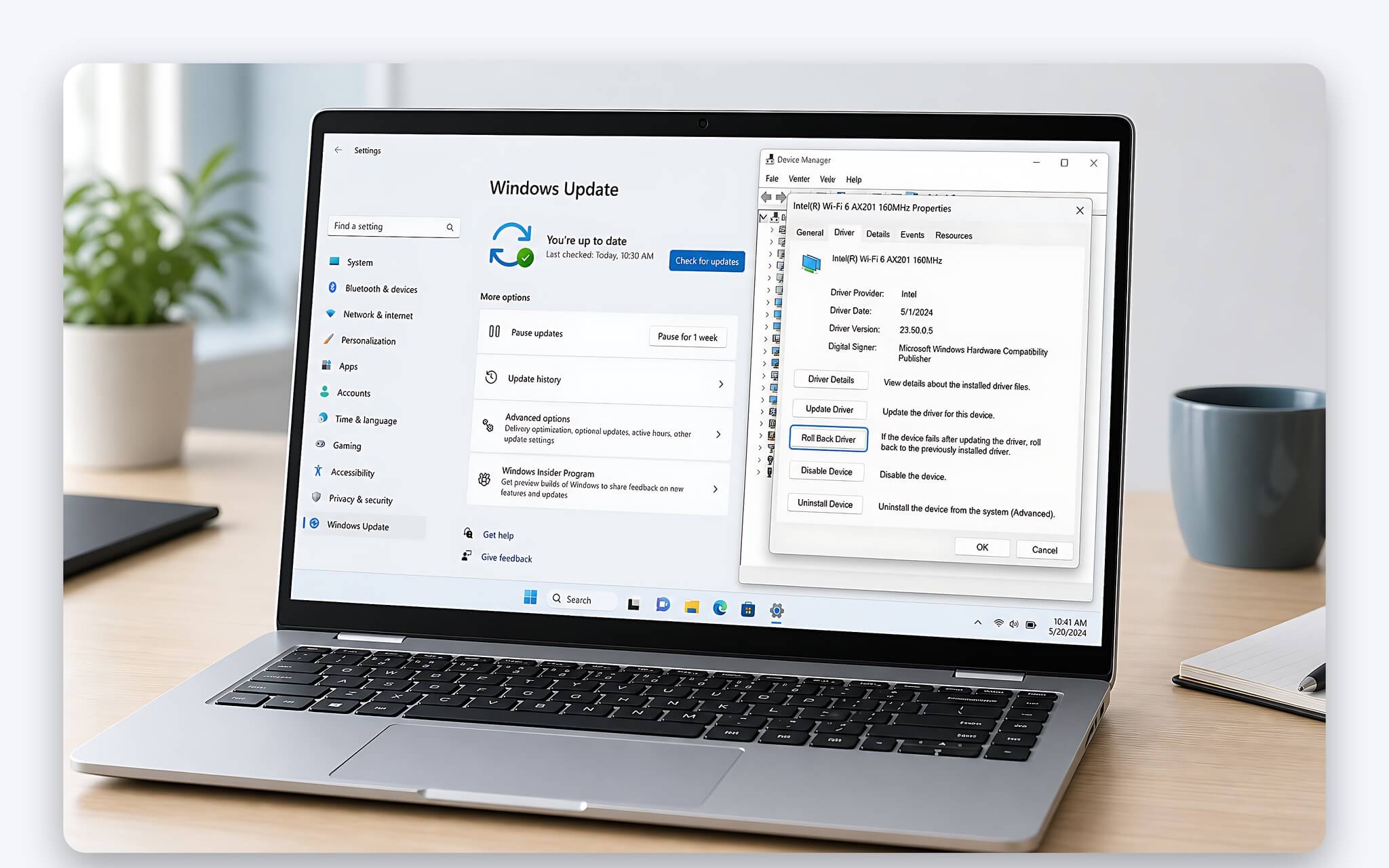
Windows 11 automatically installs drivers categorized as recommended by Microsoft. To update laptop drivers after a fresh OS installation, go to Settings > Windows Update, check for updates to confirm the status, and then restart your computer. This method is usually sufficient for Wi-Fi, Bluetooth, audio, keyboard, touchpad, and many system components. For office laptops operating stably, you do not need to install additional third-party update tools.
| Tool Name | Usage Method | Alternative Software | Suitability Scope |
|---|---|---|---|
| Windows Update on Windows 11 | Free, built-in | Third-party driver scanning tools | Recommended and optional drivers |
| MyASUS | Free | Non-official tools for ASUS | Drivers, firmware, and BIOS by model |
| HP Support Assistant | Free | Non-official scanning tools for HP | Drivers, firmware, BIOS, and device support |
| Lenovo Vantage or System Update | Free | Third-party updaters for Lenovo | Drivers and model-specific customization functions |
| Dell Command Update or SupportAssist | Free for compatible devices | General driver scanning tools | Dell drivers, firmware, and BIOS |
| NVIDIA Game Ready or Studio Driver | Free | Non-official GPU download sites | New games or creative software |
Some updates are located under optional items and are not installed automatically. You should go to Settings > Windows Update > Advanced options > Optional updates to check manually. When updating laptop drivers on Windows 11, you should not select all optional updates just because they have a newer release date. Windows Update has previously displayed drivers with very old dates, even as far back as 1968; this information may relate to identification and does not directly reflect the version's quality.
A limitation is that Microsoft may provide a generic stable version instead of a version customized by the laptop manufacturer for your specific model. Battery management, hotkeys, fan modes, sensors, or switchable graphics may require specific packages from the manufacturer. Before manually updating laptop drivers, you should refer to the official guide Update drivers through Device Manager in Windows. If your machine is running stably, installing every optional update often provides no clear benefit.
When to use manufacturer applications to update laptop drivers for the correct model
Manufacturer applications can identify your model and provide the correct BIOS, firmware, and tested drivers for your device. Lenovo has Lenovo Vantage or System Update, Dell has Dell Command Update or SupportAssist, HP has HP Support Assistant, and ASUS uses MyASUS. For updating Lenovo laptop drivers, you should prioritize official tools before downloading generic packages from component manufacturers.
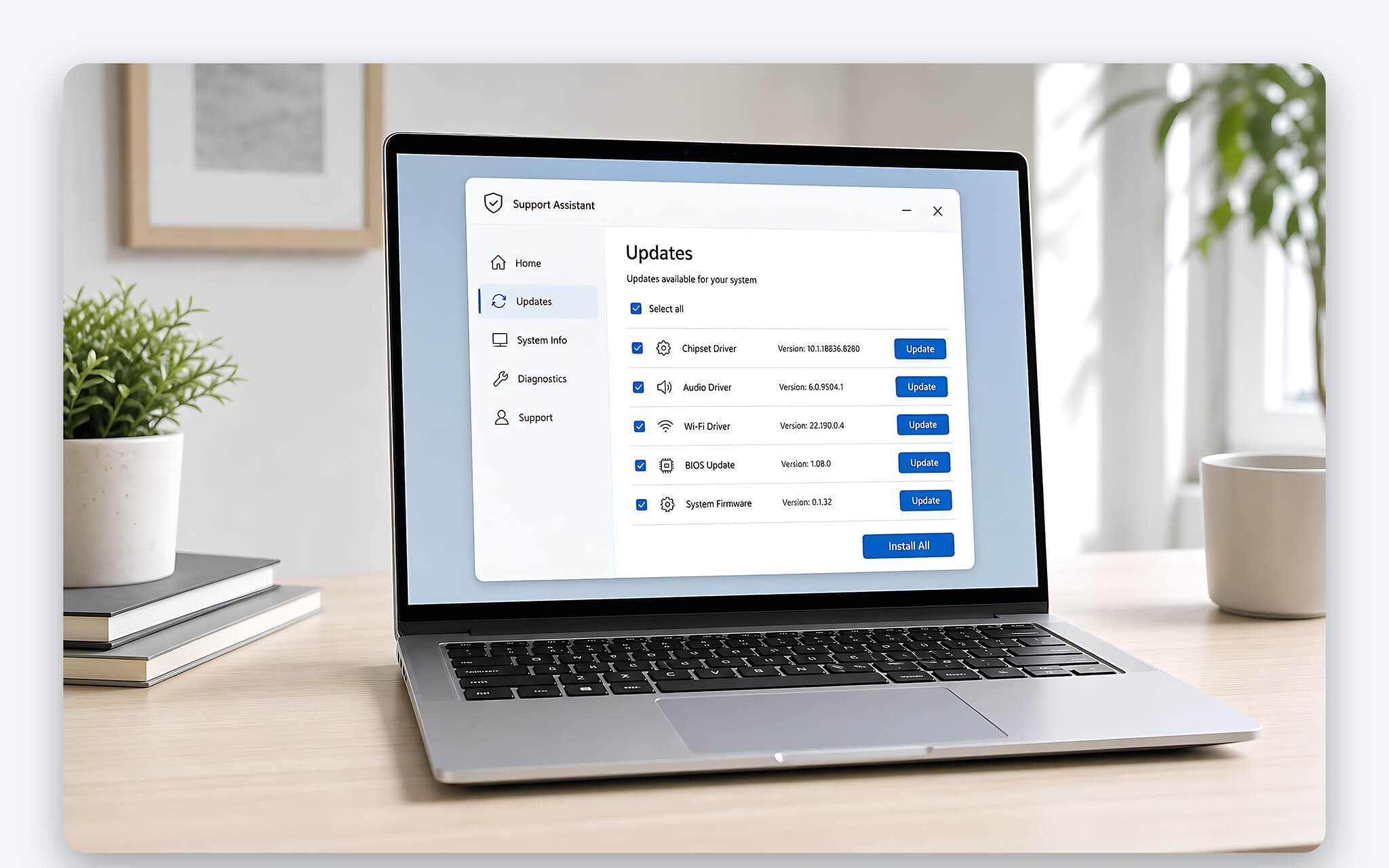
Manufacturer applications are particularly useful during the laptop driver update process after reinstalling Windows, especially when function keys do not work or the system fails to recognize hardware correctly. This is also an appropriate channel for periodic BIOS and firmware checks. The downside is that the scanning process can be time-consuming, send notifications, and suggest unnecessary utilities. You should only install components related to drivers, firmware, BIOS, or hardware functions currently in use.
The same principle applies when updating MSI laptop drivers using official support applications. Intel recommends prioritizing OEM drivers because generic versions might overwrite manufacturer customizations and have not been specifically validated for your model. AMD also prioritizes OEM versions on systems using switchable graphics. Therefore, manufacturer applications are not redundant, but should only be opened for periodic checks or when errors occur.
How to update ASUS laptop drivers using MyASUS for the correct model
On an ASUS laptop, open MyASUS and check your model before downloading. Then, go to the system update area, scan for available versions, and prioritize chipset, graphics, audio, network, and function key driver packages. If MyASUS is not installed, download it from the Microsoft Store or the official ASUS Download Center. When updating laptop drivers, do not download files from driver sharing sites or shortened links.
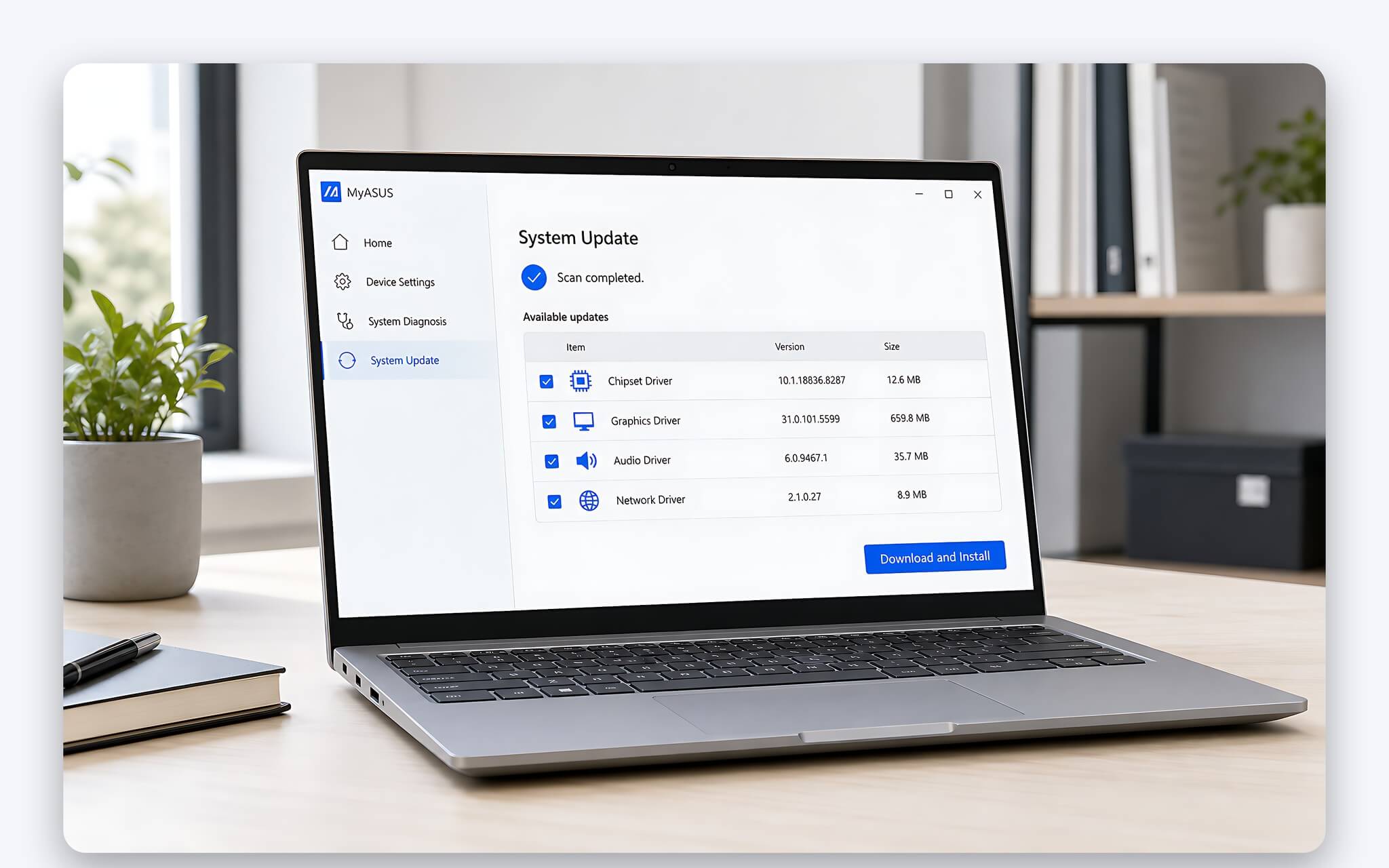
After each batch of updating laptop drivers by group, you should restart and check the Wi-Fi, audio, screen brightness, touchpad, and Fn keys. This method is slower than selecting "all," but it makes it easier to identify which package caused an error. If your machine uses switchable graphics, the OEM version from ASUS is usually more compatible than the generic version. New versions from Intel, AMD, or NVIDIA should only be prioritized when applications, games, or creative software require new features. The NVIDIA Drivers page is the place to verify the latest versions, helping you maintain the correct model driver before downloading.
MyASUS is free software for ASUS devices and does not require a license to update drivers. You also do not need to pay for online ASUS laptop driver update services from unidentified entities. Services that require downloading a scanning tool and paying to unlock or provide a key carry the risk of installing incorrect packages and collecting system information. A limitation of MyASUS is that its version repository may be slower than component sources, but in return, model compatibility is usually better.
How to safely update HP laptop drivers using Support Assistant
When updating HP laptop drivers, Support Assistant can identify the device and check drivers, firmware, and BIOS for the correct model. You should plug in the charger, close your working documents, and create a restore point before installing multiple packages. For standard drivers, you can update one group at a time and then restart. For BIOS, do not turn off the computer, unplug the charger, or force a restart during the installation process.
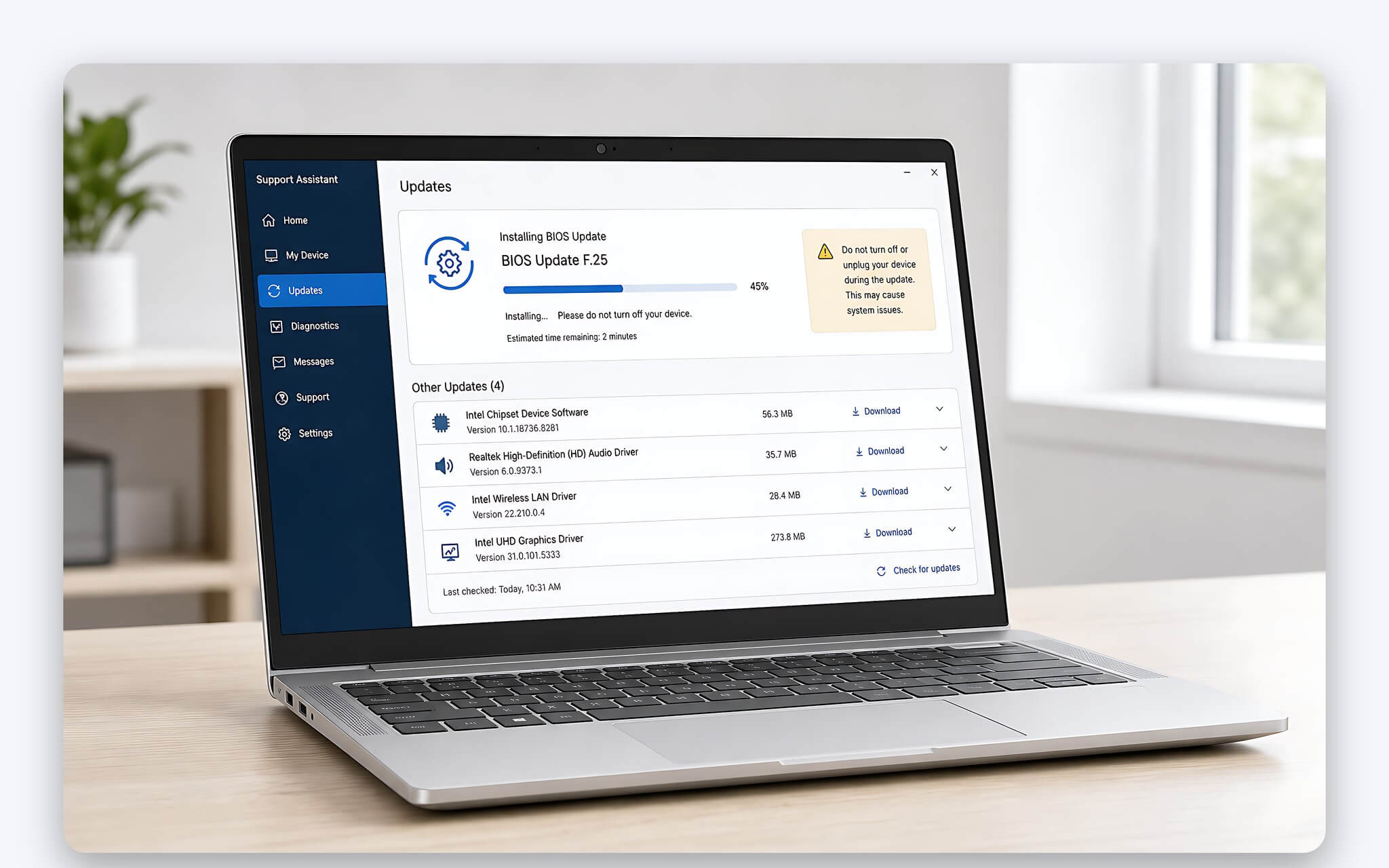
If BitLocker is enabled, you must save your recovery key before upgrading the BIOS. Some firmware changes may cause Windows to request this key after restarting. The article Should you enable BitLocker on a new laptop helps you prepare the key before updating laptop drivers along with firmware. This is a small step that can prevent being unable to access your drive after an update.
HP Support Assistant is provided for free, so you do not need to purchase online HP laptop driver update services. A downside is that the application may run in the background, send notifications, and suggest support items outside your needs. You can disable it from starting with Windows after completion and reopen it when you need to check. A stable machine does not need daily scans or repeated installations of the same package.
A safe driver update process to minimize errors
Hung Phat recommends a three-tier laptop driver update process. The first tier is running Windows Update, installing recommended versions, and restarting. The second tier is opening manufacturer applications to supplement BIOS, firmware, and model-specific customized drivers. The third tier is accessing Intel, AMD, or NVIDIA when support is needed for games, creative applications, or features not available in the OEM version.
For NVIDIA GPUs, Game Ready Drivers prioritize new games, while Studio Drivers focus on stability for creative software. When updating laptop drivers for a GPU, you should download directly from the official NVIDIA website, selecting the correct GPU series and operating system. If using generic AMD Adrenalin on a switchable graphics laptop and errors occur, revert to the OEM package. A newer driver does not guarantee better compatibility on all models.
If the screen flickers, audio is lost, or devices behave abnormally after an update, go to Device Manager > Properties > Driver > Roll Back Driver. Then restart and check the machine's status before installing other packages. You should not disable long-term system updates just because one laptop driver update caused an error; you can refer to the article Does disabling Windows Update make your machine more stable?. When you must take the machine in for inspection, back up your data and save your BitLocker key.
Official download sources for laptop driver updates and tools to avoid
All necessary tools to update laptop drivers are free or built into Windows. There is no reason to buy keys, cracks, or licenses for third-party driver scanning software. Official applications only identify hardware and provide suitable packages; they do not replace Microsoft 365, Adobe Creative Cloud, or paid graphics software. You should use the current versions on the Microsoft Store or the manufacturer's support page.
When updating laptop drivers, you should avoid tools that advertise the ability to find millions of drivers, require payment after scanning, or automatically install multiple packages. These software programs may select incorrect OEM customizations of generic versions, causing loss of brightness control, switchable graphics errors, or devices not being recognized after a restart. Official sources may sometimes be slower, but they are easier to verify for versions and have clear recovery processes.
If you only use your laptop for office work, you should maintain Windows Update and check manufacturer applications periodically. If you play games, you may prioritize Game Ready when a new title requires it; for creative content work, you should consider Studio Drivers to focus on stability. A machine operating normally does not need to run scanning tools every day. A reasonable approach is to only update laptop drivers when there are security patches, errors to be fixed, or specific application needs.
Frequently Asked Questions (FAQ)
When should I update Dell laptop drivers using official applications?
You should use Dell Command Update or SupportAssist after reinstalling Windows, when the machine is missing function keys, or when unrecognized devices appear. A reasonable laptop driver update sequence is to run Windows Update first to install recommended packages. Afterward, Dell applications will supplement the BIOS, firmware, and drivers confirmed for your specific model.
What is the most suitable way to update Acer laptop drivers for general needs?
You should start your laptop driver update with Windows Update, restart, and then check basic functions. If drivers or specific features are still missing, visit the Acer support page and enter your exact model to download the OEM package. You should not install all drivers from a similar model, as having the same series name does not guarantee shared hardware.
Do I need to budget for updating laptop drivers for a new machine?
You do not need to budget for this because all official laptop driver update channels-including Windows Update, manufacturer applications, and drivers from Intel, AMD, or NVIDIA-are free. After receiving your machine, you should update Windows, check manufacturer applications, and create a restore point before upgrading the BIOS. The decision to update should be based on the model and the operating status of the device.