


When a laptop runs burning hot during gaming sessions or video exports, many users immediately consider buying a laptop cooling pad - a base with one or more fans placed beneath the chassis and powered via a USB port. The real question is whether a cooling pad genuinely brings temperatures down or merely makes the chassis feel cooler to the touch. The answer depends largely on where the laptop draws in air. This article explains how push and pull cooling pads work, scenarios where pads prove genuinely useful, when they are practically pointless, how to match a pad to your laptop, and key maintenance notes.
How Laptop Cooling Pads Work
Every fan-cooled laptop operates on the same principle: the fans pull cooler ambient air in through intake vents, direct that airflow across heatsink fins attached to copper heat pipes, and exhaust the hot air through rear or side exhaust ports. The harder the processors work, the faster the fans must spin to move heat out. In essence, a laptop cooling pad never touches the silicon or the heat pipes directly; it merely changes the airflow conditions along the bottom panel, where many laptops place their intake vents.
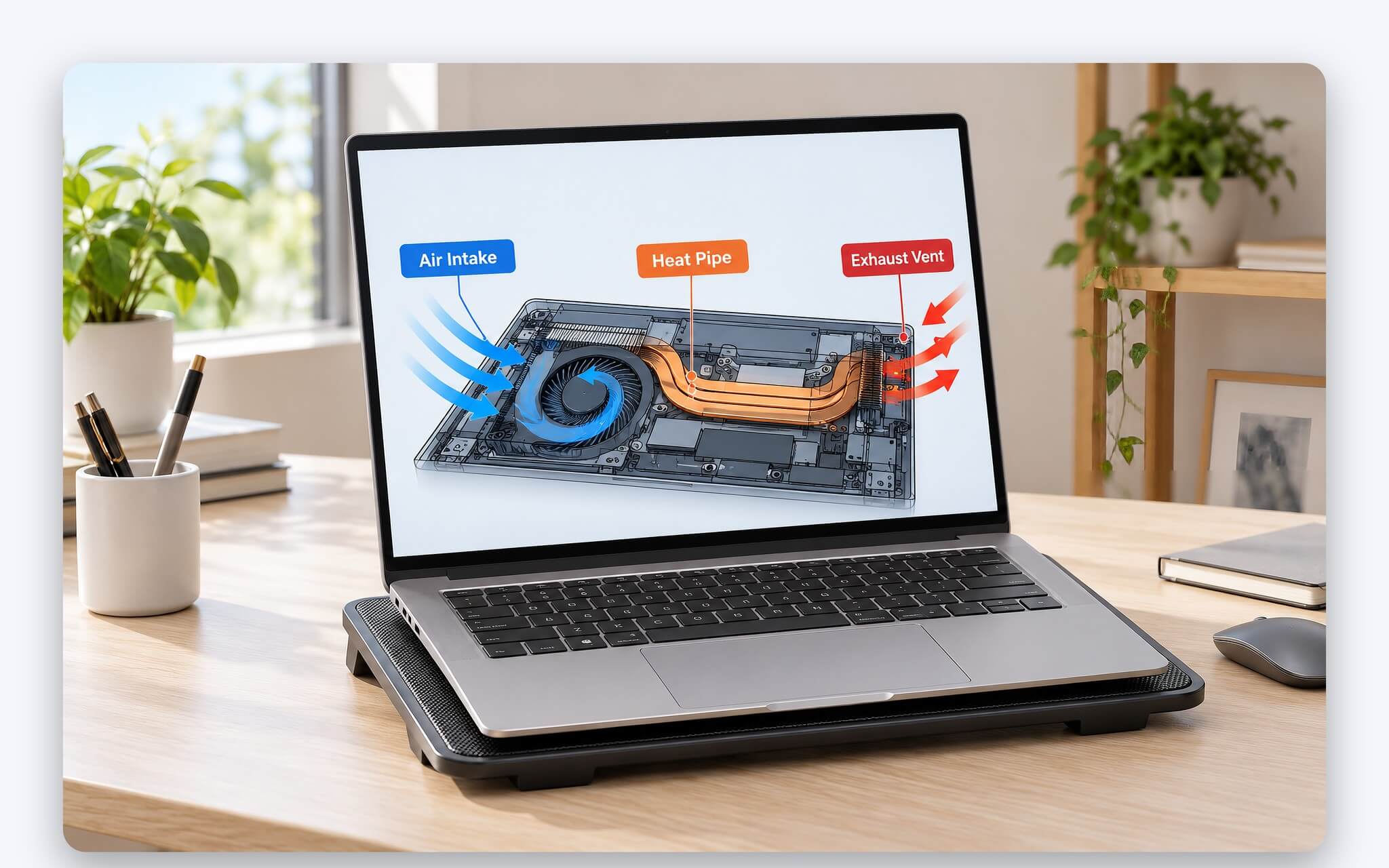
Most cooling pads on the market use a push design: one large fan or multiple smaller fans push air upward through a metal mesh surface and into the bottom of the laptop. As a result, the laptop's internal fans receive a more generous supply of fresh air rather than struggling over the limited air trapped in the narrow gap between the base and the desk surface. Lenovo highlights this function in Lenovo's laptop cooling guide: a base with built-in fans creates additional airflow around the underside of the device.
A few pads take a pull approach, using fans to draw air downward away from the laptop's underside and exhaust it outward. In theory, this design only makes sense if the laptop exhausts heat through the bottom; for laptops that pull intake air from below, an exhaust pad ends up competing for airflow against the laptop's own fans. Beyond the fans themselves, a pad also props up the rear of the laptop at an angle, opening up more clearance underneath. Even with the pad's fans turned off, that extra gap alone improves airflow circulation compared to resting the laptop flat on a desk.
Intake Vent Placement Determines Effectiveness
Lenovo notes that whether a laptop cooling pad works well with a machine depends on the location of the laptop's vents and the design of the pad. The reason is simple: airflow from the pad is only helpful if it reaches the exact spots where the laptop's fans are drawing air in. Dell's overheating troubleshooting page points out that air vents are typically located on the back and bottom of the computer, which is also the standard layout on dual-fan gaming and graphics laptops.
| Intake Vent Location | How the Laptop Draws Air | Effectiveness of a Fan Pad |
|---|---|---|
| Large bottom grilles directly below the fans | Fans draw air upward from the desk surface | Noticeable if the pad's fans align with the vents |
| Combination of bottom and side vents | Draws air from both the bottom and sides | Partially effective |
| Keyboard perimeter or top deck | Pulls air in from above the chassis | Virtually none, providing only elevation benefits |
| Fanless (passive cooling) | Heat dissipates through the chassis | Only helps the bottom panel cool faster |
The quickest way to tell which category your laptop falls into is to flip it over and inspect the underside. Large mesh sections or cutouts positioned right beneath the fans serve as intake vents, while slots along the rear edge or near the hinge are typically hot-air exhaust ports. Manufacturer manuals also include diagrams labeling vent positions, so checking the documentation for your specific laptop model before purchasing a pad is much safer than guessing based on exterior appearance.
For laptops with generous bottom intake grilles, a push-style pad with fans aligned directly beneath those openings delivers the greatest benefit. If a laptop pulls air through the keyboard deck or small side slits, however, most of the pad's airflow merely bounces off the bottom panel. In that case, the primary effect is cooling the surface of the casing rather than feeding fresh air into the internal cooling system, making any meaningful drop in processor temperatures unlikely.
When Laptop Cooling Pads Deliver the Most Benefit
The systems that benefit most are laptops with bottom intake vents running sustained heavy workloads, such as extended gaming sessions, video rendering, or 3D modeling. Under such loads, the laptop's fans spin near maximum speed almost constantly, and the supplemental cool air helps processors sustain higher clock speeds and performance longer before hitting thermal limits. Dell's support pages also suggest using a fan pad alongside lowering graphics settings as a practical measure during long gaming sessions.
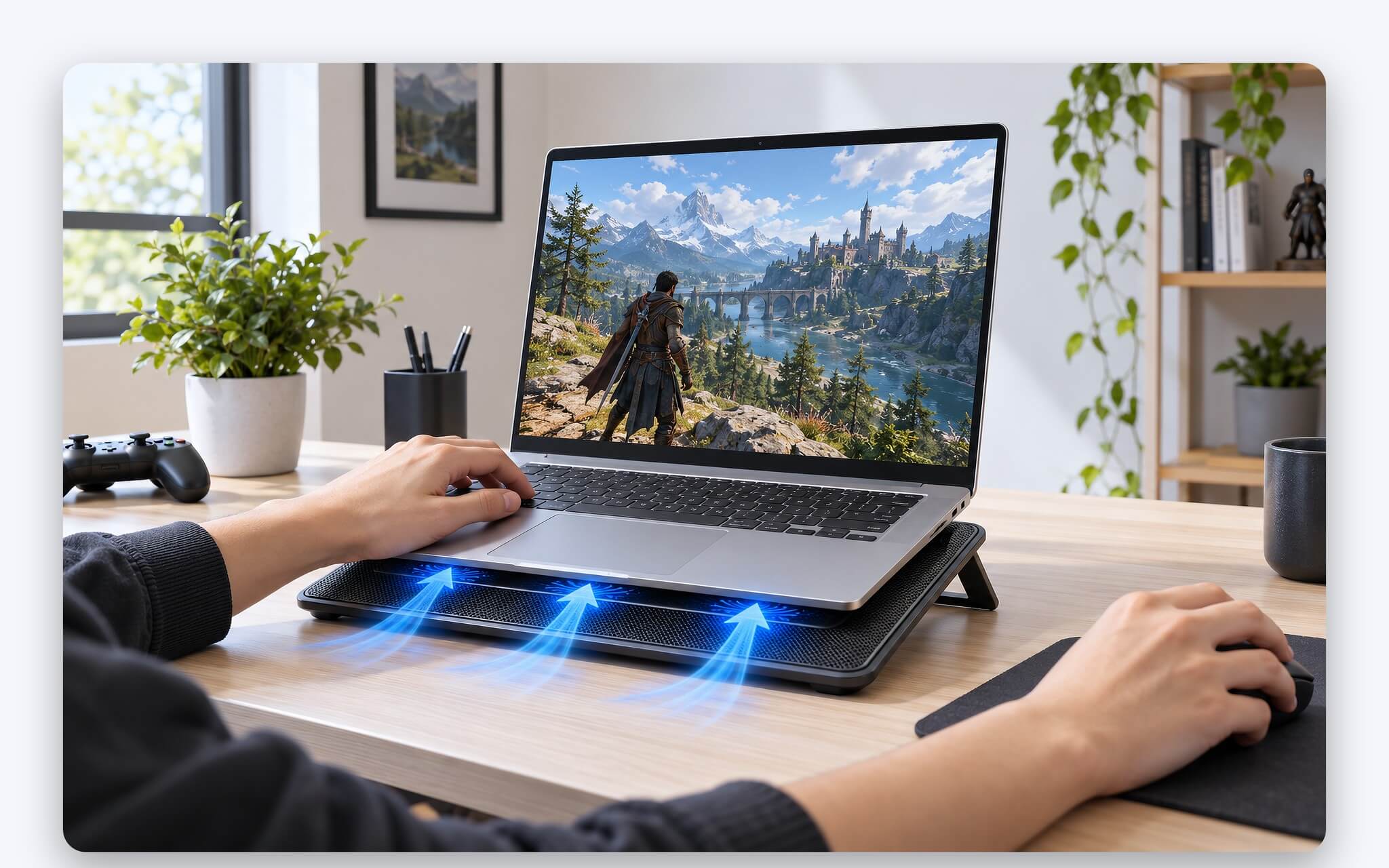
A second scenario is when you have to use a laptop on a bed, sofa, or blanket. Lenovo, HP, and Dell all advise against soft surfaces because fabric and bedding easily block ventilation slots, recommending that laptops only be operated on hard, flat surfaces. In this situation, a laptop cooling pad serves as a rigid barrier, keeping intake vents unobstructed even if the pad's fans are turned off.
A third scenario involves thin gaming laptops, which have smaller fans and tighter airways than thicker models, leaving the cooling system with less headroom and making it quicker to thermal throttle in warm rooms. The thermal and power trade-offs manufacturers make to keep chassis slim are detailed in the article Sub-2kg Thin and Light Gaming Laptops: What Are the Trade-offs for GPUs and Battery Life? For these machines, a pad whose fans align with the intake vents helps offset some of that fresh airflow deficit.
When a Cooling Pad Is Practically Useless for Your Laptop
A laptop cooling pad rarely makes a difference on thin-and-light office models powered by energy-efficient processors that merely run a browser, Word, Excel, or virtual meetings. Under these light workloads, the laptop's fans spin slowly or stay idle, and little heat is generated, so extra airflow barely improves performance and only makes the bottom chassis feel cooler to the touch. Laptops that pull in air through the keyboard deck, as shown in the table above, also belong to the group that sees minimal benefit.
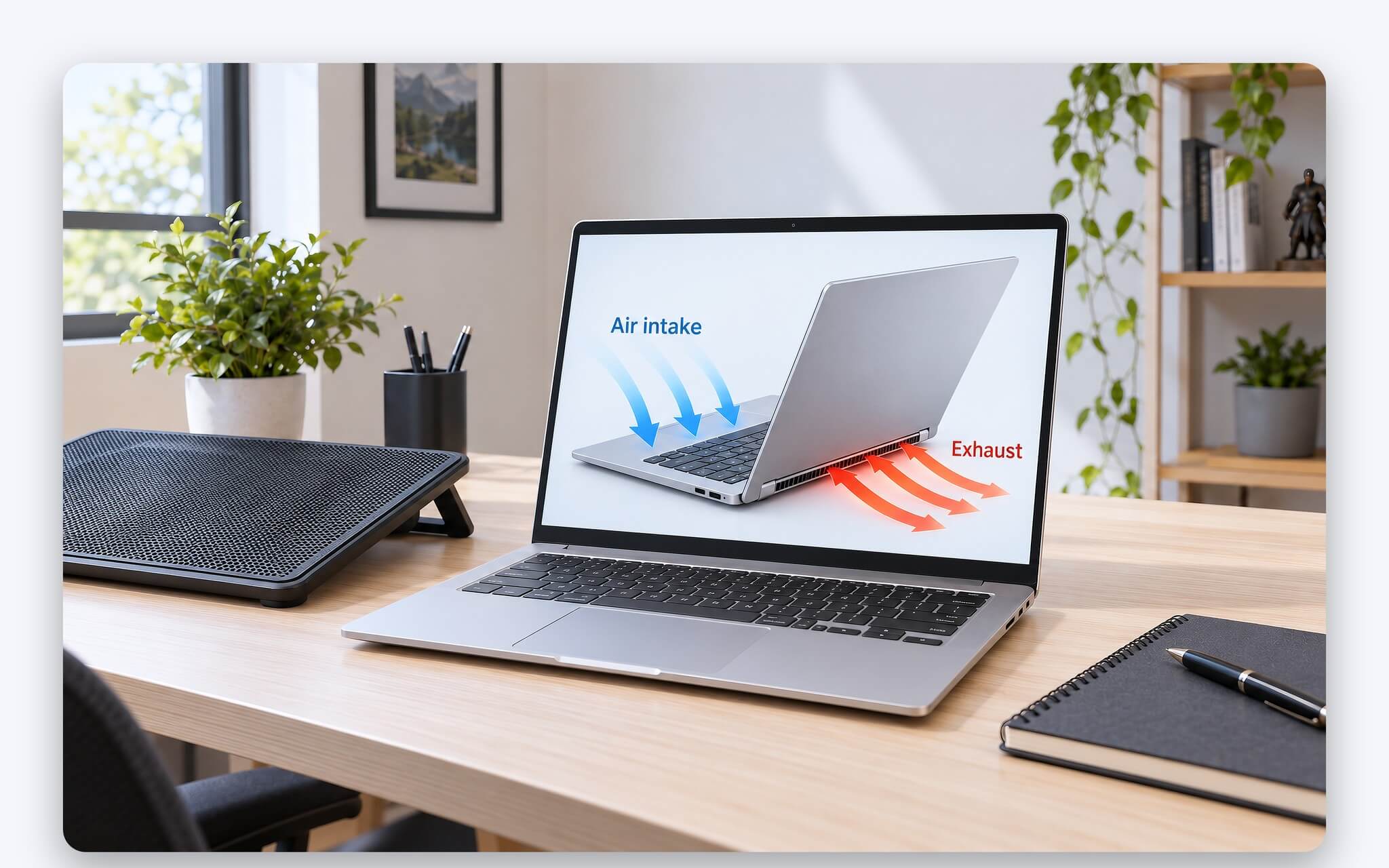
A laptop cooling pad is also ineffective when misaligned. If the pad's fans miss the laptop's intake vents or blow against the exhaust ports along the rear edge, the pad's airflow blocks the escaping hot air, trapping heat around the chassis. Many cooling pads allow you to detach or reposition their fans, so you should align them with the bottom intake grilles rather than centering the laptop on the pad out of habit.
A final scenario occurs when the source of heat lies inside the laptop: heavy dust buildup on the fans, clogged heatsink fins, or dried-out thermal paste between the chip and heatsink assembly. Fundamentally, a cooling pad only improves external air circulation; it cannot fix poor heat transfer from the chip to the copper heat pipes. If a laptop has been in use for several years and runs unusually hot even under light loads, the sensible solution is cleaning and replacing thermal interface materials, as detailed in our guide on What Is PTM7950: Phase Change Thermal Pads for Longer-Lasting Laptop Cooling Than Regular Paste.
Choosing Fan Size, Layout, Noise Levels, and Power Delivery
Nearly all laptop cooling pads draw power from the laptop's USB port or a standalone charger, so fan power draw is capped by port specifications. According to Microchip's USB technical documentation, a USB 2.0 port supplies 500 mA at 5 V, USB 3.0 and 3.1 deliver 900 mA at 5 V, and USB-C ports can specify 1.5 A or 3 A at 5 V. In wattage terms, these ratings define the total power ceiling that a pad's fans and lighting must operate within.
| Power Port Standard | Current at 5 V | Maximum Power (W) |
|---|---|---|
| USB 2.0 | 500 mA | 2.5 |
| USB 3.0 and USB 3.1 | 900 mA | 4.5 |
| USB-C at 1.5 A | 1.5 A | 7.5 |
| USB-C at 3 A | 3 A | 15 |
Fan size and positioning determine whether a cooling pad matches your laptop. Lenovo advises selecting a pad with a size and design tailored to the machine, making sure it does not obstruct any ventilation openings. Favor pads that match or slightly exceed the laptop's footprint for stable placement; a 16-inch laptop placed on a 14-inch pad can easily slip, and its intake vents might fall outside the fan zone. A single large, centered fan works well with laptops that have middle intake grilles, while dual-fan gaming laptops pair better with multi-fan layouts arranged horizontally.
Noise is a frequently overlooked factor: high-RPM pad fans emit a whine that stacks on top of internal laptop fan noise, making speed-control knobs desirable for dialing back RPMs during light work. On the power side, pads with multiple fans or LED lighting should plug into USB 3.x or USB-C ports to receive sufficient current, bypassing unpowered USB hubs. If a pad provides a pass-through USB port for a mouse, the fan and peripheral share the power budget of that single port.
Usage Guidelines and Routine Cleaning for Laptop Cooling Pads
To get the most out of a cooling pad, position your laptop so its bottom intake grilles sit directly over the pad's fans, keeping the rear edge unobstructed so warm exhaust dissipates freely. A moderate incline optimizes clearance underneath while bringing the display closer to eye level, though an excessively steep angle can cause the laptop to slide if the pad lacks lip supports. Lenovo's safety documentation also sets an upper threshold: air entering the computer should not exceed 35 °C, meaning that in an overly hot room, a pad simply pushes warm air right back into the chassis.
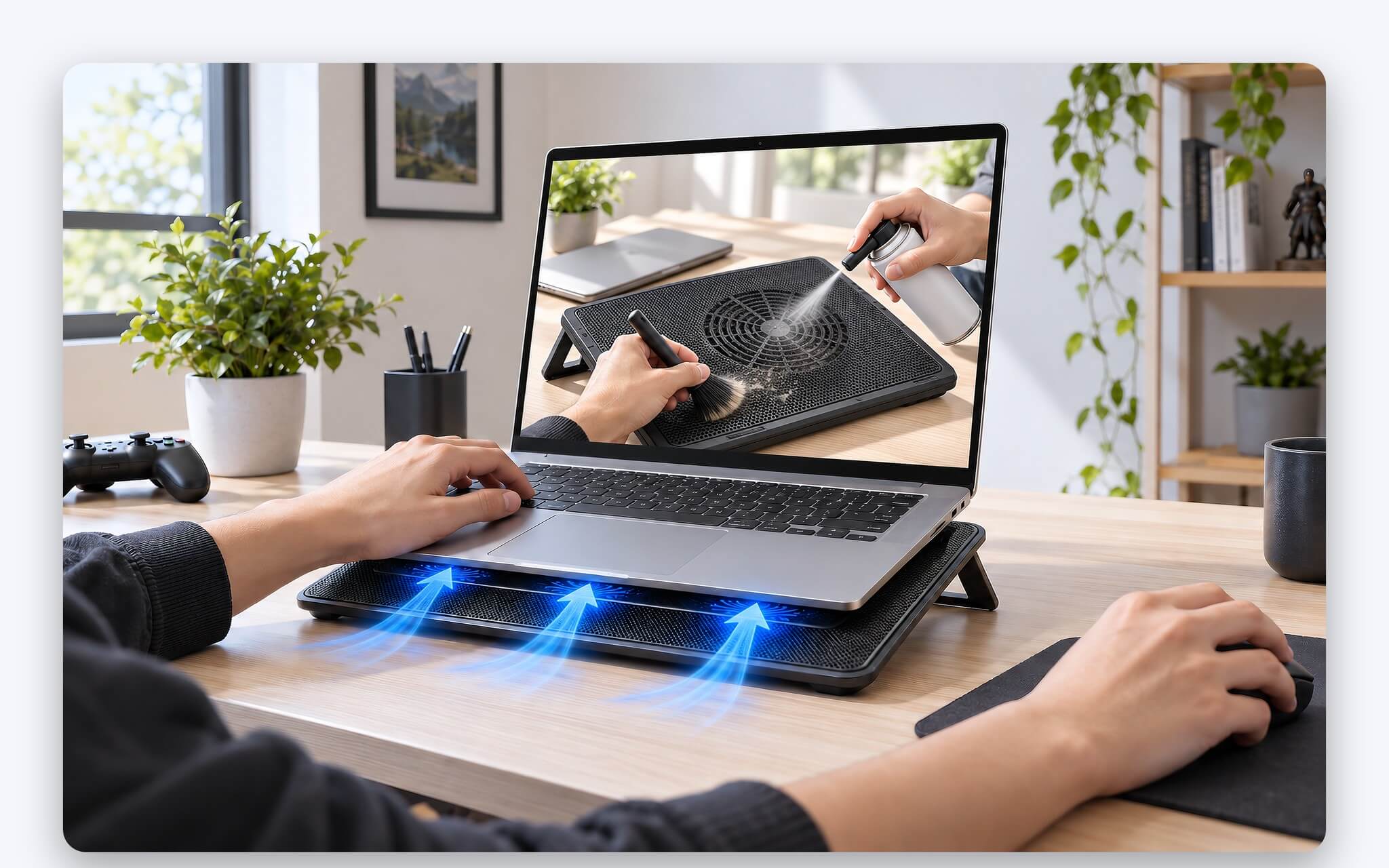
Cooling pads pull in dust just like any other fan-equipped accessory, and buildup on the mesh and fan blades will be blown straight into the laptop's intake vents. That makes periodic cleaning of the mesh surface and fan blades essential, always unplugging the USB cable beforehand. Dell recommends using compressed air to clear dust from vents, keeping the can upright to prevent moisture discharge, and avoiding vacuum cleaners due to potential static electricity damage to components.
Lenovo suggests inspecting the computer's exterior regularly to catch dust accumulation, cleaning vents more frequently in dusty environments. When using a laptop cooling pad, you can combine both tasks into one routine: whenever you clean the pad, check the laptop's bottom intake grilles at the same time. If the laptop continues to run hot despite a functioning pad and clear intake grilles, the next step is having its internal fans and thermal paste inspected at a warranty service center.
Frequently Asked Questions About Laptop Cooling Pads
Can a cooling pad damage a laptop?
No, provided the laptop cooling pad is oriented properly. Blower-style pads simply deliver extra airflow to the bottom intake vents. The risks stem from pad fans blowing directly against exhaust ports or blowing dust from a dirty pad into the laptop, both of which are avoidable through proper alignment and routine cleaning.
Does a fanless laptop need a cooling pad?
Passively cooled laptops lack intake vents for a pad to force air inside. Airflow directed across the bottom panel only helps the chassis dissipate heat marginally faster. For this category of laptops, an angled stand on a hard desk mainly improves typing comfort and posture.
Does plugging a cooling pad into a USB port drain the laptop's battery?
Yes, because the pad's fans draw power from the laptop, consuming a portion of battery capacity. Power consumption is capped by port standards at up to 2.5 W for USB 2.0 and 4.5 W for USB 3.0. When running on battery power, you can lower the fan speed or choose a pad powered by a standalone charger.
Does using a cooling pad on a bed eliminate overheating concerns?
A rigid pad separates the laptop from blankets and mattresses so bottom intake vents stay unobstructed, aligning with recommendations from Lenovo, HP, and Dell to operate laptops on firm, flat surfaces. You still need to keep the rear edge and sides clear of pillows or bedding so hot exhaust air can escape.