The BIOS (or UEFI) is software embedded on the motherboard that runs before Windows to initialize hardware. Updating the BIOS can resolve battery detection issues, fix hibernation bugs, or patch security vulnerabilities, but losing power mid-update can leave a laptop unable to boot. This guide compiles official instructions from HP, Lenovo, Dell, Acer, and Microsoft on when to do it, how to prepare, and how to recover if something goes wrong.
When to Update Your BIOS and When to Leave It Alone
The ReadMe file bundled with Lenovo's BIOS packages explicitly states that if your computer is running smoothly, you may not need to update the UEFI BIOS. HP also advises installing an update only when the system encounters recurring errors, following a processor upgrade, or when recommended by technical support. In other words, a new BIOS version is not something to install out of habit, since reflashing laptop firmware always carries inherent risks. If you are unclear about how BIOS differs from standard software, the article on Distinguishing Firmware and Software: Definitions and Functions explains how this firmware layer works.
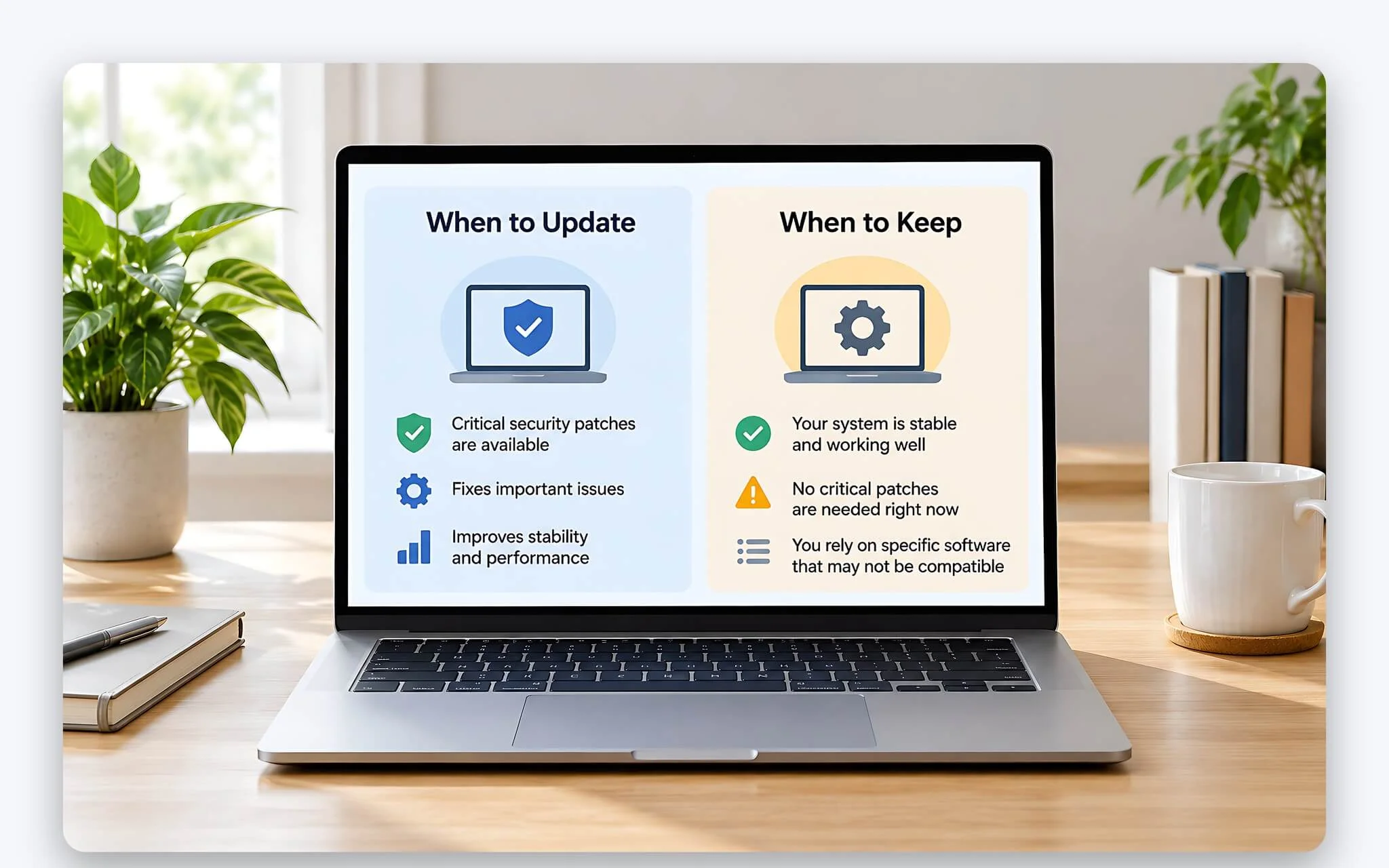
The most reliable source of information is the release notes for your exact laptop model. For example, a recent ThinkPad BIOS package resolved issues where the system failed to detect the battery, opening the lid did not wake the laptop from hibernation, or the Caps Lock LED behaved incorrectly. If your laptop exhibits the exact symptoms described, updating the BIOS makes sense. If the notes only mention hardware your machine lacks, such as a WWAN modem, the actual benefit is practically zero.
Prioritize installing critical security patches labeled by manufacturers (marked as Critical in Lenovo Vantage or Important in release notes), as well as fixes for the battery, charging, or storage drives. If your laptop suffers from unstable power, a swollen battery, or frequent sudden shutdowns, address the hardware problems first, as writing laptop firmware requires an uninterrupted power supply. A BIOS update also will not push processor performance beyond hardware limits, so do not expect a speed boost.
Preparing Power, BitLocker, and BIOS Versions Before Installation
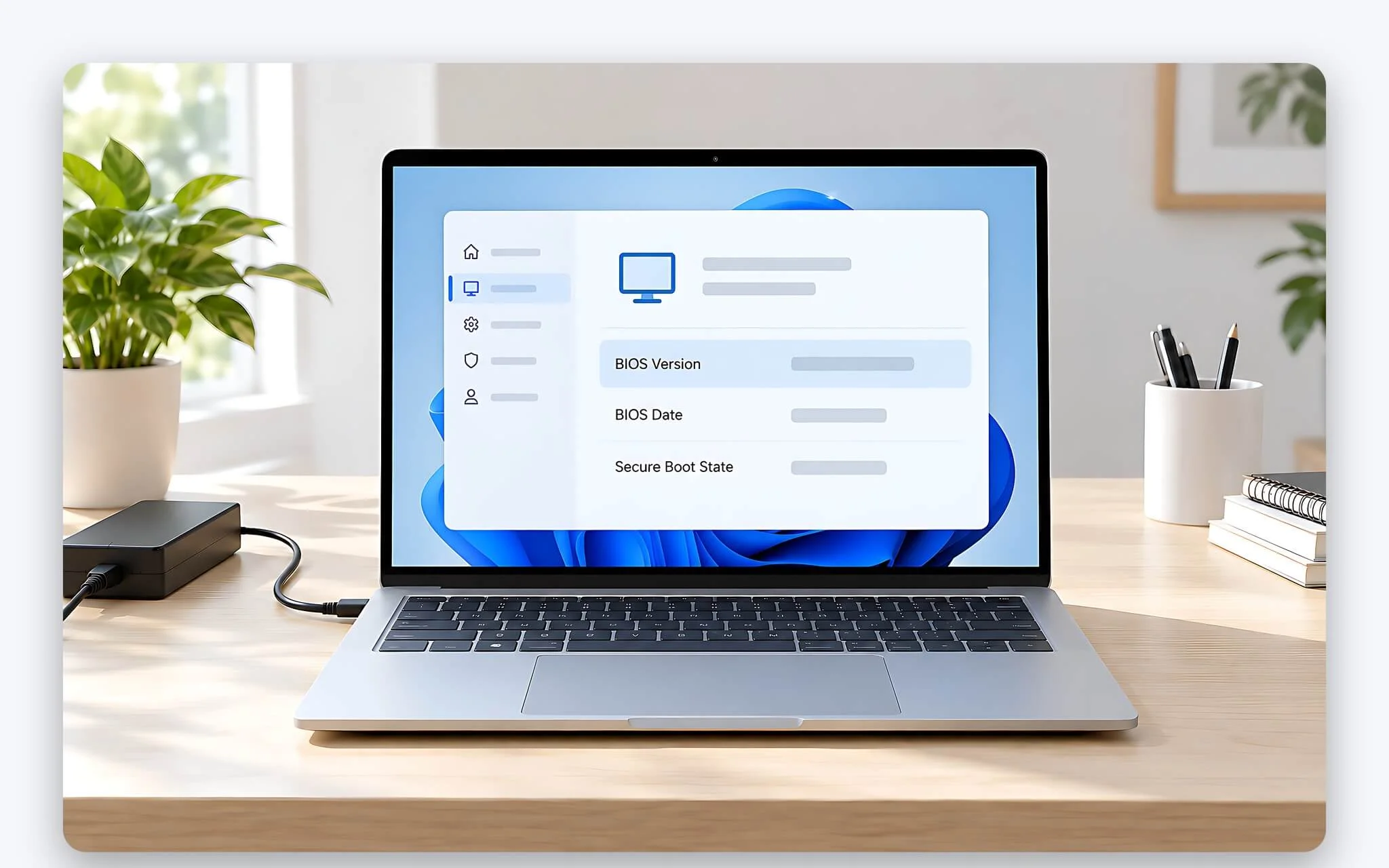
The first step is noting your current BIOS version. In Windows, press Windows + R, type msinfo32, and look for the BIOS Version/Date line; Dell also documents running the wmic bios get smbiosbiosversion command in Command Prompt. On HP laptops, pressing Fn + Esc quickly opens HP System Information. Next, identify the exact model, product number, or serial number on the bottom of the laptop, as two models sharing the same commercial name may use different motherboards.
| Manufacturer and Scenario | Minimum Battery Level (%) | Power Requirement | Manufacturer Documentation |
|---|---|---|---|
| Dell, standard update | 10 | Connected to AC power throughout | Dell BIOS and UEFI Update Guide |
| Dell, failed update recovery | 50 | Confirm the laptop is plugged into AC power | Dell BIOS and UEFI Update Guide |
| Lenovo ThinkPad, BIOS package for Windows | 25 | AC adapter or battery above 25%; manual installation requires a securely plugged-in adapter | BIOS Update Utility Package ReadMe |
| Dell, BIOS recovery using Ctrl + Esc | 25 | Keep power cord connected throughout recovery | Dell BIOS Recovery |
| HP, update within Windows | Not specified | Keep adapter plugged in throughout | HP Notebook PCs, How to Update the BIOS |
While battery thresholds vary across brands, the common requirement is keeping the AC adapter plugged in from start to finish. Lenovo BIOS packages even feature a specific error code (-10) indicating that the adapter was unplugged or the battery is insufficiently charged, meaning the utility aborts if power conditions are not met. Dell explicitly warns against updating on battery power alone. Before updating the BIOS, close all running applications, save your work, and back up essential data; HP also advises temporarily disabling antivirus software and re-enabling it after the update finishes.
If your drive uses BitLocker encryption, you must suspend protection before installing the update. As Microsoft explains in its documentation, Suspend BitLocker protection for non-Microsoft software updates, flashing laptop firmware from an OEM without suspending protection causes Windows to demand the recovery key on the next reboot; without that key, data can be lost. The Suspend-BitLocker command lets you set RebootCount from 0 to 15 reboots.
Comparing Official Tools from HP, Lenovo, Dell, and Acer
All four manufacturers provide official installation paths. For HP, the automated BIOS update tool is HP Support Assistant: select your laptop under My Dashboard, click Updates, and install the BIOS package if available. HP notes that this application does not support Windows in S Mode. HP also lets you check for new versions through Device Manager under System Firmware, or download a SoftPaq file; if the support page does not list a newer BIOS release, the laptop is already on the current version.
| Brand | Automated Tool | Manual Method | Official Documentation Notes |
|---|---|---|---|
| HP | HP Support Assistant | SoftPaq files or Device Manager under System Firmware | Does not support S Mode |
| Lenovo | Lenovo Vantage, Lenovo System Update | BIOS package on Lenovo Support with ReadMe file | Updates grouped into critical, recommended, and optional |
| Dell | SupportAssist; Dell Command Update for Latitude, OptiPlex, and Precision | BIOS file on support site or Windows Update (optional updates) | May block downgrades after critical security patches |
| Acer | No dedicated BIOS utility specified | Drivers and Manuals section, under BIOS/Firmware | Some models receive BIOS updates solely through Windows Update |
For Lenovo, official user guides outline the process within Lenovo Vantage: navigate to System Update, click Check For Updates, select the UEFI/BIOS package, and click Install selected to let the app download and install it automatically. Updates are categorized as critical, recommended, or optional. Lenovo also maintains the standalone Lenovo System Update utility, and every manually downloaded package comes with a ReadMe detailing applicable models, the new BIOS version, and installation prerequisites.
Dell defines its toolsets more clearly: SupportAssist is recommended for most users due to its automated scan and install capabilities, while Dell Command Update targets enterprise lines like Latitude, OptiPlex, and Precision. Certain models receive laptop firmware via Windows Update as optional updates. For Acer, head to support.acer.com, open Drivers and Manuals, enter your serial number, SNID, or model name, and expand the BIOS/Firmware section to download. Acer also confirms that some laptops do not have standalone BIOS files hosted online and receive updates solely through Windows Update.
What Not to Do While Laptop Firmware Is Flashing
The most dangerous phase is when the flashing utility writes data to the motherboard memory chip. The Lenovo ThinkPad BIOS package ReadMe warns in capital letters that turning off or putting the laptop to sleep while a BIOS update is in progress may require replacing the system board. HP similarly cautions that interrupting the update process can leave the computer unable to start up. As a result, documentation from every manufacturer emphasizes maintaining a stable power supply while flashing laptop firmware.
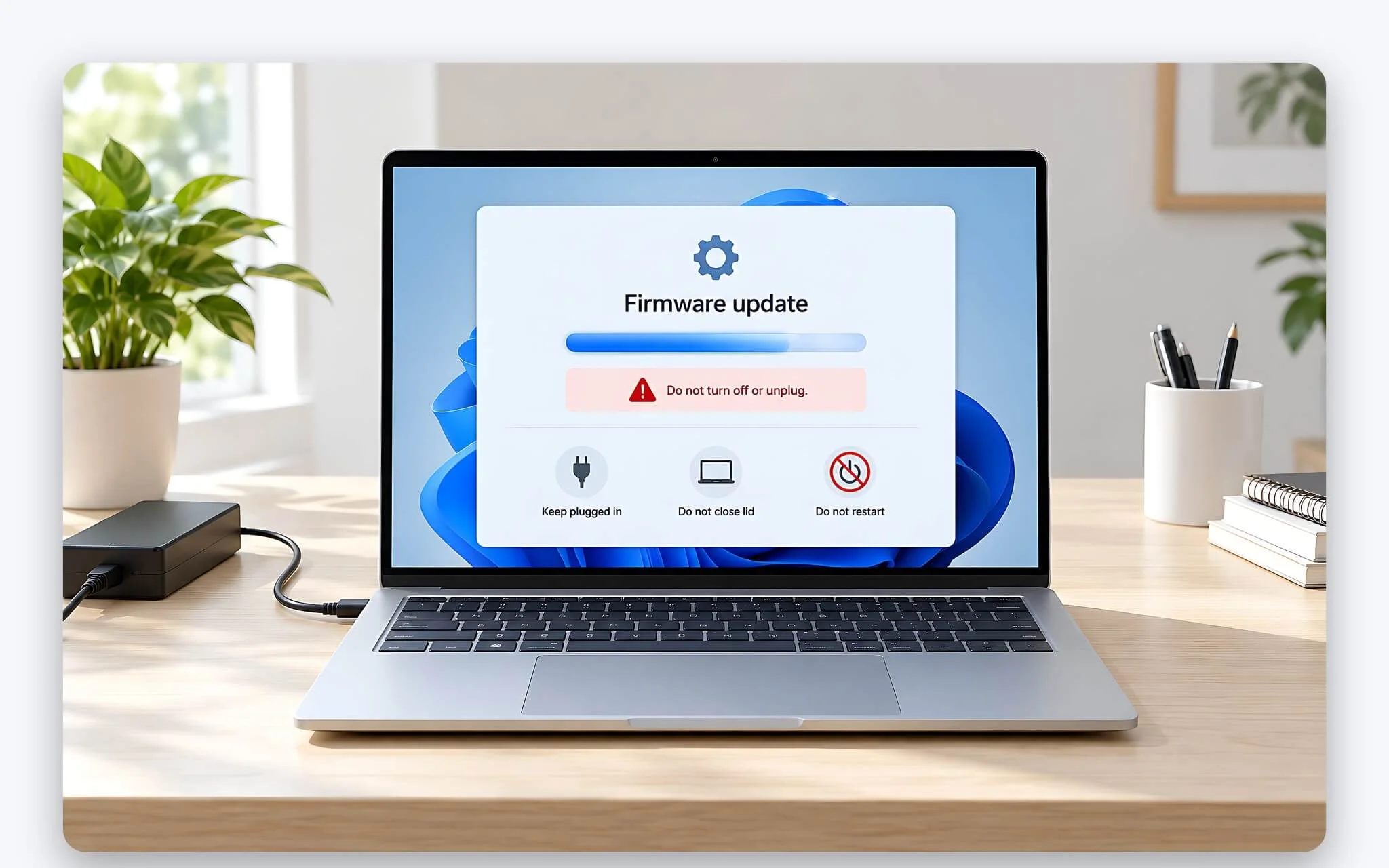
During flashing, do not close the lid, unplug the charger, hold down the power button to force a shutdown, or repeatedly press keys. Once the utility prompts for a restart, let it transition to the laptop firmware update screen on its own. Some packages also require prerequisite updates; for example, the aforementioned ReadMe requires installing an accompanying Qualcomm firmware package before flashing version 2.13, so do not alter the sequence or stack multiple updates together.
Several normal behaviors can easily look like a system freeze. HP notes that symptoms such as unexpected reboots, a black screen, changing fan speeds, beeps, and blinking power LEDs are expected during a BIOS update. You should only suspect an issue if an explicit error message appears on the screen, and even then, never cut power manually; switch to the manufacturer's recovery procedure instead. Always download BIOS files directly from official support portals rather than third-party forum links.
Checking BIOS Version and Windows After Reboot
Once Windows boots back up, the first step is to open System Information and compare the BIOS version against the release notes. Acer outlines this exact step at the end of its update guide: after Windows finishes loading, open System Information to verify that the BIOS/Firmware version has changed to the new release. If the version number remains unchanged, the utility may have encountered an error midway through; Lenovo BIOS packages write the installation outcome to a WINUPTP.log file in the same directory as the installer.
After updating the BIOS, if you previously suspended BitLocker in Control Panel, navigate back to BitLocker Drive Encryption and select Resume protection. Microsoft points out that suspended status persists until manually re-enabled. To verify that your drive is protected again, check its status as outlined in Checking BitLocker status in Windows 10 using multiple methods. Re-enable your antivirus software as well. Next, check the charger, battery level, keyboard, touchpad, Wi-Fi, audio, and USB-C ports, then reboot one more time to verify that the POST sequence completes normally.
If an HP laptop displays error 251 or a CMOS error after flashing, the vendor provides a dedicated guide for CMOS checksum recovery. Rolling back to an older version is often blocked. Dell notes that downgrades may be restricted once a build includes a critical security patch, while the ThinkPad BIOS version 2.13 explicitly prohibits rolling back to version 1.33 or earlier. Because BIOS updates are almost always a one-way street, reading the Important Notice section thoroughly before installing is essential.
How to Recover When a BIOS Update Fails or the Laptop Won't Boot
If a laptop fails to boot into Windows after a faulty firmware write, both HP and Dell provide built-in BIOS recovery mechanisms. For Dell, most machines manufactured since December 2015 support BIOS Recovery: unplug all USB drives, charge the battery to at least 25%, unplug the power adapter, hold Ctrl + Esc on the laptop keyboard, then plug the power adapter back in and release the keys once the recovery screen appears. If it does not appear, Dell suggests holding the keys for about 30 seconds instead of 15 to 20 seconds. The process may restart several times, and you should wait at least 15 minutes.
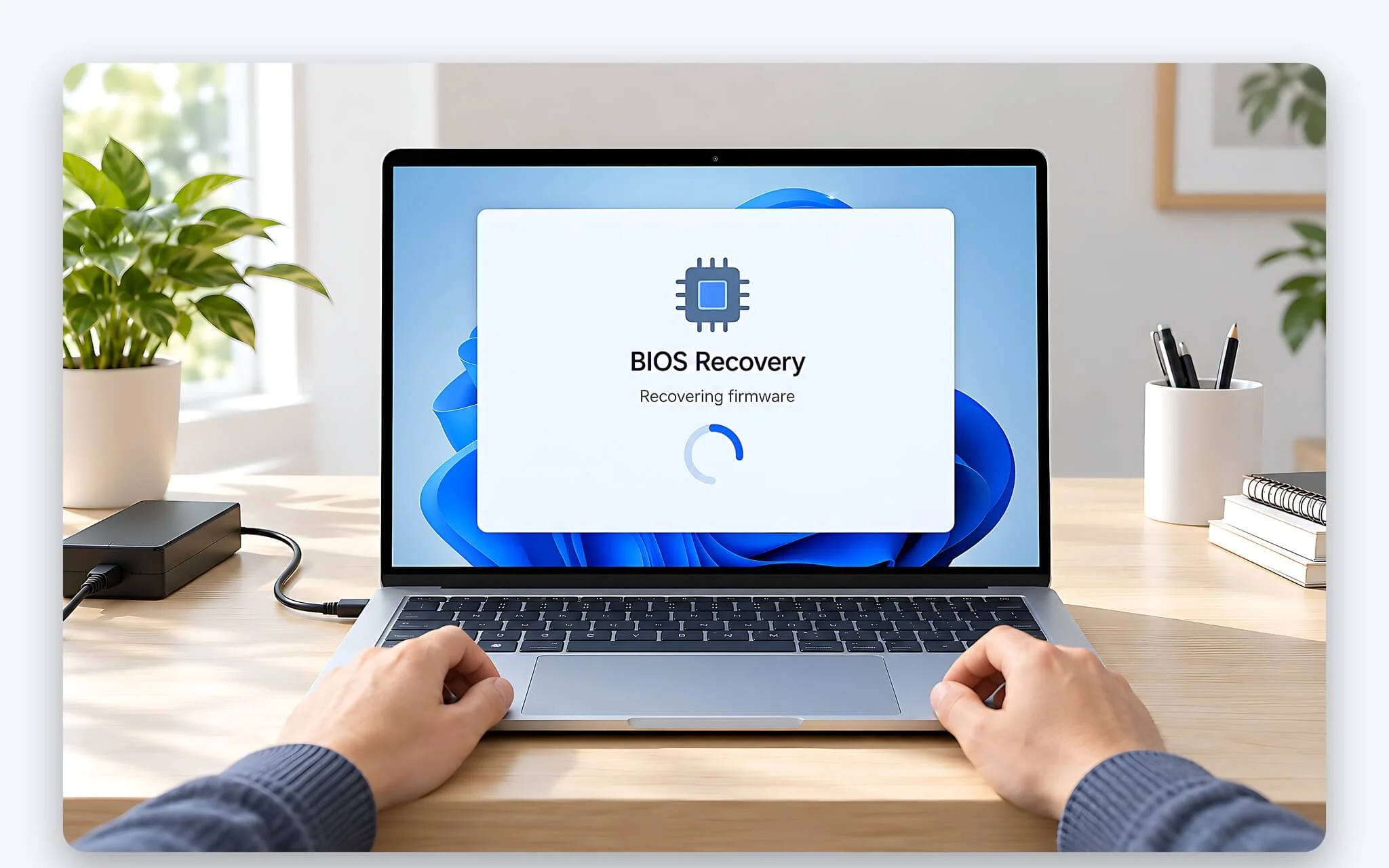
When a recovery file is required, Dell requires a blank USB drive with at least 2 GB of space formatted as FAT32; you must rename the BIOS file to BIOS_IMG.rcv and place it in the root directory. For HP, turn off the laptop completely, plug in the adapter, hold Windows + B, and then hold the power button for 2 to 3 seconds; release the power button but continue holding the two keys until you hear a beep or see the HP BIOS Update/Recovery screen; the screen may remain black for 30 to 60 seconds. HP also allows you to create a recovery USB using the Create Recovery USB Flash Drive option on another computer.
After recovery, BitLocker may request a 48-digit recovery key, so you must save this key before starting. Dell confirms that a BIOS recovery only affects the laptop firmware, leaving data and Windows intact, though it cannot fix hardware damage. If you have tried all the key combinations and USB drives and the laptop still will not display an image, the cause may be the motherboard; in this case, you should take the laptop in for diagnosis rather than attempting to load multiple files.
Frequently Asked Questions (FAQ)
Does a BIOS update delete data or Windows on the laptop?
This process writes to the firmware on the motherboard and does not change files on the storage drive. Dell confirms that even the BIOS recovery process leaves data and Windows intact. The actual data risk comes from BitLocker: if you do not suspend protection and do not have the recovery key, you could be locked out of the drive.
Can I update the BIOS when the laptop is running only on battery?
You should not. Dell recommends against updating using only the battery, requiring the AC adapter to be plugged in throughout the process along with a minimum charge of 10%. ThinkPad BIOS packages accept an adapter or a battery above 25%, but manual installation instructions still require the adapter to be securely plugged in. A power outage during a write operation is an unpredictable risk, so choose a time when the power supply is stable.
Is it safe for Windows Update to automatically install a new BIOS version?
This is an official distribution channel. Dell delivers BIOS via Windows Update as an optional update on some models, Acer states that certain laptop lines only receive BIOS through this channel, and HP instructs users to find new versions under the System Firmware section in Device Manager. You still need to plug in the charger, suspend BitLocker, and not turn off the laptop while the update screen is running.
Why is it impossible to downgrade to an older BIOS version?
Many BIOS versions contain security patches, so manufacturers block downgrades to prevent old vulnerabilities from being reopened. Dell explicitly states that downgrading may be blocked once a version contains critical patches, while ThinkPad has a Secure RollBack Prevention option in the settings. The safest approach is to read the Important Notice section in the new BIOS version notes before installing.