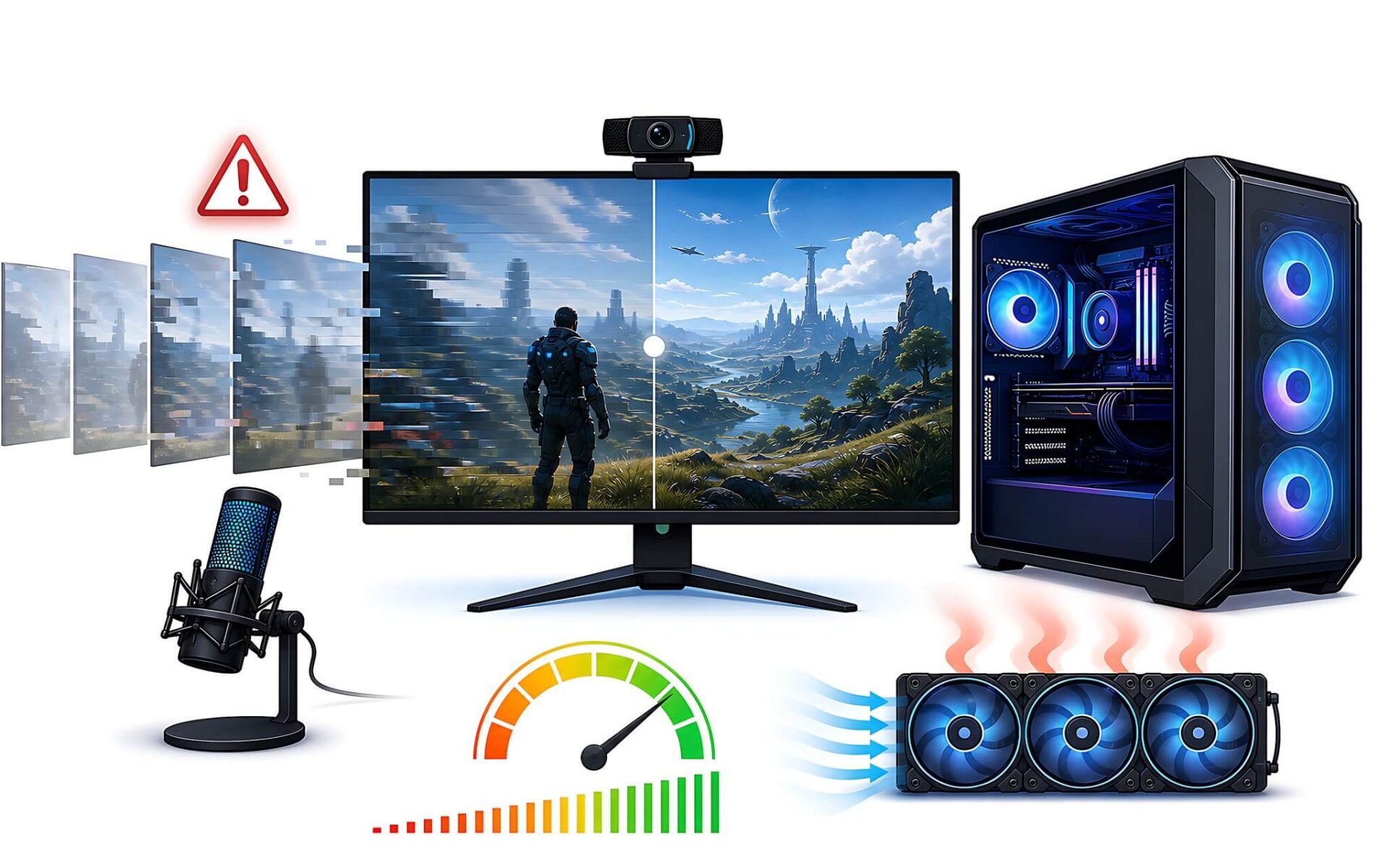
Playing a game and broadcasting at the same time piles several workloads onto one machine, and frames start getting dropped along the way. OBS dropped frames usually trace back to an encoding bottleneck in the encoder, a bottleneck between the processor and the graphics card, or insufficient upload bandwidth. This article explains the mechanics, shows how to diagnose the problem through the stats panel, and covers bitrate and cooling optimizations that keep your stream smooth.
What Are OBS Dropped Frames, and Why Do Frames Get Dropped?
In streaming software, the term dropped frames covers three situations. The first is frames skipped because of rendering lag, when the graphics card is overloaded and cannot composite the scene layout in time. The second is frames dropped because of encoding lag, when the encoder cannot compress in real time. The third comes from the network, when bandwidth falls short of the bitrate you have set.
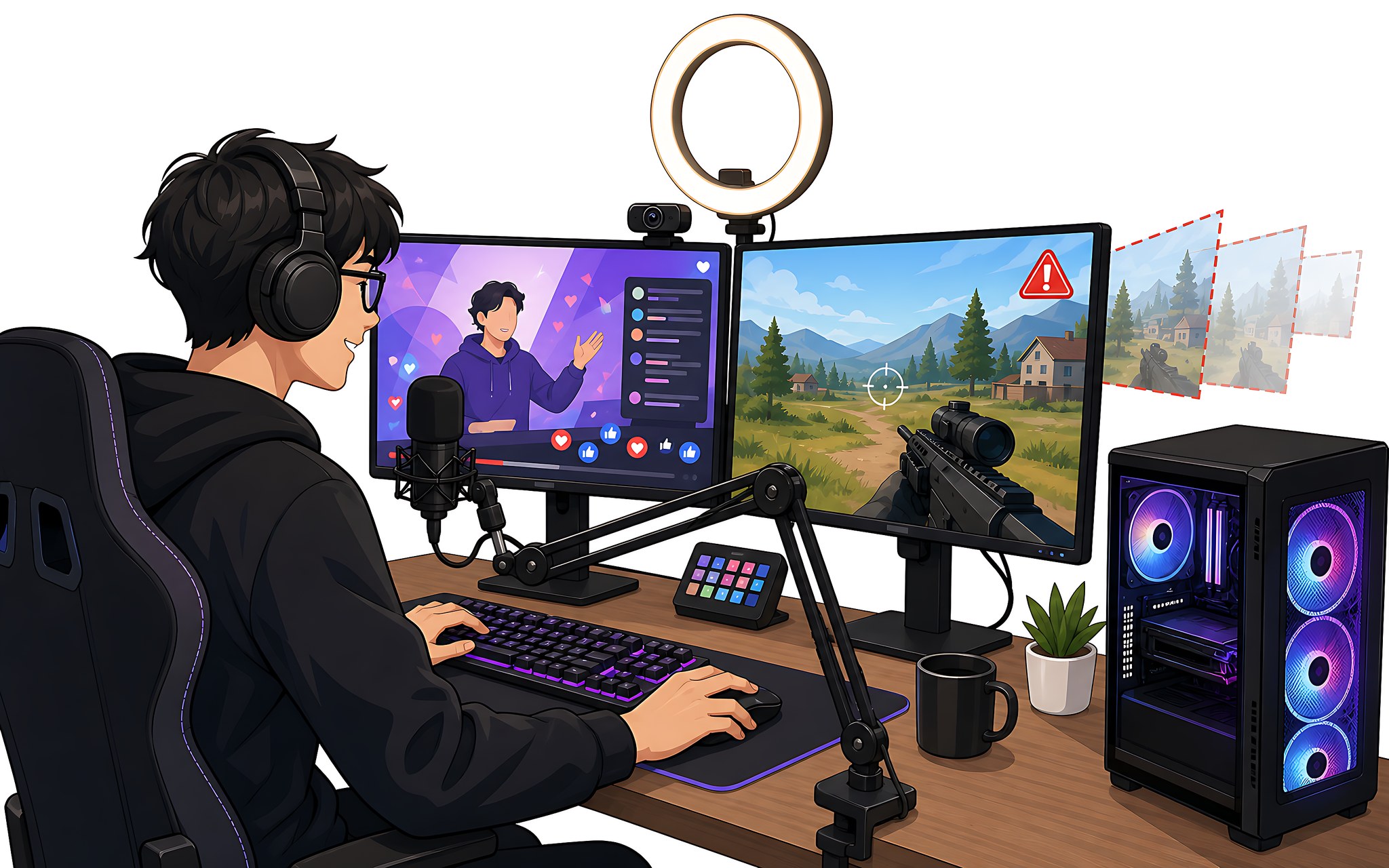
The built-in stats panel shows each category clearly, so reading the right metric is the key step before you change anything. OBS dropped frames rarely have a single cause, which is why you need to look at all three numbers at once instead of guessing and tweaking at random.
Live streaming does not allow for waiting. When one link in the processing chain runs slowly, the software has to discard frames to keep pace, and that is when OBS dropped frames become visible to viewers. Every fix that follows comes down to easing the point in the chain that is jammed the worst.
Encoder Bottlenecks and Encoding Lag Cause Dropped Frames
The encoder in OBS Studio is where the video feed is compressed into data for transmission. You can compress with the processor through x264, or with a dedicated hardware block such as NVENC on NVIDIA cards, QuickSync on Intel chips, and AMF on AMD cards.

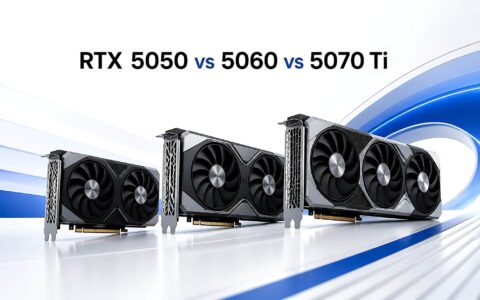
The hardware encoding block is separate from the graphics core used for gaming, so there is less contention for resources. As a result, switching to NVIDIA's NVENC encoder often eliminates OBS dropped frames caused by encoding lag when you stream and play at the same time. Cards built on newer architectures also add AV1 compression, which delivers comparable quality at a lower bitrate.
If you have to use x264 for compatibility reasons, lower the compression preset to a lighter one to reduce the load on the processor. This trades some quality for stability, but it removes most of the OBS dropped frames that come from encoder bottlenecks, since the compression workload then matches what the hardware can handle.
The CPU and GPU Bottleneck Determines Encoding Capacity
A bottleneck appears when one component hits its ceiling while the other still has headroom. During heavy gaming, the graphics card is pushed close to its maximum, leaving the scene rendering short on resources and producing rendering lag. Conversely, compressing with x264 puts the pressure on the processor and exposes its limits there.
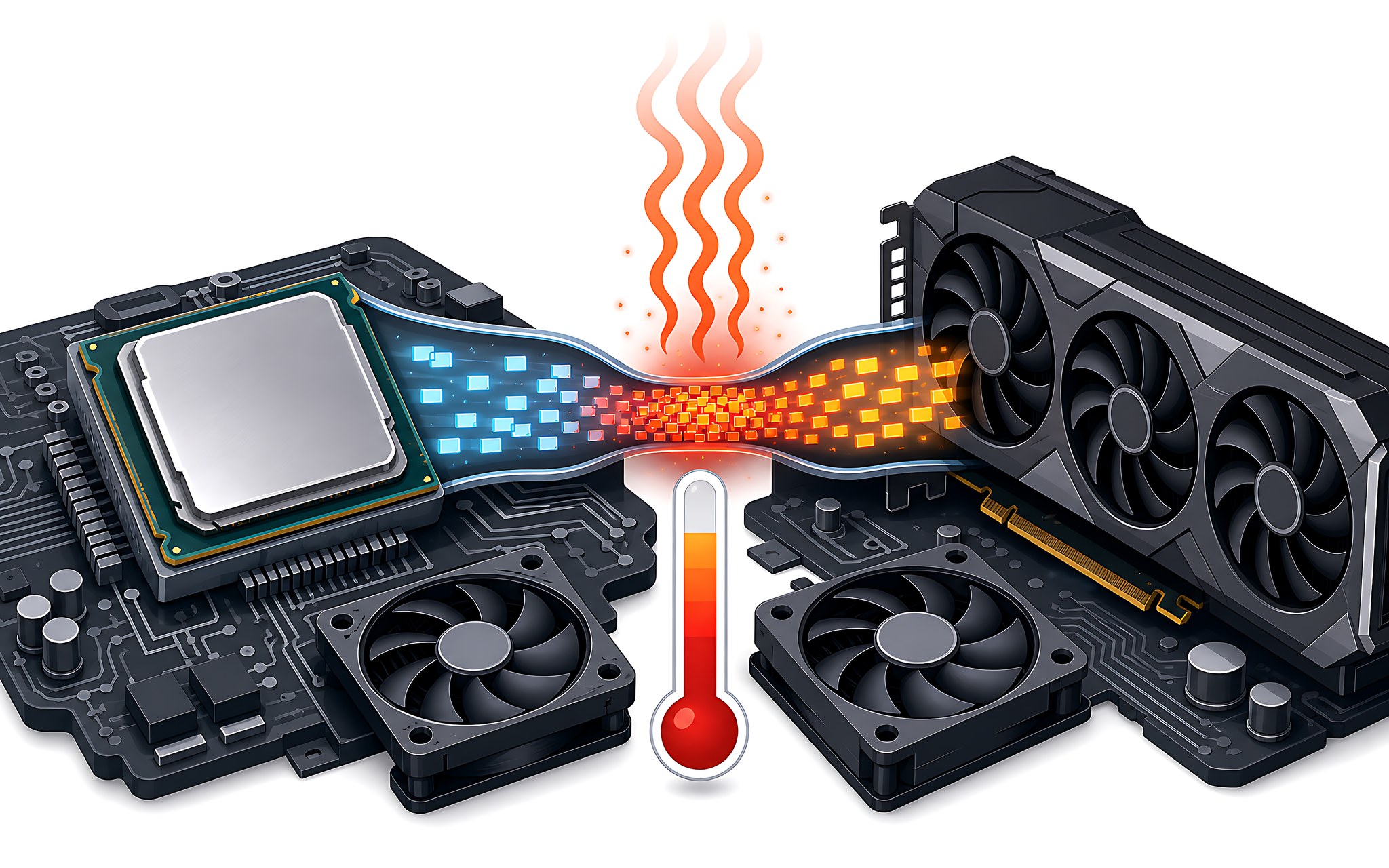
The fix is to move the load off whichever component is jammed. Capping the in-game frame rate gives the GPU room to breathe, while enabling hardware encoding shifts compression to a dedicated block and frees up the processor. When both hit their limits at once, lowering the output resolution to 1080p cuts the compression workload significantly, which helps prevent OBS dropped frames on mid-range systems.
Optimizing Bitrate and Cooling to Prevent Dropped Frames
Bitrate is the amount of data sent per second, and it determines both sharpness and bandwidth use. Setting it too high relative to your upload speed causes network frame drops even while the processor and graphics card sit idle. A safe rule is to choose a bitrate below your measured upload speed, leave a margin for fluctuations, and prefer constant bitrate mode (CBR).
As for heat, during a long broadcast the processor and graphics card gradually warm up to their protection threshold and then lower their clock speeds to cool themselves. Lower clocks mean a slower encoder, which is why OBS dropped frames often show up after a few dozen minutes rather than right from the start.
Cleaning the fans, keeping airflow clear, and using a cooling pad help sustain clock speeds for longer, offsetting the excess heat with little effect on performance. A stable thermal baseline is the core factor in keeping the encoder running evenly so that OBS dropped frames do not return mid-session.
Diagnosing OBS Dropped Frames with the Stats Panel and How to Fix Them
The process starts with the stats panel in the software. Read the three dropped-frame metrics in turn to find out whether the bottleneck lies in rendering, encoding, or the network connection, then apply the right fix instead of changing settings at random. The table below summarizes how to identify and handle each category.
| Stats panel metric | Bottleneck | Fix |
|---|---|---|
| Rendering lag | Graphics card overloaded | Cap the game frame rate, lower settings, shrink the capture frame |
| Encoding lag | Processor or compression block overloaded | Enable NVENC, QuickSync, or AMF, lower the x264 preset |
| Network dropped frames | Insufficient upload bandwidth | Lower the bitrate, use a wired connection, enable CBR mode |
After fixing the main bottleneck, stream a test for a few minutes, then check the stats panel again to confirm the dropped frame count is back to zero. If a different metric starts climbing, that is the next bottleneck showing itself, and you handle it the same way in order of priority. At its core, OBS dropped frames are a sign that one link in the chain has hit its limit, so fixing things one at a time is always cleaner than changing everything at once.
Frequently Asked Questions About OBS Dropped Frames While Streaming
Why do OBS dropped frames only appear after streaming for a while?
The culprit is usually heat. After a few dozen minutes, the processor and graphics card gradually warm up and lower their clock speeds to protect themselves, which slows the encoder and makes frames start dropping. Cleaning the cooling system and keeping cool air flowing usually pushes back this kind of OBS dropped frames.
Does enabling NVENC completely eliminate dropped frames?
NVENC eliminates most frames dropped from encoding lag because compression moves to a separate hardware block. However, if upload bandwidth is weak, frames will still drop at the network layer. In that case, OBS dropped frames only stop when you lower the bitrate and recheck your connection.
What bitrate is reasonable to avoid OBS dropped frames caused by the network?
There is no fixed number that works for every connection. Measure your actual upload speed, set the bitrate below that level, leave a margin, and prefer CBR mode. Sticking to the limits the streaming platform recommends for each resolution is the way to avoid frame drops caused by the connection.