

There are many reasons why UltraViewer might fail to display an ID, including using an outdated version or a corrupted installation caused by the device shutting down unexpectedly during the installation process. All of these can lead to the situation where Ultraviewer cannot display an ID.
Below are several ways to fix this issue that we have prepared for you. Give them a try.
Guide to fixing ID errors on Ultraviewer
Method 1: Update Ultraviewer software
When updating to a new version, old issues are often resolved by developers in those updates. To solve the problem, you should uninstall the current version and reinstall the latest version or perform an update to the latest version. You can download the latest Ultraviewer version at the link below.
Method 2: Adjust Ultraviewer software configuration
There are many reasons why the ID does not appear when starting Ultraviewer. To fix this issue, the simplest and most effective way is to update the software to the latest version.
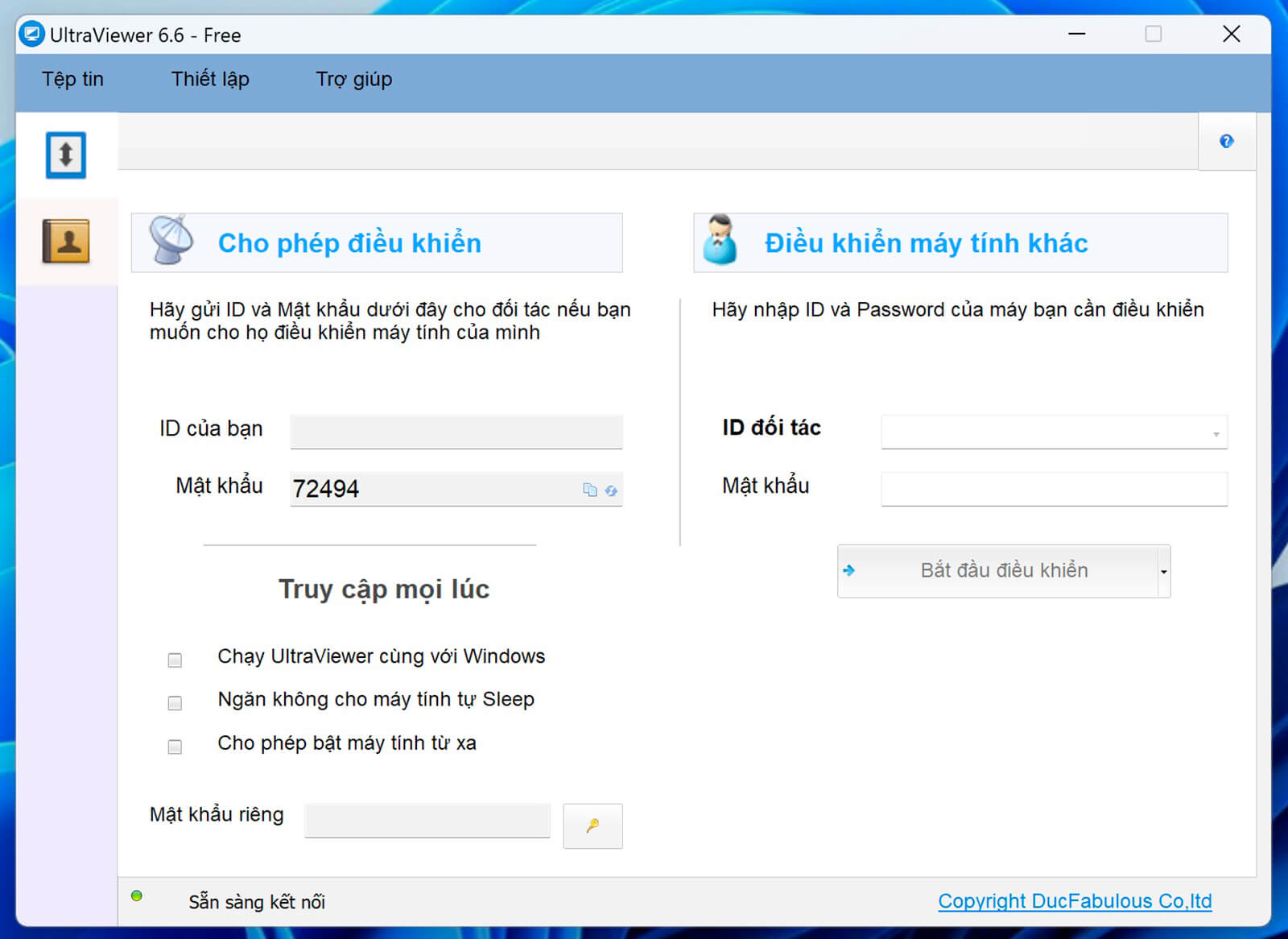
Then, select Configuration in the Settings section.
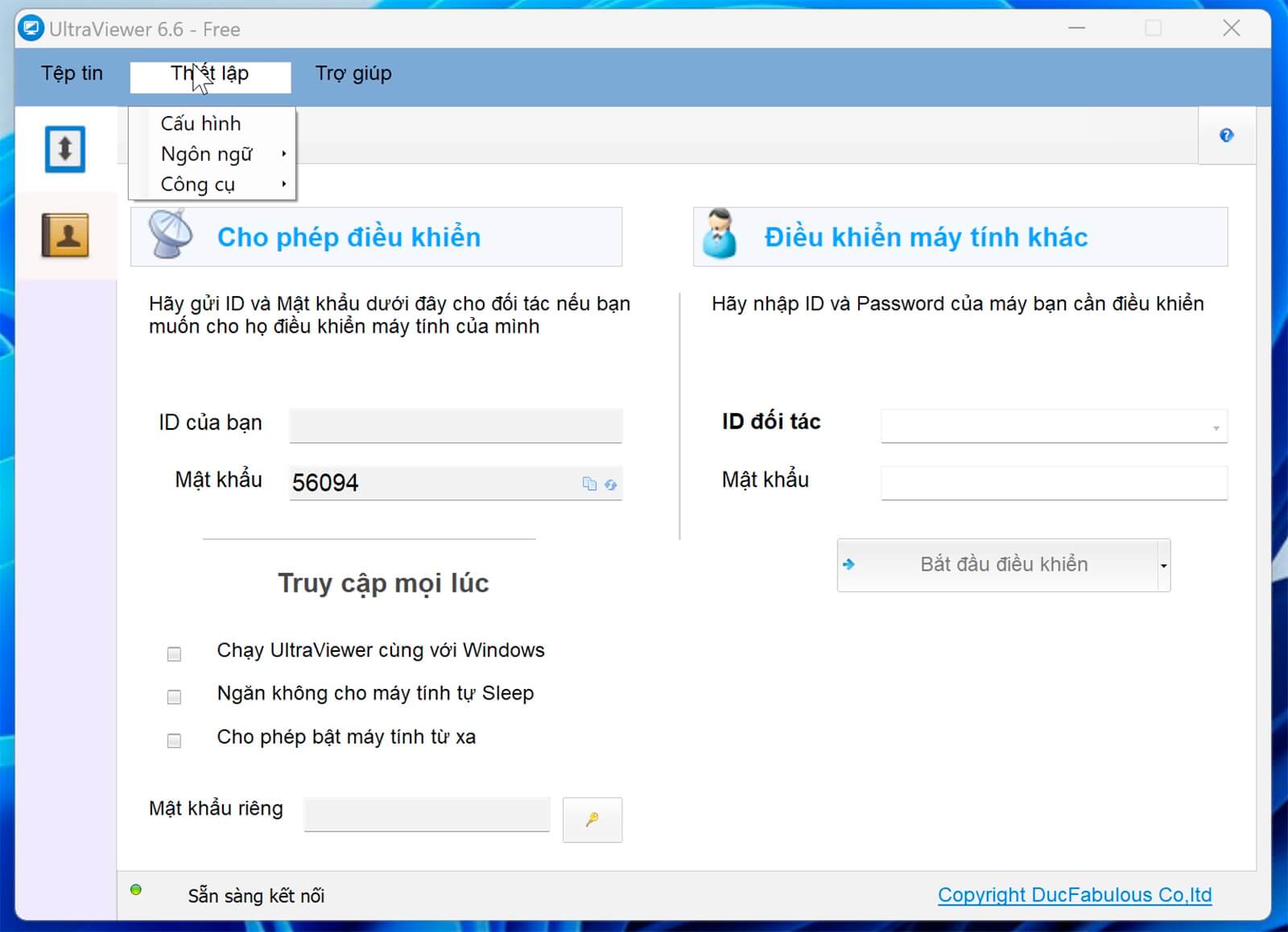
In the Port section, select Port 2112, and in the Proxy Configuration section, select Direct connection to the internet, then click OK at the bottom. Next, restart Ultraviewer and check if the ID is displayed again.
Method 3: Fix errors caused by Antivirus software
Security and antivirus software installed on your computer can cause the ID to disappear when using Ultraviewer. This happens when these programs identify Ultraviewer as a threat and block the network connection, resulting in the ID not being displayed.
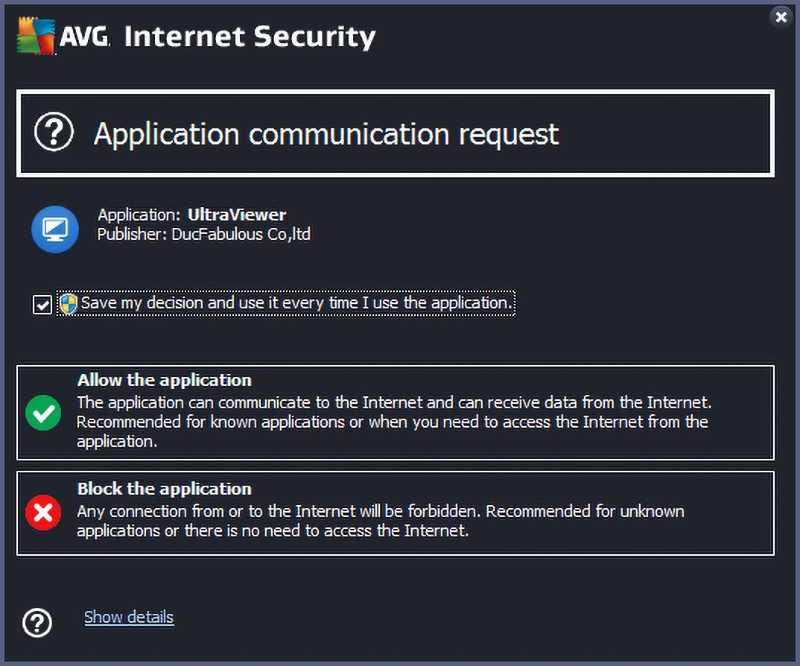
If you are using AVG Internet Security, when installing Ultraviewer, you will receive a notification requesting permission for the software to access the Internet, as shown below. To continue, the user needs to click Allow. Note that you may need to access AVG Internet Security directly to see this notification, as the software might not display the notification directly on your screen.
In the case of using Avira, a notification will appear as shown below; we click Allow to permit UltraViewer to connect to the Internet.
Additionally, if you are using IP spoofing software or a VPN on your computer, you should also turn off those programs and then restart Ultraviewer. A computer infected with viruses can also cause errors when using Ultraviewer. Use antivirus software to scan your computer, then restart the Ultraviewer software.
Above are several ways to fix the error where the ID does not display when installing Ultraviewer. Ideally, when using Ultraviewer, we should disable antivirus software and firewalls and always use the latest version of the software.











