

When running an application powered by Microsoft .NET Framework, you may encounter version errors. To fix these types of .NET Framework errors, you need to find and install the corresponding patches. Below is a specific guide to help you fix .NET Framework errors effectively.
Launch Microsoft .NET Framework Repair
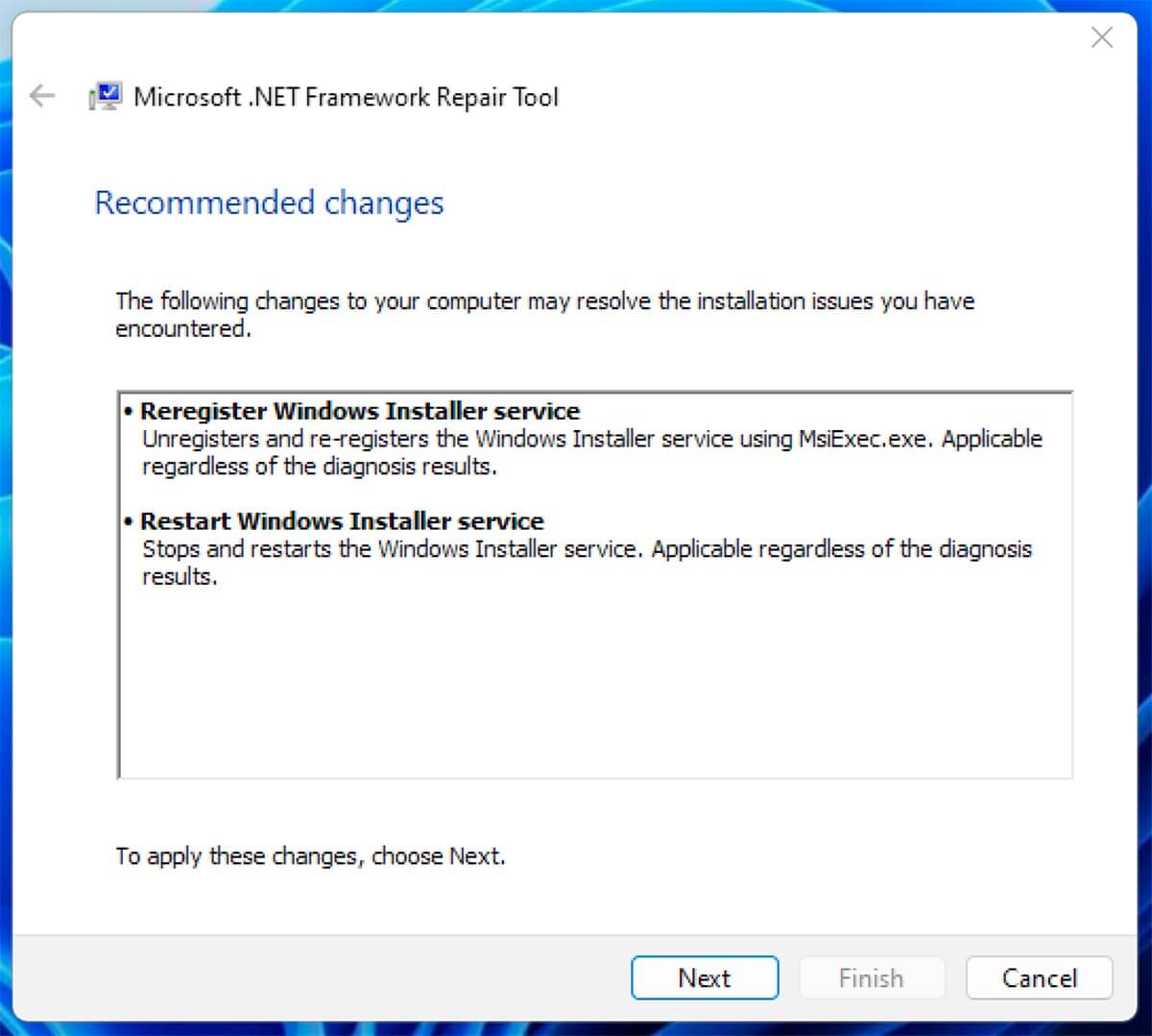
The Microsoft .NET Framework Repair Tool is a system utility that helps you fix .NET issues quickly and comprehensively. You can download this tool from the Microsoft Support website, then run it on your computer.
When running, the tool will check for current issues on your system and suggest necessary changes. Simply click the "Next" and "Finish" options to complete the repair process.
Turn Windows Features On or Off in Control Panel
To fix corrupted or erroneous files in .NET Framework, you can follow these steps:
- Open Control Panel on your computer.
- Select Programs and then select Programs and Features.
- Select Turn Windows Features On or Off.
- In the new popup window, uncheck the features related to .NET Framework services.
- Click OK to confirm.
After completing the above steps, you can restart your computer to apply the changes. This helps disable the problematic features and can help resolve the issue you are experiencing.
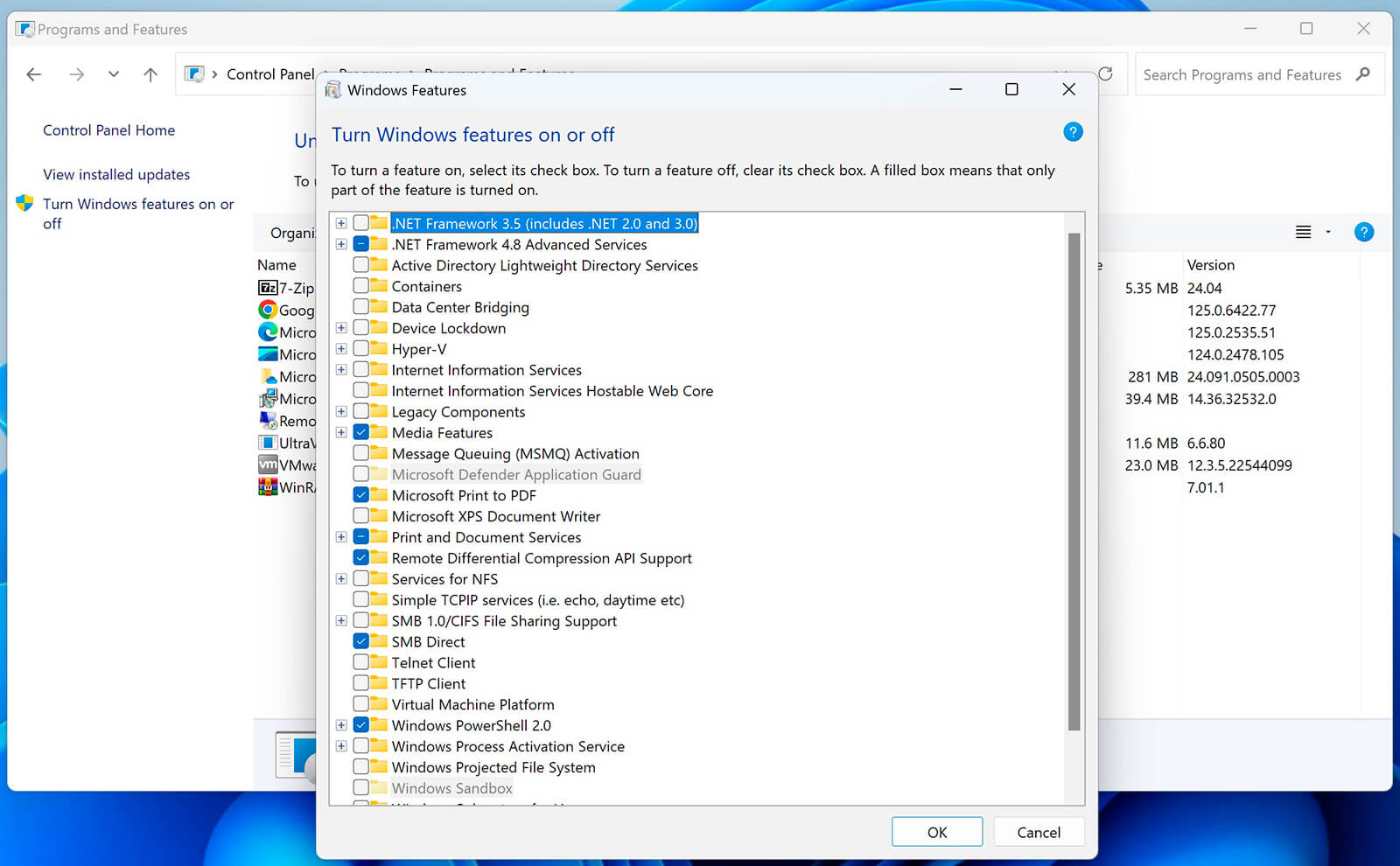
It will take a few seconds to apply the changes and turn off .NET Framework on your device. You can reactivate it after restarting your PC.
Use Program Compatibility Troubleshooter
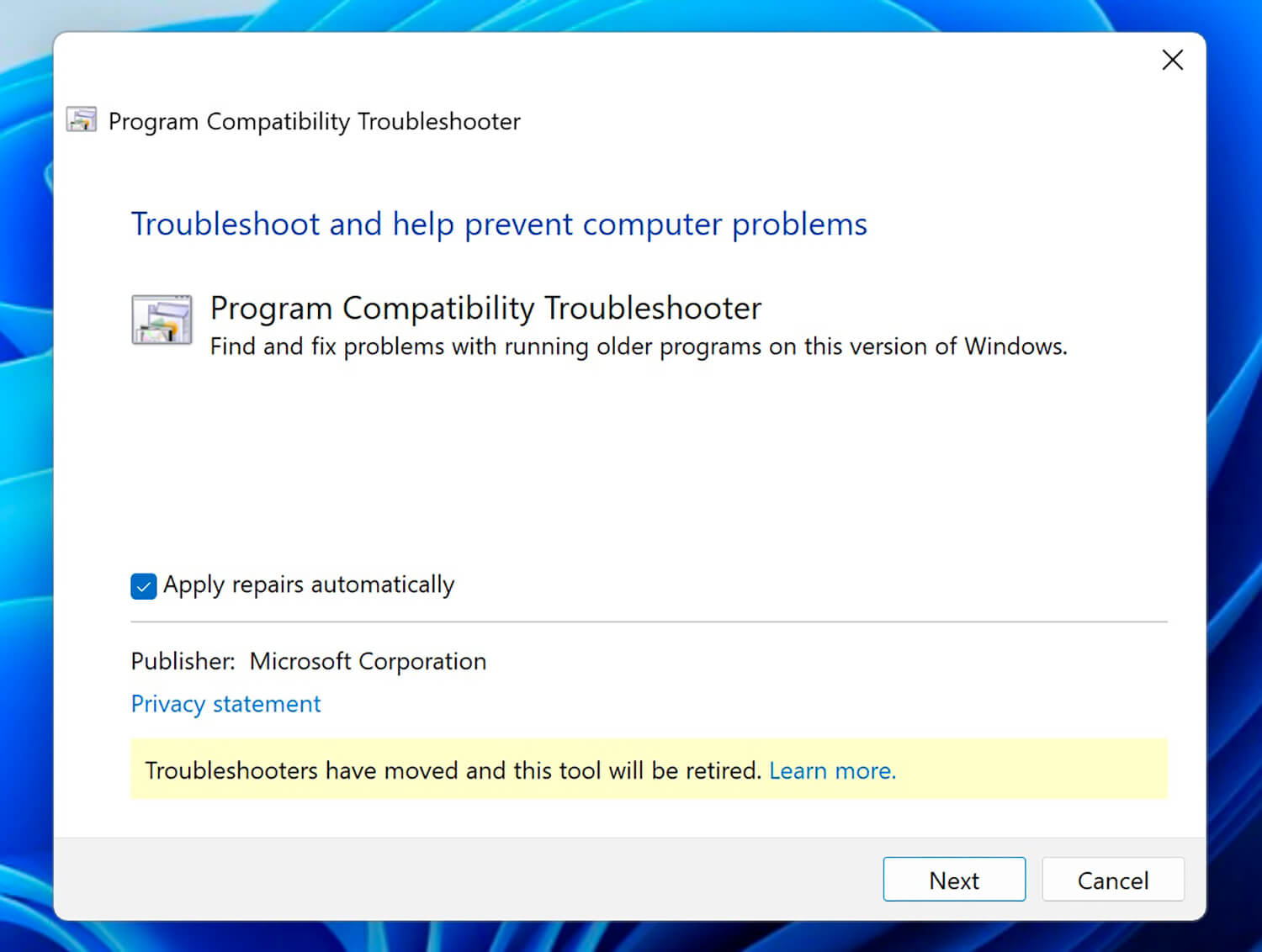
To ensure Windows applications run smoothly, you can use the Program Compatibility Troubleshooter. To access this tool, you can go to the search menu or Settings, then select System, Troubleshoot, and finally Other Troubleshooters.
Once this utility is open, check the box Apply repairs automatically. Next, follow the on-screen instructions to identify the application issue and resolve it effectively.
Set Temp/Tmp Environment Variables to Default
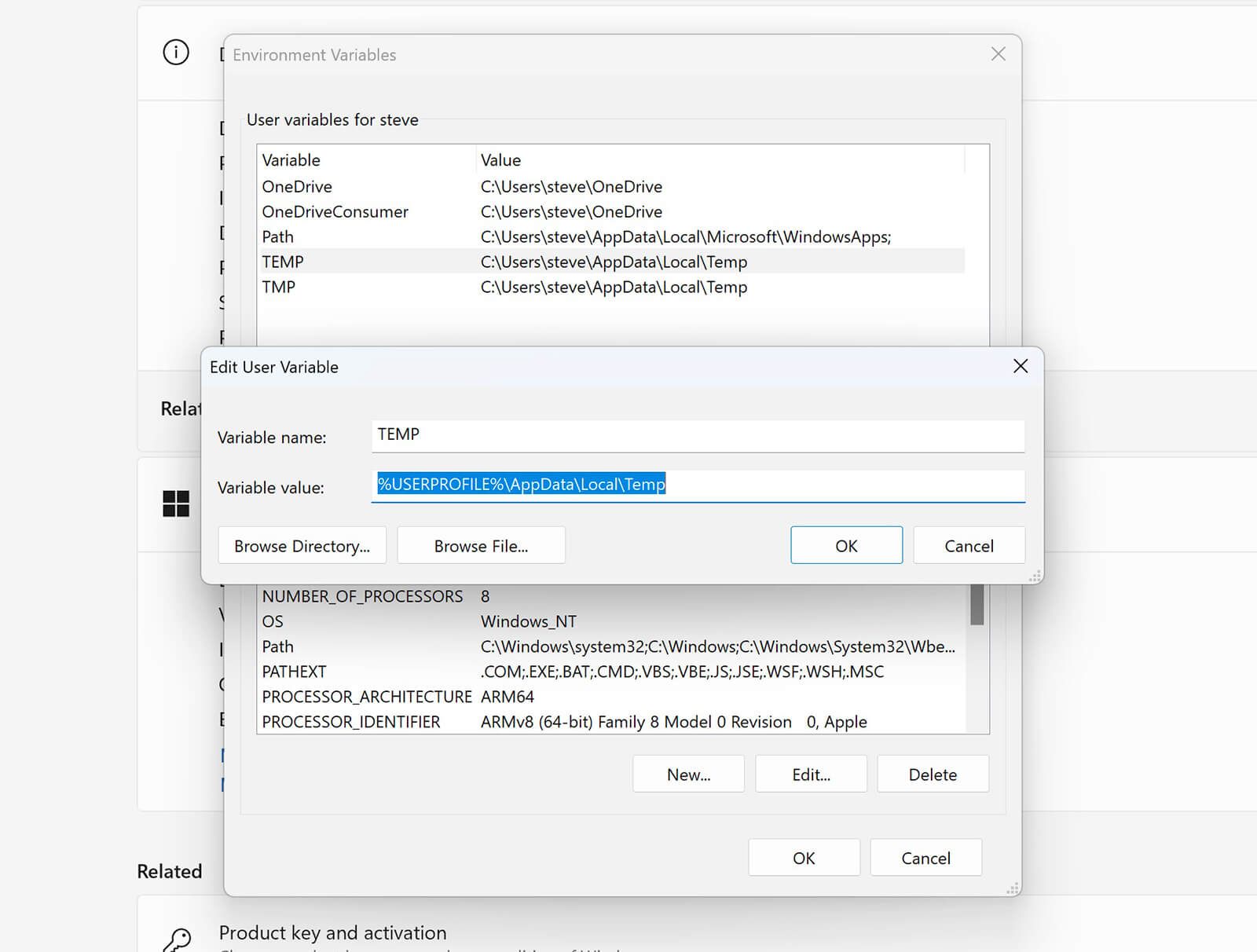
If Windows environment variables are not set to the correct default paths, it can cause various system errors, including .NET Framework issues.
Go to This PC on your computer, right-click it and select Properties, then click Advanced system settings. Go to the Advanced tab in the pop-up window and select Environment Variables. For the user variables Temp and Tmp, ensure that the Variable value points to “%USERPROFILE%\AppData\Local\Temp”.
Uninstall Visual Studio
.NET applications involve many core programming languages, such as HTML, ASP.net, CSS, JavaScript, etc. All of these languages belong to Visual Studio. To uninstall Visual Studio, you can do the following:
- Open Control Panel on your computer.
- Select "Uninstall a program" under "Programs".
- Find and select Visual Studio from the list of installed programs.
- Click the "Uninstall/Change" button and follow the on-screen instructions to complete the uninstallation process.
Note that if you still use Visual Studio for application development, ensure that you always update to the latest version for the best working experience and comprehensive security support.
Run System File Checker Scan
To handle .NET Framework errors, run a simple System File Checker (SFC) scan. Certainly, this will delve into the frameworks and libraries of the Windows 11/10 operating system and fix any issues with the .NET framework.
With all the Microsoft .NET Framework troubleshooting methods identified, learn how to install the latest version of this software on your Windows device.











