

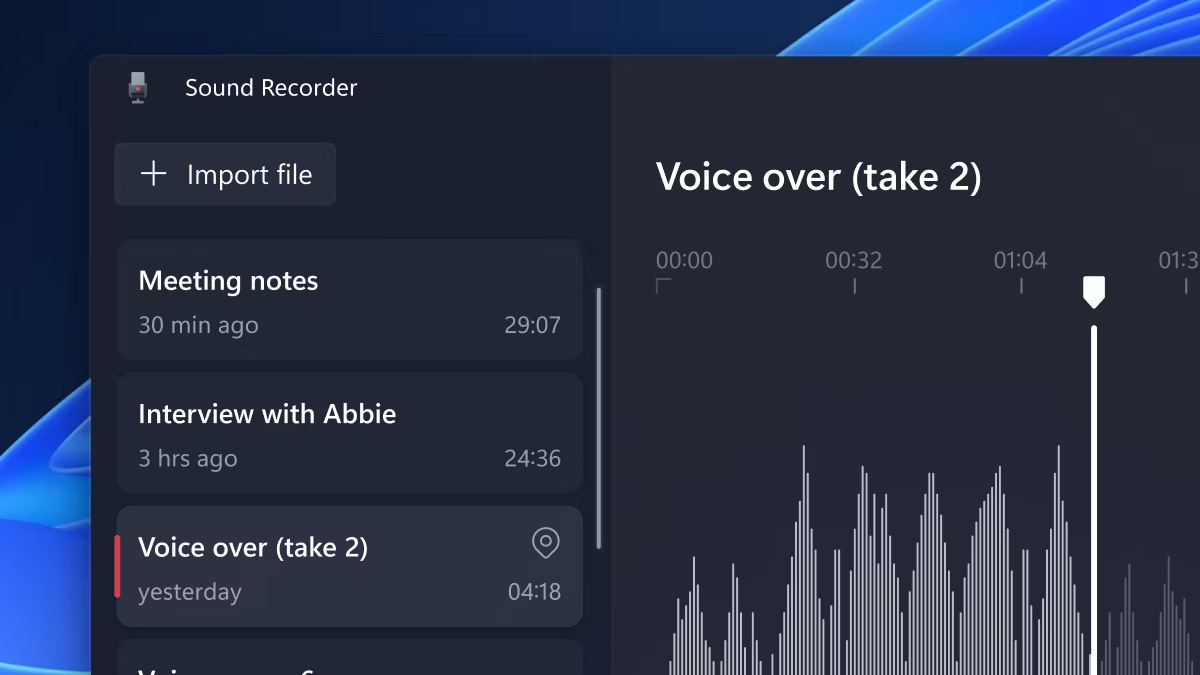
Whether you want to practice a speech, master a foreign language, or create a podcast, recording on a PC running Windows 11 is a simple process. You can even record the audio playing from your Windows 11 PC.
Today's article will show you the steps to record audio on a Windows 11 PC using both native and third-party applications.
How to record audio using a microphone on Windows 11
There are several ways to record audio in Windows 11. You can use the built-in Sound Recorder app or third-party applications like Audacity to record audio using your PC's microphone. Here is how to do it.
1. Record audio using the Sound Recorder app
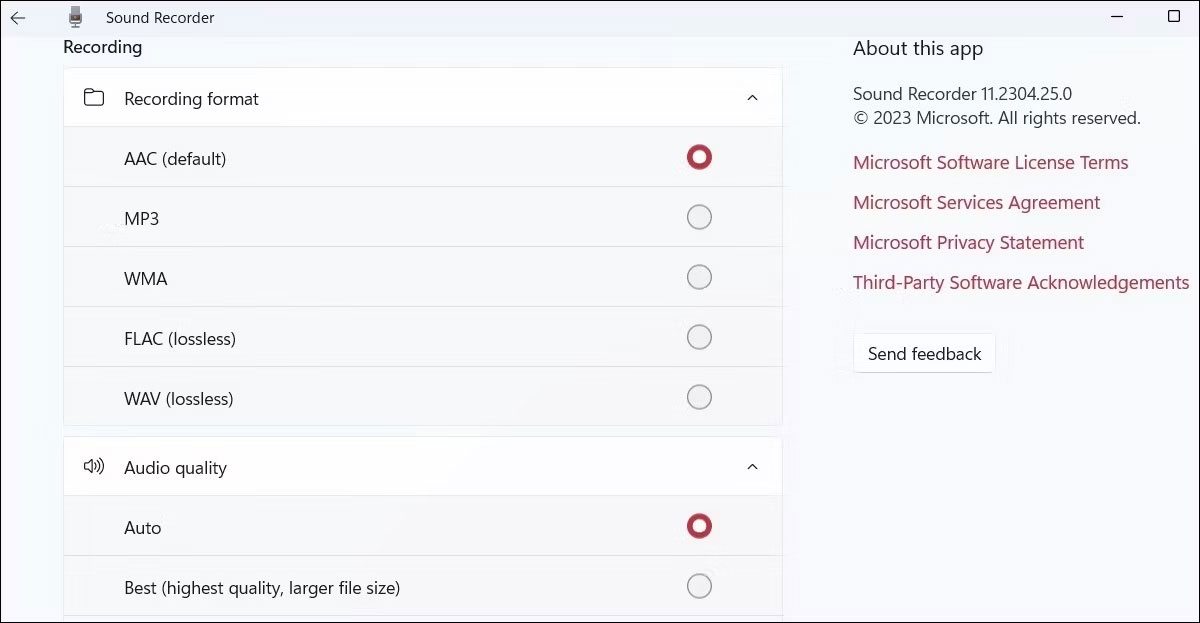
The Sound Recorder app is very easy to use and can record in many popular formats, including MP3, M4A, WAV, FLAC, and WMA. Open the Sound Recorder app from the search menu and select your preferred audio input device using the drop-down menu in the bottom left corner.
Press the red dot button to start recording. While recording, you have the option to pause the process or save it by clicking the stop button. Additionally, you can use keyboard shortcuts within the Sound Recorder app to perform these actions.
You can open the Settings menu in the Sound Recorder app to change the recording format or set your preferred audio quality.
2. Record audio using the Audacity app
While the built-in Microsoft Sound Recorder app gets the job done, it doesn't have many features. If you are looking for a more feature-rich recording application, you can download and use Audacity. This is a free application that can help you create and edit professional-quality recordings on your Windows computer.
See also: How to record audio with Audacity on a computer for more details.
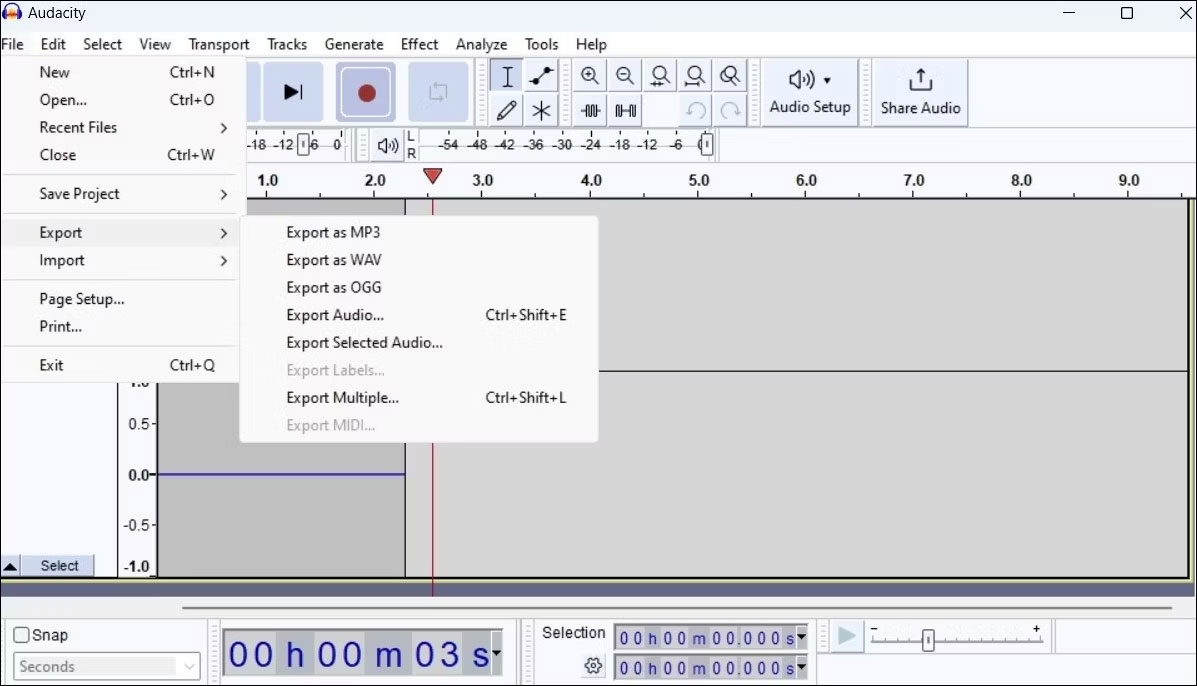
In addition to recording, Audacity also allows you to mix multiple tracks, remove background noise from recordings, remove vocals from music, and much more.
How to record audio playing from a Windows 11 PC
Do you want to record the audio playing from your Windows 11 PC? Don't worry, you don't need to hold a microphone up to your computer speakers because Windows provides a convenient feature called Stereo Mix for this purpose.
Here is how you can enable and use Stereo Mix to record audio playing from your PC.
- Right-click the speaker icon on the taskbar and select Sound settings from the resulting menu.
- In the Settings app that opens, click More sound settings.
- Switch to the Recording tab and look for Stereo Mix. If Stereo Mix is not displayed, right-click anywhere in the empty space within the Recording tab and check the Show Disabled Devices option.
- Right-click Stereo Mix and select Enable.
- Right-click Stereo Mix again and select Set as Default Device.
- Click Apply > OK to save the changes.
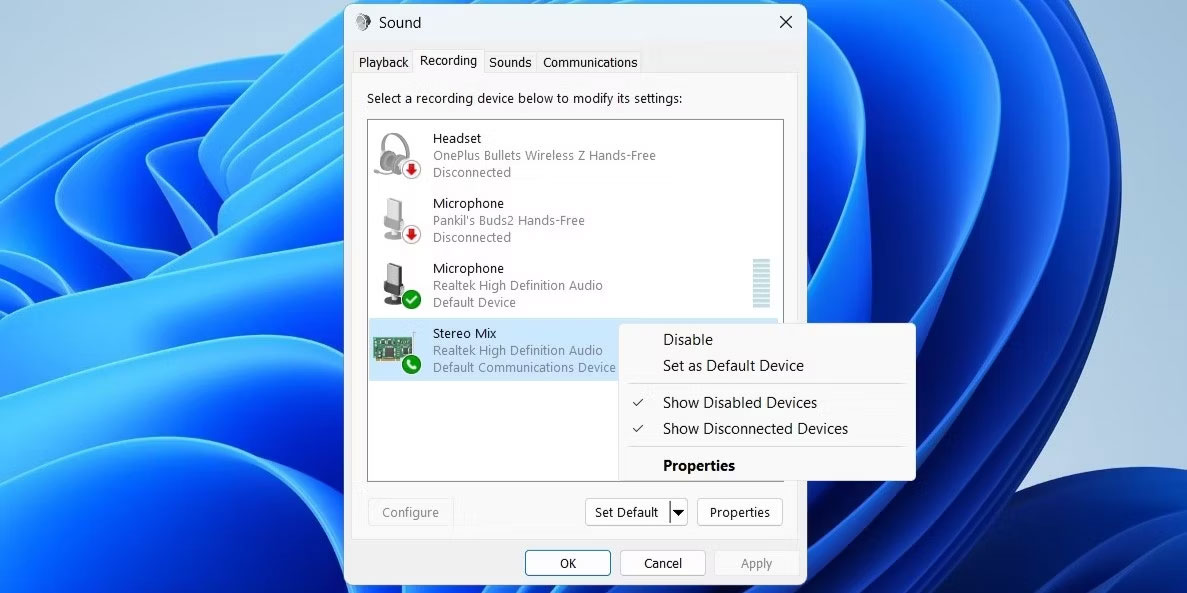
After completing the steps above, open the Sound Recorder or Audacity app and set Stereo Mix as your default audio input device. Then, play a song, podcast, or lecture on your PC and start recording.











