


Recently, many users have complained that their computers do not Wake Up after entering Sleep mode on Windows 11.
When the issue occurs, the keyboard backlight remains on, indicating that the computer has started, but the screen remains black. Hưng Phát has listed 10 steps to help you troubleshoot and fix it appropriately. As you know, this is a major issue for some users, especially if they are working on something important, as they may lose all their work and must restart the computer to apply the provided fixes.
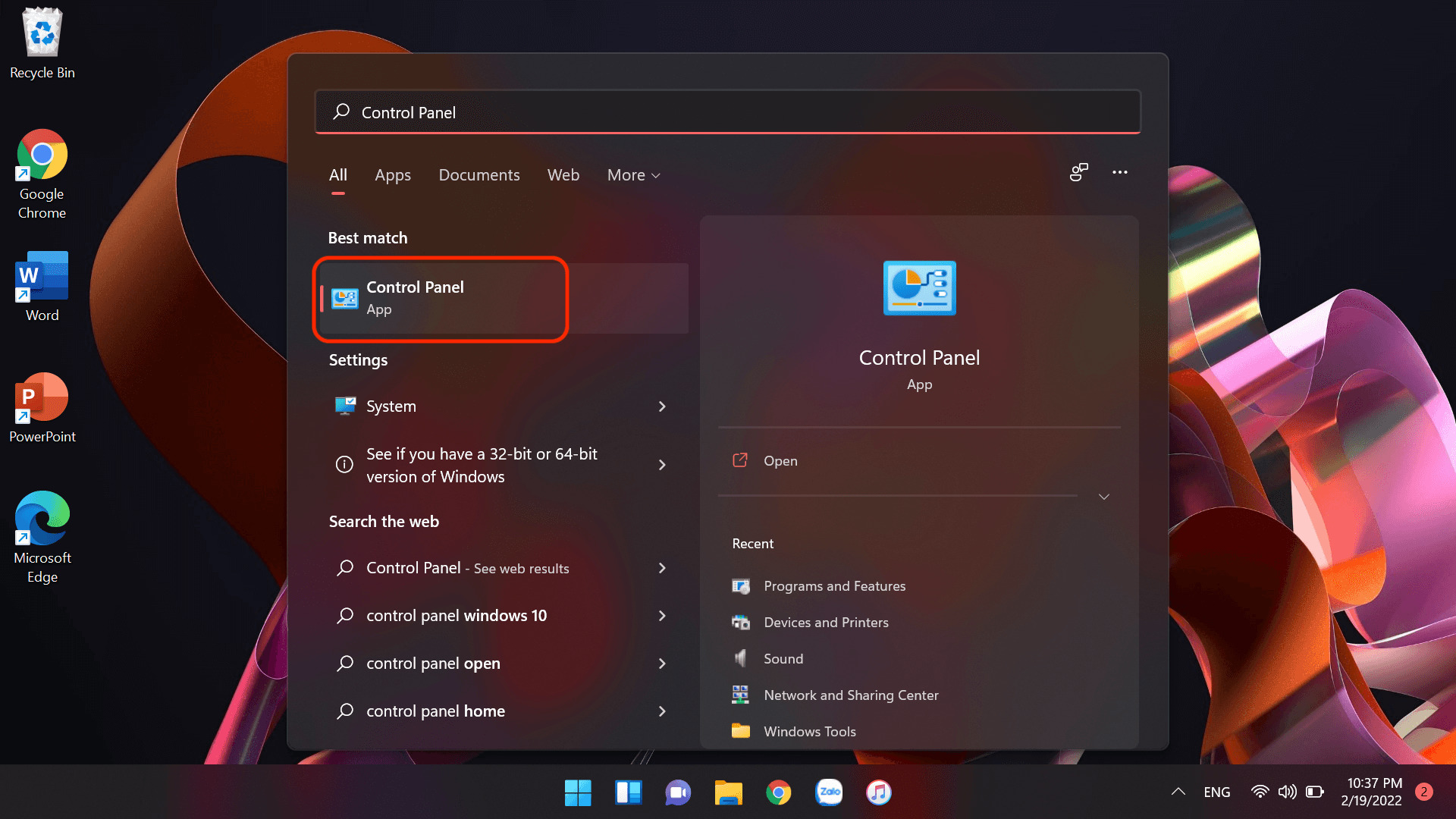
Step 01: Open the "Start Menu" (Windows 11 Logo), type "Control Panel", and click on Control Panel.
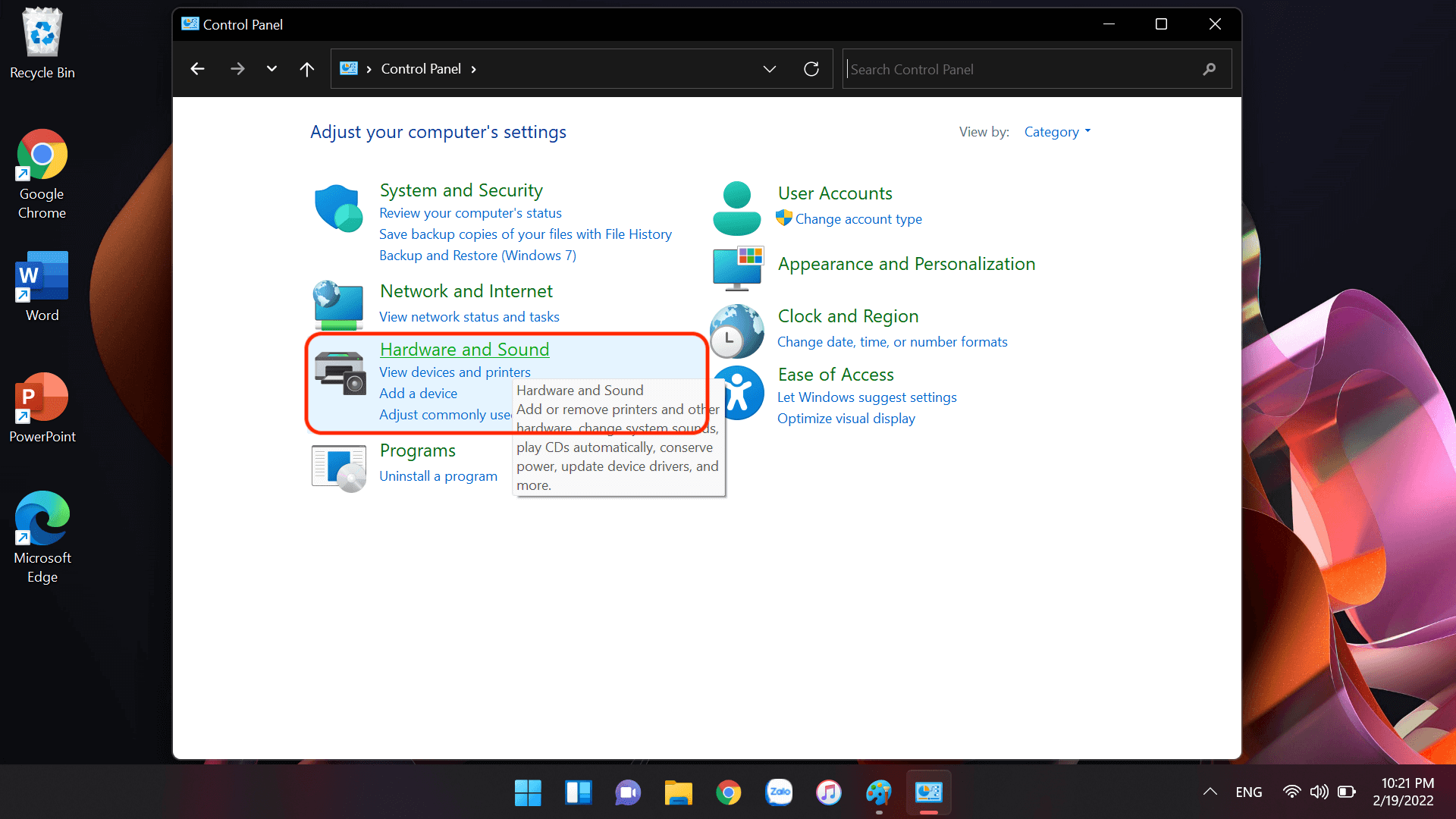
Step 02: Click on "Hardware and Sound".
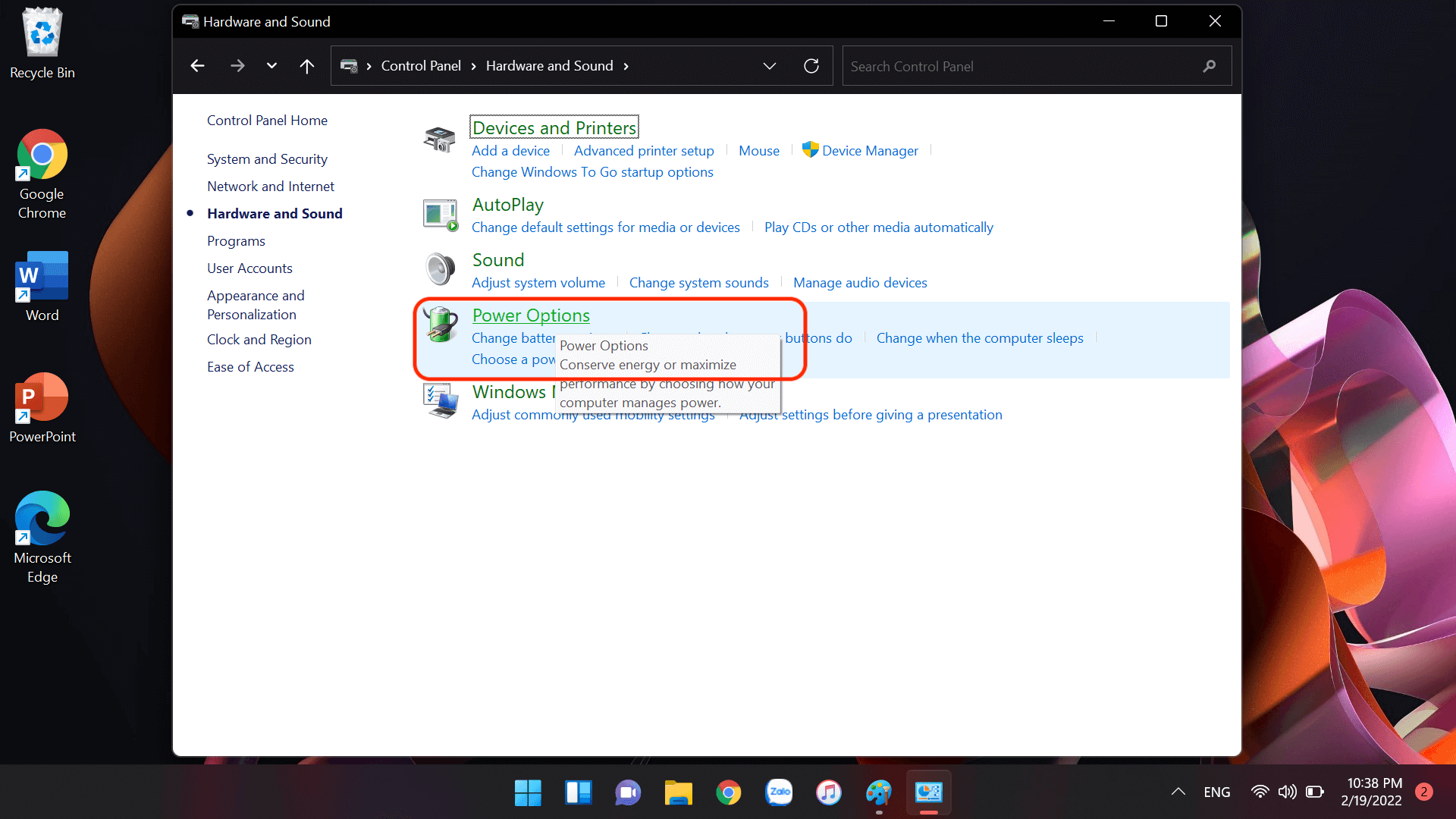
Step 03: Click on "Power Options".
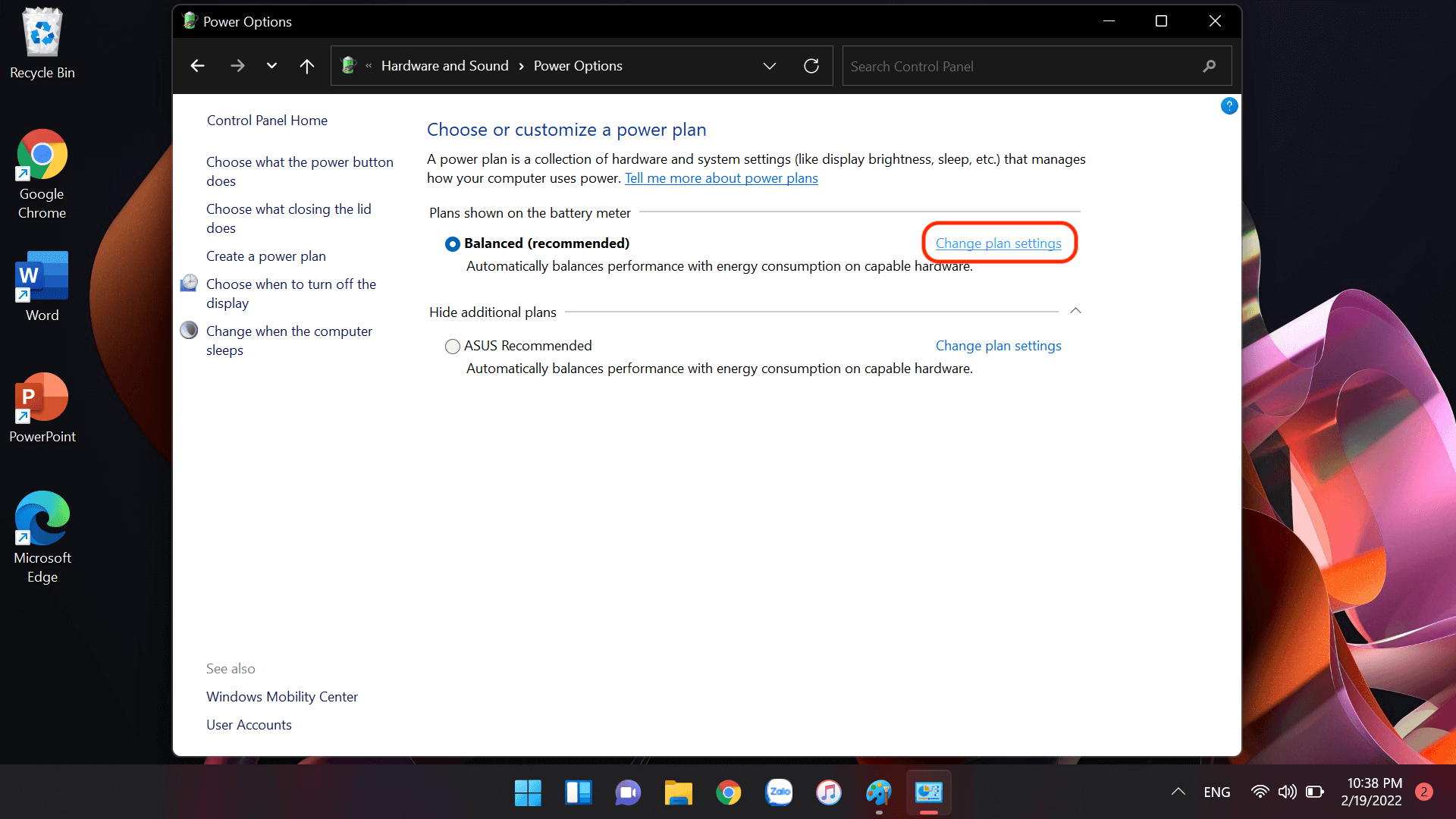
Step 04: Click on "Change plan settings" for the power plan you are currently using (the image shows Balanced Recommended).
Step 05: Click on "Change Advanced Power Settings".
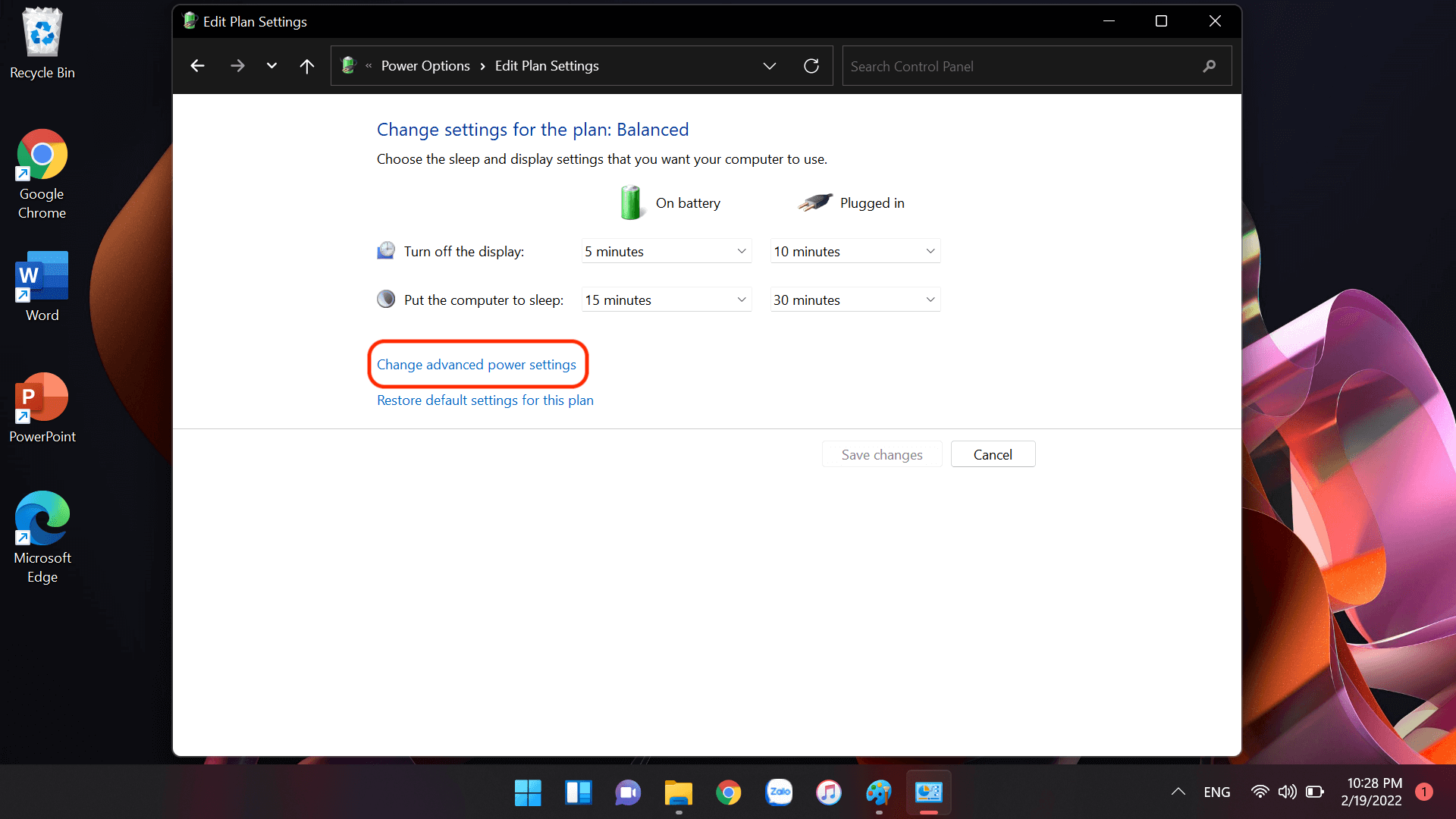
Step 06: Locate "Setting: Moderate Power Savings" under the PCI Express > Link State Power Management column and change the Setting to Off. After changing it to Off, click Apply > then OK.
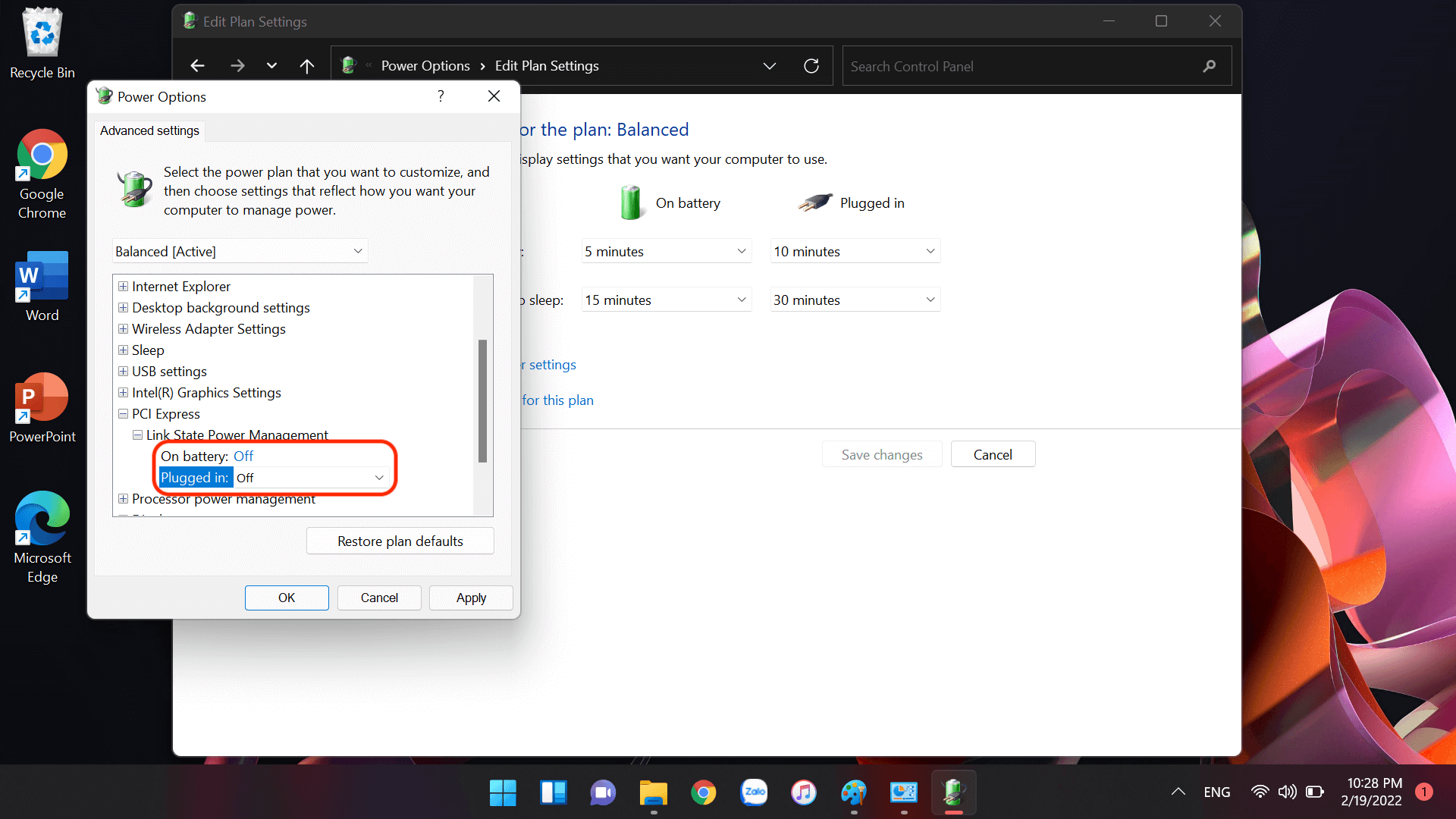
Step 07: Close the Control Panel and test Sleep mode; if everything is fine, restart your computer and enjoy the results. If it still doesn't work, proceed to Step 08.
Step 08: Open the "Start Menu" (Windows 11 Logo), type "CMD", right-click on Command Prompt, and select Run As Administrator.
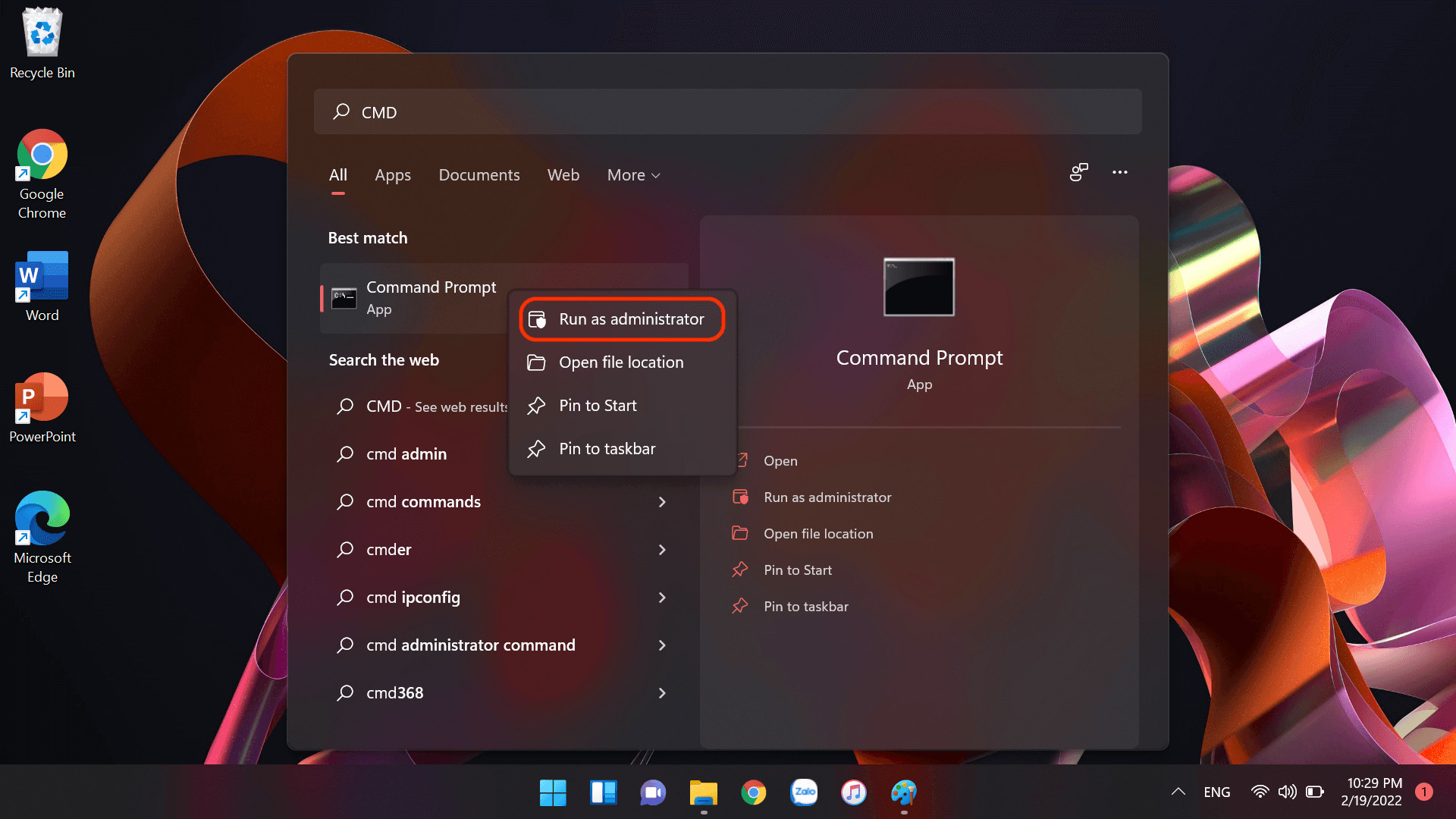
Step 09: The User Account Control window will appear; simply select Yes.
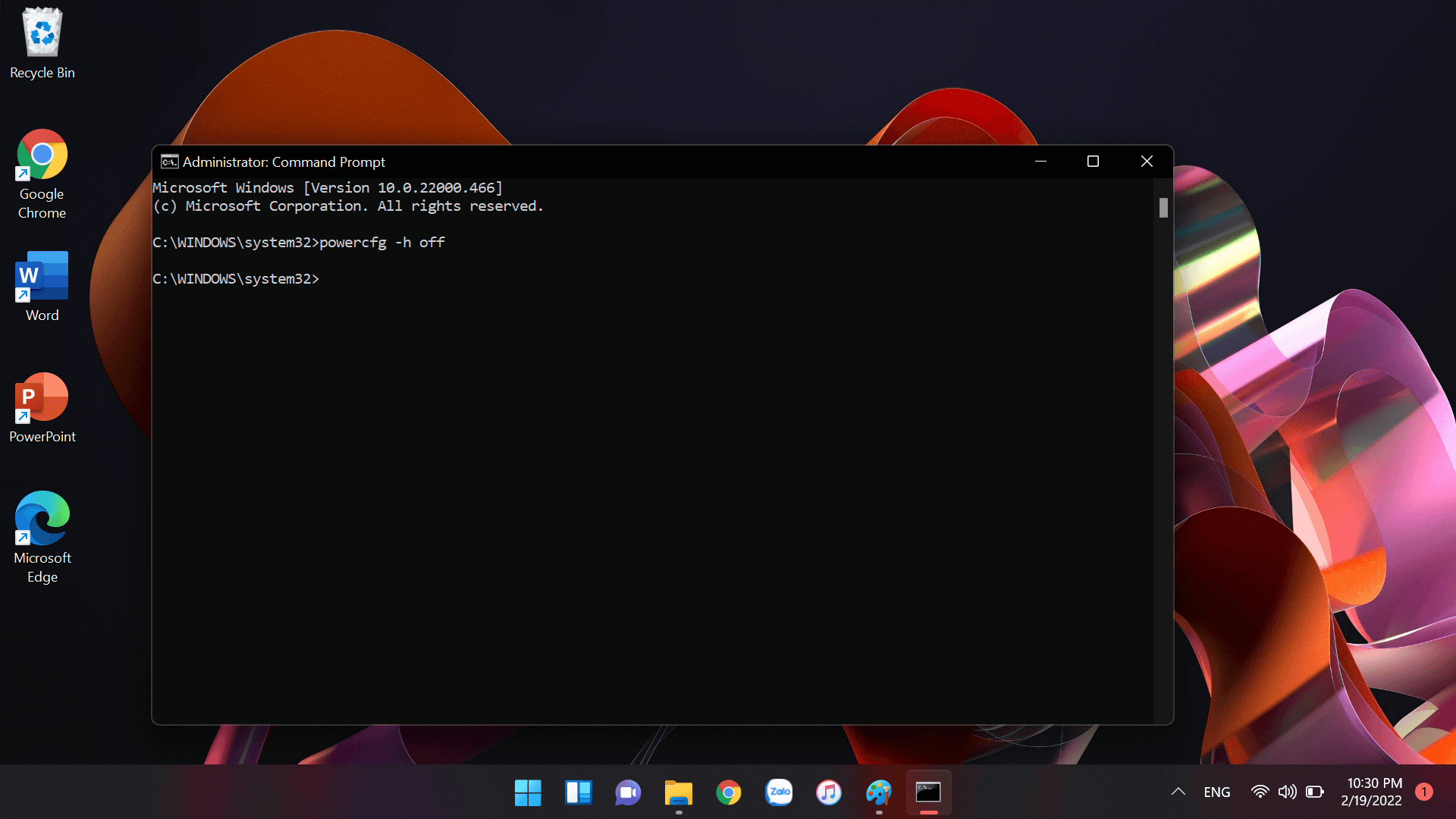
Step 10: A new window will appear (Administrator Command Prompt). Type the following command: "powercfg -h off" and press Enter. At this point, everything is almost complete. Close this window, restart your computer, and enjoy the results.
We wish you success in fixing the issue where your computer cannot Wake Up from Sleep mode on Windows 11.












If the device won't wake up, how can you access the Start menu?
Hi there, please try a hard reset or a full restart to follow the instructions provided!