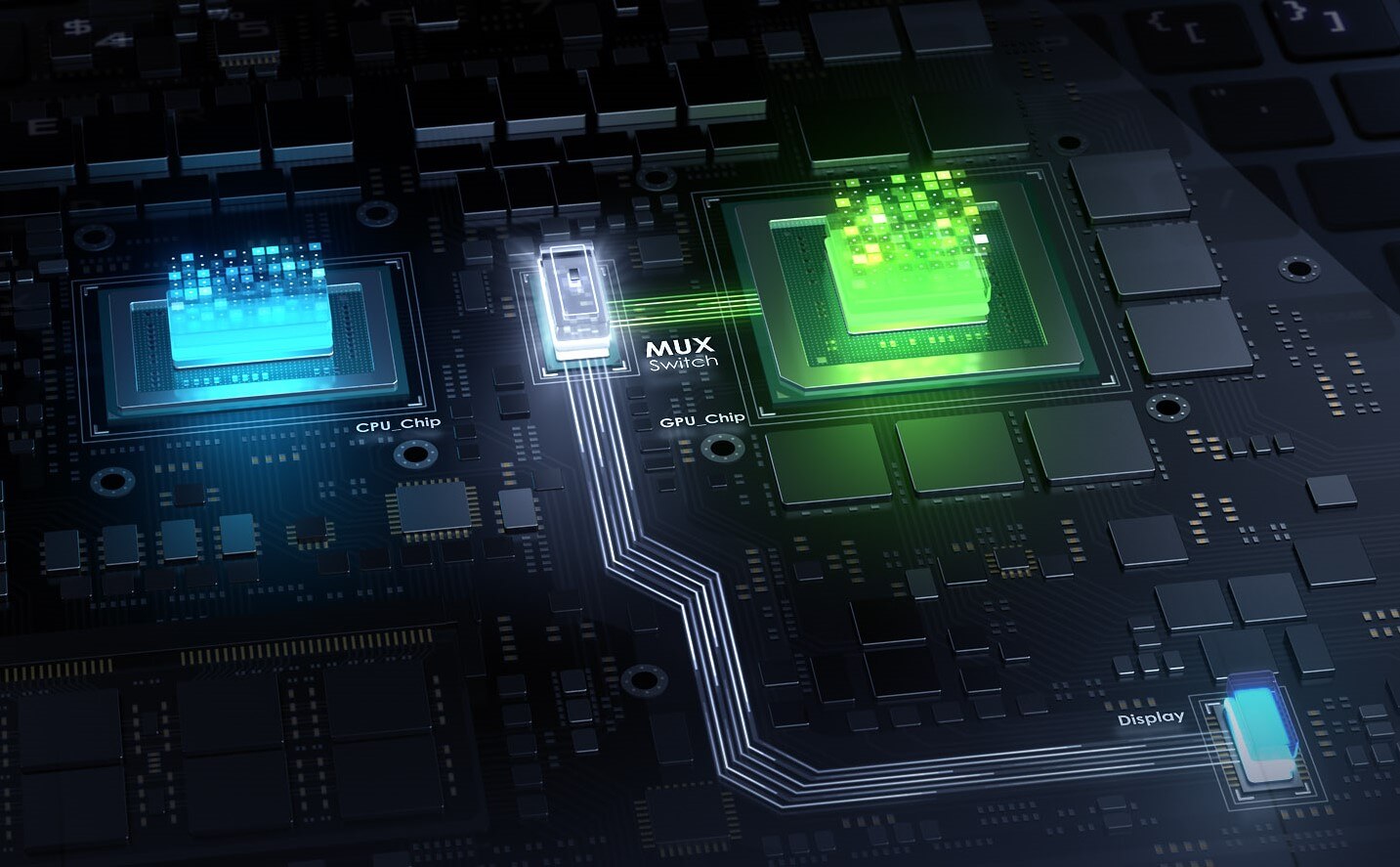
MUX switch is a feature/technology applied to new gaming laptop models, used to switch between discrete graphics and integrated graphics. This feature is not new, so what is the purpose of the MUX switch?
Bottleneck
Most modern gaming laptops have two graphics processors consisting of an iGPU and a dGPU, where the iGPU (integrated GPU) is the graphics core inside the CPU, and conversely, the dGPU (discrete GPU) is the dedicated graphics. To optimize performance as well as battery life, manufacturers provide the ability to switch between iGPU and dGPU using NVIDIA Optimus (also known as MSHybrid) and AMD Switchable Graphics.
Although NVIDIA Optimus and AMD Switchable Graphics can provide gamers with the power of discrete graphics when playing games and battery life during normal tasks, both technologies are not truly perfect. When Optimus activates the dGPU to handle rendering in heavy tasks like gaming, the data rendered by the dGPU must still "borrow" a path through the iGPU, and because the iGPU has lower performance and narrower bandwidth, it leads to a bottleneck, causing a drop in performance and increased latency.
To solve this problem, the MUX switch, also known as a multiplexer switch, was developed.
MUX switch
The function of a MUX switch is similar to Optimus or Switchable Graphics, helping to switch between iGPU and dGPU, but with a slight difference: it allows all graphics data streams to go directly from the dGPU to the laptop screen without "borrowing" the iGPU path. Naturally, this will affect the laptop's battery life, but in return, it enhances performance and reduces latency when gaming. A MUX switch is essentially a physical microchip located on the motherboard, capable of switching the connection between the dGPU and the screen, which users can control via software.
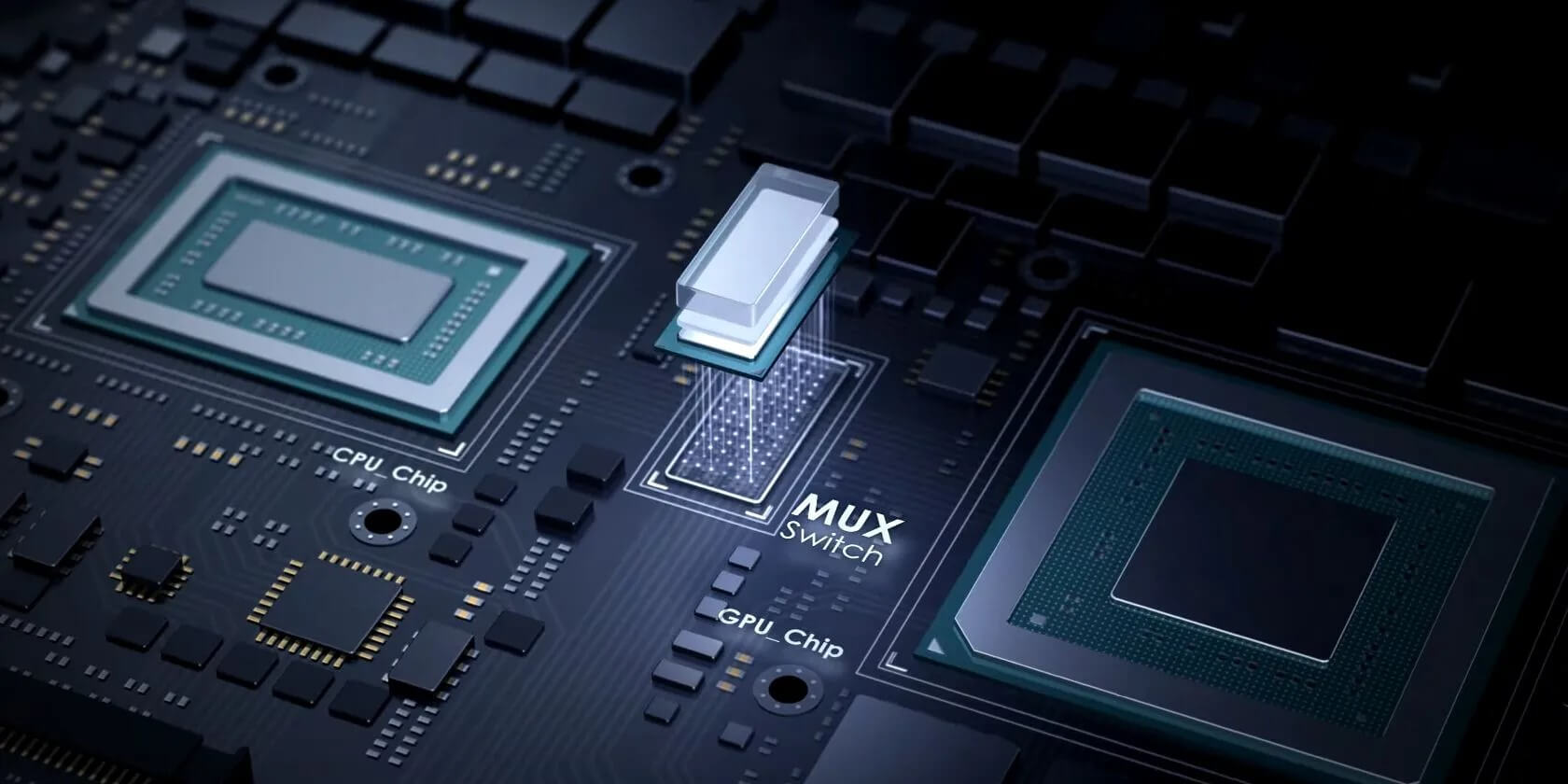
The weakness of the MUX switch-a physical microchip-is that users cannot update software to get this feature like Optimus or Switchable Graphics. Additionally, every time you enable/disable dGPU mode using the MUX switch, you must restart the system-which is a bit inconvenient, even though the waiting time is only about ten seconds. According to ASUS, bypassing the iGPU path helps increase frame rates by about 9% in some games; specifically, in Rainbow Six Siege and Shadow of the Tomb Raider, the difference can reach up to 30%.
The MUX switch creates a direct connection from the dGPU to the screen, so it doesn't just simply increase performance but also activates features supported by the dGPU, such as NVIDIA G-SYNC. Optimus is also an NVIDIA technology, but it does not support G-SYNC even if the dGPU itself has this feature.
How to know if a laptop has/does not have a MUX switch?
Interestingly, most manufacturers do not advertise the MUX switch feature heavily in the media, nor do they mention it in the technical specifications. To know for certain, ask directly at the point of sale, the distributor, or the official brand.
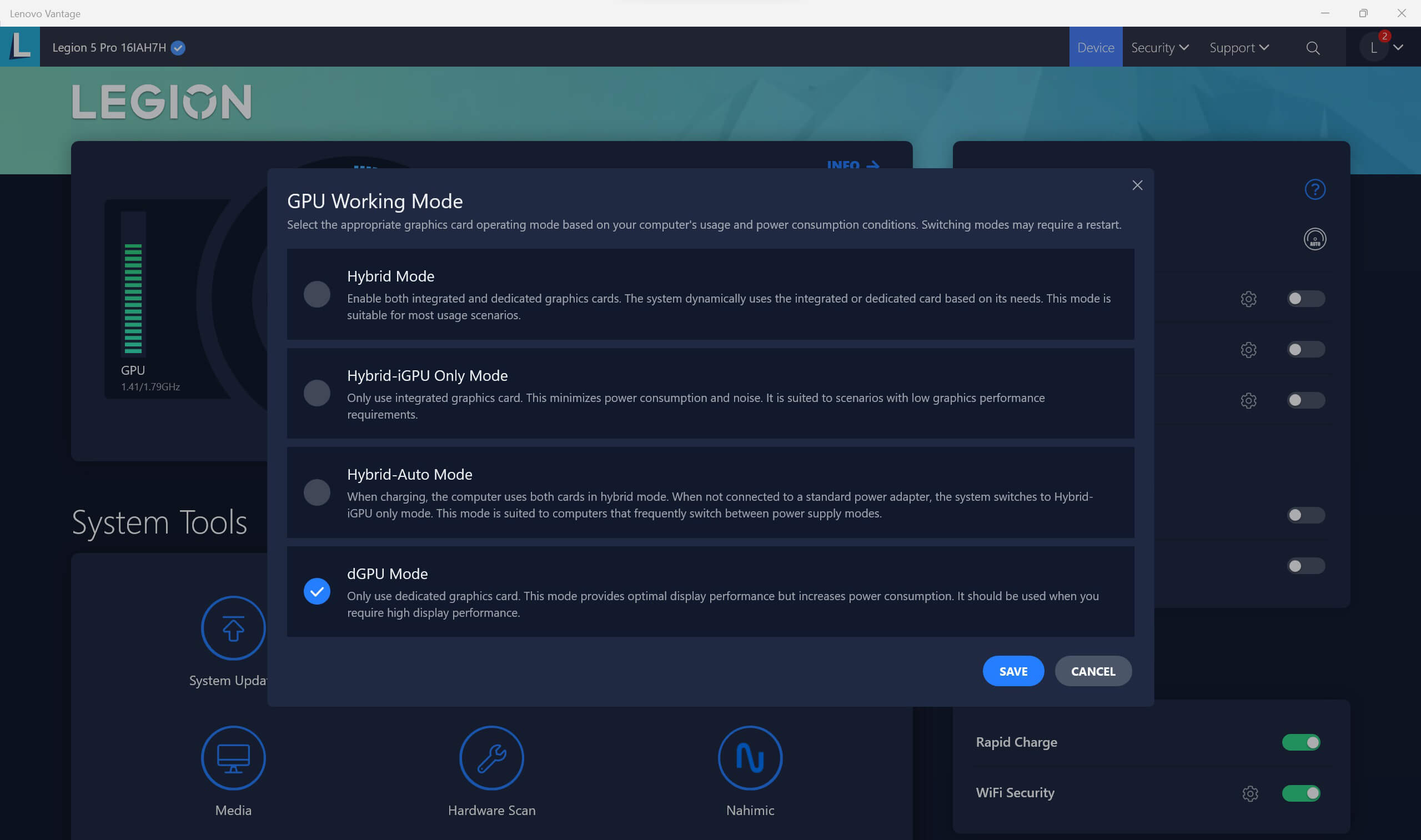
Typically, gaming laptops come with proprietary control software; for example, MSI has Dragon Center, ASUS has Armoury Crate, HP has Omen Gaming Hub, or Lenovo has Lenovo Vantage. Look within the software for your laptop brand under sections like GPU switch, GPU working mode, or similar. If you see options like Discrete Graphics, dGPU Mode, and activating them requires a system restart, then your laptop has a MUX switch. Additionally, poking around in the BIOS/UEFI is another way.
“Cheating” to use the MUX switch feature
If your laptop is not equipped with a multiplexer switch, you can still try to "cheat" to activate it. Usually, the external display output ports (DisplayPort, HDMI) on a laptop are connected directly to the dGPU without going through the iGPU. If we only use an external monitor, it effectively forces the system to route the signal directly from the dGPU to the monitor, since the iGPU's output is the laptop screen itself. The advantage of this "cheat" solution is that you don't need to restart the machine; you just need to adjust the system to only output the signal to the external monitor while turning off the integrated screen.
Testing
The gaming laptop I used to test the performance of the MUX switch is the Legion 5 Pro, with the following configuration:
- CPU: Intel Core i7-12700H
- RAM: 16 GB
- iGPU: Intel Iris Xe
- dGPU: NVIDIA GeForce RTX 3070 Ti 8 GB
- OS: Windows 11 Home
The tests performed included:
- Horizon: Zero Dawn - selected Original preset with 1920 x 1080 resolution, Vsync off.
- Shadow of the Tomb Raider - 1920 x 1080 resolution, DLSS off, Vsync off.
- Path of Exile: Archnemesis - 1920 x 1080 resolution, all effects at lowest settings. This is a long-standing MMORPG, but its effects at maximum settings are very heavy, especially for the CWDT build I tested, where the character casts about 5 skills per second, each with 7 skills and many projectiles. I only enabled the skills and ran around in the hideout to ensure the conditions for each test were equivalent, because running a map would make it impossible to actively control the amount of monsters and the skills/effects of monsters, which would lead to inaccurate differences.
- Final Fantasy XIV: Endwalker - all default, Full HD resolution.
- 3DMark Professional Edition - Time Spy, Ray tracing and DLSS feature at the desired resolution of 2560 x 1440, Performance mode.
- Unigine Superposition - 1080p Medium.
The test results showed that there is a difference, but it is not consistent. Using the dGPU directly via the MUX switch yielded about a 1.6% difference in the Unigine score (19,009 vs 18,710), with average frame rates increasing from 99.28 fps to 103.72 fps. Time Spy showed a very small difference in Graphics score (10,773 vs 10,750). The 3DMark DLSS feature was unnoticeable (DLSS on: 72.80 fps vs 72.60 fps), and even when DLSS was off, the dGPU was slightly lower (30.47 fps vs 30.52 fps). Ray tracing was similar, with 27.75 fps when the MUX switch was enabled and 27.66 fps when using automatic switching mode.
Moving to games, Shadow of the Tomb Raider showed nearly identical results, with an average of 140 fps, while Horizon: Zero Dawn had a difference of only 6 fps on average (127 fps vs 121 fps). Path of Exile perhaps showed the most noticeable difference when measured by FRAPS; in automatic switching mode, the average frame rate was 139.76 fps, but when switched entirely to dGPU, it reached 173.64 fps. The score Final Fantasy XIV gave for dGPU mode was 2,122 points higher than the hybrid mode (20,805 vs 18,683), and during testing, there was also a difference in frame rates, though it was quite small.
Conclusion
At this point, I can conclude that there is a reason why most manufacturers only quietly equip the MUX switch without heavy advertising or "showcasing" it in the technical specifications. The performance difference with and without the MUX switch is almost difficult to notice, whereas battery life is significantly affected. While it is true that performance decreases and latency increases when the dGPU signal has to "hitch a ride" on the iGPU lane, it is truly not worth the trade-off in battery life or the inconvenience of restarting the system every time you switch via the MUX switch. Of course, you can absolutely use this feature, ignoring all the points above, just because "you feel like it." Or, if you have the time, you can try turning the MUX switch on and off in the games you play often, measure or feel the difference, and if it is worth the trade-off of a few inconveniences, then you should use it.
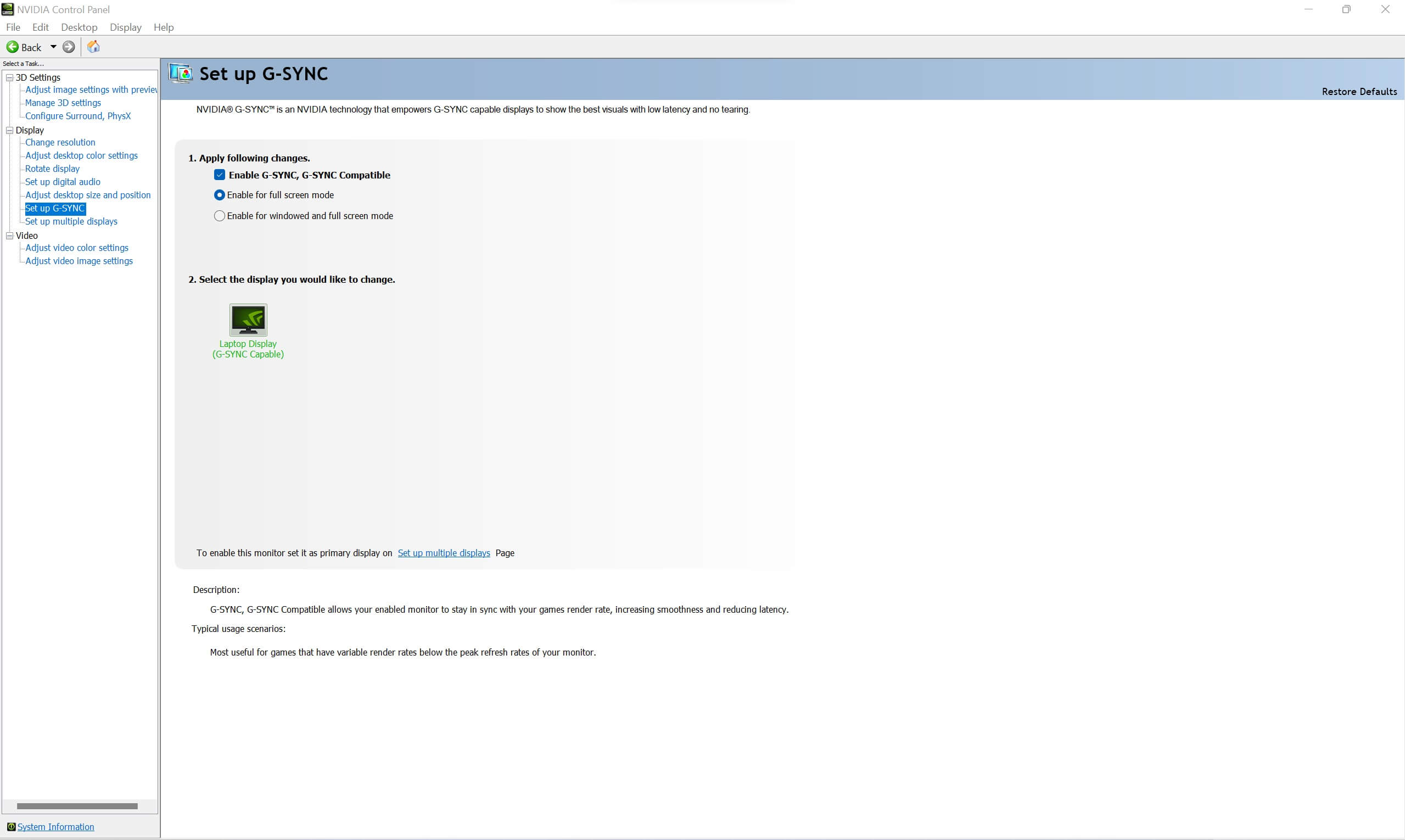
On the other hand, as mentioned at the beginning, the MUX switch is not just about performance; it also unlocks native dGPU features that are disabled when passing through the iGPU, most notably G-SYNC. I tried using the MUX switch to switch to dGPU-only mode; upon entering the operating system, the NVIDIA Control Panel had many more customization options similar to using a discrete card on a desktop (3D Settings, Display, Video), including G-SYNC. When switching back to automatic mode (Optimus), those customization options were hidden, leaving only the 3D Settings section.