Two-finger scrolling is a convenient feature that allows you to move the screen up and down using two fingers on your device's Touchpad. This helps enhance productivity and eliminates the need to use force to press keys on the keyboard or manually drag the scroll bar with a mouse. However, like any other feature, issues can occasionally occur.
If two-finger scrolling is not working on your device, here are some troubleshooting steps you can try to fix the problem.
1. First, perform some preliminary checks
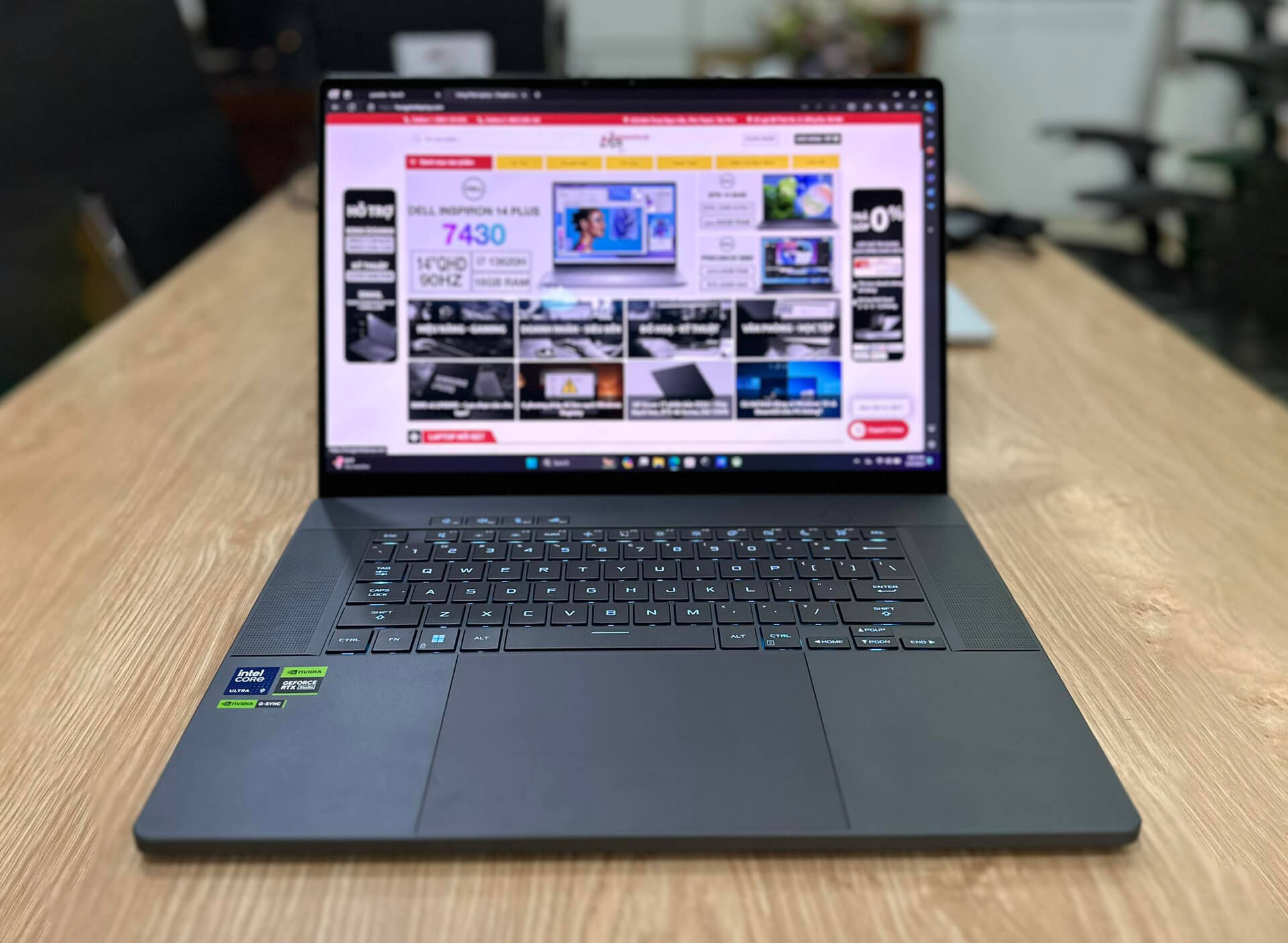
Using a trackpad on some Laptops may encounter issues. Before proceeding with complex troubleshooting, you should try the following methods as they can help you resolve the issue quickly:
- If this is your first time using the two-finger scrolling feature, make sure you are performing it correctly.
- If the issue occurs in a specific application, try closing and reopening that application.
- Restart your device to eliminate temporary glitches.
- If you are using a keyboard with an integrated trackpad, such as the keyboard on Surface Pro models, try detaching and reattaching it.
- Similarly, if you encounter issues with a Bluetooth keyboard, disconnect and reconnect it.
- Using third-party applications to adjust touchpad gestures can also cause issues. You may need to reinstall or completely uninstall the application. However, the two-finger scrolling feature is built into Windows.
If the initial troubleshooting steps do not resolve the problem, you may need to take further measures to handle the issue.
2. Ensure the two-finger scrolling feature is enabled
To use the two-finger scrolling function, you need to activate this feature in your device settings. If this function was accidentally turned off, you simply need to turn it back on to use it. Follow the instructions to enable two-finger scrolling on Windows 10.
For Windows 11 users:
1. Search for Settings in Windows Search and open the Settings app.
2. Select Bluetooth and devices from the left sidebar.
3. Navigate to Touchpad on the right side.
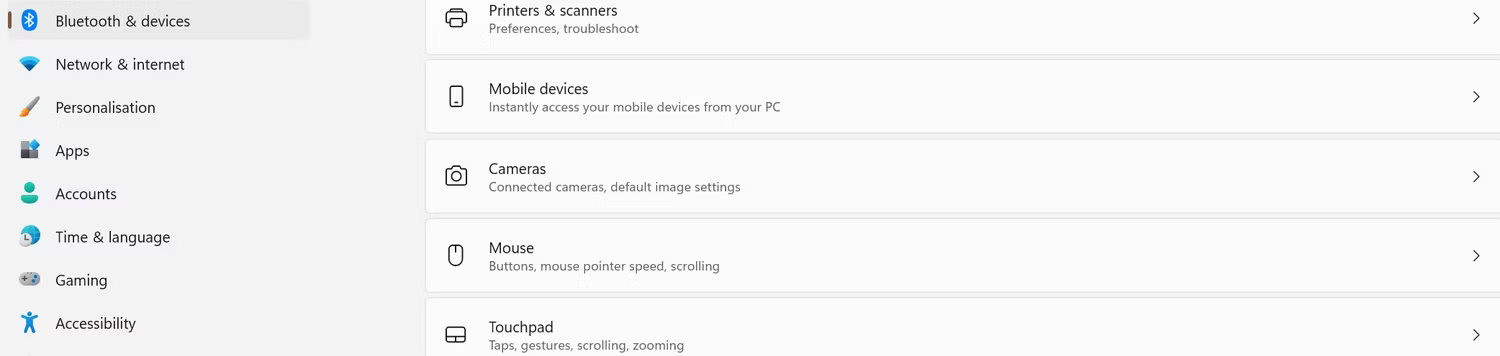
4. Open the touchpad settings in the Windows Settings app. Click on Scroll and Zoom.
5. Check the box next to Drag two fingers to scroll.
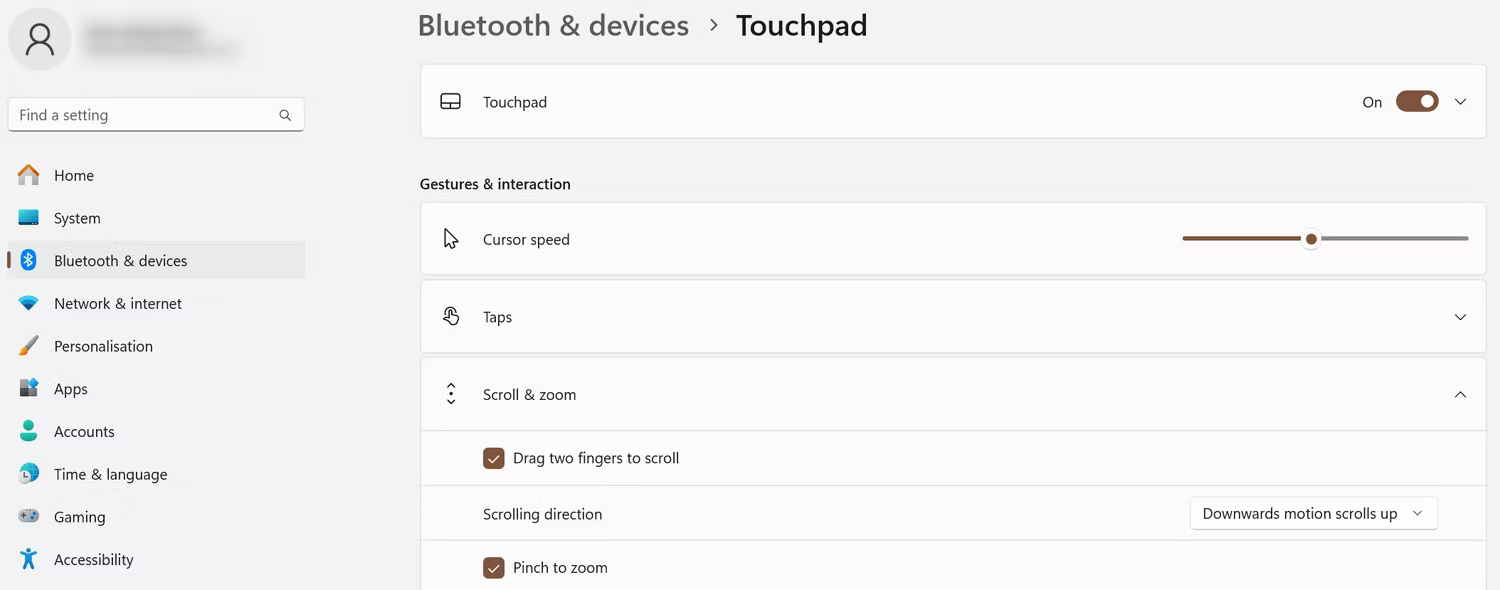
Keep in mind that if you do not see this option in the touchpad settings, your device may not support this feature.
3. Ensure the touchpad is not dirty or wet
Dust or debris can stick to your device's touchpad, spilled liquids, and even dirty or wet fingers can cause issues with two-finger scrolling. To clean the touchpad, you should use a soft, dry cloth to wipe it until all debris or visible stains are removed.
4. Check for application-specific issues
If two-finger scrolling is not working in a specific application, it may be because that application does not support the feature or the feature has been disabled in the application's settings.
To check if an application supports this feature, you should visit the application's official website. If it is not supported, you can look for another application with similar functionality. If the two-finger scrolling feature is available in the application, find out how to activate it. Depending on the application, this feature may be hidden in the Settings menu. Activate it, and you will be able to use the two-finger scrolling feature.
5. Update the Touchpad driver
The two-finger scrolling function may not work if the touchpad driver is outdated or incompatible with the current operating system. To fix this issue, you need to update the touchpad driver on Windows by following these steps:
- Right-click the Start button and select Task Manager.
- Expand the Human Interface Devices or Mice and other pointing devices category.
- Identify the touchpad driver. On Surface laptops, it may be called HID-Compliant Touchpad. However, the name may vary across different devices, so please check specifically for your device.
- Right-click the driver and select Update Driver.
- Select Search automatically for updated drivers.
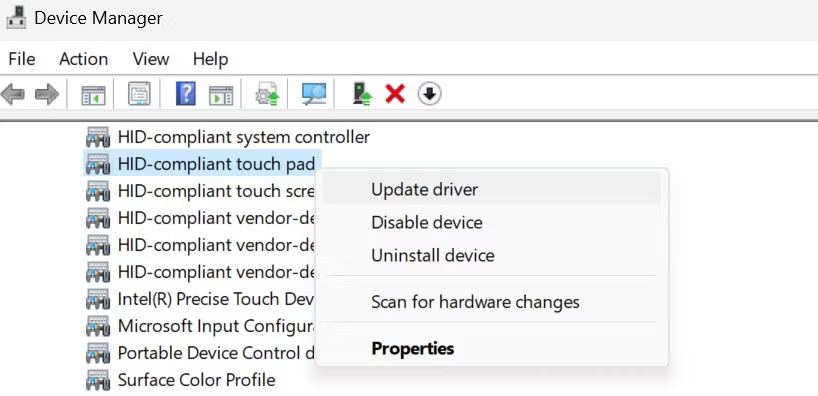
Windows will automatically search for and install the latest driver for the device. If automatic updating does not resolve the issue, you can download and install the driver manually from the manufacturer's website.
6. Manually install the latest driver
Visit the laptop manufacturer's website, enter your laptop model or any other required details, and download the corresponding touchpad driver to your computer. Typically, drivers come in an executable format. After downloading, simply run the file and follow the on-screen instructions to complete the installation.
If the downloaded driver file is not an executable format, you need to install it manually following these steps:
- Open Task Manager and expand the Human Interface Devices or Mice and other pointing devices category.
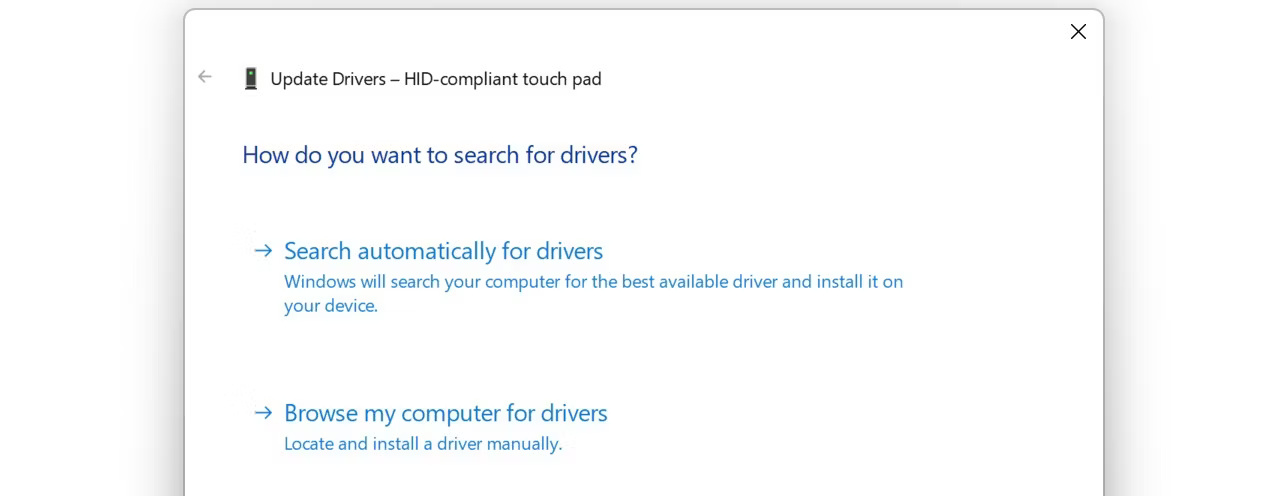
- Right-click the touchpad driver and select Update driver.
- Select Browse my computer for drivers.
- Select the downloaded driver file and follow the on-screen instructions to complete the installation process.
7. Reinstall the Touchpad driver
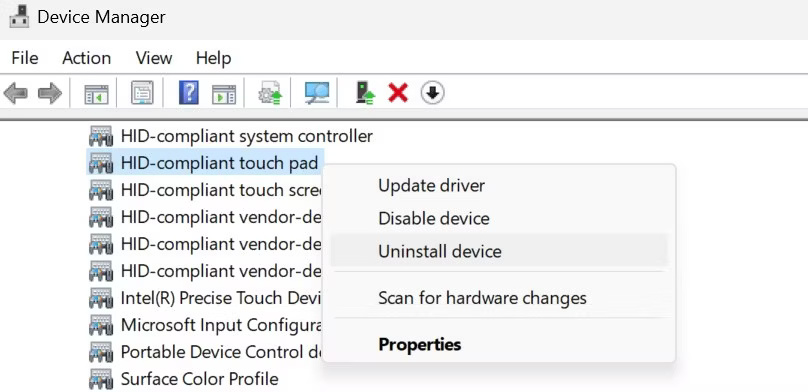
If automatic or manual driver updates do not resolve the issue, you can try reinstalling the driver. Simply right-click the touchpad driver and select Uninstall device. Then, restart your computer and Windows will automatically reinstall the driver. If this method is not effective, you can download and install the latest driver from the manufacturer's website. However, ensure that you have an external mouse or a touchscreen available for use, as the touchpad may not function during this process.
8. Reset Touchpad settings
If you recently changed your touchpad settings and then two-finger scrolling stopped working, you may have changed something incorrectly. Resetting the touchpad settings will fix incorrect configurations. To reset touchpad settings:
- Right-click the Start button and select Settings.
- Go to the Bluetooth and Devices tab on the left.
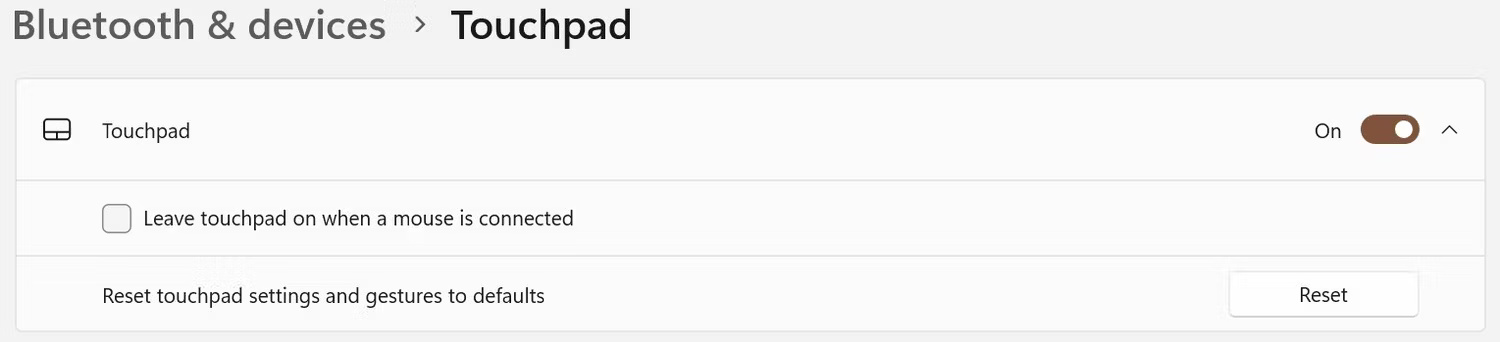
- Click on Touchpad and expand the Touchpad menu.
- If the Reset button is grayed out, uncheck the box next to Leave touchpad on when a mouse is connected. This can disable the touchpad, so keep an external mouse nearby so you can move the cursor and reset the touchpad settings.
- Finally, click Reset.
If the above measures do not help or you encounter other issues related to the touchpad, it may be a hardware problem. In that case, you should take your laptop to a service center for inspection and repair.