Topic
Photoshop
Tips & Tricks
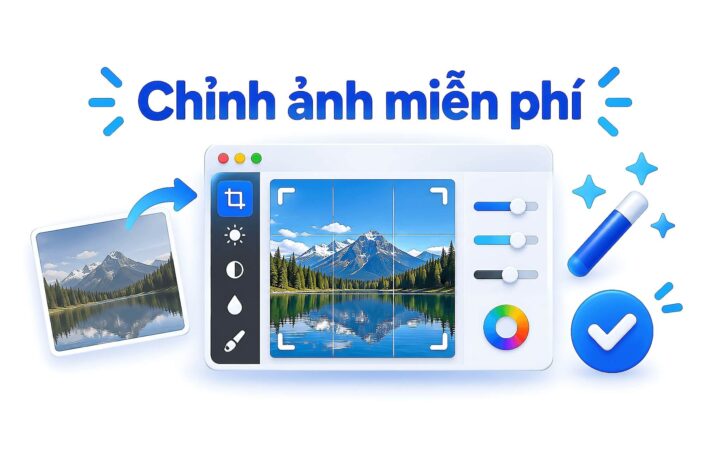
**GIMP vs. Photopea: Which is the Best Alternative to Photoshop?** If you are looking to move away from Adobe Photoshop, you aren't alone. As subscription models become more prevalent, many creators are searching for powerful, cost-effective alternatives. Two of the most prominent contenders in this space are GIMP and Photopea. But which one is the right choice for your workflow? ### GIMP: The Powerhouse of Open Source GIMP (GNU Image Manipulation Program) has long been the gold standard for free, open-source image editing. It is a robust, standalone desktop application designed for heavy-duty photo retouching and complex graphic design. **The Pros:** * **Advanced Feature Set:** GIMP offers a deep array of tools, including advanced selection modes, layers, masks, and various filters that rival professional software. * **Customization:** Because it is open-source, the interface is highly customizable. Users can tailor the workspace to suit their specific needs, much like a professional studio setup. * **Offline Capability:** As a desktop application, GIMP does not require an internet connection to function, making it reliable for working on the go. * **Extensibility:** A vast community of developers provides a continuous stream of plugins and scripts to expand the software's capabilities. **The Cons:** * **Learning Curve:** Because of its depth and non-standard interface, GIMP can be intimidating for beginners. It does not feel as intuitive as modern web-based tools. * **Workflow Friction:** Transitioning from Photoshop to GIMP can be difficult because the keyboard shortcuts and menu structures differ significantly. ### Photopea: The Browser-Based Clone Photopea takes a different approach. It is a web-based editor that runs entirely within your browser. Its primary claim to fame is its striking resemblance to Adobe Photoshop. **The Pros:** * **Familiarity:** For anyone used to Photoshop, Photopea feels like home. The layout, toolbars, and even the keyboard shortcuts are nearly identical, making the transition seamless. * **Zero Installation:** There is nothing to download or install. You simply navigate to the website and start creating, making it ideal for quick edits on any computer. * **Format Compatibility:** Photopea excels at opening and saving PSD files, making it an excellent bridge for those who still need to collaborate with Photoshop users. * **Accessibility:** Since it lives in the cloud, your work is easily accessible from any device with a web browser. **The Cons:** * **Internet Dependency:** You need a stable internet connection to use Photopea. If you are offline, you cannot access your tools. * **Performance Limits:** Because it runs in a browser, it may struggle with extremely large files or highly complex compositions compared to a dedicated desktop application. ### The Verdict: Which Should You Choose? The "better" option depends entirely on your specific needs and how you work. **Choose GIMP if:** You are a power user looking for a permanent, offline, and highly customizable tool. If you want to master a professional-grade open-source ecosystem and don't mind a steeper learning curve, GIMP is the superior choice for long-term, heavy-duty production. **Choose Photopea if:** You want a quick, "no-fuss" alternative that feels exactly like Photoshop. If you frequently work with PSD files, need to make edits on the fly without installing software, or are transitioning from Adobe and want to keep your muscle memory intact, Photopea is the winner.
Laptops