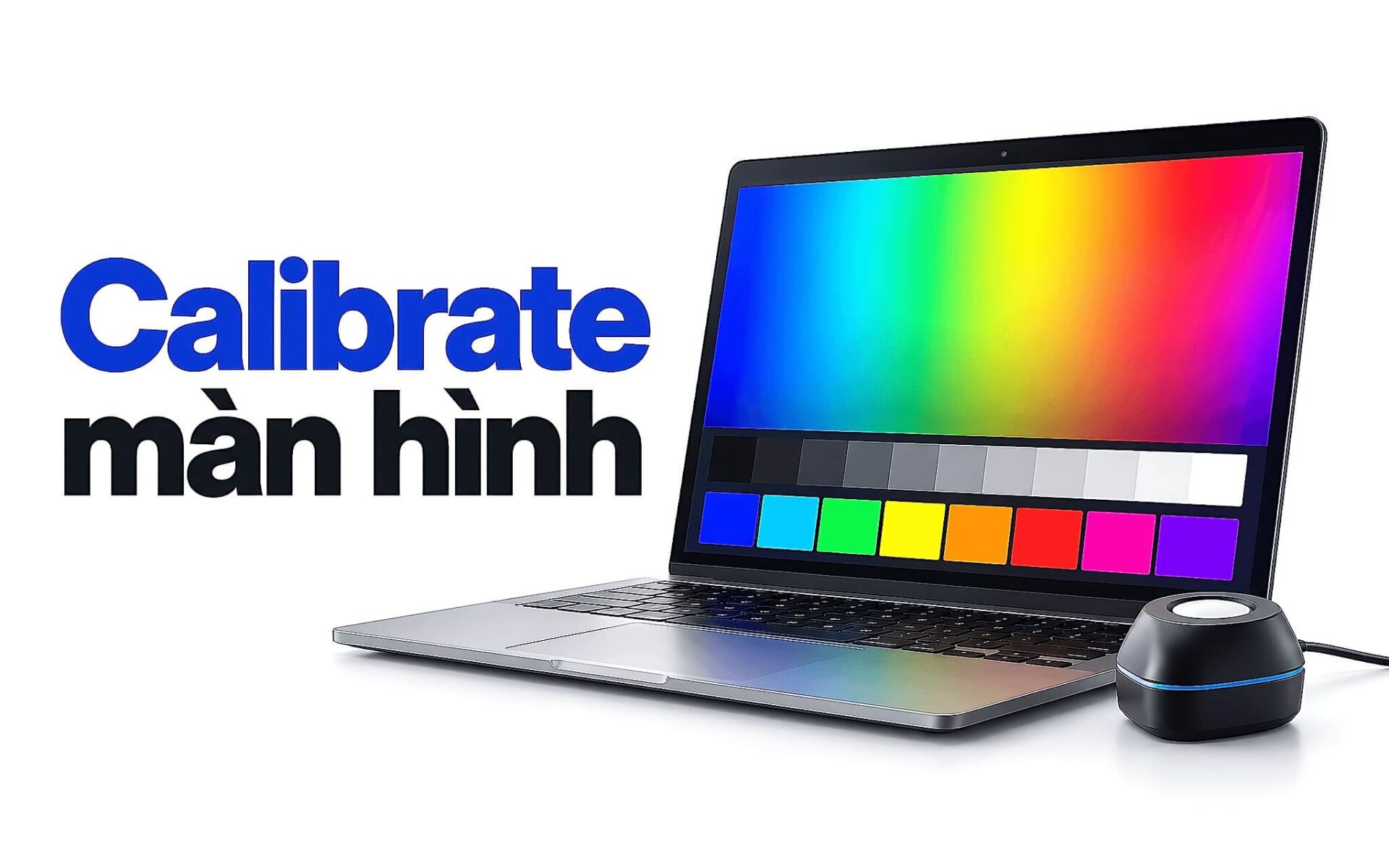
Laptop đồ họa gắn GPU mạnh vẫn có thể hiển thị làn da ngả hồng hay nền trắng ám xanh, vì màu trên màn phụ thuộc tấm nền và cách tấm nền được chỉnh, không phụ thuộc card đồ họa. Calibrate màn hình là quy trình dùng thiết bị đo để đưa điểm trắng, gamma và độ sáng về mục tiêu chuẩn, rồi lưu kết quả thành profile ICC cho Windows và phần mềm đồ họa đọc. Bài viết giải thích giới hạn của việc hiệu chỉnh màu, bảng mục tiêu theo điều kiện phòng, cách chọn colorimeter, các bước thực hiện trên Windows 11 và những lỗi làm profile mất tác dụng.
Vì sao laptop đồ họa GPU mạnh vẫn hiển thị lệch màu
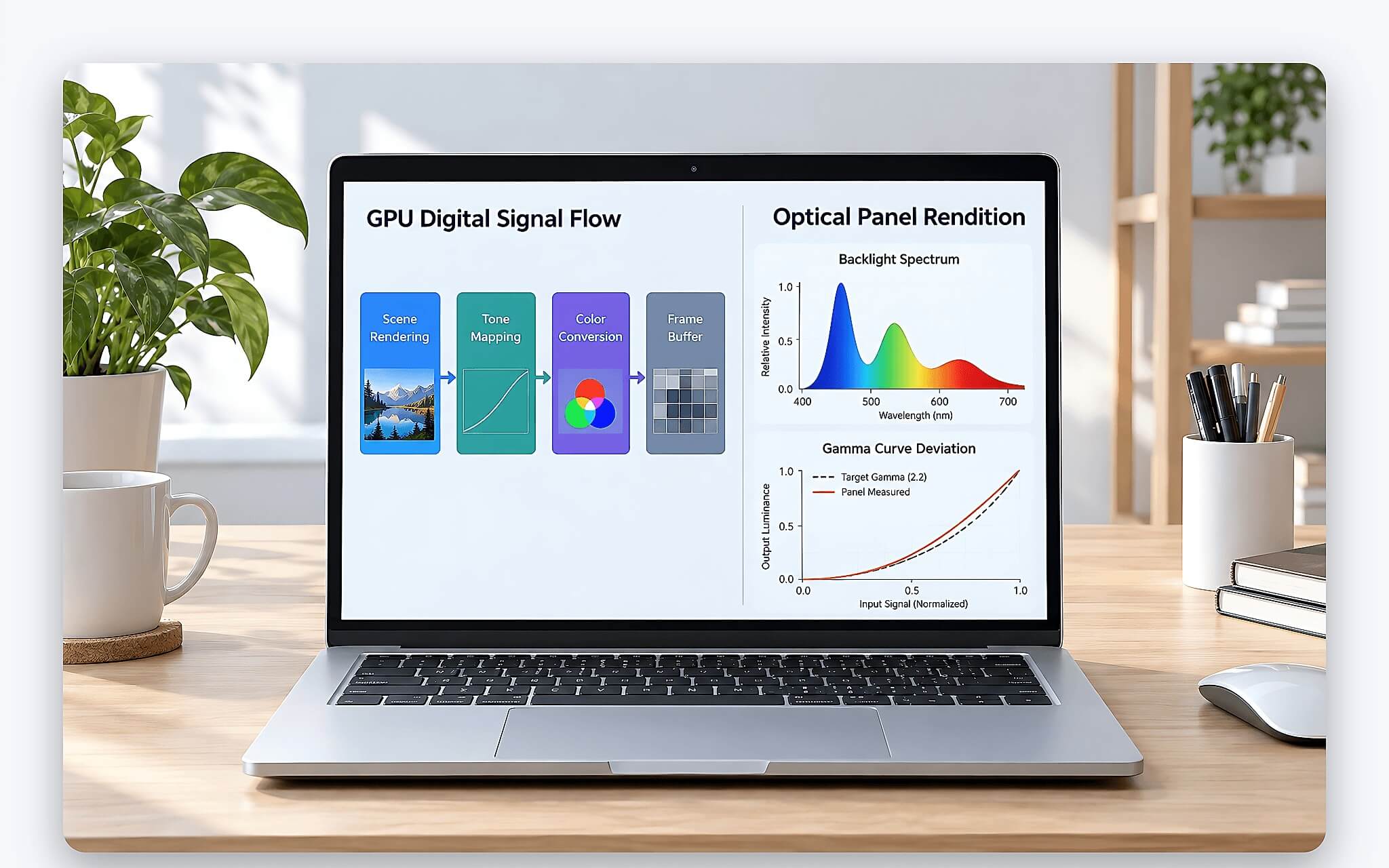
GPU chỉ tính toán và xuất tín hiệu số cho từng điểm ảnh, còn việc biến tín hiệu đó thành ánh sáng là nhiệm vụ của tấm nền. Hai chiếc laptop cùng RTX nhưng khác tấm nền sẽ hiển thị cùng một bức ảnh theo hai cách khác nhau. Sai lệch đến từ nhiều khâu: đèn nền mỗi lô sản xuất có phổ ánh sáng riêng, lớp phim màu lệch nhẹ, đường cong gamma của nhà máy chỉnh vội. Vì vậy calibrate màn hình mới là yếu tố cốt lõi quyết định khả năng tái tạo màu trung thực, còn sức mạnh GPU chỉ quyết định tốc độ kết xuất.
Nhiều mẫu laptop sáng tạo có ghi chú đã hiệu chỉnh màu tại nhà máy, kèm báo cáo Delta E in sẵn trong hộp. Báo cáo đó phản ánh trạng thái lúc xuất xưởng, đo ở một mức sáng nhất định với một chế độ màu mặc định. Khi bạn kích hoạt chế độ tiết kiệm pin, cập nhật driver đồ họa hay đổi preset màu trong ứng dụng của hãng, đường cong đã chỉnh có thể bị thay thế. Theo thời gian, đèn nền suy giảm cường độ và ngả sắc, nên kết quả hiệu chỉnh màu của nhà máy dần trôi khỏi mục tiêu.
Mắt người lại rất dễ thích nghi, nên bạn khó nhận ra màn đang ám xanh nếu chỉ nhìn một màn duy nhất. Sai lệch chỉ bộc lộ khi ảnh in ra ngả vàng, khi khách hàng mở file trên điện thoại thấy màu khác hẳn, hoặc khi đặt laptop cạnh một màn thứ hai. Đó là lý do người làm ảnh, thiết kế in ấn và dựng video cần calibrate màn hình bằng thiết bị đo thay vì hiệu chỉnh màu bằng mắt. Thiết bị đo cho ra con số khách quan, có thể xác minh lại.
Hiệu chỉnh màu sửa được tông màu nhưng không nới gam tấm nền
Về bản chất, calibrate màn hình gồm hai phần. Phần calibration điều chỉnh hành vi của màn hình về mục tiêu định trước thông qua các đường cong nạp vào bảng gamma của card đồ họa. Phần profiling đo lại màn hình sau khi đã chỉnh và tạo profile ICC mô tả chính xác màn hình đó hiển thị màu ra sao. Tài liệu của DisplayCAL, phần mềm miễn phí dựa trên ArgyllCMS, mô tả đúng quy trình hai bước này. Hiệu chỉnh màu vì vậy sửa được điểm trắng, gamma và cân bằng xám giữa ba kênh đỏ, lục, lam.
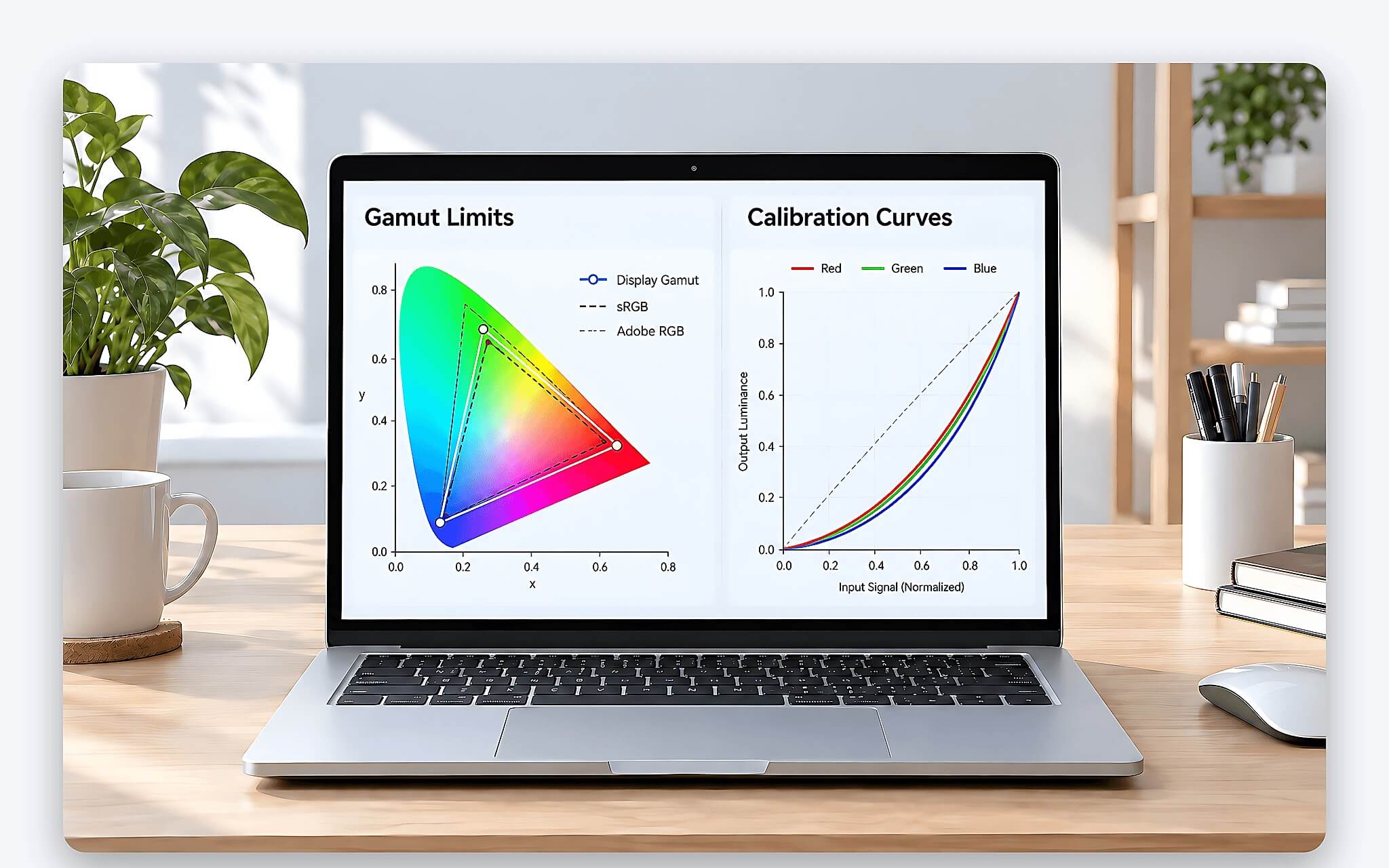
Giới hạn phần cứng nằm ở ba màu cơ bản của tấm nền. Đường cong gamma chỉ có thể giảm hoặc phân bổ lại cường độ từng kênh, không thể tạo ra sắc đỏ hay xanh bão hòa hơn mức lớp phim màu cho phép. Một tấm nền chỉ phủ khoảng 45% NTSC sau khi calibrate màn hình vẫn là tấm nền 45% NTSC, chỉ có điều tông màu trung tính hơn và profile ICC khai báo đúng giới hạn đó. Muốn làm nội dung DCI-P3, bạn phải chọn tấm nền có gam rộng ngay từ đầu, phần mềm không bù đắp được.
Độ phủ gam rộng cũng chưa phải toàn bộ câu chuyện. Bài Content creator hậu kỳ 4K: vì sao màn DCI-P3 chưa phải yếu tố quyết định? phân tích lý do một tấm nền phủ DCI-P3 cao vẫn chưa đủ để quyết định chất lượng hậu kỳ, đúng với giới hạn vừa nêu. Gam rộng mang lại ưu thế về không gian màu, còn độ chính xác trong không gian đó phụ thuộc vào việc hiệu chỉnh màu và profile ICC được ứng dụng đọc đúng.
Chọn điểm trắng D65 gamma 2,2 và độ sáng theo phòng làm việc
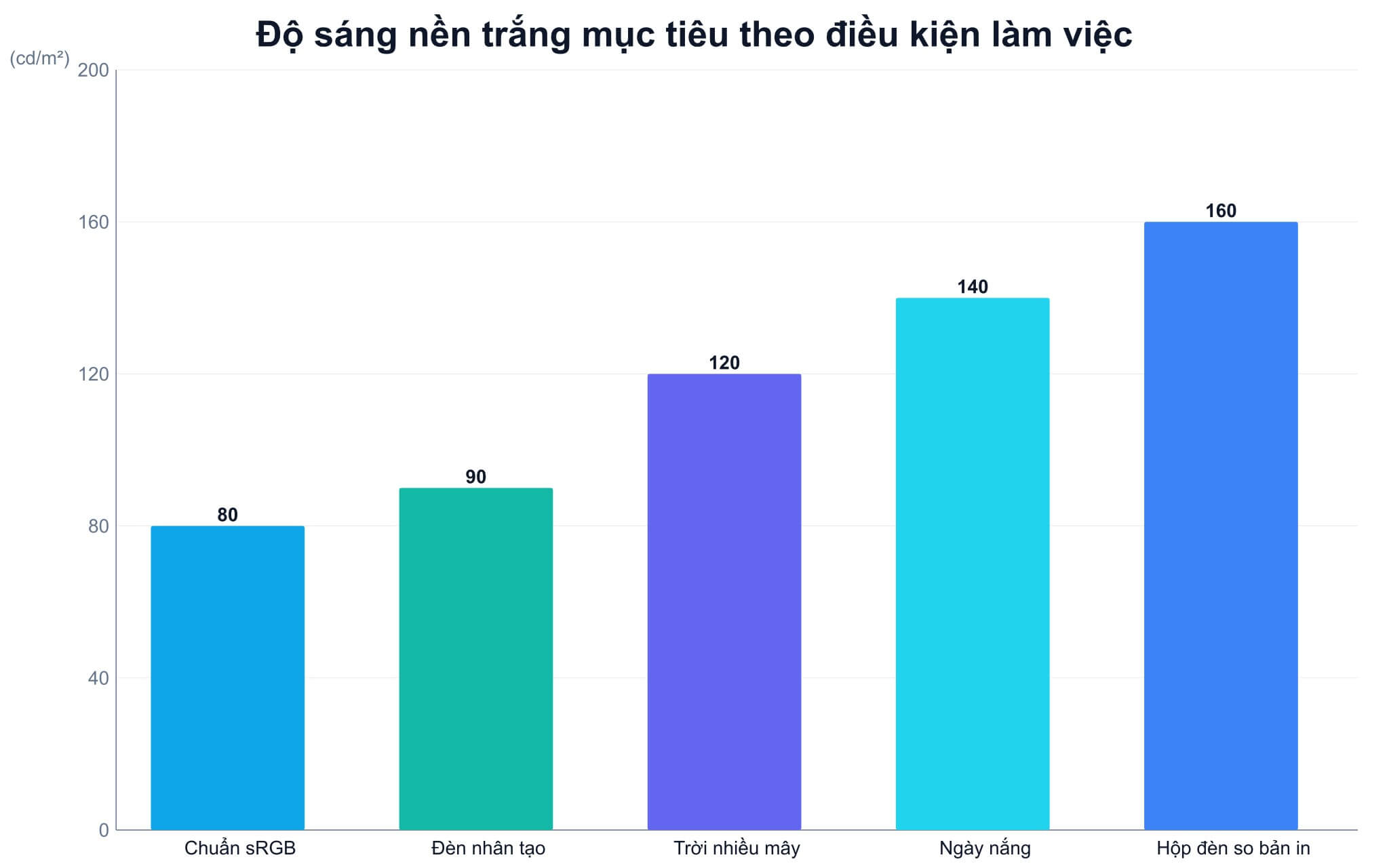
Trước khi calibrate màn hình, phần mềm hỏi ba mục tiêu chính: điểm trắng, đường cong tông và độ sáng của nền trắng. Tài liệu A Standard Default Color Space for the Internet do W3C lưu trữ, tiền thân của chuẩn IEC 61966-2-1, quy định điều kiện tham chiếu gồm độ sáng màn 80 cd/m², điểm trắng D65 và gamma 2,2, trong một phòng có độ rọi 64 lux. Phần lớn nội dung web và ảnh chụp từ điện thoại được mã hóa theo sRGB, nên D65 cùng gamma 2,2 là điểm xuất phát an toàn. Mức 80 cd/m² khá tối với phòng làm việc sáng đèn, nên bạn thường cần chọn cao hơn.
| Điều kiện làm việc | Độ sáng nền trắng (cd/m²) | Điểm trắng | Gamma | Nguồn |
|---|---|---|---|---|
| Điều kiện tham chiếu sRGB | 80 | D65 | 2,2 | W3C, chuẩn sRGB |
| Phòng dùng đèn nhân tạo | 90 | 5000 K | 2,2 | EIZO |
| Ánh sáng ngày trời nhiều mây | 120 | 6500 K | 2,2 | EIZO |
| Ánh sáng ngày nắng | 140 | 6000 K | 2,2 | EIZO |
| So bản in dưới hộp đèn | 160 | D50 phổ biến trong chế bản | Theo phần mềm | X-Rite |
EIZO nhấn mạnh các mức trong bảng chỉ là giá trị tham khảo, vì hãng không biết điều kiện ánh sáng thực tế tại chỗ làm của bạn. Nguyên lý chung rất đơn giản: phòng càng sáng, nền trắng trên màn càng cần sáng để mắt vẫn phân biệt được chi tiết vùng tối. Theo hướng dẫn trên How to Calibrate Your Monitor của X-Rite, đa số người làm việc với màn LCD thấy mức 120 là đủ để đánh giá màu và chi tiết, còn khi so bản in dưới hộp đèn thì nên đặt 160.
Với điểm trắng, D65 hợp với phần lớn công việc ảnh và đồ họa hiển thị trên màn khác, còn D50 phổ biến trong chế bản in. Preset Photo của Calibrite PROFILER mặc định chọn 6500K cùng mức 120 cd/m², một cấu hình trung dung cho người mới bắt đầu. Nếu bạn làm video SDR, hãy chọn đường cong theo chuẩn Rec. 709 mà phần mềm đo hỗ trợ sẵn. Điều quan trọng là chọn một bộ mục tiêu hiệu chỉnh màu rồi duy trì nhất quán trên mọi màn trong quy trình làm việc.
Colorimeter và phần mềm đo màu cần chuẩn bị trước khi bắt đầu
Colorimeter là thiết bị đặt áp lên màn, đo ánh sáng từ từng mảng màu mẫu rồi gửi số liệu về phần mềm. Thông số cần ưu tiên xem xét là độ sáng tối đa thiết bị đo được, vì màn mini-LED và OLED đời mới có vùng sáng rất cao khi bật HDR. Khi calibrate màn hình laptop ở chế độ SDR khoảng 120 cd/m², thiết bị tầm trung đã dư biên độ, nhưng nếu bạn định đo cả chế độ HDR thì cần mẫu có ngưỡng đo cao hơn. Bảng dưới tổng hợp số liệu từ trang chính thức của Datacolor và Calibrite.
| Thiết bị đo | Độ sáng tối đa đo được (cd/m²) | Điểm cần biết theo trang hãng |
|---|---|---|
| Datacolor SpyderExpress | 1.200 | Tối đa 3 màn hình kết nối mỗi máy trạm |
| Datacolor Spyder | 3.000 | Không giới hạn số màn hình theo khả năng máy tính |
| Calibrite Display Pro HL | 3.000 | Đo LCD, mini-LED, OLED, giá niêm yết 279 USD |
| Calibrite Display Plus HL | 10.000 | Thêm QD-OLED, cổng USB-C, giá niêm yết 339 USD |
| Datacolor SpyderPro | 12.000 | Hiệu chỉnh 3D LUT, đo ánh sáng phòng |
Phần mềm calibrate màn hình có hai hướng. Calibrite PROFILER đi kèm thiết bị Calibrite, chạy trên Windows 10, 11 và macOS, có chế độ Basic cho người mới và Advanced đáp ứng người cần tùy biến. DisplayCAL là lựa chọn miễn phí, hỗ trợ nhiều loại colorimeter của các hãng khác nhau và dựa trên bộ công cụ mã nguồn mở ArgyllCMS. Nếu bạn cần hiệu chỉnh màu cho nhiều màn khác hãng trong cùng một phòng, DisplayCAL giúp tận dụng một thiết bị đo duy nhất.
Điểm mấu chốt là colorimeter đo dựa trên bộ lọc màu, nên phải được cài đúng loại tấm nền. Đèn nền LED trắng thường, LED gam rộng, mini-LED và OLED có phổ ánh sáng rất khác nhau. Khi chọn sai loại tấm nền trong phần mềm, con số đo và kết quả hiệu chỉnh màu có thể chênh lệch đáng kể dù thiết bị vẫn hoạt động bình thường. Trang Calibrite ghi rõ Display Plus HL hỗ trợ LCD, mini-LED, OLED, QD-OLED, vì vậy bạn chỉ cần chọn đúng mục tương ứng với laptop đang dùng trước khi calibrate màn hình.
Các bước calibrate màn hình laptop trên Windows 11 và nạp profile ICC
Bước đầu tiên là để màn hình khởi động đủ lâu. X-Rite khuyên bật màn khoảng 30 phút cho ổn định trước khi đo, vì độ sáng và sắc trắng của đèn nền còn dao động trong những phút đầu. Tiếp theo, đưa các thiết lập màu của laptop về mặc định: tắt chế độ đọc sách, tắt Night light, trả preset màu trong ứng dụng của hãng về chế độ gốc thay vì sRGB hay Vivid.
Bước thứ hai trước khi calibrate màn hình là tắt mọi tính năng tự thay đổi độ sáng. Trong Settings, mục System, Display, bạn tắt tùy chọn tự đổi độ sáng theo ánh sáng xung quanh và tùy chọn đổi độ sáng theo nội dung. Driver đồ họa cũng có công cụ tiết kiệm điện màn hình như Display Power Saving Technology của Intel hay Vari-Bright của AMD, cần tắt để đèn nền không tự giảm cường độ giữa chừng. Cắm sạc để duy trì cấu hình điện ổn định trong suốt quá trình đo và tắt HDR, vì profile cho SDR và HDR được Windows quản lý tách biệt.
Bước thứ ba là đo. Bạn đặt colorimeter vào giữa màn, nghiêng màn cho thiết bị áp sát, chọn mục tiêu D65, gamma 2,2 và độ sáng như bảng ở trên, rồi để phần mềm chạy chuỗi mảng màu. Khi phần mềm yêu cầu chỉnh độ sáng, hãy kéo thanh độ sáng của Windows đến mức đạt mục tiêu. Kết thúc bước hiệu chỉnh màu, phần mềm lưu profile ICC và nạp đường cong vào card đồ họa. Hãy mở Color Management trong Control Panel, kiểm tra profile mới được đặt làm mặc định cho màn laptop, đồng thời bật mục dùng Windows display calibration ở thẻ Advanced.
Lỗi khiến profile ICC mất tác dụng và lịch đo lại định kỳ
Lỗi phổ biến nhất sau khi calibrate màn hình là dùng ứng dụng không quản lý màu. Tài liệu Microsoft về Advanced Color xác nhận khi tính năng này không hoạt động, Windows không quản lý màu cho nội dung của ứng dụng, nên từng ứng dụng phải tự đọc profile ICC. Photoshop và Lightroom có đọc profile, trong khi nhiều trình xem ảnh đơn giản bỏ qua nó. Vì vậy cùng một bức ảnh có thể hiển thị đúng trong Photoshop nhưng lệch trong trình xem mặc định, dù bạn đã hiệu chỉnh màu cẩn thận.
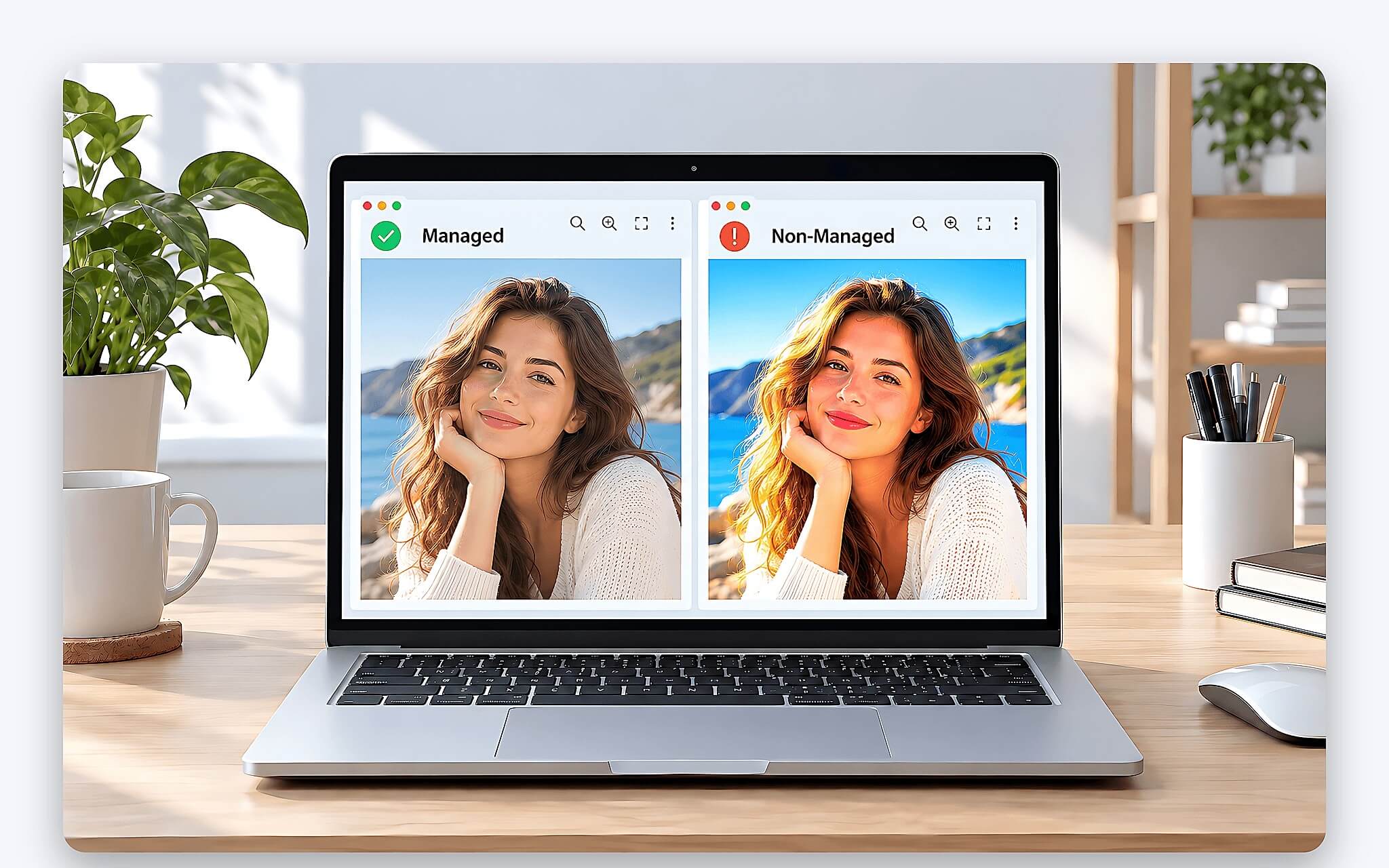
Lỗi thứ hai là profile hiệu chỉnh màu bị ghi đè. Phiên bản driver đồ họa mới, ứng dụng quản lý màu của hãng laptop hay tiện ích tự chuyển preset theo chế độ pin đều có thể nạp lại đường cong khác. Laptop dùng công tắc MUX hoặc Advanced Optimus chuyển đường tín hiệu giữa iGPU và GPU rời, nên sau khi đổi chế độ bạn cần mở Color Management kiểm tra profile vẫn đang gán cho màn. Nếu bật HDR, Windows xử lý màu theo hướng khác và profile SDR của bạn sẽ không được áp dụng như lúc đo.
Với tấm nền OLED và mini-LED, độ sáng thay đổi theo diện tích vùng sáng, nên kết quả đo ở mảng nhỏ có thể khác trải nghiệm khi xem cả khung hình sáng. Về tần suất, Calibrite khuyên lặp lại quy trình sau mỗi 3 đến 4 tuần, và phần mềm cho phép đặt lời nhắc tự động. Sau mỗi lần đo lại, bạn nên chạy thêm bước xác minh để xem Delta E trung bình sau hiệu chỉnh màu, qua đó biết tấm nền đang ổn định hay đã suy giảm. Lịch đo đều đặn giúp kết quả calibrate màn hình giữ giá trị lâu dài.
Câu hỏi thường gặp về calibrate màn hình laptop
Có thể hiệu chỉnh màu bằng mắt mà không cần thiết bị đo không? Công cụ Calibrate display color có sẵn trong Windows cho phép chỉnh gamma, độ sáng, độ tương phản và cân bằng màu bằng cách so mẫu hình. Kết quả phụ thuộc vào mắt và ánh sáng phòng, nên chỉ đáp ứng mục đích làm màn dễ nhìn hơn. Với công việc cần màu khớp bản in hay khớp màn khác, bạn vẫn nên calibrate màn hình bằng colorimeter.
Laptop có màn đã chỉnh màu từ nhà máy có cần đo lại không? Nên calibrate màn hình lại sau một thời gian sử dụng, vì đèn nền suy giảm và các bản cập nhật phần mềm có thể thay đường cong gốc. Báo cáo trong hộp chỉ xác nhận trạng thái lúc xuất xưởng ở chế độ màu mặc định, không bảo đảm màu vẫn giữ nguyên sau vài tháng.
Delta E sau khi đo bao nhiêu thì đạt? Phần lớn phần mềm hiệu chỉnh màu báo Delta E 2000, và giá trị trung bình dưới 2 thường được coi là khó phân biệt bằng mắt thường. Nếu con số tăng nhanh giữa các lần đo khi thiết lập không đổi, tấm nền có thể đang lão hóa.
Mượn colorimeter của người khác để đo có được không? Được, vì profile ICC tạo ra khi calibrate màn hình lưu trên laptop chứ không lưu trong thiết bị đo. Bạn chỉ cần cài phần mềm tương thích, chọn đúng loại tấm nền và thực hiện đủ các bước chuẩn bị. Profile tạo ra vẫn dùng bình thường sau khi trả thiết bị, cho tới lần đo lại kế tiếp.