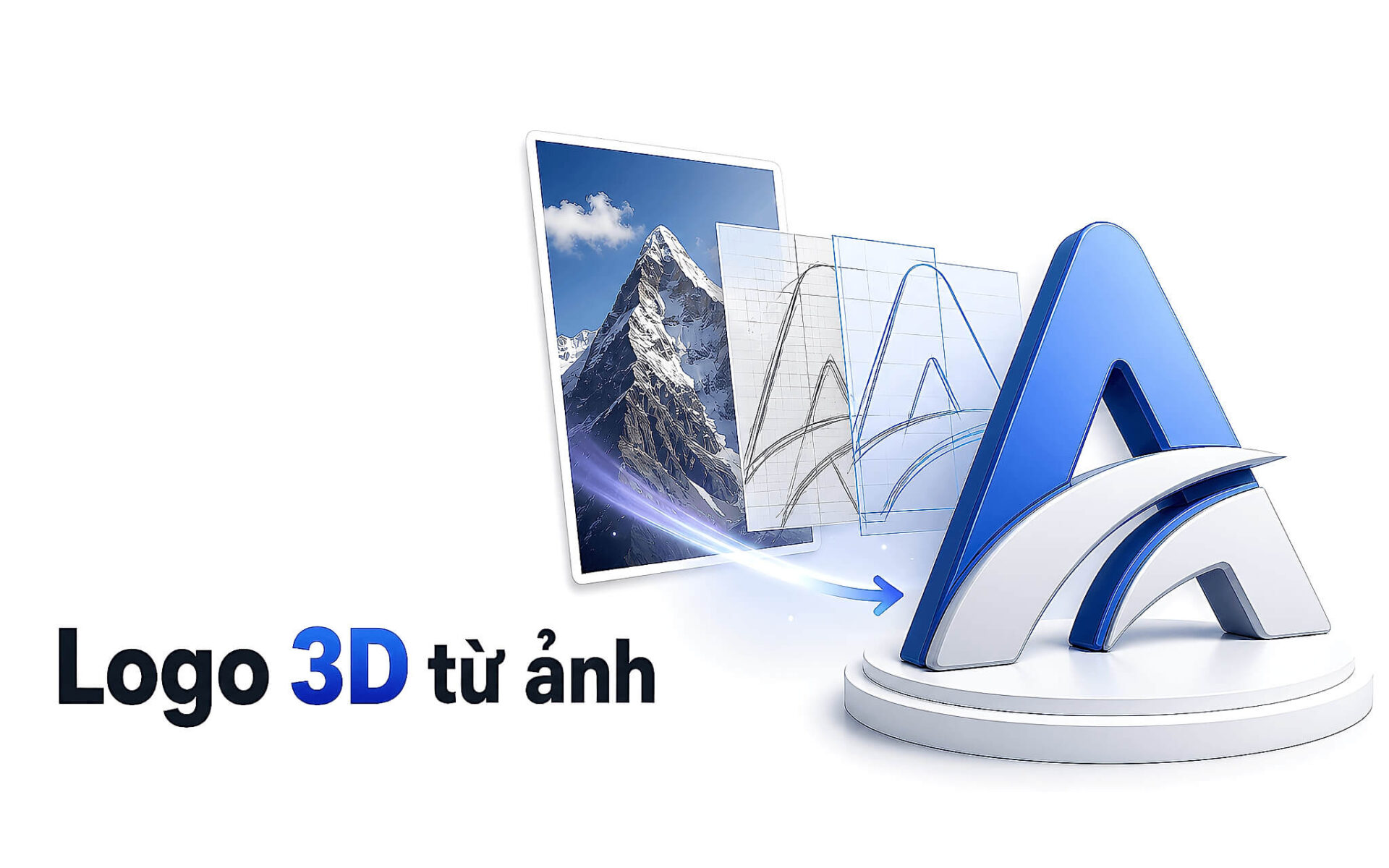
A flat logo consists only of lines and color blocks, but when described with the right materials and lighting, modern image generation models can recreate it into a puffed-up plastic object like a product photo. Creating a 3D logo from an image using AI prompts does not redesign the icon, but rather maintains the shape, proportions, and negative space of the original before adding depth, gloss, and studio shadows. Hung Phat has compiled the full prompt, how to substitute your logo, a table of material variations, and points to verify before including the image in your publications.
What does creating a 3D logo from an image with AI prompts mean
Creating a 3D logo from an image here means using a descriptive command that requests the image generation model to transform a flat icon into a three-dimensional object made of inflated plastic. The key lies in the fact that the prompt does not allow the model to redraw the icon according to its own will. The operating principle of this AI prompt is to pre-constrain the identity-including shape, proportions, negative space, and layout structure of the original-before allowing the model freedom in the material aspect. As a result, the experience is much more stable than free-form descriptions.
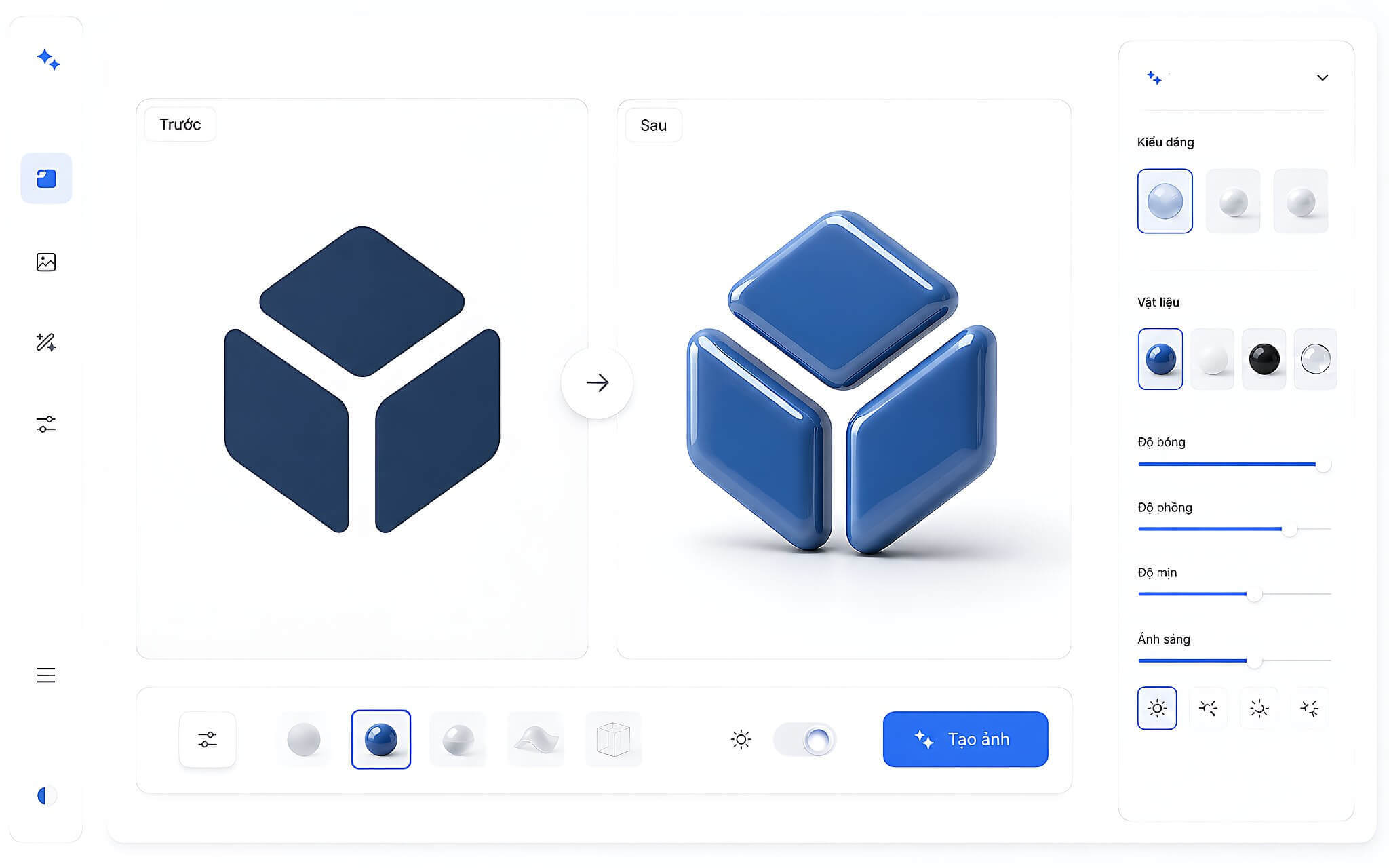
Once the identity is locked, the prompt adds depth: rounded edges, a taut surface, welded seams running along the borders, a glossy finish, and slight subsurface translucency. Diffused lighting and contact shadows are two core elements, as well as the threshold that distinguishes amateur photos from product photography, making the logo look as if it has undergone a professional product shoot. The specifications of Google's image models, including 1K, 2K, and 4K resolutions, are announced on the Gemini 3 Pro Image page.
Full AI prompt to create inflated plastic logo models
The full prompt to create a 3D logo from an image below is written in English because image generation models respond better to original material terminology. You should upload your logo file first, then paste the text verbatim and replace the [Logo] phrase with your brand name. If the tool does not yet support image input, describe the icon in words at that position.
Transform the attached [Logo] into a single inflated glossy plastic 3D object. Keep the original silhouette, proportions, negative space and letterforms exactly, do not redraw or restyle the mark. Give every shape real volume: thick puffed panels, soft rounded edges, visible welded seams along the borders, an air filled balloon surface with slight tension wrinkles. Material: smooth semi glossy plastic with light subsurface translucency and crisp specular highlights. Lighting: soft diffused studio light from the upper left, gentle contact shadow directly under the object. Composition: front view, centered, isolated on a seamless pure white studio background, product photography framing. Output: photorealistic high end product visualization, sharp focus, fine surface detail, square 1:1 framing.
The prompt consists of four blocks in order: identity constraints, description of volume and seams, description of material and lighting, and finally composition and output requirements. Maintaining this order helps the model prioritize identity before applying material, which is the key reason why constraint-based AI prompts yield more consistent results. This block division method was previously analyzed in the article 10 ChatGPT Slide Creation Prompts.
How to create 3D logos with AI using your brand logo
Before pasting the prompt, the preparation steps to create a 3D logo from an image involve two tasks: having a transparent logo file in PNG or SVG format, and clearly determining the brand name to fill into the [Logo] position. The fewer the small details in the logo, the cleaner the render, as thin lines are easily distorted when the surface puffs up.
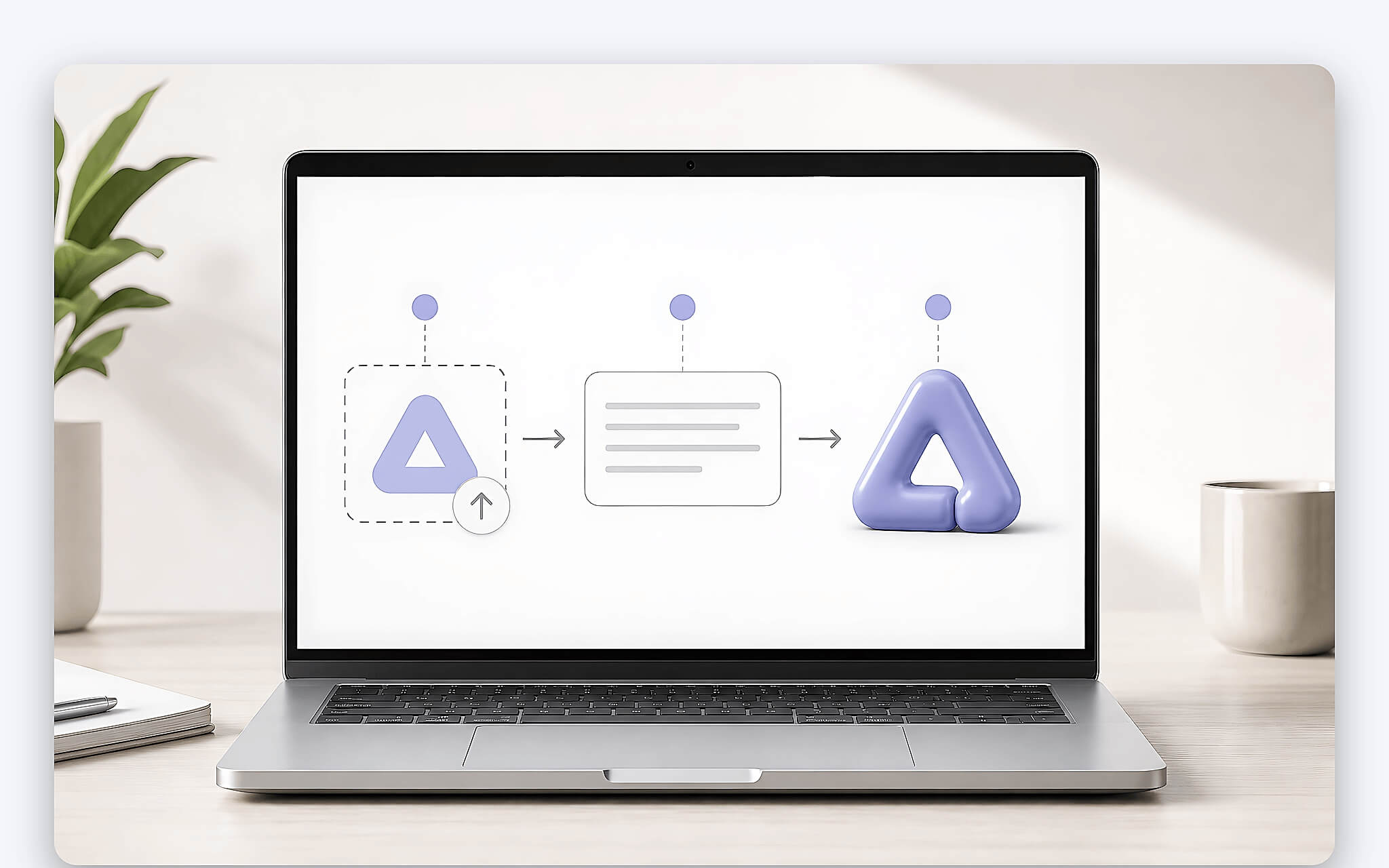
Next, open an image generation tool that supports image input, attach the logo file, and paste the full prompt into the input box. Two popular model groups currently are Google's Nano Banana Pro (technically known as Gemini 3 Pro Image) and OpenAI's gpt-image group. Both accept reference images and allow editing from existing images, so the 3D logo creation process is available on both platforms.
Once you have the first version, compare it with the original logo at three points: the ratio between segments, the negative space inside the icon, and the thickness of the font strokes. Deviations are most clearly revealed in the negative space, so this detail should be prioritized for comparison. The size limits and quality parameters of the OpenAI model group are listed in the Image generation | OpenAI API documentation.
Change materials to get different versions from the same prompt
Keep the entire identity constraint section unchanged; you only need to replace the material description phrase in the prompt to get a completely different version. This is the most economical way to build a consistent set of images for the same brand, because the composition, lighting, and framing remain unchanged, ensuring the renders look like they belong to the same set.
| Material Variation | Phrase to replace in prompt | Visual characteristics |
|---|---|---|
| Inflated plastic (default) | inflated glossy plastic | Taut surface, clear welded seams, soft feel |
| Glass | clear blown glass | Transparent, strong refraction, prominent bright edges |
| Chrome | polished chrome metal | Mirror-like reflection, prone to losing fine detail |
| Rubber | matte soft rubber | Matte surface, low contrast, retains lines well |
| Glazed ceramic | glazed ceramic | Soft gloss, ivory white, suitable for cover photos |
| Crystal | faceted crystal | Multiple facets, high contrast, prone to visual clutter |
The chrome and crystal variations reflect too strongly, which often reduces the legibility of the icon, especially for logos with many thin lines. If you need a safe set of images, the glazed ceramic or rubber options provide more stable results. The general context of this line of image models was previously summarized by Hung Phat in the article Google Photos Nano Banana Pro: 4K AI Images.
Limitations to verify before using 3D images
The prompt contains constraints to keep the logo intact, but constraints are only guidance, not a guarantee. The model may still reshape curves, thicken strokes, or obscure parts of the negative space. Therefore, all renders from the 3D logo creation process need to be re-verified at high zoom, especially the characteristic identity details.
A common misconception is that adding "8K" to the prompt will result in an 8K resolution image. In reality, those strings only affect the style, while the output size is determined by the tool's specific parameters: the Google model group stops at 4K, while the gpt-image group limits the long edge to 3840 pixels. Writing 8K in the prompt does not compensate for that limit, so you should set the dimensions in the tool's configuration section.
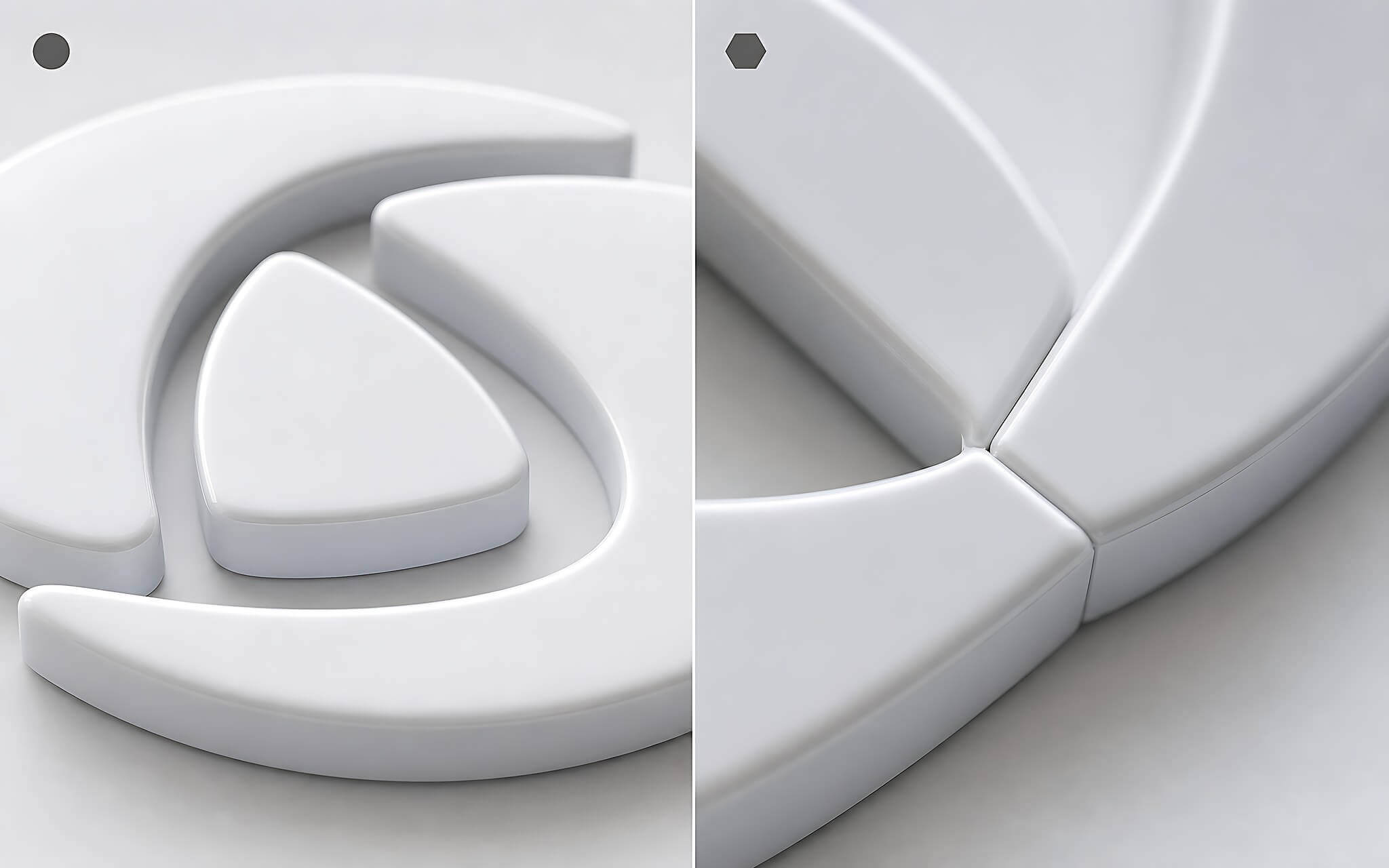
The final point is usage rights: a brand's logo still belongs to its owner; a 3D render does not change that legal nature, so you should only work with logos you have the right to use. For design and media professionals, the practical value of this prompt lies in quickly generating an illustrative direction to finalize an idea, rather than replacing manual 3D modeling for large-format print publications. In other words, creating 3D models from images with AI is a rapid sketching step, not the final render.
Each image generation also consumes subscription limits, so you should prioritize finalizing the composition with a few attempts at low resolution before activating 2K or 4K for the final version. This habit keeps costs low while still providing a sufficiently sharp render for digital publications.
Frequently asked questions when creating 3D logos from images
Is the Gemini 3D logo prompt different from ChatGPT?
With the same prompt, the two platforms produce different image qualities. Google's model group tends to follow the reference image more closely and maintains negative space better, while the gpt-image group provides softer surfaces and gentler shadows. Therefore, you should test both before choosing a primary platform. Google's image editing strengths were previously noted by Hung Phat in the article Google Gemini surpasses ChatGPT, leading thanks to image editing tools.
Does converting a 2D logo to 3D distort brand identity?
It is possible, especially with icons containing many thin lines or tightly spaced text. When the surface puffs up, strokes thicken and negative space narrows, causing the original proportions to deviate. The way to control this is to place the render next to the original logo at the same size and inspect three points: segment ratios, negative space, and stroke thickness. If the deviation is too great, you should reduce the "puffiness" in the prompt or switch to the glazed ceramic variant, which preserves lines better.