Most Vietnamese tutorials on this topic simply list tools and stop there, leaving readers wondering what exactly to type into the chat box. This article takes a different approach: it provides 10 ready-to-use slide generation prompts that you can just copy and paste, following a logical sequence from outline to presentation script. Additionally, we cover three topics rarely discussed: the current extent of ChatGPT's ability to export PowerPoint files, how prompting has changed with new models, and the legal constraints regarding uploading company data to foreign AI services starting from early 2026.
How capable is ChatGPT at creating slides and what are its weaknesses
The ability to turn a slide generation prompt into an actual file has changed drastically compared to two years ago. Since May 21, 2026, OpenAI has released the ChatGPT add-in for PowerPoint as a sidebar running directly within the application, allowing users to create and edit slides while maintaining full manual editing capabilities. This add-in is available for all plans, including the free tier; details can be found on the ChatGPT for PowerPoint introduction page.
There are three other ways. The ChatGPT Work feature, released on July 9, 2026, can create complete documents, spreadsheets, and presentations. Agent mode, available since July 2025, can export editable slides. The oldest method is using the model to write Python code to build the file, which still works well for simple needs.
| Method | Strongest at | Known Limitations |
|---|---|---|
| ChatGPT writes content, you build the slides | Sharpest structure and reasoning | Requires extra time for presentation setup |
| ChatGPT add-in in PowerPoint | Maintaining company templates and layouts | Currently in beta; complex formatting may not be preserved |
| Gemini in Google Slides | Building full slide decks and reviewing outlines first | At launch, only supports English |
| Specialized tools like Gamma or Canva | Fast and beautiful with many templates | Content is often shallow and requires rewriting |
OpenAI is upfront about its weaknesses in its documentation: some complex formats, such as template or font handling, may not be supported, and the model might change or delete content if the request is unclear. The accompanying recommendation is to always keep a backup of important slide decks before asking the AI to edit them.
From this, we can derive a pragmatic principle for writing slide generation prompts: use ChatGPT for content and structure, and use slide-building tools for aesthetics. Anyone who combines both into a single command often receives a slide deck that is either correct but ugly, or beautiful but empty.
How slide generation prompting has changed with new models
This is the part where many Vietnamese prompt engineering tutorials are teaching incorrectly. The current ChatGPT model is GPT-5.6, a series covered in the article GPT-5.6 Sol: OpenAI reveals a more powerful new model. For reasoning models, OpenAI itself states that the familiar "think step by step" mantra is no longer necessary and can even be counterproductive. The reason is simple: the model now performs reasoning internally.
OpenAI's new documentation also clarifies the issue with old-style prompts: previous generations often required overly detailed process descriptions because older models needed "hand-holding," but with current models, this only adds noise and makes responses mechanical. Official prompt writing guidance for general users can be found in OpenAI's prompt engineering practice guide.
OpenAI's analogy is quite memorable: a reasoning model is like a long-term colleague-you assign the goal and trust them to handle the details; whereas a standard model is like a new employee who needs specific instructions for every task. With GPT-5.6, a good prompt clearly states the goal, audience, constraints, and completion criteria, rather than listing step one, step two, etc.
Another note from official documentation: avoid absolute terms like "always," "never," or "must." These should be reserved for truly immutable constraints. Overusing them narrows the processing space and makes responses rigid. The ten slide generation prompts below are written according to these principles.
Ten ready-to-use slide generation prompts following a workflow
The ten slide generation prompts below work for both ChatGPT and Gemini. Text inside square brackets is where you should insert your actual information. Run them sequentially within the same conversation so the model maintains context; do not start a new chat for each step.
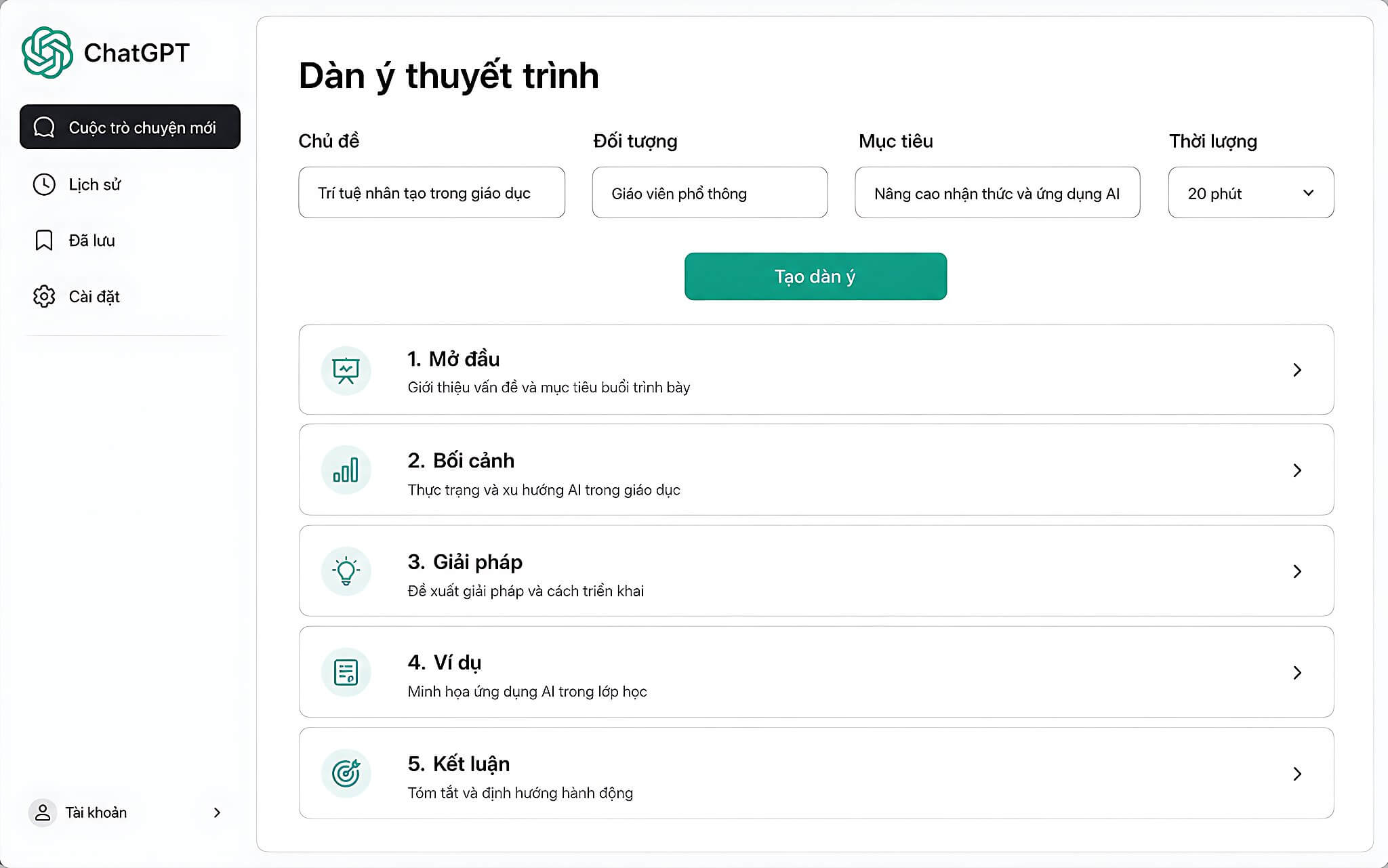
Slide Generation Prompt #1 - Building the outline: You are an expert presentation builder. I need to present on [topic] for [number of minutes] minutes to [audience], with the goal of [what you want the audience to do after the presentation]. Please propose an outline following a flow of problem, analysis, solution, and action. For each slide, clearly state the main message and the type of content to be used (data, images, stories, or charts). A successful result is when each slide carries only one idea and the entire deck reads seamlessly like a single argument.
If the outline is too generic, add: "Be specific about what the listener will understand from this slide that they didn't understand from the previous one."
Slide Generation Prompt #2 - Writing slide content: For slide [number] in the previously created outline, write a conclusion-style title that states the message directly rather than describing the topic. Include 3 to 4 bullet points, each under 10 words and containing only one piece of information. Then, write a presenter's note 3 to 5 sentences long, adding context and meaning that the slide itself doesn't fully convey. If the bullet points are still wordy, add: "Reduce each line to under 8 words and remove all non-informative adjectives."
Slide Generation Prompt #3 - Writing the introduction: Propose 5 different ways to open this presentation, each maximum 3 sentences long. Each option must follow a different direction: a surprising statistic, a question, a real-life scenario, a common misconception, or a contradiction. Provide a short note on which option best suits [audience] and why. If all five options are bland, add: "Each option must start with something the listener currently believes to be true but is actually false."
Slide Generation Prompt #4 - Explaining data: Here is my data: [paste data]. Write a 2 to 3 sentence explanation for this slide, explaining what the numbers mean for [audience] and what decision they lead to. Do not just read the numbers; interpret the impact. If the data has points prone to questioning, point them out to me. If the explanation sounds like it's just reading a table, add: "Rewrite it focusing on which decision this number changes for the listener."
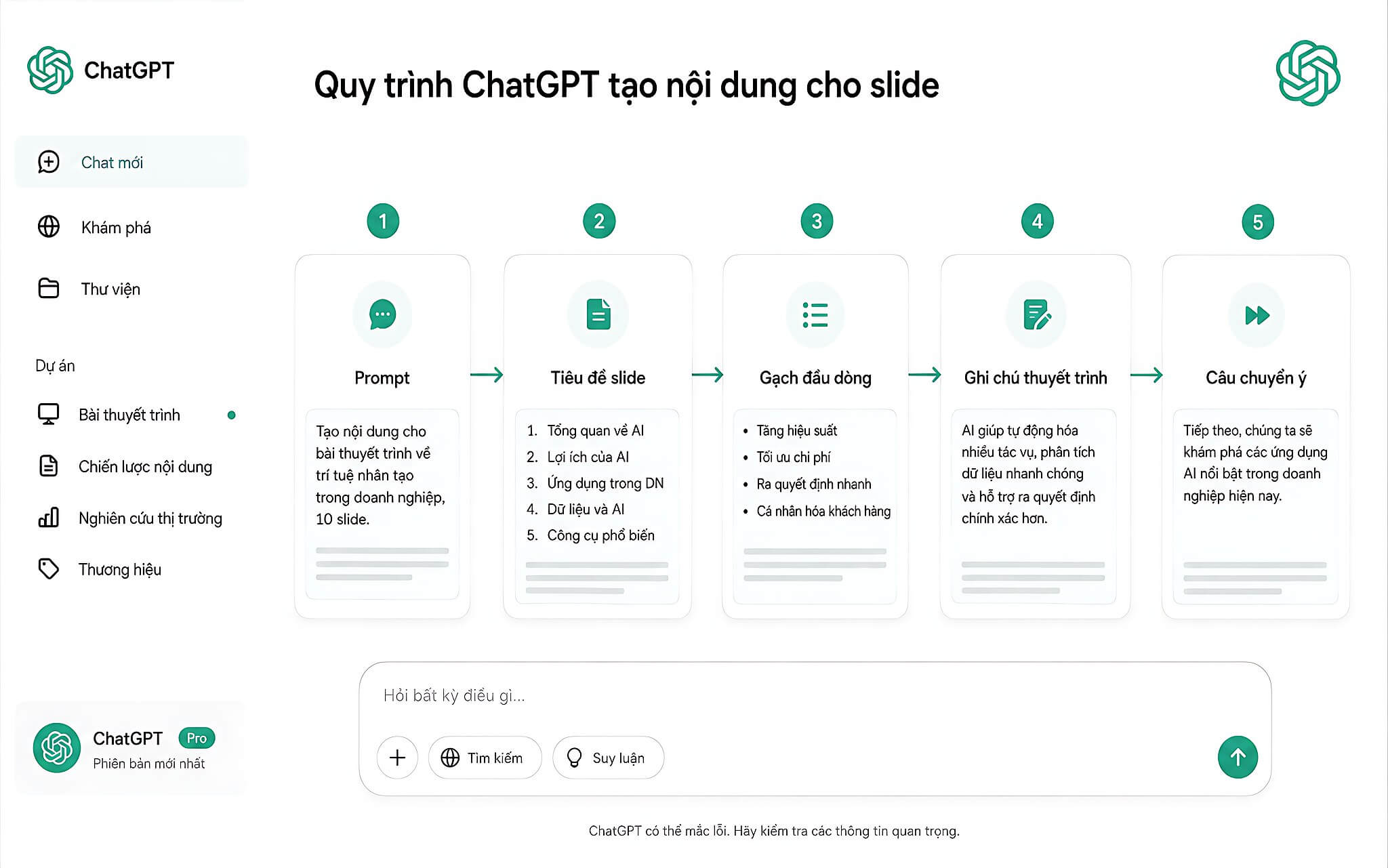
Slide Generation Prompt #5 - Transition sentences: Write transition sentences between each pair of consecutive slides in the outline, one sentence per line. The goal is for the listener to feel the entire presentation is a continuous flow rather than disconnected slides. Use a conversational tone and avoid clichés like "next, we will explore." If the transition sounds cliché, add: "Each sentence must restate the previous conclusion and then pose a question that the next slide answers."
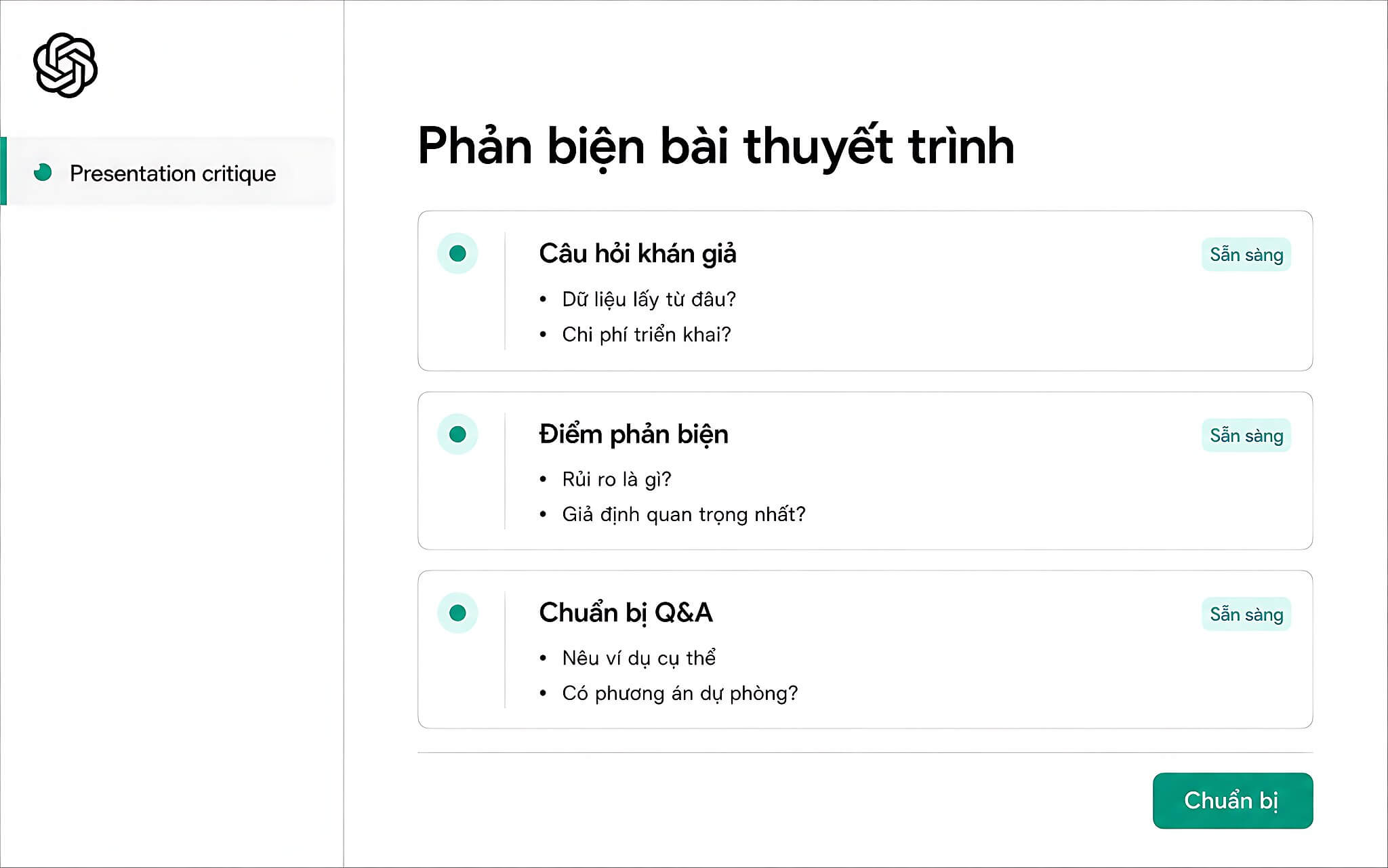
Slide Generation Prompt #6 - Predicting counter-arguments: Act as the most critical [audience] in the room and list 7 potential questions or objections. Categorize them into two groups: those that should be addressed proactively during the presentation, and those to save for the Q&A session. For each point, suggest a response of maximum 3 sentences. If the counter-arguments are too mild, add: "Assume the listener is skeptical of my data and wants to debunk this proposal."
Slide Generation Prompt #7 - Script by duration: Write a spoken script for the entire presentation for exactly [number of minutes]. Use natural spoken language; do not read the text on the slides verbatim. Mark where to transition slides, where to point to charts, and where to emphasize words. Include estimated timestamps at the start of each section so I can time my practice. If the script is too long, add: "Cut it down to exactly [number of minutes] when read at a speed of 130 words per minute and list the parts that were cut."
Slide Generation Prompt #8 - Executive summary slide: Compress this entire presentation into a single slide for someone who only has 60 seconds. Include one concluding statement, three numbers or facts supporting that conclusion, and a call to action with a deadline. Remove all process explanations; keep only what affects decision-making. If the summary slide is still too wordy, add: "The reader will only glance for 10 seconds and must remember exactly one number; choose that number."
Slide Generation Prompt #9 - Review and trim: Review all the generated content and identify overlapping ideas between slides, bullet points that do not serve the main message, and slides that can be merged. Propose a condensed version of maximum [number of slides], specifying what was removed and why. If the condensed version loses important points, add: "List what was removed so I can decide which parts to keep."
Slide Generation Prompt #10 - Follow-up email: Write a follow-up email to [audience] after the presentation, maximum 150 words. Summarize the three agreed-upon points, attach action items for each party with deadlines, and include an open-ended question to maintain the dialogue. Keep the tone concise and do not repeat the entire slide content. If the email sounds dry, add: "Start with a sentence reminding them of the most important thing they cared about during the meeting."
Company data and regulations effective from early 2026
This is a section almost no Vietnamese tutorial mentions, yet it is the biggest risk when using slide generation prompts for work documents. Personal Data Protection Law No. 91/2025/QH15, effective from January 1, 2026, replaces the previous Decree 13/2023. Article 20 of the law expands the concept of cross-border data transfer to include cases where data is stored in Vietnam but accessed from systems outside the territory.
This means pasting customer lists, HR data, or internal figures into the chat box of a foreign service now falls under regulation. Organizations must prepare impact assessment dossiers and submit them to specialized agencies within 60 days of starting the transfer. The maximum fine for violations regarding cross-border data transfer is 5% of the previous year's revenue.
Another technical point to know: for personal plans including Free, Go, Plus, and Pro, the content you input is used by default to improve the model. To turn this off, go to Settings, select Data Controls, and disable the "improve the model" option. For Business and Enterprise plans, data is not used for training by default.
There is one more trap: even if you have turned it off, if you click the "thumbs up" or "thumbs down" feedback buttons, that entire conversation may still be used. Risks of conversation content leaks have occurred on a large scale, such as in the ChatGPT Conversations leaked via Google Search incident.
Choosing between ChatGPT, Copilot, or slide-building tools for each task
If the slide deck must follow company templates and brand identity, Microsoft 365 Copilot running directly in PowerPoint is the lowest-risk option, as the file does not leave the internal system and it adheres strictly to the existing slide master. Personal plans in Vietnam cost 210,000 VND per month. How to use AI within the Office suite is discussed in more detail in the article Increase Work Productivity with Laptop Copilot+ PC.
If you need a beautiful draft very quickly and do not have a designer, specialized tools like Gamma or Canva can produce a presentation deck in just a few minutes. The common weakness is shallow content, so the most effective method is still running the ten slide generation prompts above to get a solid outline and wording, then importing that into a visual building tool.
However, if the presentation relies more on argumentation than aesthetics, stick to the manual method: let ChatGPT handle the content, and you handle the layout. This is also the best way to maintain control, as you review each slide before it hits the screen rather than trusting an automated build.
Frequently Asked Questions about slide generation prompts
Can ChatGPT create a PowerPoint file?
Yes, a slide generation prompt can produce a real file through four different ways. The most convenient way currently is the ChatGPT add-in for PowerPoint released on May 21, 2026, which runs directly in the application and keeps slides in an editable format; it is available for both free and paid plans. Other methods include the ChatGPT Work feature, Agent mode, and asking the model to write code to build the file. However, OpenAI also recommends checking the formatting and data before sharing.
Can I create slides in Vietnamese using AI?
ChatGPT and Claude handle Vietnamese normally, so writing slide generation prompts in Vietnamese will result in Vietnamese content. For Gemini's full slide deck generation feature in Google Slides, it only supports English upon its launch in late June 2026. For Vietnamese slides, the most stable method is using ChatGPT to write the content and then building the slides yourself, or using the PowerPoint add-in.
Should I add "think step by step" to my prompt?
With new models, it is not necessary, even when writing long slide generation prompts. OpenAI has stated that reasoning models perform this process internally, so requesting "step by step" thinking is redundant and sometimes even obstructive. Instead, you should clearly state the goal, audience, constraints, and the criteria for completion. You should also limit absolute terms as they make responses rigid.
Is it safe to paste company data into ChatGPT?
There are both technical and legal risks. Personal plans use your input to improve the model by default; you must manually disable this in Data Controls. Legally, the Personal Data Protection Law effective from January 1, 2026, classifies this as cross-border data transfer, requiring organizations to prepare impact assessment dossiers, with maximum fines of 5% of the previous year's revenue. For real data, you should use Enterprise plans or anonymize the data before pasting.
Which tool should I choose if I need beautiful slides quickly?
If aesthetics are the priority and you don't have a designer, specialized tools like Gamma or Canva produce drafts much faster. However, the content is usually shallow, so you will still need to rewrite it. The most effective method is using the ten slide generation prompts above to get a solid outline and content, then importing that into a visual tool. Doing the reverse usually takes more time in revisions.