On a thin and light laptop, the software that consumes the most battery during the day is often not a game or a rendering tool, but the very browser you keep open for eight hours of work. Chrome is famous for being fast and feature-rich, but its mechanism of splitting each tab into a separate process causes it to consume significant memory and power when you open dozens of tabs. Therefore, choosing Chrome or switching to Edge or Firefox directly impacts battery life, temperature, and the smoothness of your machine. Hung Phat analyzes these differences based on specific configurations to help you optimize your daily productivity.
Why Chrome consumes more RAM and battery on thin and light laptops
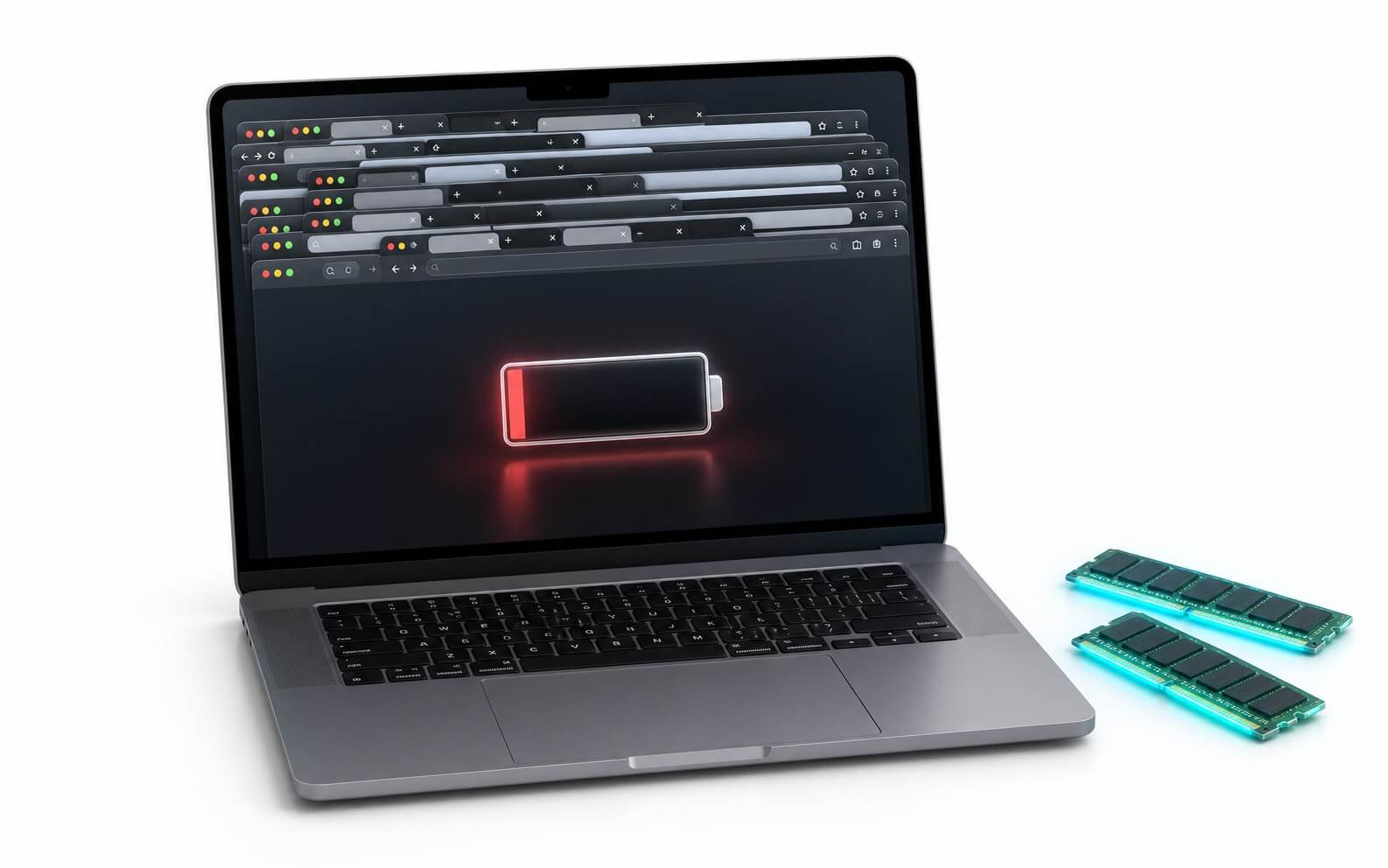
With thin and light ultrabooks, RAM is often soldered onto the motherboard and cannot be upgraded, meaning the capacity you choose at the time of purchase is almost a fixed limit. When you open dozens of tabs to process online data, Chrome consumes a large amount of RAM due to its mechanism of splitting each tab into an independent process to increase stability. While this process separation prevents a single crashed tab from bringing down the entire browser, the trade-off is that when memory is full, the system must constantly retrieve data from the SSD, which reduces overall performance and forces the processor to work harder, leading to faster battery drain.
| Browser | Key Battery Saving Features | Best Suited For | Official Download Page |
|---|---|---|---|
| Google Chrome | Memory Saver and Energy Saver, but still uses per-tab process separation | Users needing Google account synchronization and a vast extension library | Download Google Chrome |
| Microsoft Edge | Sleeping Tabs and Efficiency Mode that puts idle tabs to sleep | Thin and light office laptops prioritizing battery life | Download Microsoft Edge |
| Mozilla Firefox | Open source, efficient process management, and integrated tracker blocking | Users who prioritize security and personal data control | Download Mozilla Firefox |
Regarding power consumption, an easy-to-visualize example is a thin and light ultrabook using a power-efficient processor paired with a high-brightness OLED screen. An OLED screen already consumes more power when displaying white backgrounds like websites or documents; therefore, if the browser also keeps the integrated graphics card running continuously to render animations, the battery will drain even faster. Running high-intensity web tasks on Chrome without enabling power-saving modes will force the graphics core and processor to work more than necessary, shortening the battery life of a typical 59Wh to 75Wh battery found in thin and light machines.
Another factor that makes Chrome drain battery is background extensions. The more extensions you install, the more background processes Chrome runs even when you are not interacting with them, and each process occupies a portion of memory and processing cycles. On a thin and light machine using Chrome, you should review your extension list, remove unused ones, and enable Chrome's Memory Saver mode so the browser can automatically reclaim memory from tabs that haven't been opened for a while.
How Edge and Firefox help extend battery life compared to Chrome
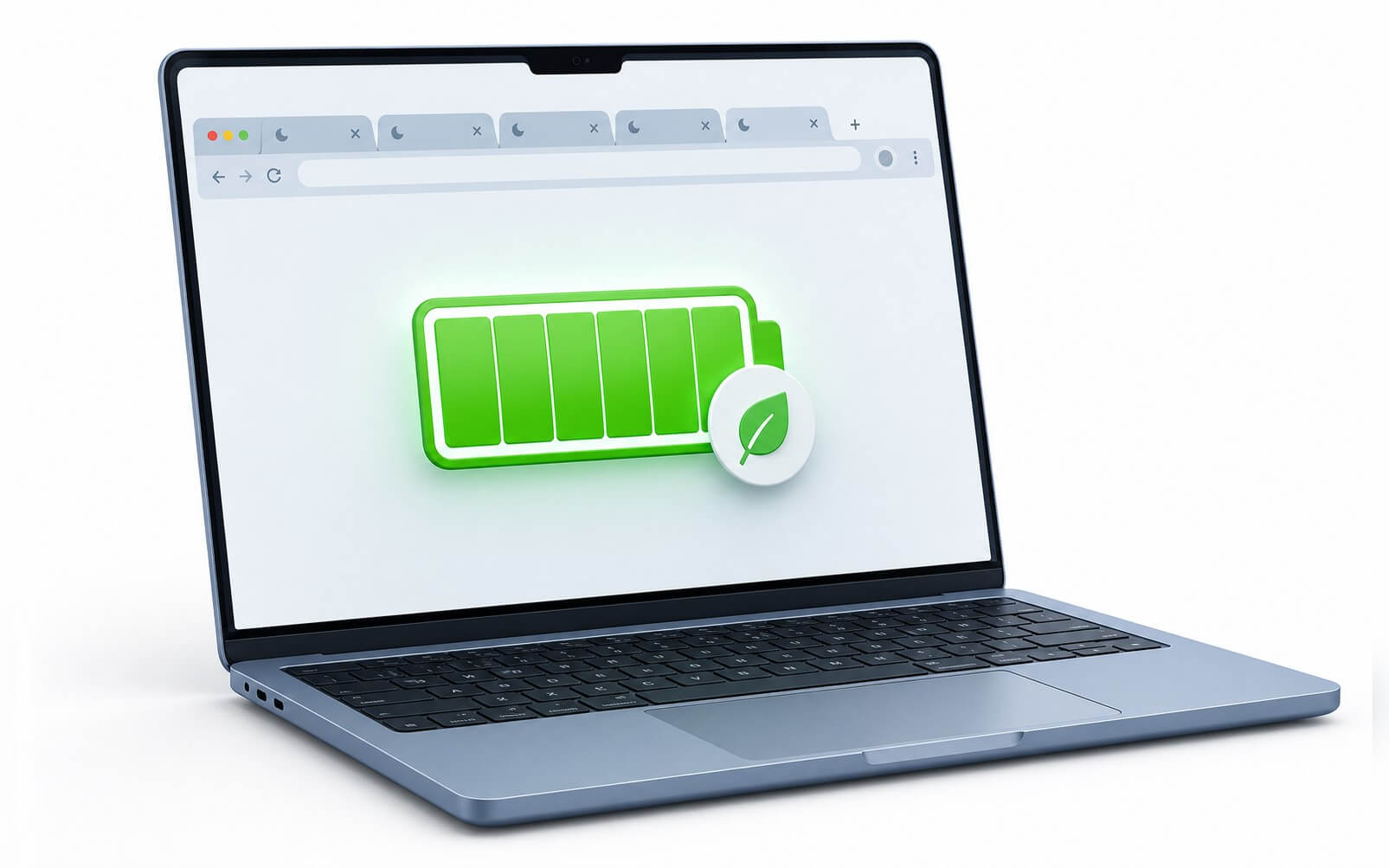
To extend office battery life to a realistic 8 to 10 hours, switching from default Chrome to a browser with intelligent tab management mechanisms is a more effective option. Microsoft Edge comes with built-in Sleeping Tabs that put inactive tabs into a sleep state to release memory and reduce the load on the processor, along with Efficiency Mode which limits background activity when running on battery. Independent tests show that Edge has a slight edge over Chrome in terms of battery life, though the difference is usually modest rather than overwhelmingly superior. You can learn more in the Microsoft Edge Sleeping Tabs feature documentation.
Firefox takes a different approach: as an open-source browser, it manages processes more efficiently and features integrated advanced tracker blocking, which helps reduce the number of background scripts without needing extra extensions. For users who value privacy, this is a major advantage of Firefox over Chrome. The latest Firefox version even allows users to proactively enable or disable integrated AI features, as detailed in the article Firefox 148 gives users control over AI. This allows you to better control whether your browsing data is being collected.
For those who frequently work on the go, a noteworthy example is the HP OmniBook X 14 inch AI, which uses the Snapdragon X Elite chip, 16GB RAM, a 59Wh battery, and weighs only 1.35 kg, priced around 25 million VND. The Snapdragon platform is famous for its battery endurance, so when combined with Edge or Chrome in power-saving mode, the machine can last nearly an entire workday of office tasks. A small note: this is an ARM-based machine, so you should check if the Chrome or Firefox extensions you use have ARM versions, although most popular browsers now run well on this platform.
How to choose a browser on high-performance laptops
For high-performance laptops like the Asus ROG Zephyrus G14 GA403, which uses a Ryzen 9 8945HS, RTX 4060 8GB, and a 73Wh battery, the battery story is different. The machine has a powerful discrete graphics card, achieving frame rates of approximately 131.5 to 159.65 fps when playing Counter-Strike 2 at 1080p, but this discrete GPU is also the largest power consumer. When browsing heavy websites with much dynamic content, if Chrome unnecessarily activates the discrete GPU in high-performance mode, the office battery life-which is typically 6 to 8 hours-will drop rapidly.
There is a misconception that needs clarification: Edge was once mentioned for its feature to enhance video quality using AI processing on NVIDIA cards, but this "Video Super Resolution" feature only works when plugged into power and actually consumes more GPU power, rather than being a way to save battery. On high-performance laptops, the correct way to save battery when browsing with Chrome or Edge is to force the browser to use integrated graphics instead of the discrete GPU for light tasks, while simultaneously enabling the browser's power-saving mode. For technical professionals needing high configurations, you can refer to the top 5 workstation laptops worth buying to choose the right machine.
Additionally, on laptops with two graphics cards, you should go to the Windows Graphics settings to assign the browser to "Power Saving" mode, meaning it prioritizes integrated graphics. This method prevents Chrome or Edge from waking up the discrete GPU for standard web tasks, resulting in quieter fans and longer battery life. Only when you truly need to render heavy WebGL or watch very high-resolution videos should you allow the browser to use the discrete card.
Choosing Chrome, Edge, or Firefox based on your actual needs
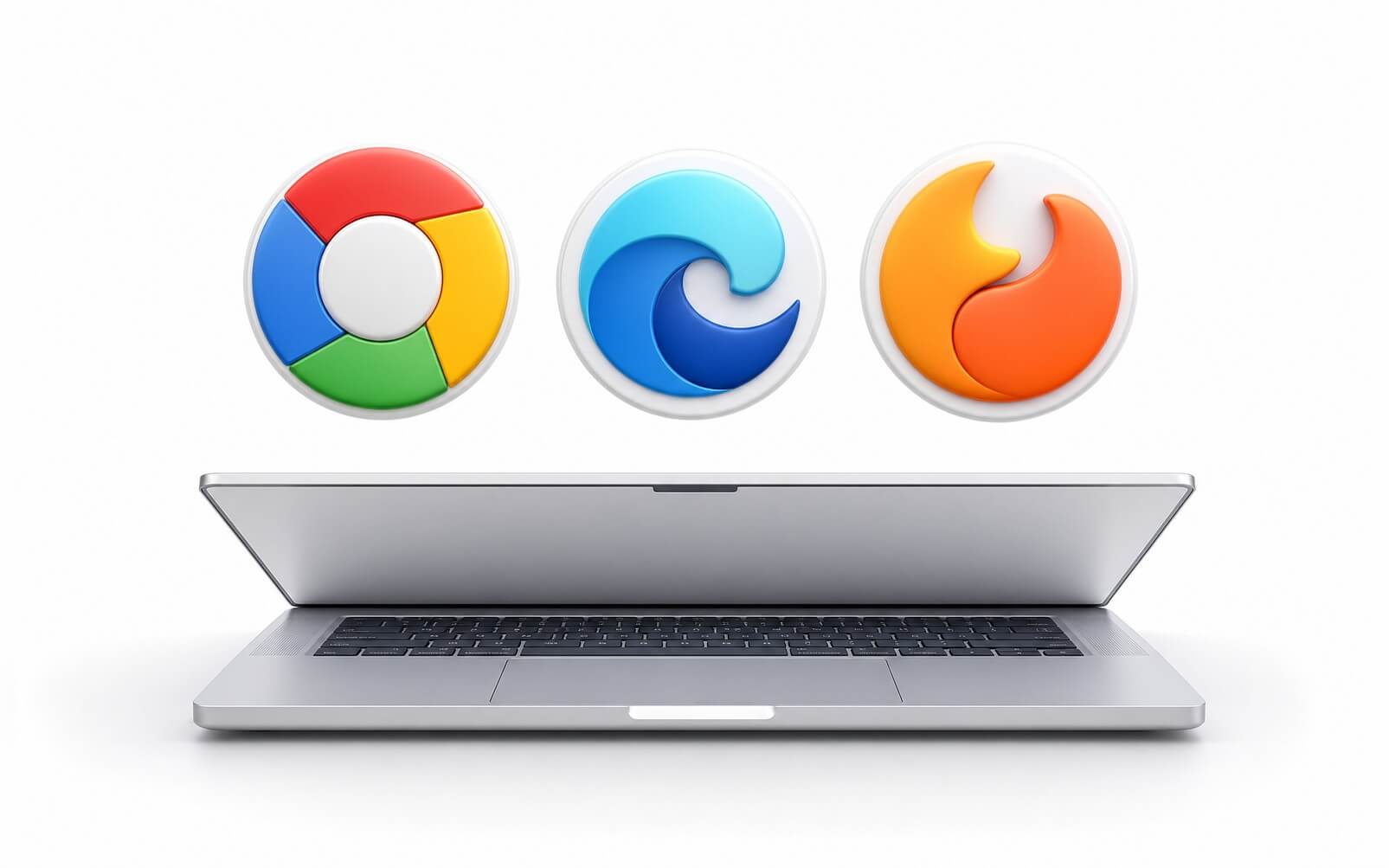
In summary, for thin and light office laptops that need to save power, Edge is the optimal choice thanks to the effective operation of Sleeping Tabs and Efficiency Mode. For engineers or creators who value privacy and data control, Firefox is a reasonable choice due to its open-source nature and integrated tracker blocking. Meanwhile, Chrome still meets the needs of fast synchronization within the Google ecosystem and a rich extension library, provided you enable Memory Saver and Energy Saver to limit battery drain. It is important to always download browsers from official homepages to avoid modified versions that may contain malware.
If you are in Ho Chi Minh City and looking for a thin and light office laptop with great battery life like the HP OmniBook X, or a high-performance machine like the Asus ROG Zephyrus G14, you can visit Hung Phat to see them in person and test the actual battery life. When purchasing, our technical team can assist in installing browsers and configuring power-saving modes tailored to your needs, helping your machine run cooler and last longer. You should try opening many tabs while enabling power-saving mode right at the counter to feel the difference before deciding.
Regardless of which browser you choose, usage habits still significantly affect battery life. Whether using Chrome or another browser, closing unused tabs, limiting the number of videos playing simultaneously, and reducing screen brightness will all help your machine last much longer than simply switching from Chrome to Edge. In other words, an energy-saving browser is a good starting point, but how you use your machine is the ultimate deciding factor for battery life.
Frequently Asked Questions (FAQ)
Which browser manages RAM better for office laptops?
Microsoft Edge typically manages RAM better than Chrome thanks to the Sleeping Tabs feature, which automatically puts inactive tabs to sleep and releases memory. When opening many office tabs simultaneously, this mechanism helps prevent memory congestion and reduces heat on thin and light ultrabooks with soldered RAM. Chrome also has Memory Saver with a similar role, but you need to enable it manually in the settings.
Does Firefox offer better data security than Chrome?
Firefox is an open-source browser with built-in advanced tracker blocking, making it a plus for privacy-conscious users compared to Chrome. This browser helps reduce the number of tracking scripts running in the background without needing third-party extensions. The latest version also allows you to proactively enable or disable AI features, giving you better control over whether your browsing data is being collected.
Should I install modified browser versions to save battery?
You should not install modified browser versions found on the internet due to the high risk of malware and spyware. The safe way is to download Chrome, Edge, or Firefox from their official homepages and then enable built-in power-saving modes like Edge's Efficiency Mode. Official software also receives timely security patches, helping your machine run stably and safely throughout use.
Will switching browsers make an old laptop run cooler and smoother?
Yes, switching to a lighter browser or enabling power-saving modes will reduce the load on the processor and memory, making the machine run cooler and smoother when opening many tabs. However, the browser is only one part; if the machine is still hot and slow, you should also check your RAM capacity, SSD health, and background applications. For older machines, upgrading RAM or cleaning the cooling system is sometimes more effective than simply changing browsers.