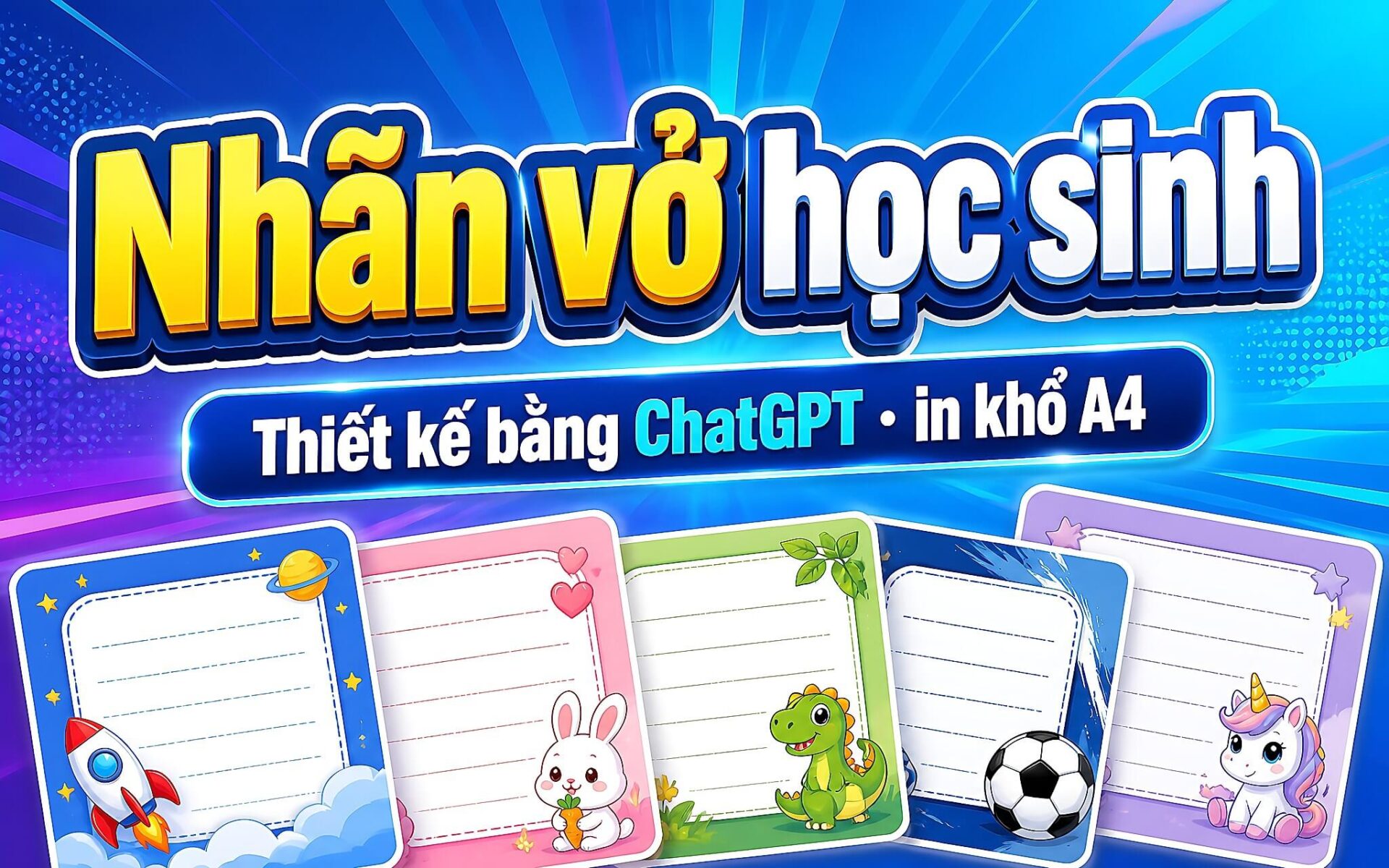
Every time a new school year begins, preparing notebook labels for children can take up a lot of parents' time when shopping at bookstores. Nowadays, parents can proactively design notebook labels using ChatGPT with just a few simple descriptive prompts. This design method allows parents to personally adjust subject names, decorative characters, and colors to match their child's preferences. Available prompt templates help generate images in standard ratios for quick printing right at home.
Method for designing student notebook labels using Artificial Intelligence
Designing student notebook labels with ChatGPT is a way to automatically create templates through text-based descriptive prompts. Instead of buying pre-printed label files at bookstores or using complex graphic design software, parents only need to enter requests into the chat box to receive design templates suitable for each grade level. The operating principle is quite simple, so this method does not require professional design skills.
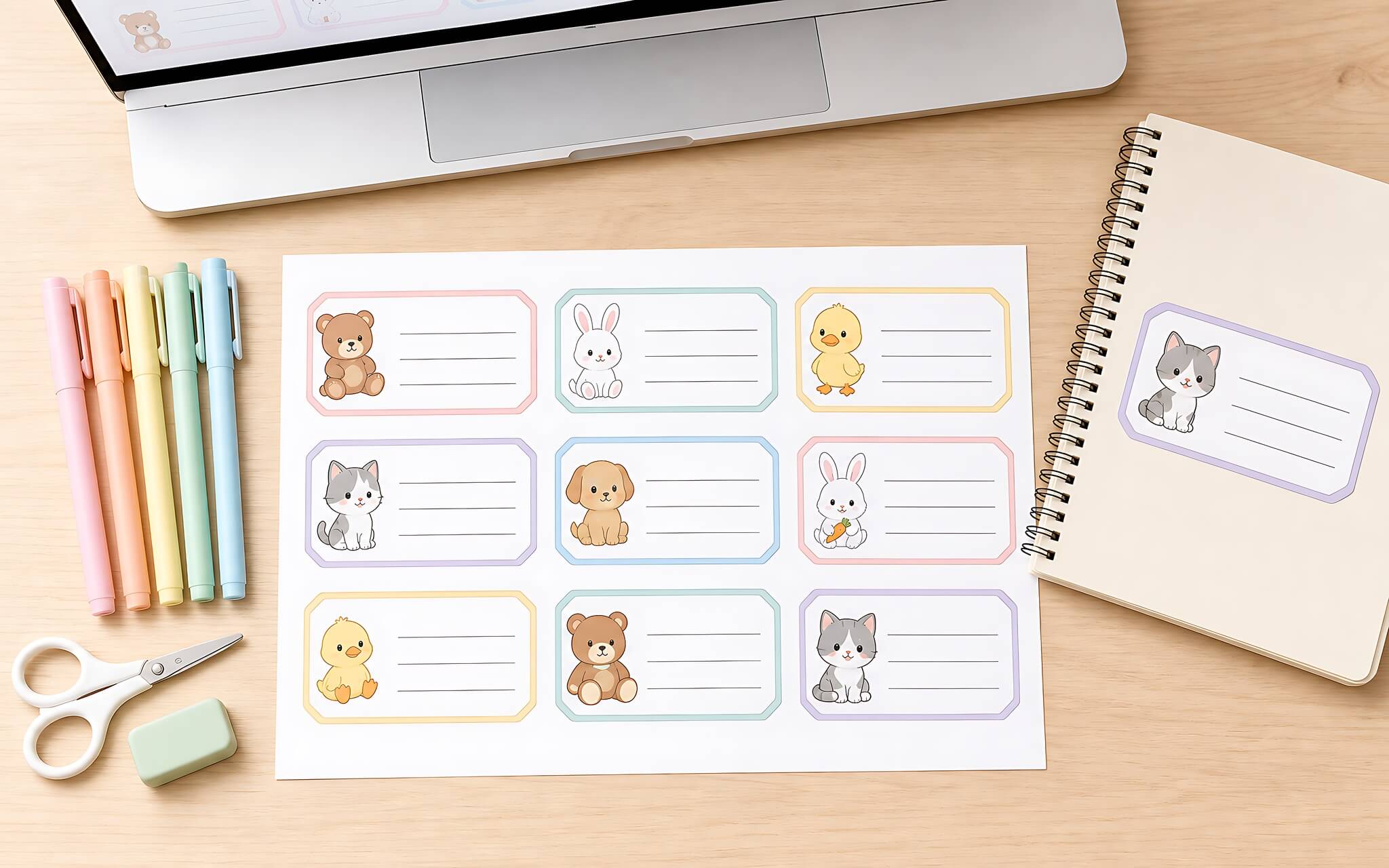
The difference in creating labels with artificial intelligence lies in the ability to customize according to individual requests. Parents only need to provide basic information such as the student's age, drawing style, preferred color tones, and a list of subjects. The system will automatically arrange a balanced layout, optimize the position of the information input box, and create reasonable decorative borders. See more ChatGPT slide creation prompts.
Each generated notebook label features a central information box, including lines for School, Class, Subject, Full Name, and School Year. The text box is clearly divided with soft lines or cute rounded frames, helping young children easily write by hand with ink pens without overlapping the surrounding patterns.
Popular notebook label design styles on ChatGPT
The ChatGPT tool supports creating A4 sticker sheets in vertical orientation (210 x 297 mm) or a 3:4 portrait ratio, containing 12 separate notebook labels arranged neatly on a single page. This design version applies a Japanese kawaii style with a light peach pastel background tone. Each label has a soft, rounded white border in a die-cut sticker style, with even spacing between labels to facilitate easy cutting after printing. See more AI image generation prompts.
The A4 sticker sheet comes pre-divided with a list of 12 primary school subjects including Math, Vietnamese Volume 1, Vietnamese Volume 2, Foreign Language, Nature and Society, Science, History and Geography, Ethics, Physical Education, Fine Arts, Music, and Experiential Activities. The subject titles on each label are displayed in prominent large fonts, with different fun colors for each subject and soft text effects, meeting the reading needs of primary school age children.
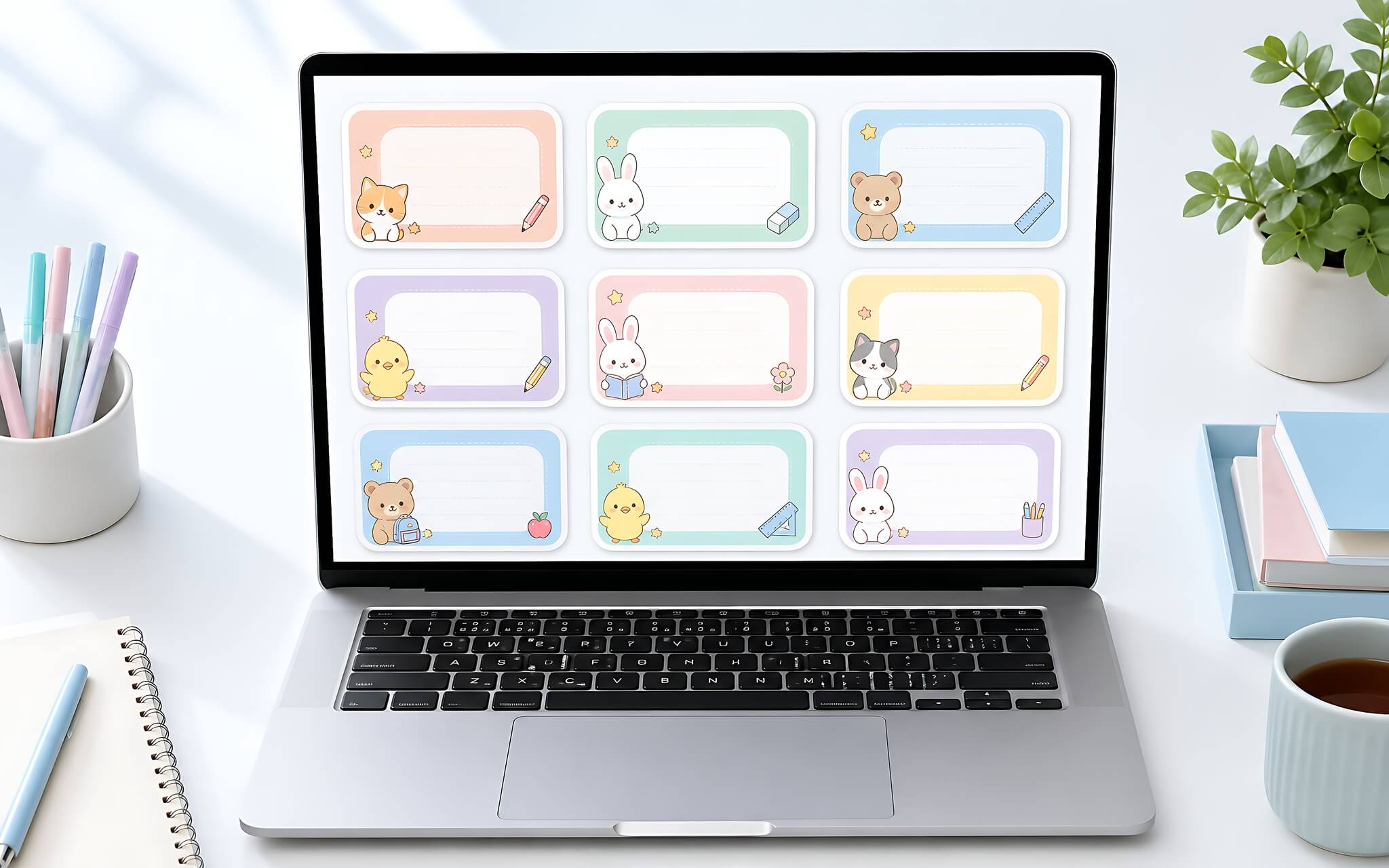
The system automatically incorporates adorable decorative characters into each label, such as black cats, blue robots, pink rabbits, small bears, yellow chicks, mini pandas, mini soccer players, mini robots, cartoon puppies, along with chibi boys and girls. This arrangement gives each notebook label a unique personality, catering to the diverse interests of students.
Accompanying these are educational icons such as pencils, colored pencils, textbooks, rulers, apples, stars, compasses, musical notes, paper airplanes, magnifying glasses, palettes, balloons, "excellent student" badges, soccer balls, pastel rainbows, smiling suns, and cute clouds. The illustration style combines flat vector and soft shading to ensure sharp lines and clear details on every notebook label.
In addition to the 12-label sticker sheet format, ChatGPT can also create individual notebook label templates in a standard landscape ratio for primary school students aged 6 - 11. Individual label designs maintain bright, fun color tones with a spacious information box in the center for easy handwriting. This version also allows for adjusting decorative characters specifically for male students with dynamic drawings, catering to active groups.
Step-by-step guide to creating notebook labels using ChatGPT prompts
Parents only need to prepare a computer or a phone with an internet connection and log into a ChatGPT account to begin creating notebook templates according to their needs using available tools. Operations directly on the chat interface are simple and do not require the installation of additional graphic applications.
The implementation steps follow a clear sequence. First, parents open the ChatGPT app or website on their personal device, then select the chat box that supports image generation and processing features. Next, parents copy the sample prompt for creating a 12-label A4 kawaii style sticker sheet or the prompt for creating landscape notebook labels for primary students aged 6 - 11.
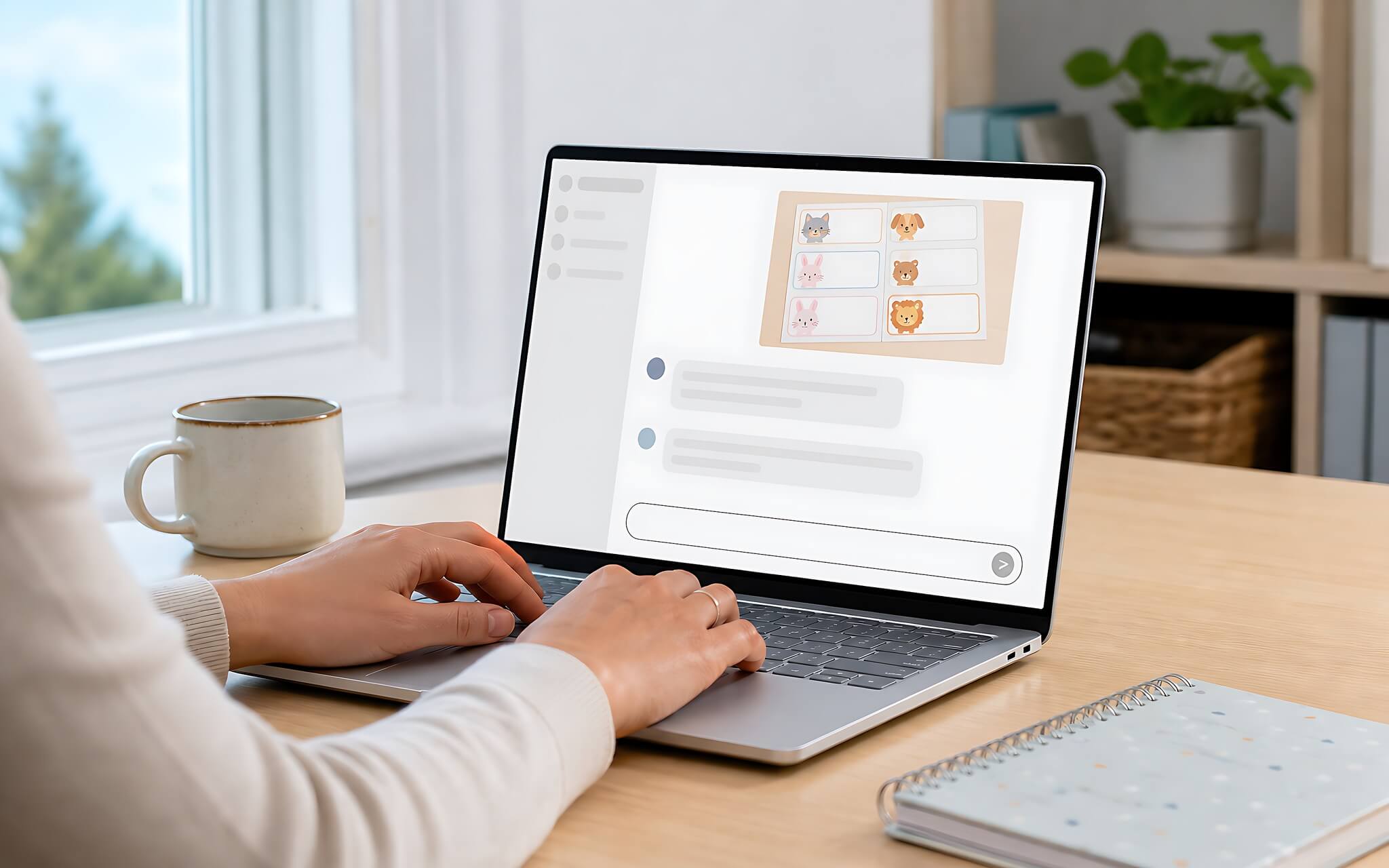
In the next step, parents adjust the information in the prompt, such as the list of subjects or the list of decorative characters including bears, rabbits, cats, puppies, robots, or soccer players according to their preference. Finally, parents send the complete prompt into the chat box to trigger the image generation process, wait for the system to render the image, and download the file to the device for printing.
After the system outputs the first image, if detailed edits are needed, parents simply send a follow-up command requesting adjustments. You can request to change the pastel background color, sharpen the rounded die-cut white borders, or expand the space in the information box. The ability to refine multiple times is a significant advantage compared to fixed pre-printed label templates.
Important notes when creating notebook labels with AI
Utilizing AI tools to create notebook labels offers convenience but still has some limitations to keep in mind. Images generated by ChatGPT sometimes encounter display errors with Vietnamese tone marks or slight distortions in Vietnamese fonts. You should carefully verify every word on the label before sending the file for printing.
Another point to note is that the horizontal lines in the Full Name, Class, and School information boxes are sometimes not perfectly aligned or appear blurred. Verifying the resolution and line details helps avoid situations where printed labels are smudged or difficult to write on.
Additionally, notebook label images need to maintain the correct A4 ratio or standard landscape label ratio when saving files. Stretching an image to the wrong ratio when putting it into a printer can cause the notebook labels to have distorted frames or blurred lines, reducing the quality of the final product.
Printing solutions for student notebook labels suitable for Vietnamese parents
Creating notebook labels with ChatGPT is suitable for parents of primary school students aged 6 - 11 who want to personally prepare unique school supplies. Parents can save on the cost of buying pre-printed labels and easily change subject names to match the actual curriculum of the school. This is a practical value that manual options struggle to meet.
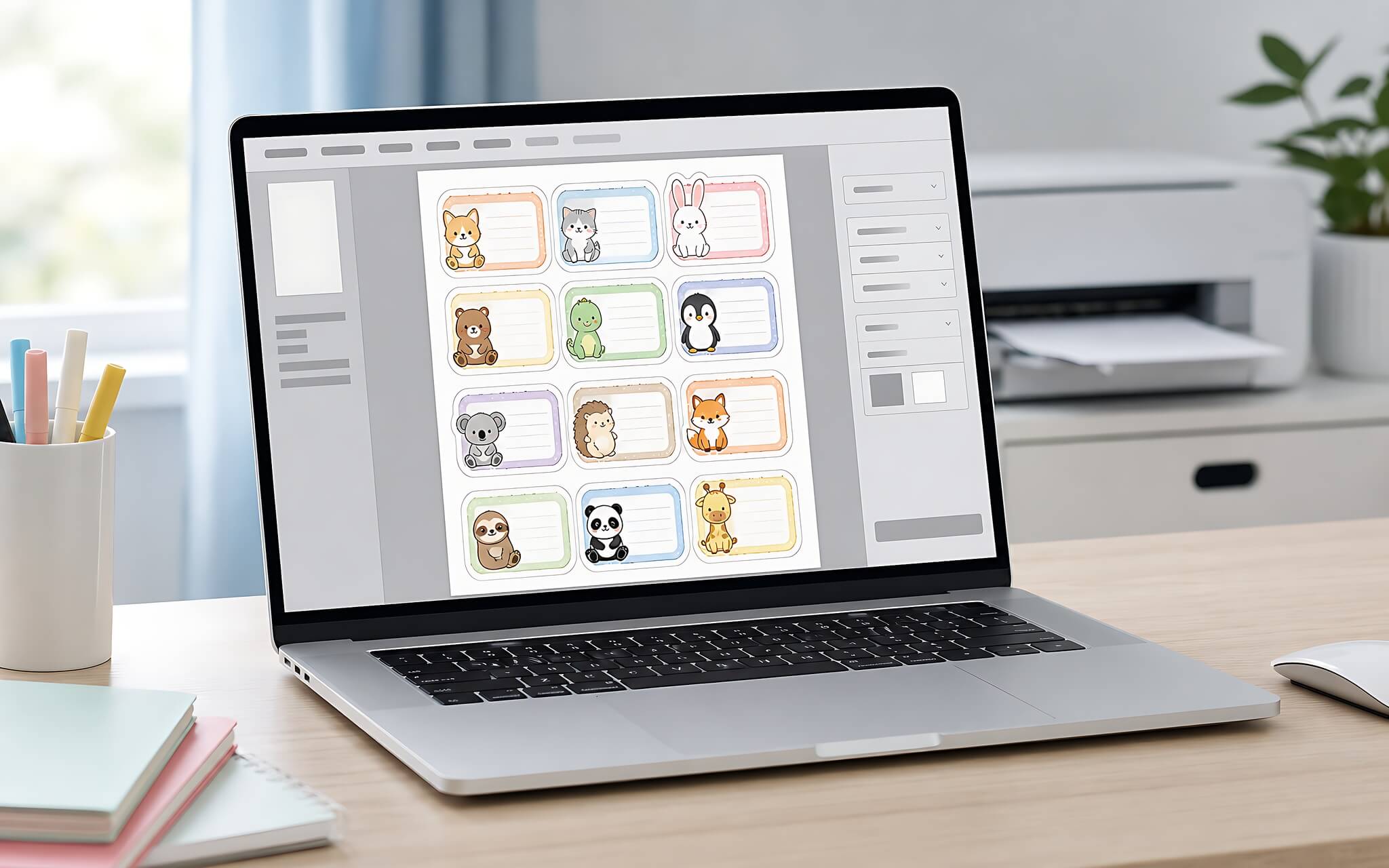
In Vietnam, printing services are very common and accessible, so parents can utilize them flexibly. Parents only need to save the created notebook label image file to their phone or a memory card, then take it to local print shops near their home. You should request printing on A4 sticker decal paper with an adhesive layer; once you get it home, you just need to cut along the white border to stick it directly onto student notebooks.
The option of creating notebook labels using artificial intelligence tools effectively meets the need for personalizing school supplies for students. Choosing the drawings and colors yourself provides an exciting experience, helping young children feel more enthusiastic as they enter the new school year.