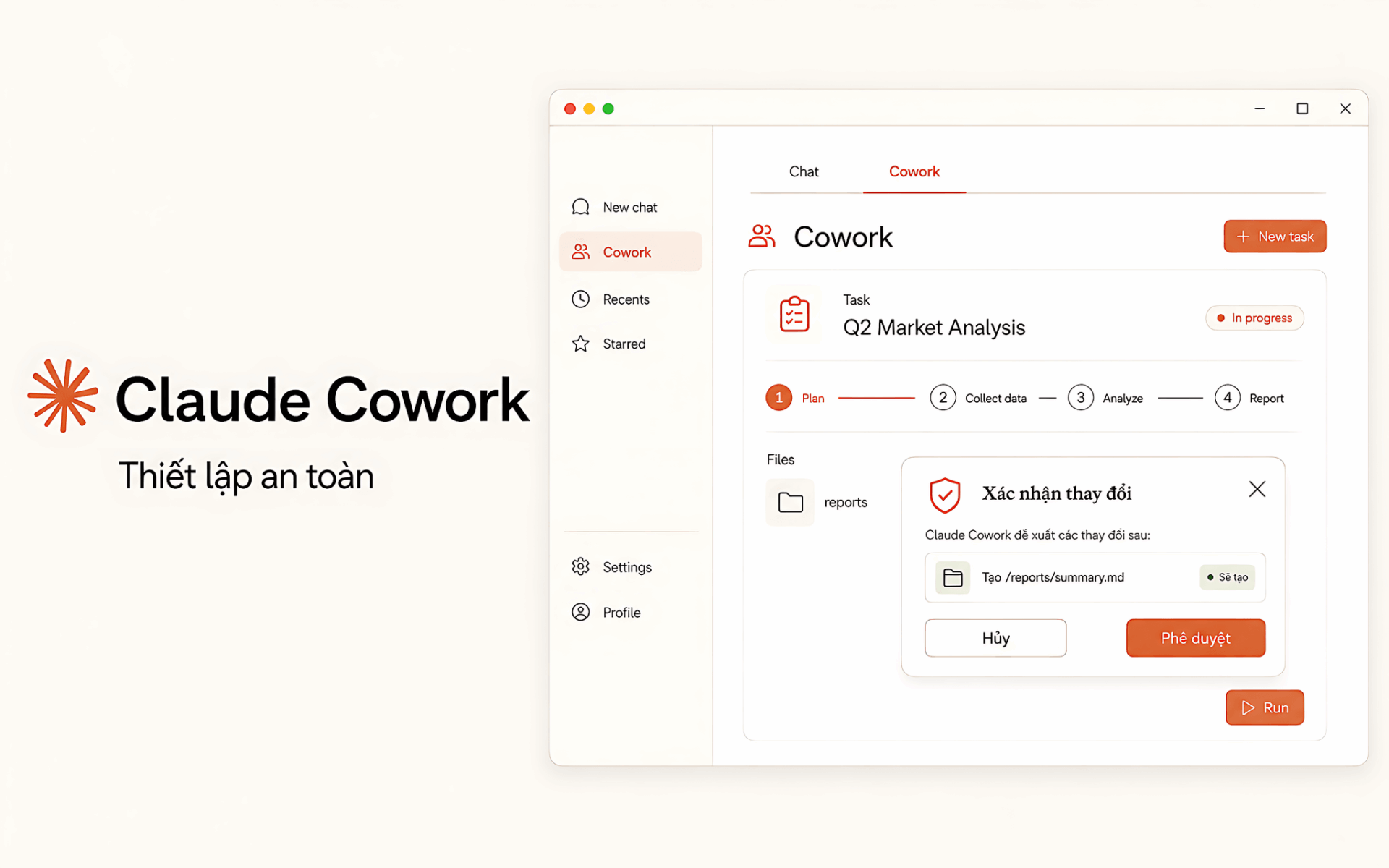
Claude Cowork lets the Claude app work directly with the files in a folder, instead of only replying in a chat window. At its core, Claude Cowork is a task mode available on desktop, web and mobile, though working with local files still requires Claude Desktop. To set up Claude Cowork, you need a paid plan, the right folder and an approved plan before a task starts. This approach helps limit risk when the assistant processes or proposes changes to your files.
What Claude Cowork Is and Why File Actions Need Approval First
Cowork is a mode inside the Claude app that focuses on tasks with files in a folder, rather than the familiar chat layout of the Chat tab. Once you switch to Cowork, the interface changes to a work-oriented layout with an area for managing individual tasks. In practice, this mode helps the assistant read, filter and summarize content on request, while the Chat tab remains the place for questions and answers. The key difference is that every action touching a file goes through an approval step, instead of running quietly in the background like a chat reply.
To use Cowork, you need to install Claude Desktop, sign in with a Claude account and activate a paid plan. The minimum is the Pro plan at 20 USD per month, while the Max, Team and Enterprise plans all support this mode. If the app is already installed, update it to the latest version, since Cowork gains features fairly often and an older build may be missing some steps in the workflow. See also Dell Latitude 7530.
How to Choose a Folder and Review Plans Safely in Claude Cowork
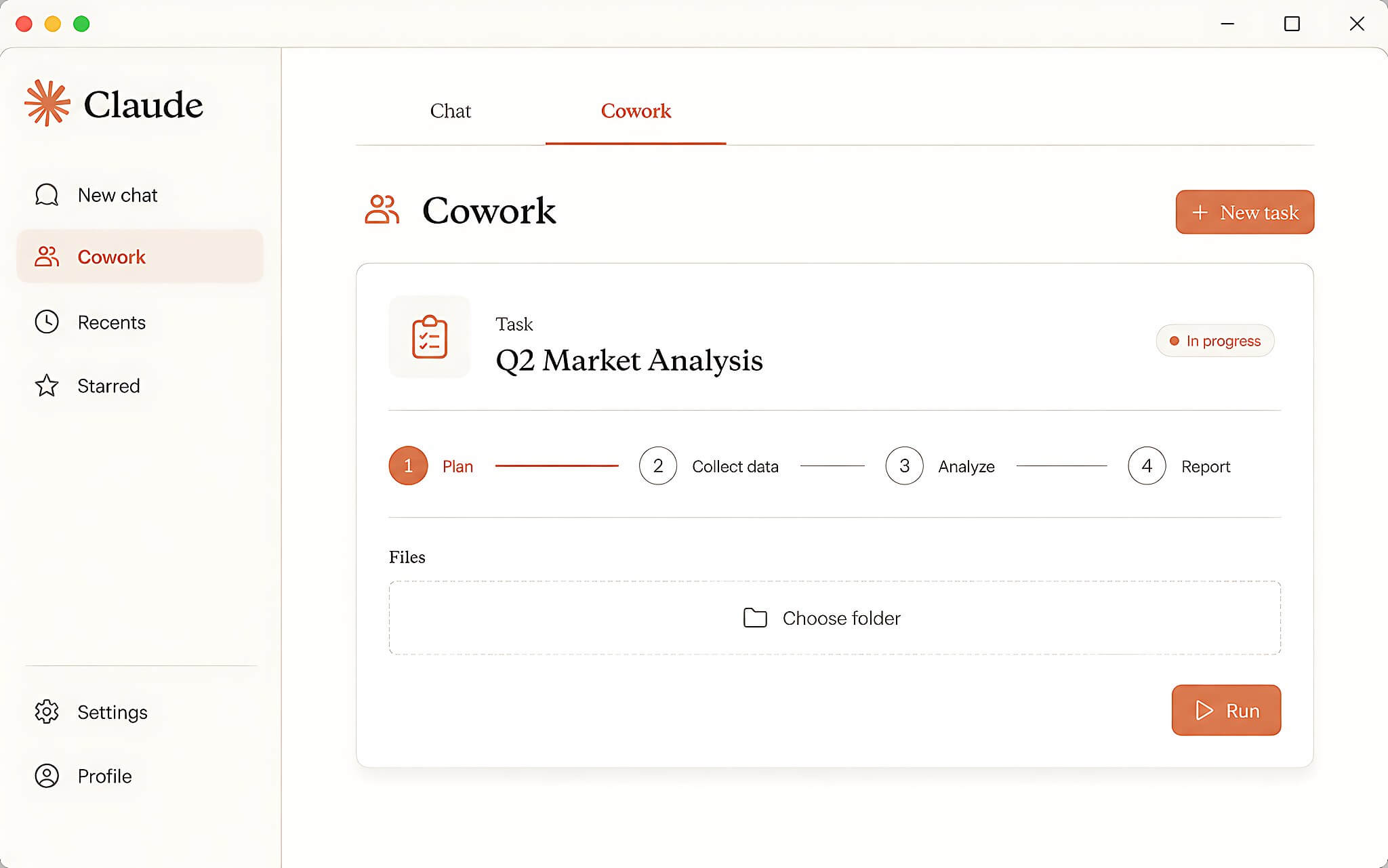
Claude Cowork lets you pick a specific folder to work in, then enter a task as a clear instruction. The tool builds a plan, shows the steps it intends to take and asks whether you want to continue. You can preview the plan, approve it and follow the run right inside the app. This presentation lets you see the scope of the task before the assistant touches any file.
The core mechanism of this mode is the approval gate: a checkpoint where Cowork pauses and asks for confirmation before an action that could cause harm. You can pick from three levels: manual approval for each action, automatic approval after the tool runs its own safety check, or skipping all checks entirely. For sensitive actions such as deleting files, Cowork always asks for explicit permission and will not permanently delete anything without your consent. See also ChatGPT Work.
After your first task, you can try processing real files. An easy example is asking Cowork to read invoices and extract the date, vendor, amount and category, such as food, shipping or office supplies. You choose the files that match your data, and Cowork processes them inside the folder you have granted access to. This is the kind of task where Claude Cowork shows its practical value most clearly.
Steps to Set Up Claude Cowork Safely for Your First Run
Setting up Claude Cowork is fairly simple, even for people new to AI tools. Start with a narrow folder and a simple, specific request so it is easier to keep things under control. A stable Internet connection is required for the first launch. The sequence below runs from installation to a finished test task.
Step 1: Install Claude Desktop like any ordinary app. If it is already installed, check for updates and move to the latest version.
Step 2: Open Claude Desktop and sign in with your Claude account. The account needs a paid plan, at minimum Pro at 20 USD per month.
Step 3: Look at the top of the app window and find the mode selector with two tabs, Chat and Cowork. Click Cowork to switch to the task interface.
Step 4: Choose "Work in a folder," then specify the exact folder Cowork is allowed to use. Select only the folder needed for the current task.
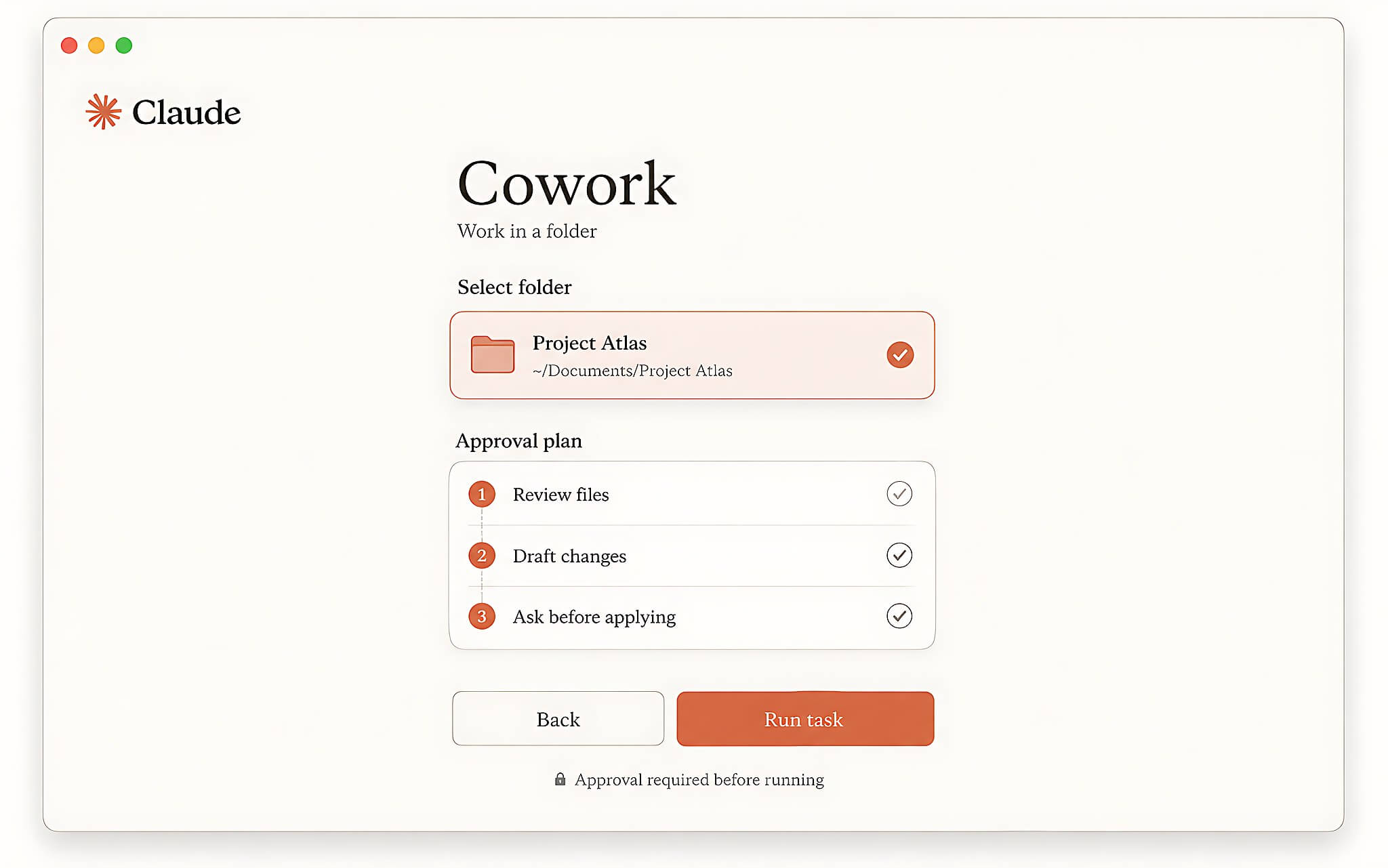
Step 5: Enter a simple, specific task and press Enter. Avoid starting with a vague request or letting the app work across too broad a range of files.
Step 6: Wait for Cowork to build a plan and show the steps. Read the plan carefully before approving it, especially when the task could change files.
Step 7: Follow the run and verify the summary once it finishes. Compare the results against the original folder to make sure nothing was missed.
Step 8: If the results are missing files, follow up right away in the same session, for example by asking it to add the PDF files sitting in a subfolder.
Starting with a narrow folder and a small request is meant to avoid two common risks: granting access that is too broad and writing unclear instructions. When a task could change or delete data, review the plan closely and confirm each step. Checking the results right after Claude Cowork finishes helps you catch errors early, instead of discovering them hours later. This habit helps keep your data safe.
Limitations and Risks to Check When Using Claude Cowork
Your first few tasks may not go perfectly. Claude Cowork sometimes reports that it needs access to a folder it has not been allowed to use. When that happens, grant access only to the folder it asks for, and do not widen the scope unless necessary. Limiting the scope this way noticeably reduces the risk surface of each task.
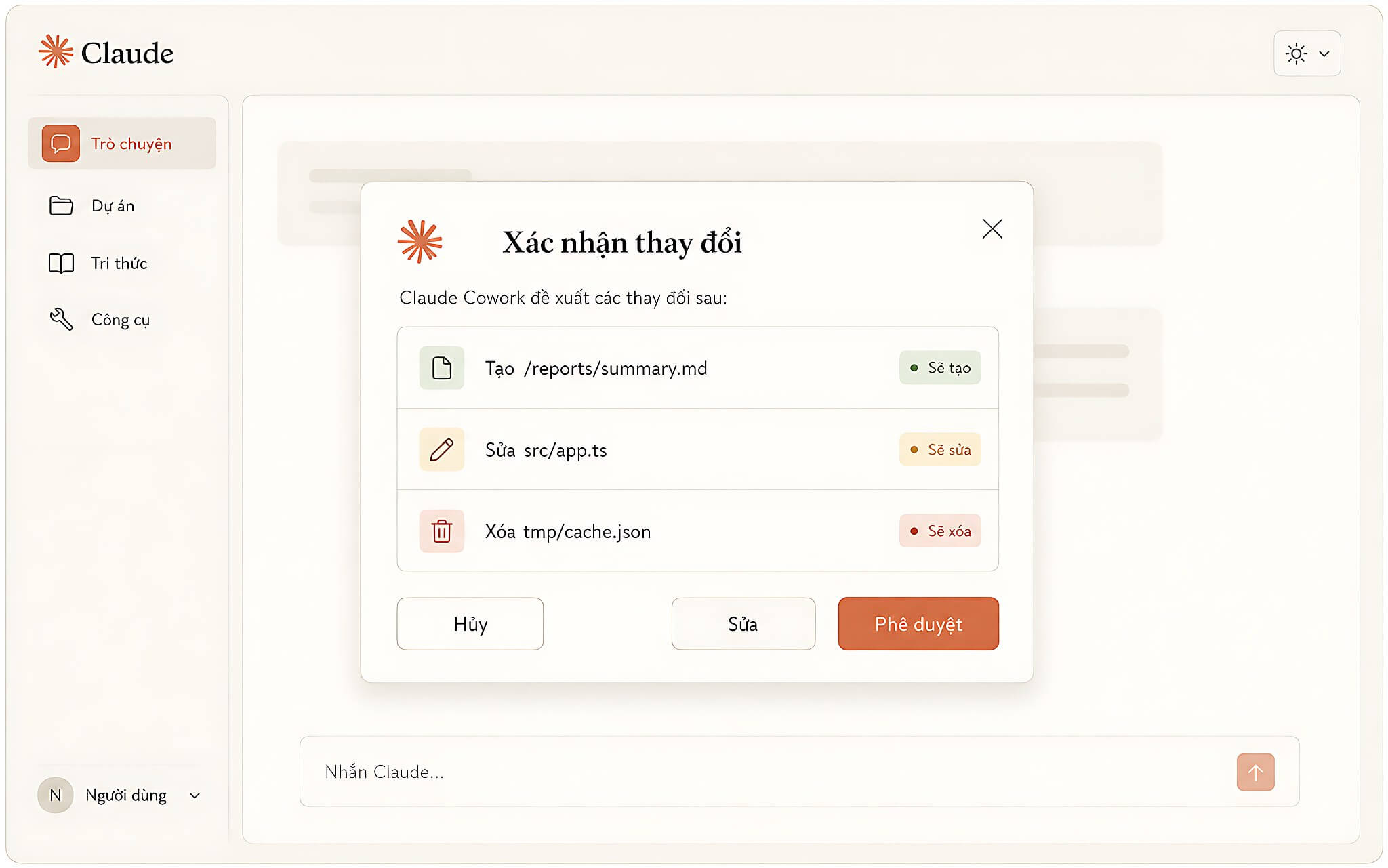
Results may also skip files or leave some content unprocessed. You can ask for additions within the same working session to preserve context. If an unexpected change appears, check it right away and use the undo option when needed. The approval mechanism in Claude Cowork reduces risk, but it does not replace your own verification.
The Pro plan can hit message limits on long tasks, because Cowork consumes more tokens than ordinary chat. If this happens often, the Max plan raises the usage limit to 5 times or 20 times that of Pro, depending on the tier you choose. This is a usage capacity limit, not an error in folder access or in the installation process. Consider your actual needs before upgrading.
Who Should Use Claude Cowork, and Notes for Users in Vietnam
Claude Cowork suits people who need to process a group of files for a specific purpose, such as reading invoices and pulling out fixed data fields. You can also start with a task that summarizes the contents of a folder. However, the data must sit in a folder you have chosen and granted the app access to. Outside that scope, the assistant does not access files on its own.
For users in Vietnam, the direct cost is the Pro plan at 20 USD per month, paid through a Claude account. Prepare a stable Internet connection for the first launch and keep it up while tasks run. Pricing and usage limits may change under the provider's policy, so confirm them again on the plans page. This helps you estimate costs that match your needs.
Claude Cowork can replace part of the manual work of reading, filtering and summarizing files in well-defined jobs. Vietnamese-language handling is not listed as a dedicated feature, so do not assume every Vietnamese file will produce a complete result. Verify the data fields, any skipped files and the changes in the folder before using the output. This habit lets you use the tool while keeping risk under control.
Frequently Asked Questions (FAQ)
Can Claude Cowork be used for free?
No. Claude Cowork requires a paid plan, at minimum Pro at 20 USD per month; the Max, Team and Enterprise plans also support this mode.
Does setting up Claude Cowork require a powerful computer?
Setup does not require any special hardware beyond Claude Desktop and a stable Internet connection. A bigger factor is the usage limit of the plan you choose.
Will Cowork delete your files on its own?
Cowork does not permanently delete files without your consent. For each sensitive action, the tool shows an approval gate where you can confirm, edit or cancel.