News

Browse by topic
Dell Latitude 9450 (2 In 1) (2024)
Product Reviews · 24/02/2025 · 8 min read

Top 3 best office laptops under 30 million VND in 2025

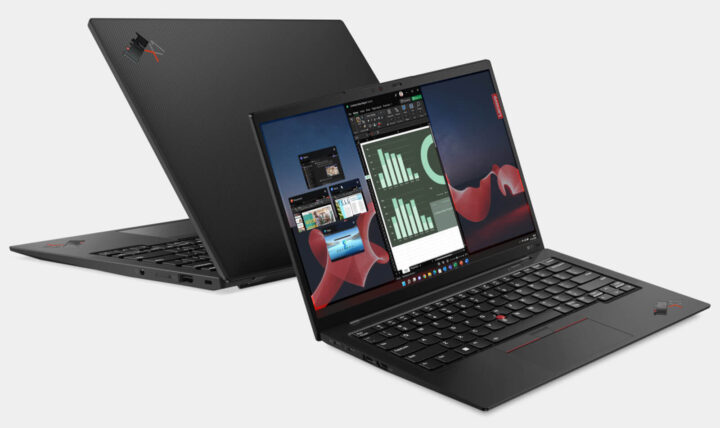
The year 2025 witnesses the emergence of many office laptop models with powerful performance, optimized design, and advanced technology. For office users,…

Cách Buộc Xóa Hoặc Gỡ Cài Đặt Máy In Trong Windows 10:11
Product Reviews · 23/11/2023 · 8 min read

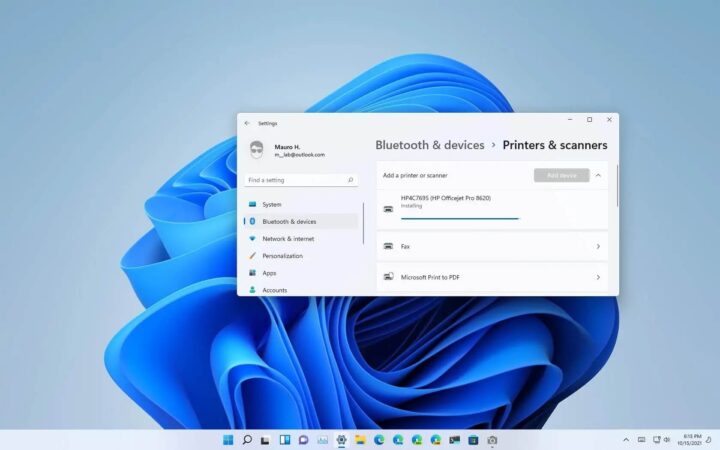
**How to Force-Remove Printer Drivers on Windows 10/11 When Standard Uninstallation Fails** Sometimes, when you try to uninstall a printer through the standard Windows settings, it simply refuses to budge. You click "Uninstall," but the driver remains stubbornly listed in your device manager or print queue. This is a common headache for users trying to clear out old hardware or fix driver conflicts. If the standard method isn't working, you need to go deeper into the system to manually strip the driver from Windows 10 or 11. Here is the professional way to do it. ### Method 1: Using the Print Server Properties (The Most Effective Way) The most reliable way to remove a driver that refuses to uninstall via the Control Panel is through the Print Server Properties menu. This bypasses the standard "Add/Remove Programs" interface and targets the driver package directly. 1. **Open Run Command:** Press `Windows Key + R` on your keyboard to open the Run dialog box. 2. **Access Print Management:** Type `printui /s /t` into the box and hit Enter. This command opens the **Print Server Properties** window directly. 3. **Locate the Driver:** Under the **Drivers** tab, find the specific printer driver you want to remove from the list. 4. **Remove the Package:** Click on the driver to highlight it, then click the **Remove** button. 5. **Select "Remove Driver and Driver Data":** A pop-up will appear. To ensure the driver is completely gone, select the option **"Remove driver and driver data"** and click OK. 6. **Confirm:** If Windows asks for administrator permission, click Yes. *Note: If you receive an error saying "The driver is in use," you must first restart the Print Spooler (see Method 2 below) or restart your computer and try this method again immediately upon reboot.* ### Method 2: Restarting the Print Spooler If Windows tells you the driver is "in use," it means the Print Spooler service is currently holding onto that driver file to manage print jobs. You need to stop this service before you can delete the driver. 1. **Open Services:** Press `Windows Key + R`, type `services.msc`, and hit Enter. 2. **Find Print Spooler:** Scroll down the list until you find **Print Spooler**. 3. **Stop the Service:** Right-click on **Print Spooler** and select **Stop**. 4. **Clear the Print Queue:** To ensure no "ghost" print jobs are stuck, navigate to `C:\Windows\System32\spool\PRINTERS` in File Explorer and delete all files in that folder. 5. **Restart the Service:** Go back to the Services window, right-click **Print Spooler**, and select **Start**. 6. **Retry Method 1:** Now, attempt to remove the driver using the Print Server Properties method described above. ### Method 3: Using Device Manager If the driver is still appearing in your hardware list, you can attempt to remove it through the Device Manager. 1. **Open Device Manager:** Right-click the **Start button** and select **Device Manager**. 2. **Find the Printer:** Look under the **Print queues** section or **Printers** section. 3. **Uninstall Device:** Right-click your printer and select **Uninstall device**. 4. **Check the Box:** If a prompt appears asking to **"Delete the driver software for this device,"** make sure that box is checked, then click Uninstall. ### Summary When a printer driver refuses to uninstall through the standard Windows interface, it is usually because the driver files are currently being used by the system or the Print Spooler. By stopping the Print Spooler and using the **Print Server Properties** (`printui /s /t`) command, you can force Windows to release and delete the driver package entirely.

Often, you may need to remove and reconnect a printer to troubleshoot setup issues. In addition, clearing out old, unused devices helps…